Orders from your online menu
Customers order on your published menu for delivery or pickup; the order waits at the till, where the cashier chooses the delivery area, accepts it as an open order, or declines it.
Checked against the product on 11 November 2026
A published menu can take orders. The customer picks dishes and their options on the menu, chooses delivery or pickup, and sends the order. It waits at your till until a cashier accepts it, which opens it on the till as an order set aside, or declines it. The customer sees the answer on the menu page while they wait.
A menu that does not take orders works as before: the customer's basket goes to you as a WhatsApp message (see Online menus that keep up with your catalogue).
Turning ordering on
Open the menu
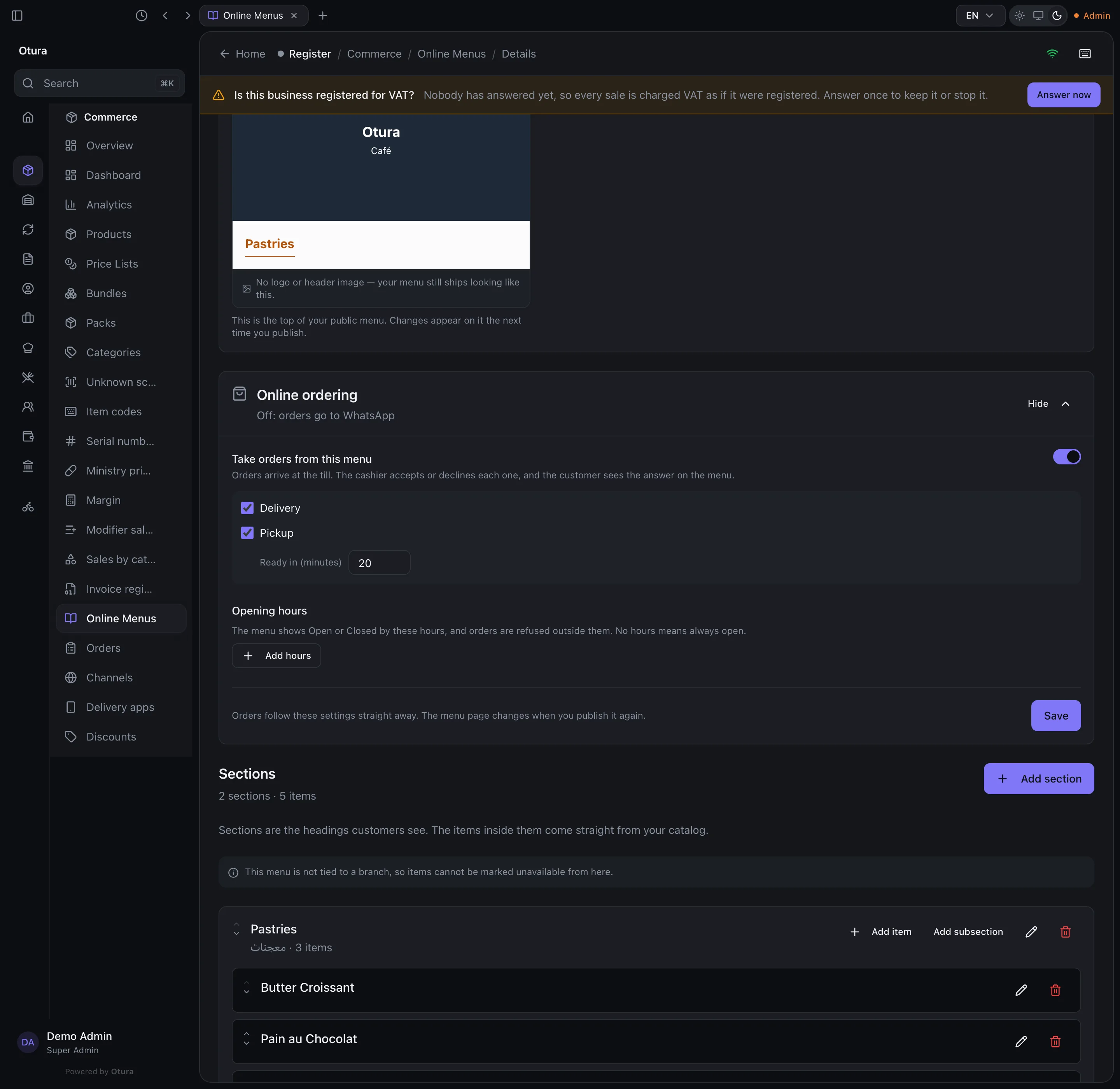
Go to CommerceOnline Menus and open the menu. Under Online ordering, press Edit.Choose how customers get their order
Tick Take orders from this menu, then Delivery, Pickup, or both. For pickup, Ready in (minutes) is the time the menu tells the customer.Set the opening hours
Under Opening hours, press Add hours for each set of days. Outside them the menu shows Closed and refuses orders. With no hours, the menu is always open.Save, then publish
Press Save. Orders follow the settings at once; the menu page itself changes the next time you publish it.
Delivery uses your delivery zones from DeliveryDelivery. With none, the panel says No delivery zones yet, and deliveries are accepted with no area and no fee.
A cashier needs the permission Accept or decline online menu orders to see and answer the orders, and your plan needs online menus.
What the customer does
- They add dishes and choose their options as the till offers them; a required option must be chosen.
- The bar at the foot of the page shows the total in dollars with the lira under it, and the basket shows the same total. The lira is at your current exchange rate and rounded as the till rounds a lira cash payment. On a menu priced in lira, the total is in lira alone; if you have not set an exchange rate, it is in dollars alone.
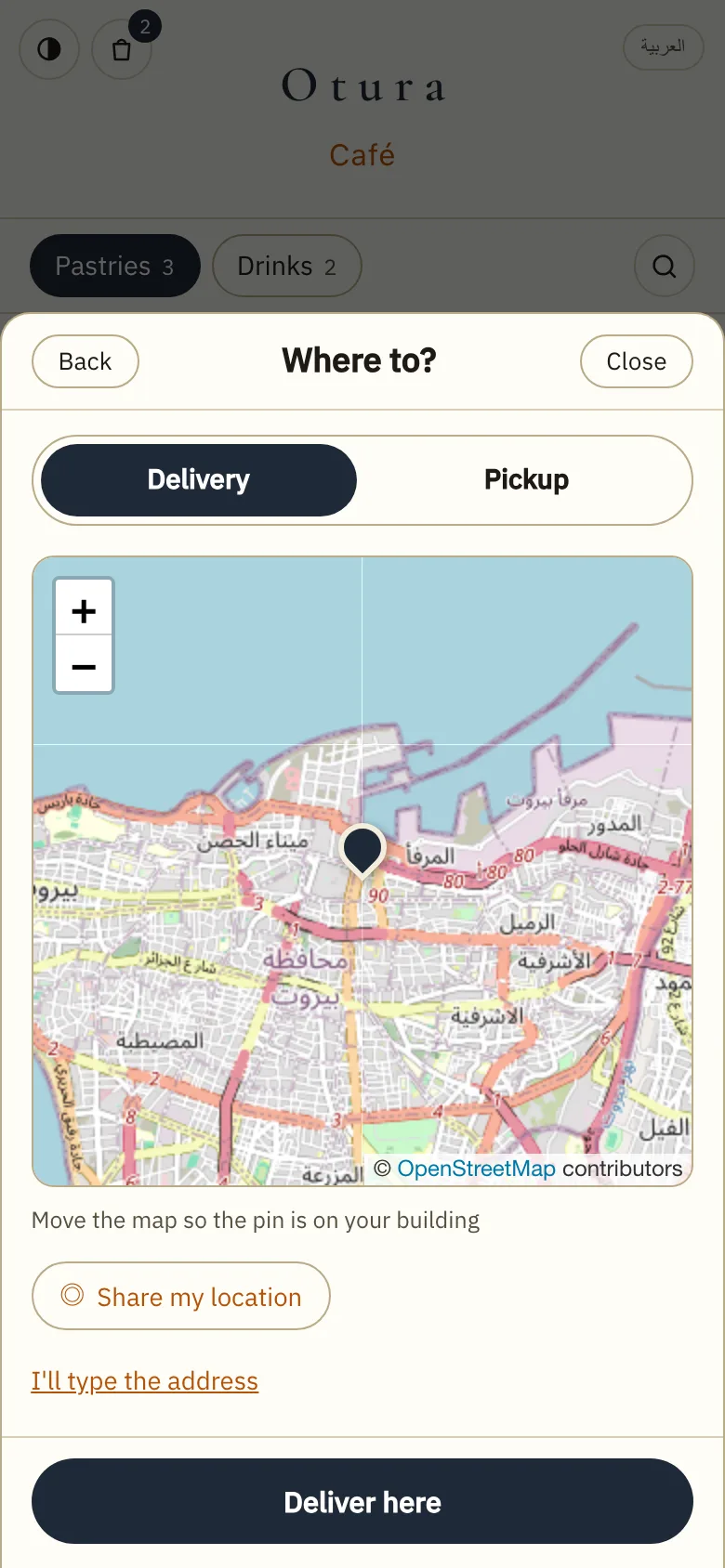
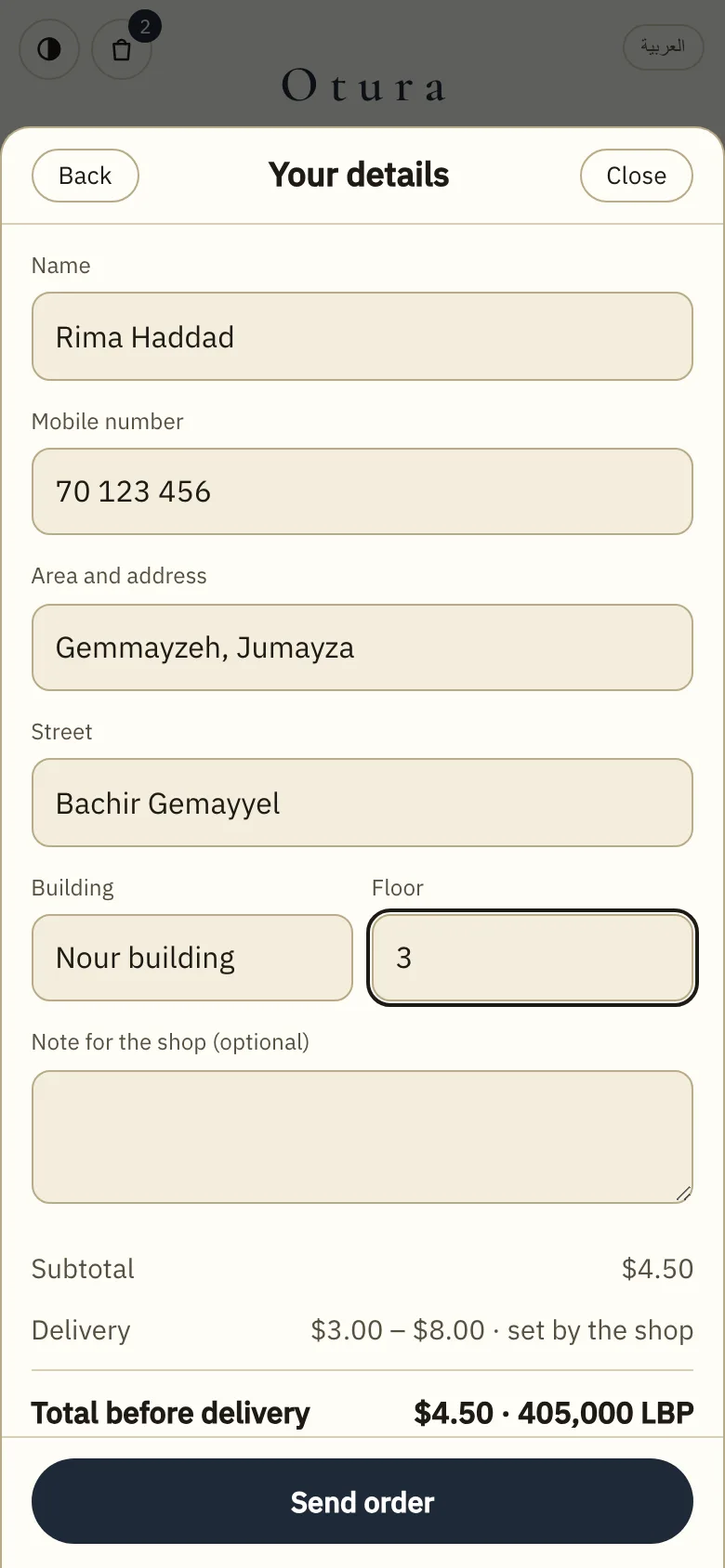
- For a delivery, under Where to? they move the map until the pin is on their building and press Deliver here. The pin fills in the area and street for them to correct, and they add the building and floor. They can instead press Share my location, or I'll type the address. For pickup they give only a name and phone.
- The phone must be a Lebanese mobile number. The menu shows the range of your delivery fees: the fee itself is set by the area the cashier chooses.
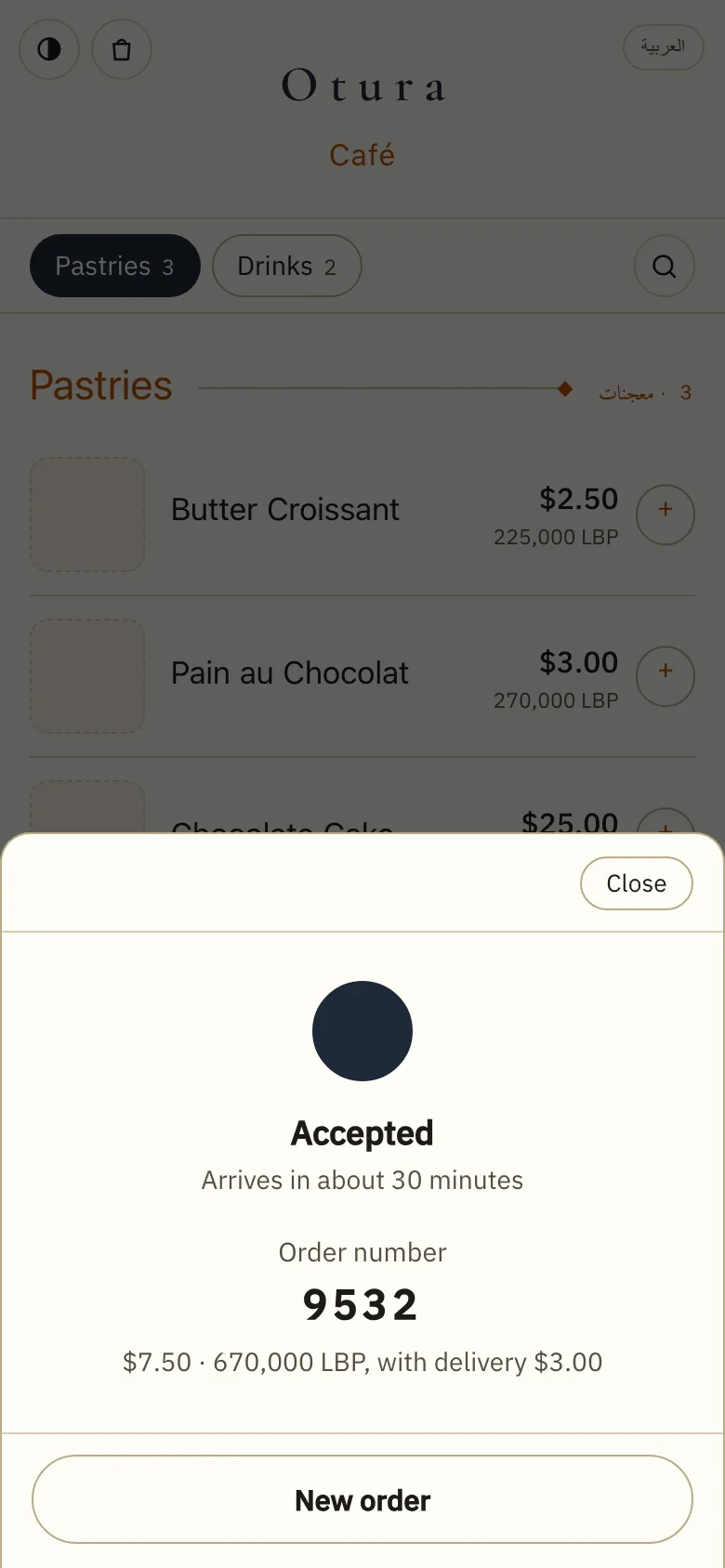
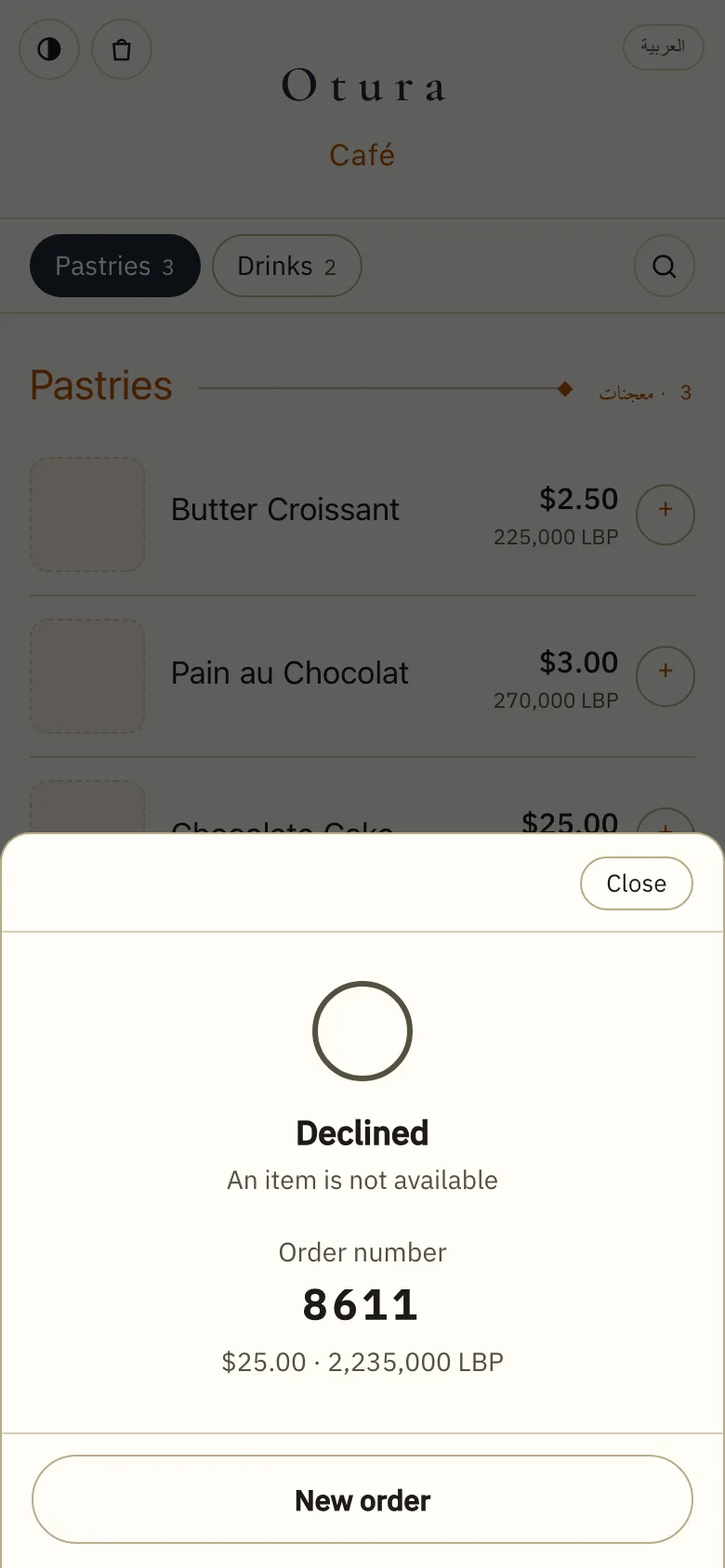
- After sending, the page shows the order number and waits for your answer: accepted with the time it will be ready and the total with the delivery fee, or declined with your reason.
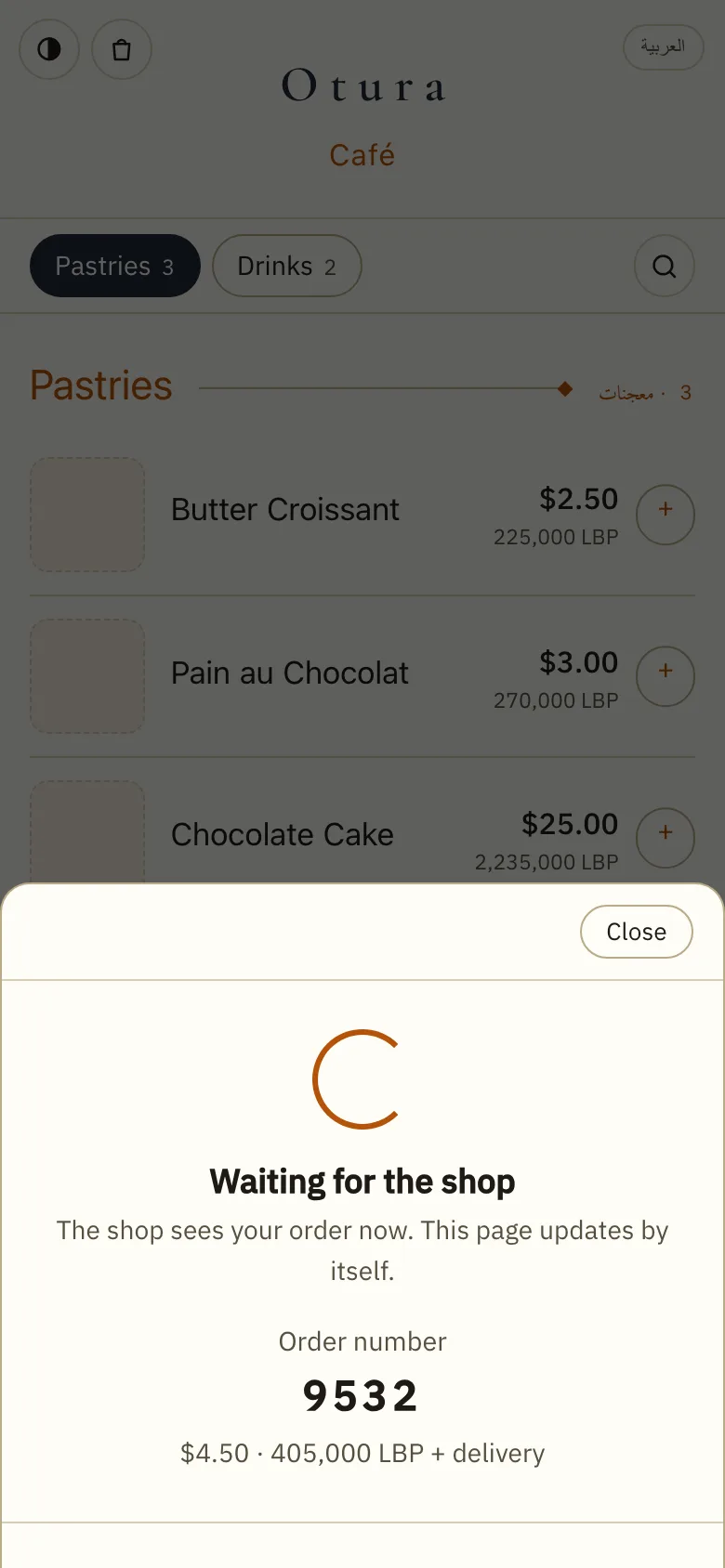
The menu page remembers the order on that phone. A bar at the foot of the page shows its number and answer, in the language of the page, and tapping it shows the answer again. It never covers the language switch at the top.
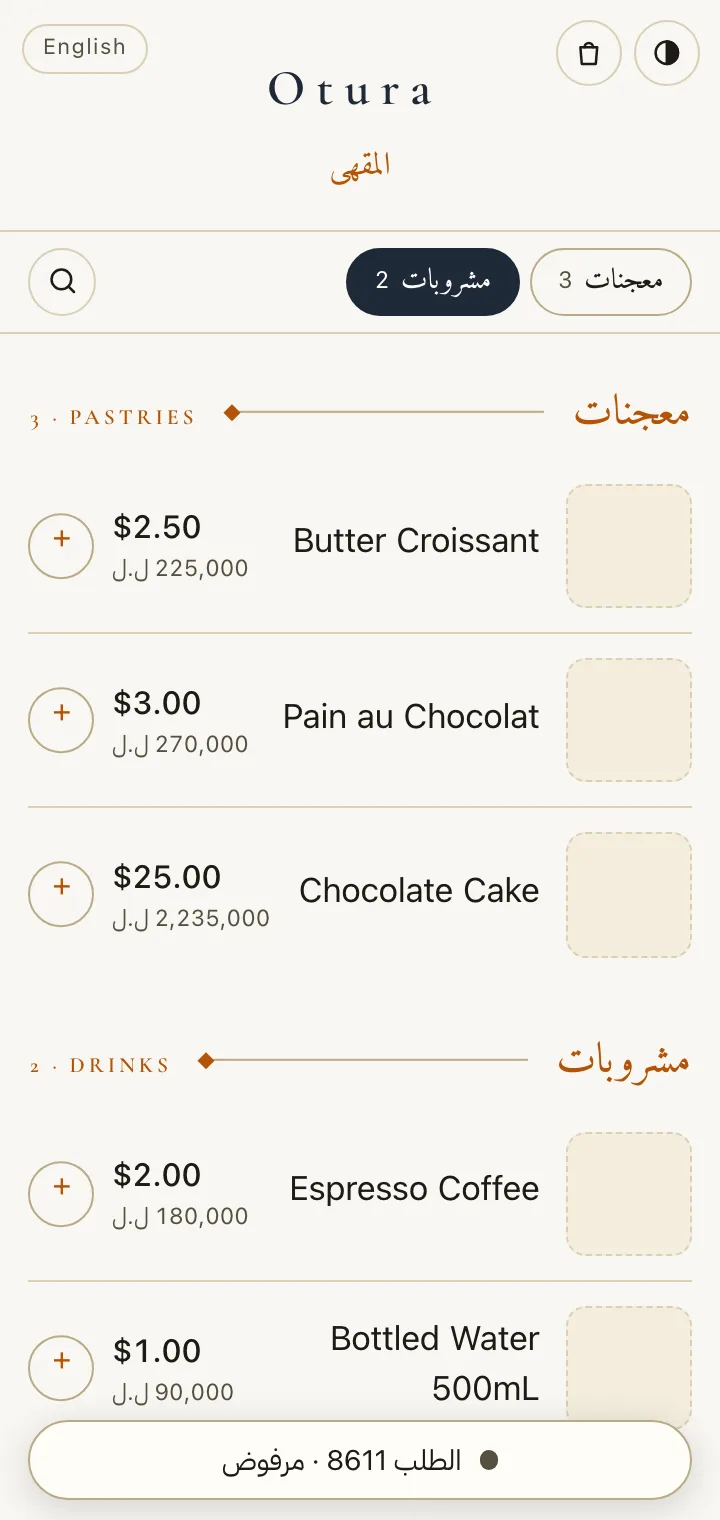
Prices are the ones on the menu the customer saw. Nothing is reserved or taken from stock until the order is paid at the till.
Answering an order at the till
Online Orders is in the till's menu, under Held Orders, with the number of orders waiting beside it. The bell at the top of the till counts them too: press it and choose Online orders. When a new order arrives the till chimes and shows New online order, whichever screen it is on; its Online orders button opens the page.
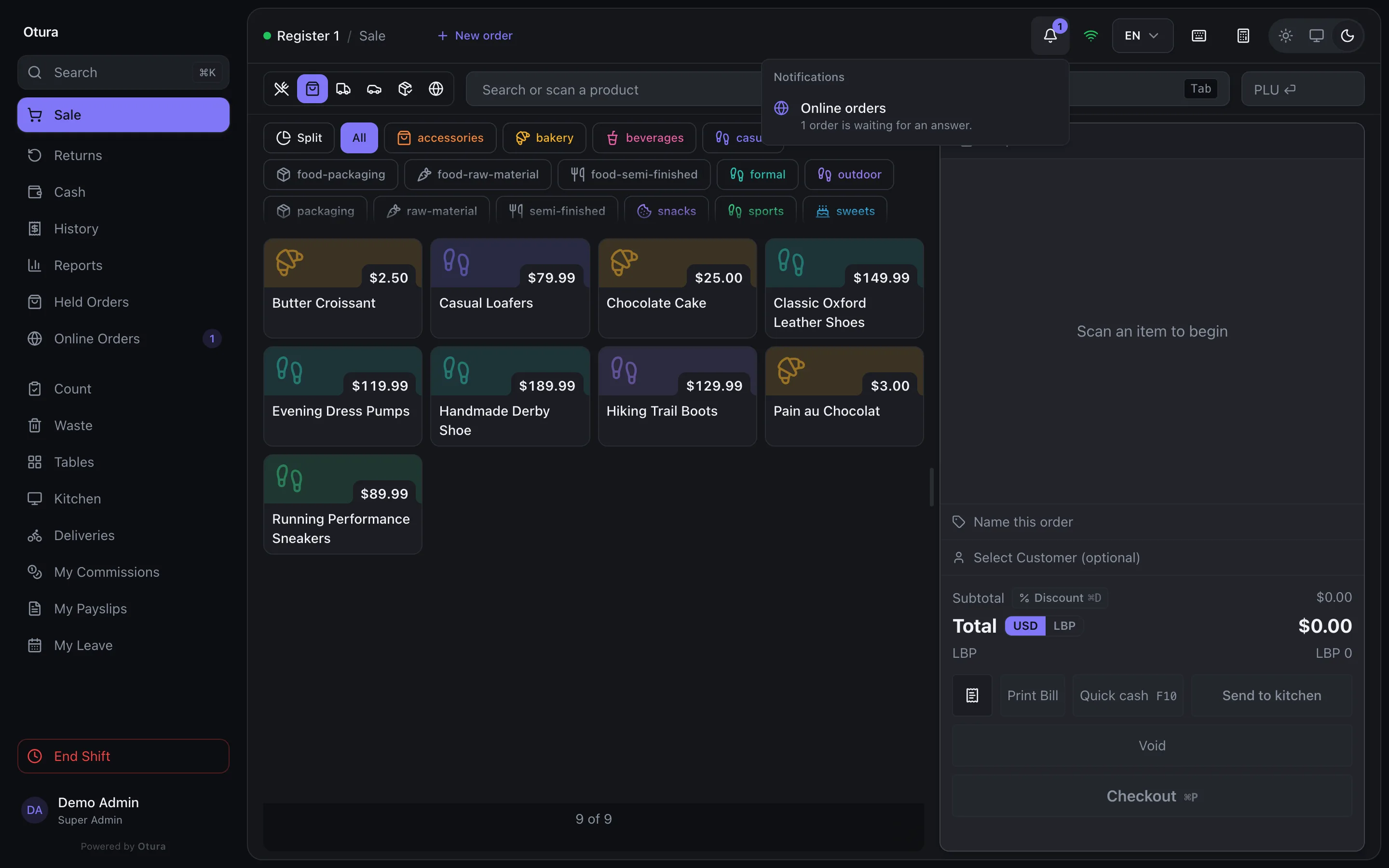
Open the list
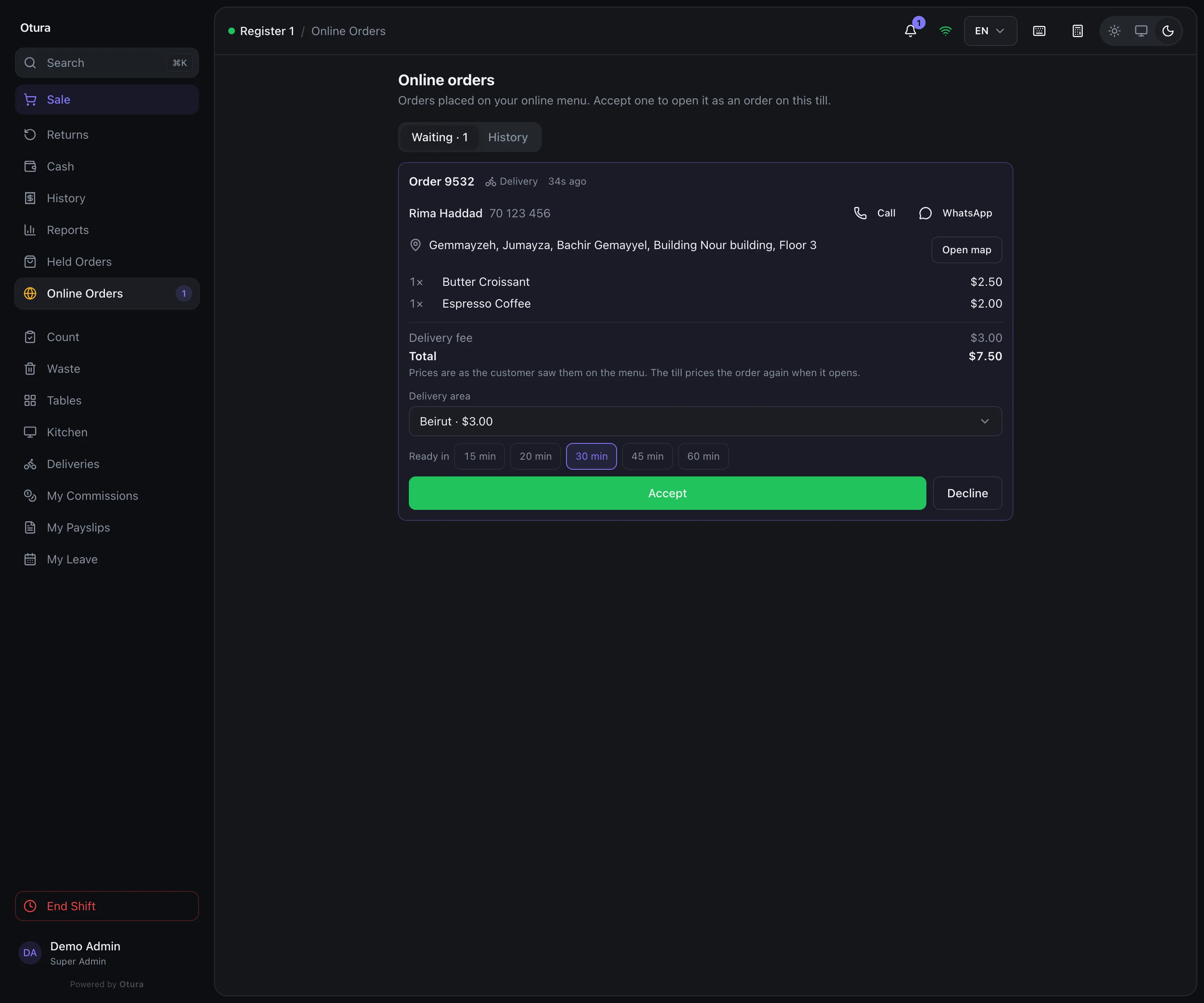
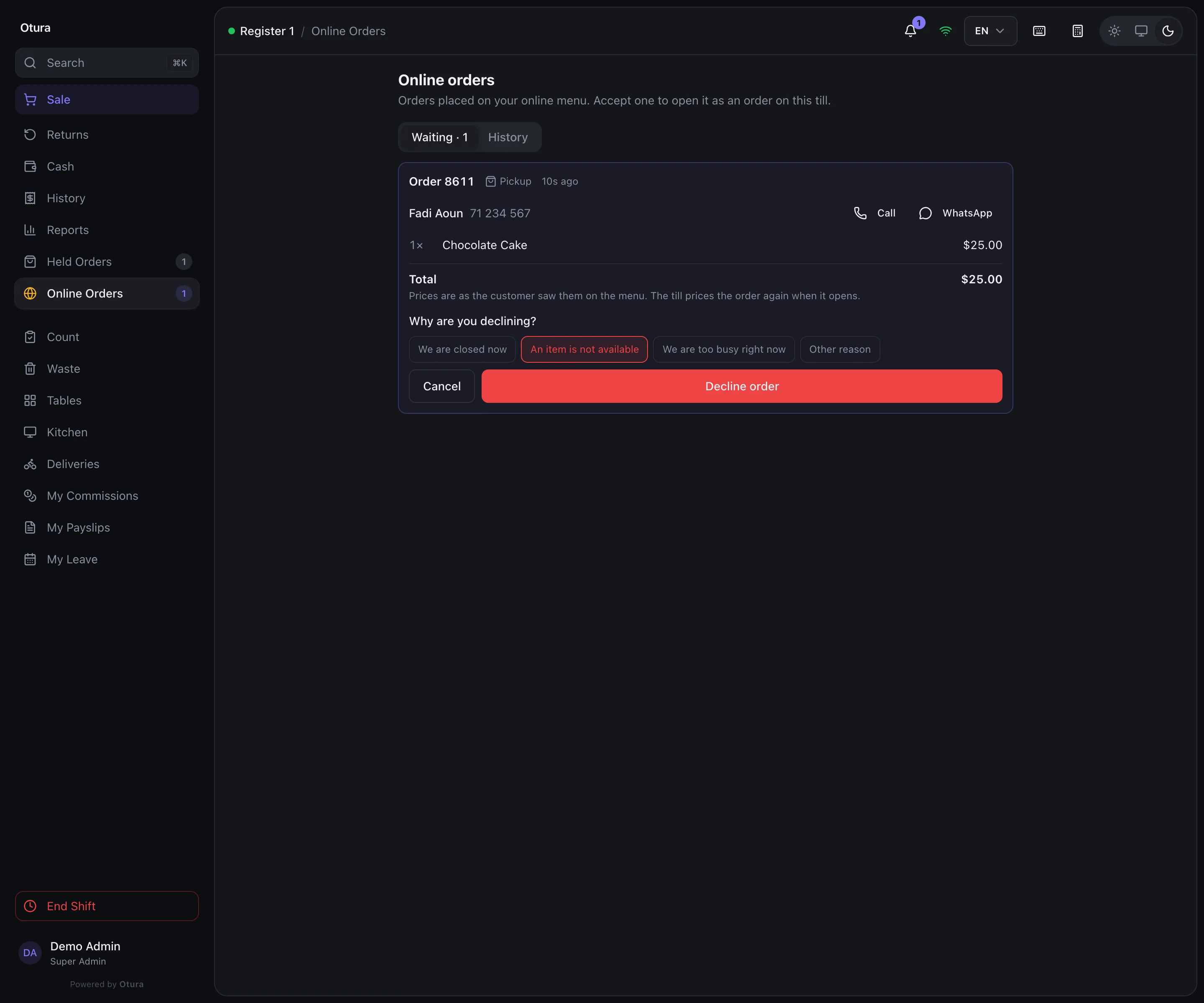
Open Online Orders. The Waitingtab shows each order with its number, the customer's name and phone (with Call and WhatsApp), the address and Open map for a delivery, the dishes, and the total.Choose the delivery area
For a delivery, choose the area under Delivery area. The till starts at the area the customer's pin suggested, if any. Each area shows its fee for this order. If the order is under an area's minimum, the till says so; you can still accept it. When you have delivery zones, a delivery cannot be accepted without an area.Accept or decline
Under Ready in, choose the minutes, then press Accept. It starts at what the menu promised for a pickup and at the area's estimate for a delivery, or 30 where there is none. The till goes to the sale screen with the order open, as an order set aside, with the customer and, for a delivery, the address and the area's fee, ready to take payment. To refuse it, press Decline and choose a reason, or Other reason to type one. A pickup is never declined as Outside our delivery area.Tell the customer, if you like
The menu page shows them the answer by itself. Message customer on WhatsApp sends the same answer as a message, in the language they ordered in.
The till prices the order again when it opens it. If its total differs from what the customer was quoted, for example because a price changed since the menu was published, it warns The till's price differs from the menu with both amounts.
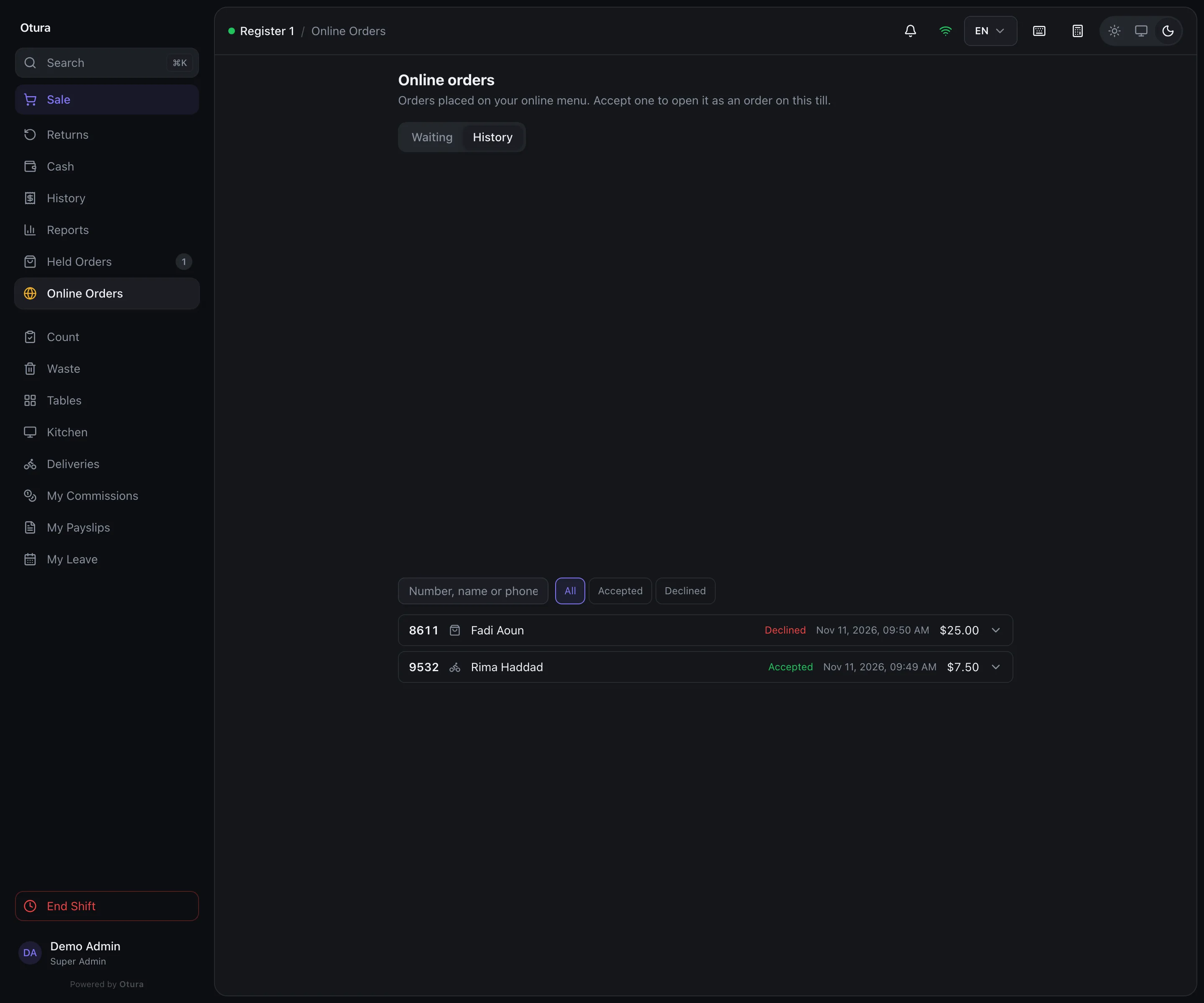
Answered orders are under History: search by order number, name or phone, and show all, accepted or declined ones.
Accepting a delivery saves its address on the customer only if they have no address yet. A customer who already has addresses keeps them as they are: anyone can type a phone number on the menu.