Moving stock between locations
Send stock from a warehouse to a shop, or between branches: create a transfer, dispatch it, receive it. A branch can also ask for stock with a transfer request.
Checked against the product on 16 October 2026
A transfer moves stock from one location to another in two steps: it leaves the source when it is dispatched, and arrives at the destination when it is received. In between it is In Transit, on neither shelf. The goods keep the cost they were bought at, so the stock's value moves with them.
Who does what
| Step | Who, with the shipped roles |
|---|---|
| Create a transfer | Supervisor and Admin |
| Dispatch (stock leaves the source) | Admin |
| Receive (stock arrives) | Supervisor and Admin |
| Cancel a transfer that has not been dispatched | Admin |
| Ask for stock with a transfer request | Supervisor and Admin |
| Approve or reject a transfer request | Admin |
Sending stock
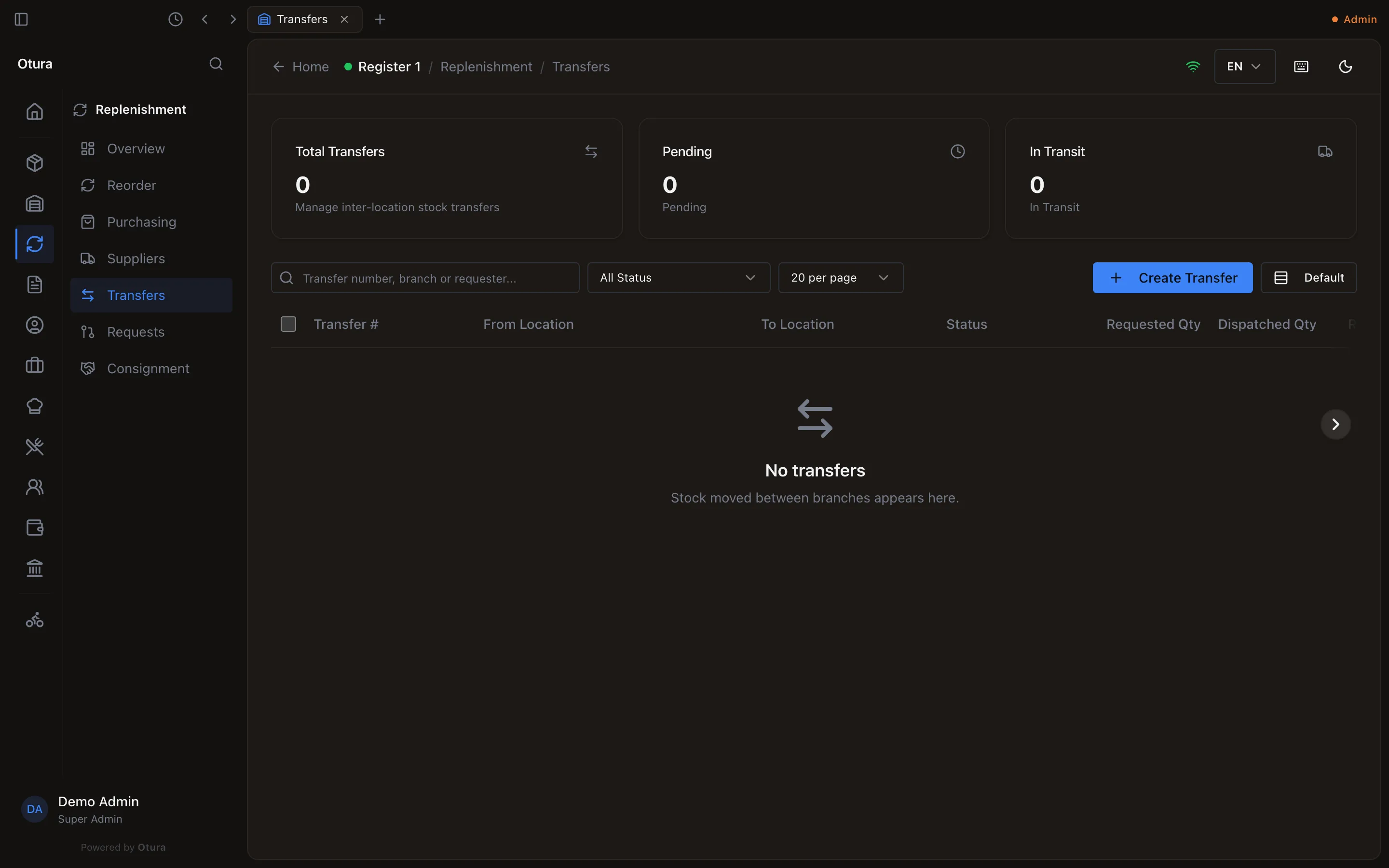
Create the transfer
Go to ReplenishmentTransfers and choose Create Transfer. Choose the From Location and the To Location, then each item and its Quantity. The item list offers only what the From location holds; search it by product name or SKU. Under each line Otura shows how much the From location can send: what it holds, less what is reserved for orders.
Create Transfer refuses a line above that figure, with “Only N available to send from this location”. The transfer is saved as a Draft.
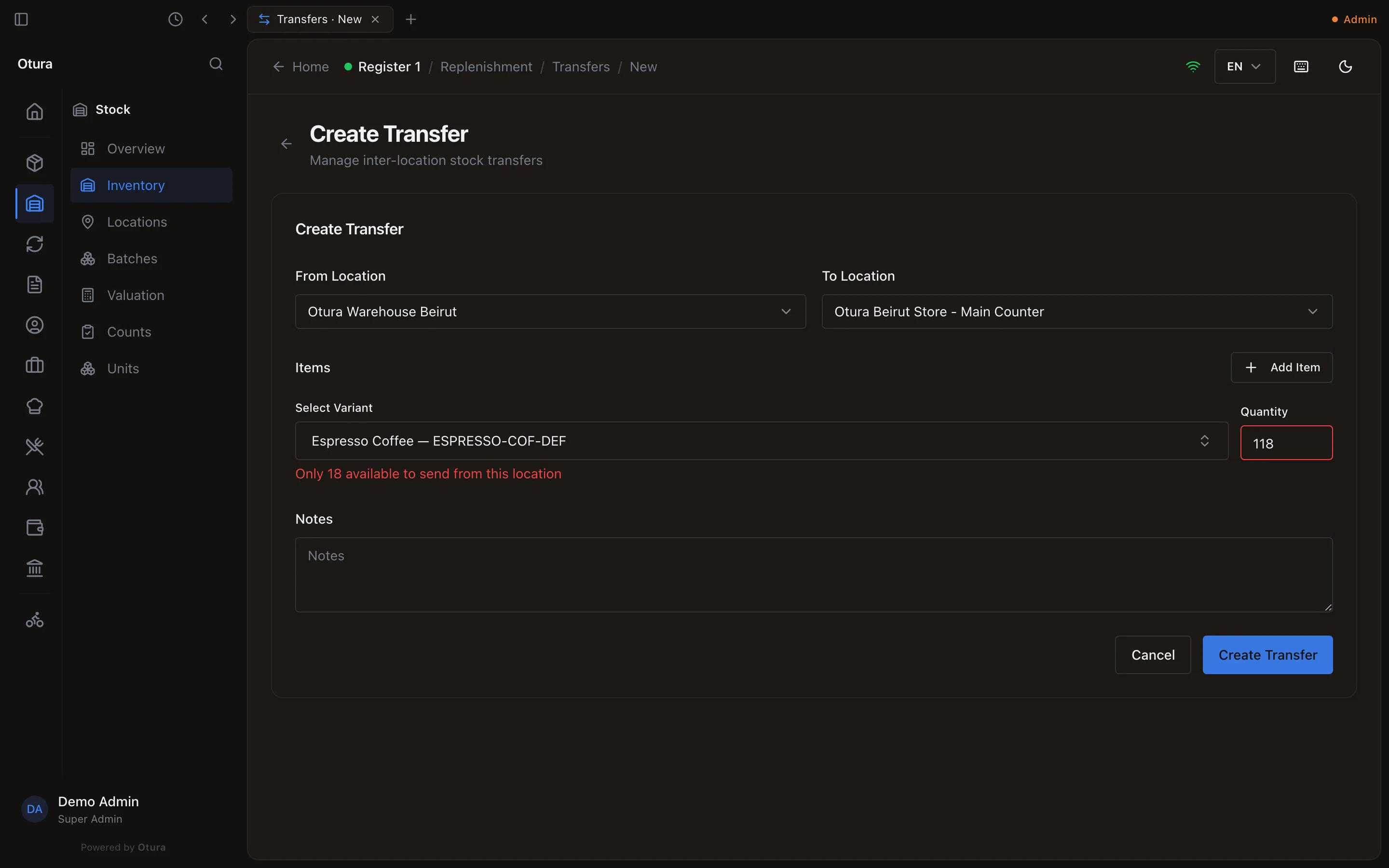
Asking for more than the source can send. Dispatch it
Open the transfer and choose Dispatch. The stock comes off the From location, earliest expiry first, then oldest lot, and the transfer is In Transit. If the stock has gone in the meantime, Dispatch is refused with the figures, for example “Insufficient stock for Espresso Coffee. Requested: 1000, Available: 18”.
Receive it
When the goods arrive, open the transfer at the destination. Received Qty starts at what was dispatched; change it if fewer arrived, and say why under Variance Notes. Choose Receive. The stock lands on the To location with the lots and costs it left with.
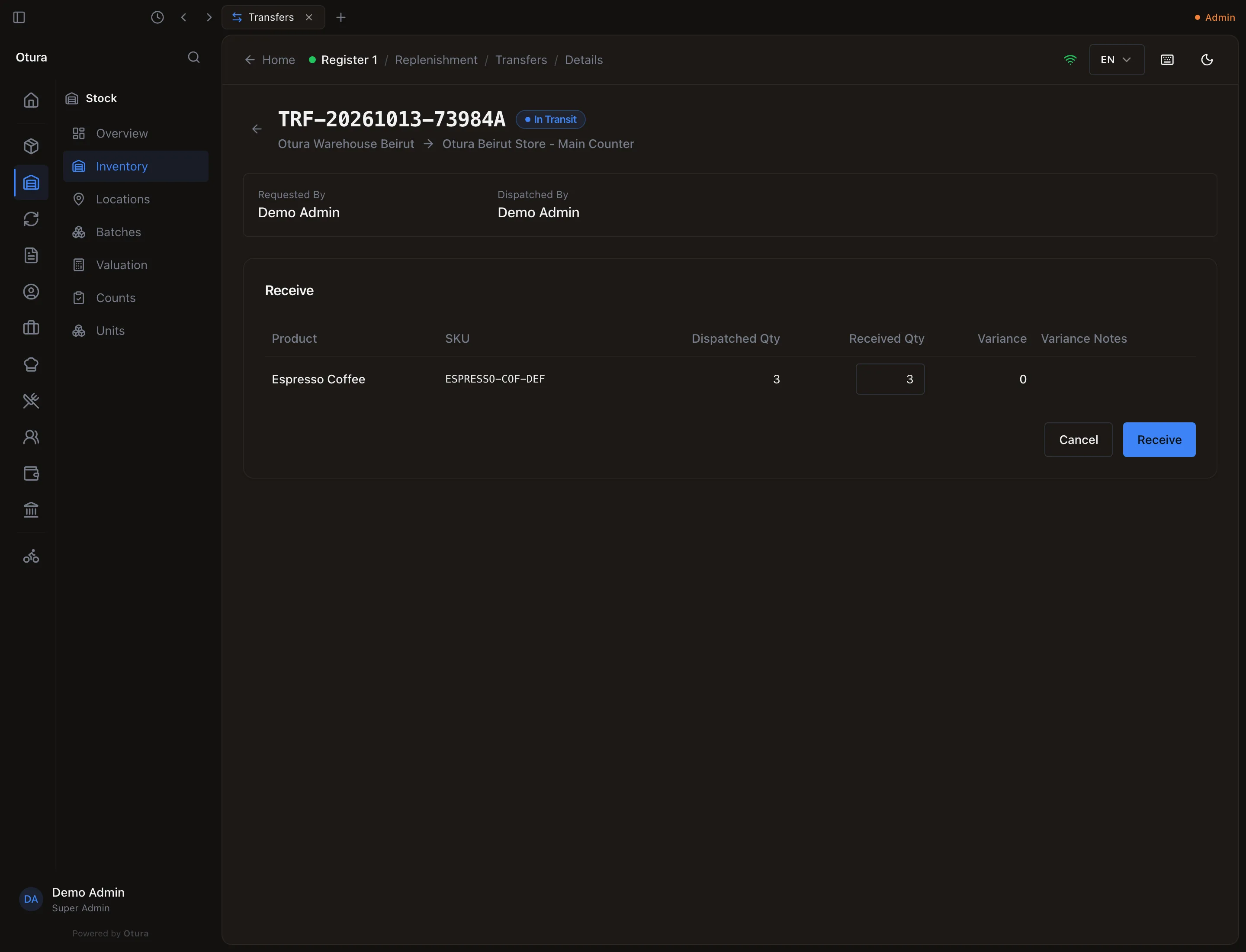
Receiving an in-transit transfer.
When less arrives
If you receive fewer than were dispatched, the transfer reads Received (Variance), the destination gets what arrived, and the missing units are written off at the cost they left with. They do not go back to the source. Example: 3 dispatched, 2 received — the warehouse is down 3, the shop up 2.
Cancelling
A transfer can be cancelled with Cancel Transfer until it is dispatched; nothing has moved yet. Once it is in transit it can only be received; record what arrived (0 if nothing did).
Asking for stock: transfer requests
A branch that is running short can ask another location for stock under ReplenishmentRequests with Create Request. Choose the Source Location, add items from what it holds (each shows what is available to send: on hand less reserved), and the quantities. An item with nothing free cannot be added, and a quantity above what is available is refused. The list shows 50 items at a time; when the source holds more, a line under it says so (“Showing 50 of 230. Type to search them all.”), and a search by product name or SKU reaches every item there.
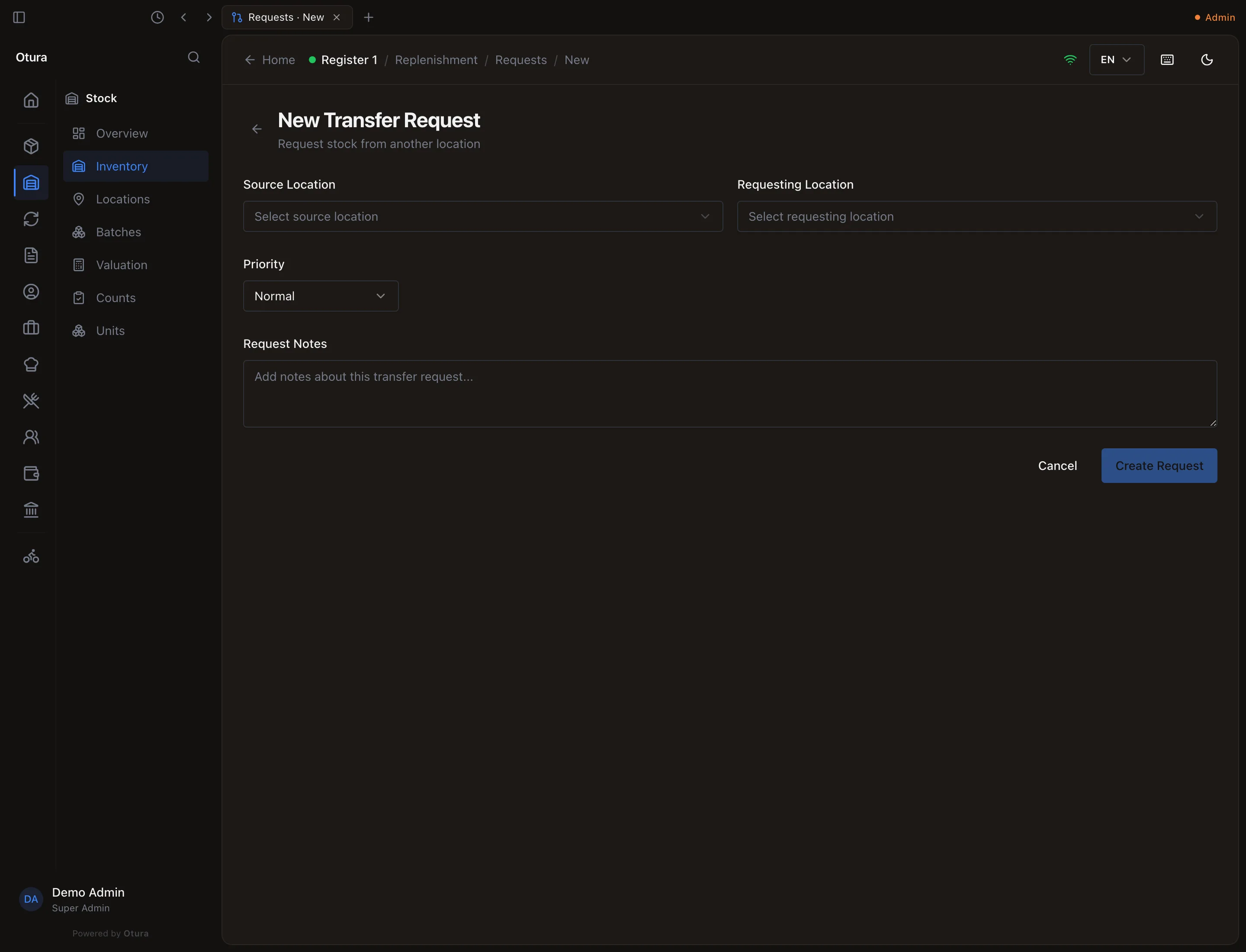
An admin reviews the request and approves it line by line (0 refuses a line; every line needs a figure) or rejects it with a reason. Approving creates the transfer, which is then dispatched and received as above.