Closing a shift and the Closing Session report
Counting the drawer at the end of a shift, the Closing Session report the till shows when the shift closes, what each part of it means, and printing it again later from the back office.
Checked against the product on 25 October 2026
What the close does to the drawer, the safe and the books, and what comes after it in the day, are in How money moves and Your money routine.
Closing a shift
End the shift
Press End Shift, at the bottom of the till's menu or on the Cash screen. It is there only for someone whose role has Close shifts (Close another cashier's shift on its own is not enough). Without it, the shift stays open when they sign out (the till says a manager closes it), and a manager signs in on that till with their own PIN and ends it.
Count your drawer
Count Your Drawer asks for the dollars in the drawer: type the total under Enter Total, or press Count Bills and count note by note. An empty drawer is a valid count — type 0. Press Next.
Where the till takes lira as well as dollars, the lira drawer is counted too. In a shop that counts Each currency on its own (the default), the step also asks for Total lira in drawer (LBP), or, with Count Bills, the Lira notes. Both counts are blind: the till shows what the drawer should hold only after Next, and Next waits until the lira is counted too (type 0 for an empty lira drawer). In a shop that counts One figure, lira converted to dollars, there is one field instead, Total cash in drawer, lira at today's rate (USD). The choice is Counting the drawer in SettingsPayment methods; a till with its own lira box is always counted each currency on its own.
While this till holds sales rung offline that have not reached the server, the close stops here and says how many: they send on their own once the connection is back, and then Next works. The shift also cannot be closed from another device on the register while a till still holds its sales, unless a supervisor enters their PIN (see Sales rung while offline). An order still on this till's screen that was edited offline is said too: it is not carried over with the held orders, so finish or clear it first.
Check the summary and confirm
Shift Summary shows how the shift's sales were paid, under Payment Breakdown, down to their Net Sales, and what the drawer should hold against what you counted. If orders are still held, it says so; they stay held for the next shift on this register and nothing is cancelled. With a lira count, it shows the lira drawer too: Expected lira, Counted lira and Lira difference. If your count is off, you can write What happened? (optional). If your business has set an approval limit and the difference is over it (the dollar and lira differences added together, the lira at today's rate), the till asks for a reason and a Supervisor PIN before it closes. Press Confirm Close.
Read, print, then Done
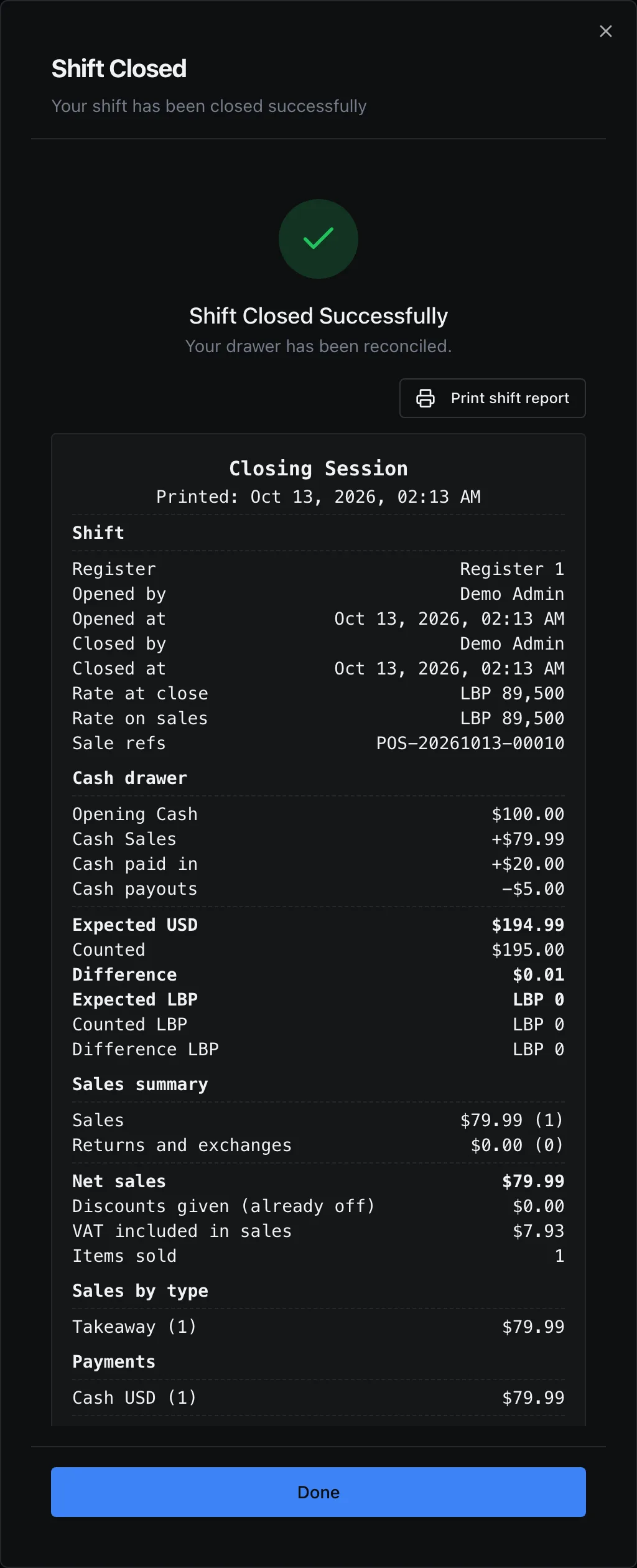
The till shows Shift Closed Successfully and, under it, the shift's Closing Session report. It stays on screen until you press Done (Esc does the same — the shift is already closed). Press Print shift report to print it first.
Cash put into the drawer during the shift: Pay In
When cash goes from the safe into the drawer during a shift, for example change for the float, record it on the till's Cash screen. Press Record Pay In on the Pay In card. In Cash Pay In, where the till takes lira, choose the Currency first. Type the Amount (USD) (or Amount (LBP)) and, if you like, Where it came from (optional), then press Record Pay In. The till says Pay in recorded. and opens the cash drawer. Cash drops, payouts and pay ins are all explained in The cash drawer during a shift.
- The shift counts it. Expected cash goes up by the amount, and the Shift Summary and the Closing Session report show it as Cash paid in.
- In your books, the money moves out of the safe (the branch's vault for that currency) and into this till's cash box.
- It needs the same permission as a cash drop, Record cash drops. In the standard roles, Cashier, Supervisor, Admin and Super Admin have it. Without it, the button is greyed out and the card says which permission is missing.
- A pay in can be recorded only while the shift is open.
- A pay in larger than the safe holds in the books is refused, and the message says what the safe holds. Someone with Post to the books is offered Record anyway.
Opening the drawer without a sale: No Sale
To open the drawer when nothing is being sold, press Open Drawer on the No Sale card of the Cash screen, or press Ctrl+Shift+O anywhere on the till. Either way the till records a no-sale on the shift and then opens the drawer. The button reads Drawer Opened for a moment and the card says No-sale event recorded.; the key says Drawer opened: recorded as a no-sale. Nothing is added to or taken from the expected cash. The report counts them, as Drawer opened without a sale.
A driver's cash does not need it. Receiving a driver's cash on Deliveries › Cash with drivers opens the drawer by itself, and it is not counted as a no-sale (see Deliveries and drivers).
It needs the same permission as a cash drop, Record cash drops, and an open shift. The drawer itself opens only in the Otura desktop app, through the till's receipt printer.
Cash drops, pay ins, payouts and no-sales while offline
On the desktop till, all four work while the connection is down. The drawer opens and the movement is kept on the till, then sent when the connection returns, and booked once however many times it is sent. They are listed in SettingsSync as Drop, Pay in, Payout or No Sale. Offline, the till records movements only for its own drawer and only for someone with the right to make them. A shift cannot be closed while a movement is still waiting to be sent: the close says that sales or cash movements are still on the till. If the shift was closed from another device meanwhile, the movement waits under Needs attention and a supervisor can carry it into that shift; the counted drawer does not change, and the difference is settled in the books. A movement in lira is valued at the exchange rate when it is sent.
A shift closes once. If it is closed from two places at the same moment (the till and the back office), the second close is refused and the first count stands.
What the report says
The report is built from what the till recorded during the shift. A part with nothing in it — no refunds, no deliveries, no commissions — is left off. Amounts are in dollars unless the line says lira.
| Part | What it tells you |
|---|---|
| Shift | The register; who opened and closed it, and when; the Rate at close (the exchange rate in force when the shift closed) and the Rate on sales (the lowest and highest rate the shift’s sales were rung at); the first and last sale and refund numbers. |
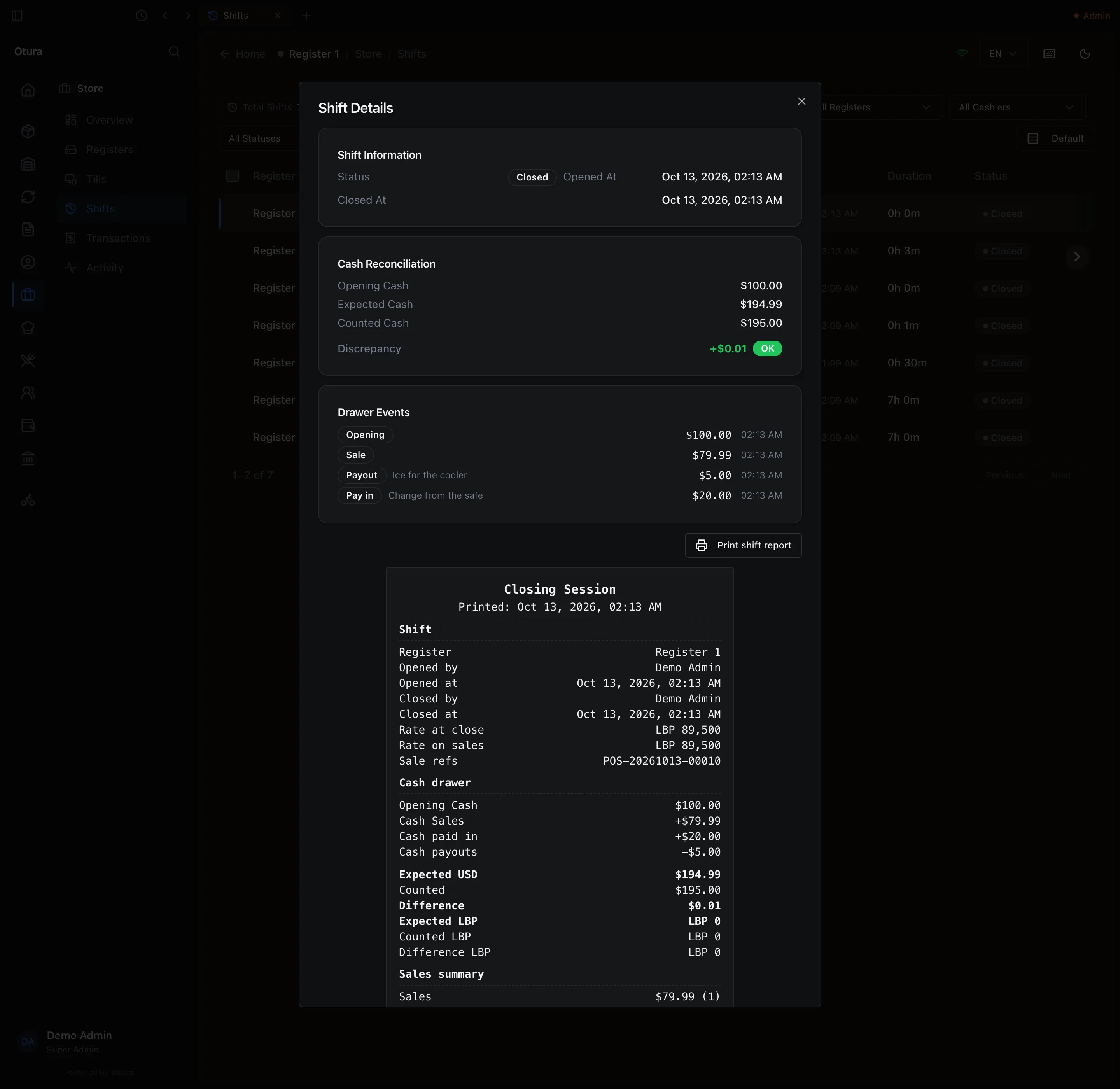
| Cash drawer | The dollars, in the same lines as the Shift Summary: Opening Cash, + Cash Sales, + Cash paid in, + COD (Collected), + Driver hand-ins, − Delivery fees kept by drivers, + Hand-ins of voided sales, − Cash Refunds, − Cash drops, − Cash payouts, which add up to Expected USD. Where the business counts the lira as one figure in dollars (Settings › Payment methods › Counting the drawer: One figure, lira converted to dollars), the lira is one more line, + Lira, converted to dollars, at the close's rate, and is inside Expected USD. A line that is zero is left out. COD (Collected) is cash on delivery counted in when the order was marked delivered; Driver hand-ins is the cash drivers handed in at this till, for any shift’s deliveries, and Delivery fees kept by drivers the fees they kept of it. Hand-ins of voided sales is cash handed in here for a sale voided afterwards; the void paid it back out, under Cash Refunds of the shift open at the time. A till on an older version shows those three as one COD (Collected) line, with “of which drivers’ hand-ins” under it, not added again. Counted is your count, and Difference is the count minus Expected USD: a minus means short. Then the lira drawer, in lira: Opening LBP (the lira float, when there was one), Expected LBP (what the lira drawer should hold), and, once the lira was counted at the close, Counted LBP and Difference LBP. If a reason was written or a supervisor approved the difference, they follow as Reason and Approved by. Drawer opened without a sale counts the times the drawer was opened with No Sale. |
| Sales summary | Sales (with how many) is what customers were charged, after discounts and with VAT, excise, cash rounding and delivery fees included. Returns and exchanges (with how many) is the sales taken back — both returns, where money goes back, and exchanges, where the customer takes other goods instead. Net sales is Sales less Returns and exchanges — the only sum in this part. The lines under it, with no sign, say what those totals contain: Discounts given (already off), VAT included in sales, Excise, Rounding, Delivery fees, VAT included in refunds, and, when there were exchanges, “of which exchanges (no money back)” — how much of Returns and exchanges gave no money back. Then Voided sales (sales voided after payment, not in Sales), Waste (at cost) with how many, when waste was recorded on the shift, and Items sold. |
| Sales by type | Sales per order type — Counter, Takeaway, Delivery and so on — with how many. |
| Payments | Every way the shift’s sales were paid, by method and currency, as kept — after change. A lira payment shows the lira only; the Total is in dollars. Sales left unpaid show as On account / cash on delivery. If part of a sale was paid with an exchange or loyalty credit, Exchange and loyalty credit shows how much. Total is the same figure as Sales. Then Change given, in the currency the change went back in. |
| Refunds by method | The money refunded on the shift’s returns, grouped by how the sale each one reverses was paid — Cash, Card, On account / cash on delivery or Split — in dollars. Exchanges give no money back, so they are not here. |
| On account | Sales put on a customer’s account, by customer, with their Total; and Cash on delivery still to collect — the cash-on-delivery amount on this shift’s sales that is not on a customer’s account and has been neither collected nor cancelled. It is the same figure as COD (Pending Collection) on the Shift Summary and the X report. |
| Discounts by reason | The discounts given on items, grouped by the reason chosen at the till. |
| Employee sales | Only when the shift sold to employees at employee prices: Sales to employees (how many), Paid by employees, and Given at employee prices; then each employee the same way. What the employee prices gave is taken out of Discounts given and Discounts by reason, so it is not counted twice. |
| Cash moved in and out | Each drop and payout, and each pay in: the time, which one (Drop, Payout or Pay in), who, the note, and the amount, signed the way it moved the drawer (a pay in with +, a drop or payout with −). |
| Sales by cashier | Who rang how many sales, and for how much. |
| Top items | The ten items that sold for the most, with the quantity. |
| Delivery | The deliveries from this shift’s sales, by status; and, if your drivers keep the fee, each driver’s cash handed in at this till: what they collected, the Fee kept by driver, and what they Handed in. Under a driver, “handed in for voided sales (given back)” is what they handed in for sales voided since, with how many; those are not in the driver’s other lines. |
| Commissions | Commission per employee on this shift’s sales: what is still earned, on what sales, and what was Reversed. Only for someone with View commissions. |
| Orders carried over | The orders still open when the shift closed, which stay for the next shift on this register: each order, how many items, and its total, then the Total. It is kept with the close, so a reprint lists the same orders. |
| Sales that arrived after close | Sales rung offline in this shift that reached the server after it closed, carried in by a supervisor: each with its number, the reason and who approved it. They are in the sales above but not in the drawer, which already held their cash when it was counted, so they explain an overage. |
| Closing additional info | The Bill count (one bill per sale), Bills printed, not paid (bills printed on this till during the shift whose order was never paid), and the Loyalty points earned on the shift’s sales. |
How a driver hands in cash, and what Fee kept by driver means, is in Delivery fees and drivers.
Printing
Print shift report prints what is on screen, line for line.
- In the desktop app, with a Receipt Printer set, it prints on the Report Printer, at its paper width and number of copies, or once on the Receipt Printer if no Report Printer is set. See Printers.
- On a till in a web browser, or in the desktop app with no Receipt Printer set, it opens the browser's print window.
The X and Z reports on the till
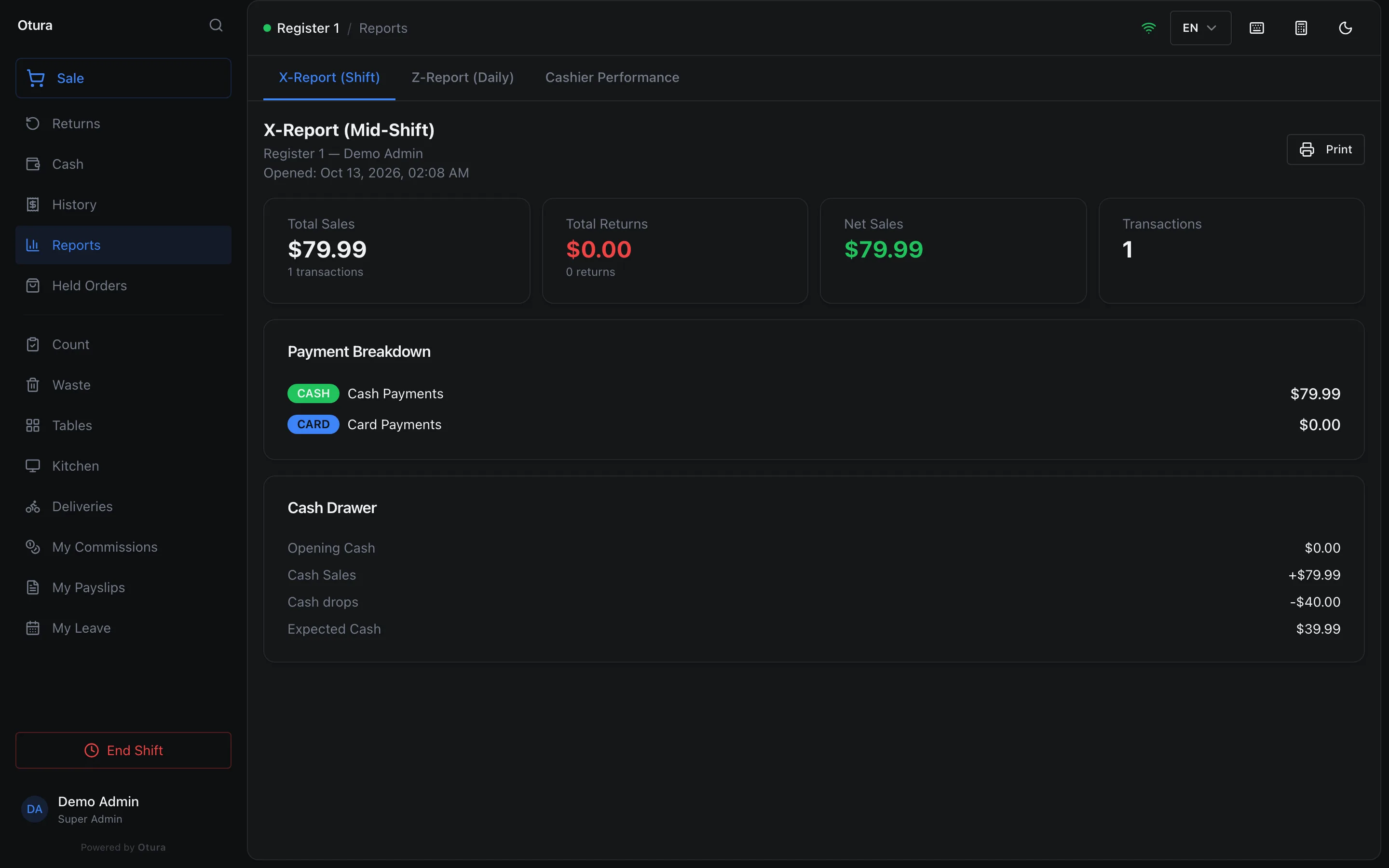
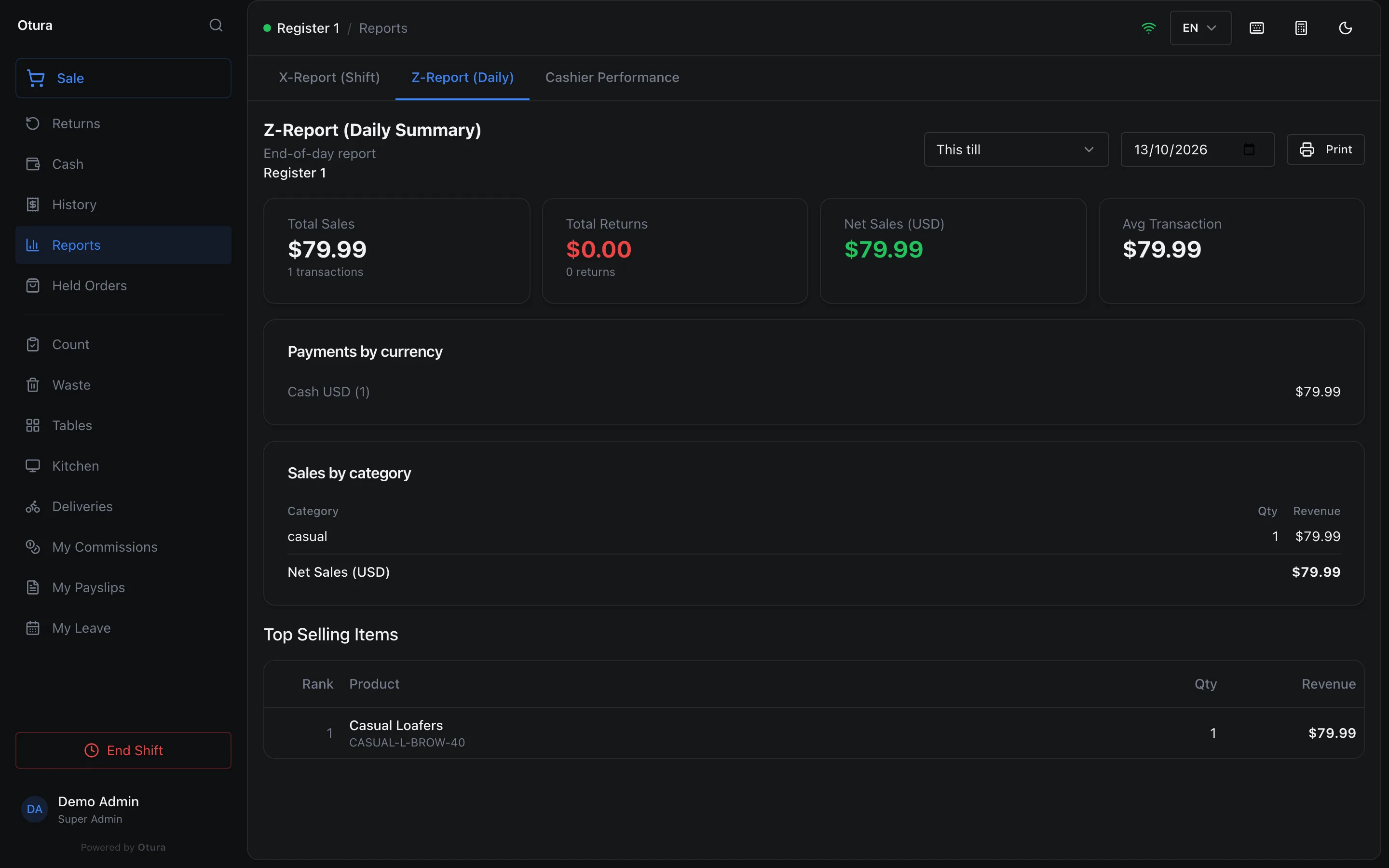
The till's Reports screen has two reports you can read at any time without closing anything. Each has a Print button. Someone with View cashier performance (Supervisor, Admin and Super Admin) also sees a third tab, Cashier Performance.
- X-Report (Shift) shows X-Report (Mid-Shift): the shift open on this register so far. The register, who opened it and when; Total Sales, Total Returns, Net Sales and Transactions; a Payment Breakdown; and the Cash Drawer down to Expected Cash. With no shift open it says No active shift. Open a shift to view X-Report. A cashier can read it for their own shift.
- Z-Report (Daily) shows Z-Report (Daily Summary) for one day. Choose the date, and what it covers: This till (the default on a till), one branch, or Whole business. It shows Total Sales, Total Returns, Net Sales (USD) and Avg Transaction, then Payments by currency, Sales by category and Top Selling Items. It needs View daily summary; in the standard roles, Supervisor, Admin and Super Admin have it.
Reading and reprinting a past shift
In the back office, StoreShifts lists every shift (it needs View all shifts), open and closed, with Total Shifts, Open Shifts and Avg. Discrepancy above the list. Narrow it by register, cashier, status or dates.
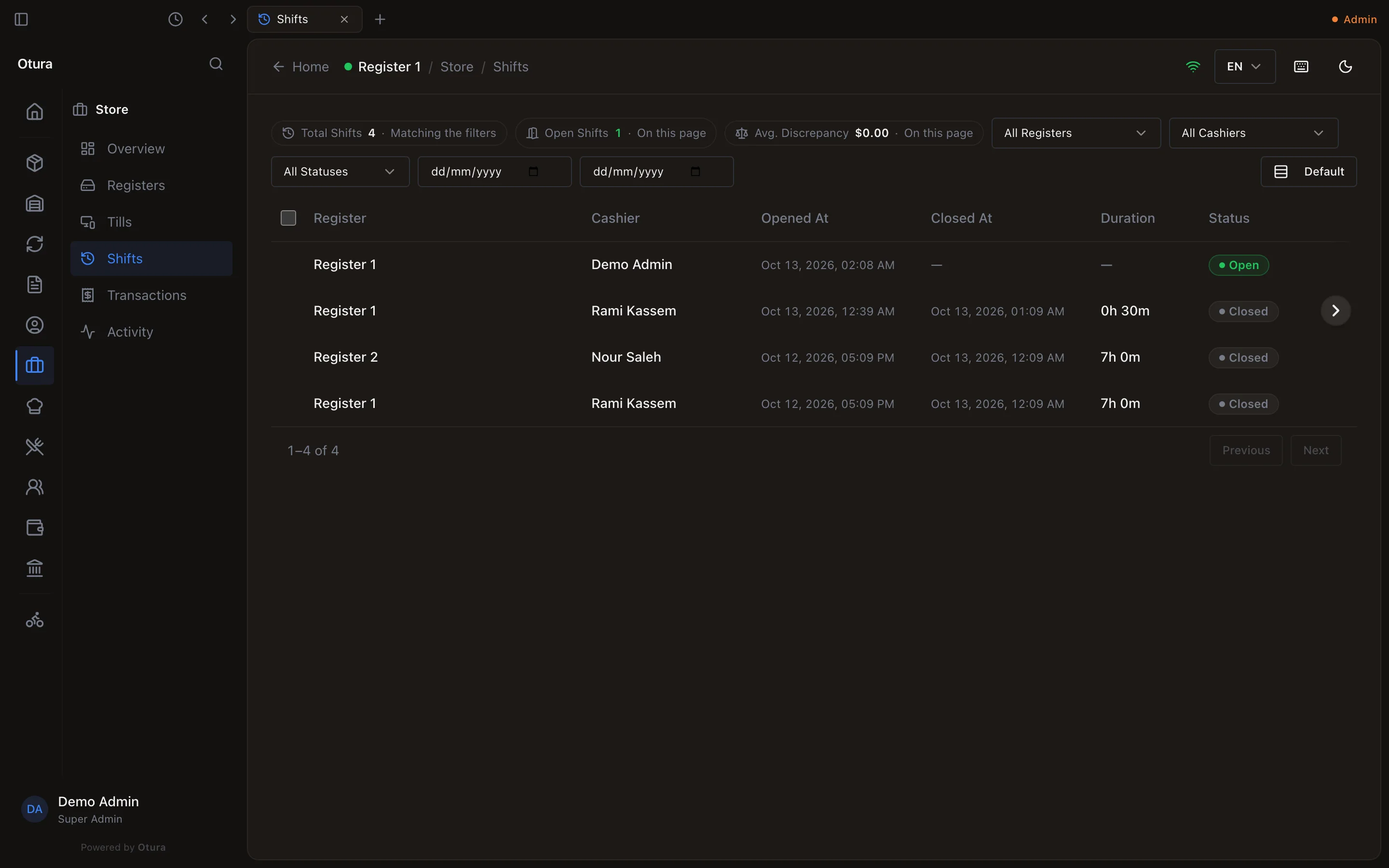
Open a shift with View details, or select it and press Enter. Shift Details shows the drawer count and drawer events, and below them the same Closing Session report with its own Print shift report button.
The report is read again each time, so it shows the shift as it stands now, not a copy of the paper printed at the close. A refund taken later against one of its sales on a till with no shift open, or a commission reversed since, changes it.
A shift that is still open shows its report so far, titled Shift Report (shift still open).
Closing a colleague's shift
Closing a shift that someone else opened needs the permission Close another cashier's shift. In the standard roles, Supervisor, Admin and Super Admin have it, and close it the same way as their own. Anyone else can count the drawer and press Confirm Close; the till then opens Supervisor Override Required: Closing someone else's shift needs a supervisor. Another person, who has Close another cashier's shift, enters their Supervisor PIN and a Reason for Override (at least 3 characters), then presses Approve Override. Nothing about the shift changes until then.
- If you may not see that shift's figures, the summary says This is a colleague's shift, and this till can't show you its figures. If your business has an approval limit, it also shows What happened? (needed if the drawer is off). When the drawer is off by more than the limit, the close is refused until you fill it in.
- The supervisor's one PIN also approves the difference. Otura records it as an approval of the difference, with what happened, as when a cashier closes their own shift.
- An exchange the colleague left pending is not touched. It stays pending for whoever deals with it.
- The report follows the same rule as everything else about a shift: someone with neither View all shifts nor View all transactions is not shown a colleague's report. A supervisor can print it from StoreShifts.