Stock counts and waste
Count what is on the shelf, let a manager approve the differences, and write off what was spoiled or broken, from the back office or at the till.
Checked against the product on 13 October 2026
A count compares what is on the shelf with what Otura thinks is there, and corrects the books by the difference once a manager approves it. Waste takes stock off for something you can no longer sell — dropped, spoiled, past its date — and books its cost as waste.
Who does what
| Step | Who, with the shipped roles |
|---|---|
| Plan a count (Create Count) | Admin |
| Start, record and submit a count | Supervisor and Admin |
| Quick Count at the till | Supervisor and Admin |
| Approve & Apply, or Reject count | Admin |
Counting in the back office
Plan the count
Go to StockCounts and choose Create Count. Pick the Location and the Scope:
- Full: every item the location holds.
- Partial: the items you choose under Items to count.
- Category: one category.
- ABC Analysis: one class. Class A is the items making up 80% of the year's consumption value, B the next 15%, C the rest. Classes are worked out from the last 365 days at that location, at cost.
Assigned To starts as you; change it to whoever will count.
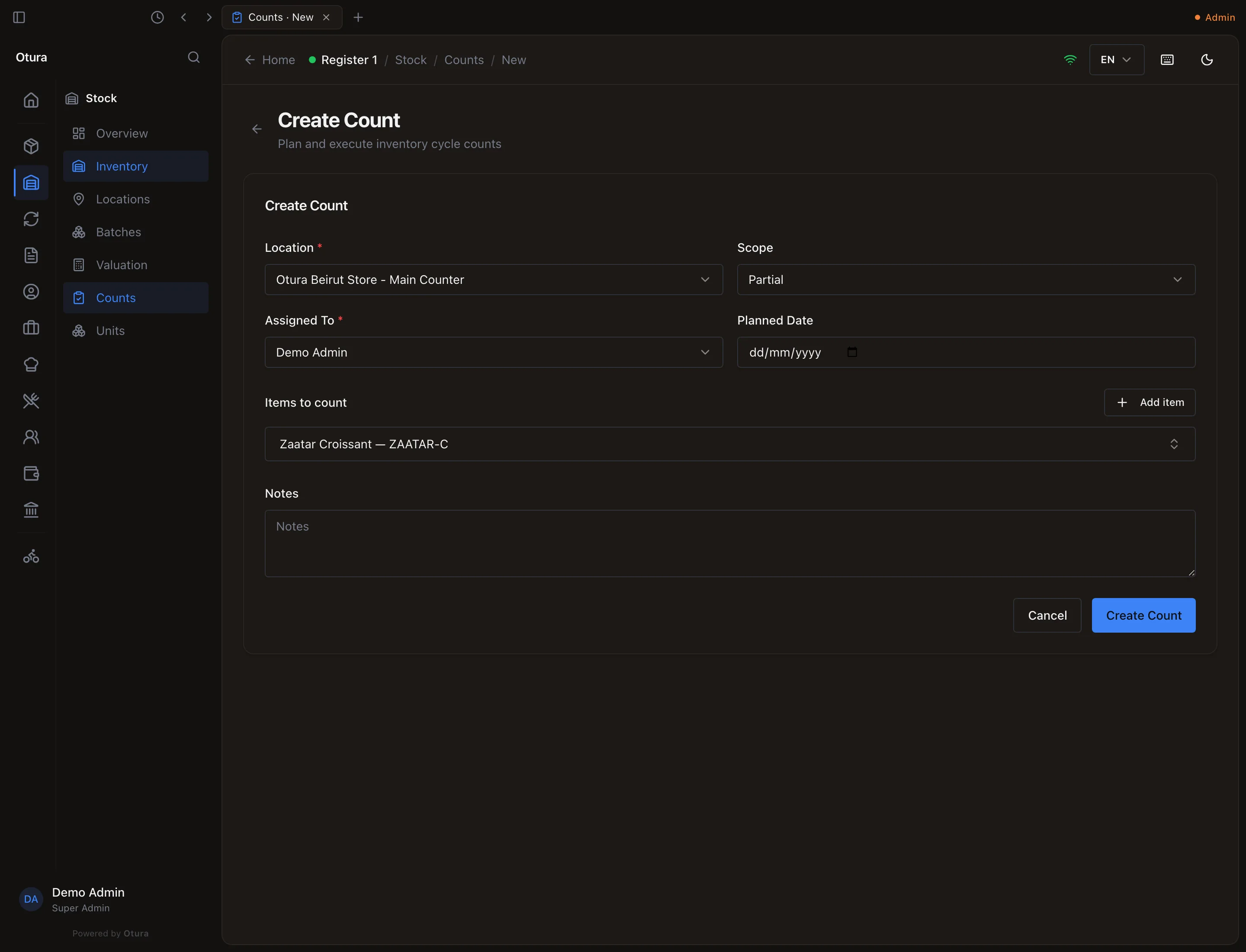
Stock › Counts › Create Count. Count and record
Open the count from the list by its number, choose Start Count, type each item's Counted Qty and choose Record Count. The line shows the System Qty and the Variance.
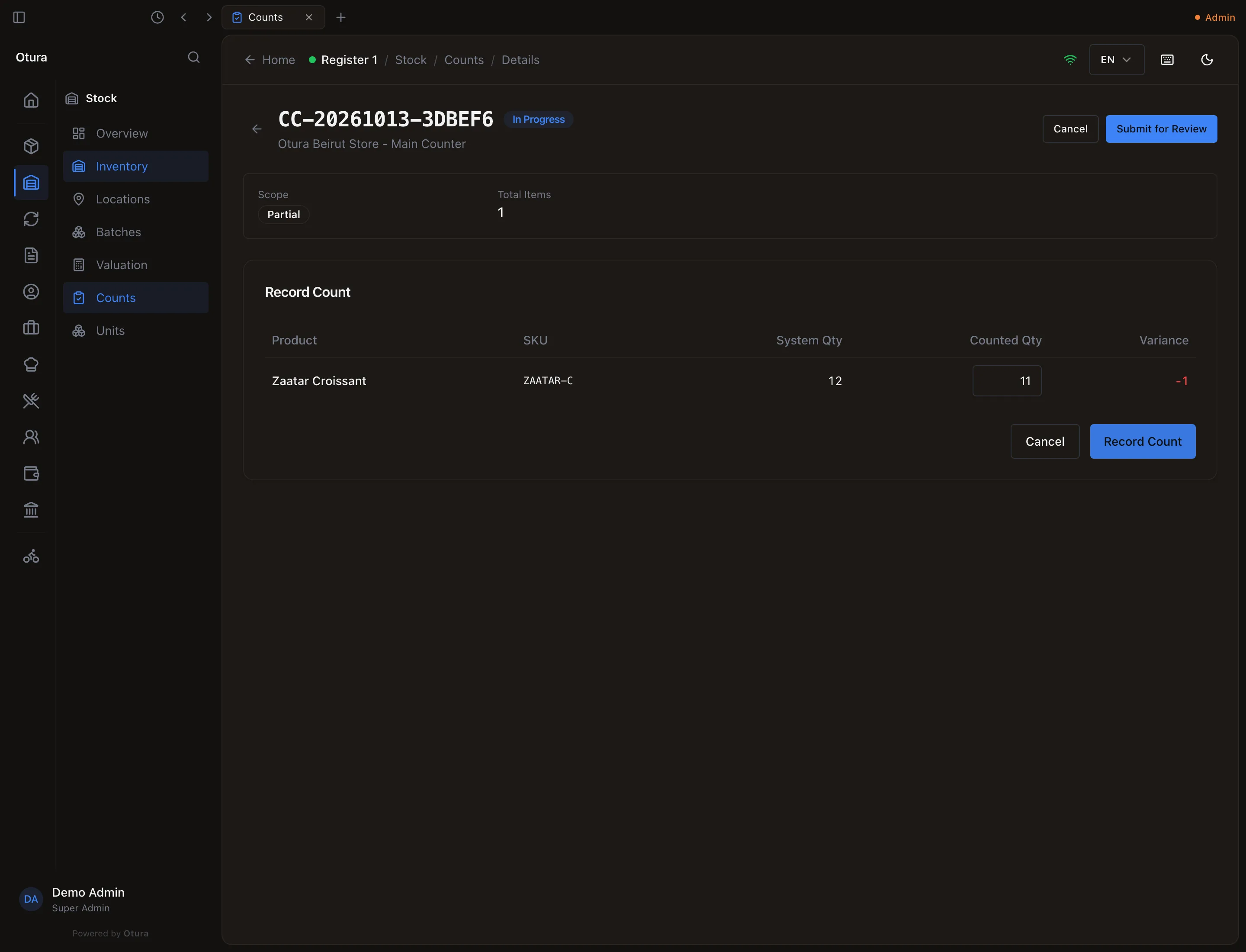
A count in progress, recorded one short. Submit for review
Choose Submit for Review. The count is Pending Review.
Approve
A manager opens it, checks the variances and chooses Approve & Apply (or Reject count). If a line was counted as 0 while the books hold stock, Otura lists those lines and asks the approver to tick “I have checked these with whoever counted them” first.
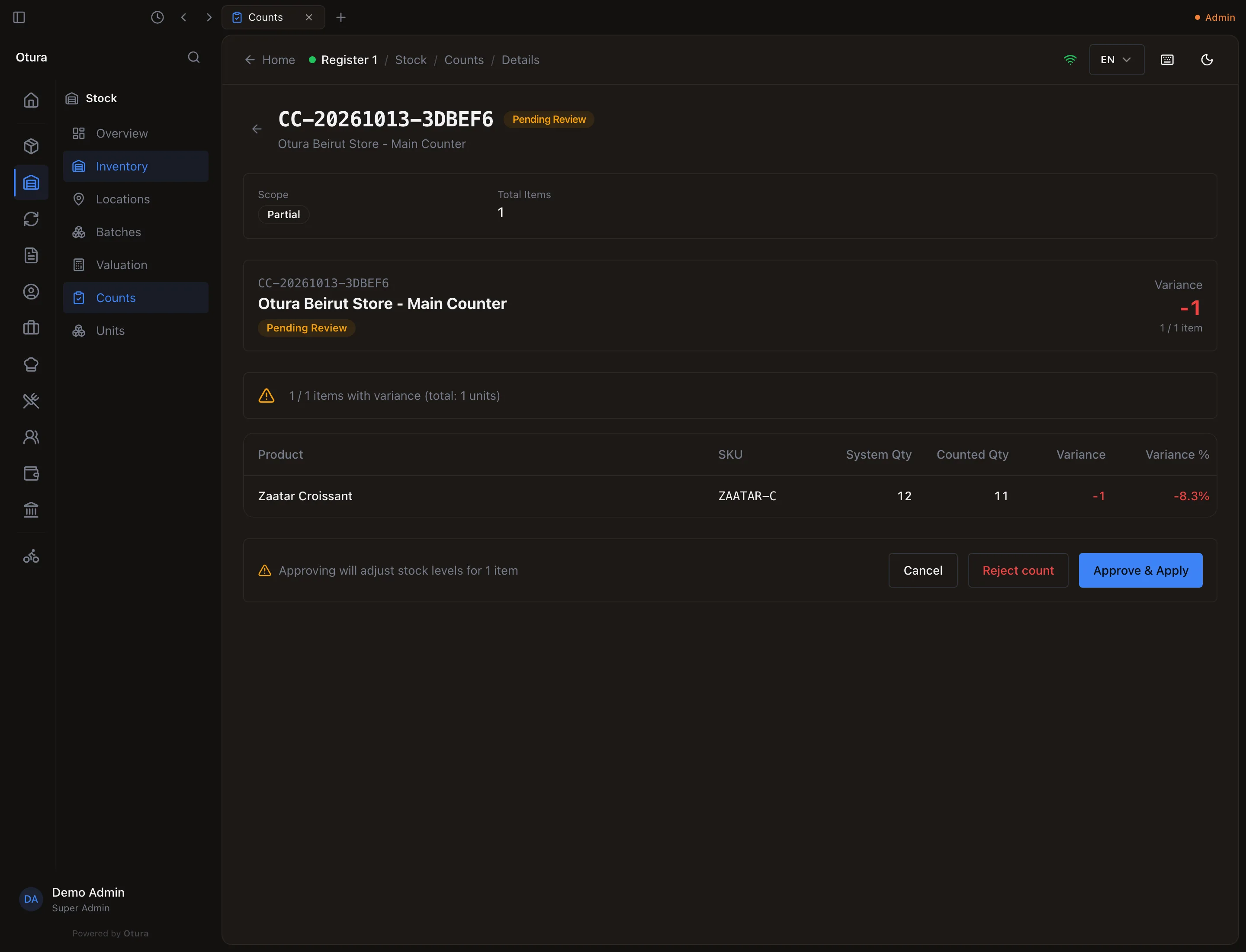
The review step.
Selling while you count
The till keeps selling during a count. Otura measures each line's difference at the moment it is recorded, and approval adds that difference to the stock as it is then, so a sale rung after you recorded a line is not lost. Example: the books say 12, you count 11 and record it (variance −1), a cashier sells one, then the count is approved: stock ends at 10.
Quick Count at the till
On a till, choose Count in the side menu. Scan an item, or type its barcode, SKU or name (several matches open a list to pick from with the arrow keys and Enter), and type what you counted. A Quick Count goes to StockCounts as Pending Review; it changes no stock until a manager approves it there. Items that do not track stock are refused.
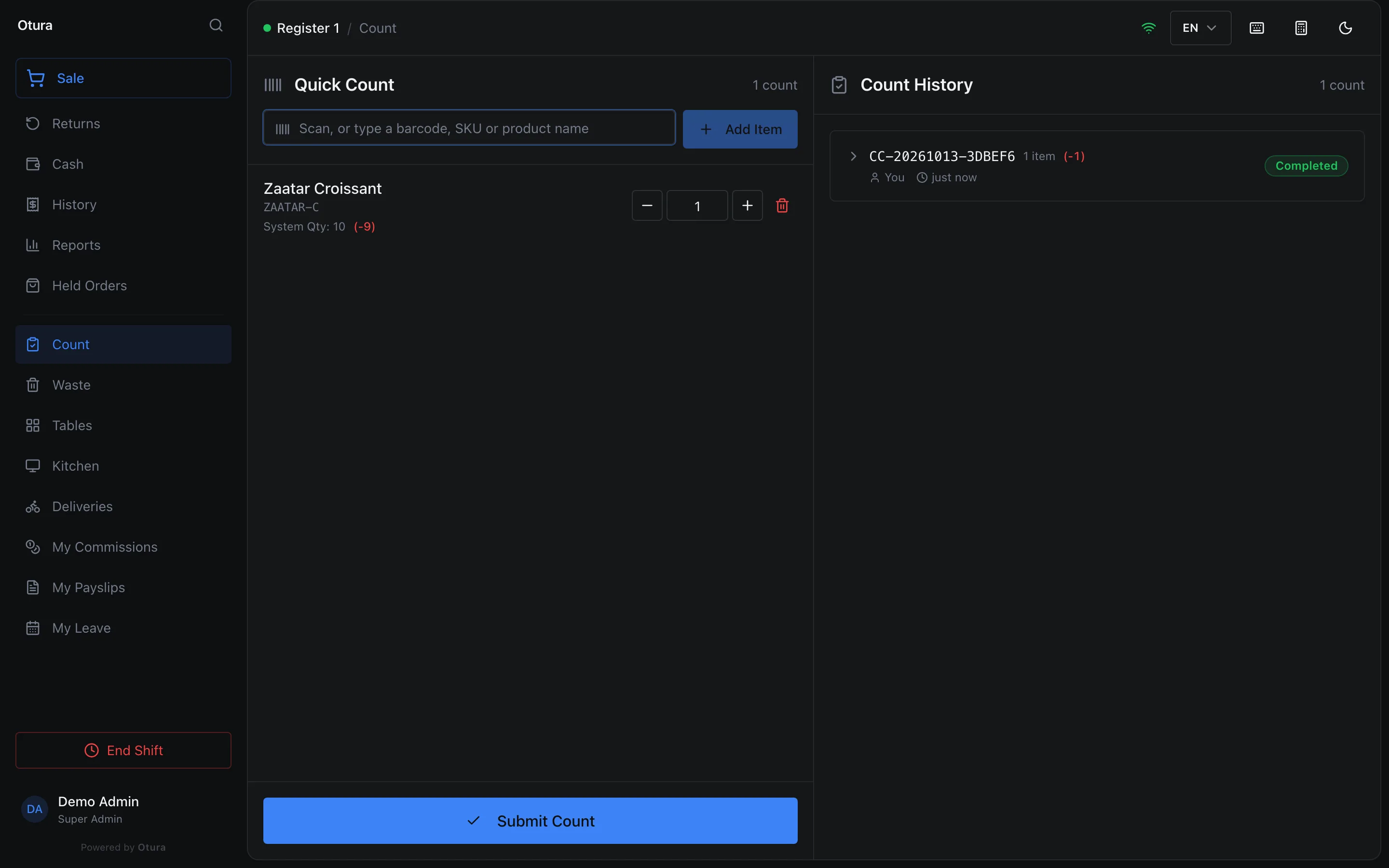
Waste
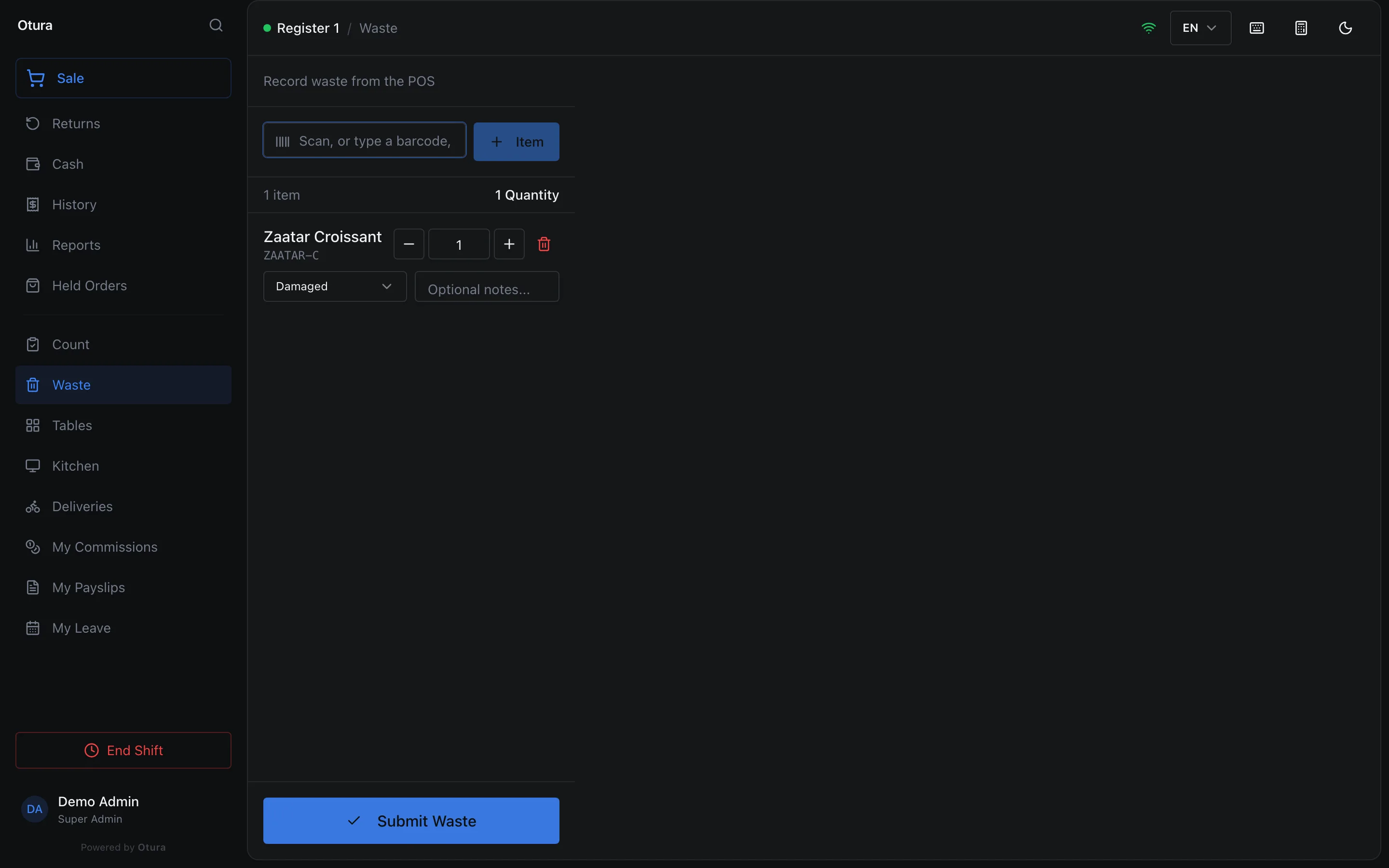
On a till, choose Waste in the side menu. Scan each item or type its barcode, SKU or name, set the quantity and the reason (Damaged is the default), add a note if you like, and choose Submit Waste. The stock comes off the till's location at once, and its cost is booked as waste.
- The quantity is in the unit the item is stocked in: 0.5 for half a kilo of an item stocked in kg.
- Each line leaves the list as soon as it is recorded. If one is refused (for example, not enough in stock), the others are still recorded, and the message names the ones still on the list, so submitting again never writes the same line off twice.
- With the Production module, ProductionWaste records waste in the back office, in any unit of the same kind as the stock unit: 500 g of rice stocked in kg takes 0.5 kg off.