Products
Create, edit, file and retire the things you sell — and understand what each field on the product form actually changes.
Checked against the product on 21 October 2026
A product is anything you sell, buy or use: a pair of shoes, a coffee, a kilo of cheese, a delivery fee. Every product has at least one variant — the variant is what actually carries a SKU, a price and stock. A simple product has exactly one variant, made for you; a product that comes in colours and sizes has one per combination.
Where products live
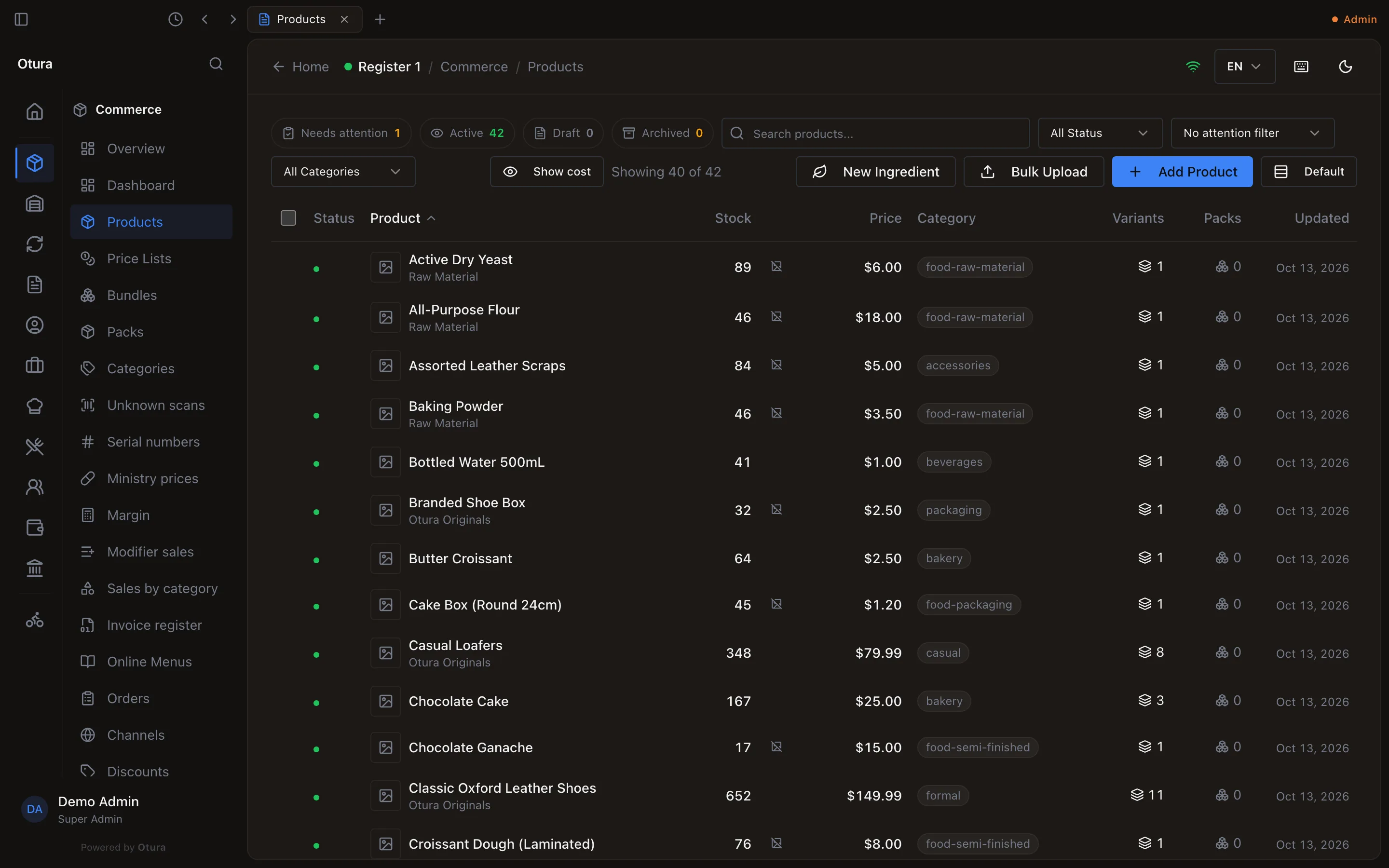
Open CommerceProducts. The list shows every product with its stock, price, category, variant count and pack count. The buttons at the top right create things: New Ingredient, Bulk Upload and Add Product. You see them only if your role can create products.
Which kind of product to create
The Product Type on the form decides how the product is sold at the till:
| Product type | Use it for | What happens at the till |
|---|---|---|
| Simple | One item with no options — a drink, a service, a bag of rice. | Tapping it adds it straight to the sale. Otura creates its one variant for you. |
| Variable (Color/Size) | Items that come in colours and sizes — clothing and shoes. | Tapping it opens a picker to choose the colour and size. You add each combination yourself after saving. |
| Weighted | Items priced per kilo, litre or other unit — cheese, olives, fuel. | Tapping it opens Enter Weight; the line total is weight × price per unit. Otura creates its one variant for you. |
Ingredients and raw materials — flour, cheese, cups — are products too. Create them with New Ingredient (see below) so they are set up for recipes rather than for sale.
Create a product
Open the form
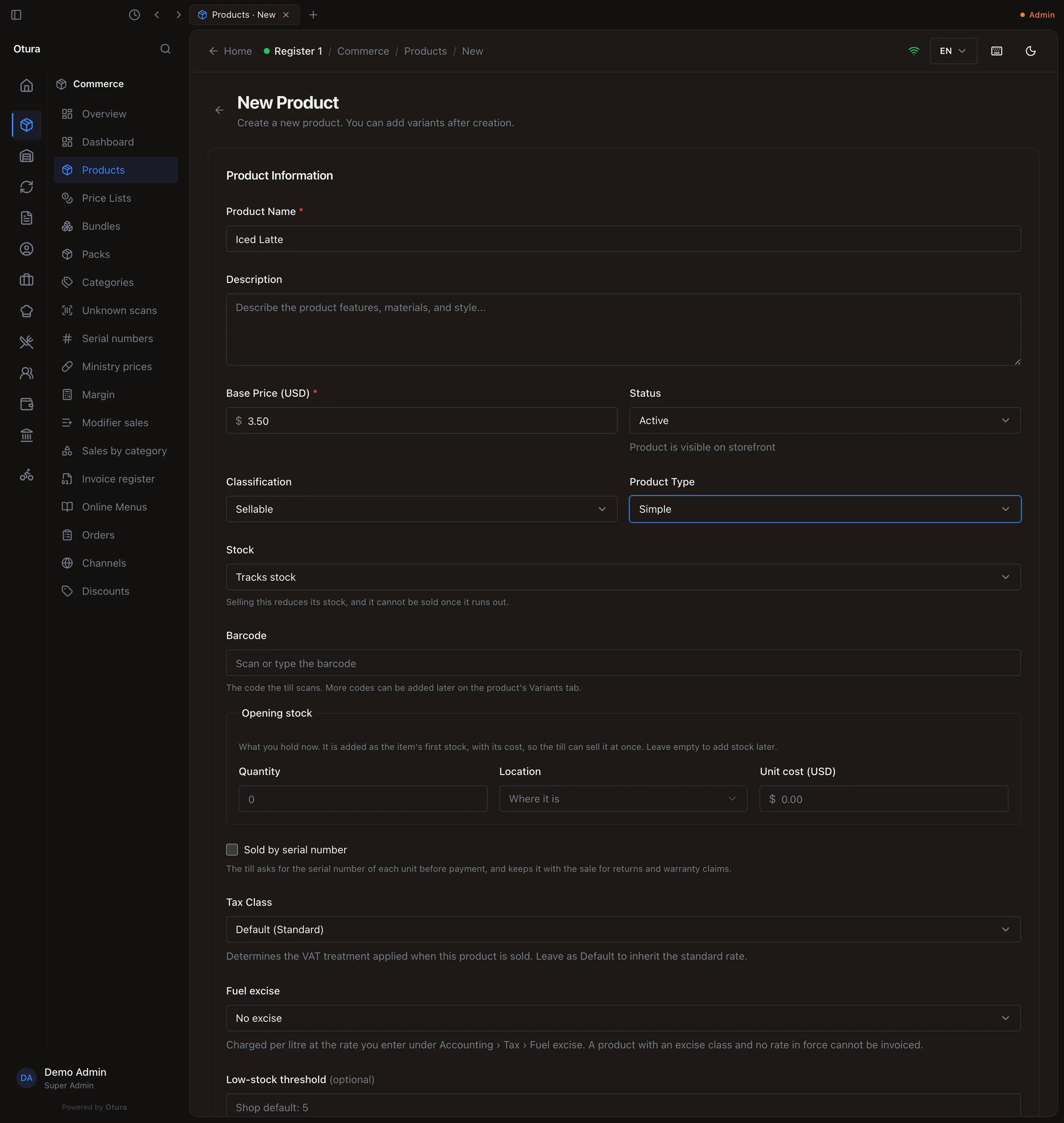
CommerceProductsAdd Product.Name and price it
Type the Product Name and the Base Price (USD). For a weighted product the price field reads Price per UOM (USD) — the price of one kilo (or litre, or whichever unit you pick). If a till or your kitchen works in Arabic or French, fill Name in Arabic and Name in French under the name too.Set Status to Active
New products start as Draft, and a draft does not appear on the till's product grid. Choose Active when it is ready to sell.Choose the Product Type
A new product starts as Simple. Change it to Variable (Color/Size) or Weighted if it is one of those, as described above. A weighted product also needs a Default UOM (for example Kilogram).Decide whether it tracks stock
Leave Stock at Tracks stock for goods you buy and count, and for dishes with a recipe. Choose Does not track stock for services and fees. See Tracked and untracked items — this choice matters. A tracked product also asks If it has a recipe: Made to order (the default) or Made ahead — see Recipes.Give it its barcode and opening stock (simple and weighted products)
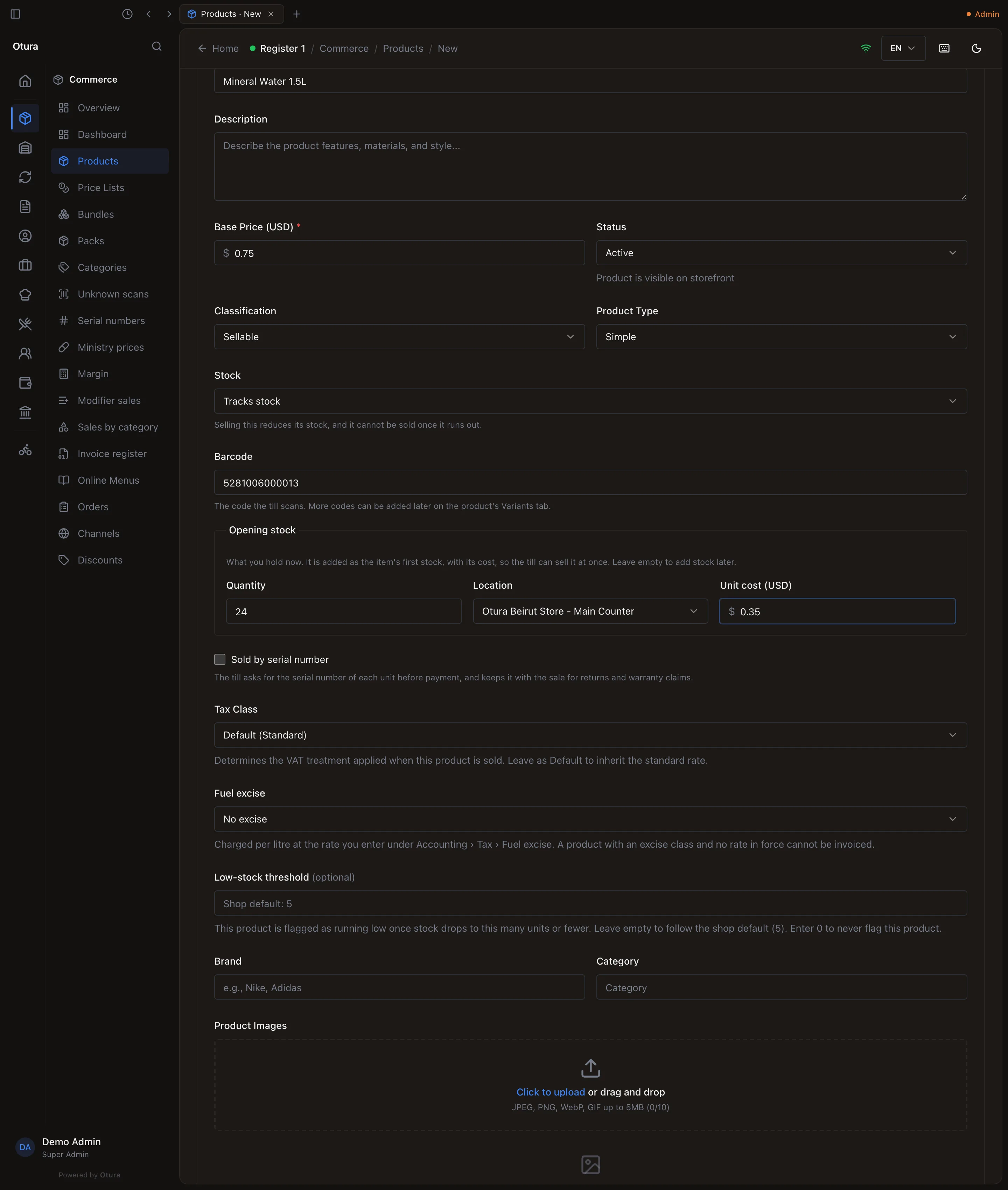
Type or scan its Barcode. Under Opening stock, enter the Quantity you hold now, the Location it is at, and its Unit cost (USD) (shown if your role may see costs). The stock is recorded with its cost, so the till can sell it at once. Leave the quantity empty to add stock later. Opening stock needs the permission to create stock records; a variable product gets its barcodes and stock per variant.Create it
Click Create Product. Otura shows “Product created successfully” and opens the product so you can add variants and packs.
What each field does
| Field | What it changes |
|---|---|
| Product Name | The main name. Shown on receipts, in reports and on the storefront, and on the till and kitchen tickets unless they are in a language the product has a name in (next row). Up to 255 characters. Two products cannot have names that reduce to the same web address (see the note below). |
| Name in Arabic, Name in French | Shown on a till or kitchen ticket in that language. Leave empty to use the product name. Up to 255 characters each. See names in the till's language and the kitchen's language. |
| Description | Shown in the till’s product details and on the storefront product page. Up to 5,000 characters. |
| Base Price (USD) | The price of every variant that has no price of its own. From $0 to $10,000. A customer price list can override it — see Discounts and pricing. |
| Status | Draft, Active or Archived. Only Active products appear on the till’s product grid and in the storefront list. |
| Classification | Whether the product can be sold at the till — see the next section. |
| Product Type | Simple, Variable (Color/Size) or Weighted — see above. |
| Stock | Tracks stock, or Does not track stock. Decides whether a sale reduces stock and whether the till refuses the item when it runs out. |
| If it has a recipe | Shown when the product tracks stock. Made to order (the default): each sale takes the recipe’s ingredients and the product needs no stock of its own. Made ahead: production orders make it in batches and each sale takes the finished product. No effect without an active recipe. |
| Default UOM | The unit the product is counted in. Shown for weighted products and for anything not classified as Sellable. Recipes convert ingredient quantities into this unit. |
| Tax Class | The VAT treatment. Leave it on Default (Standard) unless the product is exempt or zero-rated. |
| Low-stock threshold | When the product is flagged as running low. Leave it empty to use your shop default (5 unless you change it); enter 0 to never flag it. A reorder rule for the item, if you use them, takes precedence. |
| Brand | Shown under the name in the admin list and used by the storefront’s brand filter. As you type, it suggests every brand already used in your catalogue. |
| Category | What the product is filed under. It decides which category chip it appears under on the till. As you type, it suggests every category already used in your catalogue. |
| Sold by serial number | The till asks for each unit’s serial number before payment. Ticking it shows Warranty (months). See Serial numbers and warranties. |
| Product Images | Up to 10 images (JPEG, PNG, WebP or GIF, 5 MB each). The first is the main image. |
Classification: what can be sold at the till
| Classification | On the till? | Typical use |
|---|---|---|
| Sellable | Yes | Everything you sell as-is. |
| Finished Good | Yes | Something you make and sell — a cake, a pizza. |
| Raw Material | No | Ingredients. Only raw materials are offered when you build a recipe (from your first 100 active products). |
| Semi-Finished | No | Dough, sauces. Not yet offered as a recipe ingredient — the recipe editor lists raw materials only. |
| Packaging | No | Boxes, cups, bags. |
If a cashier scans a product that is not Sellable or Finished Good, the till refuses it with a message such as “"Mozzarella" is a raw material and cannot be sold at the till”.
What Status does, and does not, do
Status controls visibility: only Active products are shown on the till's grid and in the storefront's product list.
The storefront's catalogue pages — the product list, a product's page, categories and featured products — can take up to a minute to show a change you make here. Checkout does not: it checks the current price and stock when the order is placed.
Ingredients
CommerceProductsNew Ingredient is a shorter form for the things your recipes use. Fill in Ingredient Name, Cost Per Unit and Default UOM (the unit you count it in — Kilogram for cheese, Liter for milk, Piece for eggs), then click Create Ingredient. The unit list is empty unless the Units of measure module is on and your role can view units — see Units and decimals.
The ingredient is saved as an Active, Simple, Raw Material that tracks stock. Being a raw material, it never appears on the till and is offered when you build a recipe. Its cost is stored in the Base Price field, which is what you will see if you open it afterwards. That figure is used only by recipe costing screens — what a sale actually costs comes from the cost entered when the ingredient's stock is added or received.
Editing a product
Click a product in the list to open it. The page has these tabs:
- Product Details — the same form as above. Change what you need and click Update Product.
- Variants — the product's variants, with their SKUs, prices and stock. See Variants.
- Modifiers — the option groups the till asks for when the item is sold. See Modifiers.
- Transaction history — every stock movement for the product: purchases, sales, returns and adjustments, with a running balance. You can filter it by variant and location, and print it.
If your role can see the audit trail, a History button at the top right shows who changed what on this product.
Emptying the Description, Brand or Category box and saving removes it.
Categories
CommerceCategories lists every category with how it looks as a chip on the till and how many products are filed under it. Categories are one level deep — there are no sub-categories.
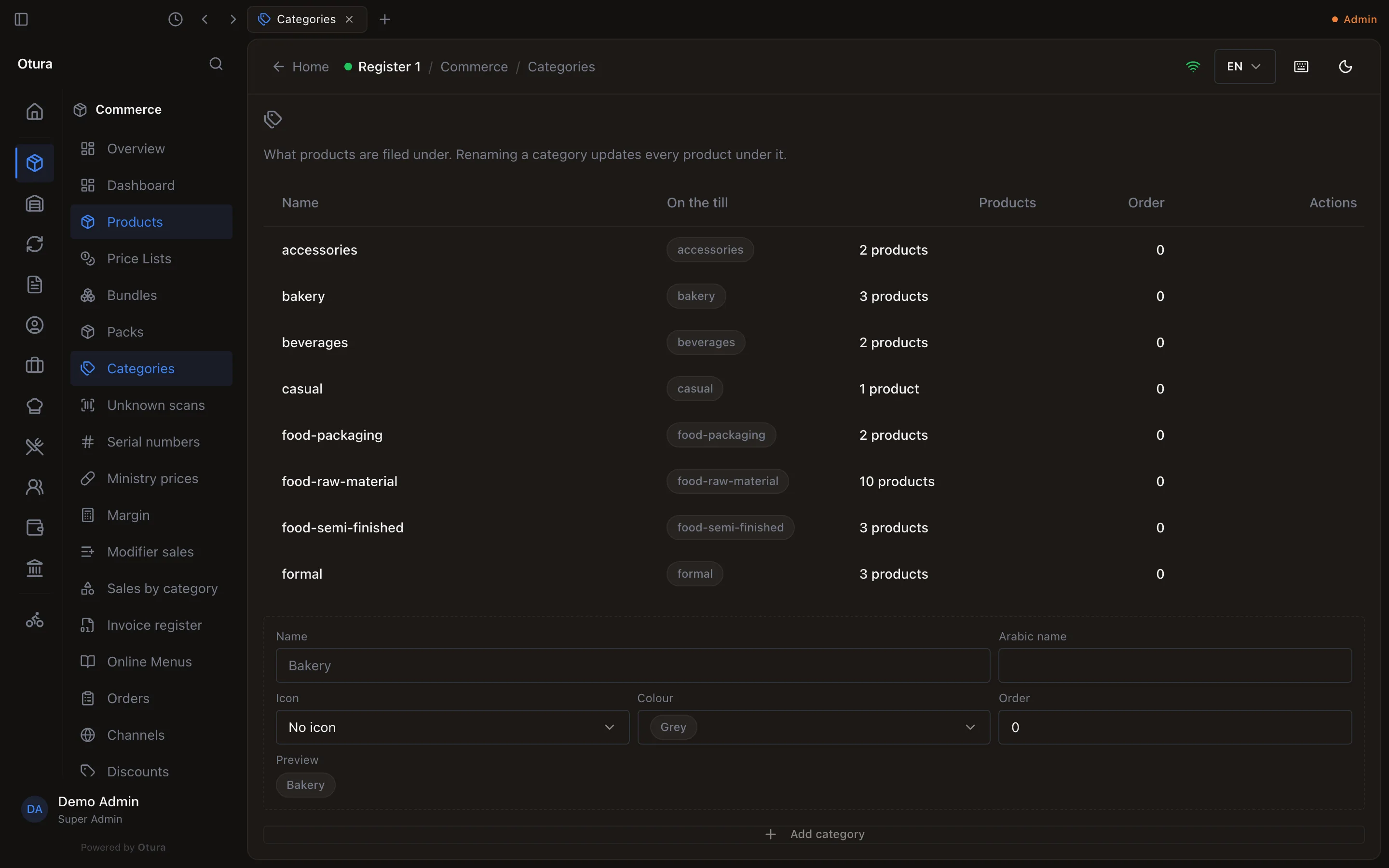
- Add a category with the form at the bottom of the page: Name, Arabic name, French name, Icon, Colour and Order, then Add category. The Arabic and French names are what a till in that language shows on the category chip, and what a kitchen ticket in that language prints above the category's items. Left empty, the Name is used.
- File a product under it by typing exactly that name in the product's Category box, or select products in the list and use Move to category (shortcut C). Move to category only lists categories that already have a product, so file the first product in a new category by typing. A name that is not a category yet becomes one, listed here with the product counted under it, so check the spelling: "Shoes" and "shoe" are two categories.
- Rename a category with Edit; the new name is copied onto the products linked to it (see the note below).
- Merge one category into another to move its linked products across; the first category is then deleted.
- Delete is refused while any linked product is filed under the category — move them first.
Finding products
- Search matches the product name, a variant's SKU, its barcodes (including extra barcodes) and its pack barcodes.
- Tiles and filters: Needs attention, Active, Draft, Archived; and the attention filter — Out of stock, Running low, No variants, Priced at zero, Needs review.
- Show cost adds each product's average cost and margin, if your role may see costs.
- Keyboard:
GthenPopens Products from anywhere. In the list, arrow keys orJ/Kmove,Xselects,.opens the actions menu,/jumps to search,Eedits,Pedits prices,Lopens Barcodes and labels… (see Your own barcodes and labels).
The stock number in the list is the total on hand across all your locations, before reservations.
Deleting and restoring
Select one or more products in the list and choose Delete (or press Ctrl/⌘ + Backspace). The product and its variants disappear from the catalogue, the till and the storefront, and the notification offers Undo. Products are never erased: set the Status filter to Deleted, select them and choose Restore (R). Each comes back with the status it had.
While a product is deleted, its barcode and PLU are free for another product to take. If one has been taken, the restore is refused and names both, for example Soda cannot be restored: The barcode 5280000000130 is already on Cola. Remove the code from one of them, then restore.
Importing products from Excel
CommerceProductsBulk Upload creates many products at once from an Excel file (.xlsx or .xls, up to 1,000 rows, 500 products and 100 variants per product, first sheet only). Click Download Template for a file with the right columns.
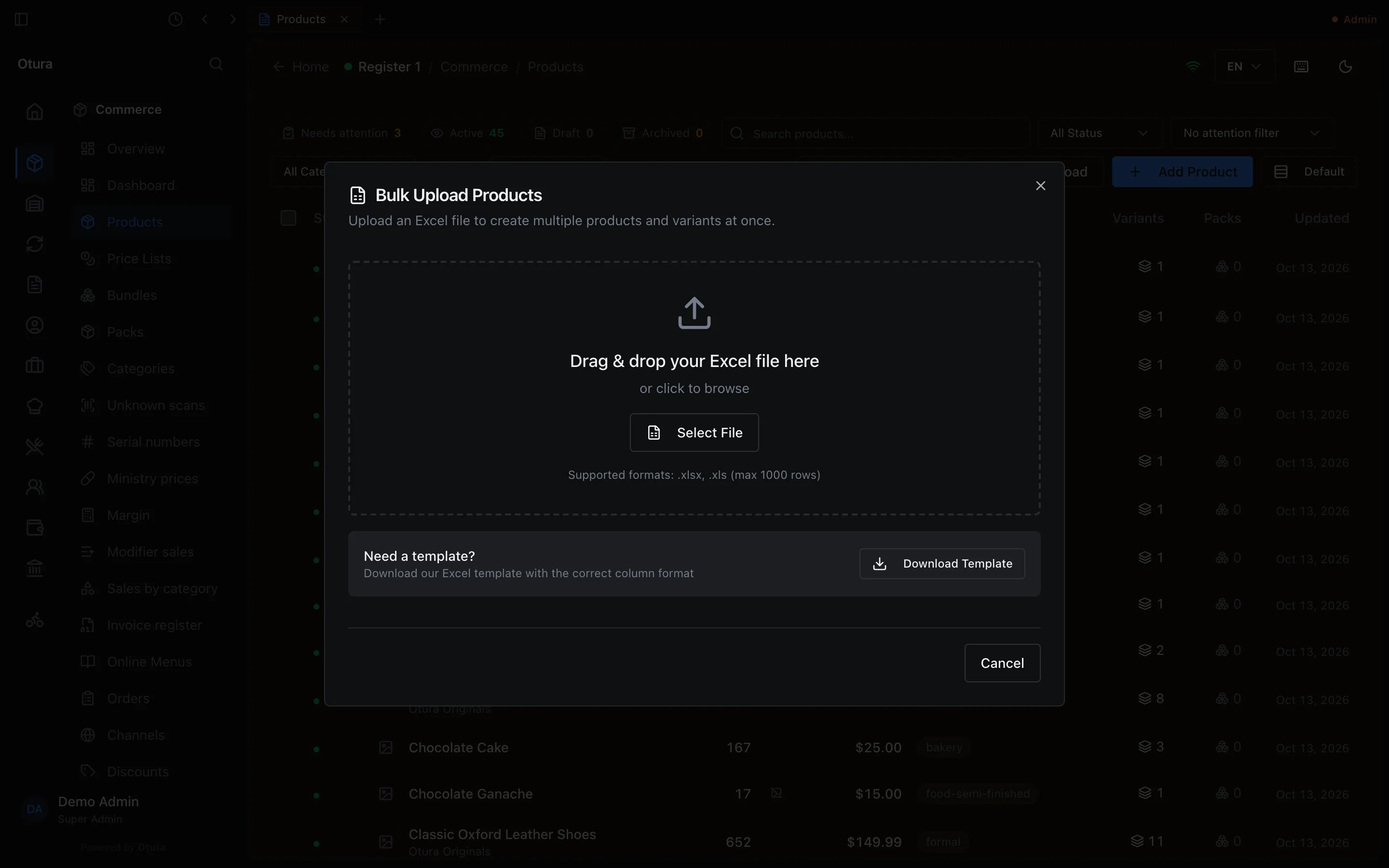
Each row is one variant. Rows with the same Product Name become one product. The columns, in order, are:
| Column | Required | Notes |
|---|---|---|
| Product Name | Yes | Rows sharing a name become one product. |
| Description, Brand, Category | Yes (may be empty) | Taken from the first row of each product. |
| SKU | Yes | Must be new — an SKU already used in your shop rejects the whole file. So does an SKU that is another item’s barcode or PLU, one of its More barcodes, or a pack’s or deal’s barcode, because the till looks a code up as all of them at once. |
| Color, Size | Yes (may be empty) | If any row of a product has a colour or size, it becomes a Variable product. Colour and size are only saved if your account has colour and size attributes (see Variants). |
| Price USD | Yes | Stored as that variant’s own price — so changing the product’s Base Price later does not change what the till charges. Use Bulk Pricing › Clear all (use base) to make variants follow the base price. |
| Price LBP | Yes (may be empty) | Shown in the preview but not saved — Otura prices in USD and converts at the day’s rate. |
| Stock Quantity | Yes, unless Stock Tracking is not_tracked | Opening stock, up to 4 decimals. It is placed in a location called “Main Warehouse”. Leave it blank for a not-tracked product: a number there is still put in stock (issue #1530). |
| Image URL | Yes (may be empty) | Downloaded during the import and attached to that variant (the product itself has no image until you add one); a failed image does not stop it. |
| Barcode | Optional | 8 to 14 digits. A barcode another item already has, or the same barcode twice in the file, rejects the whole file and names the item. |
| Cost USD | Optional | The unit cost of the opening stock. |
| Stock Tracking | Optional | tracked or not_tracked (case and spaces do not matter); blank means tracked. Every row of one product must say the same. See Tracked and untracked items. |
| Arabic Name, French Name | Optional | The product’s name in that language, as Name in Arabic and Name in French on the form. Fill it on one row of the product, or the same on all of them: a row that gives the product a different name from an earlier row is refused, for example “"Margherita" has a different Arabic name on an earlier row. A product has one name per language, so its rows must agree or leave it blank.” |
Column headings are read whatever their case: barcode is the Barcode column. The downloaded template has every optional column, with examples.
Otura checks each row before saving anything and lists the problems by row. When it reads Validation Passed, click Import. SKUs that already exist in your shop, and files over the 500-product or 100-variant limits, are only caught at this point. The import is all or nothing.
Barcodes, SKUs and PLUs
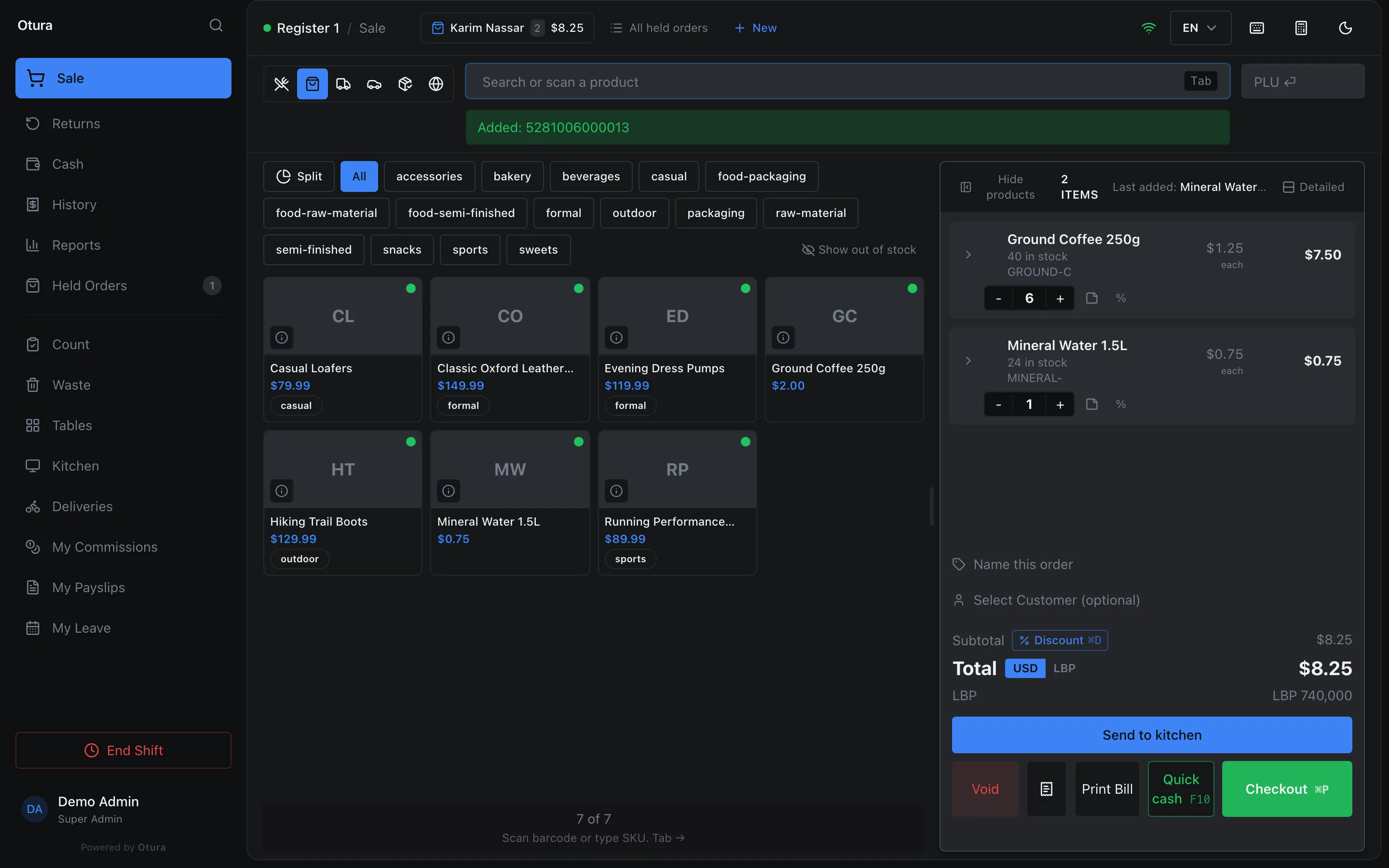
For products made with the product form, Otura generates each variant's SKU from the product name (and colour and size); Bulk Upload uses the SKUs in your file, and Quick add makes a QA- code. At the till, one search box finds an item by SKU, barcode or PLU.
A barcode reaches a variant in any of these ways:
- The Barcode field of the New Product form (simple and weighted products).
- The variant's Barcode, PLU and More barcodes on the product's Variants tab (see Variants).
- Quick add while entering a supplier invoice: type a name that does not exist, press
F2, and fill in its Barcode. - The Barcode column of a Bulk Upload.
- A pack barcode, which scans the item in as a pack.
Edit a variant to set its Barcode and its PLU, the code keyed on the till's PLU box (for an item weighed on a scale, the scale's item number). Below them, More barcodes lists other codes that scan as the same item, such as new packaging. Type one and click Add, or remove one with its cross; each is saved at once, and never replaces the Barcode field above.
A code can belong to one item only. Otura refuses a barcode or PLU another product, pack or deal already has, and names it, for example The barcode 5281234567896 is already on Cola. Because the till looks a code up as a SKU, a barcode and a PLU at once, a barcode cannot be another product's SKU or PLU either (The code … is already the SKU or PLU of Cola.). PLUs compare without leading zeros, so 42 and 0042 are the same. A save that is refused changes nothing: the variant keeps everything it had.
The same goes for an SKU from Bulk Upload: one that is another item's barcode or PLU is refused, for example The SKU 5281234567896 is already the barcode or PLU of Cola.
If someone gives the variant a barcode or PLU while you have its form open (for example with Barcodes and labels…, see Your own barcodes and labels), saving the form is refused rather than wiping the new code: This variant's barcode or PLU was changed while the form was open (barcode now …). Close the form and open it again.
Codes the till could not find
When a scanned barcode finds no product, the till shows Code not found and adds the code to ProductsUnknown scans, with how many times it was scanned and when. Beside each code, the Suggested name column says what Open Food Facts or other shops call it, and which (see Shared barcodes). Under To deal with, select a code and choose:
- Add to the catalogue (
N) when it is a product you do not have yet. Tick several codes first to add them together, up to 50 at a time. - Link to a product (
L) when it is a product you already sell. The code becomes the product's barcode, or one of its More barcodes if it already has one. - Dismiss (
D). A dismissed code that is scanned again comes back.
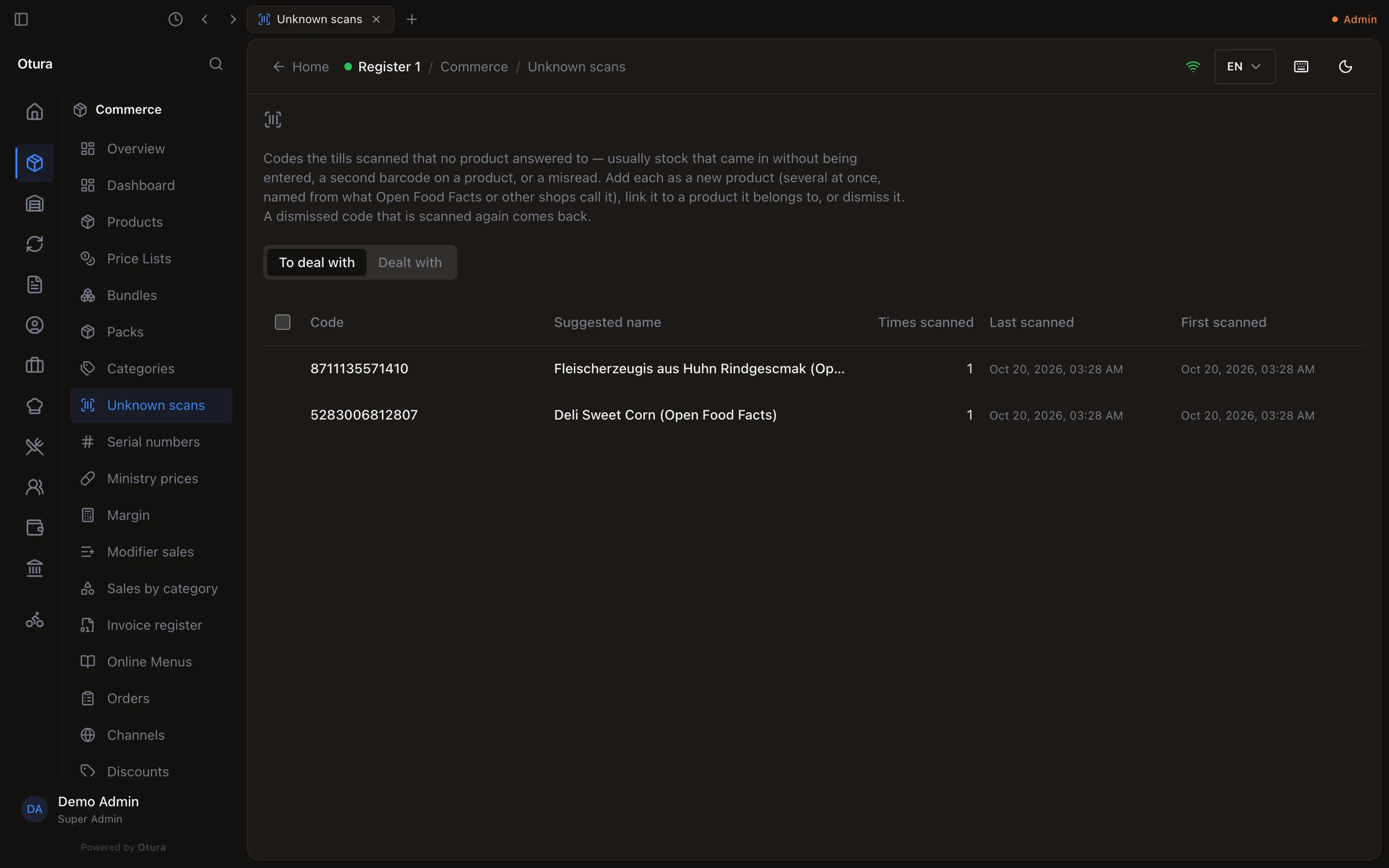
Add to the catalogue opens one form with a row per code. Each Name starts from the suggested name, which you can change; each Price (USD) is yours to type. The ✕ at the end of a row leaves that code out. Add 2 products (the count follows the rows) creates them all: each with its code as barcode, flagged for review, and not tracking stock, exactly as a product added at the till. Finish them in Products: cost, tax class, and stock tracking once their stock is received.
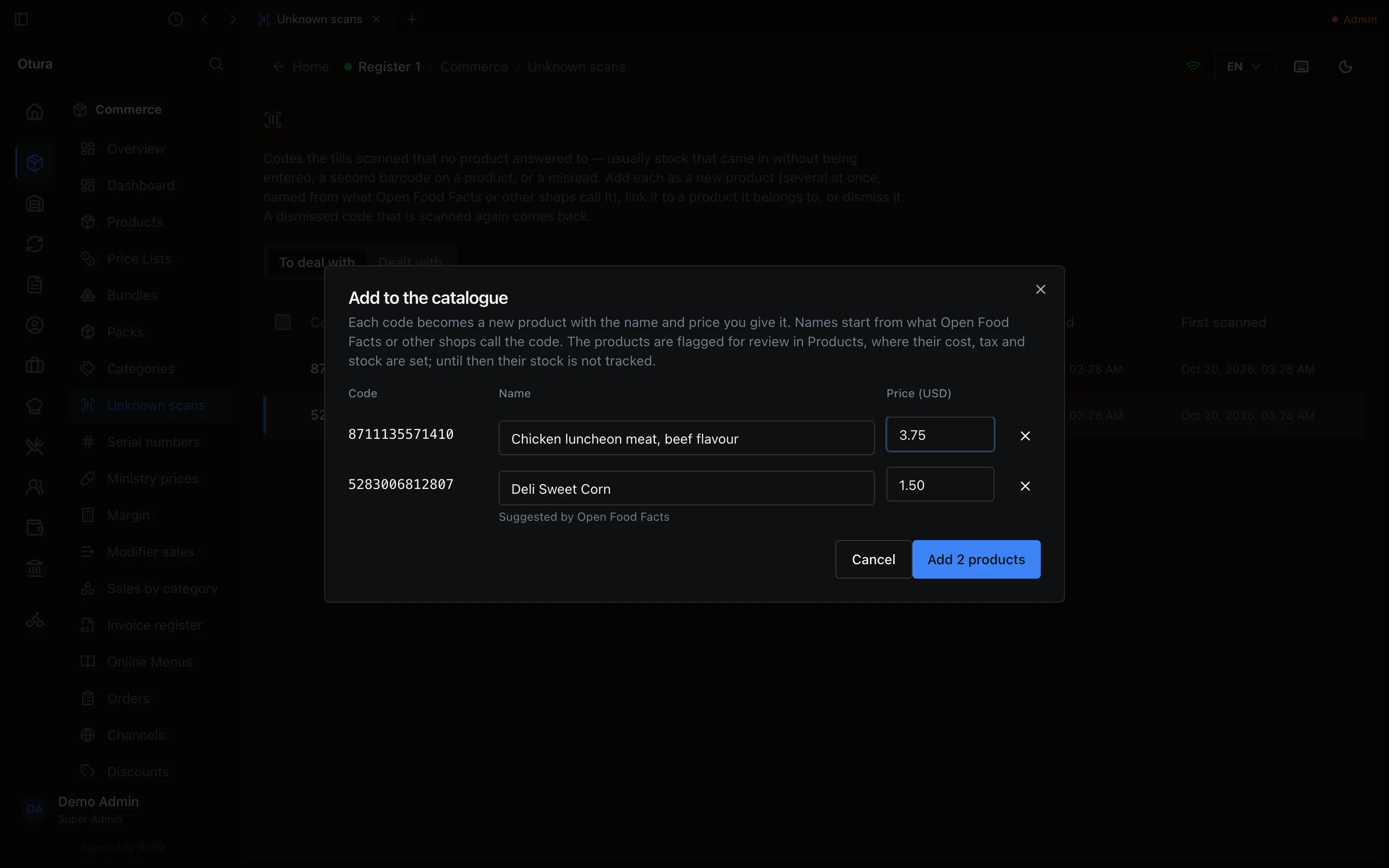
- If any code is already in the catalogue, is a label printed by a scale, or is in the list twice, nothing is added: the form says which codes, marks each of them, and keeps what you typed. Leave those codes out (✕) and add the rest.
- If another screen gives one of the codes to a product at the very moment you add, that code is not added and stays in the form, marked Another screen gave this code to a product just now.; the others are added.
- An added code is listed under Dealt with as Added as a product, as is a code added at the till.
- Adding needs the right to create products; linking and dismissing need the right to change them.
- A code that has since been given to a product anywhere else (the product form, a pack, an import) leaves the list by itself, under Dealt with.
- A label printed by a scale is never listed: its item code is the weighed product's PLU. Set that instead (see Units and decimals).
- The list shows the 500 most recently scanned codes. When more are waiting, a line above it says how many. Codes dealt with stay under Dealt with for 90 days.
At the till, the same popup offers It is a product we sell — link it to whoever may change the catalogue, and Add it as a new product where it is allowed. Either way the code is then rung up as a scan of that product, so an item sold by weight still asks for its weight. The popup says It has been added to the back office's list of unknown codes. only once the code is on the list. Scanning another item while the popup is open closes it and rings up that item.
Before anything is chosen, the popup says what the code is when Open Food Facts or other shops know it: the name, then the brand and size, then Suggested by … (see Shared barcodes). It shows Looking this code up… while it asks, and Neither Open Food Facts nor other shops on Otura know this code. when nobody does. When Open Food Facts could not be asked just then (busy or slow), it says Could not check this code with Open Food Facts just now. instead. This is shown to whoever may add a product from a scan or view products.
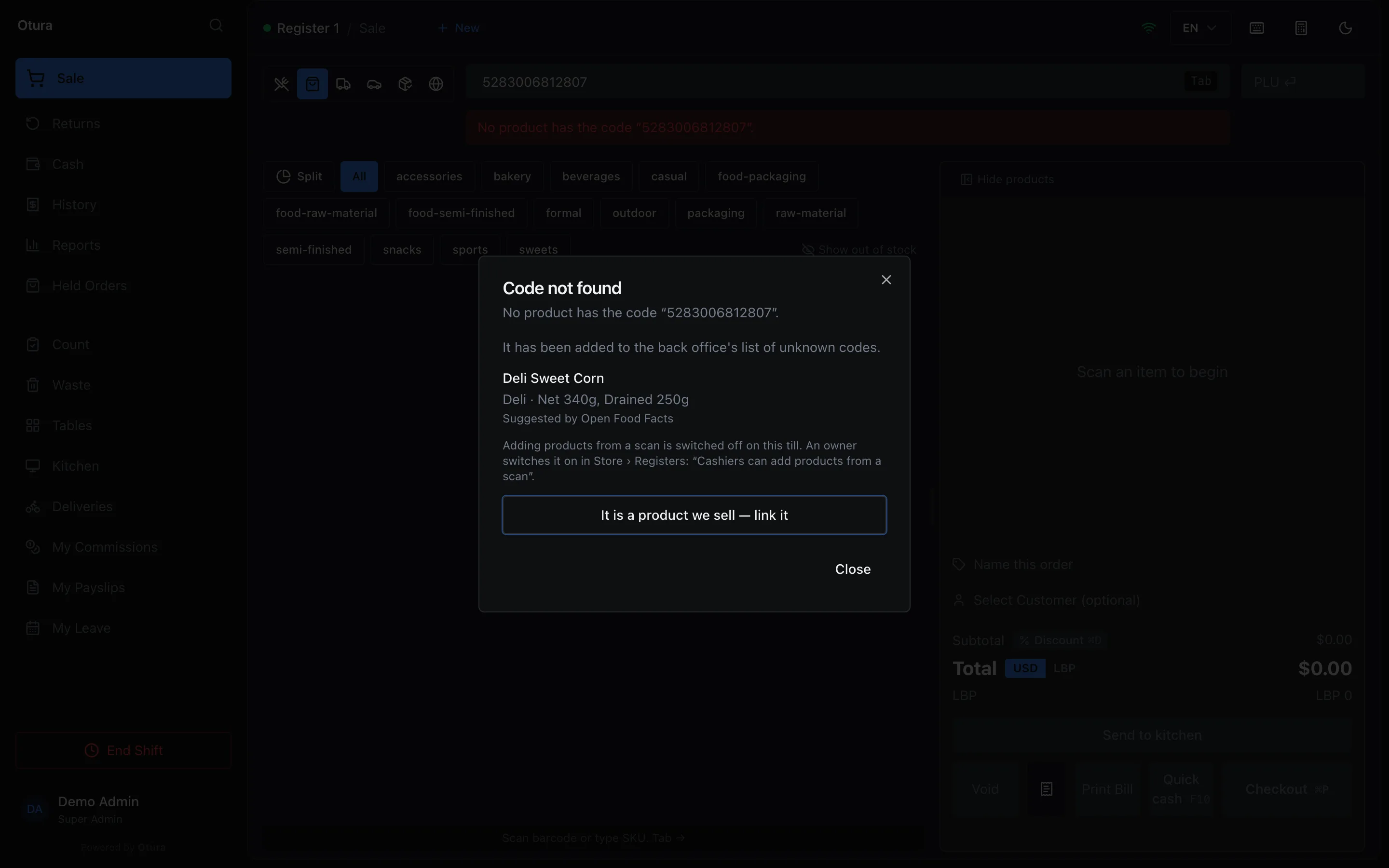
A cashier who may add products, on a till where it is switched off, is told so: Adding products from a scan is switched off on this till. An owner switches it on in Store › Registers: “Cashiers can add products from a scan”.
Adding a product at the till
Two things must both be on before a cashier can add a product from a scan:
- On the till: Registers, open the register and tick Cashiers can add products from a scan. It is off for every till until you turn it on.
- For the cashier: their role includes Add a product from a scan (see Users and staff).
The cashier types a Name and a Price (USD), both required, and clicks Add and sell. When the code has a suggested name, the name box starts with it and says Suggested by … for as long as the name is that suggestion. Other names for the code, and the suggestion once you have changed it, are under the box to tap. The product is created with the scanned barcode and flagged for review. It does not track stock, so it can be sold straight away: a product that tracks stock but has none recorded is refused at payment. Finish it in the back office: cost, tax class, and stock tracking once its stock is received. A label printed by a scale cannot be added this way.
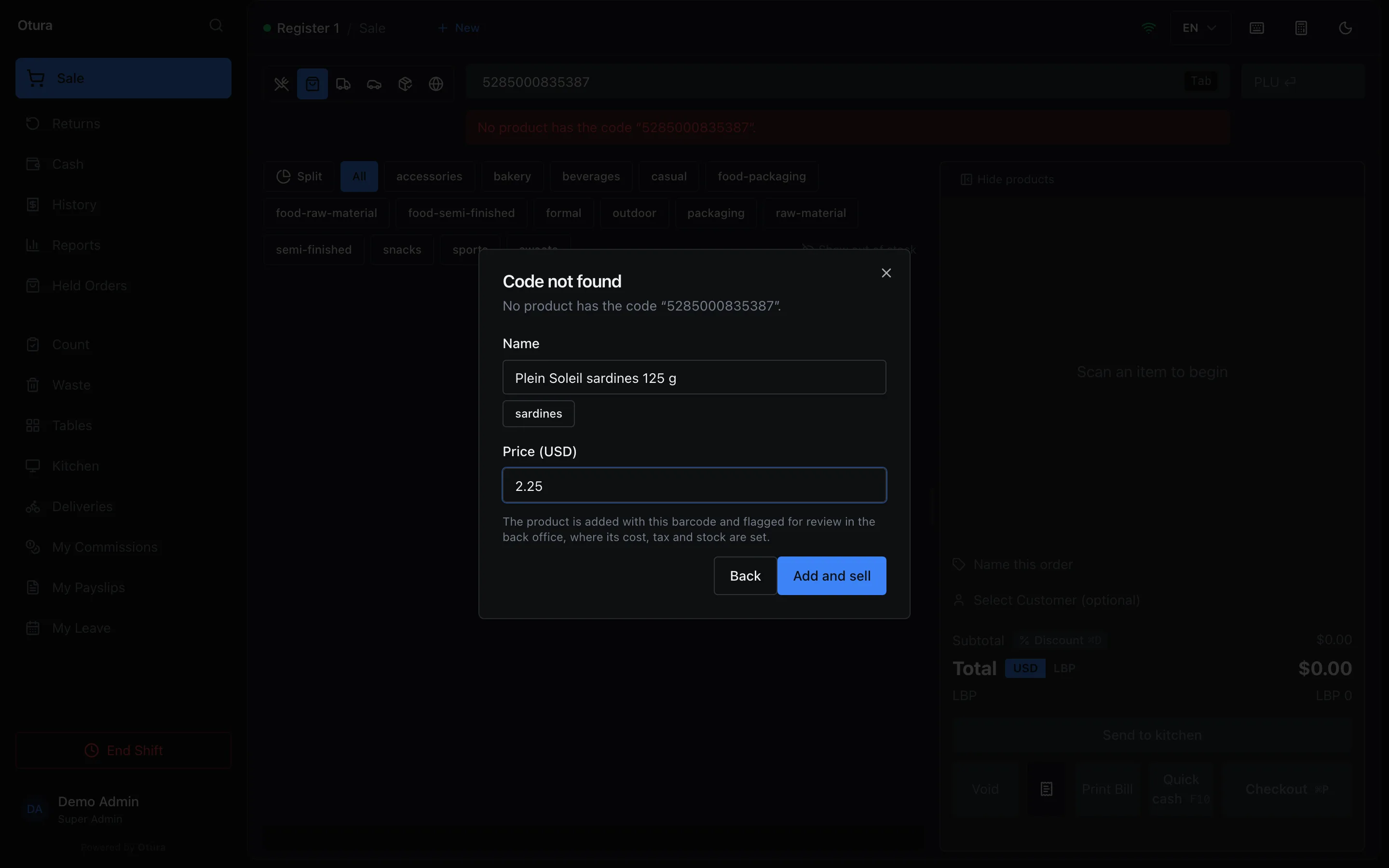
In SettingsWorkspaceQuick add you choose what else applies wherever quick add is on:
- Highest price a cashier may add: a price above it is refused at the till, which shows the limit under the price box. Leave it empty for no limit.
- Ask for a manager's PIN: each product added needs the PIN of someone who can approve overrides, with a reason, as a discount over the limit does. The approval is in the audit log.
- Email me each product added at the till, off until you turn it on: an email with the product, its barcode, price, till and cashier (and the manager who approved it) goes to everyone whose role includes Receive quick-add alerts, which owners have.
Limits
- Name up to 255 characters; description up to 5,000; brand and category up to 100.
- Price from $0 to $10,000 on the form (Bulk Upload accepts up to $1,000,000).
- Up to 10 images, 5 MB each.
- Two products cannot share a web address, which Otura derives from the name's Latin letters and digits. A name entirely in Arabic gets an address of its own, so any number of them can be created. Names that differ only in Arabic words but share the same Latin part (“قهوة 2” and “شاي 2”) collide and the second is refused with “A product with similar name already exists”. Deleted products count too: to bring one back, restore it rather than creating it again.