Bank reconciliation
Put a bank statement into Otura, match each line to the entry that recorded it, and complete the reconciliation when the statement agrees with your books.
Checked against the product on 13 October 2026
Reconciling a bank account means checking your books against the bank's statement, line by line. You put the statement's lines into Otura, match each one to the entry that recorded the same money, and complete the reconciliation once the statement's balance agrees with the books. Everything happens on FinanceAccountingCash & BankReconciliation.
1. Add the bank account
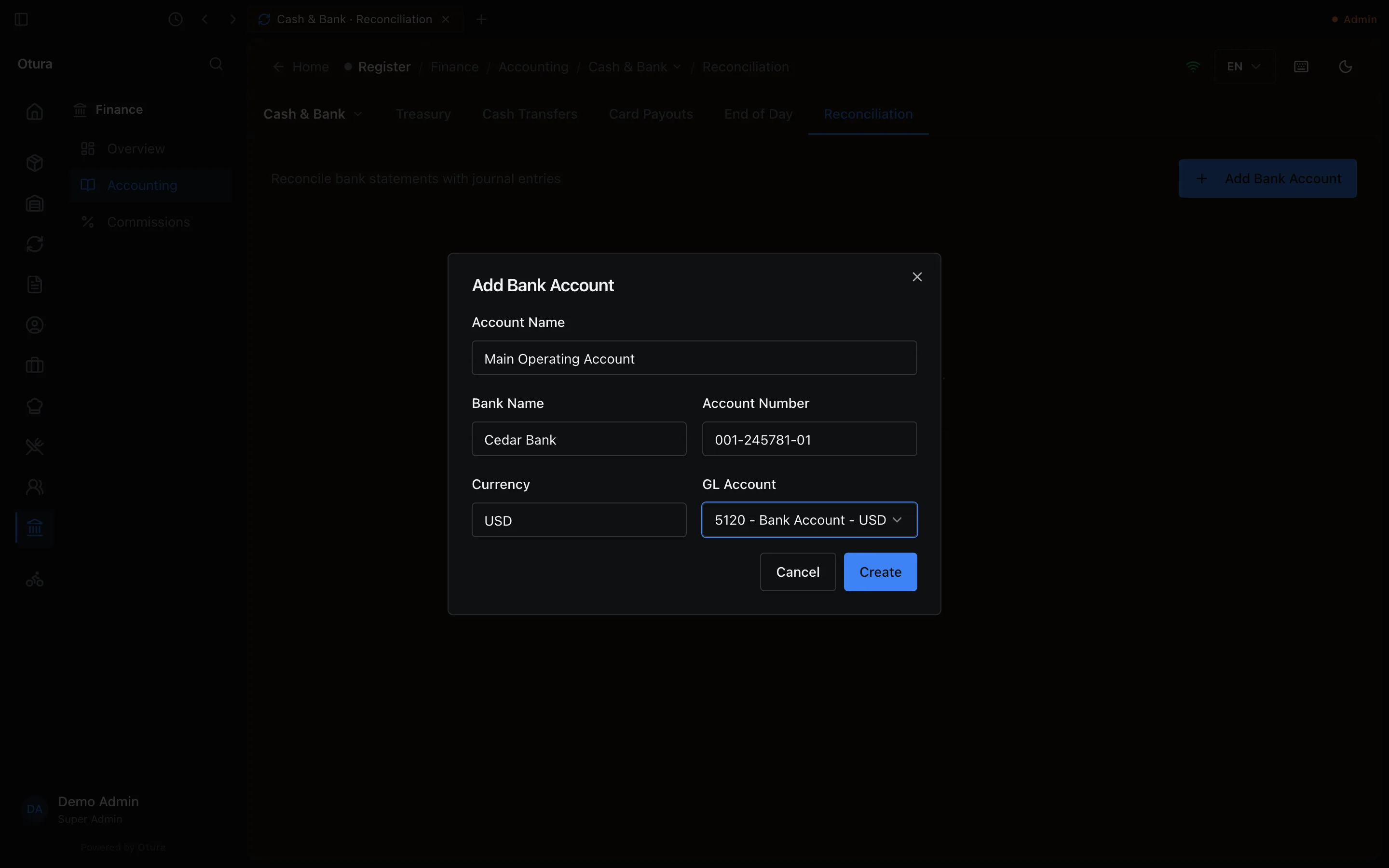
The page lists your bank accounts only. The safe and the till drawers are not on it: they are counted at End of Day. To add one, press Add Bank Account and give it an Account Name, the Currency, and the GL Account it is kept on. Only asset accounts in that currency are offered — for a dollar account, 5120 - Bank Account - USD. Bank Name and Account Number are optional.
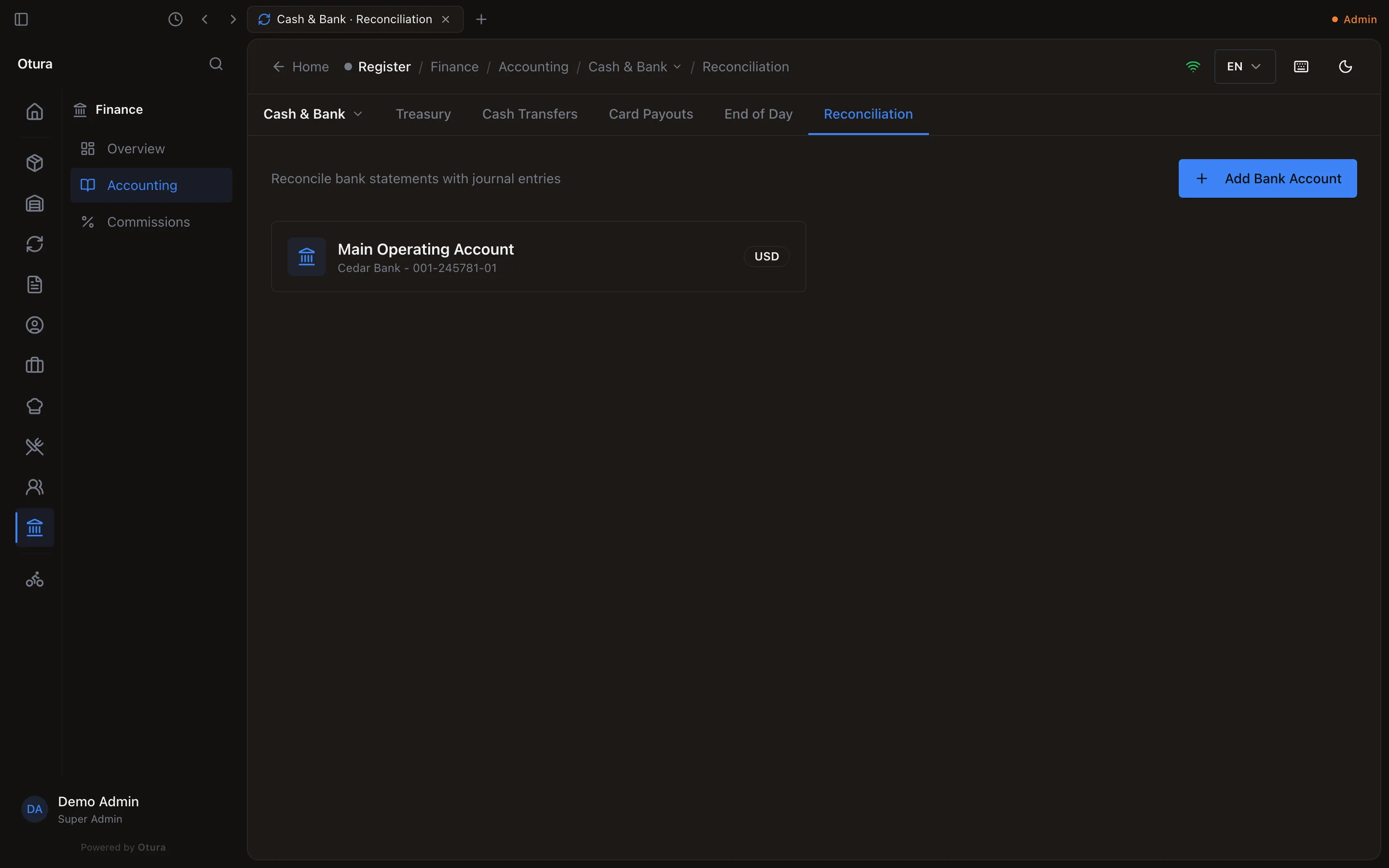
Every figure on an account's page — the statement lines, the balances, the difference — is in that account's own currency.
2. The first reconciliation
An account's first reconciliation has nothing earlier to measure from, so it is strict: the statement balance must equal what your books hold on the statement date. Choose a statement date on which nothing is in flight — no deposit the bank has not credited yet, no cheque not yet presented.
Start it
Open the account and press New Reconciliation. Enter the Statement Date and the Statement Balance printed on the statement, and press Create.
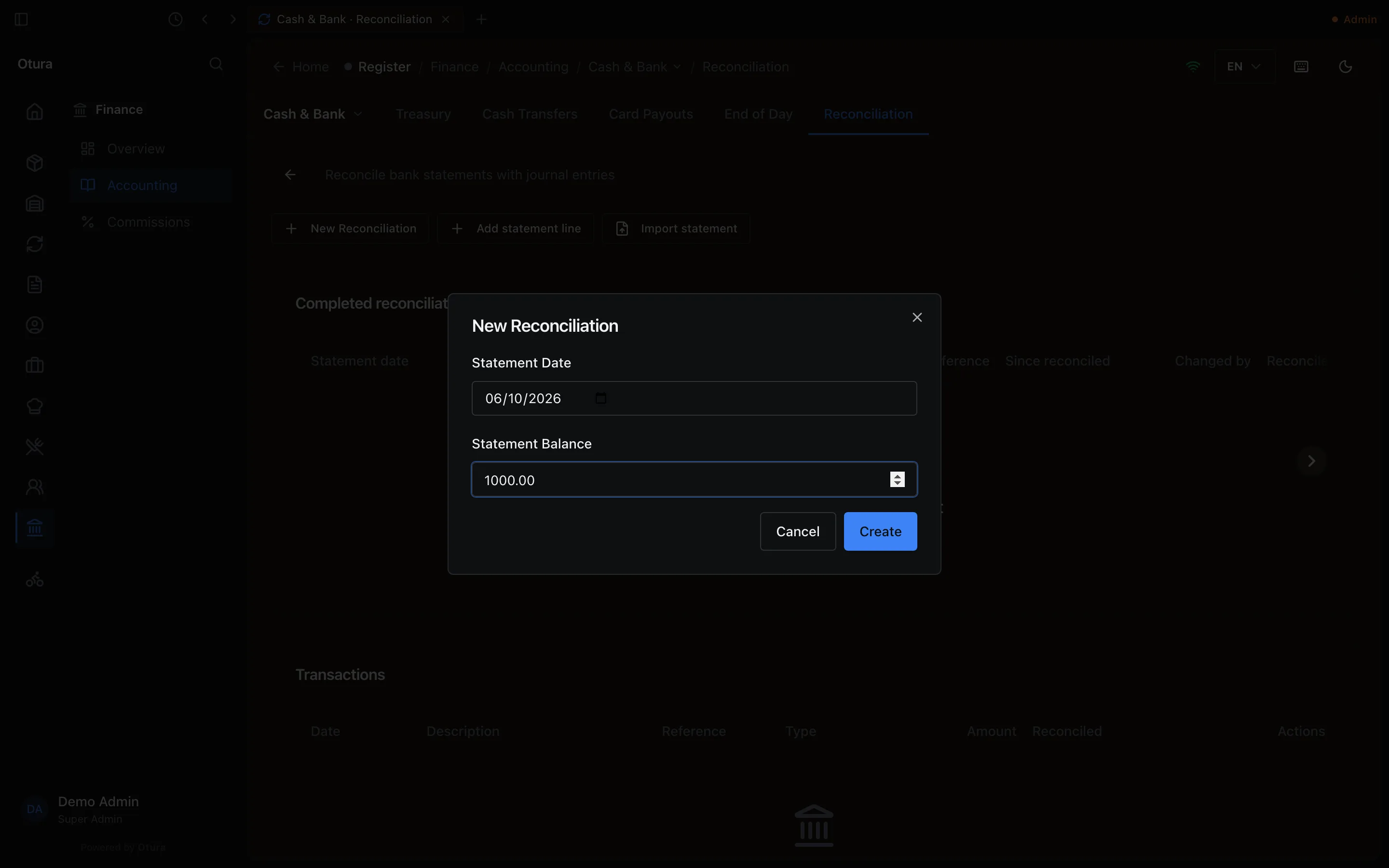
New Reconciliation: the statement's date and closing balance. Two dates are refused, with a message saying why:
- a date after today — A statement cannot be dated after today;
- a date on or before the account's last completed reconciliation — This statement is dated …, and this account is reconciled up to …. A completed reconciliation is closed.
Check the figures
The summary shows the Statement Balance, the Book balance (what the account's ledger account holds on the statement date) and the Difference between them, and its Status (In progress), and says which rule applies: This is this account's first reconciliation, so the statement must equal the books on its date. Choose a date with nothing in flight.
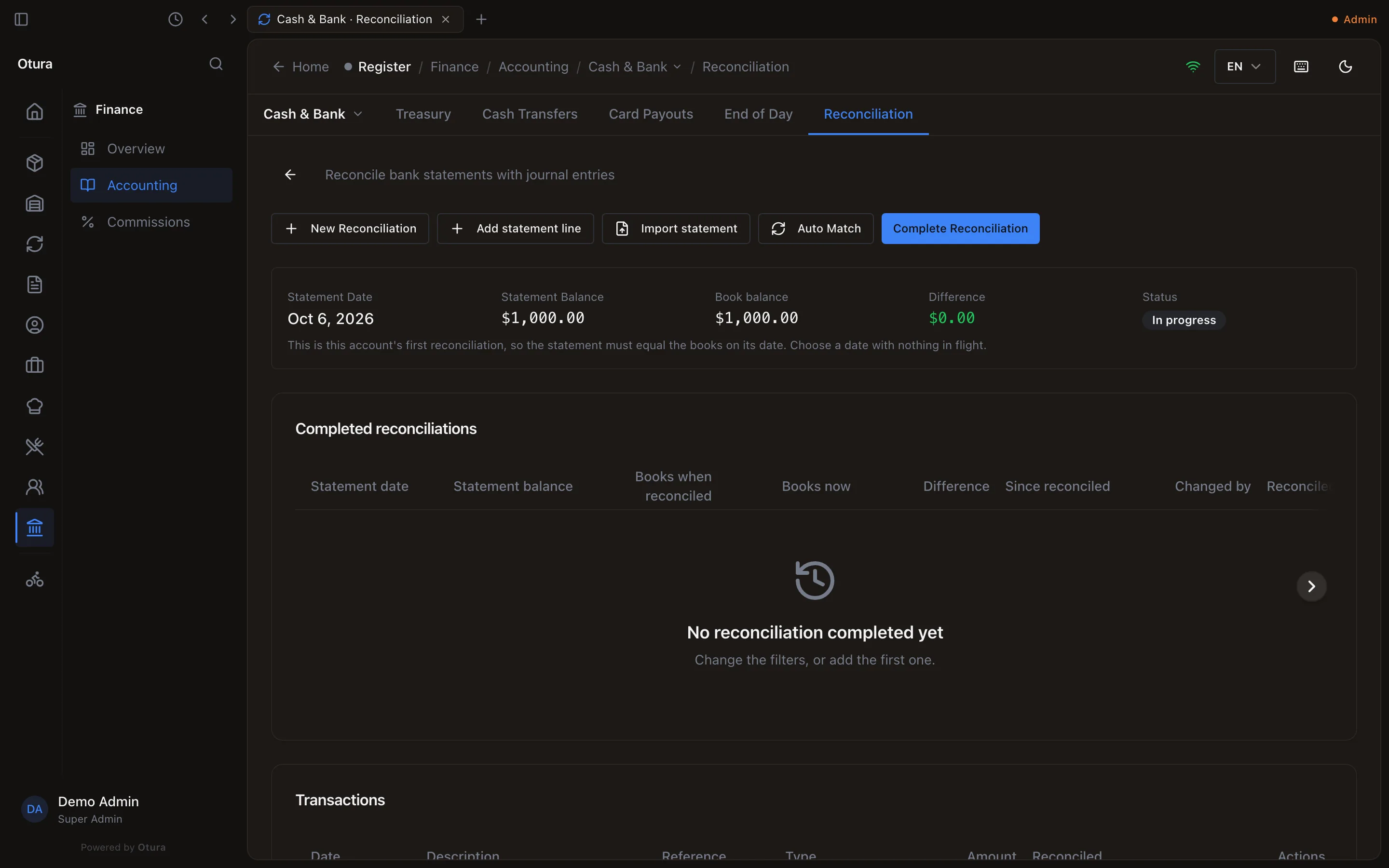
A first reconciliation: the statement and the books agree at $1,000.00. Complete it
Press Complete Reconciliation. The page then shows Reconciled up to and the statement date.
3. Every statement after that
From the second reconciliation on, the statement does not have to equal the books. It has to agree with them once the items in flight are taken into account — see In flight below. Start with New Reconciliation, as before, then put the statement in.
Import the statement
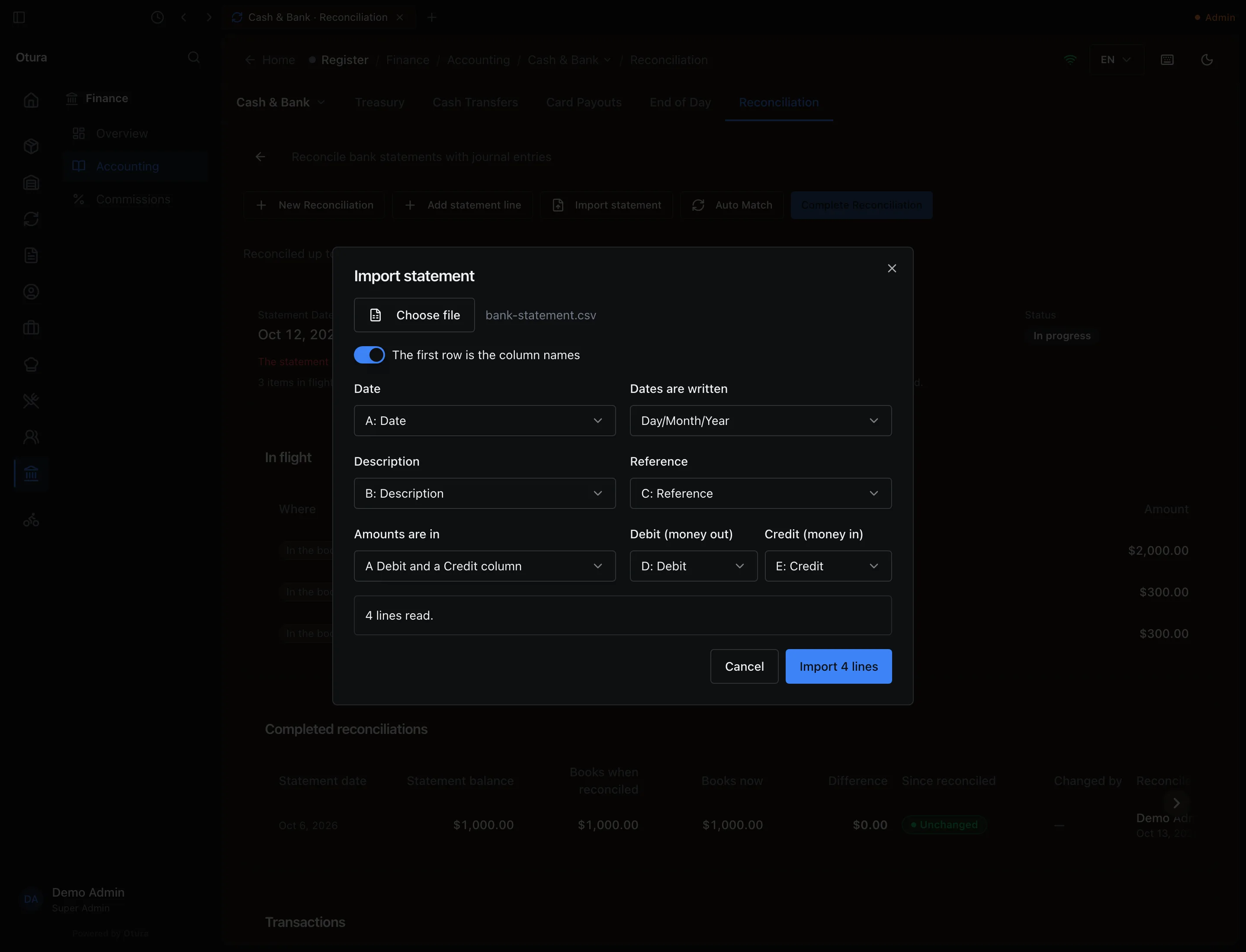
Import statement reads the CSV or Excel file your bank exports. Press Choose file, then tell Otura which column is which. The columns are guessed from the file's headings, and you can change any of them:
| Setting | What it means |
|---|---|
| The first row is the column names | Turn off if the file starts straight with a line. |
| Date | The column with the day of each line. |
| Dates are written | Day/Month/Year, Month/Day/Year or Year/Month/Day. A bank in Lebanon usually writes Day/Month/Year. |
| Description | The narration. |
| Reference | Optional. Choose None if the file has no reference column. |
| Amounts are in | One column (money out negative), or A Debit and a Credit column — then pick the Debit (money out) and Credit (money in) columns. |
Before anything is imported the dialog says how many lines it read, and names by row number any row whose date, amount or description it could not read; those rows are left out. Amounts may be written 1,234.50, 1.234,50, (250.00) or 250.00-; a figure with more than two decimals is refused rather than rounded. One import takes up to 5,000 lines. Press Import (the button says how many lines).
After the import, a message says what happened, for example:
- 3 added, 0 already on file. 1 line dated inside a completed reconciliation was left out.
Already on file: a line with the same date, amount and reference as one already imported or typed is skipped, so importing the same file twice adds nothing the second time, and a statement that overlaps the last one adds only what is new. Two identical lines in one file (two equal withdrawals on one day) are both kept. Left out: a line dated on or before the last completed reconciliation is not added — that statement is closed.
An imported line is a Deposit (money in) or a Withdrawal (money out). Its reference, if the file has one, shows in the Reference column of both lists: it is what tells two lines of the same amount apart against the paper statement.
Add a line by hand
Add statement line adds one line: its Date, Type, Description, Amount and, optionally, Reference. Type the amount as a plain figure: the type gives it its sign. A Deposit or Interest is money in, a Withdrawal or Fee money out, and a Transfer asks for its Direction (Into this account or Out of this account). The amount takes up to two decimals with a figure before the point — the form says so if you type .5.
With a reconciliation open, the date starts at its statement date, not today. A line dated after the statement date is allowed; the form says it belongs to the next statement.
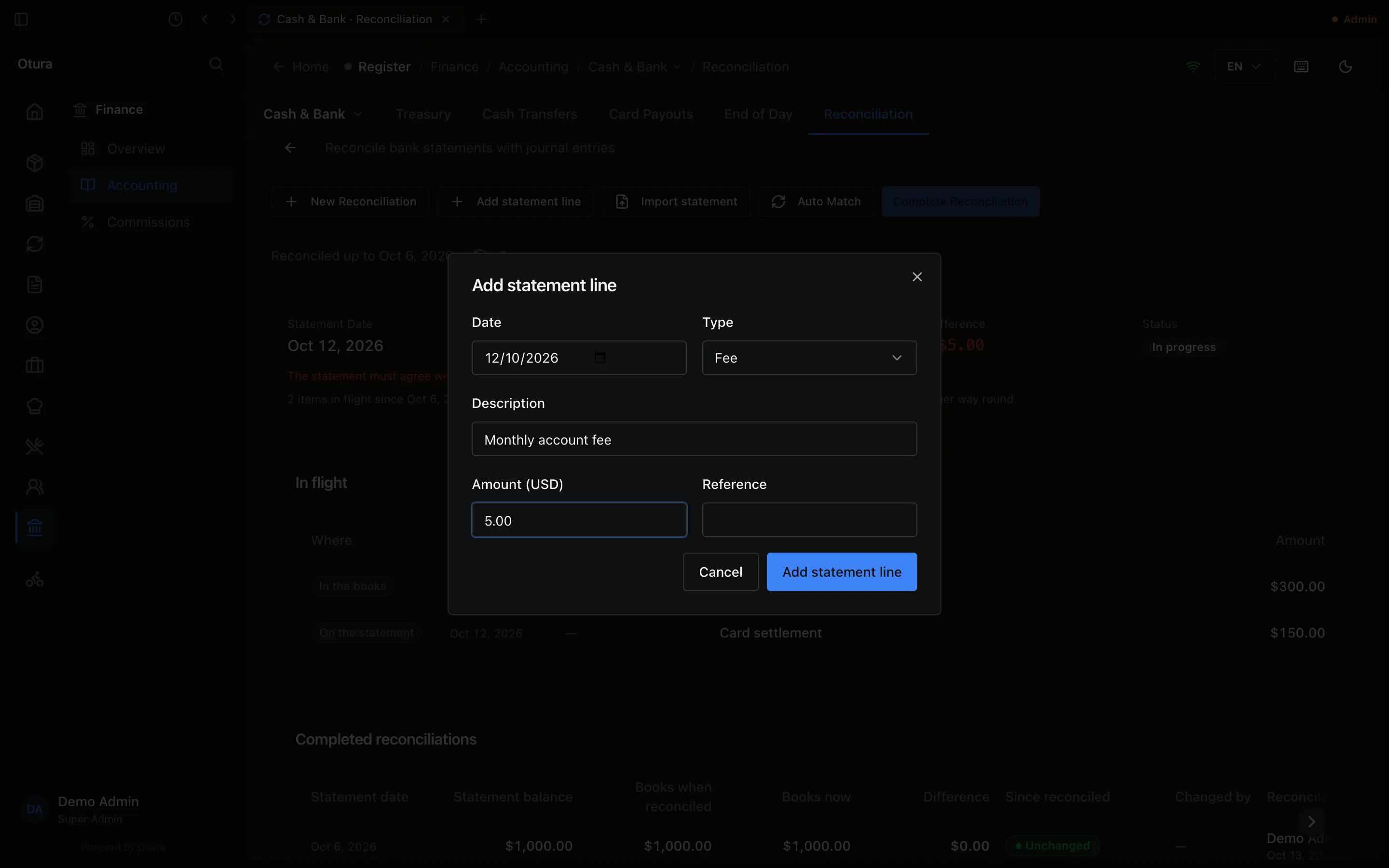
A line typed or imported by mistake is removed with the bin button on its row, then Remove. Only an unmatched line can be removed.
Match the lines
Unmatched Transactions lists the lines dated on or before the statement date that are not matched yet. Each must be matched to the entry in your books that recorded the same money.
Auto Match matches every line for which exactly one entry qualifies: posted on this account's ledger account, the same amount, the same direction (a deposit matches money coming in, never a payment), within two days of the line, and not matched to another line. It leaves a line alone when two entries qualify — two $300 deposits on the same day, say — and it never picks a reversed entry or a reversal. A message says how many it matched: Auto-match completed (2 matched), and the Transactions list shows those lines as reconciled at once.
The Transactions list is every statement line on the account, newest first, 50 to a page, with a pager under it (1–4 of 4, Previous, Next).
Match, on a row, lists the entries the line can be matched to: the same amount and direction, within 60 days of the line, nearest day first. A reversed entry is marked Reversed and a reversal A reversal: it is for you to say whether that money really moved. Press Match beside the right one. If nothing is listed, the entry is missing from your books: No entry on this account has the same amount and direction within 60 days. Record the missing entry, or check the line.
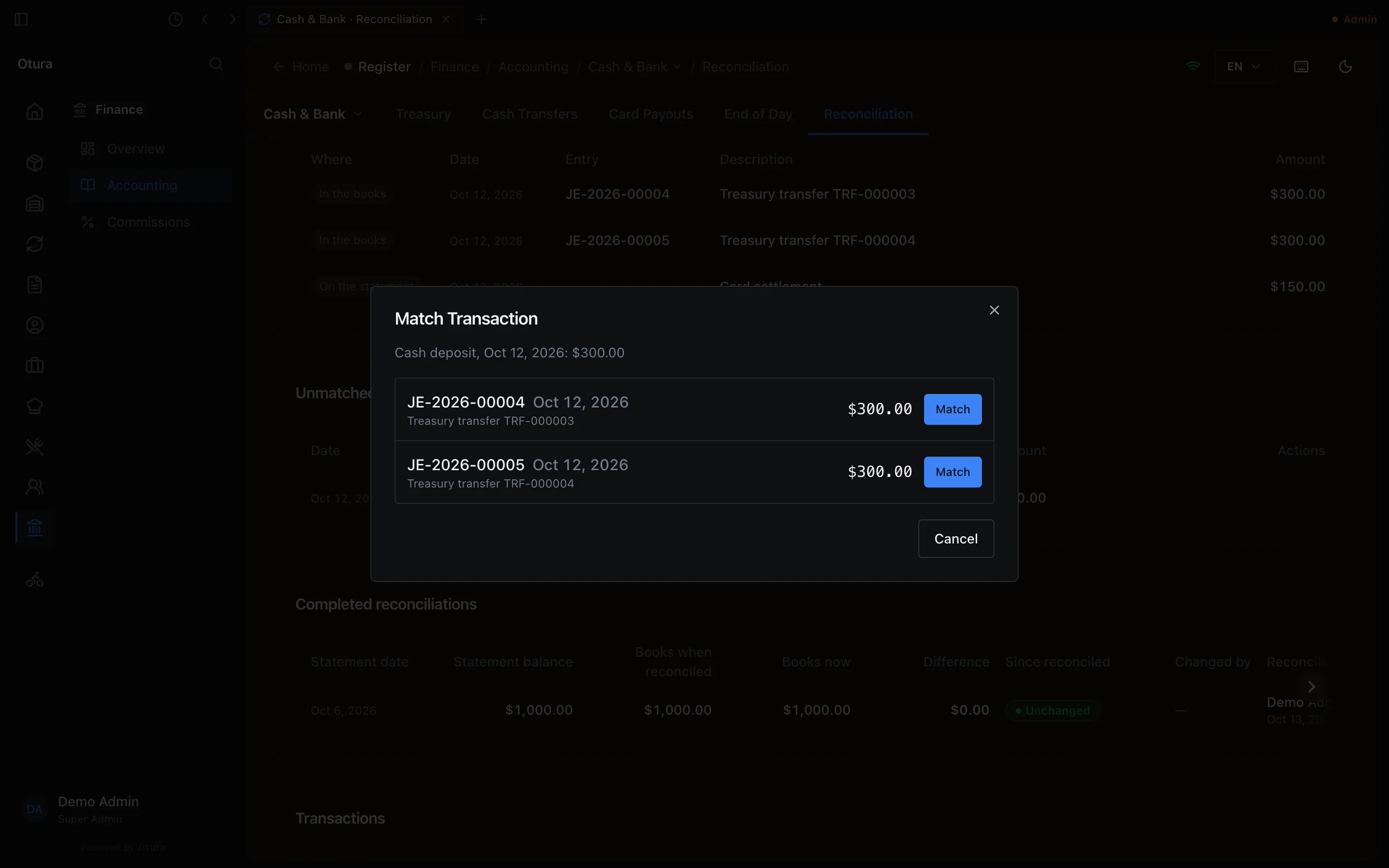
A wrong match is undone with Unmatch, on the line in the Transactions list. Unmatch is refused for a line in a completed reconciliation, and for a line booked from the statement (below): This line was booked from the statement as entry …, and stays matched to it.
Book what the bank did
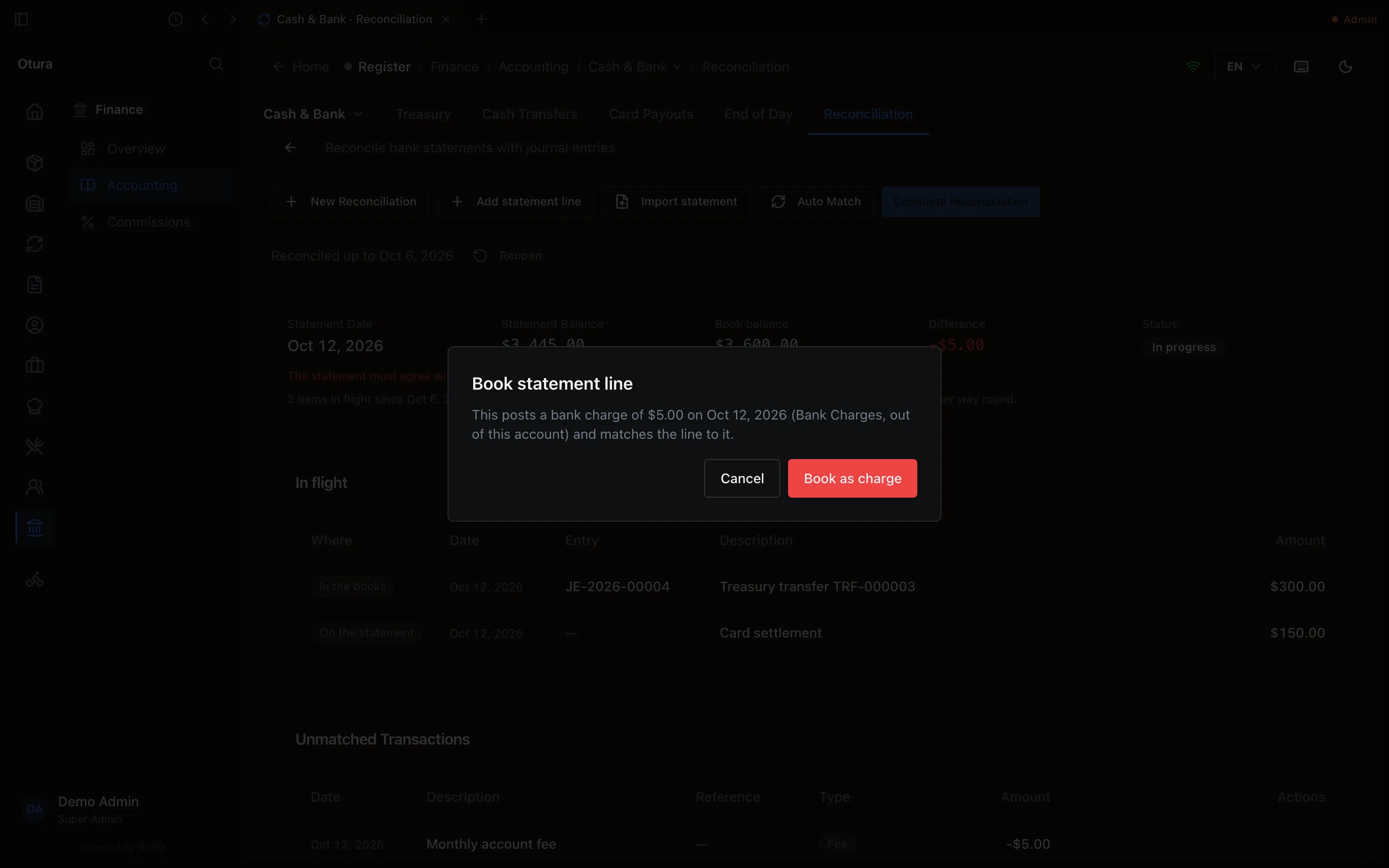
Some lines are not in your books at all until you see the statement: the bank's charges, the interest it paid. For these, a row has Book as charge (money out) or Book as interest (money in). After you confirm, Otura posts the entry on the line's date and matches the line to it:
| Posted | |
|---|---|
| Book as charge | Debit 6250 Bank Charges, credit the bank account. The line becomes a Fee. |
| Book as interest | Debit the bank account, credit 7650 Interest Income. The line becomes Interest. |
A Transfer line cannot be booked: match it to the transfer that recorded it. If the line's month is closed, booking is refused; record the charge with a journal entry in an open month and match the line to that.
In flight
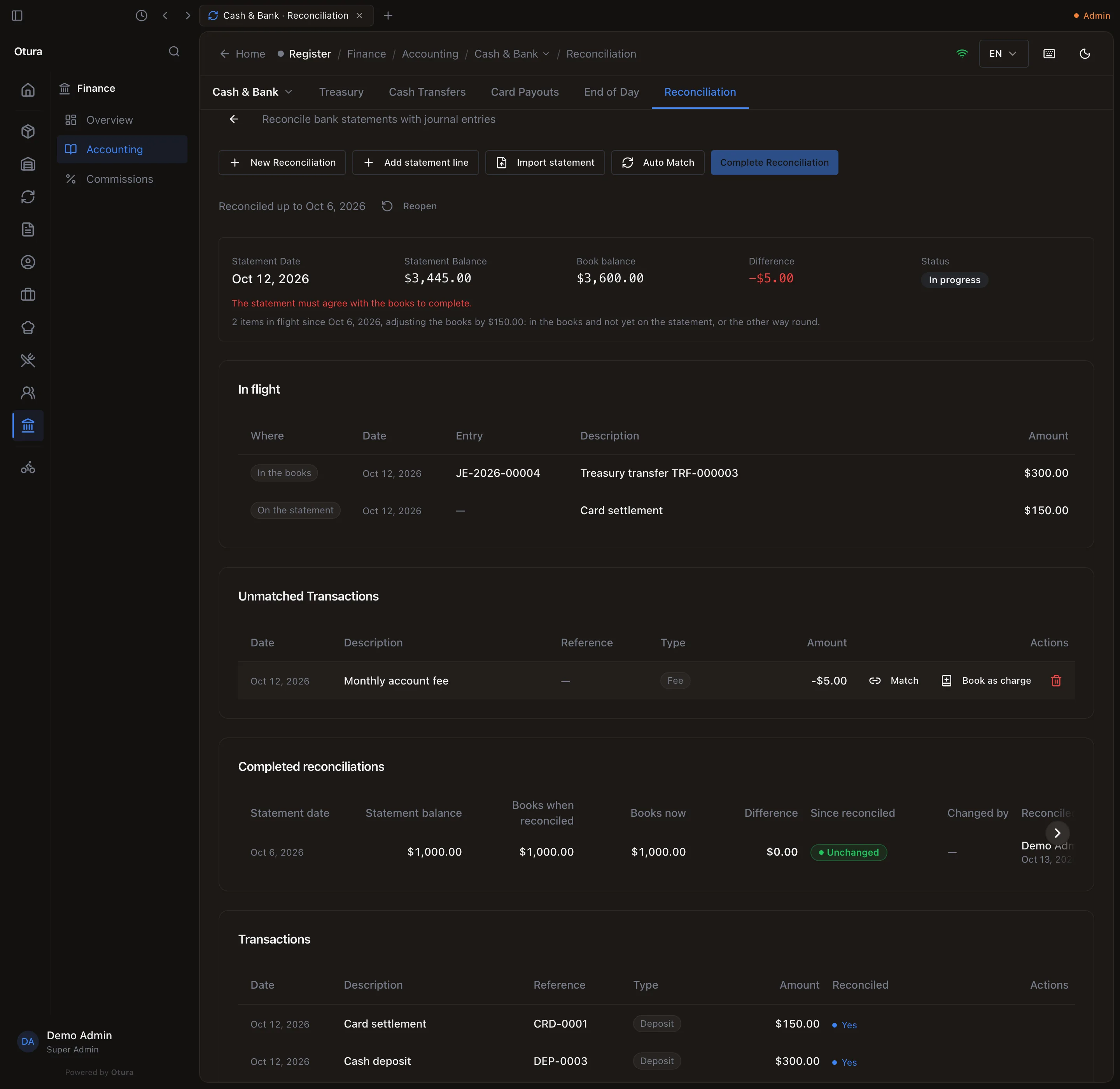
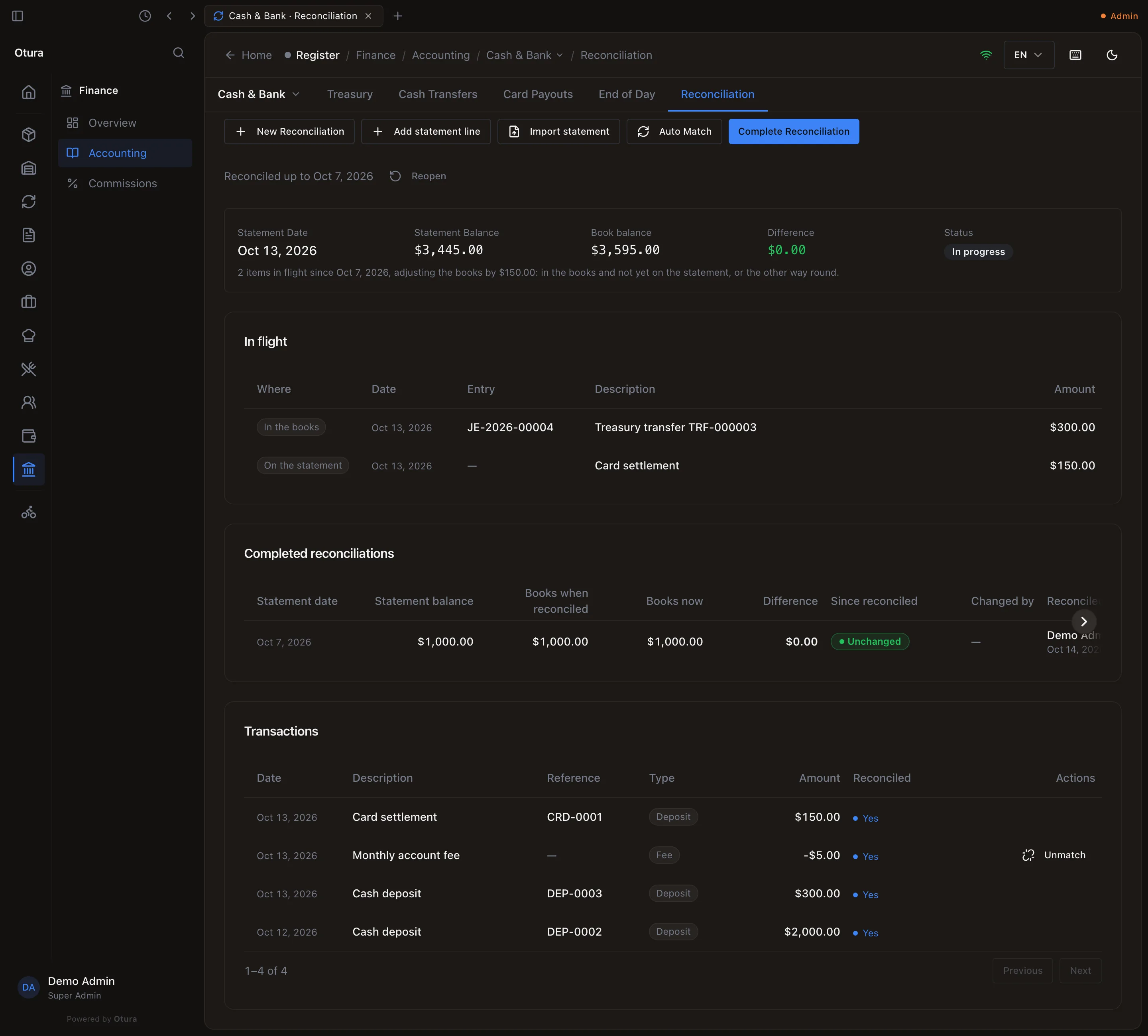
Your books and the bank rarely record the same money on the same day. A deposit you made on the 30th may reach the statement on the 1st; a card settlement the bank credited on the 2nd may be recorded in your books on the 3rd. These are the items in flight, and the page lists them under In flight, with Where each one is:
| Where | Meaning |
|---|---|
| In the books | An entry on the account since its first reconciliation that no statement line matches yet. It is in your books and not yet on the statement. |
| On the statement | A statement line matched to an entry dated after this statement’s date. The bank has it; your books, on that date, do not yet. |
The summary says how many items there are and by how much they adjust the books. The Difference is the statement balance less the book balance adjusted for them, and it must be zero to complete. In the example below the books hold $3,595.00 on the statement date; one $300.00 deposit is in the books and not yet on the statement, and a $150.00 card settlement is on the statement and not yet in the books. The adjustment is $300.00 − $150.00 = $150.00, and $3,595.00 − $150.00 = $3,445.00, the statement balance.
Complete it
Press Complete Reconciliation. It is off, with The statement must agree with the books to complete., while there is a difference, and Otura refuses to complete while any line dated on or before the statement date is unmatched. A line dated after the statement date does not hold it up.
Reconciled up to, and Reopen
A completed reconciliation closes the account up to its statement date. Nothing dated on or before it can be added, matched or unmatched, an import leaves such lines out, and the next reconciliation must be dated after it. The page shows Reconciled up to and that date.
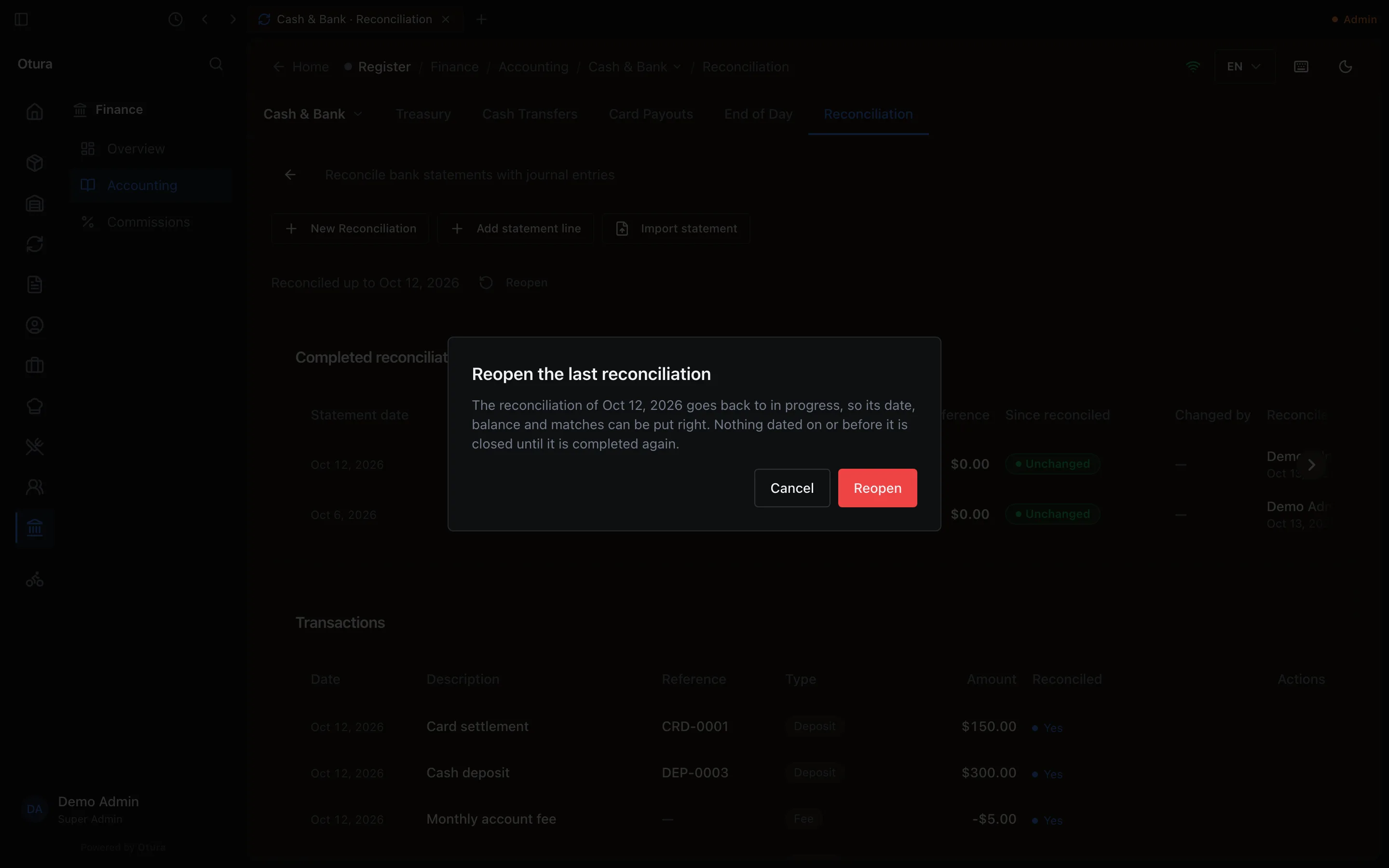
If a reconciliation was completed with the wrong date, balance or matches, someone with Administer accounting can press Reopen beside it. Only the latest completed reconciliation can be reopened. It goes back to in progress and opens, ready to be put right; complete it again when it is.
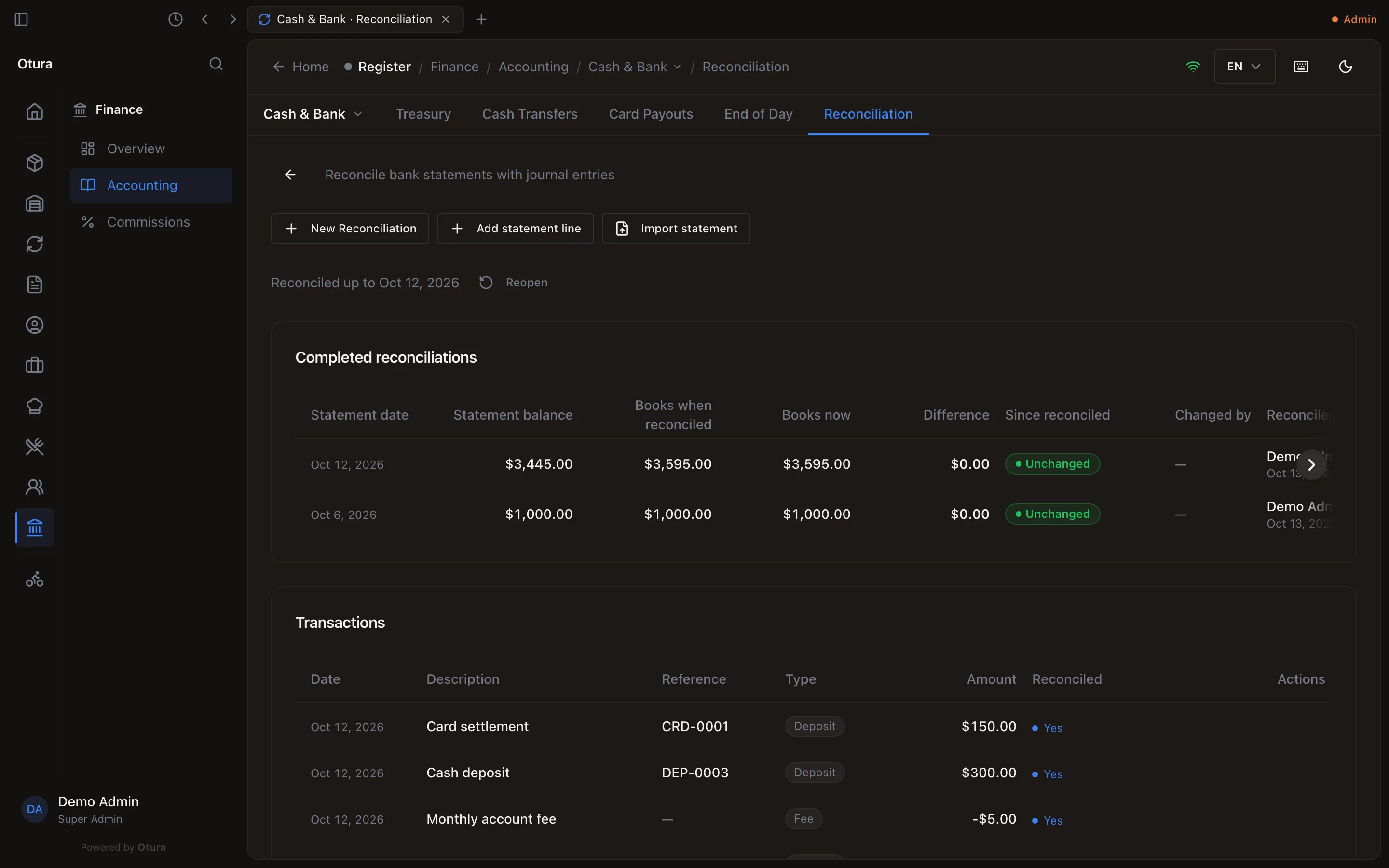
Completed reconciliations, on the account's page, lists every completed statement: its Statement date, Statement balance, Books when reconciled, Books now, the Difference, Since reconciled (Unchanged or Changed since reconciled), Changed by and Reconciled by.