Tables and the floor map
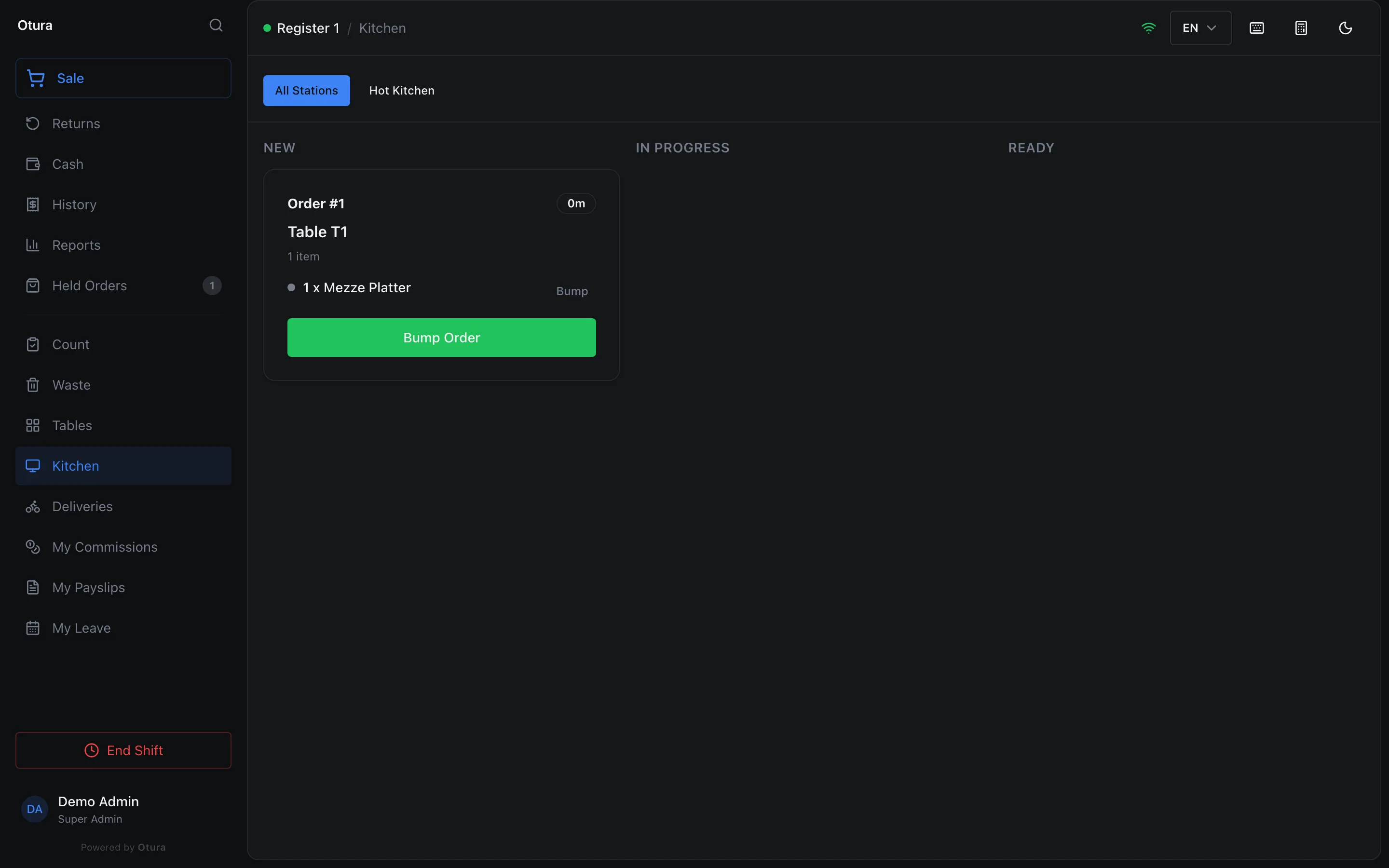
Set up your areas and tables, open an order at a table from the floor map, and see which tables are taken; the kitchen ticket names the table.
Checked against the product on 13 October 2026
With the Restaurant module on, the till has a floor map: your tables, grouped by area, each showing whether it is free or taken. An order opened at a table is a dine-in order that stays with that table until it is paid.
Set up the floor
In the back office, RestaurantTables. Areas (Terrace, Main hall, Bar) group the tables; every table belongs to one.
Add Table
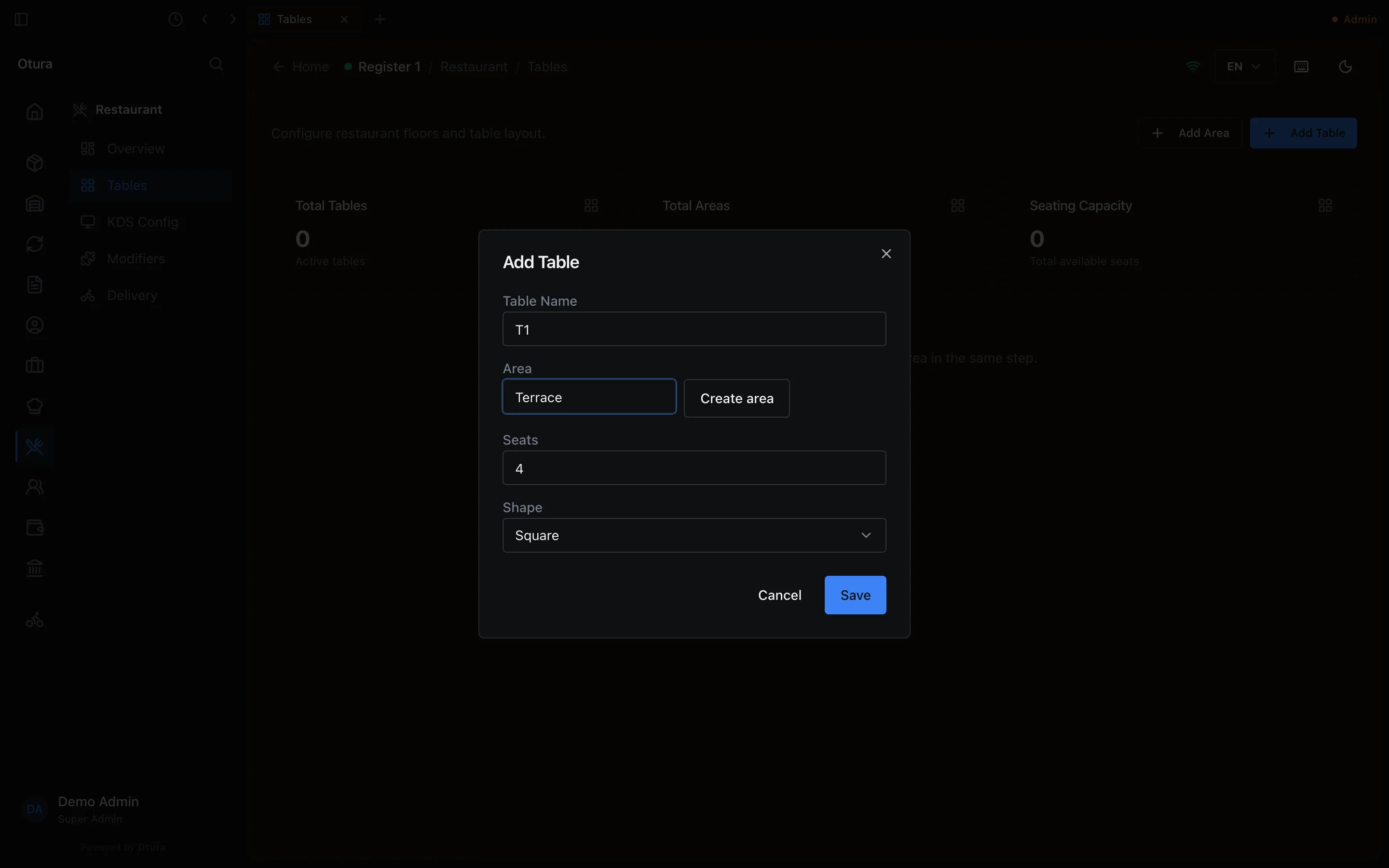
Press Add Table and type the Table Name (T1, A-01).Its area
Pick the Area. For your first table, or a new area, press New area, type the Area Name and press Create area: the area is made and chosen without leaving the window.Seats and shape
Type the number of Seats (at least 1), pick the Shape and press Save.
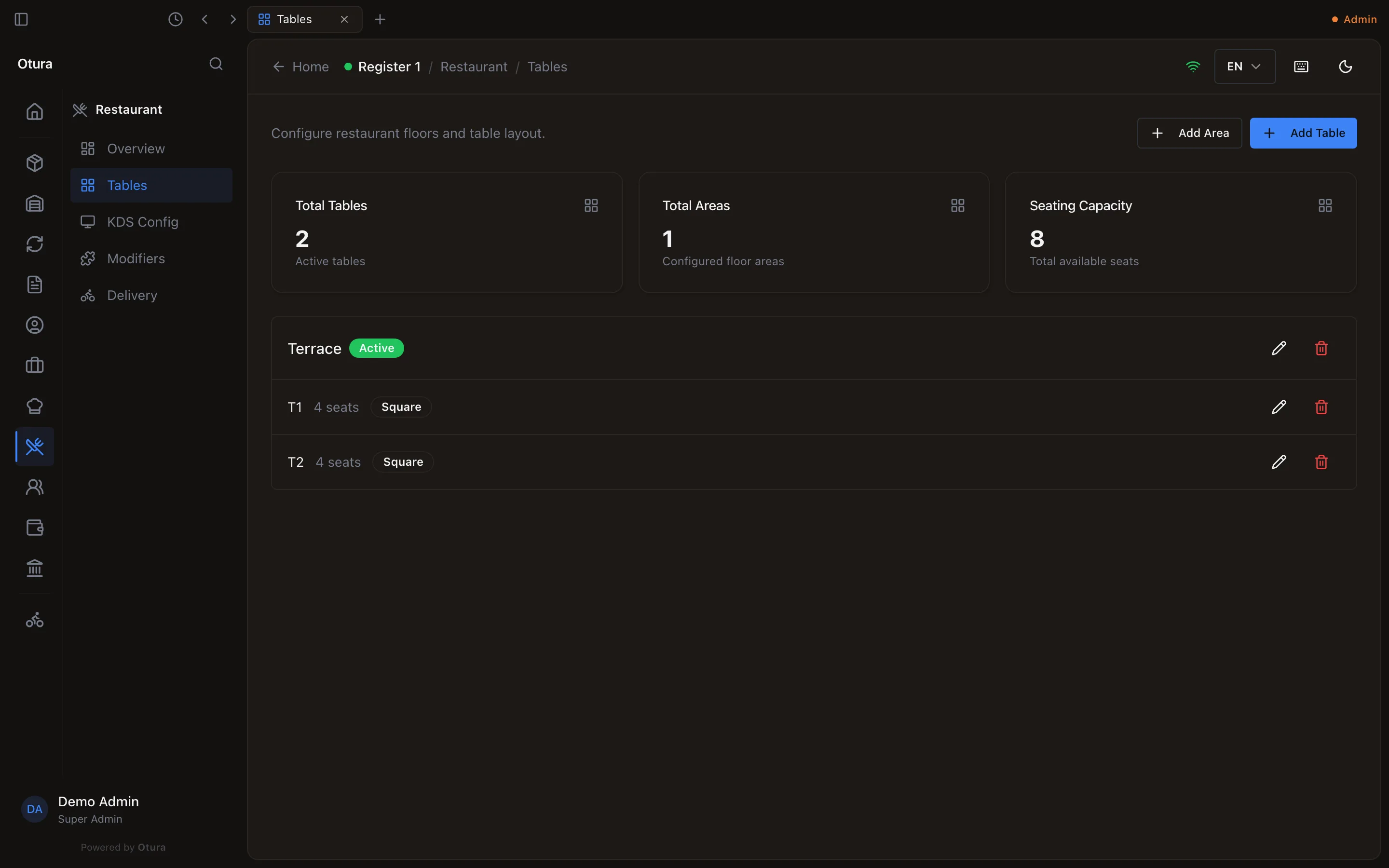
An empty area offers Add a table to Terrace (its own name). A table with an order open at it cannot be deleted: Table T1 has an open order. Close it or move it to another table first. An area with tables cannot be deleted until its tables are moved or deleted.
At the till, an owner who opens Tables on an empty floor is offered Add a table there and then; anyone else is told to ask an admin.
The floor map
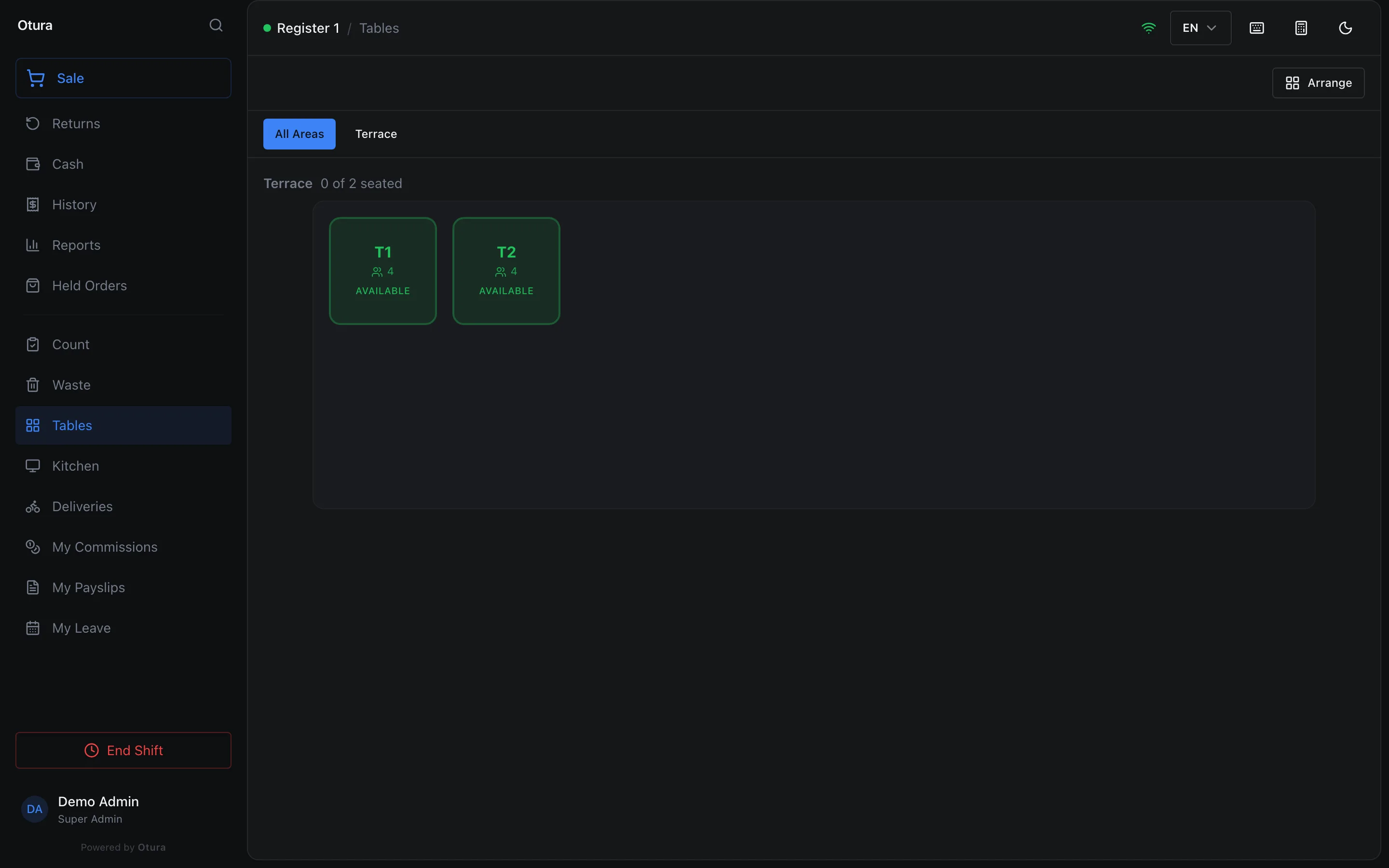
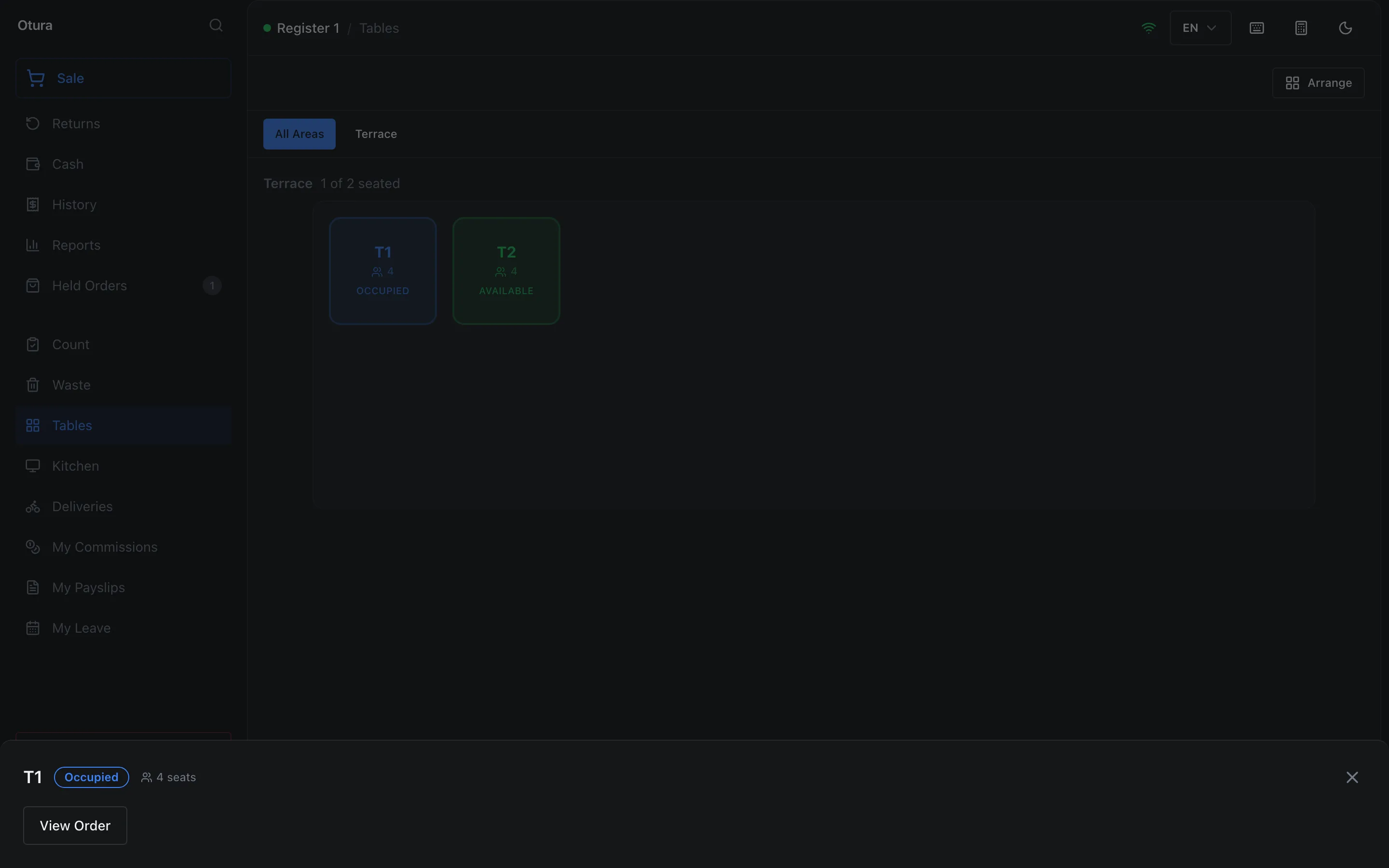
At the till, Tables in the menu. The map shows each area with how many tables are seated (0 of 2 seated), and each table with its seats and whether it is Available or Occupied. Arrange lets you drag tables into their real places (or move them with the arrow keys); the layout saves as you go.
Open a table
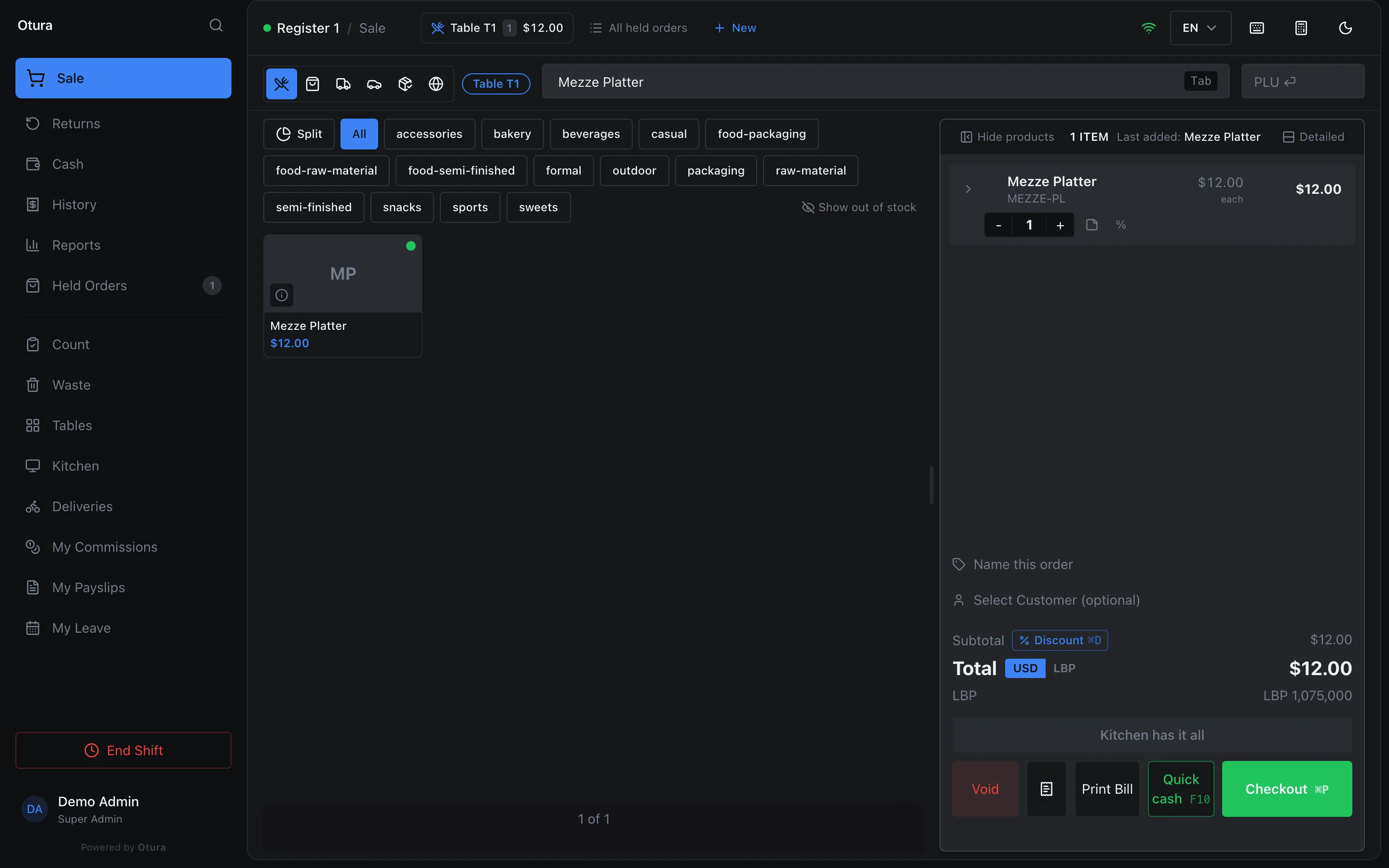
Tap a free table, then New Order. The sale screen opens on a dine-in order at that table, named on the order strip and the order type (Table T1). Whatever was on the screen before is set aside as a held order, not lost.Ring and send
Add the items and press Send to kitchen. The kitchen ticket names the table (see Kitchen orders).Come back to it
The table now reads Occupied. Tap it and View Order to open its order again, to add more or to take payment.
An order open on another cashier's screen at the same till cannot be opened from the map: you are told to ask them to park it or sign out first.