Item codes: a dot and a number at the till
Give each item a short code, find the codes two items share, print the list for the counter, and add an item at the till by typing a dot, its code and Enter, with a quantity if you like.
Checked against the product on 2 November 2026
An item code is a short number for an item, such as 12 for a chicken shawarma. At the till the cashier types a dot, the code and Enter — .12 — and the item is added, exactly as a tap on its tile would add it. 2*.12 adds two. It is quicker than finding a tile on a busy screen, and it needs no barcode, which most dishes and loose items do not have.
The code is the item's PLU: the same field as on the product's Variants tab (see Variants) and the scale's item number for a weighed item (see Labels printed by a scale). Each size or option of a product has its own code. Item codes are new in Otura 0.4.11.
Giving out the codes
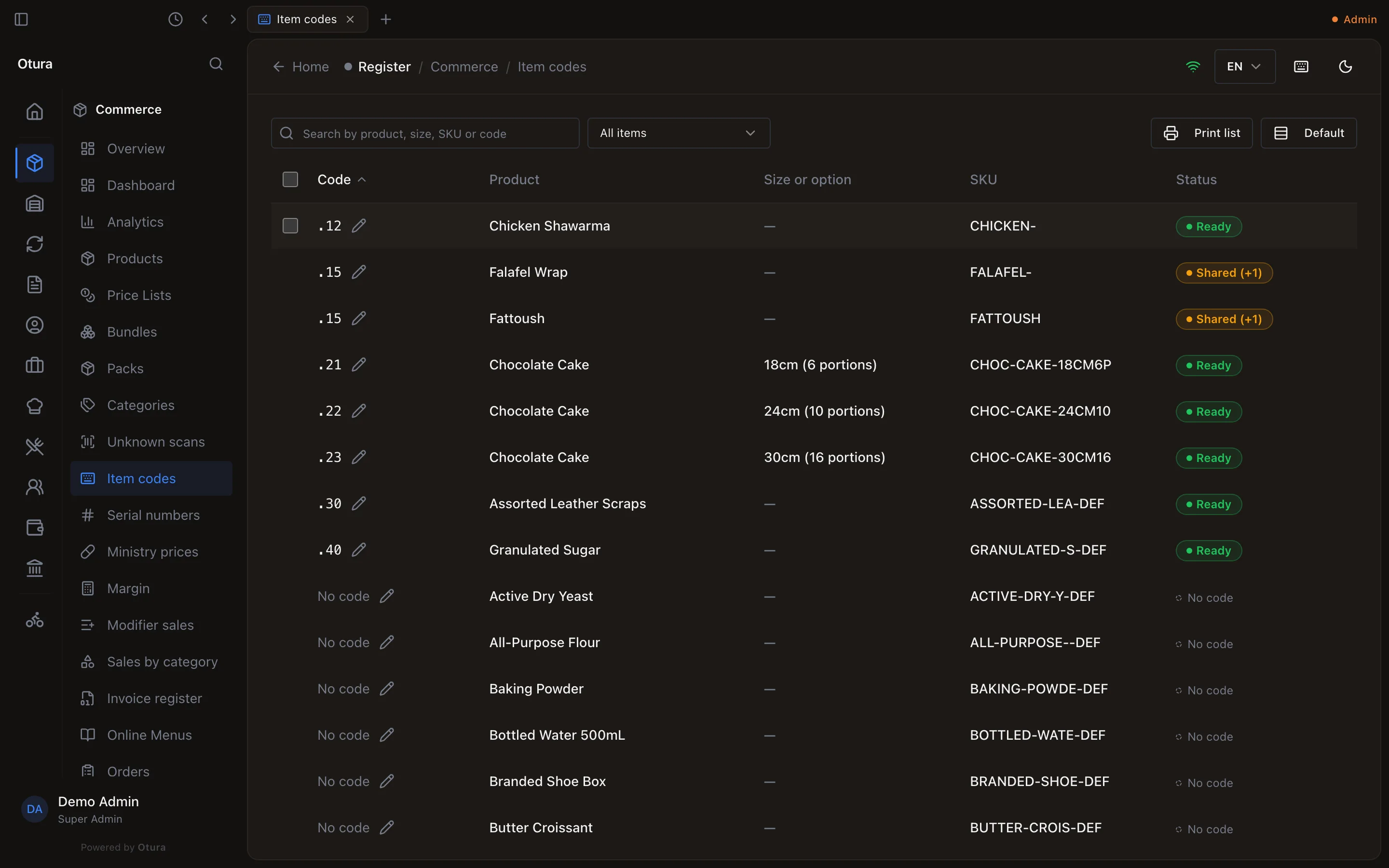
CommerceItem codes lists every item of the catalogue, one row per size or option, with its Code, Product, Size or option, SKU and Status: Ready, No code, or Shared (+1) when another item has the same code. Seeing the page needs View products; changing a code needs Edit products.
Find the item
Type in Search by product, size, SKU or code, or narrow the list with Show: All items, With a code, Without a code or Shared codes. The list opens sorted by code, numbers in their order (2 before 10), items without a code last; click Product or SKU to sort by those instead.
Type its code
Click the pencil beside the code, or double-click the code. Type the code and press
Enter, or click away: it is saved at once.Escputs back what was there. Clear the box and save to take the code away. A code is up to 20 characters; digits are what a cashier types fastest.
Otura refuses a code another item already has, and names it: The item code (PLU) 12 is already used by Chicken Shawarma., with the size in brackets when the item has one. The cell says Could not save the item code and keeps the old code. When codes are compared, Arabic-Indic digits count as the same digits (١٢ is 12), capitals as small letters, and leading zeros are ignored in a code of digits (012 is 12). A deleted item's code is free to give again. A code that is another item's barcode or SKU is refused too (see Barcodes, SKUs and PLUs).
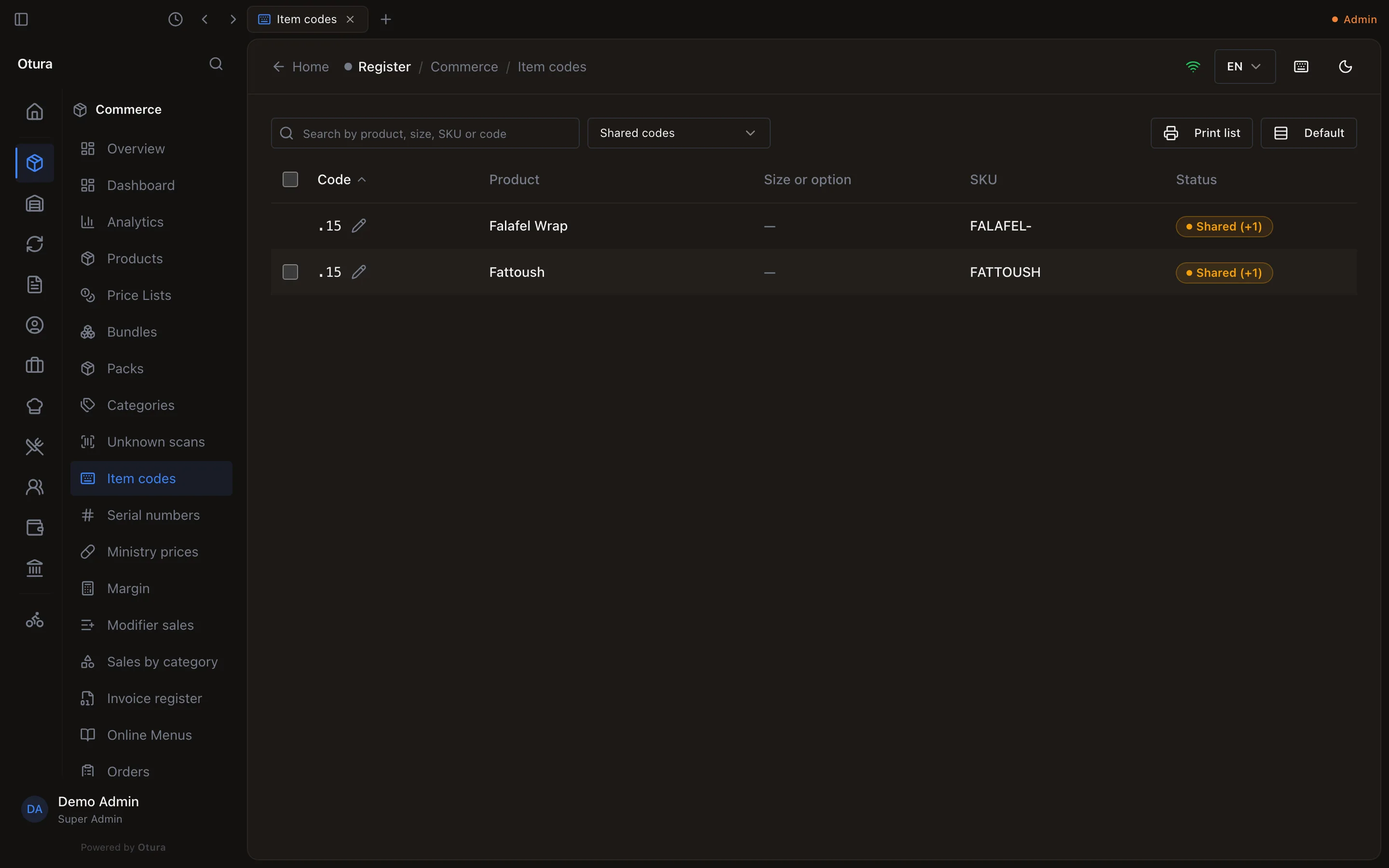
Codes two items share
Two items can still hold the same code if it was given before Otura 0.4.11, which compared codes less strictly, for example 12 on one item and ١٢ on another. Show › Shared codes lists them. The till asks which one is meant (below), so a shared code still works, but a cashier has to answer every time: give one of them another code. With none left the page says No shared codes.
Printing the list for the counter
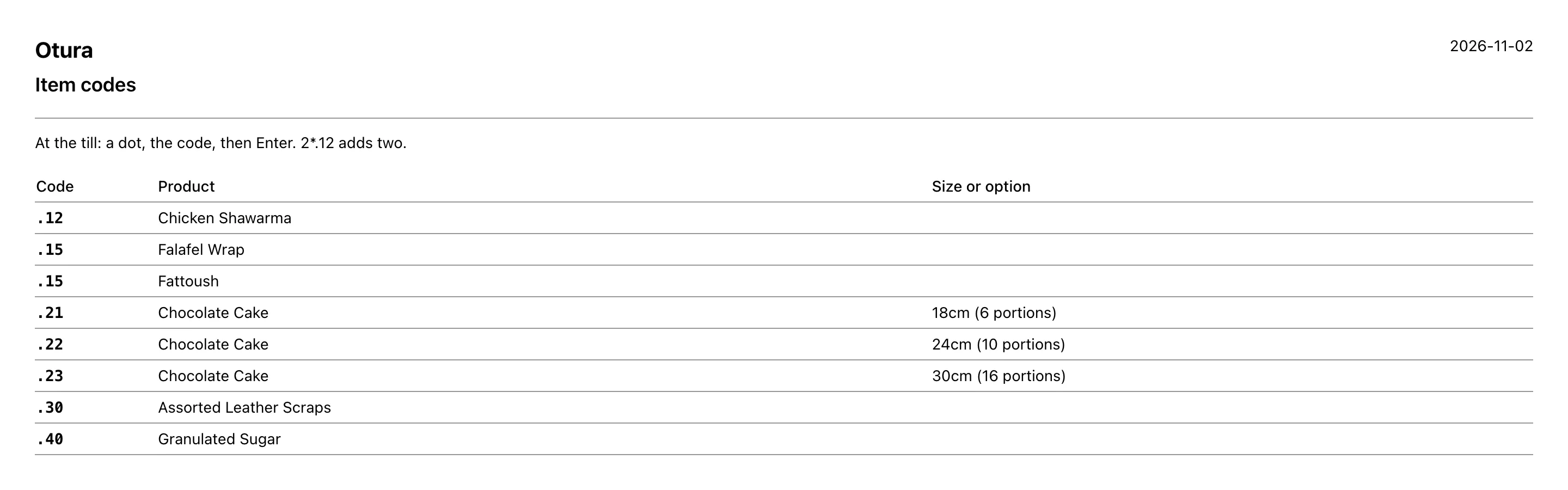
Print list prints every item that has a code, in code order, whatever the screen is filtered to: the code, the product and the size or option, under the title Item codes and the line At the till: a dot, the code, then Enter. 2*.12 adds two. It prints through the browser's print window. Pin it beside the till until the cashiers know the codes.
At the till
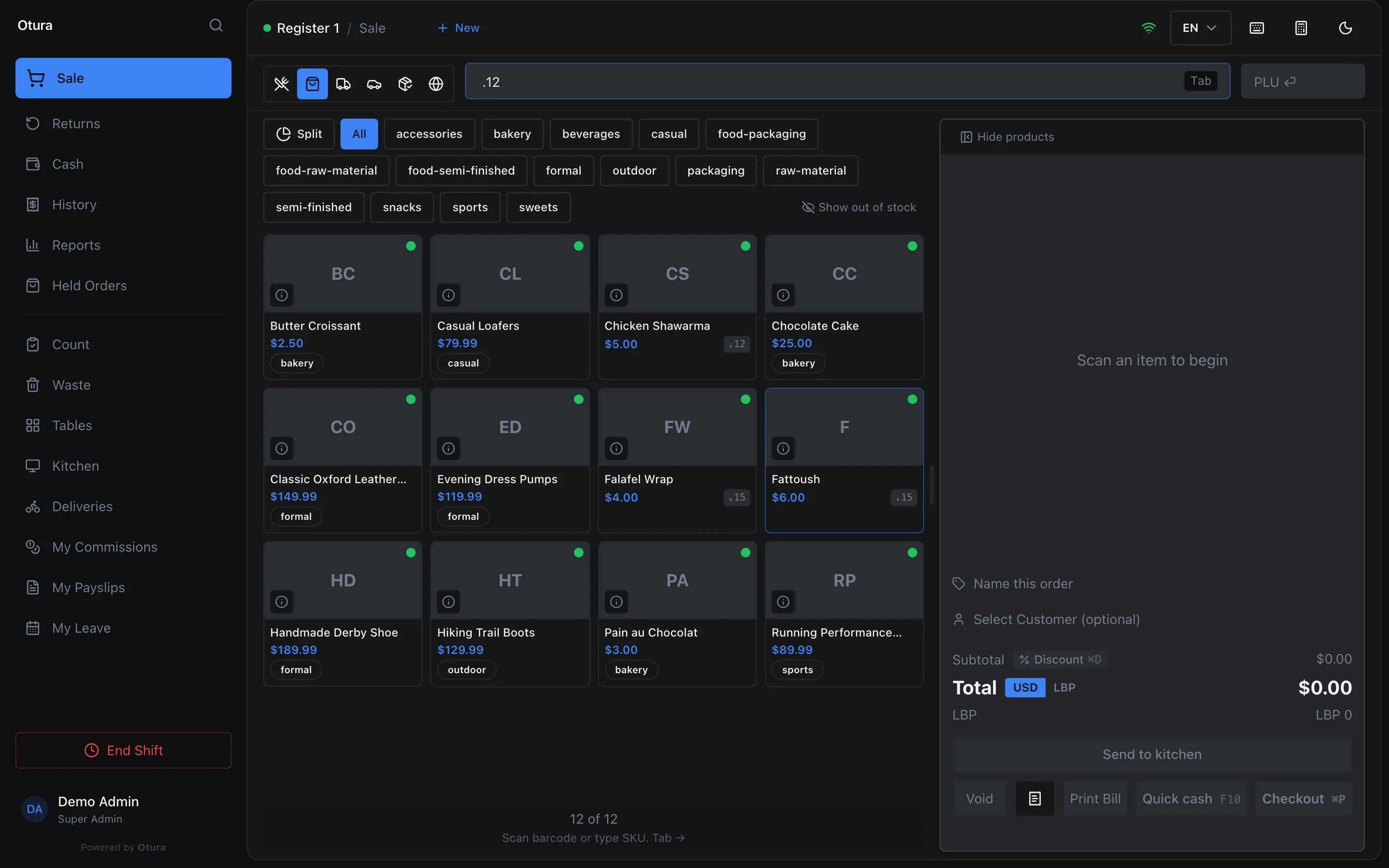
On the sale screen, press . when no text box has the cursor (after tapping a tile or a cart line, say). The search box takes the cursor with the dot already in it; the decimal key of the numeric keypad does the same. Type the code and press Enter. In the search box itself, type the dot first.
| Typed | What the till does |
|---|---|
.12 | Adds one of the item whose code is 12. |
2*.12 or .12*2 | Adds two. The count is a whole number from 1 to 999, on one side of the code only. |
.١٢ | Arabic-Indic digits count as the same digits, and the Arabic decimal separator (٫) as the dot. |
12 | Without the dot it is an ordinary lookup, as before: a barcode, an SKU or a PLU, or a name to search. |
An item added by its code goes through everything a tap on its tile goes through: a weighed item opens Enter Weight, an item with options asks for them, and the stock rules are the same. The catalogue is not filtered by what you type after the dot. It works offline too, from the catalogue the till last received.
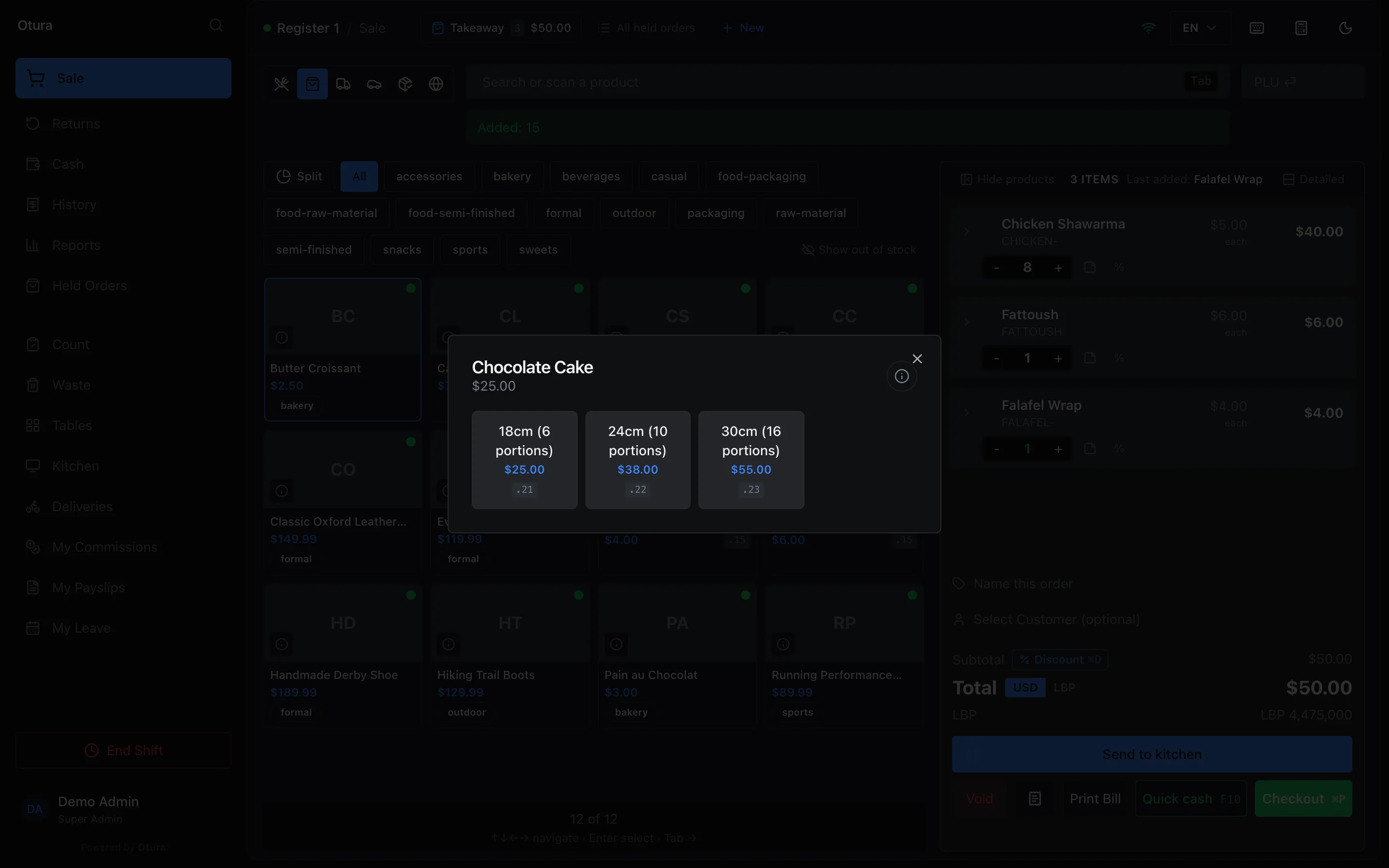
A single-variant item's tile, and each size in a product's size picker, shows its code in a small badge.
When two items share a code
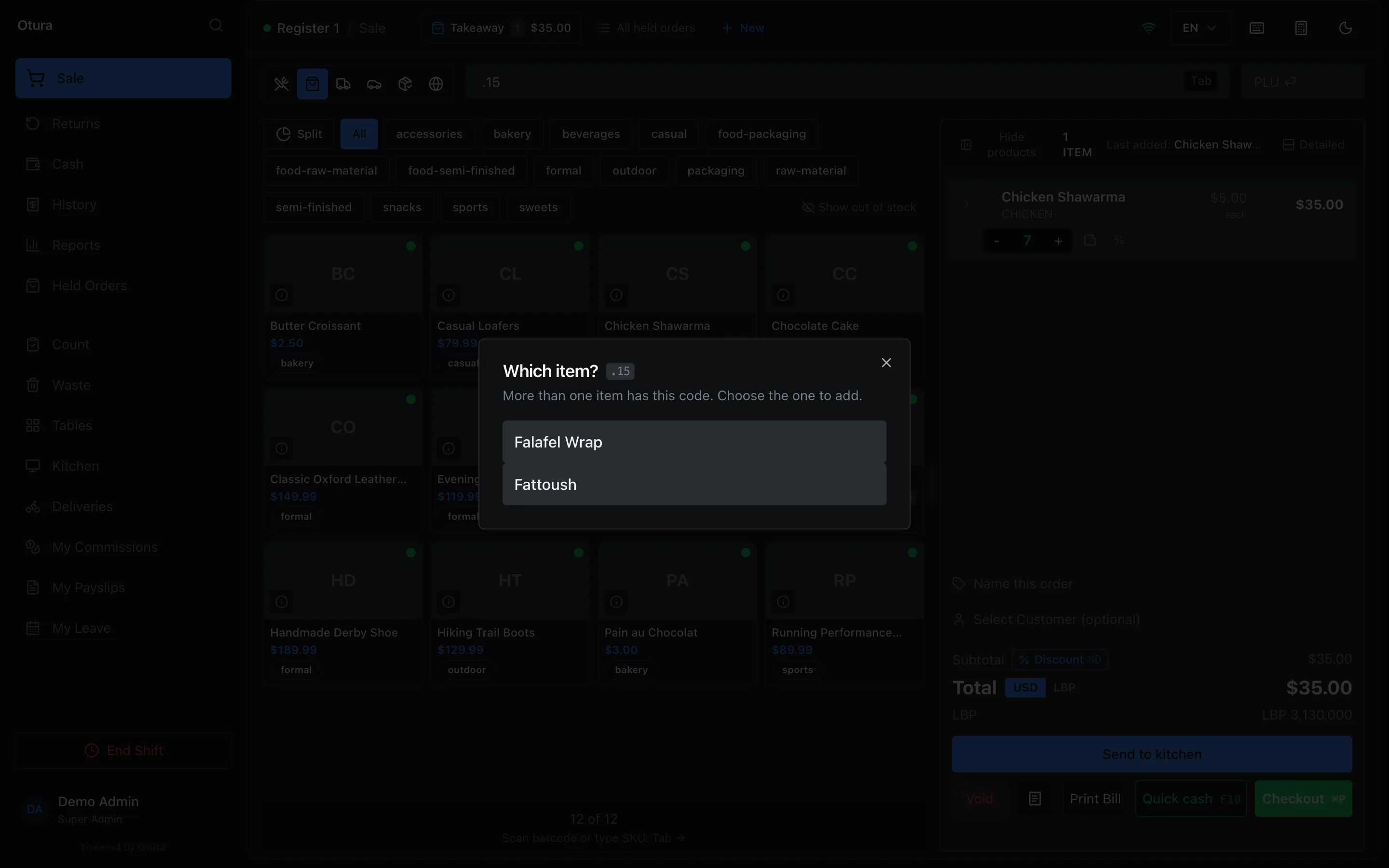
The till never guesses. It opens Which item? with the code beside the title and More than one item has this code. Choose the one to add. Choose with ↑ and ↓ and Enter, or tap one. Esc goes back to the search box, with the code still in it. It lists at most 20 items. A dot alone, or a count and a dot with no code yet, does nothing on Enter.
Typed without the dot, a shared code does not ask: it adds the first of them by product name, as an ordinary lookup always did. Another reason to give each item its own code.
What the till refuses
| Typed | The till says |
|---|---|
| A code no item has | No item has code 999 |
| A code on an item the till does not sell: a raw material, a semi-finished item or packaging, a draft, or an inactive item | No item has code 40, as if the code were free. The back office still lists the code. |
| A count of 0 or over 999 | The quantity must be a whole number from 1 to 999. |
| A count on both sides | Give the quantity on one side only, like 2*.12 or .12*2. |
| A count after the dot with no code (.*2), or more than one * | Type the item code after the dot, like .12 or 2*.12. |
| A count with a weighed item | Item 30 is sold by weight. Enter its code without a quantity, then weigh it. |