The sale screen
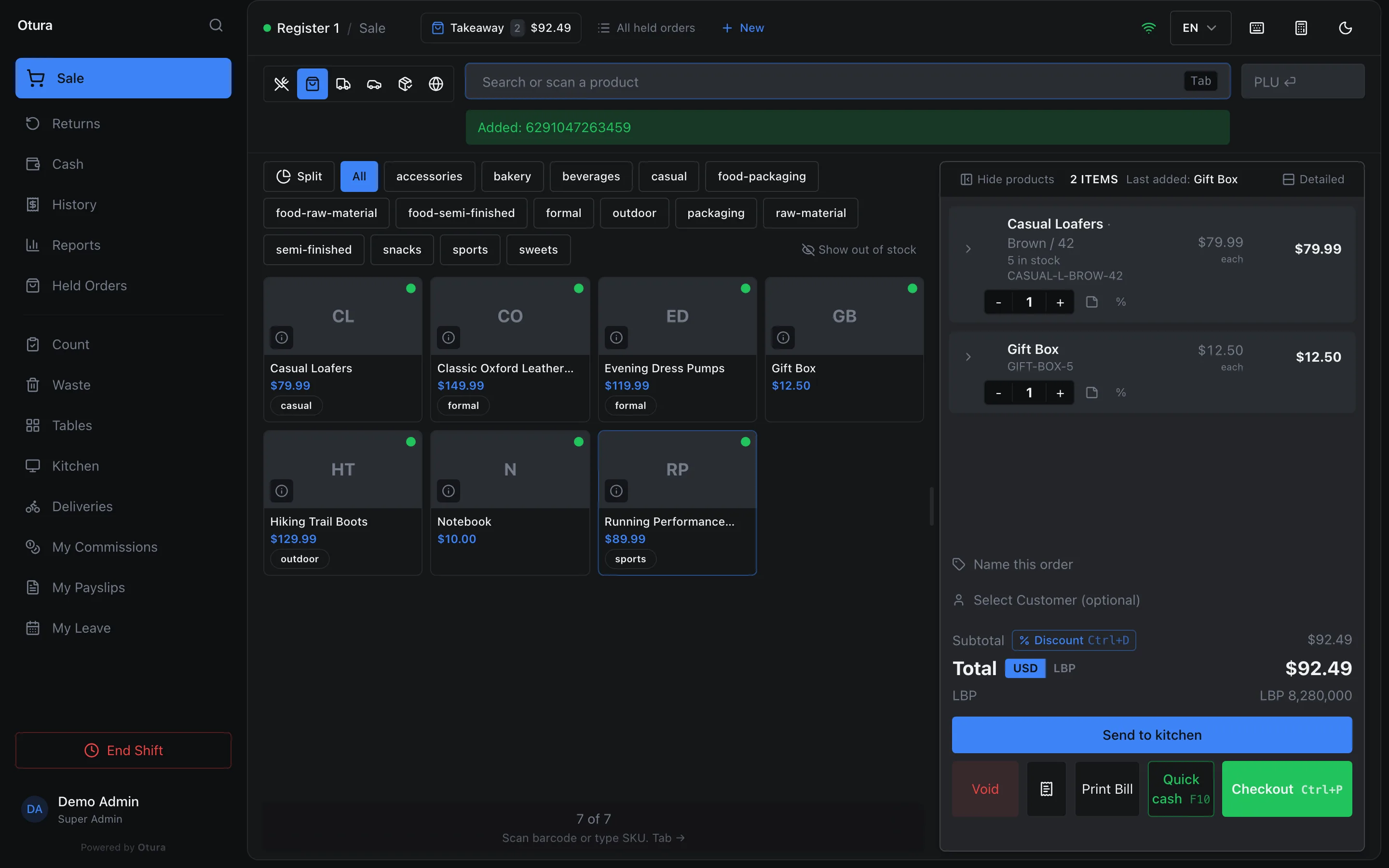
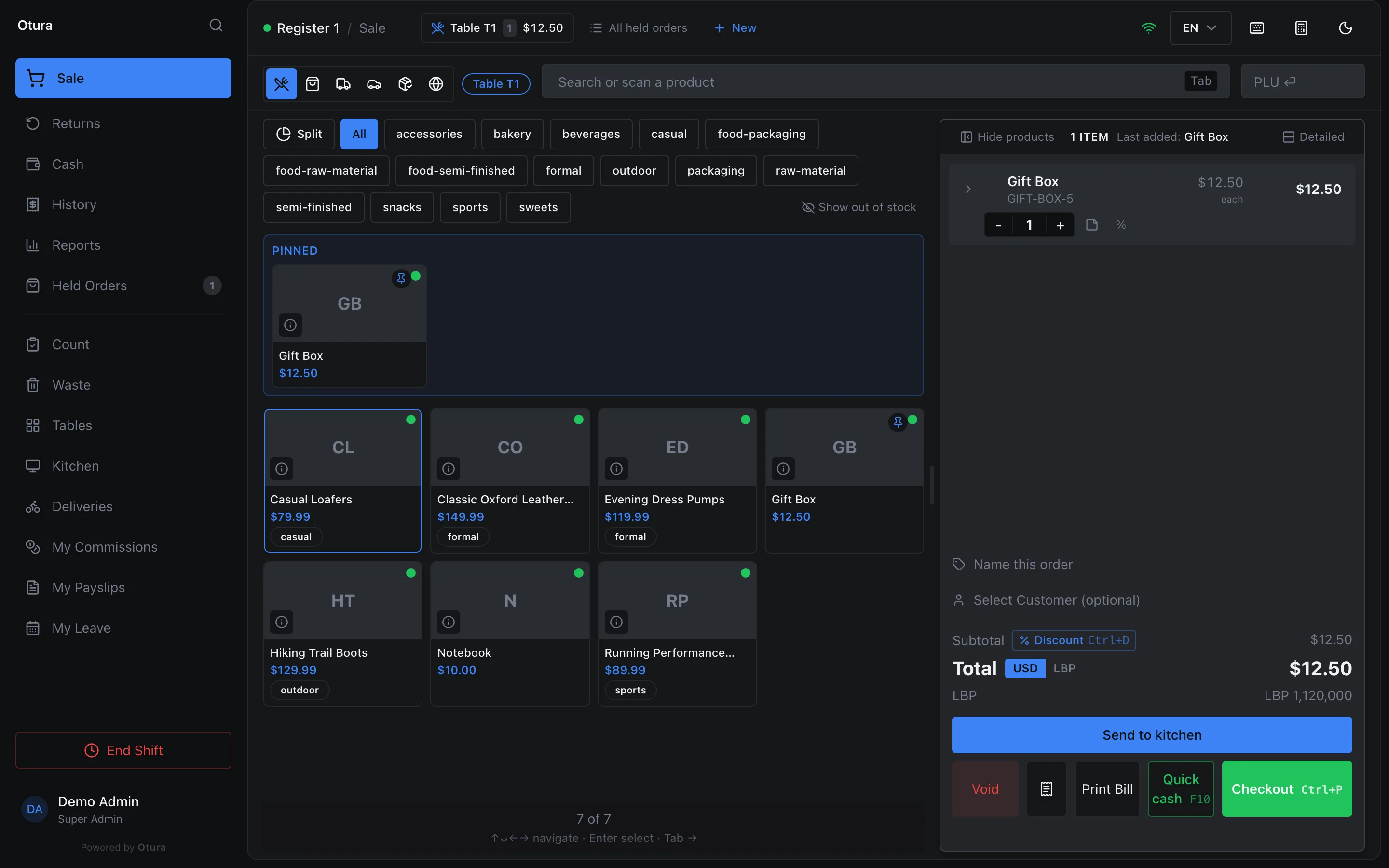
Ringing up an order at the till: held orders and order types in the top bar, the catalogue and its divider, pinned products, the cart and its dollar/lira switch, the calculator, and the keyboard.
Checked against the product on 23 October 2026
The sale screen has three parts: the top bar (which order you are on, and what kind of order it is), the catalogue on the left, and the cart on the right. You can add an item by clicking its tile, or by scanning or typing its barcode or SKU into Search or scan a product and pressing Enter. A scan made while no text box has focus (after you tap a tile or a cart line) goes to the same field, so it is added the same way: a pack barcode adds the pack, an item sold by weight asks for its weight, and a bundle opens its picker or adds its lines. A label printed by a scale adds the item at the weight on the label, without asking (see Labels printed by a scale). A medicine pack whose own code says it has expired is refused where the shop does not sell expired stock (see Never selling expired stock).
Typing a name in the same field filters the catalogue once you pause. A scanned code does not search the catalogue: it only adds the item.
A line you add appears in the cart at once, with Adding… and no price, until the order is updated. The line then shows its price and the total includes it. Checkout waits until every line is in: pressed too early, it says Still updating the order. Pay in a moment, once it is up to date.
A scanned barcode that finds nothing opens Code not found. Anything else that finds nothing, such as a name typed and entered, only says No product has the code “…”. A code counts as a barcode when it is 6 to 14 digits. The popup lists the code for the back office to deal with (see Codes the till could not find) and, where allowed, lets you link it to a product you sell or add it as a new one and sell it straight away (see Adding a product at the till).
The top bar
Held orders and New
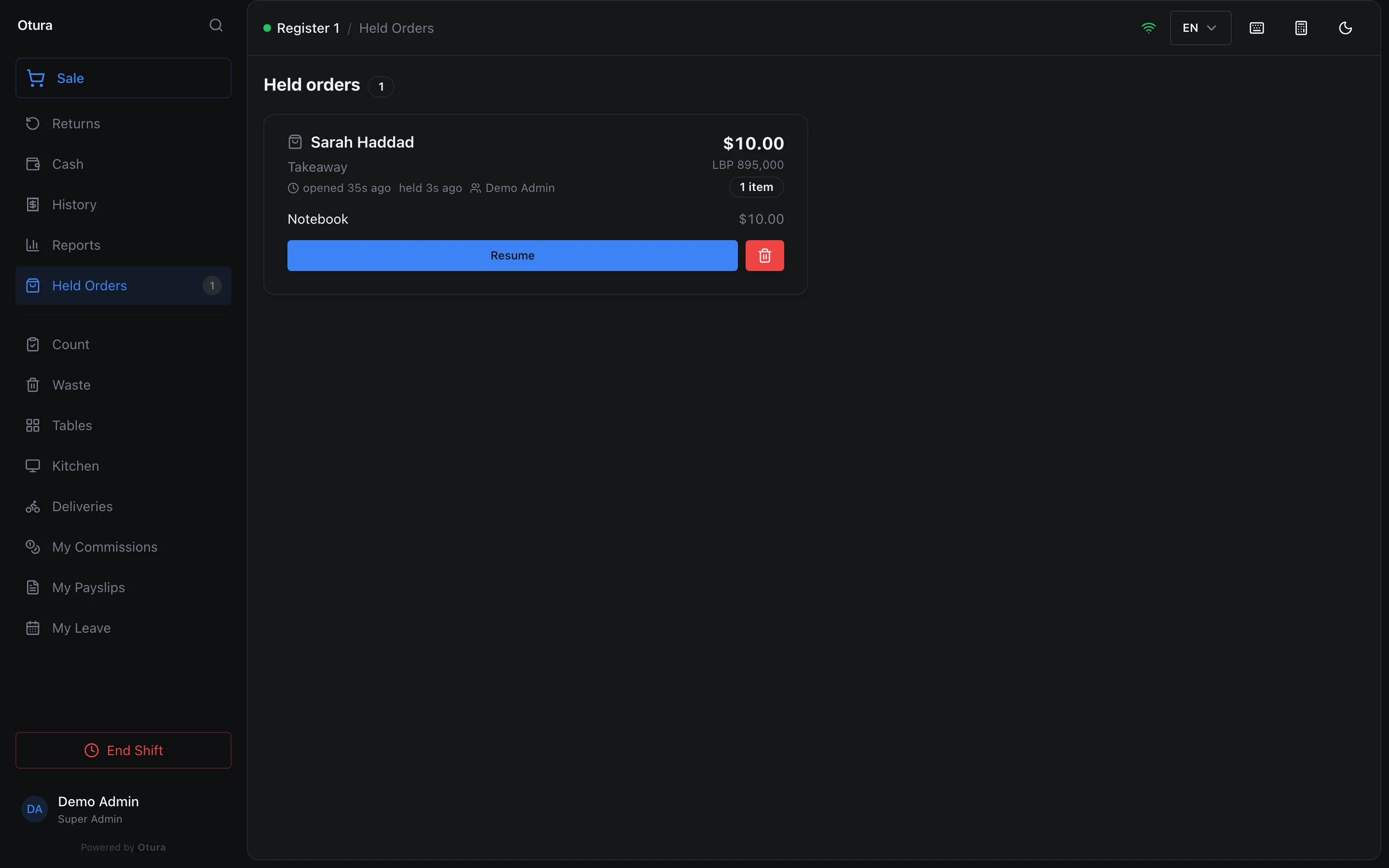
Next to the till's name, the top bar lists every order on this till that has items in it. Each one shows its type's icon, its name, how many lines it has and its total. The name is the one typed in Name this order; without one, the table (Table T1), else the customer (Sarah Haddad), else the type (Takeaway). The order on screen is the highlighted one; click another to switch to it. An order keeps its place in the row while you switch between orders. A new, empty order has no entry of its own.
Each order keeps its own customer. Switching to another order shows that order's customer, or none: after + New, the blank order has no customer, and going back to the first order brings its customer back. The payment goes on the account of the order's own customer, never the one of the order you were on before.
- + New sets the order on screen aside (Order held) and starts a blank one.
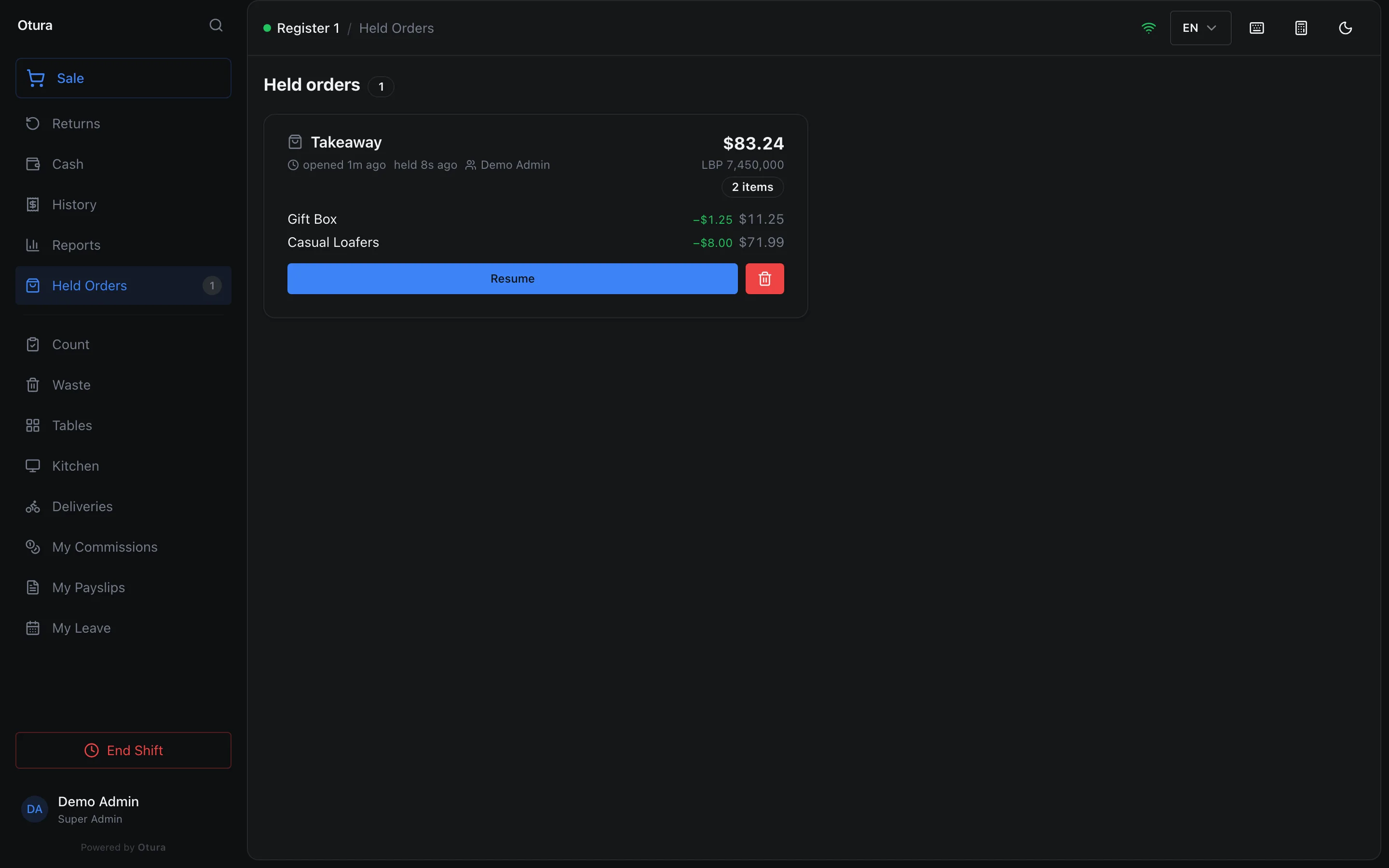
Ctrl+H(Hold Order) does the same. - All held orders opens Held orders, which lists each order with its lines, who opened it and when. Each order's lira total there is the one the cart quotes, rounded to your cash step (see the lira total). Resume brings an order back onto the sale screen. The same page is Held Orders in the side menu.
- Signing out with an order on screen sets it aside for this till. The next person who signs in here, such as a supervisor who comes to apply a discount or a colleague taking over, sees it in the top bar and in Held orders, and can carry on with it. An empty order is not kept.
- An order set aside by someone else names them: hover over its entry in the top bar to see the cashier after its name, line count and age. Held orders shows the cashier on every order.
- If the owner changes the exchange rate while an order is open, the order's lira is worked out again at the new rate the next time anything is done with it: a line added, the screen refreshed, switching to it, or the payment. Its dollar prices do not change. The till says so once: Rate updated: this order was quoted at … LBP/$, now … (see Taking payment).
- While the connection is down, the desktop till parks orders on itself: + New,
Ctrl+Hand Resume work for orders this till parked, up to 10 at once, and an order can still be named. Orders held on the server are not listed until the connection returns; Held orders says so. A parked order stays on this till until it is paid or cancelled, also after the connection returns. See Selling when the connection drops.
Order type
The buttons left of the search field set the order's type: Dine In, Takeaway, Delivery, Drive Thru, Pickup and Online Order. On a till screen narrower than 1536 pixels they are icons only. Hover over one to see its name. Alt+1, Alt+2 and so on choose the first, second and later types in the row.
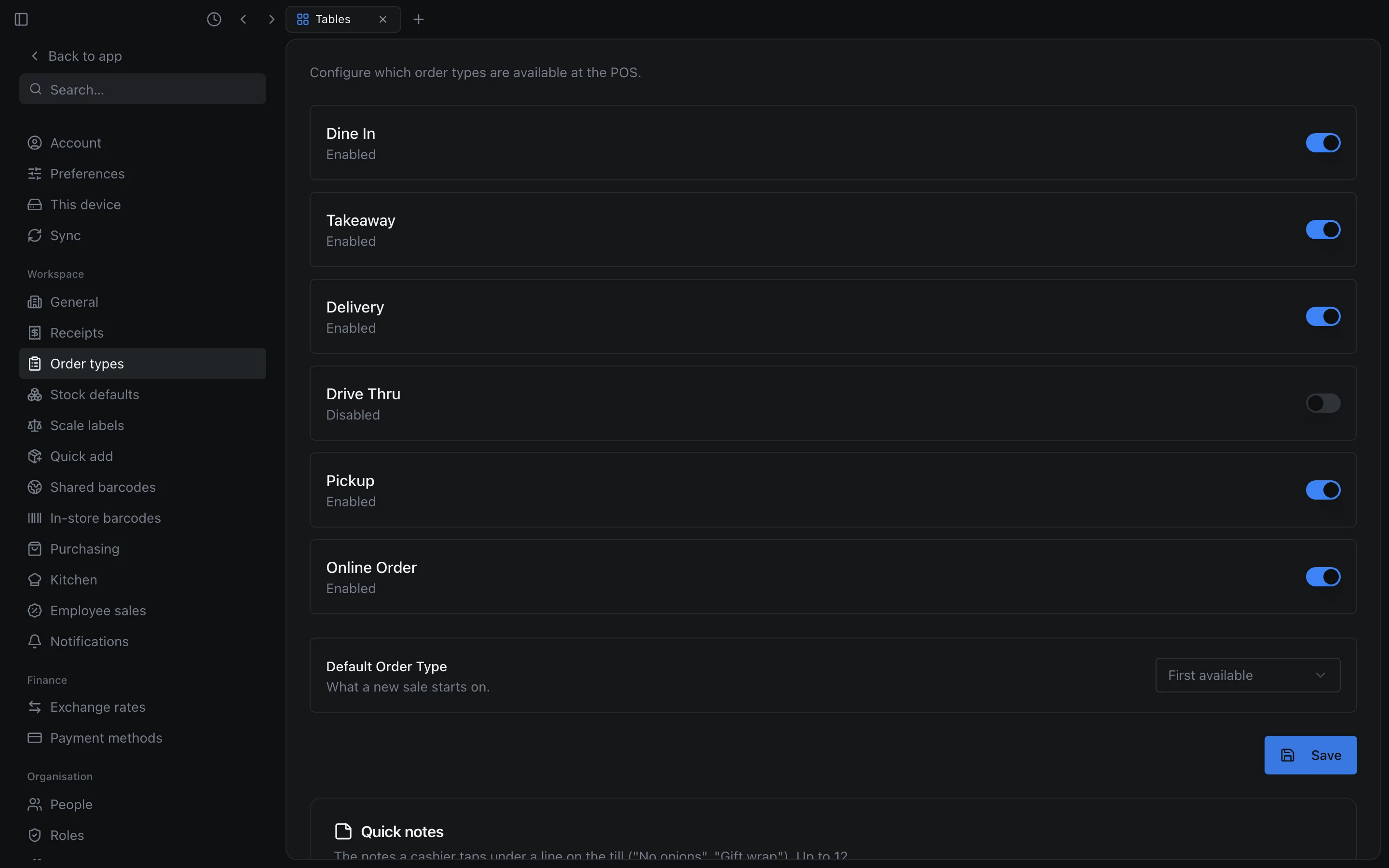
Dine In and Drive Thru need the Restaurant module, and Delivery needs the Delivery module. Which types your shop uses is set in SettingsWorkspaceOrder types: each type has a switch, and Save keeps the choice. A type switched off is not offered on the till: with Drive Thru off, its button is gone from the row. An order that is already of that type still shows it. Default Order Type on the same page is what a new sale starts on.
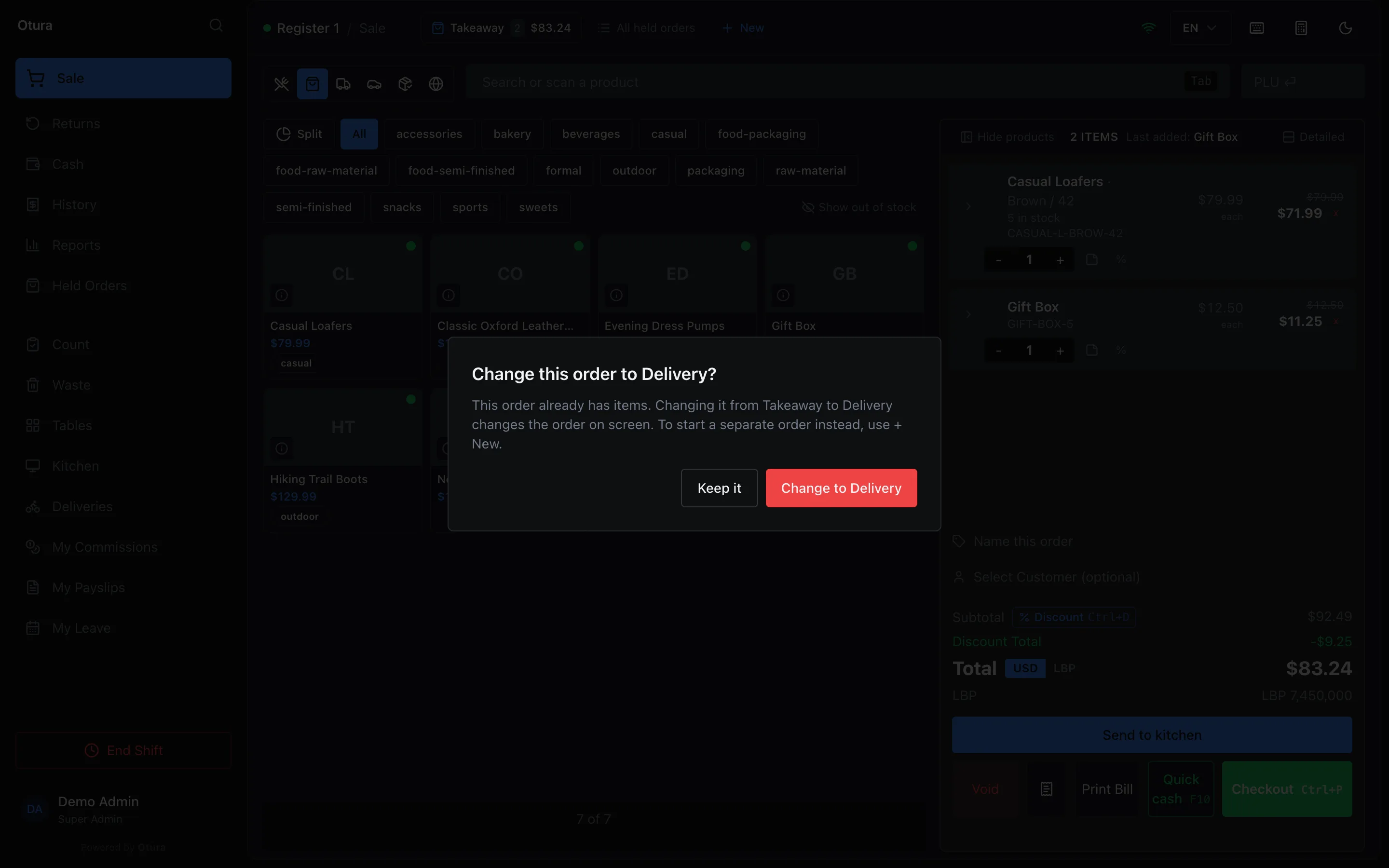
On an empty order the type changes as soon as you choose it. If the order already has items, the till asks first, for example Change this order to Delivery?, and explains that this changes the order on screen. To start a separate order instead, use + New. Press Change to Delivery to change it, or Keep it to leave it as it was.
Dine In and the table
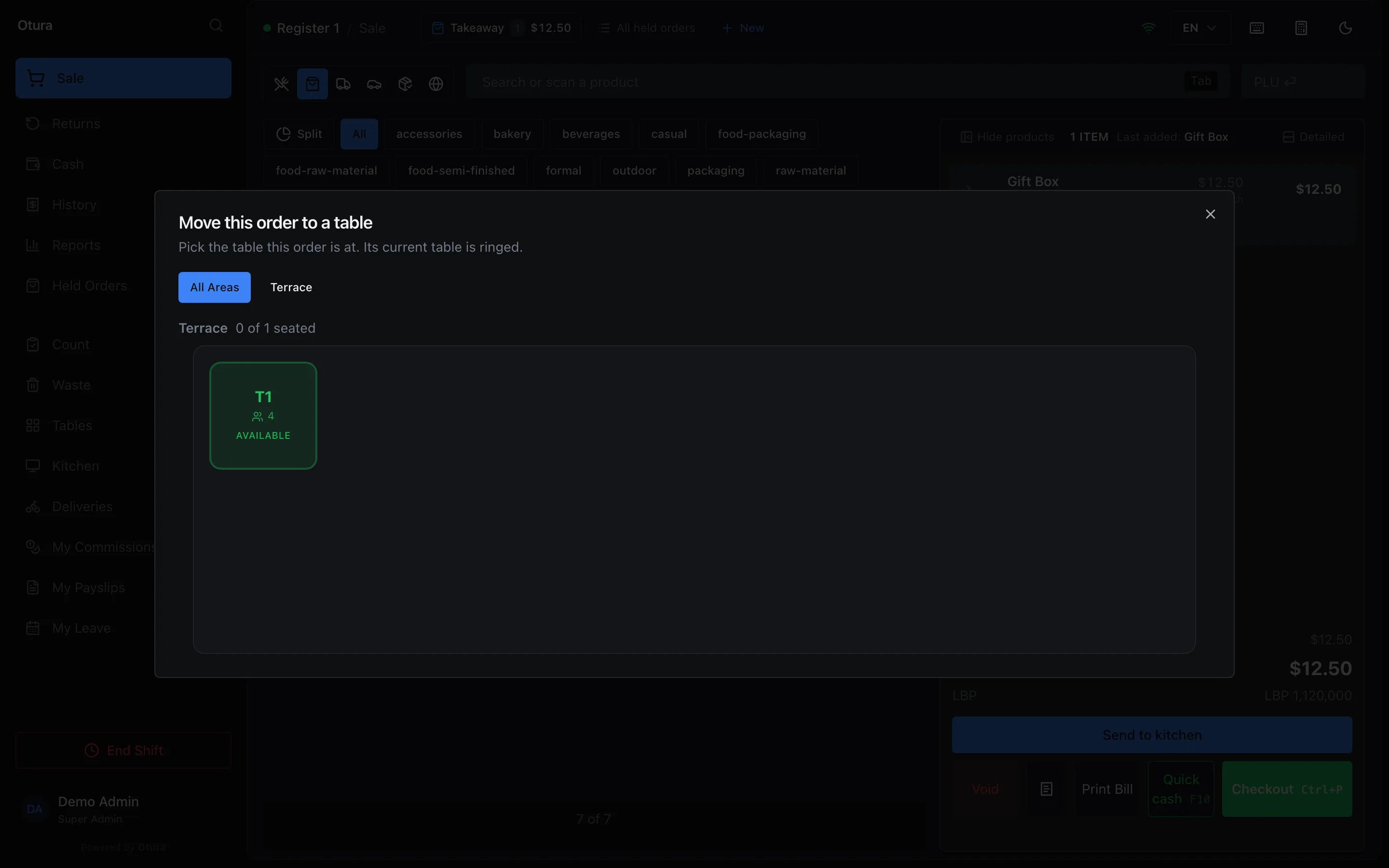
Choosing Dine In opens Move this order to a table. It shows the same floor as the Tables page: a tab for each section, and each section's tables in their places. Click a table. The order becomes a dine-in order at that table, and the table's name (for example Table T1) appears next to the order types. Click the table's name to move the order to another table. A table that has another order on it is faded and cannot be chosen. The order's current table has a ring around it. If you close the picker without choosing a table, the order stays as it was.
On the Tables page, View Order on a table that has an order opens that order on the sale screen. If the order is still on another cashier's screen at this till, the till says so instead: Table T1's order is on another cashier's screen at this till. Ask them to park it or sign out, then open it here. If it is open on a different till, it says Table T1 is open on another terminal.
The catalogue
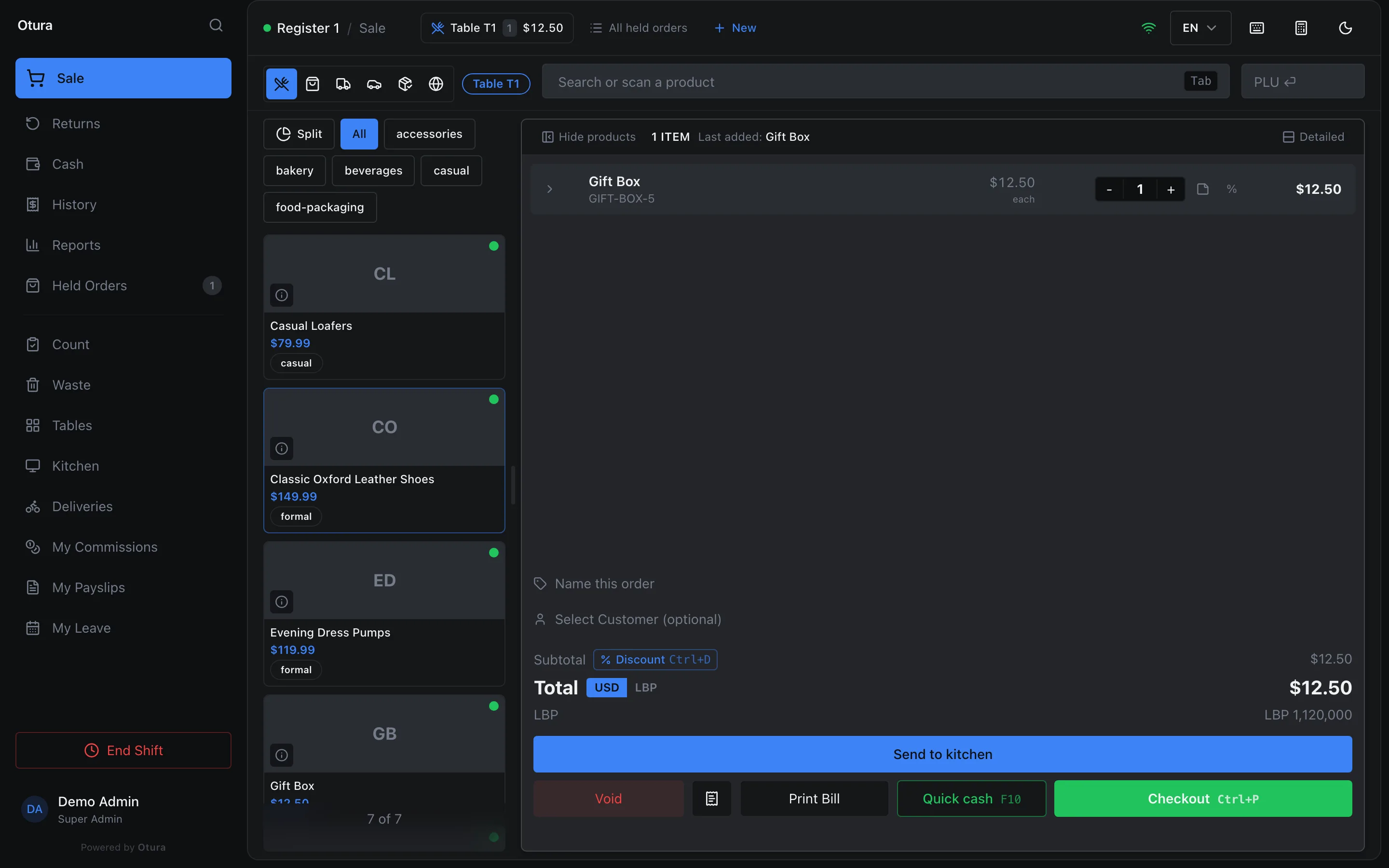
- Categories are chips that wrap onto more rows, so you can see all of them. The selected chip is filled in. After about three rows, the chips scroll.
- The divider between the catalogue and the cart can be dragged. The catalogue can be between 10% and 75% of the width, and it is never narrower than one product tile. Your width is saved for you on this till: each cashier keeps their own, and it stays the same the next time the sale screen opens. Double-click the divider to put it back to the starting width. You can also click the divider and then press
←or→to move it a little at a time. - Show out of stock (or Hide out of stock) sits at the end of the category chips. When the catalogue is narrow it is an icon only: hover over it to see what it does. With the catalogue narrow, each cart line fits on one row.
- Hide products, in the cart's header, hides the catalogue and gives the cart the whole width. Show products, in the same place, brings it back.
Names in the till's language
On a till set to Arabic or French (see Languages), the catalogue shows the names your shop gave in that language: the product tiles, the category chips (on a phone, the category list and the chosen category too), the options in Customize Item, the product's name at the top of its details and of the windows its tile opens, and the size tiles of a product whose variants have a single attribute, such as a size (see Variants). Where the shop gave no name in that language, the main name is shown. The names are set on the product, the category, the variant and the modifier group.
This is display only. The cart line, the receipt and the books keep the main name, and typing a name in Search or scan a product finds the main name, not the Arabic or French one.
Pinning products to the top
Right-click a product and choose Pin. It then appears in a Pinned row above the catalogue on every till in the shop, whatever category or search is showing. Products stay in the order they were pinned. Unpin takes a product out of the row. Pinning needs the Edit products permission. Without it, everyone still sees the pins, but the menu has no Pin.
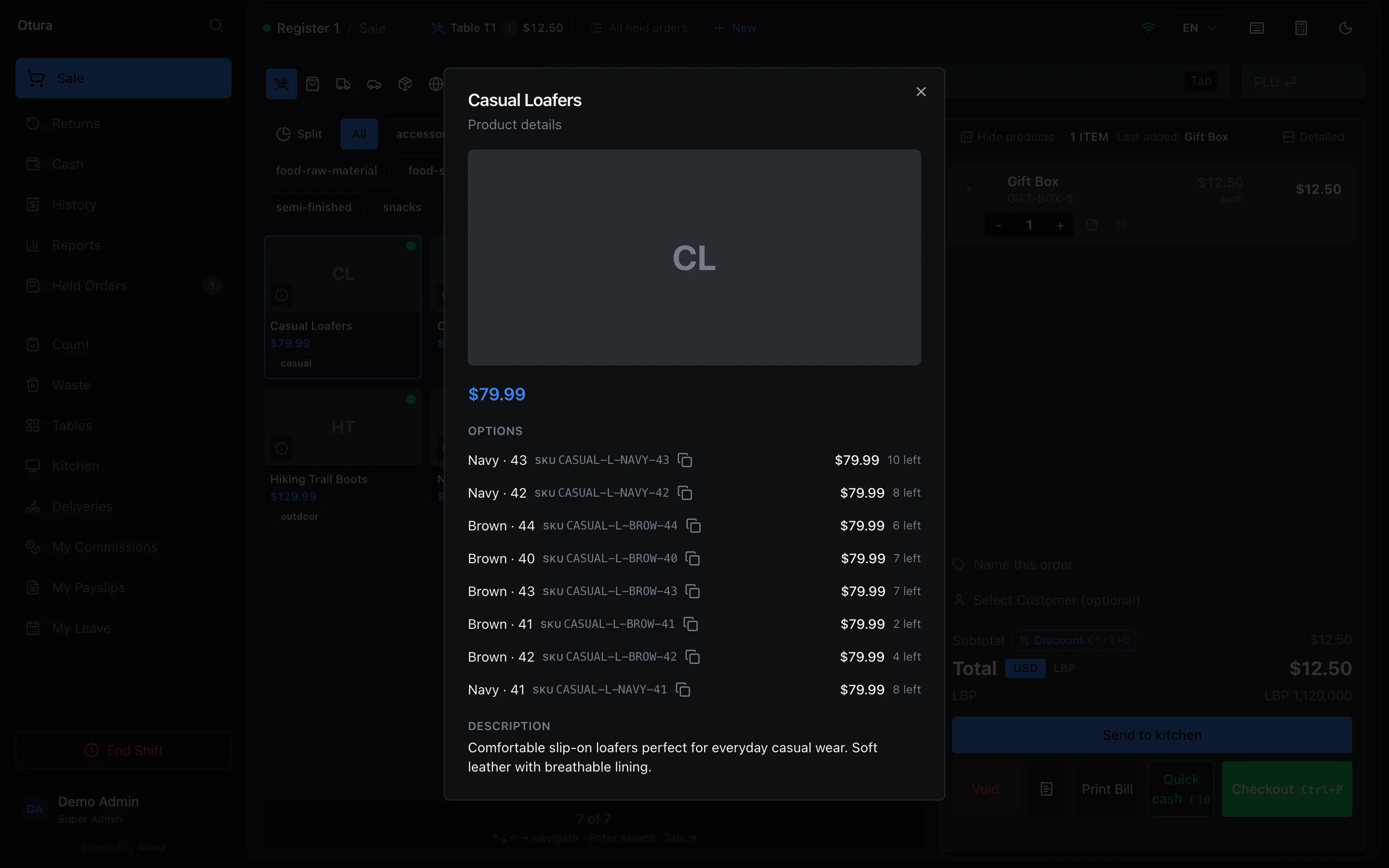
Product details
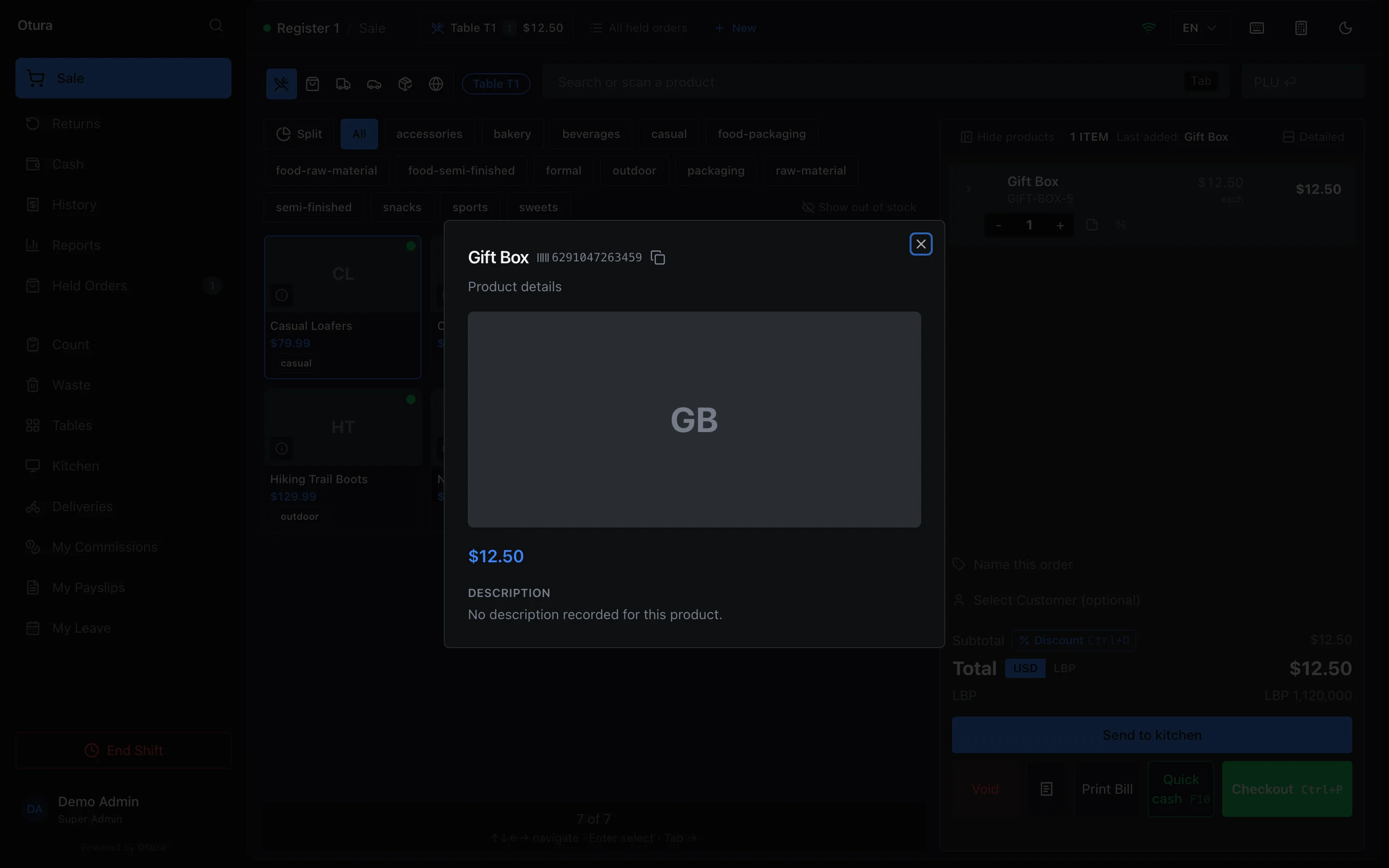
The ⓘ on a product tile opens its details without adding it to the order. For a product with options, Options lists each one with its price, how many are left (if the product tracks stock), and its barcode, with a button to copy it. An option with no barcode shows its SKU instead, also with a copy button. A product with only one option shows its barcode or SKU next to its name and, if it tracks stock, how many are left under its price (for example 3 left).
The cart
- Last added: the cart's header names what went in last, with its option and pack (for example Last added: Casual Loafers · Brown / 42), so you can check a scan without looking for the line. It is cleared when the order is paid, voided or emptied, and when you switch to another order.
- A scanned or tapped item shows in the cart at once, with a spinner and Adding…, for example Margherita × 1 Adding…. It becomes an ordinary line, with its price, when the server has added it. If the server refuses it (out of stock, for example), the line goes and the till says why. If the server does not answer within 20 seconds, the till says The server did not answer in time. Check the cart before trying again — it may already have gone through.
- Each line shows the product and its option. For a product that tracks stock, it also shows how many are in stock (4 in stock). A long name goes onto a second line before it is cut short, so at the starting divider width Casual Loafers · Brown / 42 reads in full, as in the first picture on this page. Hover over a name to see all of it.
- The unit price has its own column, with the unit under it: each, per Box (12 units) for a pack, or per kg for an item sold by weight. The line total is next to it. A discounted line shows its full total crossed out above the price after the discount.
- Compact / Detailed in the cart's header switches the view. Compact hides each line's SKU and modifiers. The stock line stays.
- Discount next to the subtotal (
Ctrl+D) discounts the whole order. See Discounts.
Clearing the order: Void
Void, under the cart, or Ctrl+Backspace, deletes every line of the order on screen. The till asks first: Discard this order?, with how many lines and the total that will go, for example All 2 lines ($159.98) will be deleted. Press Discard order (or Enter) to delete them, or Keep it (or Esc) to keep the order. Nothing is sold and nothing is recorded as a sale.
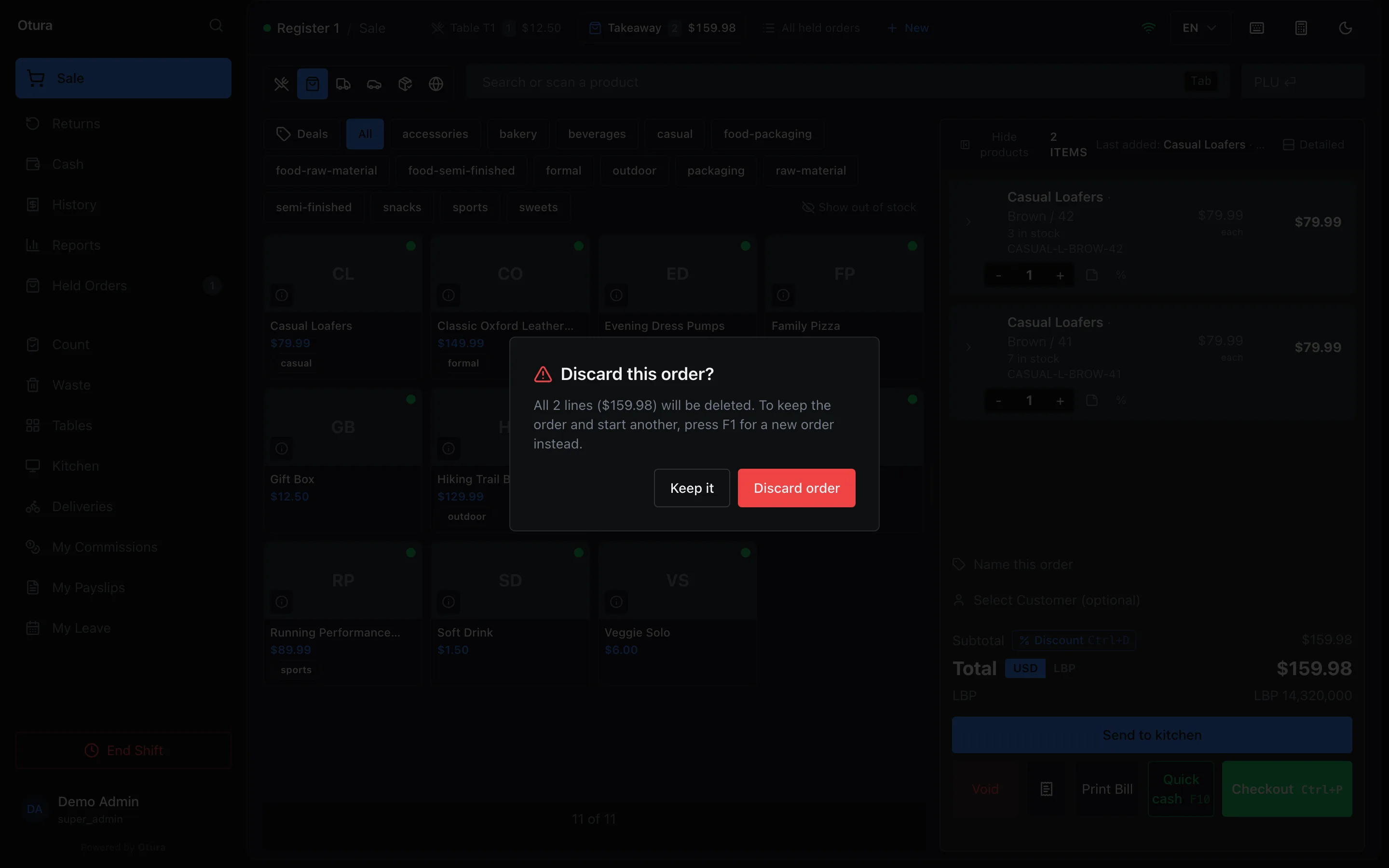
To keep the order and serve someone else, do not void it: press F1 or + New. Those set it aside, as held orders describes. If lines were already sent to the kitchen, a cashier needs a supervisor to discard them: the till asks for a supervisor's PIN with The kitchen already has this order. Supervisors, admins and the owner discard them themselves. This needs the connection; on an order changed while the connection was down, it works once the connection is back (see After a connection drop).
A sale that is already paid is not voided here. See Voiding a sale.
Dollars or lira: the USD | LBP switch
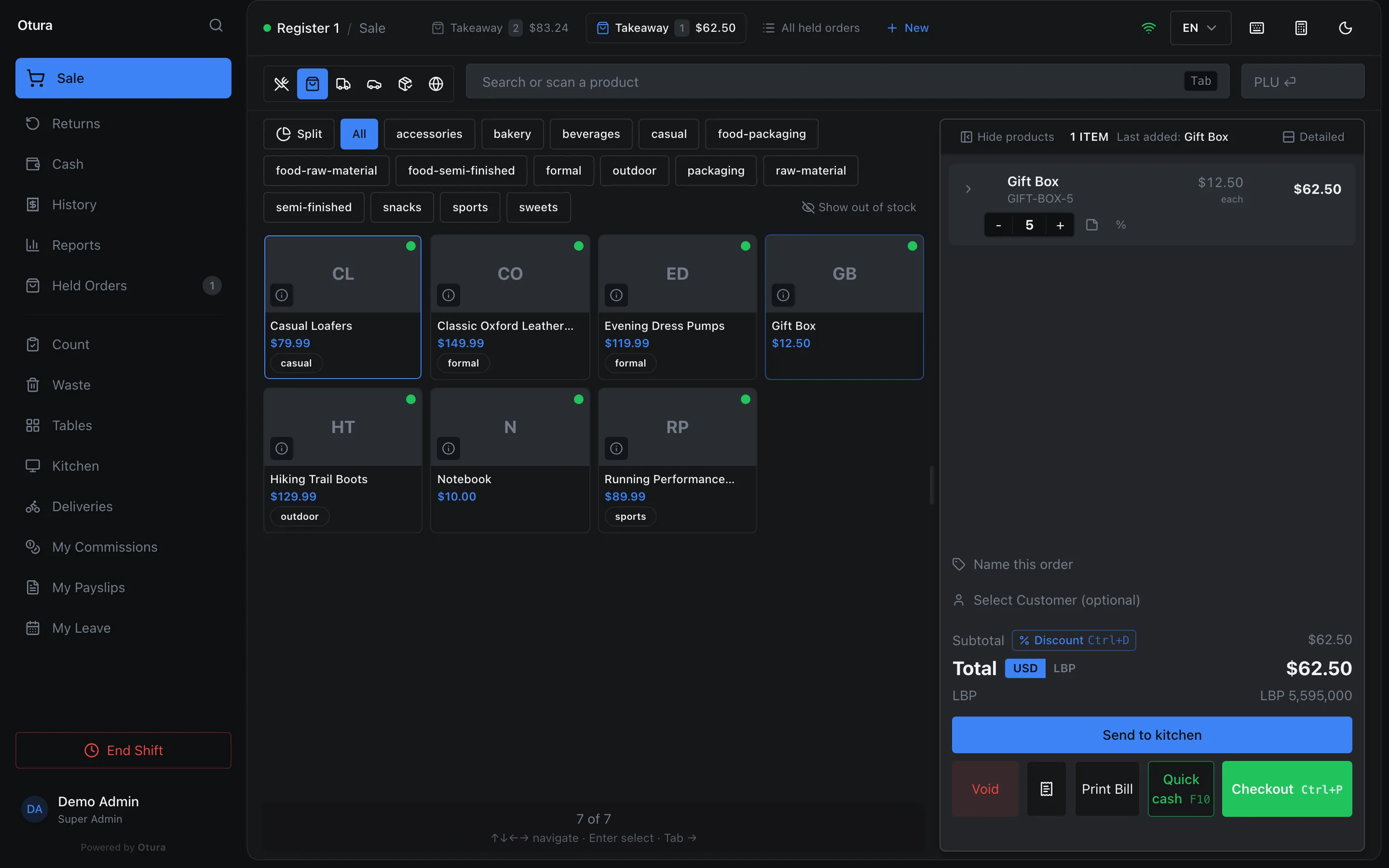
If your business sells in US dollars with Lebanese pounds as its second currency, the cart has a USD | LBP switch next to Total. The highlighted half is the currency in use. With LBP chosen, the lines, the subtotal and the discount are shown in lira, at the order's exchange rate. So are the line prices on the bill and on the receipts this till prints. The total is always shown in both: the chosen currency in large type, with the other under it. Each till remembers its own choice, so a till for customers who pay in lira can stay on LBP.
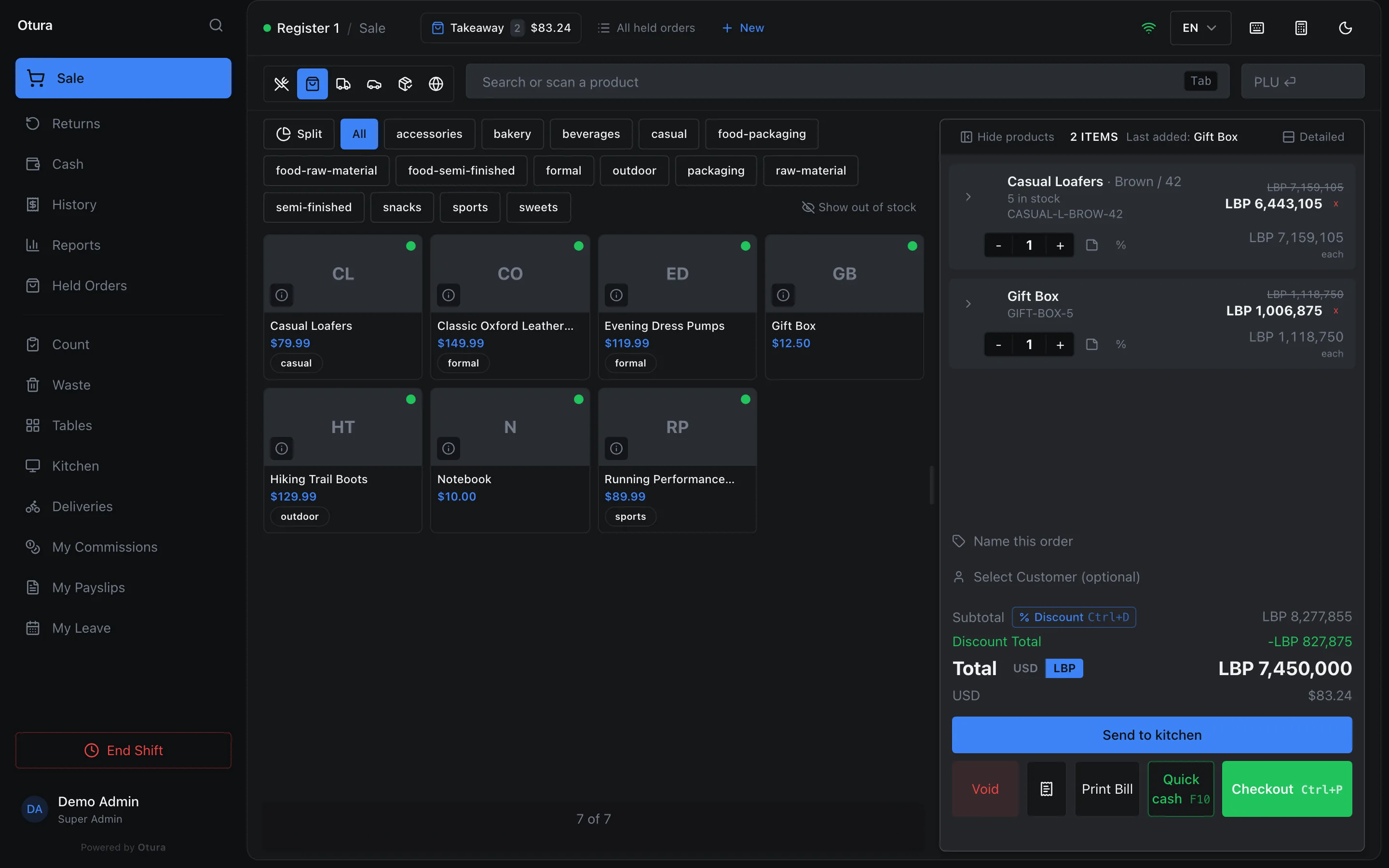
Lira figures are longer than dollar ones, so in a narrow cart each line's price each moves to its second row, beside the quantity, under the line total. The two never run into each other, and the item's name keeps its room: Casual Loafers · Brown / 42 is shown in full in the picture above. Widen the cart far enough with the divider and each line is drawn on one row instead: name, price each, quantity and line total side by side.
The lira total is the cash a customer hands over
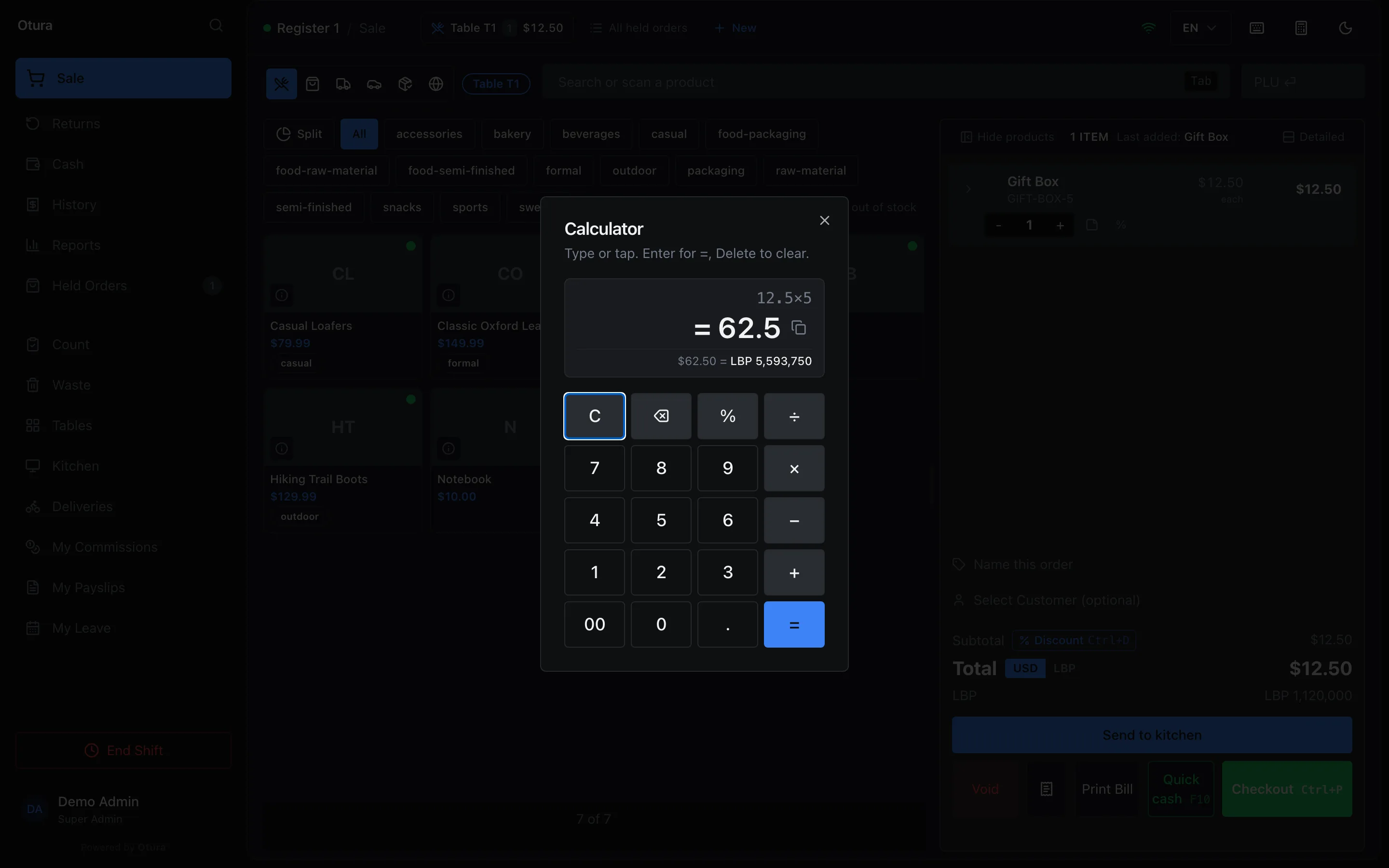
The lira total in the cart is rounded to your shop's cash step, because that is the amount a customer can pay in notes. The step is set under Cash rounding in SettingsPayment methods, and starts as the nearest 5,000. For example, $62.50 at 89,500 LBP per dollar is exactly LBP 5,593,750. The cart shows LBP 5,595,000. The bill, the payment screen and the receipt show the same figure (see Taking payment), and so does the Held orders page: a held order of $83.24, exactly LBP 7,449,980, is listed there at LBP 7,450,000, as the cart quotes it.
The calculator
Press F4, or click the calculator button in the top bar next to the on-screen keyboard button. Type on the keyboard or click the keys: digits, +, -, * or x for ×, / for ÷, brackets and %. Enter gives the answer, Backspace deletes the last character, and Delete clears it all. The answer appears as you type, and the copy button next to it copies the answer.
%means “hundredths”: 200 × 15% is 30. It is not added on top, so 100 + 10% is 100.1, not 110.- If your till has the USD | LBP switch, the calculator also shows the answer converted at the rate of the order on screen, both ways: as dollars in lira, and as lira in dollars. A conversion that comes to less than a cent, or less than half a lira, is left out. For example, 62.5 shows only $62.50 = LBP 5,593,750, because 62.5 lira is less than a cent, while 89500 also shows LBP 89,500 = $1.00. This is the exact conversion. It is not rounded to your cash step.
- Your last calculation is still there when you close the calculator and open it again.
Keyboard
The sale screen can be used from the keyboard. Tab always goes to Search or scan a product, wherever you are on the sale screen. From there, ↓ goes to the first line in the cart and ↑ to the last. In the cart, ↑ and ↓ move between lines. If you open a dialog from the cart (for example the discount with Ctrl+D) and close it with Esc, the arrows carry on from the line you were on.
| Key | What it does |
|---|---|
| Tab | Go to Search or scan a product. |
| F1 | New order: set the order on screen aside and start a blank one. |
| ↓ / ↑ (from the search field) | Go to the first / last line in the cart. |
| ← / → (after clicking the divider) | Move the divider between the catalogue and the cart. |
| Alt+1, Alt+2, … | Choose the first, second, … order type. |
| Ctrl+H | Hold the order on screen and start a new one. |
| Ctrl+Backspace | Void: discard the order on screen, after asking. In a text box with text in it, it edits the text instead. |
| Ctrl+D | Discount: the ticked lines, or the whole order if none are ticked. |
| Ctrl+P | Checkout: open the payment screen. See Taking payment. |
| Ctrl+Shift+P | Open the payment screen to pay without a receipt. |
| F10 / Shift+F10 | Quick cash: the exact total in cash, with / without a receipt. |
| F6 | Print this shift’s last receipt again. |
| F7 | Show the unpaid bill. |
| F4 | Calculator. |
| Ctrl+Shift+O | Open the cash drawer without a sale, recorded as a no-sale. Needs an open shift. |
| F5 | Returns. |
| F8 | Cash: drops, payouts, pay ins and No Sale. |
| Ctrl+L | Lock the screen. A locked till stays locked if the app is closed and reopened. |
| ? or Ctrl+/ | The full list of keyboard shortcuts. |
On a Mac, use ⌘ where this page says Ctrl.
On an Arabic keyboard layout the Ctrl shortcuts work too: Ctrl+H, Ctrl+D, Ctrl+P, Ctrl+L, Ctrl+Shift+O and the others are read from the key you press, so you do not need to switch the layout to English first.
Opening the drawer without a sale
Ctrl+Shift+O opens the cash drawer when there is no sale, for example to give change for a note. It is the No Sale button of the Cash screen, on a key: the till records a no-sale on the shift first, then opens the drawer, and says Drawer opened: recorded as a no-sale. The shift report counts each one under Drawer opened without a sale (see Closing a shift).
- It needs the permission Record cash drops, which the standard Cashier, Supervisor, Admin and Super Admin roles have. A role without it is told so when pressing the key.
- It needs an open shift on the till. Without one, the key does nothing.
- The drawer opens only in the Otura desktop app, through the till's receipt printer. In a web browser the no-sale is recorded, and no drawer opens.
Popups: Enter and Esc
In every popup, Enter does what the popup is for and Esc closes it without doing it. The popup opens with its main button already chosen: Discard order in Void, Print Bill in the bill, the confirm button in a confirmation. A popup where you type something, such as a quantity or a search, opens on its first box instead, and Enter there works the way that box does.
- In a reason box, such as the reason for voiding a sale,
Enterconfirms andShift+Enterstarts a new line. - If you move to another button at the bottom of the popup with
Tab,Enterpresses that button. - Some confirmations open on Cancel on purpose, so that a late
Enterdoes not delete things: for example deleting many rows at once in a back-office table.
? lists only the shortcuts your role may use. Pressing one it may not use says so instead of doing nothing, for example Ctrl+D isn't available to your role: Apply Discount. Ask someone who can to sign in on this till.