Entering supplier invoices
The receiving desk: type a stack of paper supplier invoices one after another on one screen, receive the goods, and create a missing supplier, product, pack or unit without leaving it.
Checked against the product on 13 October 2026
ReplenishmentPurchasingInvoices → Rapid Invoice Entry is built for a desk with a pile of paper invoices: you type one, post it, and the screen is ready for the next, without going anywhere. Everything the invoice needs that does not exist yet (the supplier, a product, its box, a unit) is created from the invoice itself.
One invoice, from the keyboard
The supplier
Type a few letters of the supplier's name in Supplier and press Enter. The invoice takes the supplier's currency and payment terms (the due date they give shows under Payment terms), and the cursor moves to Invoice #.
The first time you enter a bill from a supplier whose VAT status is not recorded, the screen asks Does … charge VAT on its bills? Answer once; it is saved on the supplier.
The supplier's invoice number
Type the number exactly as printed on the paper and press Enter: the cursor goes to the first line. The number is kept as typed. If this supplier already has an invoice with that number, it says so under the field (This supplier already has invoice …) with a link to open it, and the invoice cannot be posted. A number that differs only in capitals, spaces or punctuation (inv 0012 for INV-0012) is warned about, so you can check it is not the same paper.
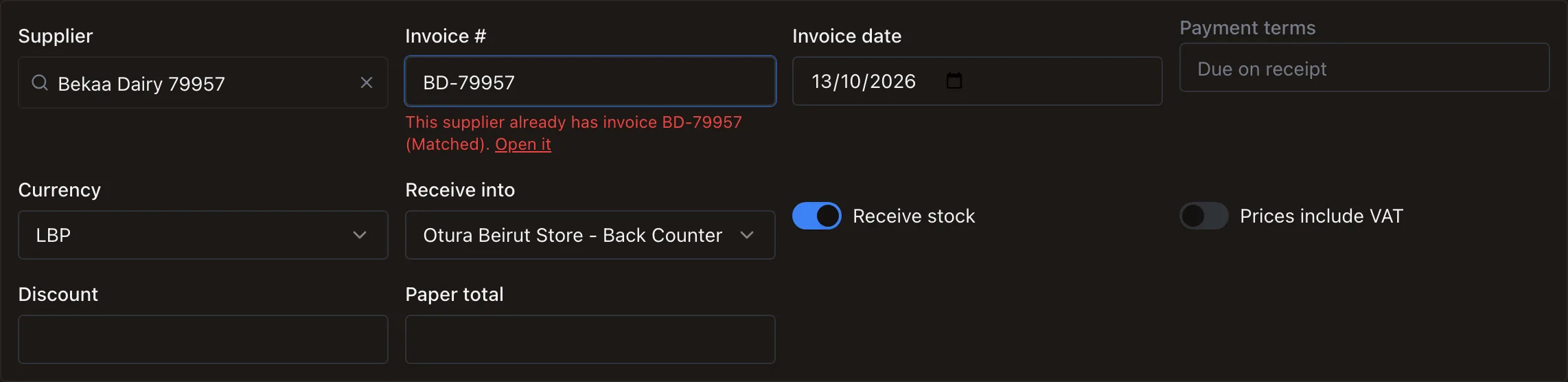
The same paper typed twice: said before any line is typed. The lines
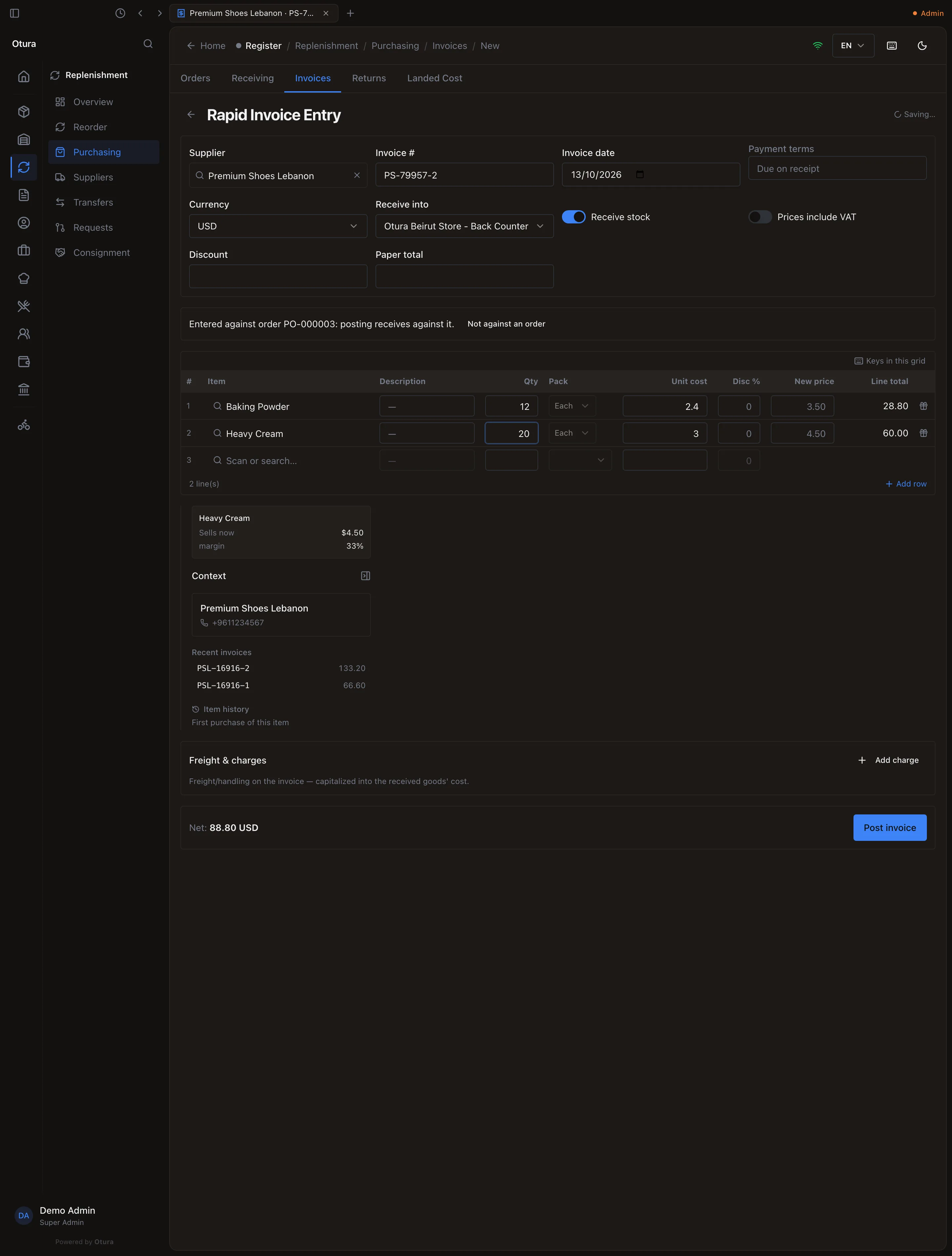
In each line: type or scan the item and press Enter, the quantity and Enter, the unit cost and Enter. The next line is ready. The cost starts at what you last paid this supplier for it; whatever you type replaces it. Prices are in the invoice's currency, without VAT unless Prices include VAT is on.
Check it against the paper
The footer shows the Net and, when the supplier charges VAT, the Gross (incl. VAT). Type the invoice's printed total in Paper total to see the difference (Δ vs paper). A Discount off the whole invoice is spread over the lines; delivery or handling goes under Freight & charges → Add charge and is added to the goods' cost.
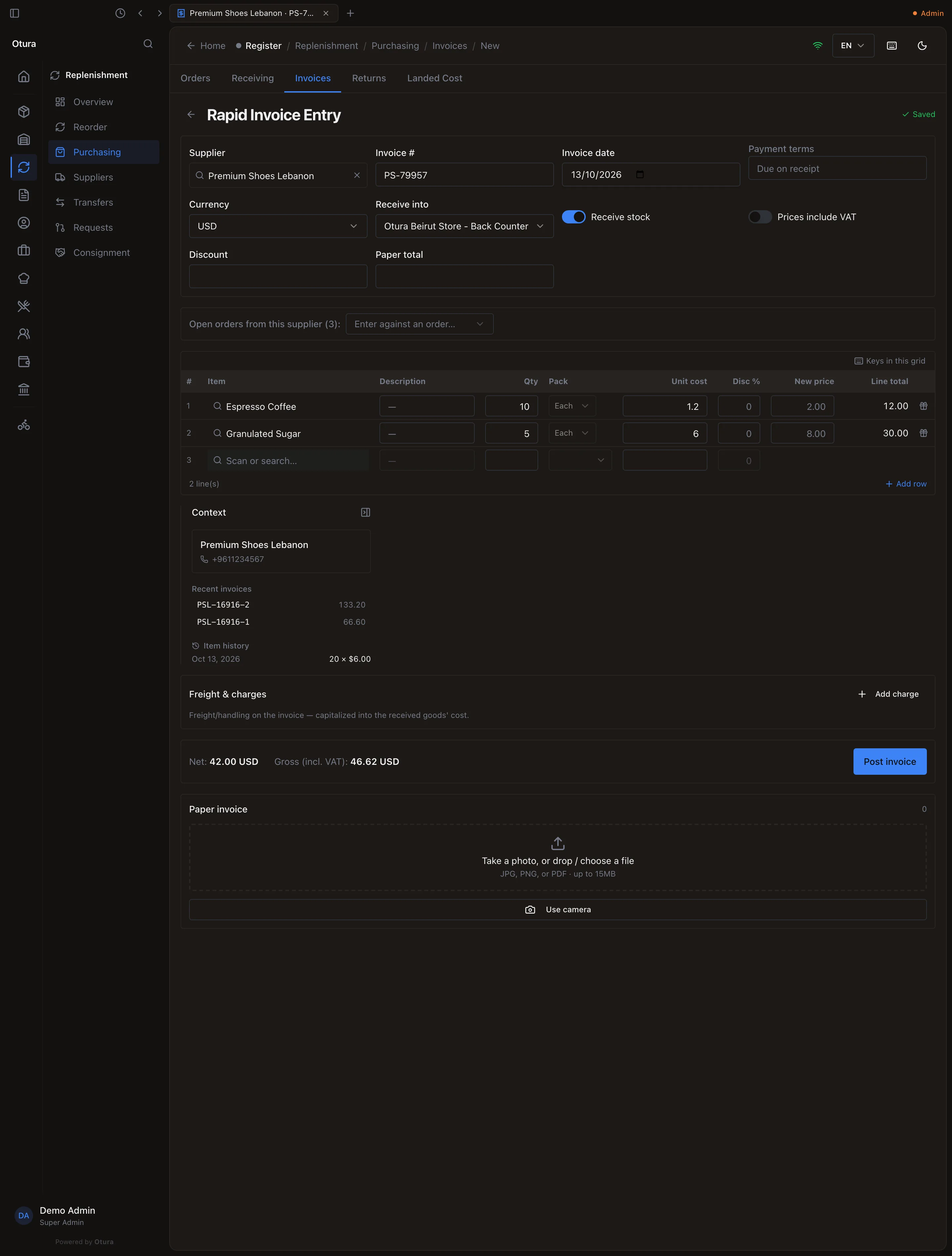
Two lines typed: 10 × 1.20 and 5 × 6.00, net 42.00. Post it
Press F9 (or Post invoice). Post this invoice? states the lines and the total. If you paid the supplier there and then, turn on Did you pay this invoice? and press Pay in full (or type what you paid, and from which box). Otherwise leave it off: the invoice is owed. Confirm with Post invoice.
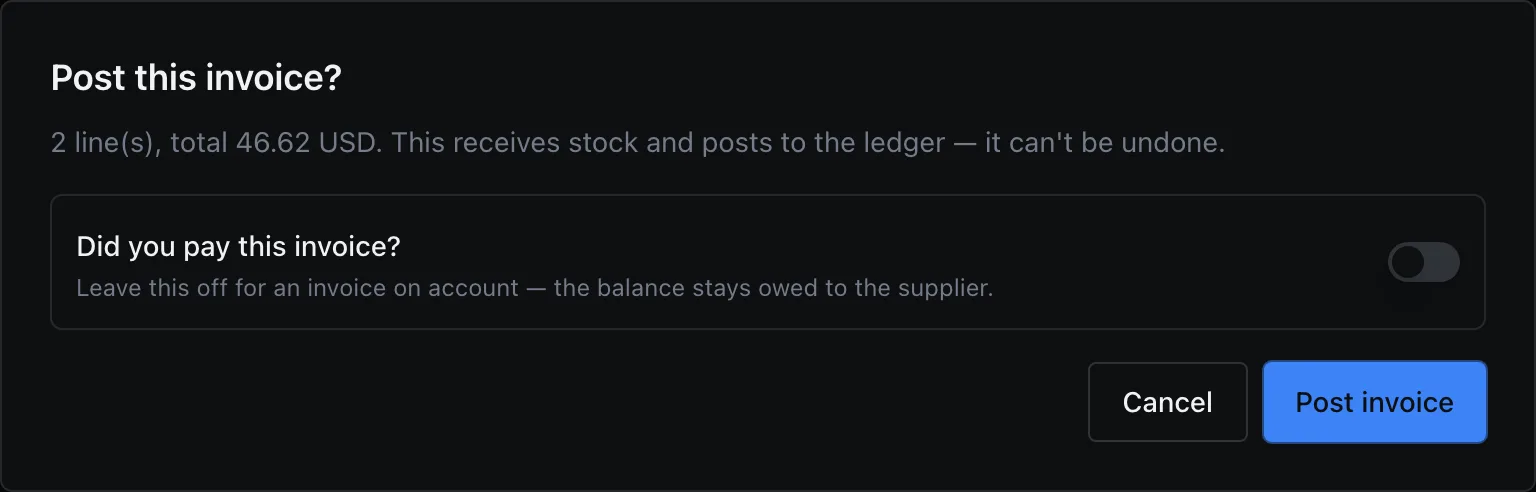
Left unpaid, the invoice is owed to the supplier. If F9 does nothing it is because something is missing: a message says what (for example Answer whether this supplier charges VAT or Add at least one line).
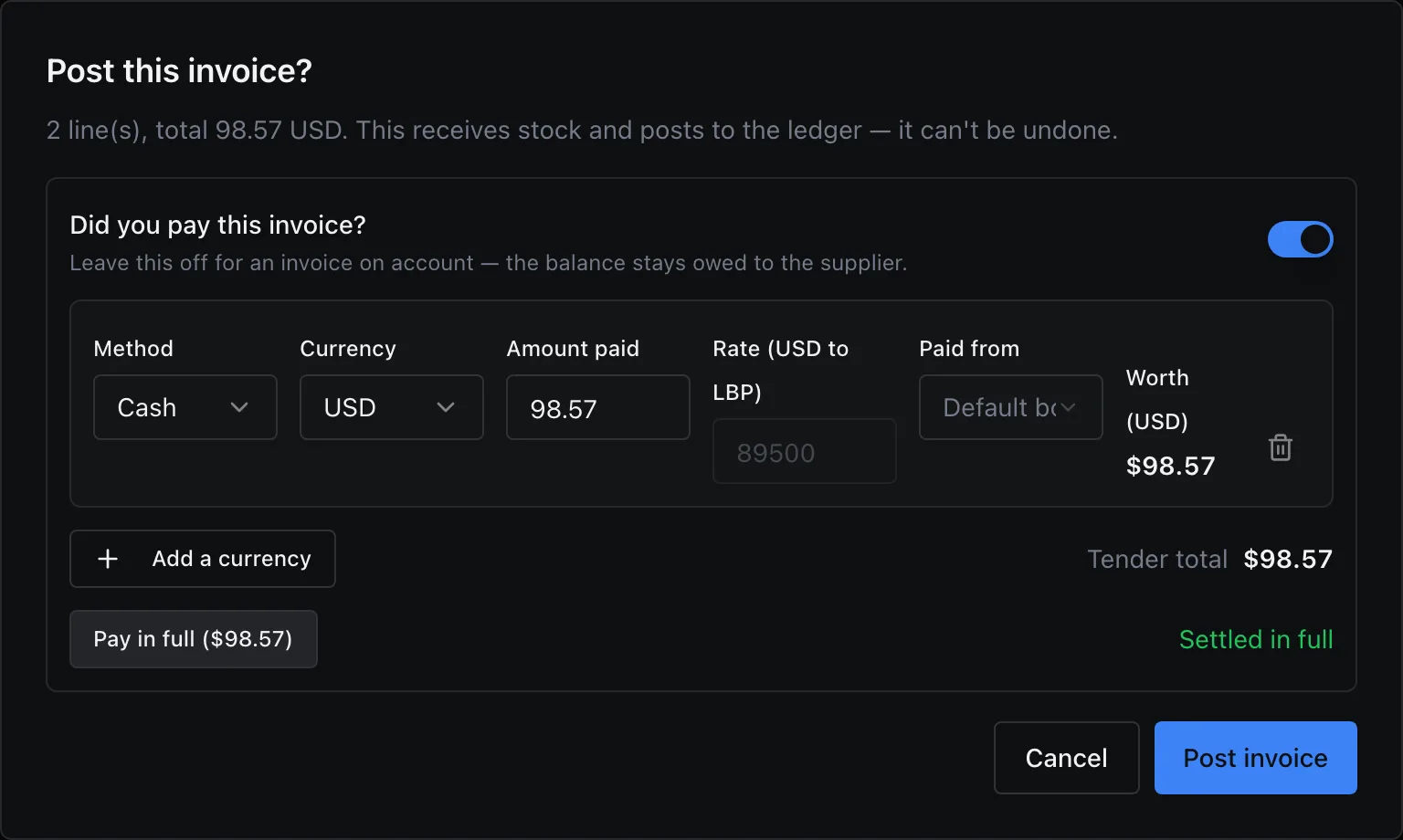
Paid on the spot: Pay in full, from the box the money left. The next invoice
The screen stays. The supplier, currency, terms, date and receiving location are kept, because a pile of invoices is usually one supplier's; the lines and the number are cleared, Receive stock is on again and Prices include VAT off, and the cursor is in Invoice #. The message says whether the invoice was paid or is owed to … until it is paid: see Payables.
| Key | In the lines |
|---|---|
| Enter | Item → quantity → amount → next line |
| Tab | Next cell, including description and discount |
| ↑ ↓ | Move up/down, keeping the column |
| Esc | Undo what you just typed in this cell |
| F2 | Create a product that is not in the catalogue |
| F4 | Cycle the pack (each → box → …) |
| F6 / F7 | Packs and variant pricing / product details for this item |
| F8 | Mark the line as free goods |
| F9 | Post the invoice |
| Ctrl+D | Duplicate this line |
| Ctrl+Delete, Ctrl+Z | Remove this line, and put it back |
| Scan | Fills the line; scanning the same code again adds one |
Keys in this grid above the lines shows the same list. On a Mac, Ctrl is ⌘.
Where the goods go
With Receive stock on (the default), posting the invoice receives the goods into Receive into: it starts at the location you received into last, otherwise your main location. Only your own locations are offered, never a supplier's drop-ship location. The cost of each line, after discounts and with freight added, becomes the cost of that stock. Turn Receive stock off for a bill that brings no stock (a service, packaging you do not track): it is booked as a purchase expense.
Against a purchase order
When the supplier has orders that were sent and not fully received, the screen offers them: Open orders from this supplier → Enter against an order…. Choosing one fills the lines with what is still to come, at the ordered cost and in the order's currency, and the screen says Entered against order PO-…. Change a quantity to what actually came. Posting receives against the order, which then reads partly received or received; what is left stays due and is offered again on the next invoice. More than is still due on a line is refused, before anything is received. Not against an order takes the invoice off the order.
Create what is missing, without leaving the invoice
A new supplier
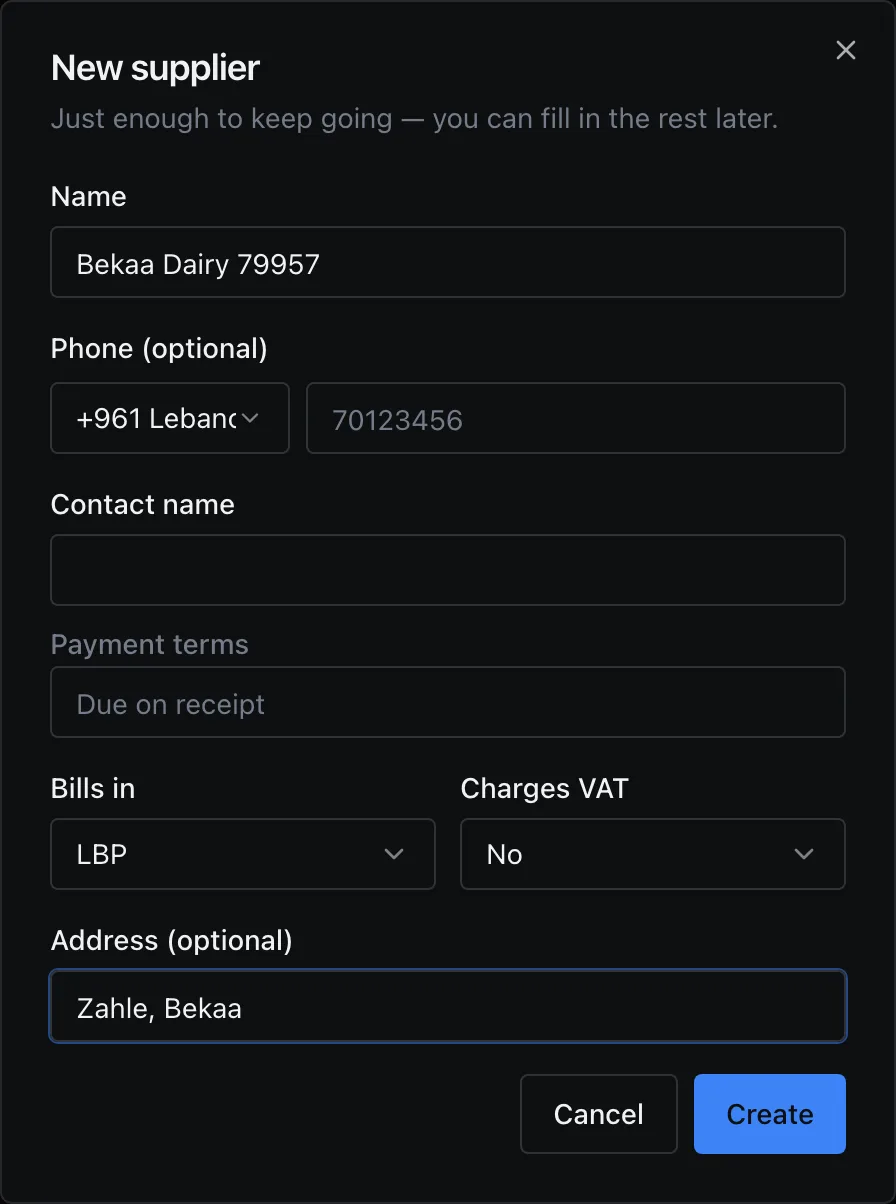
Type the name in Supplier. When no supplier has it, press Enter (or Create supplier "…"). New supplier asks only what the first invoice needs: the name, a phone, a contact, the Payment terms, Bills in (USD or LBP, the currency their invoices open in), Charges VAT (Yes, No, or Ask on the first bill) with the VAT number (optional), and the Address (optional). Create returns to the invoice with the supplier chosen.
A new product, and its box
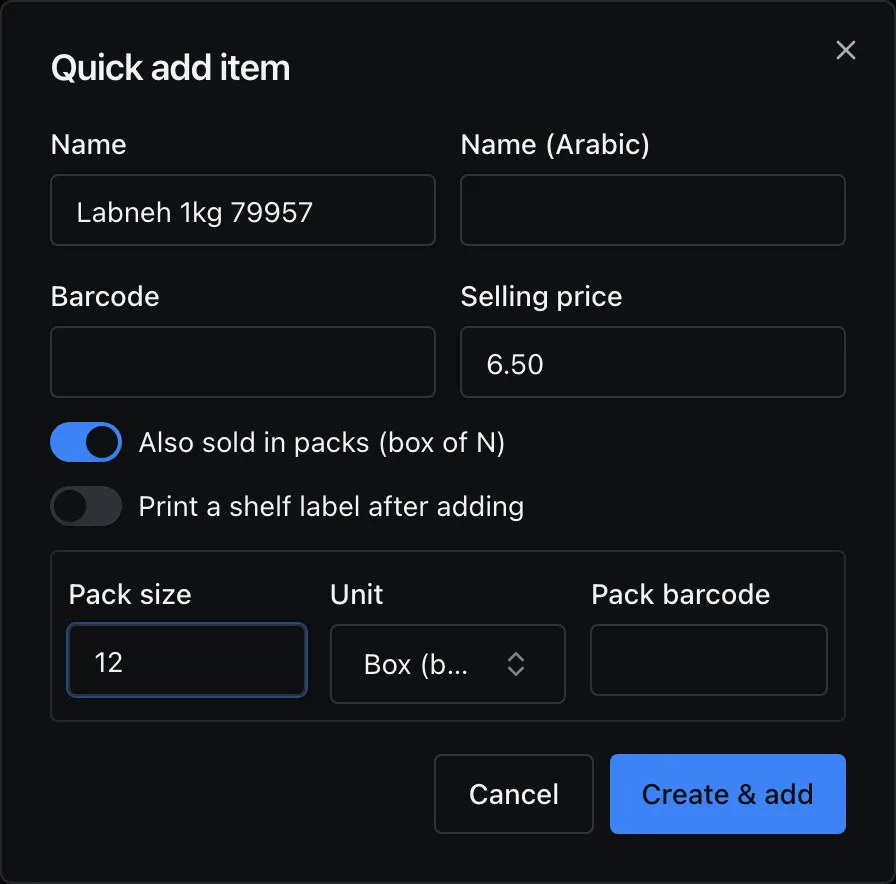
In a line, type the product's name; when nothing matches, press F2 (or Create "…"). Quick add item takes the name (and Arabic name), a barcode and the Selling price. Sold in boxes as well? Turn on Also sold in packs (box of N) and give the Pack size; the Unit starts at your Box unit, and a unit you do not have yet (a tray, a carton) is created by typing its name in the unit list and choosing Create unit "…". Create & add puts the product on the line.
To add a pack or change a price on a product that already exists, press F6 on its line: the product's own page opens over the invoice, and closing it brings you back to the line.
The supplier's number, and ours
| What it is | |
|---|---|
| Invoice # | The supplier’s own number, exactly as on their paper. Two suppliers can both send “INV-1”. |
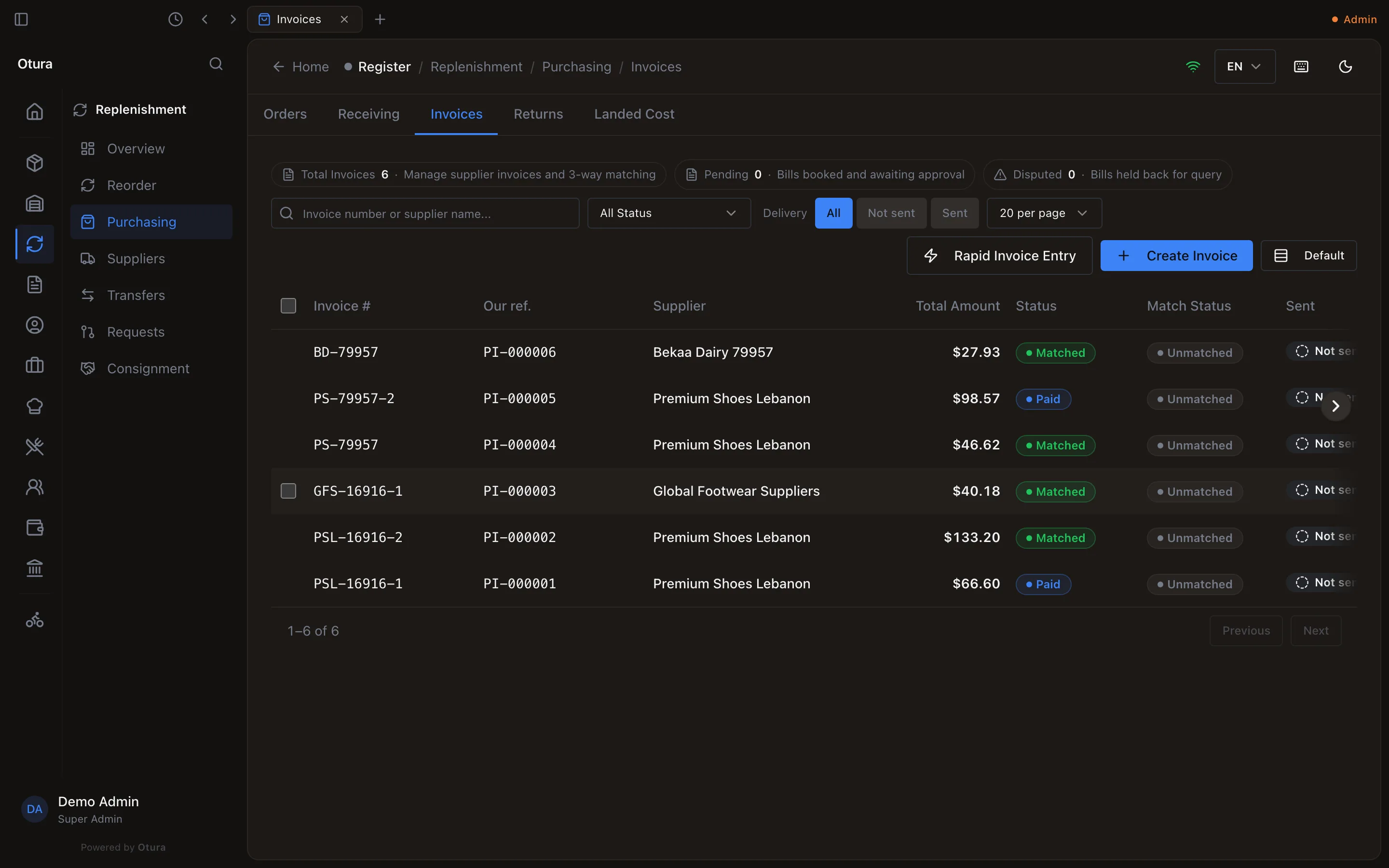
| Our ref. | Ours: PI-000001, PI-000002 … in the order bills are posted, with no gaps. A draft has none yet. |
| Receipts and orders | GRN-000001 for the goods receipt the invoice creates; PO-000001 for purchase orders. |
Invoices in lira
Set Currency to LBP (a supplier who Bills in LBP opens in it) and type the prices in lira as printed. The invoice is converted to dollars at the rate of the day it is started, and the supplier is owed it in lira: see paying a lira bill.
A supplier's price list from a spreadsheet
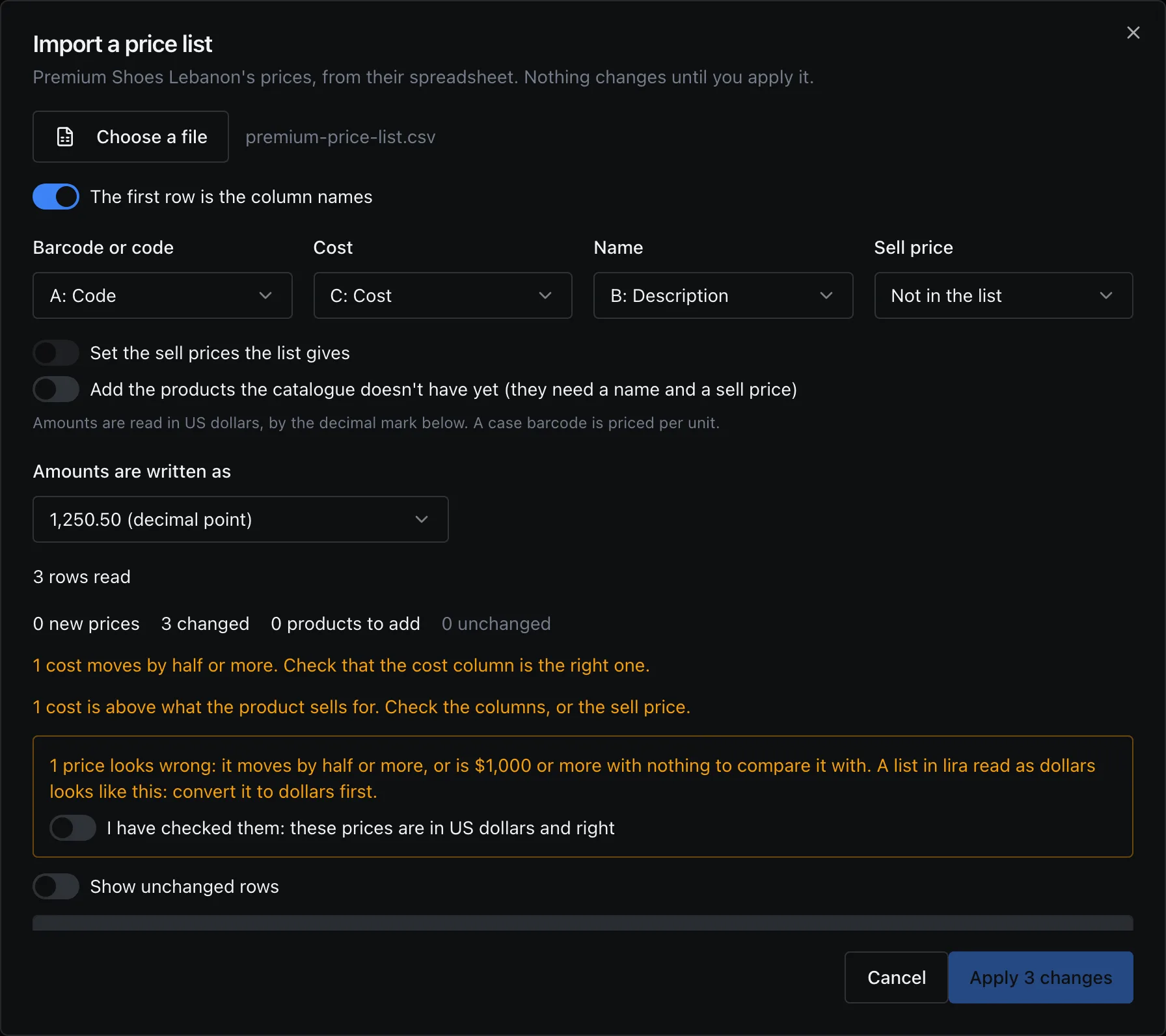
The costs Rapid Invoice Entry starts each line at can come from the supplier's own price list. On the supplier's page (ReplenishmentSuppliers), open the Prices tab and press Import price list. Choose a file: CSV or Excel, one product per row, its barcode or code and its cost. The columns are guessed (Barcode or code, Cost, Name, Sell price); change any that is wrong, then press Preview. Nothing changes until you press Apply.
Amounts are read in US dollars. A price that moves by half or more, or is $1,000 or more with nothing to compare it with, is marked Check this price, and Apply stays off until you tick I have checked them: these prices are in US dollars and right. A list in lira read as dollars looks exactly like this: cancel, convert it to dollars, and import it again.
After posting: what you owe
An invoice not paid on the spot is owed. Its goods are in stock at their cost, and the amount sits in 4210 Accounts Payable as an open bill for that supplier, due on the invoice date plus the supplier's terms. It is paid later from FinanceAccountingReceivables & PayablesPayables: Supplier bills, debit notes and payments.