Sales commissions
Pay staff a share of what they sell: rules by product, category or for everything, who is eligible, what each sale earned, returns taken back, and paying it out.
Checked against the product on 13 October 2026
A commission is a share of a sale paid to the person who rang it up. It is under FinanceCommissions, with five tabs: Rules, Eligibility, Records, Payouts and Reports. Each person sees what they earned at the till, under My Commissions.
1. Rules: what a sale earns
Create Rule
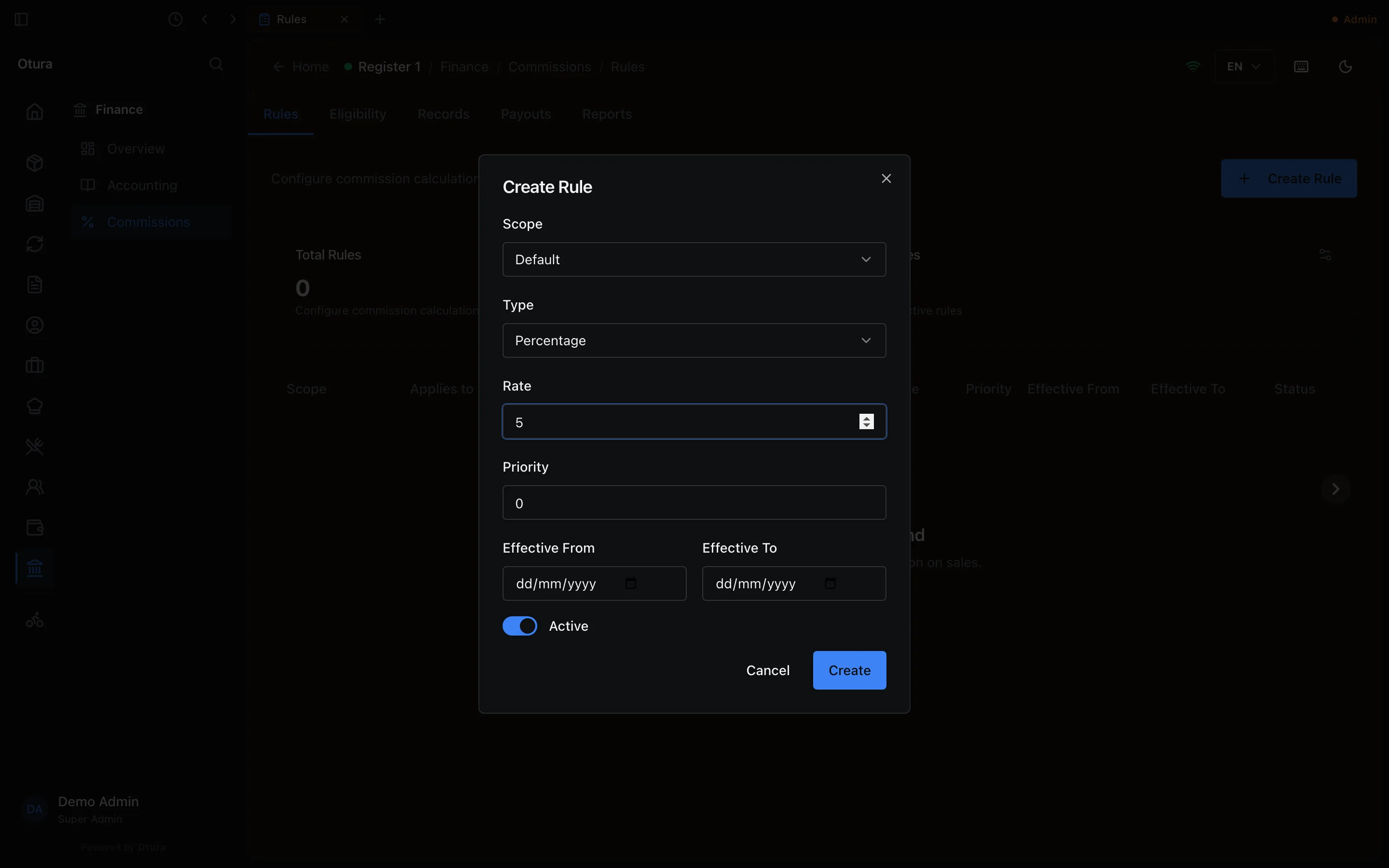
On Rules, press Create Rule.What it applies to
Scope: Default (every product), Product (search for one) or Category (pick one).How much
Type: Percentage of the line, or a Fixed Amount in dollars. Rate: a percentage from 0 to 100, or the amount.When, and which wins
Effective From and Effective To (optional) limit the dates; between two rules of the same kind, the higher Priority wins when two rules apply. Press Create.
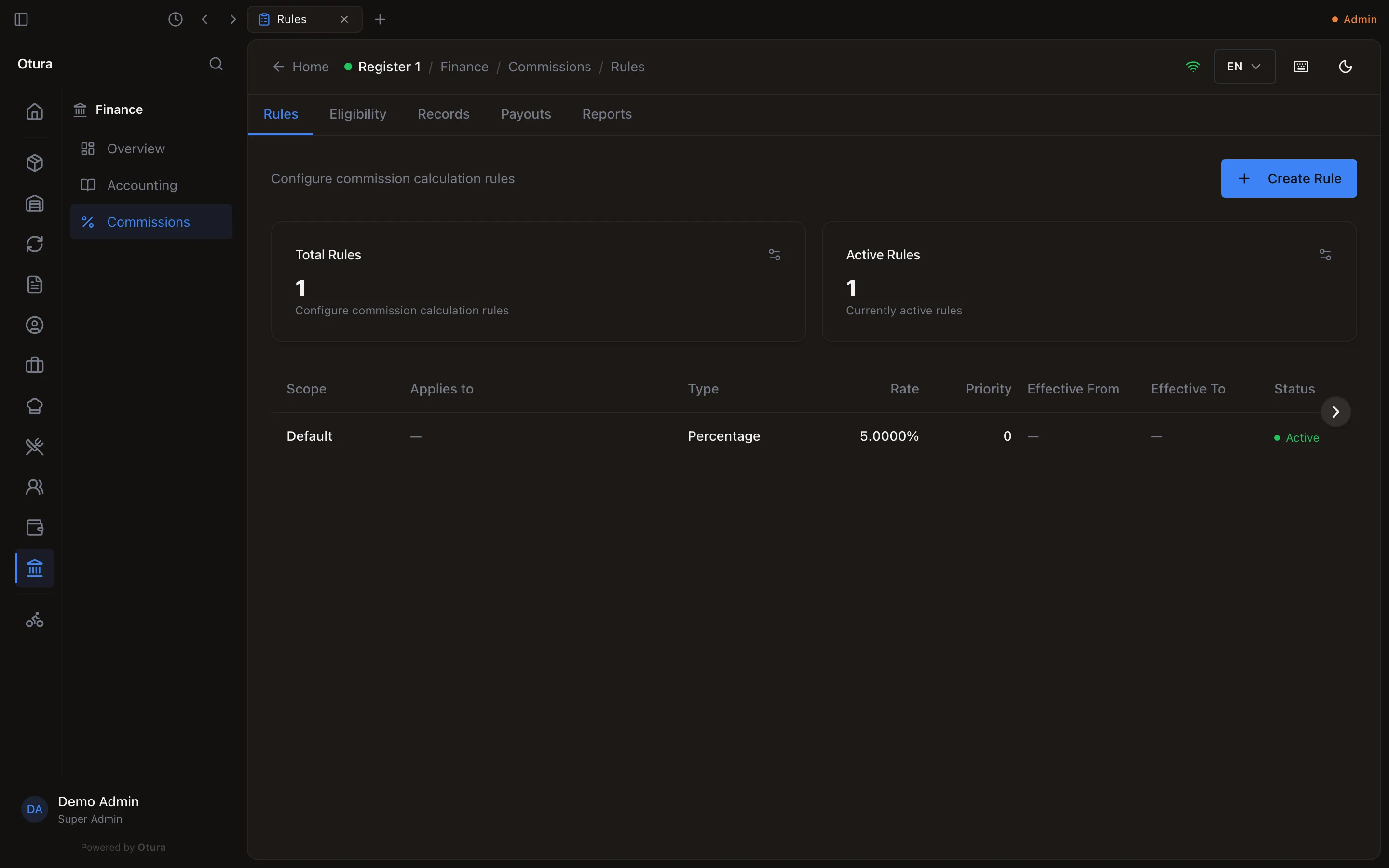
A product rule beats a category rule, which beats the default. A rule is never deleted: Deactivate turns it off (and Activate back on), so the records it produced keep their rule.
2. Who earns
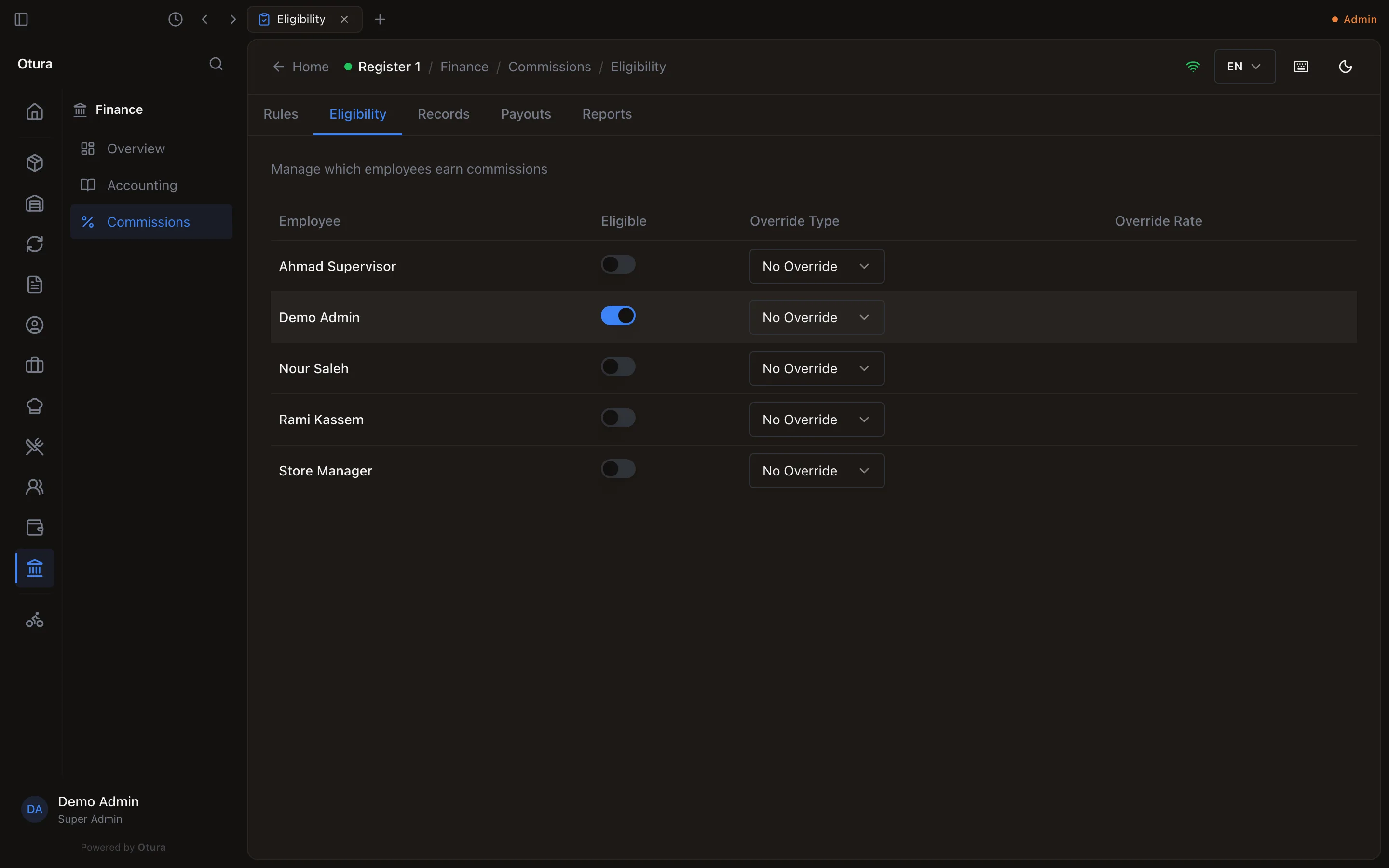
Eligibility lists every member of staff. Only those switched to Eligible earn anything. Override Type and Override Rate give one person their own rate instead of the rules; switching someone off and on again keeps their override.
3. What each sale earned
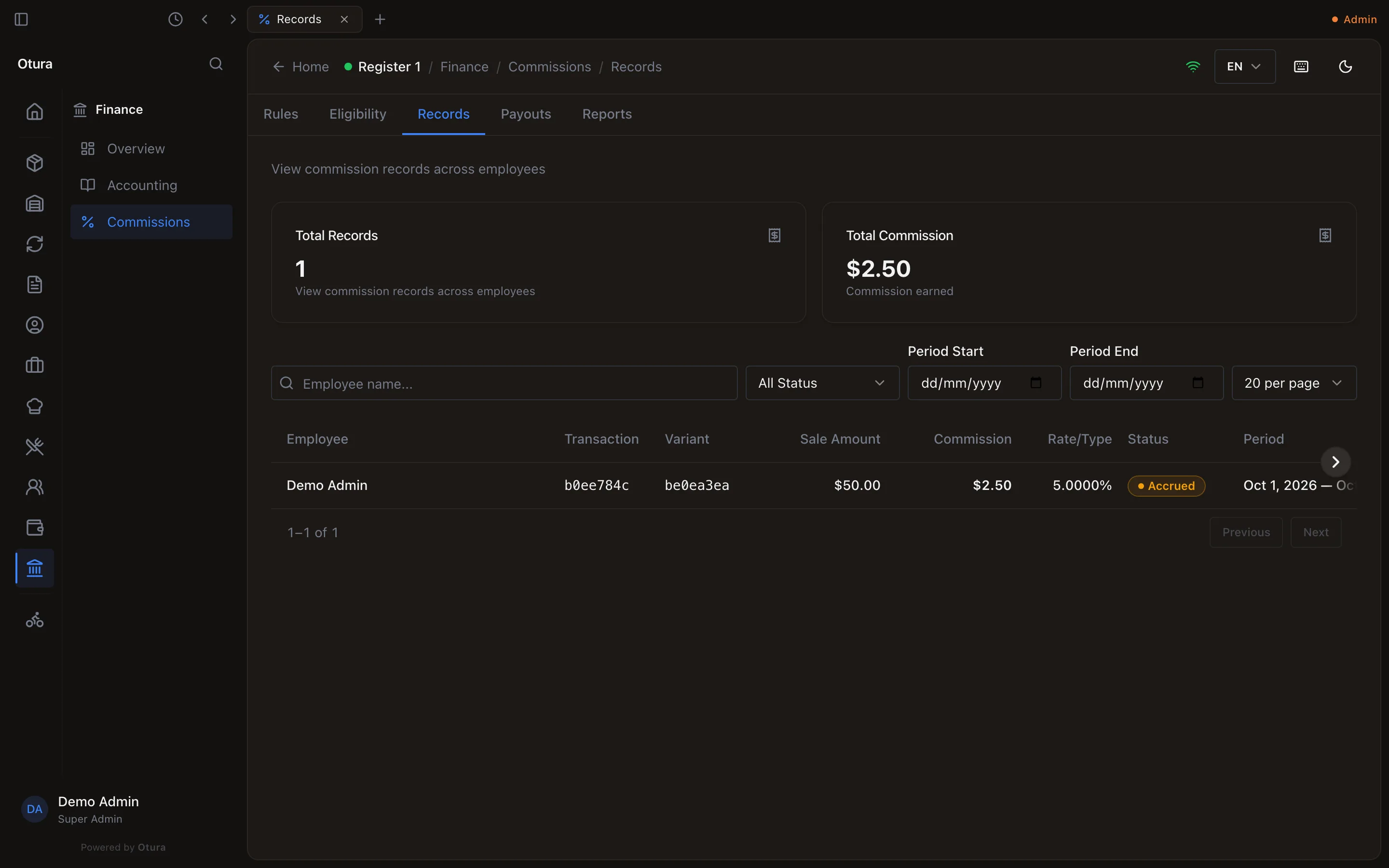
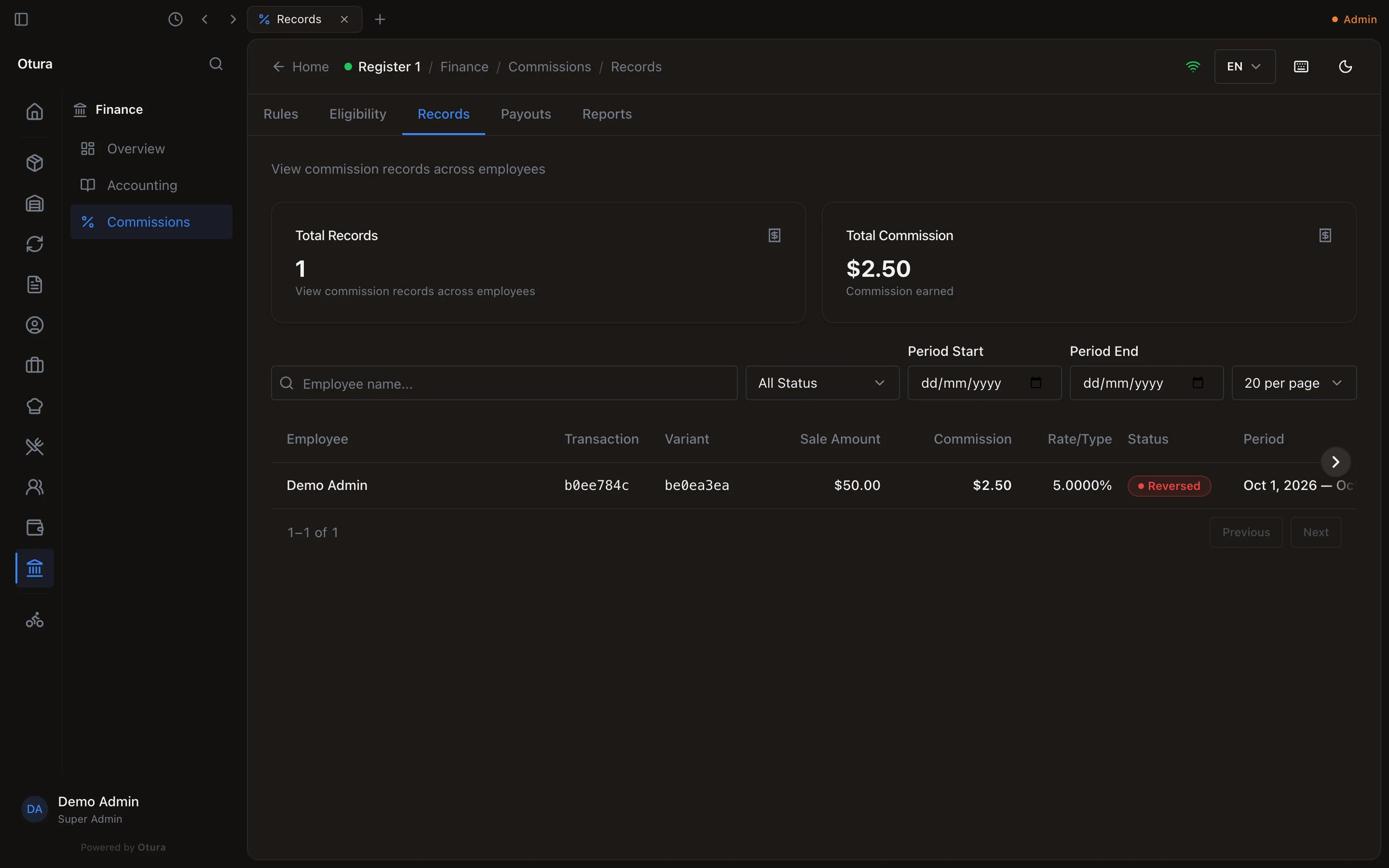
When an eligible person completes a sale, each line earns its commission at once, in exact cents: a $50.00 sale at 5% earns $2.50. Records lists every one with the person, the sale, the amount sold, the rate and the commission, and its status:
| Status | Meaning |
|---|---|
| Accrued | Earned, not yet on an approved payout. |
| Approved | On a payout that was approved. |
| Paid | On a payout marked paid. |
| Reversed | Taken back: the goods came back before it was paid out. |
A return or a void takes it back, for what came back only. A whole line returned before it was paid out reverses its record; part of a line writes a negative record for that part, so returning one of three pairs takes back a third. If the commission was already approved or paid, the sale's record is left as it was and a negative record goes into the period of the return, so the next payout is that much smaller.
At the till: My Commissions
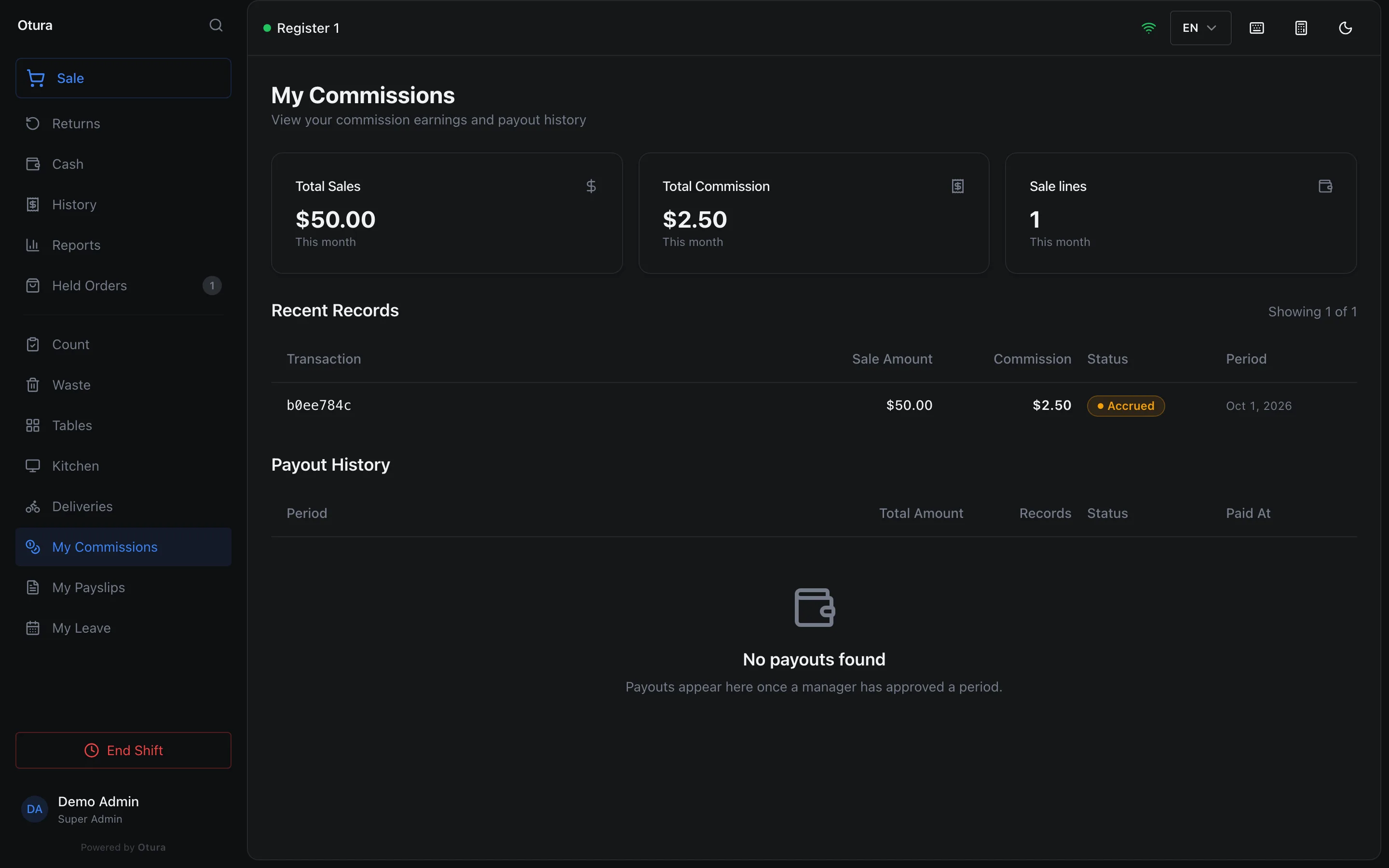
My Commissions, in the till's menu, shows the person signed in what they sold and earned this month, their recent records and their payouts. It needs the permission View own commissions.
4. Paying it out
On Payouts, create a payout for one person and a period: it gathers their accrued records in that period (negative ones included). Approve it — the person who created a payout cannot approve it themselves — then Mark as Paid once the money has left. Each step asks you to confirm, naming the person and the amount, and moves every record on the payout to Approved, then Paid.
Reports totals sales and commission by employee or by product for a date range.