Your own barcodes and labels
Barcodes for clothes and anything else that arrives without one, and labels with size, colour, price and a barcode the till can scan.
Checked against the product on 12 October 2026
Clothes, accessories and much else arrive with no barcode. Otura can give them your shop's own, and print labels for them: the name, the size and colour, the price, and a barcode the till scans.
Choosing your prefix
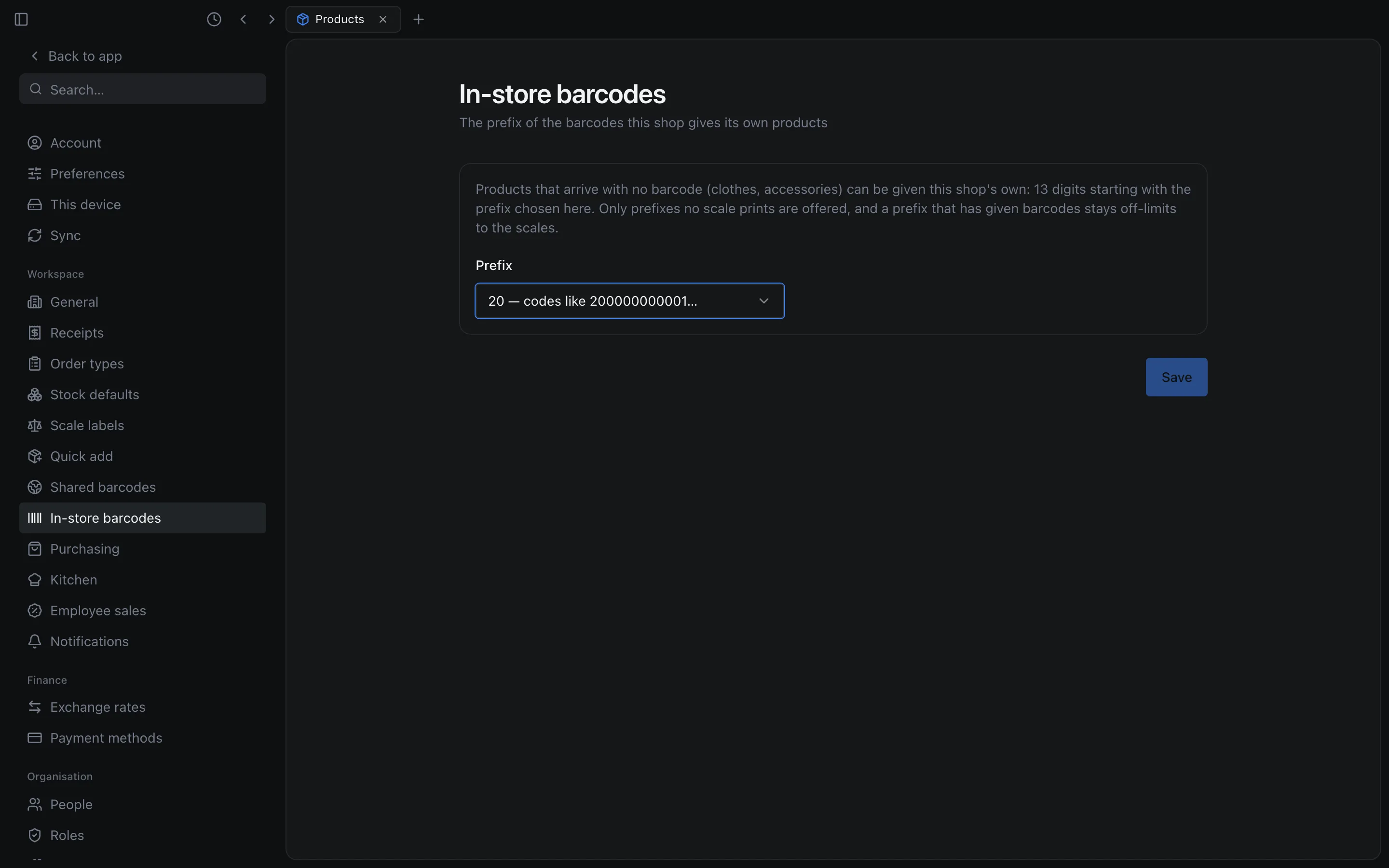
Open SettingsWorkspaceIn-store barcodes and choose a Prefix. Your barcodes will be 13 digits starting with it. The prefixes 20 to 29 are set aside for use inside a shop, and your scales use them too (see Units and decimals), so only the ones no scale prints are offered. Once a prefix has given barcodes, no scale can be set to print it, even if you later choose another. The page lists them under Prefixes that have given barcodes. If your scales print every prefix from 20 to 29, free one in Scale labels first.
Your own barcodes are never shared with other shops: they mean something only in yours.
Giving products barcodes
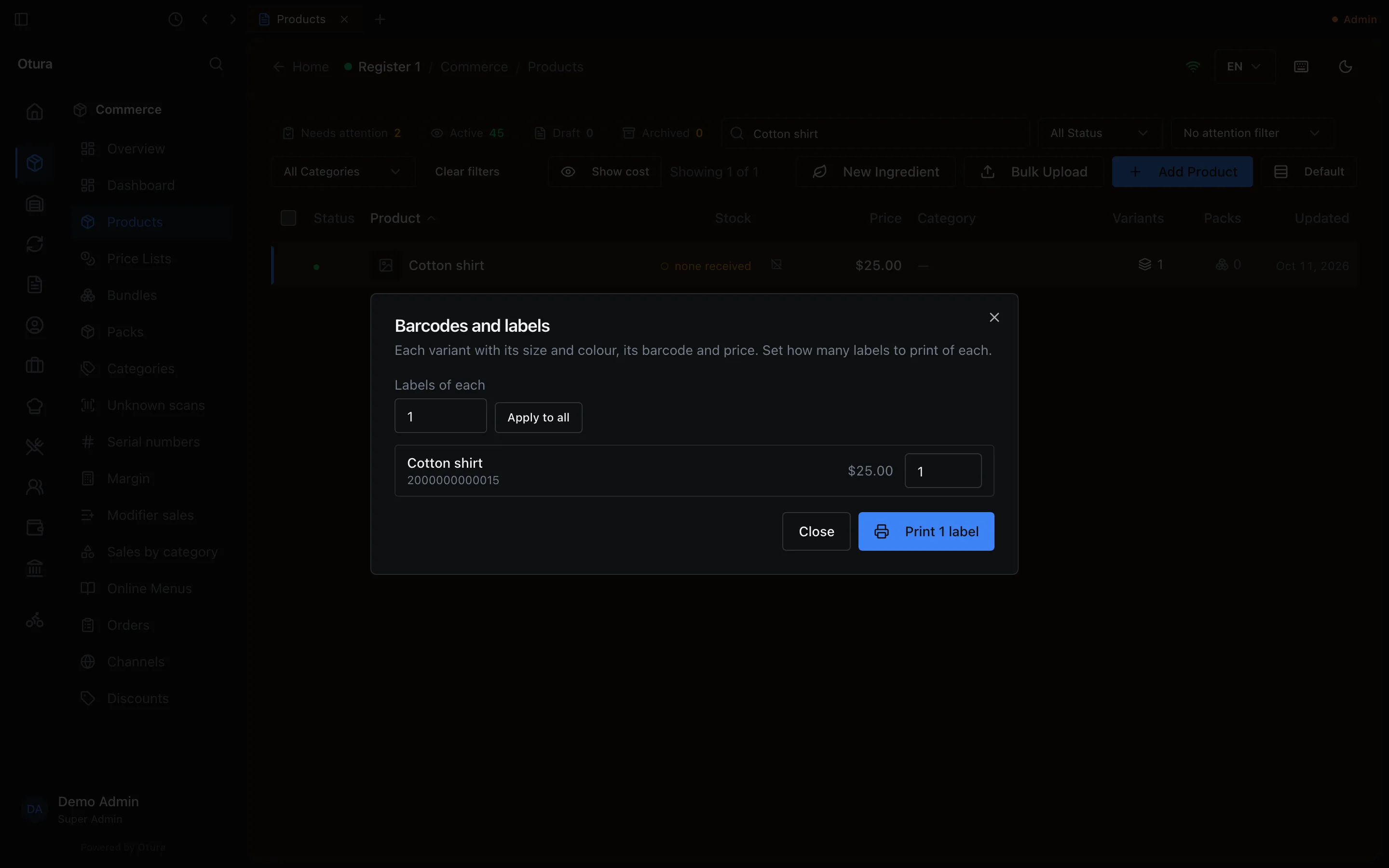
In Products, select up to 100 products and choose Barcodes and labels… (or press L). The list shows every variant with its size and colour, barcode and price. When some have no barcode, click Give them this shop's barcodes: each gets the next number. Anyone who can see products can print labels, but this button shows only to someone who can edit them. A variant that has a barcode keeps it, and a product with no variant yet has nothing to label: the dialog says to add its variants first. A number the till already answers to, such as a SKU someone typed, is skipped, and two people giving barcodes at the same moment never get the same one.
Printing labels
Each variant prints one label unless you change its number; Labels of each with Apply to all sets them all at once, and 0 skips a variant. A variant without a barcode prints nothing. Click Print … labels. They go to this computer's Label Printer (see Printers), one label each; with none set, the print dialog opens over the same labels. The price is what a customer with no price list of their own pays for one today, as the till charges it: the default price list's price when it has one for the product, otherwise the variant's own price, or the product's.
A variant prints at most 500 labels. One print takes at most 5,000; above that the dialog says At most 5,000 labels in one print. Print fewer at a time. If a USB, serial, Bluetooth or network label printer stops part way, the message says how many were printed, such as 120 of 300 labels printed before it stopped. Print only the rest, so no label comes out twice. Each label prints once, whatever Copies says for the Label Printer.
Labels for a delivery
To label what a delivery brought, open its goods receipt in PurchasingReceiving and click Print labels. The same dialog opens with the delivery's products, each variant set to one label per piece received: five cases of twelve is sixty labels, and a variant the delivery did not bring is set to 0. Something received by weight or volume starts at one label. Change any number before printing. The button needs the right to view the catalogue.