The drivers app
drivers.otura.app: the phone app a delivery driver signs in to, to go available, take waiting deliveries (several at once), see what to collect, tell the customer on WhatsApp, and mark it delivered.
Checked against the product on 20 October 2026
Your drivers work from their own phones, in the drivers app at drivers.otura.app. It opens in the phone's browser; there is nothing to install and no pairing code. A driver sees only their own deliveries, and the deliveries waiting for a driver if you let them take one.
Setting a driver up
Add the driver
In DeliveryDelivery, click Add Driver and fill in Driver Name, Phone Number and Vehicle Type, then the driver's sign-in: Email and Password. The password needs at least 10 characters, with an uppercase letter, a lowercase letter, a number and a symbol (the form's hint still says 8). PIN (optional) is only for signing in at a till, and takes 4 to 6 digits. The driver is given the Delivery Driver role, which can see and update their deliveries.
The driver's name is their sign-in's name. To rename them, change the name in SettingsPeople: the driver form refuses it with This driver signs in with a user account. Change their name in Users.
Let them take waiting deliveries (optional)
Out of the box, a driver only works the deliveries someone assigns to them. To let drivers pick up waiting deliveries themselves, give them Take waiting deliveries: for every driver in SettingsRoles › Delivery Driver › Permissions, or for one driver in SettingsPeople › the driver › Edit permissions. No role has it until you grant it (the Super Admin role holds every permission). Someone who can Assign drivers can also take a waiting delivery, if they are set up as a driver.
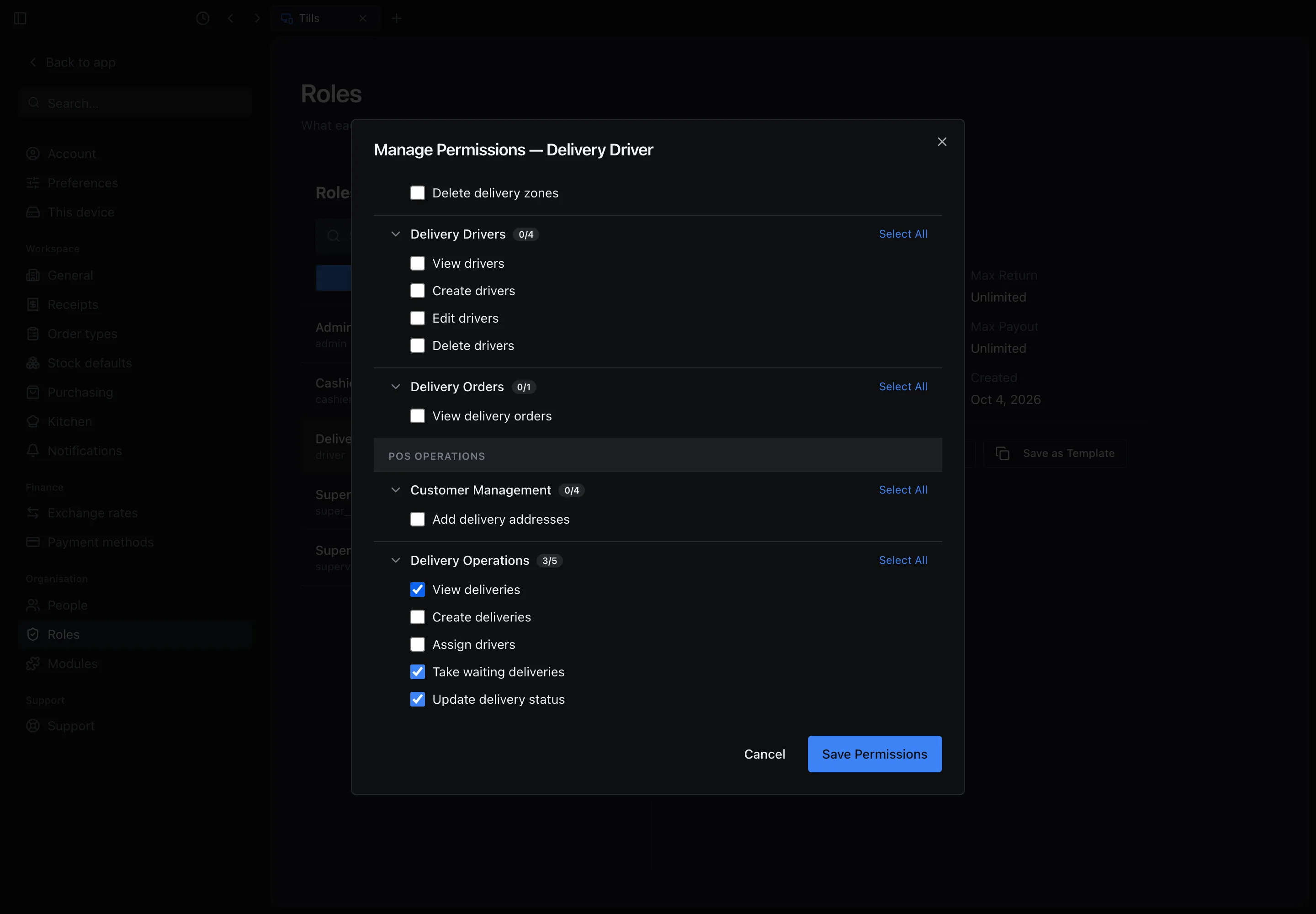
Roles › Delivery Driver › Permissions: Take waiting deliveries, granted to every driver. Give the driver the address and their sign-in
They open drivers.otura.app on their phone and sign in with the email and password you chose.
Signing in
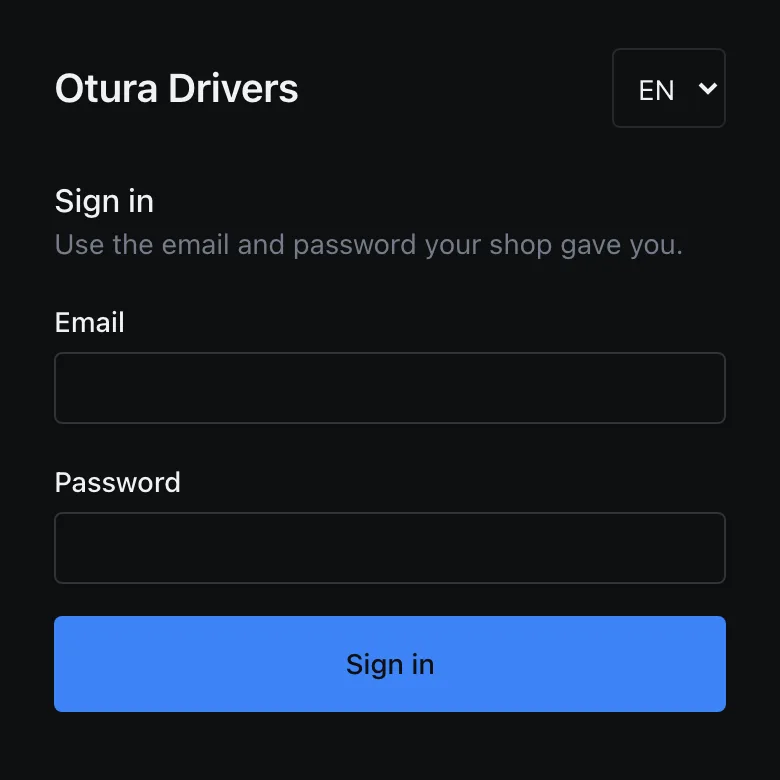
The driver enters their Email and Password and taps Sign in. If they drive for more than one business on Otura, the app asks Which shop are you driving for?. If they must choose a new password first, it asks for one (Choose your password, then Save and sign in). The language menu at the top switches between English, Arabic and French. Once signed in, the language is the driver's own: a choice made in the menu is saved to their account, and an account with none takes the one the phone shows. The delivery notifications use the same language.
Someone who signs in but is not a driver in that shop sees You are not set up as a driver in this shop yet. Ask a manager to add you under Delivery › Drivers.
The driver's home: status, and three tabs
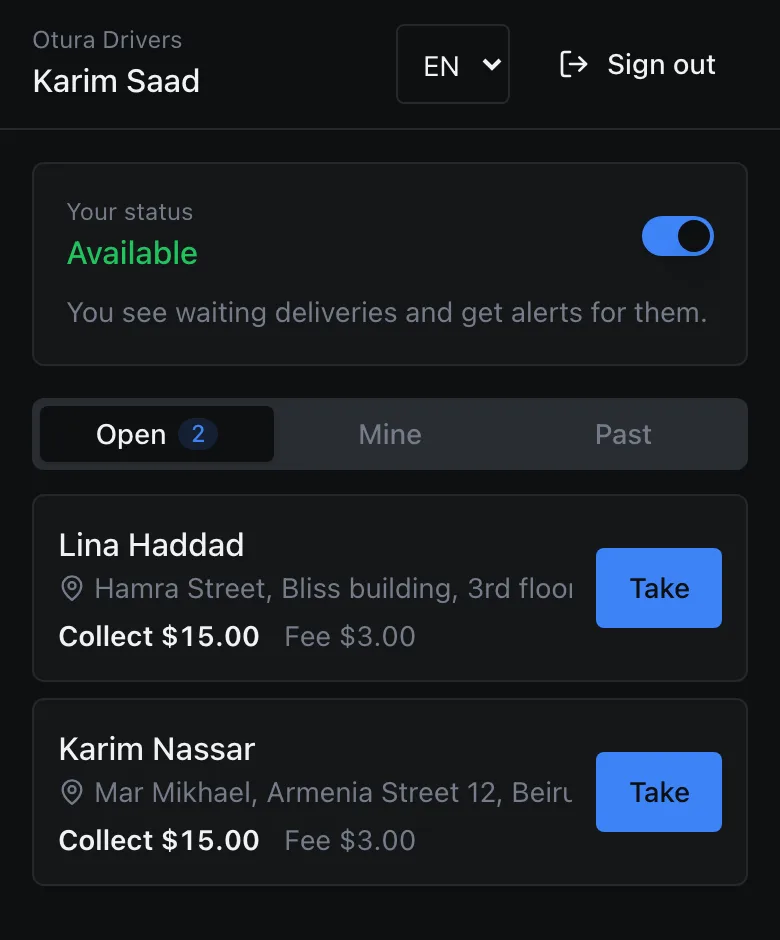
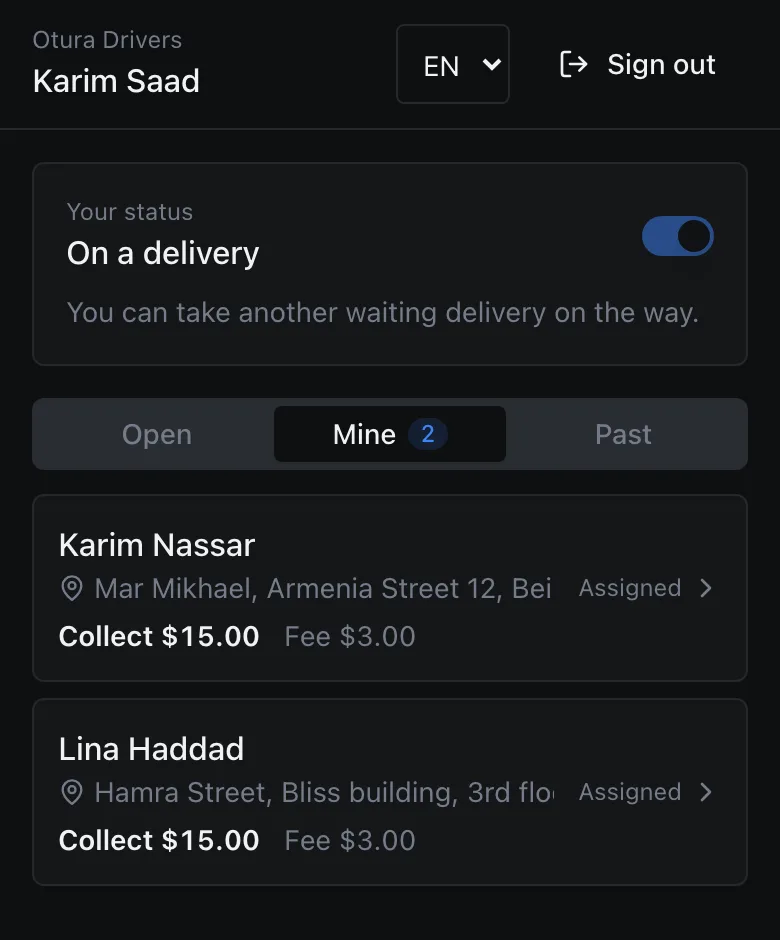
Your status is a switch: Available or Offline. A driver turns it on when they are ready for work and off when they stop. Taking or being given a delivery makes them On a delivery; the switch is then locked until the last delivery they carry is delivered or cancelled, which makes them available again. Out on a delivery, the app says You can take another waiting delivery on the way.
Below it, three tabs, each with how many it holds:
| Tab | What it lists |
|---|---|
| Open | The deliveries waiting for a driver, oldest first, with Take on each. Only a driver who may take deliveries has this tab. |
| Mine | The deliveries the driver is carrying: assigned to them, picked up or on the way. |
| Past | The ones they delivered, or that were cancelled. |
The app opens on Mine when the driver is carrying something, and on Open otherwise. The lists refresh every 15 seconds. Each row shows the customer, the address and the money: Collect and the cash to collect, or Total and the order total when there is nothing to collect (it was paid at the till), and the delivery Fee.
I'm back: the drivers queue
If the shop has turned on Drivers take turns, the home also shows Drivers queue. Back at the shop, the driver taps I'm back and joins the end of the queue; the card then reads You are number 3 of 4 with who is next, or You are next — The next delivery is yours. Tapping again does not move them. Once given a delivery they leave the queue, and tap I'm back again when they return. With the queue on, a driver can take a waiting delivery only when it is their turn.
Taking a waiting delivery
Tap a waiting delivery to see it before taking it: the cash to collect, the items, the customer and the address. Take, there or on the list, gives it to the driver. A driver who is Available or already On a delivery can take one, so they can carry several deliveries on one run. An offline driver sees the list with Go available to take a delivery. If another driver took it a moment earlier, the app says This delivery was already taken by another driver.
The shop can also give a delivery to a driver from the till's Deliveries screen (Assign Driver). The list offers drivers who are available or already out — one already out reads, for example, On delivery (1) — and leaves out offline drivers.
On a delivery
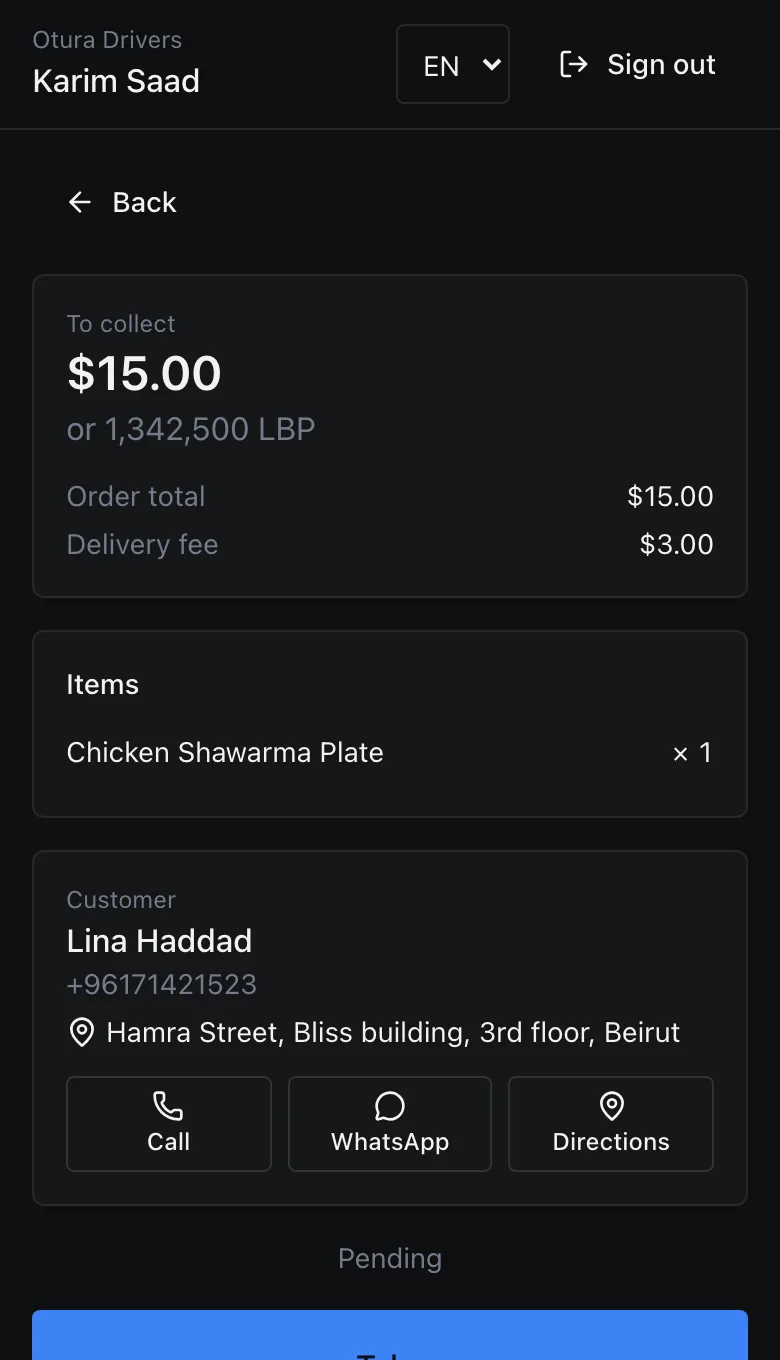
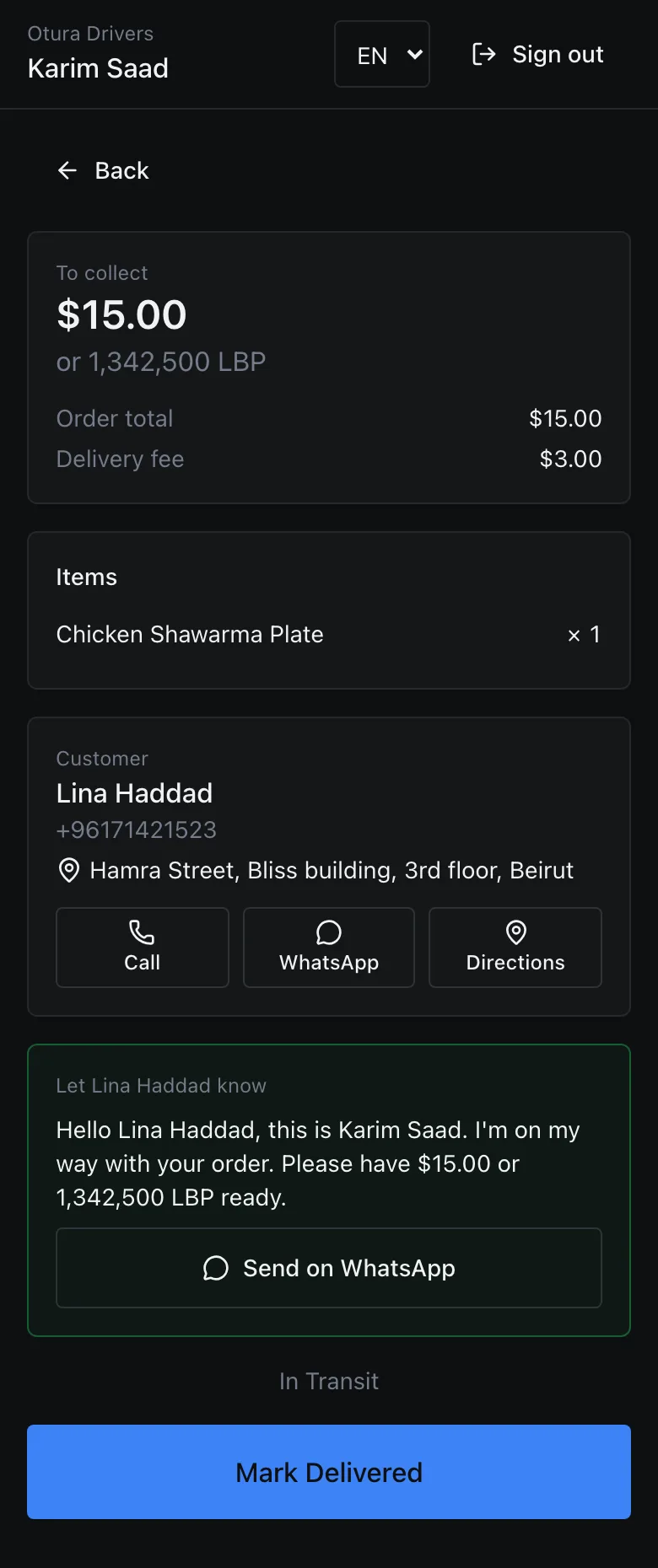
Tap a delivery under Mine. The screen puts what the driver needs in the order they need it:
- To collect: the cash the customer still owes, in dollars, and under it the same amount in lira — for example $15.00 or 1,342,500 LBP. It is one amount the customer pays in either currency, not both. Nothing to collect means the order was paid at the till. Below it, the Order total and the Delivery fee.
- Items: what the driver carries, with the quantity of each.
- Customer: name, phone and address, with Call, WhatsApp and Directions (a Google Maps search for the address). WhatsApp appears only when the phone number includes its country code. Any Notes on the delivery follow.
- Let the customer know: a message saying where the order is, to send from the driver's own WhatsApp (below).
- The next step, one button at a time: Mark Picked Up, then Mark In Transit, then Mark Delivered.
Telling the customer where their order is
Once the delivery is the driver's, a box headed Let and the customer's name know holds a message for where the order is now, signed with the driver's name. Send on WhatsApp opens WhatsApp on the phone with the message written to the customer; the driver presses send. Nothing is sent by Otura itself.
| When | The message |
|---|---|
| Assigned | Hello Lina Haddad, this is Karim Saad, your delivery driver. I'll pick up your order shortly. |
| Picked up | Hello Lina Haddad, this is Karim Saad. I've picked up your order and will be on my way soon. |
| On the way, with cash to collect | Hello Lina Haddad, this is Karim Saad. I'm on my way with your order. Please have $15.00 or 1,342,500 LBP ready. |
| On the way, nothing to collect | Hello Lina Haddad, this is Karim Saad. I'm on my way with your order. |
| Delivered | Hello Lina Haddad, your order has been delivered. Thank you! |
The box appears only when the customer's phone number is a full international number (10 to 15 digits with its country code), as WhatsApp needs.
Marking it delivered
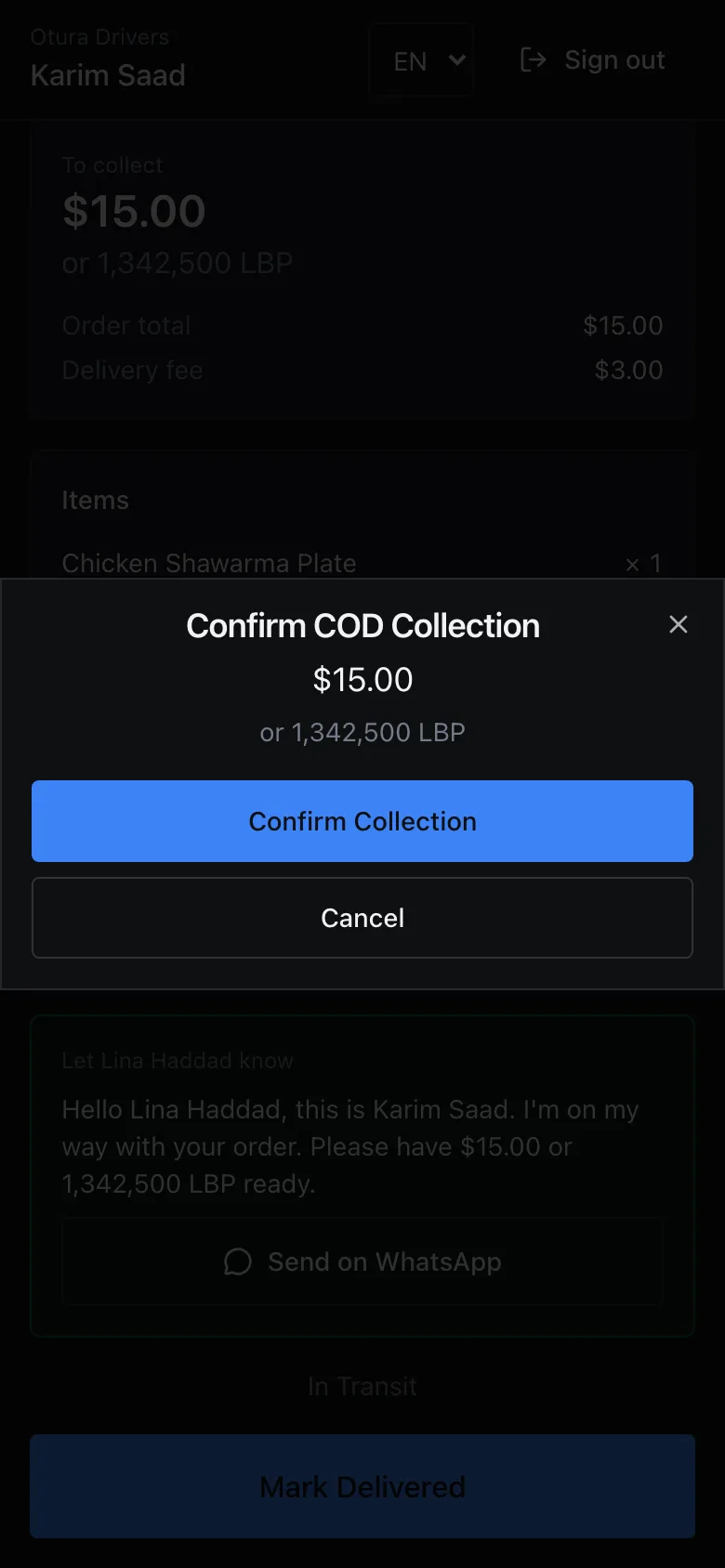
Mark Delivered asks first, Confirm COD Collection, showing the amount again. Confirm Collection marks the delivery delivered and records the cash as collected from the customer, and the delivery moves to Past. What happens to that cash next — into the till's drawer, or handed in by the driver at a till — is set by the shop: see Delivery fees and drivers.
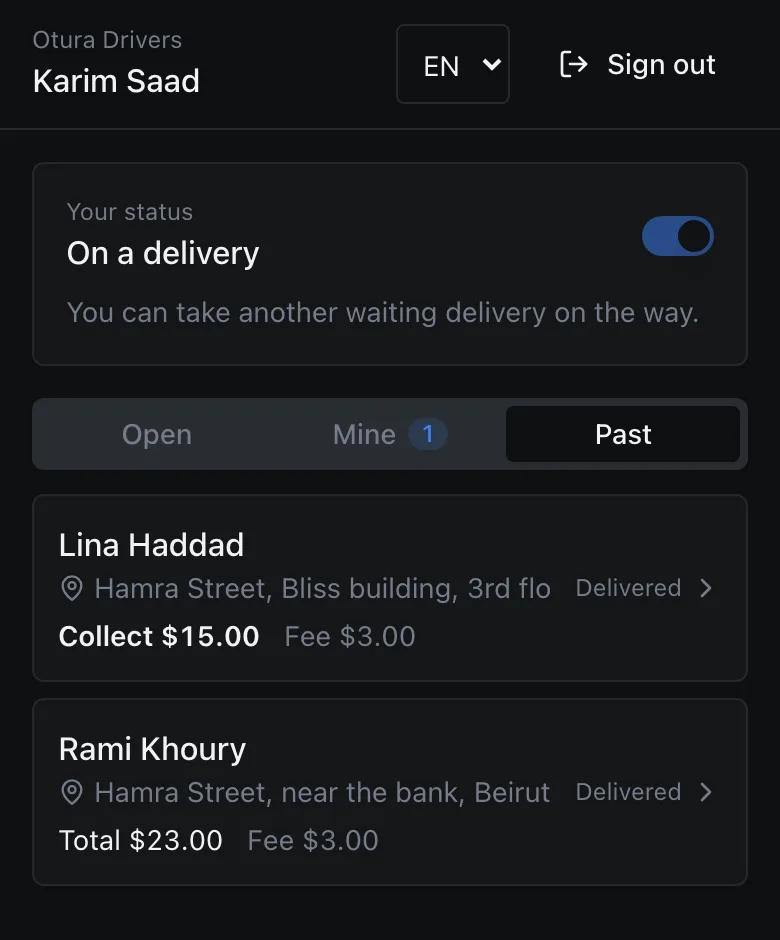
If your drivers keep the delivery fee, a delivered order goes on reading Collect until the driver hands its cash in at a till; then it reads Total, like Rami Khoury's above.
There is no Cancel in the drivers app, and a driver cannot give a delivery back. If they cannot go, they ask the shop: before it is picked up, the shop can put it back to waiting, where another driver can take it (see Delivery fees and drivers); the shop can also cancel it.
A driver sees only their own deliveries
A driver reaches only the deliveries given to them, and — if they may take deliveries — the ones still waiting. Opening anyone else's shows This delivery is not assigned to you, or no longer exists., and they cannot move it. Someone who also holds View delivery orders (the back-office delivery view) is not limited this way.
Alerts
While the app is open, a new waiting delivery shows a line above the Open list (A delivery is waiting for a driver), and the phone vibrates if it can — on any tab, and even while the driver is out on a delivery.
To be told with the app closed, a driver who may take deliveries taps Turn on alerts and allows notifications (the button is not shown on a phone or browser that cannot receive them). The app then reads Alerts on for this phone. From then on, each new delivery sends a notification — Delivery waiting: A delivery is waiting for a driver. Open Otura to take it. — to every driver who is Available and may take deliveries, and so does a delivery the shop puts back to waiting. A driver out on a delivery is not sent one. Tapping it opens the list. Signing out stops the alerts on that phone.
- iPhone: alerts work only once the app is on the Home Screen. Until then the app says To get alerts on iPhone, add this app to your Home Screen: tap Share, then Add to Home Screen, and open it from there.
- If notifications were refused for the site, it says Alerts are blocked for this site. Allow notifications in your browser settings to get them.
Signing out
Sign out is at the top of every screen. On a phone that several drivers share, each signs out when they finish: the next person starts from an empty screen, and the phone stops alerting the last driver.