Modifiers
Options a customer chooses on an item — size, toppings, extras, “no pickles” — with a price, what the kitchen is told, and, optionally, the ingredients each option adds or removes.
Checked against the product on 21 October 2026
A modifier group is a question asked about an item — “Bread?”, “Leave anything out?” — and its options are the answers. Each option can change the price, tells the kitchen what to do, and can add or remove ingredients so that stock stays right.
Create a modifier group
Open Modifiers
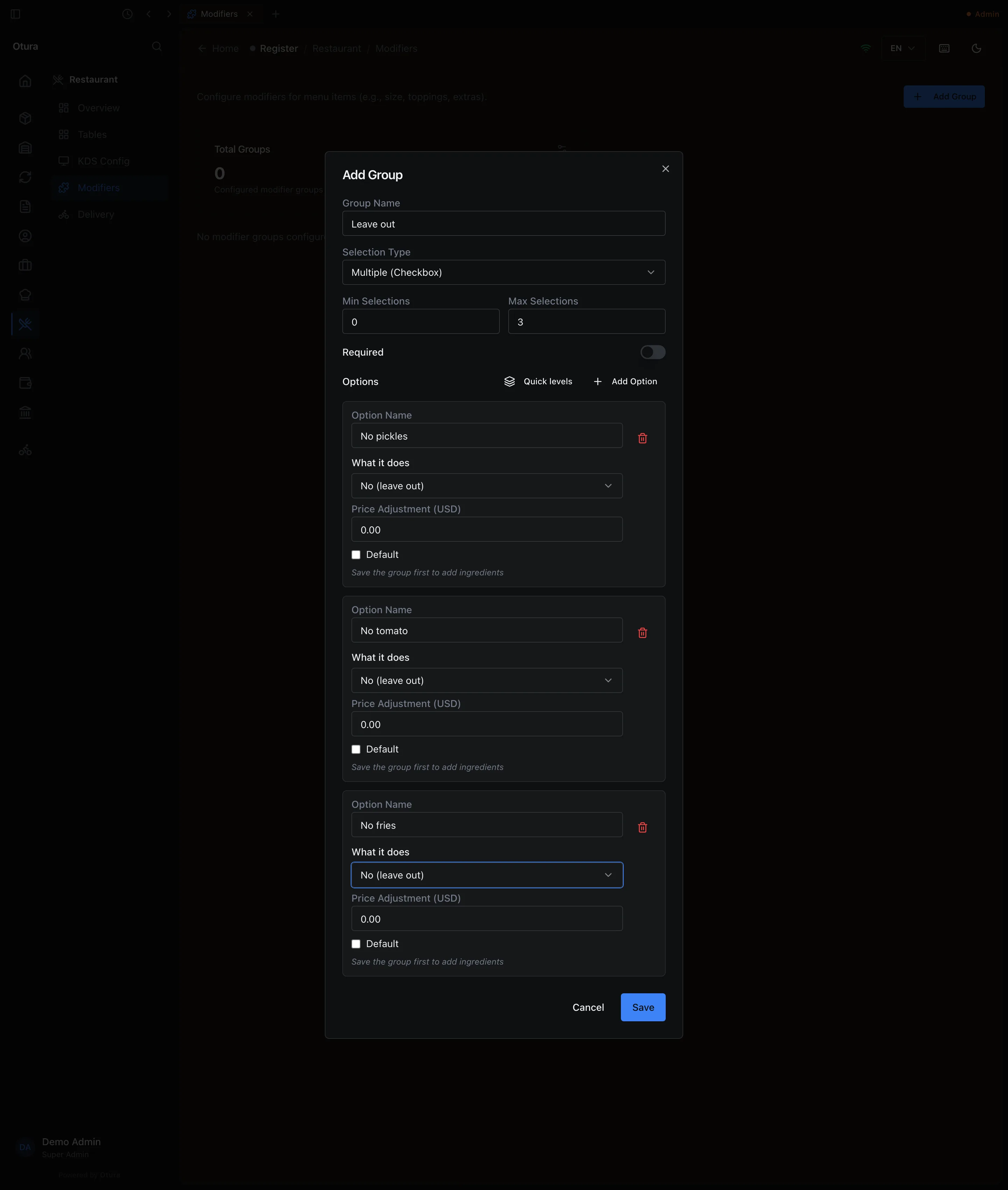
RestaurantModifiers and click Add Group.Name and type
Group Name, and a Selection Type: Single (Radio) for one choice (the bread) or Multiple (Checkbox) for several (things to leave out). In Arabic and In French, under the name, are the group's name in those languages (see Names in Arabic and French).How many may be chosen
Min Selections and Max Selections. Switch on Required if the customer must choose; a required group needs at least one choice even with Min at 0.
Max Selections starts at 1. On a Multiple group that lets the cashier tick only one option: a further tick is ignored, without a message. A group of things to leave out — No pickles, No tomato, No fries — needs Max set to the number of options.
Add the options
Add Option for each: Option Name (with its own In Arabic and In French), What it does (see below), Price Adjustment (USD) (0 for free, negative for a reduction) and Default if it should be ticked already. Options can be changed, added or removed later by editing the group (the pencil beside it).Save
A group no cashier could complete is refused, saying which rule to change — for example This group needs 2 choices but has 1 options. Add options or lower the minimum., or a minimum above the maximum. Saved with new options, the window stays open on them, each with its Ingredients (see below); Cancel closes it.
What the kitchen is told
An option's What it does decides how it reads on the kitchen ticket and the kitchen screen, and on the cart and the receipt:
| What it does | Kitchen ticket and kitchen screen | Cart and receipt |
|---|---|---|
| No (leave out) | NO pickles | No pickles |
| Less | LESS garlic | Less garlic |
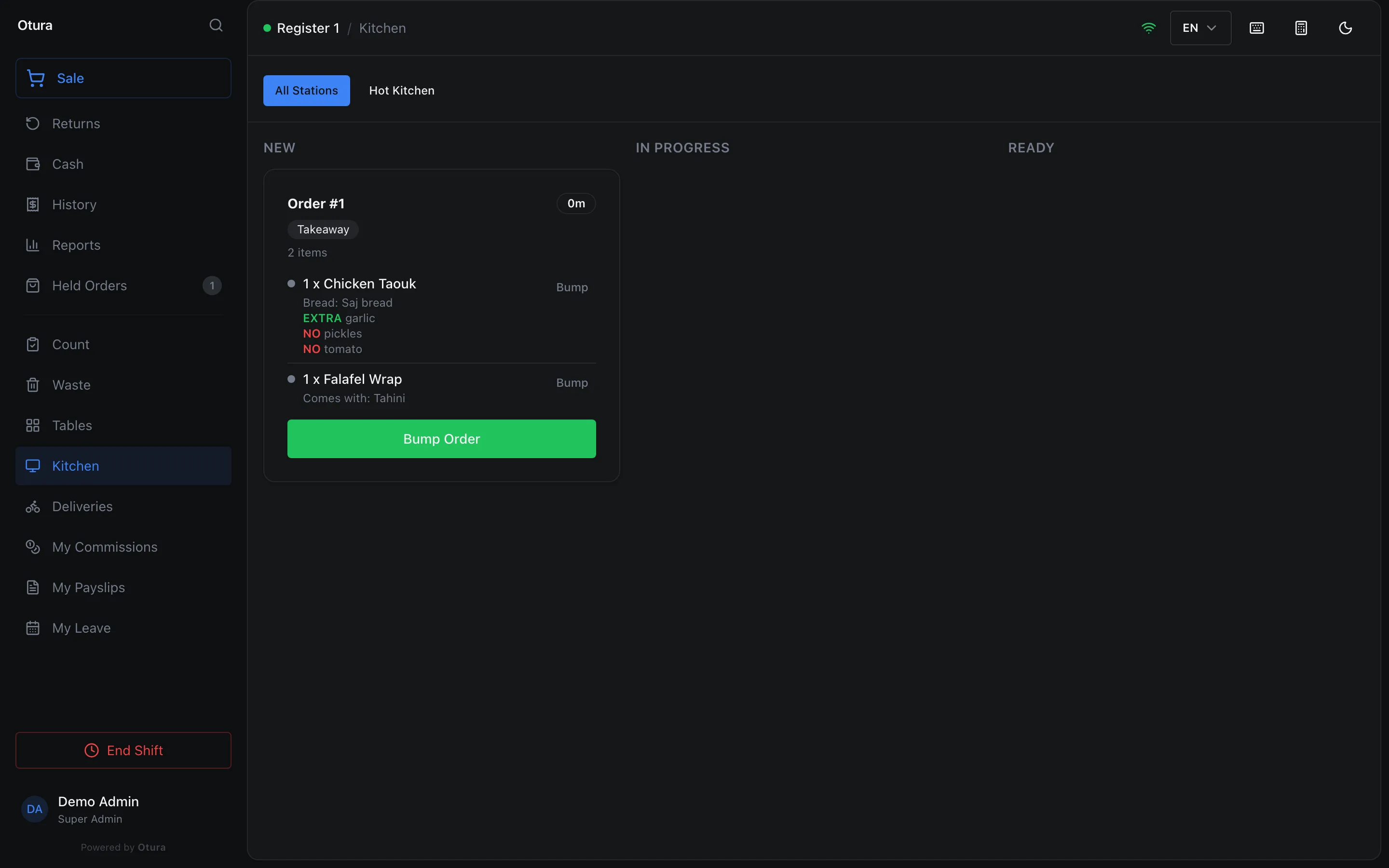
| Extra | EXTRA garlic | + Extra garlic |
| Add | ADD cheese | + Add cheese |
| Plain option | + Saj bread on the ticket; Bread: Saj bread on the screen | + Saj bread |
The word NO, LESS, EXTRA or ADD is in the kitchen's language when your business, the kitchen printer or the station has one (see The kitchen's language); otherwise in the language of the till that prints the ticket, or of the kitchen screen — بدون كبيس in Arabic, SANS cornichons in French. With a kitchen language set to Arabic or French, the rest of the option, its group and the item itself are given under their name in it where you filled one in (In Arabic, In French), and under their main name where you did not. With none set, or English, they print as you typed their main names, whatever the till's language. An option left as Plain option whose name starts with one of those words (No, Without, Less, Light, Extra, Double, Add, With, and their French and Arabic equivalents, followed by something) is read as that kind, so a group made before this setting existed still prints NO onions.
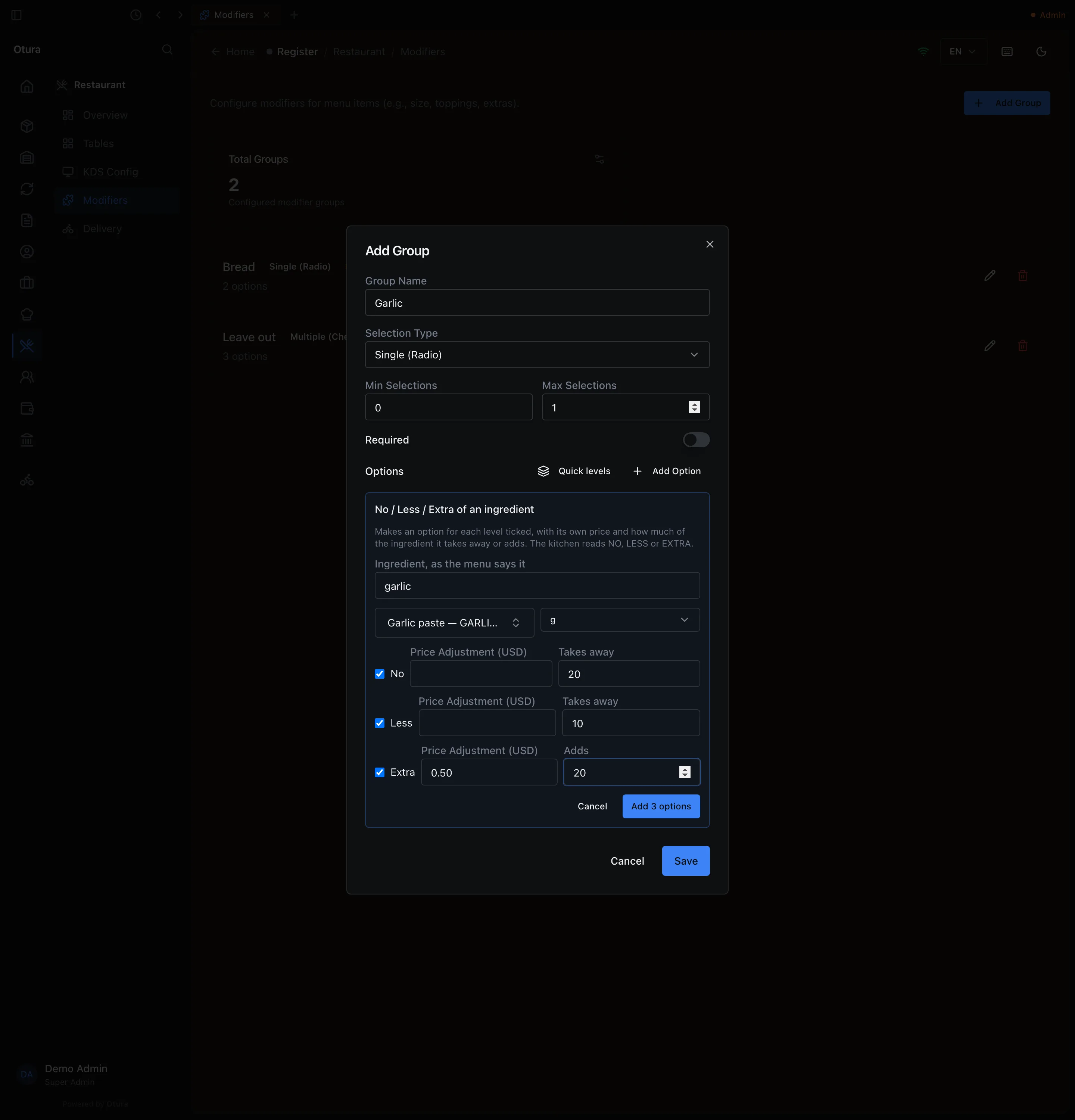
Quick levels
Quick levels, beside Add Option, makes the No, Less and Extra options for one ingredient in one go. Type the ingredient as the menu says it in Ingredient, as the menu says it (garlic), choose the stock item and its unit, keep the levels you want ticked (all three start ticked), and give each its Price Adjustment (USD) and the quantity it Takes away (No, Less) or Adds (Extra). Add 3 options puts No garlic, Less garlic and Extra garlic in the group, each with its kind and its ingredient; they are saved with the group. A level with no quantity, or with no item or unit chosen, gets no ingredient: it is printed for the kitchen and moves no stock. The options are named in the language you are using Otura in.
Put a group on a product
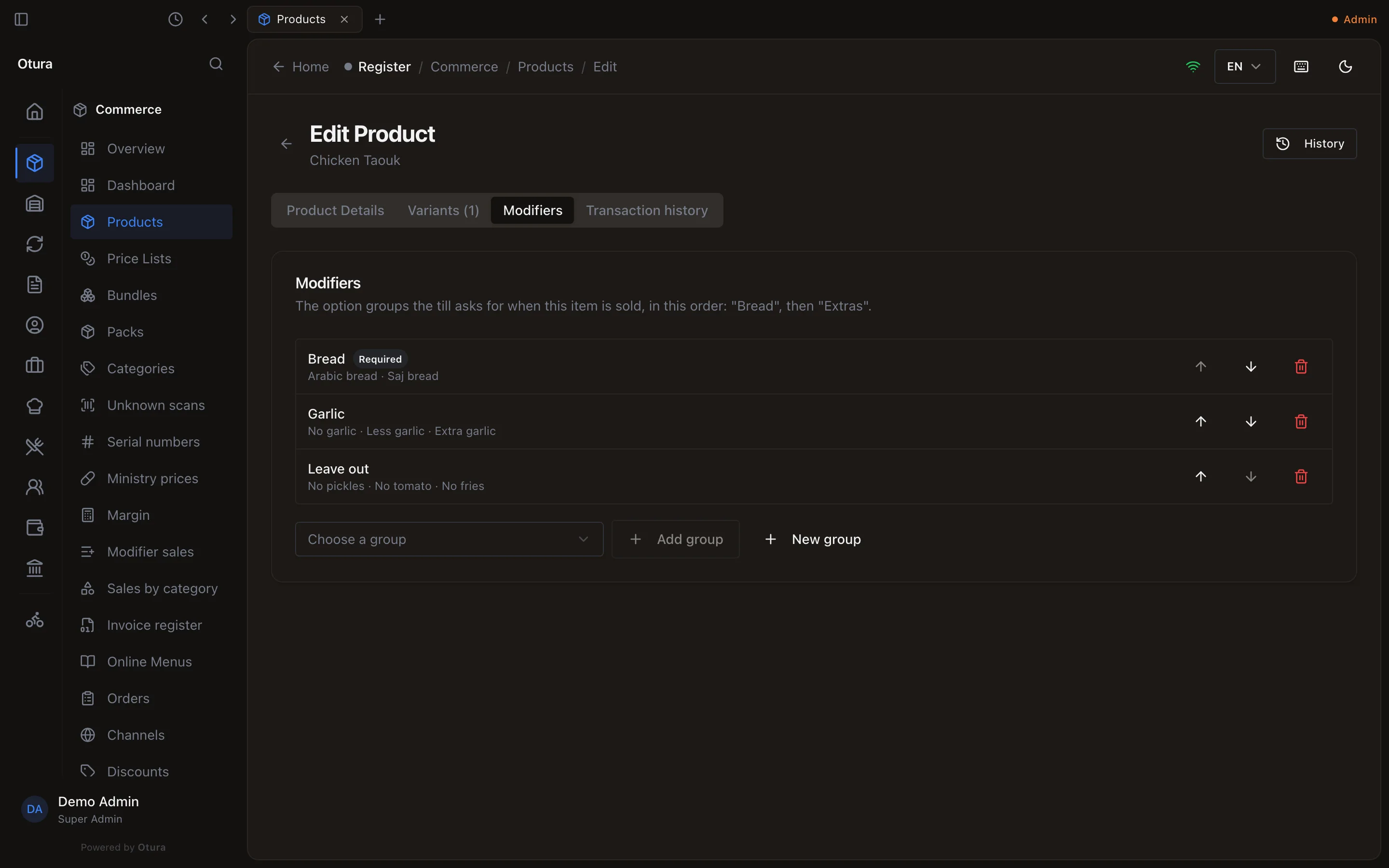
A group is asked at the till only on the products it is on. Open the product in CommerceProducts: under Modifiers, choose a group in Choose a group and press Add group to put an existing group on it. The arrows set the order the till asks them in, and the bin takes a group off the product. New group opens the same group window from the product, and the new group is put on the product as soon as it is saved — no need to leave the product and come back.
At the till
When a cashier adds an item that has a modifier group — a tap on its tile, a pick in the variant picker, a scan, or a code typed in the search box or the PLU pad — the till opens Customize Item before the item goes in the cart, whether its groups are required or not. Each group shows Required or Optional, radio buttons or checkboxes, how many may be chosen, and each option's price change. Options marked Default start ticked (on a Single group, only the first). Add to Order stays greyed out until every group has its minimum.
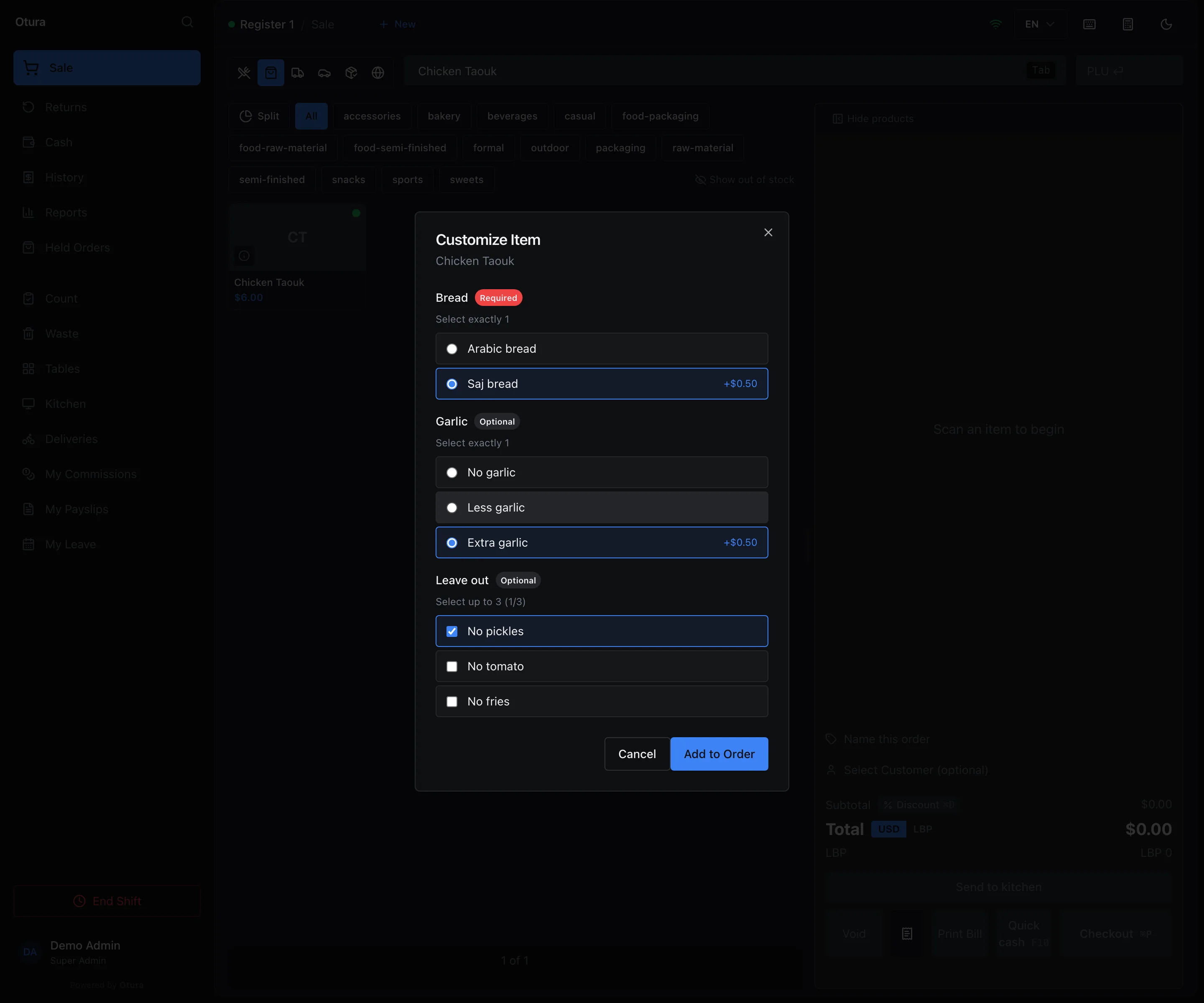
- The price of each option is added to the item's price, per unit. Prices always come from your settings, never from the till.
- The same item with the same options adds to one line; different options make a separate line.
- The options are shown under the line in the cart (except in the Compact layout), printed on the receipt, and sent to the kitchen screen and kitchen ticket.
- An item whose required group is left unanswered is refused, naming the group: “Bread” needs a choice. Choose the options for this item.
Change the options on a line
Until the line is sent to the kitchen, right-click it in the cart (press and hold on a touch screen) and choose Edit options. Customize Item opens on the line's options; change them and press Save options. The line is priced again and stays where it is.
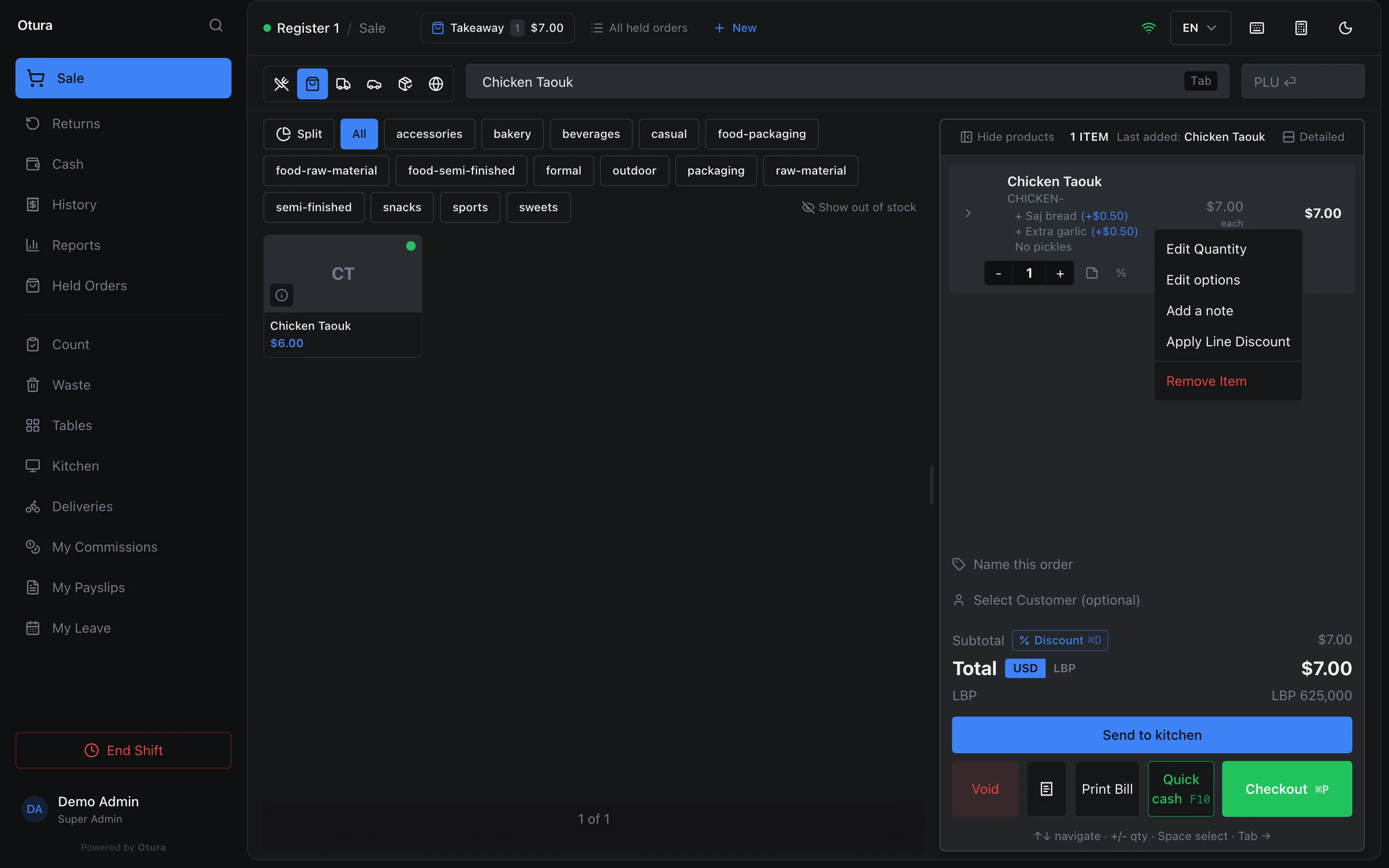
Once the kitchen has the line, Edit options is no longer offered: add a new line with the options you want, and take the first one back if it should not be made. It is not offered on an item inside a deal or a split, and while the till is offline it waits for the connection (see Selling offline).
In the kitchen
Sent with Send to kitchen, each line carries its options to the kitchen screen and the kitchen ticket, read as in the table above. How often each option sells is in Modifier sales.
Names in Arabic and French
A group and each of its options can have a name in Arabic and one in French beside the main one: In Arabic and In French in the group's window. Left empty, the main name is used. Options made with Quick levels start with them empty.
- On a till set to Arabic or French, Customize Item shows each group and option under its name in that language. The cart line, the receipt and reports keep the main names.
- On the kitchen ticket and the kitchen screen they follow the kitchen's language, not the till's — see The kitchen's language.
Options that change ingredients
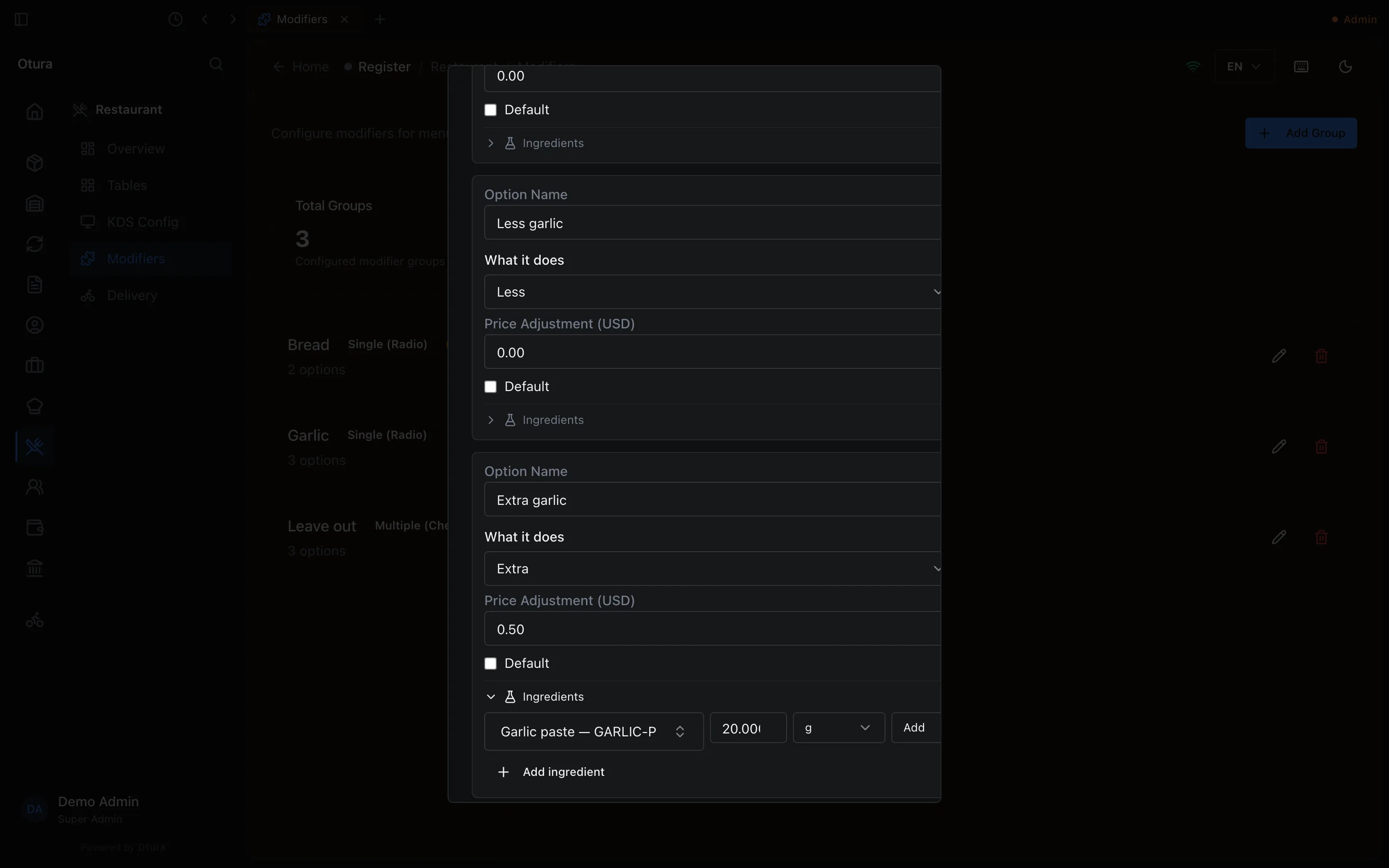
Each option can list ingredients it adds or removes, with a quantity and unit. In the group's window, open an option's Ingredients, press Add ingredient, choose the item in Ingredient... — type part of its name or SKU in Search items by name or SKU...; every active product is searched — then the quantity, the UOM and Add or Remove, and press Save ingredients. An option needs saving first; until then it says Save the group first to add ingredients. Options made with Quick levels already have theirs.
When the sale is completed they are combined with the item's recipe:
| Option | Ingredients | Effect on a pizza that uses 300 g of cheese |
|---|---|---|
| Extra cheese | Add 100 g Mozzarella | 400 g of cheese is deducted |
| No cheese | Remove 300 g Mozzarella | No cheese is deducted |
| No olives | Remove 50 g Olives | Nothing — the recipe has no olives to remove from |
A removal can bring an ingredient down to zero but never below, and never puts stock back. An option's quantities are multiplied by the number of units sold (on a pack line, packs × units per pack), and are not affected by the recipe's waste percentage.
On an item with no recipe, or one made ahead, the item's own stock is deducted as usual and an option's added ingredients on top; a removal takes nothing, as there is no recipe to take it from.
Like recipes, option ingredients are used only on items set to Tracks stock. On an item set to Does not track stock they are ignored and nothing is deducted.