People: who signs in, and what they may do
Adding the people who sign in to Otura, their role and their own permission exceptions, resetting a PIN or password, deactivating someone, and what terminating an employee in HR does to their sign-in.
Checked against the product on 14 October 2026
SettingsPeople lists everyone who can sign in to your business: the owner, managers, cashiers and drivers. Each person has an email and password, a role that decides what they may do, and, if they work a till, a PIN. Your employees' HR records — their hire date, payslips, leave — are kept separately, in PeopleEmployees; an employee who signs in has both, linked by the employee's Login account.
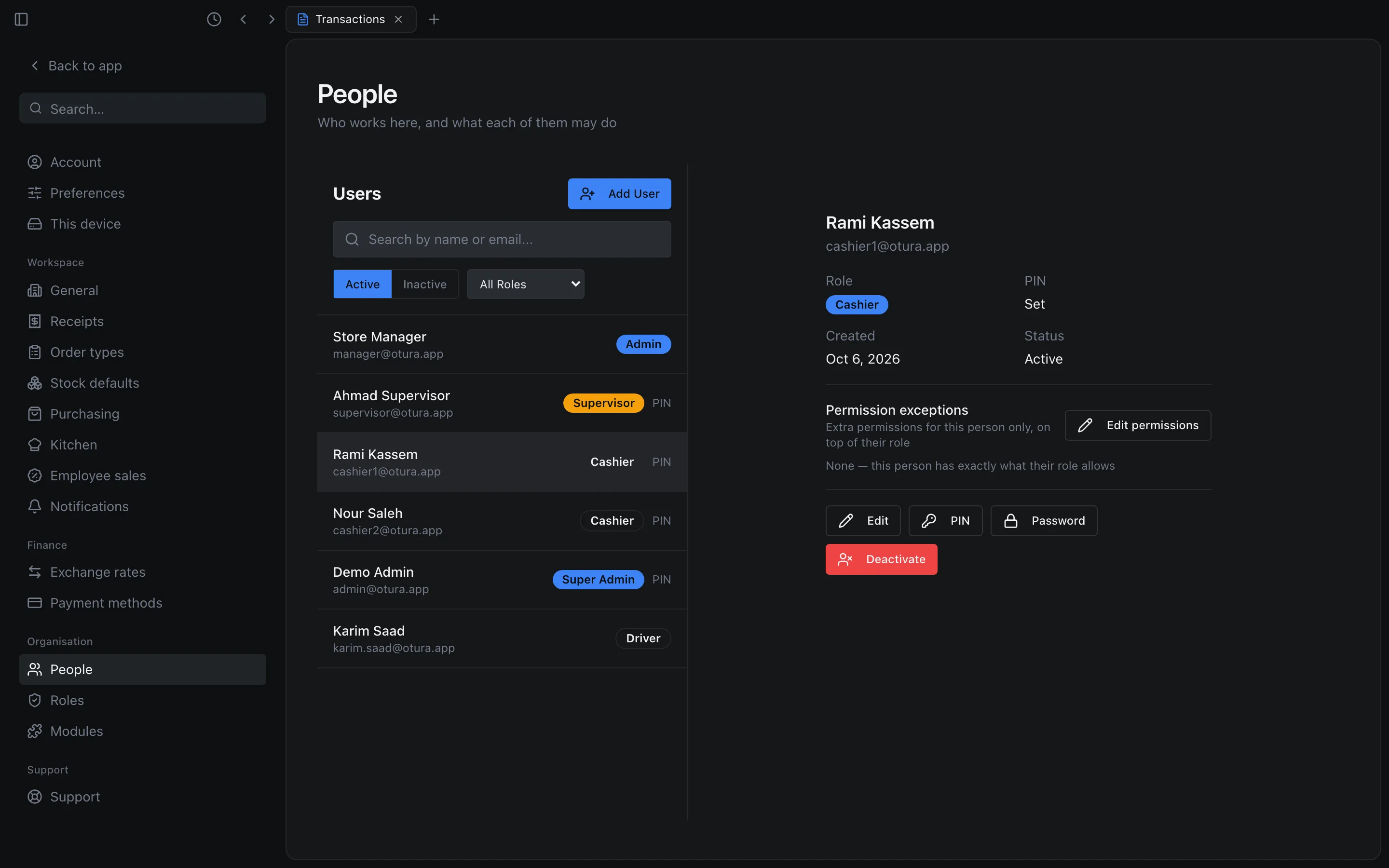
The list shows Active or Inactive people, and can be narrowed by role. Search by name or email... searches everyone in your business, not only the people on screen; a % or _ you type is matched as that character. With more than 50 people in a list, a pager under it reads 1–50 of 120 with Previous and Next.
Adding someone
Open the form
In SettingsPeople, click Add User. Under User Type, keep POS User for staff who work in the shop, or choose Driver for a delivery driver (see The drivers app).
Fill it in
Name, Email (what they sign in with), Password and Role are required. The password needs at least 10 characters, with an uppercase letter, a lowercase letter, a number and a symbol; the list under the field ticks each off as it is typed. PIN (optional) is 4 to 6 digits, for signing in at a till.
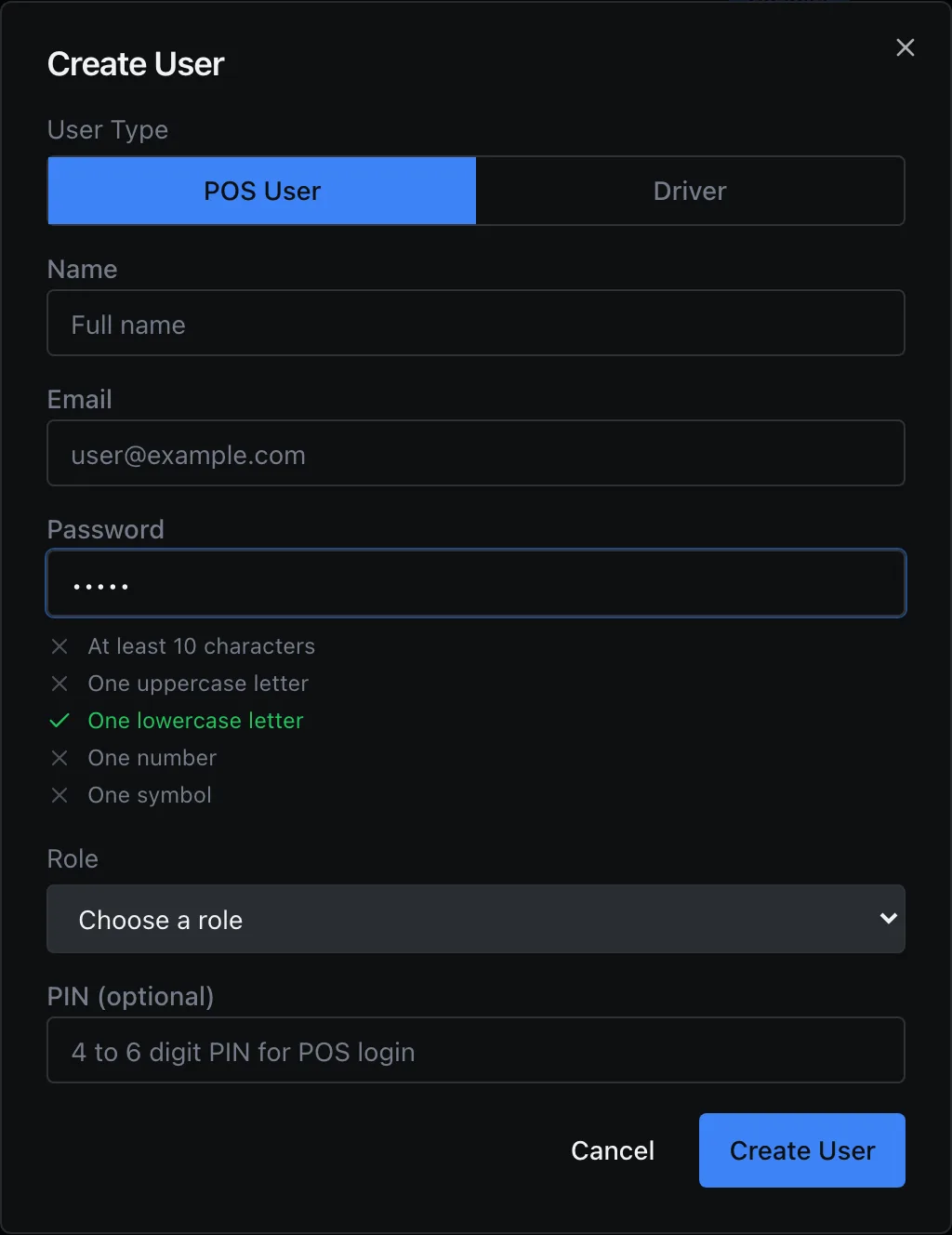
Add User. The checklist shows what the password still needs. Create
Click Create User. They can sign in straight away. Whether a till lists them for PIN sign-in is set per till: see Signing in at a till, and PINs.
You can give a role only if it is not above your own, and — unless you are the Super Admin — a Delivery Driver or self-made role only if it can do nothing you cannot. Otherwise Otura refuses: Cannot assign a role higher than your own, or Cannot assign a role that can do what you cannot followed by what it can do.
Who can change whom
You can edit, reset or deactivate only someone ranked below you. The ranks are:
| Rank | Role |
|---|---|
| 1 (highest) | Super Admin — the owner |
| 2 | Admin |
| 3 | Supervisor |
| 4 | Cashier, Delivery Driver, and every role you create yourself |
- Someone at the same rank or above is refused: Cannot modify a higher-privilege user. So an admin manages supervisors, cashiers and drivers, only the Super Admin manages admins, and a supervisor given Edit users would manage only cashiers and drivers.
- Delivery Driver and the roles you created rank with the cashiers. To act on someone who holds one, an Admin or Supervisor must also be able to do everything that role can; the Super Admin always can.
- Someone who holds a role you created can manage nobody in People: nobody ranks below them.
Changing someone's details, PIN or password
Choose the person, then:
| Button | What it does | Their open sessions |
|---|---|---|
| Edit | Changes their Name, Email or Role. A new email is the address they sign in with from then on. | Kept |
| PIN | Set PIN, Change PIN or Remove PIN. A PIN is 4 to 6 digits, typed twice. | Their PIN sessions end, on every till, within 15 minutes |
| Password | Reset Password: you type a New Password twice. It is temporary: at their next sign-in they choose their own. | All their sessions end within 15 minutes |
| Deactivate | They can no longer sign in to your business. | End at once |
Within 15 minutes: a session in use keeps working until its 15-minute token runs out, and is then refused. Reactivate (in the Inactive list) gives a deactivated person their access back.
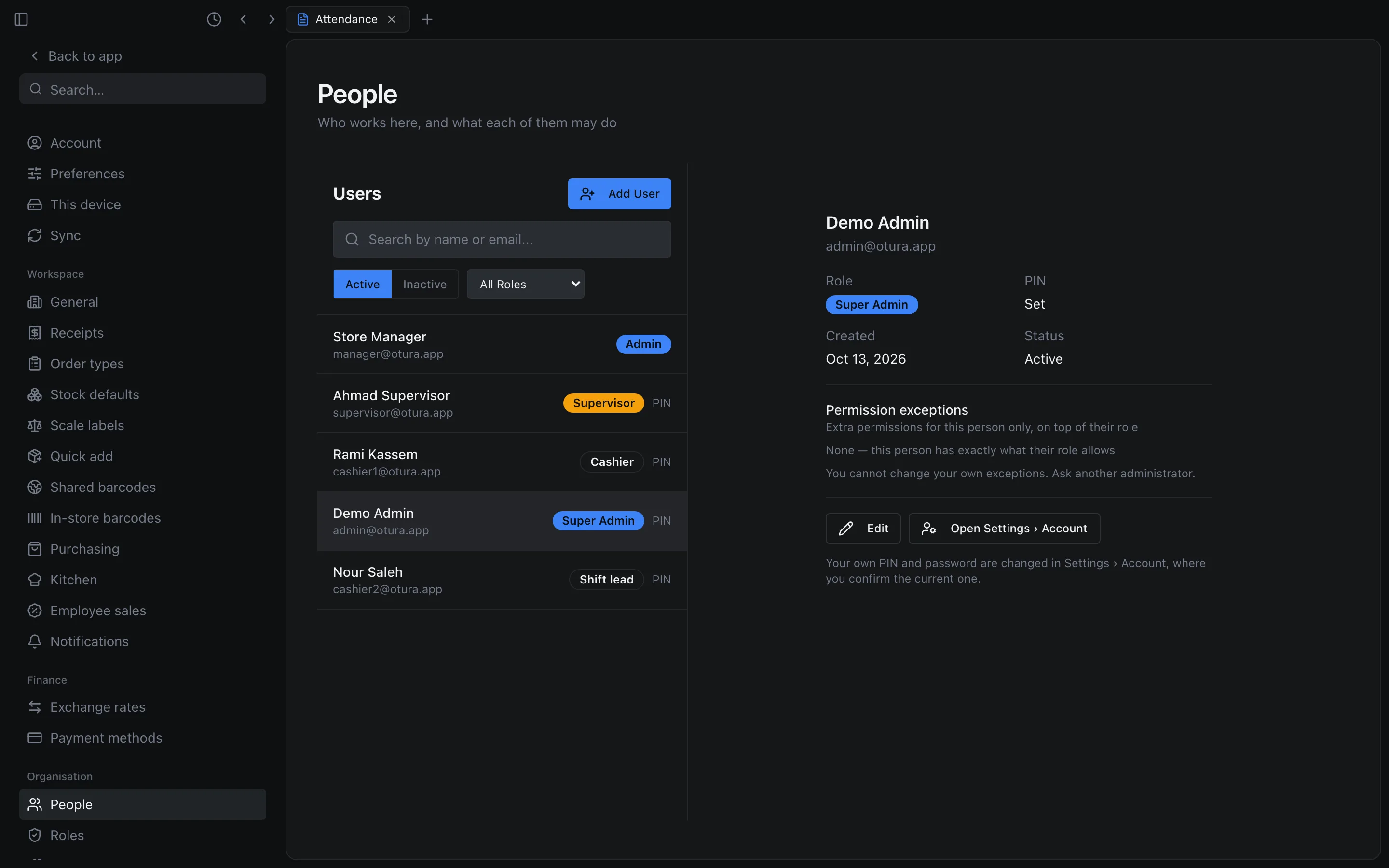
Your own record in People offers only Edit and Open Settings › Account: you cannot reset your own PIN or password, or deactivate yourself, from People. Change your own PIN and password in SettingsAccount, which asks for the current one.
Someone who also works at another business
One person can sign in to more than one business on Otura with the same email. Their sign-in belongs to them, not to any one business, so you cannot change their name, email, password or PIN: This person also signs in to another business, so only they or Otura support can change their email, name, password or PIN. You can still change their Role with Edit. Deactivating them removes their access to your business only; their account and their other businesses are untouched. They are then listed under Inactive, in Removed from this business; Add back there opens Add User with their email filled in, and they type their own Otura password to come back.
Permission exceptions: one person, not the whole role
A role gives everyone who holds it the same permissions. When one person needs one thing more — or one thing less — give them an exception instead of a new role.
Open their permissions
Choose the person and click Edit permissions, under Permission exceptions. The checklist shows what they can do now: their role's permissions with any exceptions applied.
Tick or untick
Ticking something their role does not have marks it Granted; unticking something their role has marks it Revoked. Putting a box back the way the role has it removes the exception. Search the list to find a permission quickly.
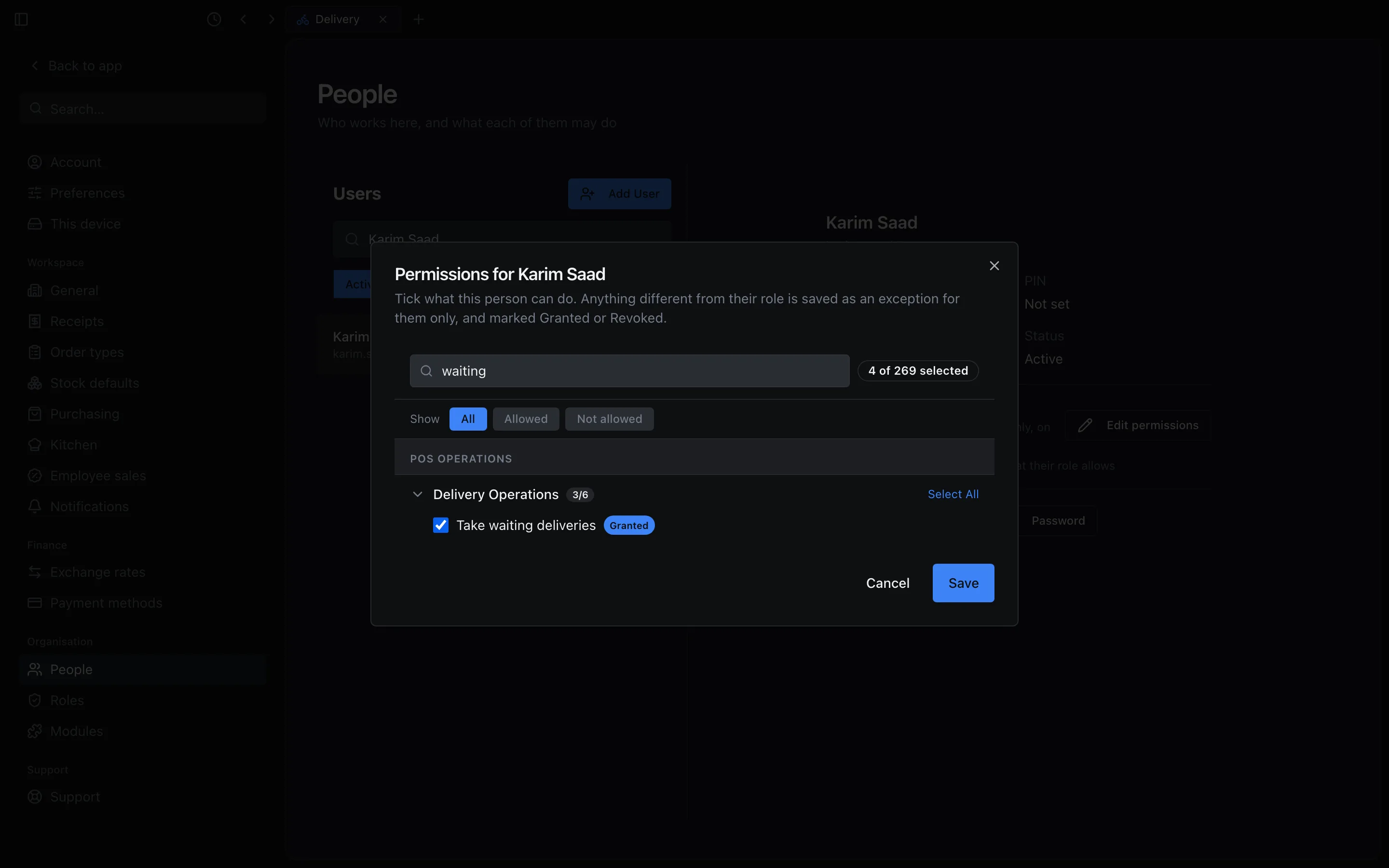
Giving one driver Take waiting deliveries, as an exception. Save
Click Save. The exceptions are listed on the person, each marked Granted or Revoked; the cross beside one removes it.
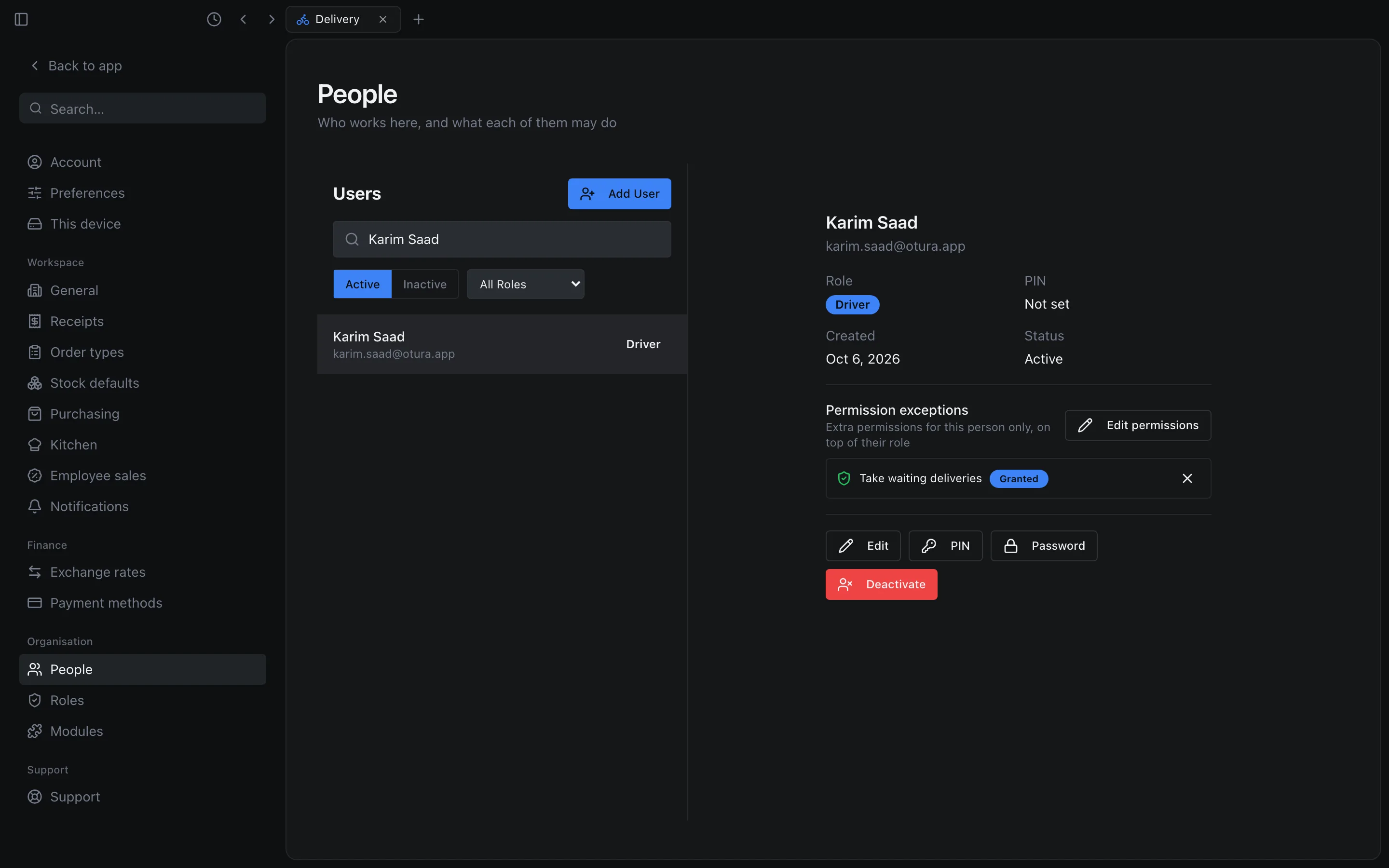
The exception, on the person.
- Nobody can change their own exceptions: You cannot change your own exceptions. Ask another administrator.
- You can change the exceptions only of someone ranked below you.
- You cannot grant a permission you do not have yourself (Cannot grant a permission you do not have), nor remove a revoke of one (Cannot restore a permission you do not have).
- If some changes are refused, the dialog stays open and lists them under These changes were not saved:; the rest are saved.
The Employees list, and linking a login
PeopleEmployees lists 50 employees a page, by surname, with a pager under the list. Search by name or number… searches every employee by first name, last name or employee number. The tiles Total Employees (everyone on file, terminated employees included), Active and On Leave count the whole staff whatever the filters; pressing Active or On Leave filters the list to it, and pressing it again clears the filter.
In an employee's form, Manager and Login account are searched lists: type a name to find anyone, however many people you have. Login account offers active sign-ins only; one already linked to another employee is shown as Linked to … and cannot be chosen. Linking needs View users; without it the field says Linking a login requires user-management permission.
Terminating an employee takes away their sign-in
In PeopleEmployees, right-click the employee and choose Terminate (or select them and press T). Set the Termination Date — their last working day — and click Terminate.
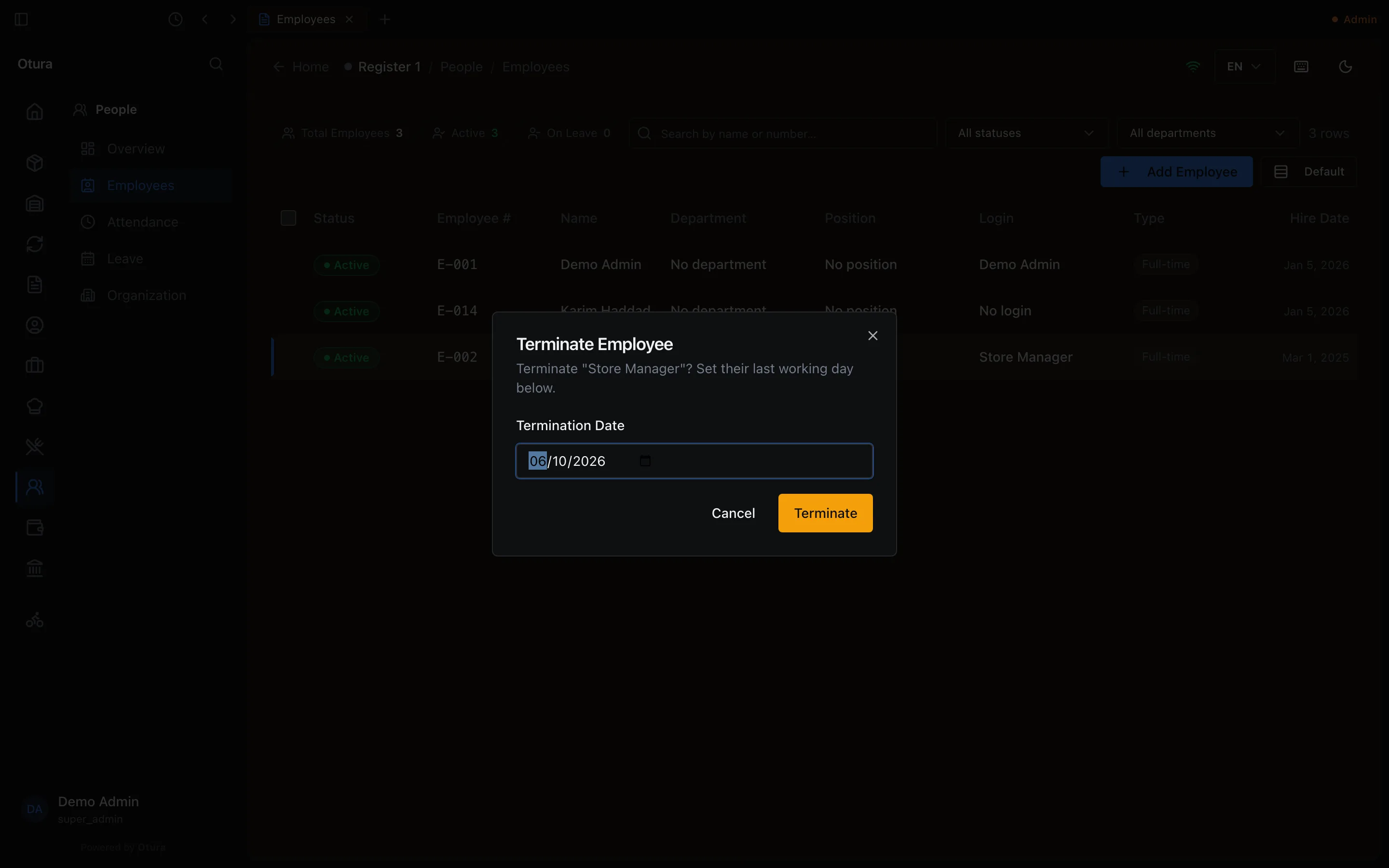
If the employee has a Login account, terminating them also deactivates that sign-in, exactly as Deactivate in People does: they move to the Inactive list and their sessions end. Two exceptions:
- If they outrank you, the termination still goes through, but their sign-in stays active and Otura warns Terminated, but their sign-in is still active: they outrank you. Ask the owner to deactivate them in Settings › People.
- Terminating your own employee record does not deactivate your sign-in.
Drivers
A driver added with Add User › Driver, or with Add Driver in DeliveryDelivery, is a person in People with the Delivery Driver role. Their name is their sign-in's name: rename them here, with Edit, not in the driver form, which refuses it. Everything else about drivers is in The drivers app.