Discounts, price lists and currency
How the till decides a price, how cashiers give discounts and who may, customer and volume price lists, and how US dollars and Lebanese pounds are handled.
Checked against the product on 20 October 2026
How the till decides a price
For each line, the till uses the first of these that applies:
- The customer's own price list — or, if they have none, their parent account's.
- Your default price list, if you have one.
- The variant's own price (its Price Override).
- The product's Base Price.
Modifier prices are added on top. A pack with its own sell price uses that price, and bundle lines use their share of the kit price. Then any discount the cashier applies comes off the line. The price is recorded on the sale, so changing a price later never changes past sales.
Discounts at the till
Discounts are applied by the cashier, one line at a time (or several lines at once). Nothing is discounted automatically.
Open the discount
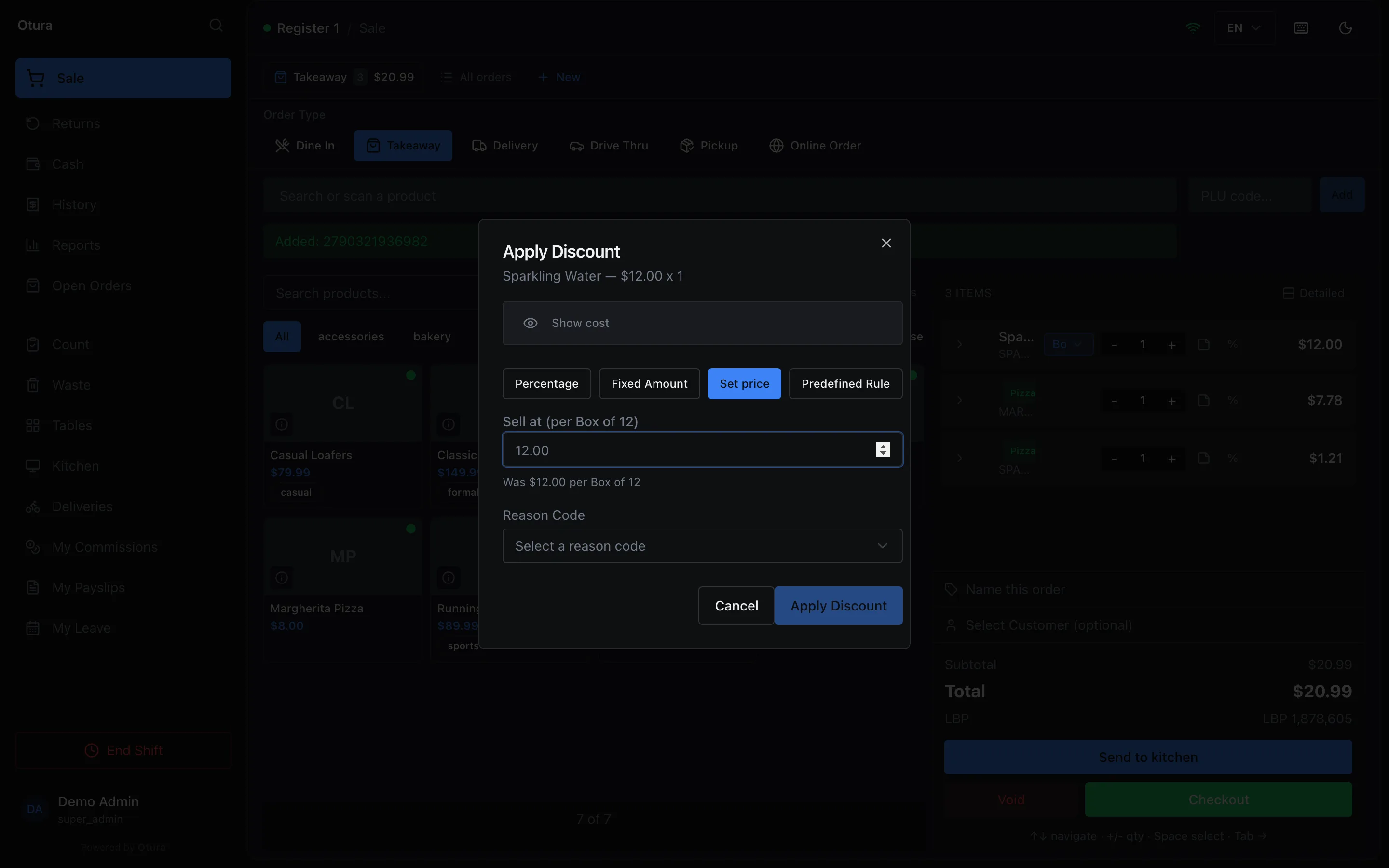
Press the % button on the line, or right-click it and choose Apply Line Discount, or tick the line and pressCtrl+D(with nothing ticked and several lines,Ctrl+Ddiscounts the whole cart — see below).Choose how to discount
Set price (the default) — type the price per unit you want to sell at; Percentage — off the line; Fixed Amount — dollars off the whole line; or Predefined Rule — one of your saved rules.Add a reason (optional)
Pick a Reason Code such as DAMAGED or LOYALTY; it is recorded with the sale.Apply Discount
Check the preview of the original price, discount and new price, then click Apply Discount. The preview is worked out the way the sale is charged, so it shows a BOGO rule's free units and a rule's cap.
- Shortcut: click a line's price, type the new line total and press
Enter. Typing the full price back removes the discount. - Several lines: tick them (or select none for the whole cart) and press
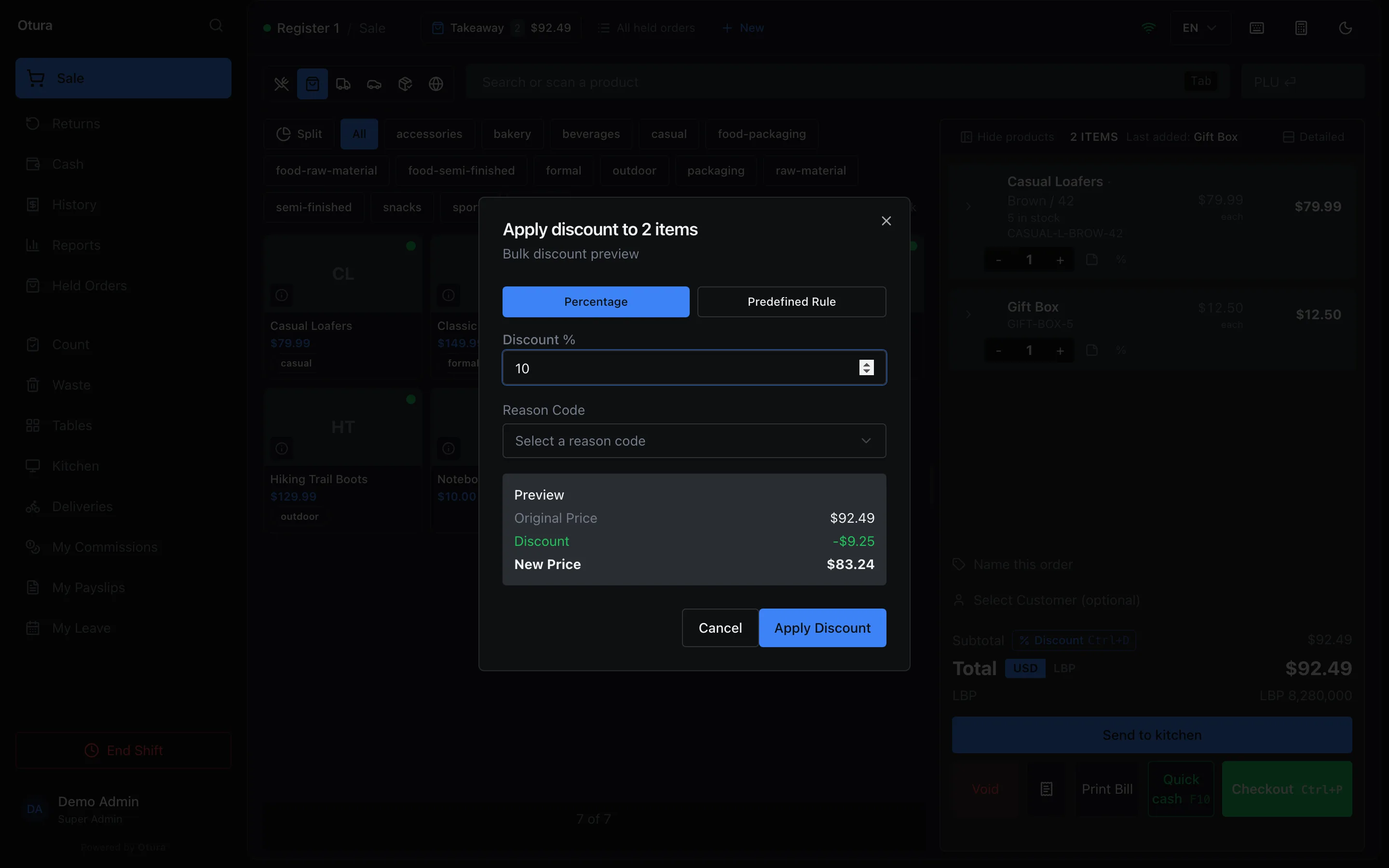
Ctrl+D. Only Percentage and Predefined Rule are offered here, and a fixed-amount rule takes its full amount off each line. - The whole order: the Discount button next to the subtotal (
Ctrl+D) discounts every line in the order at once. With more than one line it opens Apply discount to N items, which offers Percentage and Predefined Rule as above, and the cart then shows a Discount Total row. With only one line it opens that line's own Apply Discount. - Remove a discount with the × beside the price, or Remove Discount on the line.
- The receipt shows each discounted line and a total Discount row. A return refunds what the customer actually paid for the line. The unpaid bill shows the same Discount Total row as the cart, between its subtotal and its total (see the bill).
If your role may see costs, Show cost in the dialog shows the item's cost per unit and — for a single-unit line whose stock is fully costed — how much room is left before you sell at a loss.
Who may give discounts, and how much
- Discounting needs the Discounts & Promotions module and the Apply discounts permission. On a new business only the owner's role has it — grant it to other roles in SettingsOrganisationRoles. Without it the till does not offer a discount: there is no % button and no Discount button by the subtotal, the line price is not clickable, the command palette does not offer one, and a line's Apply Discount is greyed out with Your role can't apply discounts. Ask someone who can to sign in on this till. Pressing
Ctrl+Dsays Ctrl+D isn't available to your role: Apply Discount. Ask someone who can to sign in on this till. - Only someone above a role can change it. An admin can edit the supervisor and cashier roles, but not the admin role (their own) or the owner's, and nobody can give a role a permission they do not hold themselves. A custom role (one your business added) can be changed only by someone who can already do everything it can. The owner can change every role.
- Each role has a Max Discount % (tick Unlimited for no cap). Every discount — including set prices and edited line totals — is converted to a percentage of the line and checked against the role's cap.
- Above the cap, the till opens Supervisor Override Required with the reason (for example A 25.0% discount exceeds your limit of 10.0%.). Someone other than the cashier, whose role has Approve at the till with their own PIN and could give that discount themselves (Apply discounts with a cap that covers it, or Override max discount), enters their own Supervisor PIN, writes a Reason for Override of at least 3 characters and presses Approve Override; the discount is applied and the record names who approved it. Until the reason is written the till says Write why, in a few words (3 characters at least), then Approve. In the standard roles a Supervisor approves up to their own 25% cap, and Admin and Super Admin any discount. A role that itself has Override max discount is not held to its cap.
- There is no shared supervisor code: each person approves with their own PIN, set on their record in SettingsPeople. An owner who signs in with an email and password has no PIN until one is set there. When nobody who may approve has a PIN, the till says Nobody who may approve this has a PIN yet. The cashier's own PIN is never accepted.
Saved rules and reason codes
CommerceDiscounts holds Discount Rules (named discounts the cashier can pick: Percentage, Fixed Amount or BOGO) and Reason Codes. A new business starts with the reason codes DAMAGED, LOYALTY, PRICE_MATCH, EMPLOYEE, MANAGER_DISC and CLEARANCE. Rules and codes are switched off with Deactivate rather than deleted.
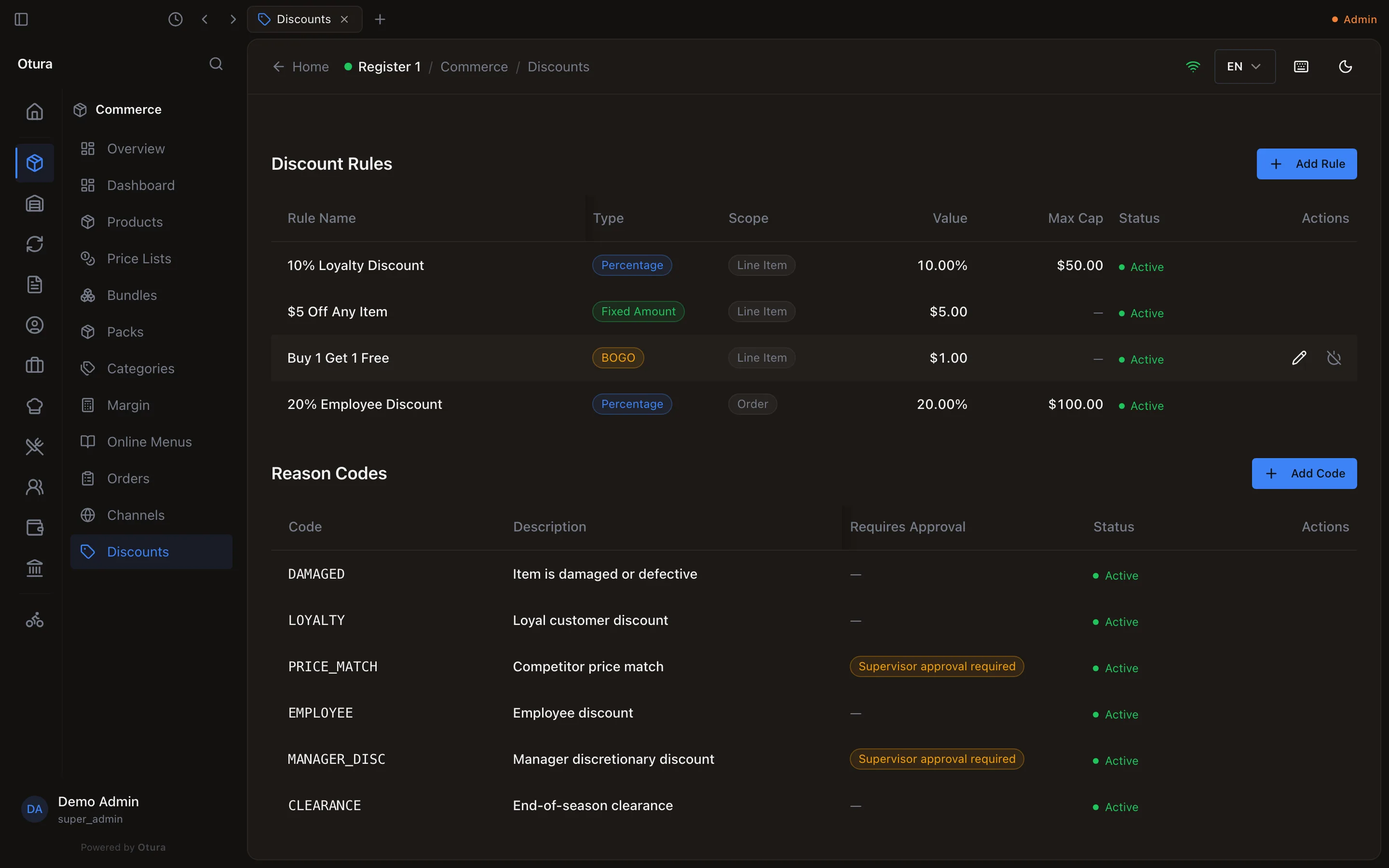
A BOGO rule with value N means “buy N, get 1 free” on the same line: with value 1, a line of 2 charges for 1. The rule form labels this field Amount (USD); for BOGO, type the N, not a dollar amount. N must be a whole number, 1 or more (“A buy-N-get-one rule needs N as a whole number of items, 1 or more”), and a percentage rule cannot exceed 100%.
A BOGO is checked against the cashier's discount cap at the most it can give away, one free unit in N+1, whatever the quantity on the line when it is applied. Buy 1 get 1 is a 50% discount, so a cashier whose cap is below 50% is asked for a supervisor even on a line of one, rather than adding units afterwards.
A rule's Maximum Discount Cap (USD) is the most it takes off one line: a rule of 10% with a cap of $5 takes $5 off a $100 line. Applied to several lines at once, each line is capped on its own. The rule is applied as it is saved at that moment, with its own type, value and cap. A rule switched off or deleted after the till loaded its list is refused: This discount rule no longer exists or has been switched off. Choose another, or enter the discount by hand.
A percentage discount follows its line. When choosing a customer re-prices the lines, or scanning the same item again adds to its line, 10% is worked out again on the new price and quantity. A rule's cap still holds.
A Fixed Amount is checked against the cap again when the line's quantity is cut. $10.00 off ten $10.00 items is 10% of the line; cut to one item, the same $10.00 would be the whole line. Where that takes it over the cashier's cap, the quantity change is refused (A 100.0% discount exceeds your limit of 10.0%.) and the line stays as it was.
There are no coupon or promo codes and no automatic or time-of-day promotions. A discount always sits on a line: discounting the whole order puts the same discount on each line.
Price lists
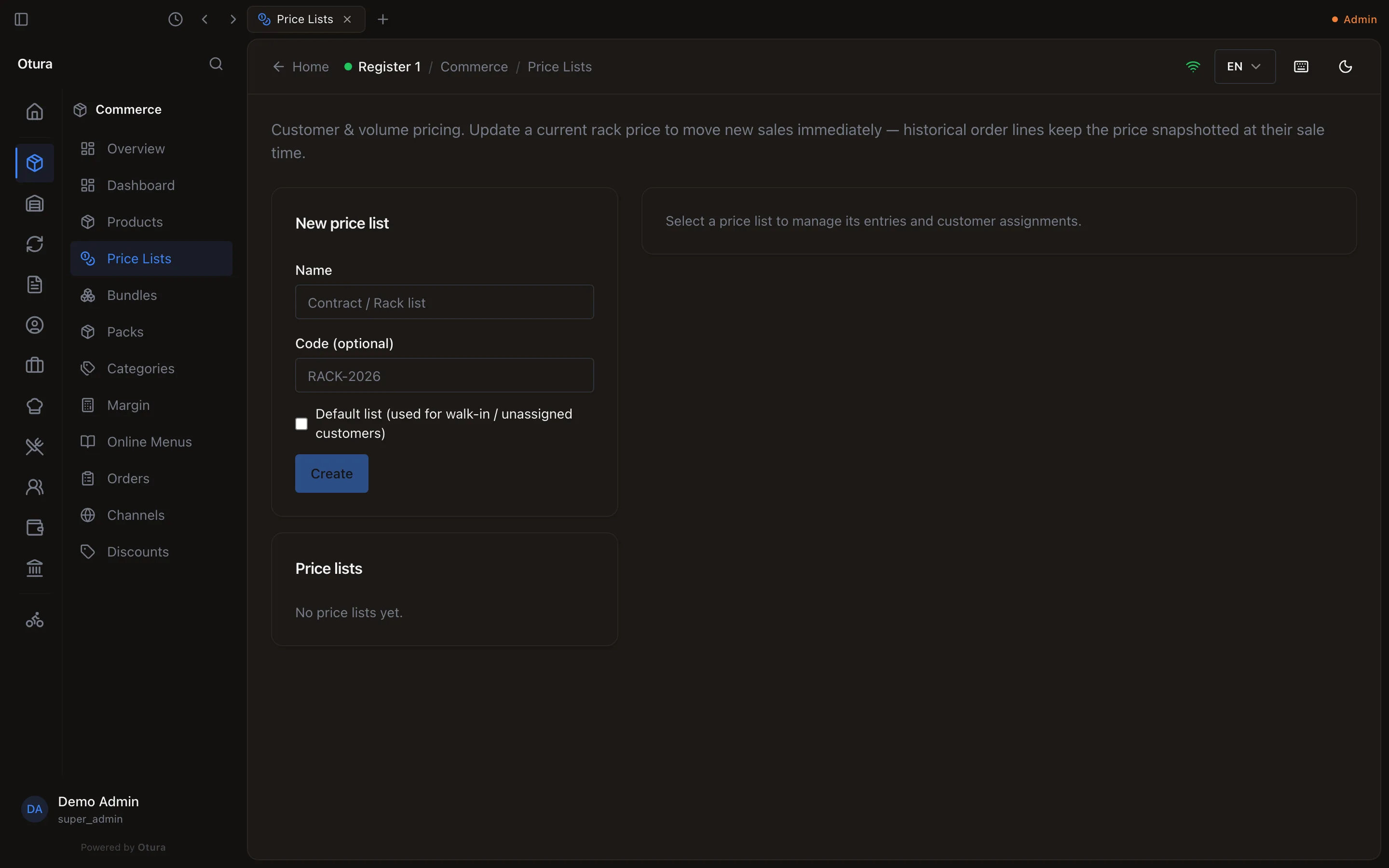
CommercePrice Lists gives particular customers their own prices, and gives lower prices from a certain quantity (volume tiers).
Create the list
Name, an optional Code, and tick Default list (used for walk-in / unassigned customers) if it should apply to everyone without their own list. There is only one default list; making another the default replaces it.Add entries
Click the list. For each price: pick a Variant, a Min qty (1 for the ordinary price, 12 for “from 12 units”), the Price USD, and optional dates, then press Add entry. The variant is searched as you type, by product name or SKU, among all your active products. Add entry waits until the price is valid: a blank price is not a free item (“Enter a price such as 12.50, with at most 2 decimals. Type 0 for free.”), and the minimum quantity must be above 0. A second entry for the same item and minimum quantity whose dates overlap the first is refused (“This list already prices … and the dates overlap…”). Quick price on an entry changes its price in place, and refuses an emptied price the same way.Find an entry
The entries show the product, its variant and SKU, 50 to a page with a pager under them. Search by product or SKU… finds an entry anywhere in the list.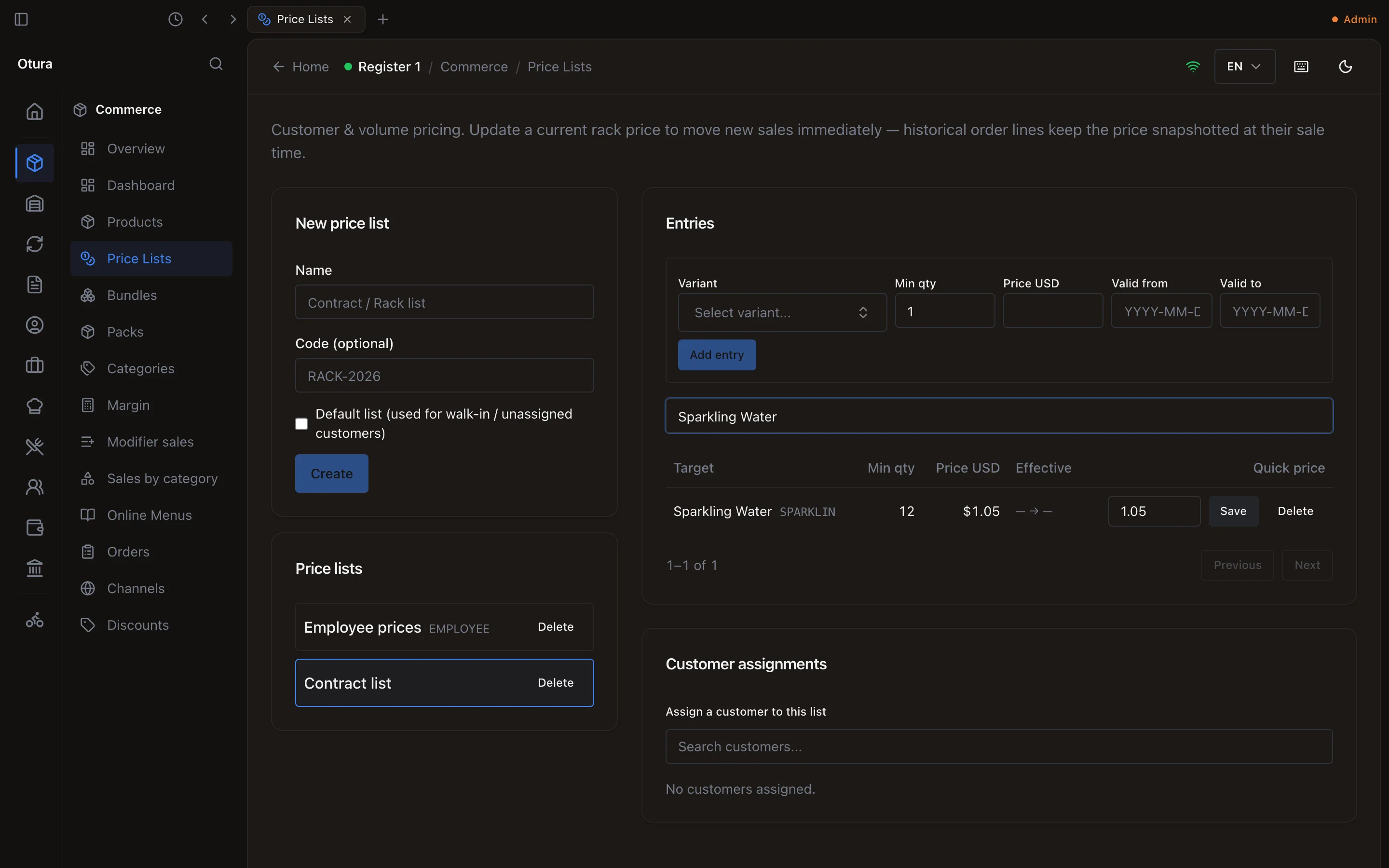
A list's entries, searched. Assign customers
Under Assign a customer to this list, search for a customer and click Assign. A customer can be on one list at a time.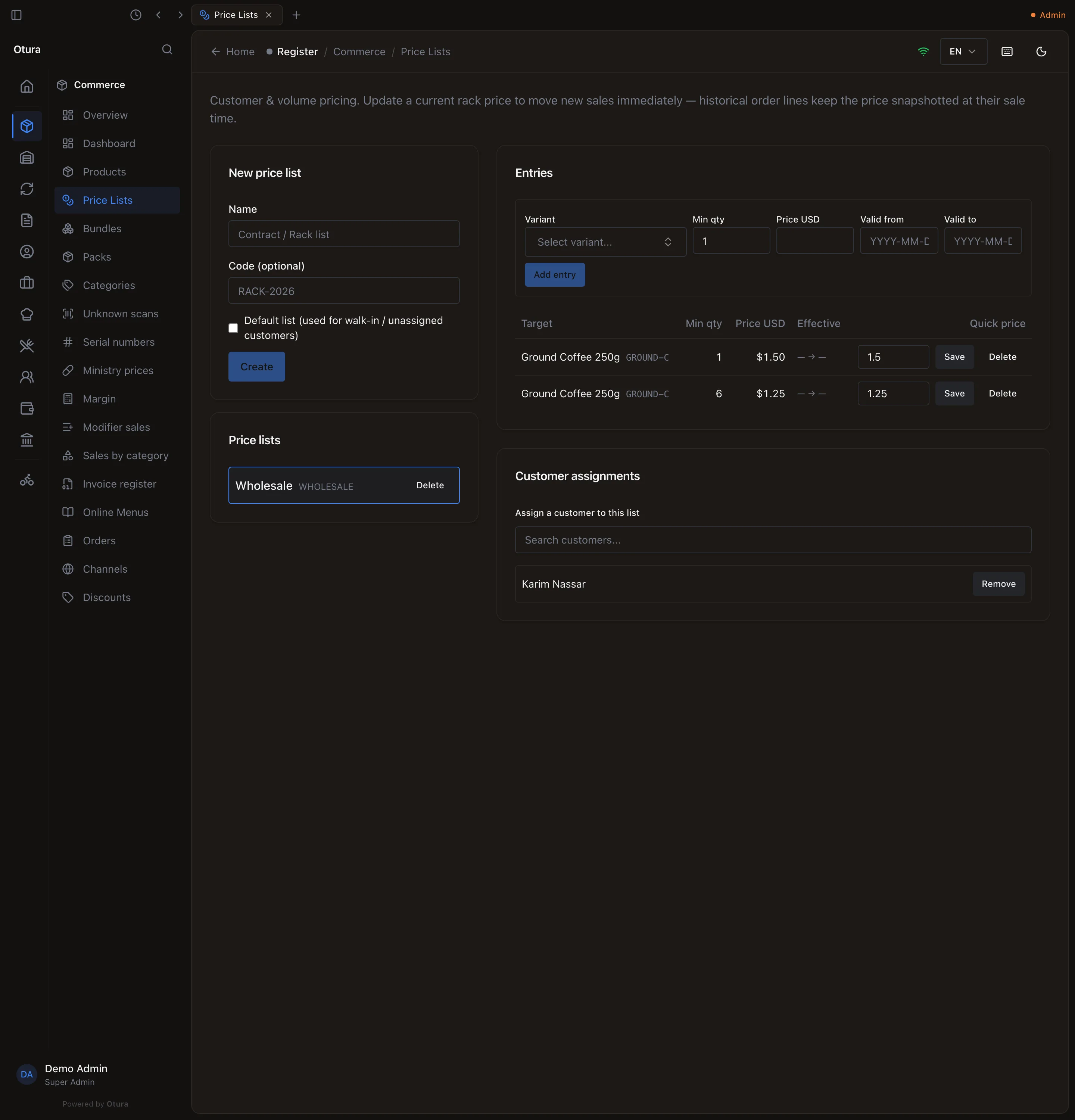
A list with a price from 1, a volume price from 6, and its customer.
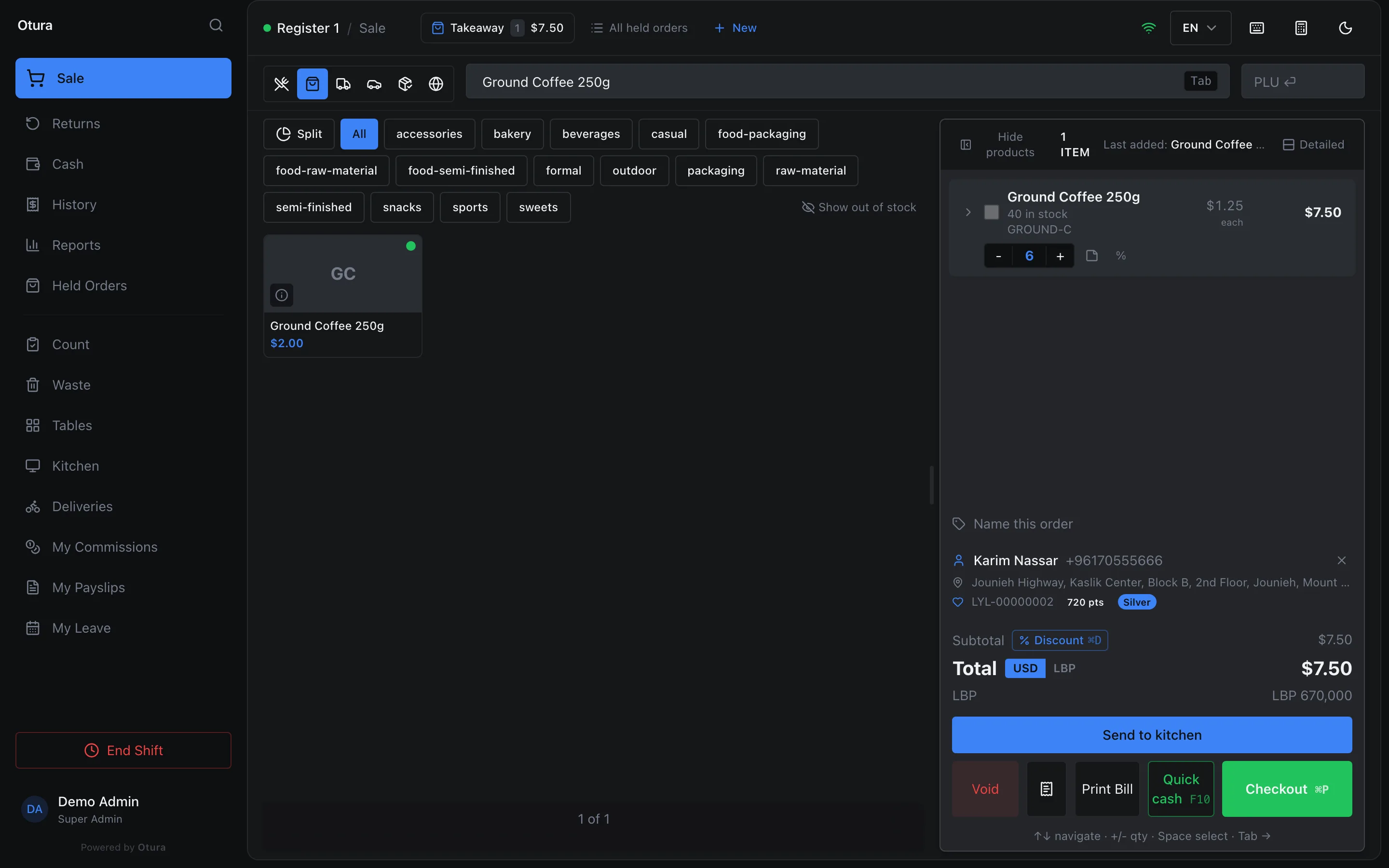
At the till, attaching a customer to the sale re-prices every line (except bundle lines). Changing a line's quantity picks up the tier for the new quantity; tiers count per line. A line smaller than the list's lowest Min qty (half a portion, 0.35 kg) gets that lowest tier's price. The product tiles keep showing the base price; the cart line shows the price charged.
US dollars and Lebanese pounds
| How it works | |
|---|---|
| Prices | Every selling price is set in US dollars. There is no separate LBP price. |
| The rate | Set by hand in SettingsFinanceExchange rates → Override → New Rate (LBP per USD) → Save Rate. Between 1,000 and 1,000,000. Otura does not fetch a rate automatically. |
| At the till | The rate is fixed on an order when its first item goes in, and every LBP amount on that order uses it. The sale records the rate it used. |
| Parked orders | Recalling a parked order converts it at today’s rate; the dollar prices do not change. |
| Returns | LBP refunds use the rate of the original sale. |