Chart of accounts
Start your books with the standard Lebanese chart in one click, add the accounts your business needs, and top up a chart that is missing standard accounts.
Checked against the product on 25 October 2026
The chart of accounts is the list of ledger accounts your books are kept in: cash, stock, what customers owe you, sales, VAT, expenses. Every sale, receipt, transfer and count Otura records is a journal entry on these accounts, so the chart has to exist before anything can be posted. It lives on FinanceAccountingSetupChart of Accounts.
1. Start with the standard chart
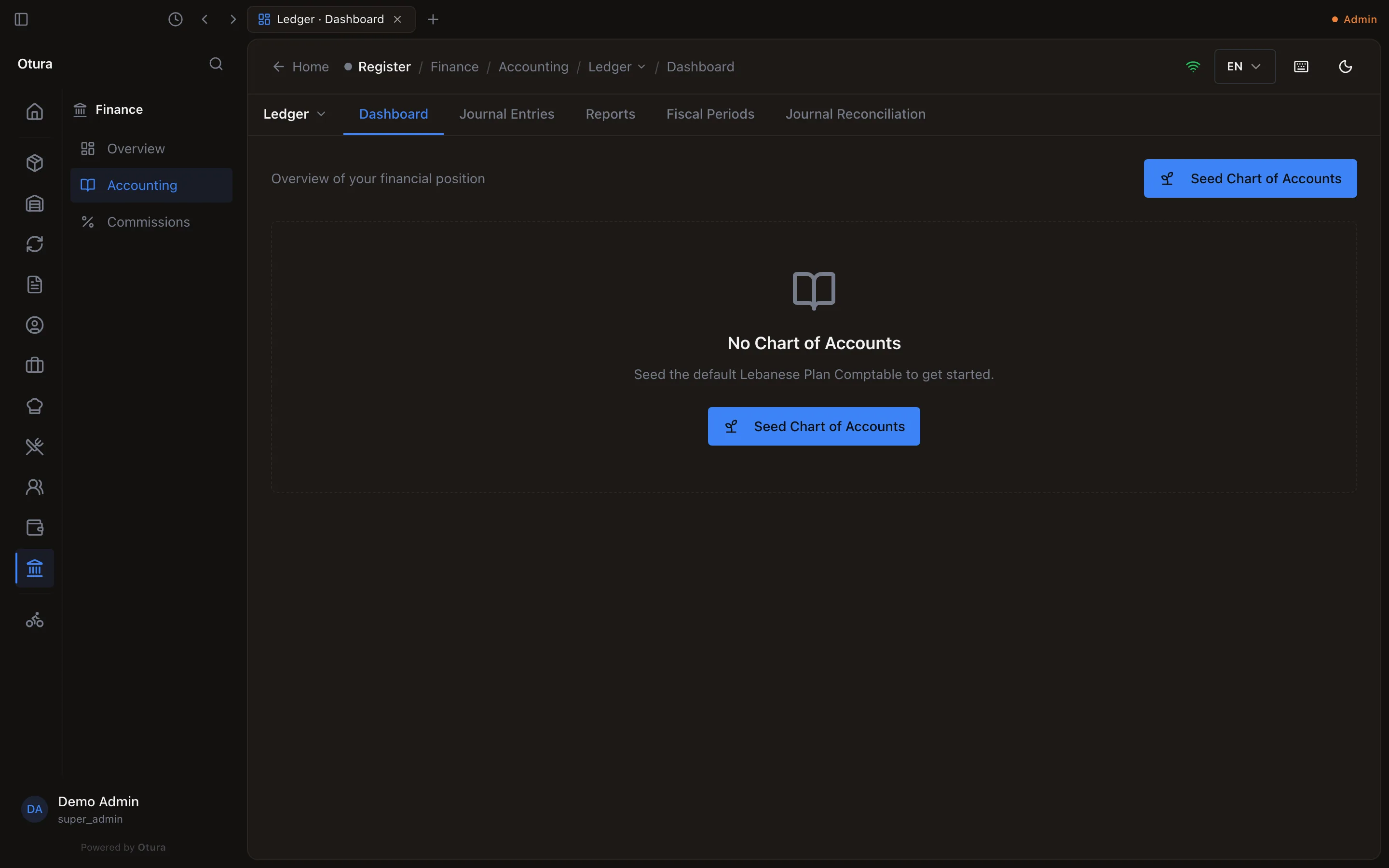
A business with no accounts at all is offered the standard Lebanese chart (the Plan Comptable) on FinanceAccountingLedgerDashboard. The dashboard shows No Chart of Accounts and a Seed Chart of Accounts button. Press it. There is no confirmation step; the message Chart of accounts seeded successfully says it is done, and the dashboard then shows your figures.
Seeding creates, in one go:
- 86 standard accounts, in seven classes (below);
- a cash box for each till's drawer, on an account of its own under 5100 (Register 1 drawer), and, for a business in dollars that takes lira as its second currency, a lira one under 5105 (Register 1 drawer - LBP). Each box sits at its register's branch and the register is linked to it, so each till's cash is counted on its own. A till added later gets its boxes the same way;
- the account settings: which account each kind of posting goes to (till cash to 5100, a cash shortage to 6700, B2B sales to 7030, and so on);
- a fiscal year for the current year, FY 2026 for example, with twelve monthly periods, if the business has none;
- the Lebanese VAT set-up, where the business does not have it yet.
The button is offered only while the chart is empty, and only to someone who may set up the chart. Once there is a single account, the dashboard no longer shows it; a chart with gaps is completed with Add missing standard accounts.
The seven classes
| Class | What it holds | Accounts you will meet often |
|---|---|---|
| 1000 Capital & Equity | What the owners put in and what the business has kept | 1110 Paid-in Capital, 1120 Opening Balance Equity, 1210 Retained Earnings |
| 2000 Fixed Assets | Furniture, equipment, vehicles, and their depreciation | 2110 Furniture & Equipment, 2210 Accum. Depreciation - F&E |
| 3000 Inventory | Stock | 3100 Merchandise Inventory, 3200 Goods in Transit |
| 4000 Third Party Accounts | Customers, suppliers, taxes and payroll | 4110 Accounts Receivable, 4210 Accounts Payable, 4410 VAT Input, 4420 VAT Output / Payable |
| 5000 Financial Accounts | Cash and bank | 5100 Cash Register, 5105 Cash Register - LBP, 5110 Safe / Vault, 5115 Safe / Vault - LBP, 5120 Bank Account - USD, 5130 Bank Account - LBP |
| 6000 Expenses | Cost of sales and running costs | 6010 Cost of Goods Sold, 6250 Bank Charges, 6600 Exchange Loss, 6700 Cash Shortage |
| 7000 Revenue | Sales and other income | 7010 Sales Revenue - POS, 7030 Sales Revenue - B2B, 7600 Exchange Gain, 7700 Cash Overage, 7900 Sales Returns |
2. The list
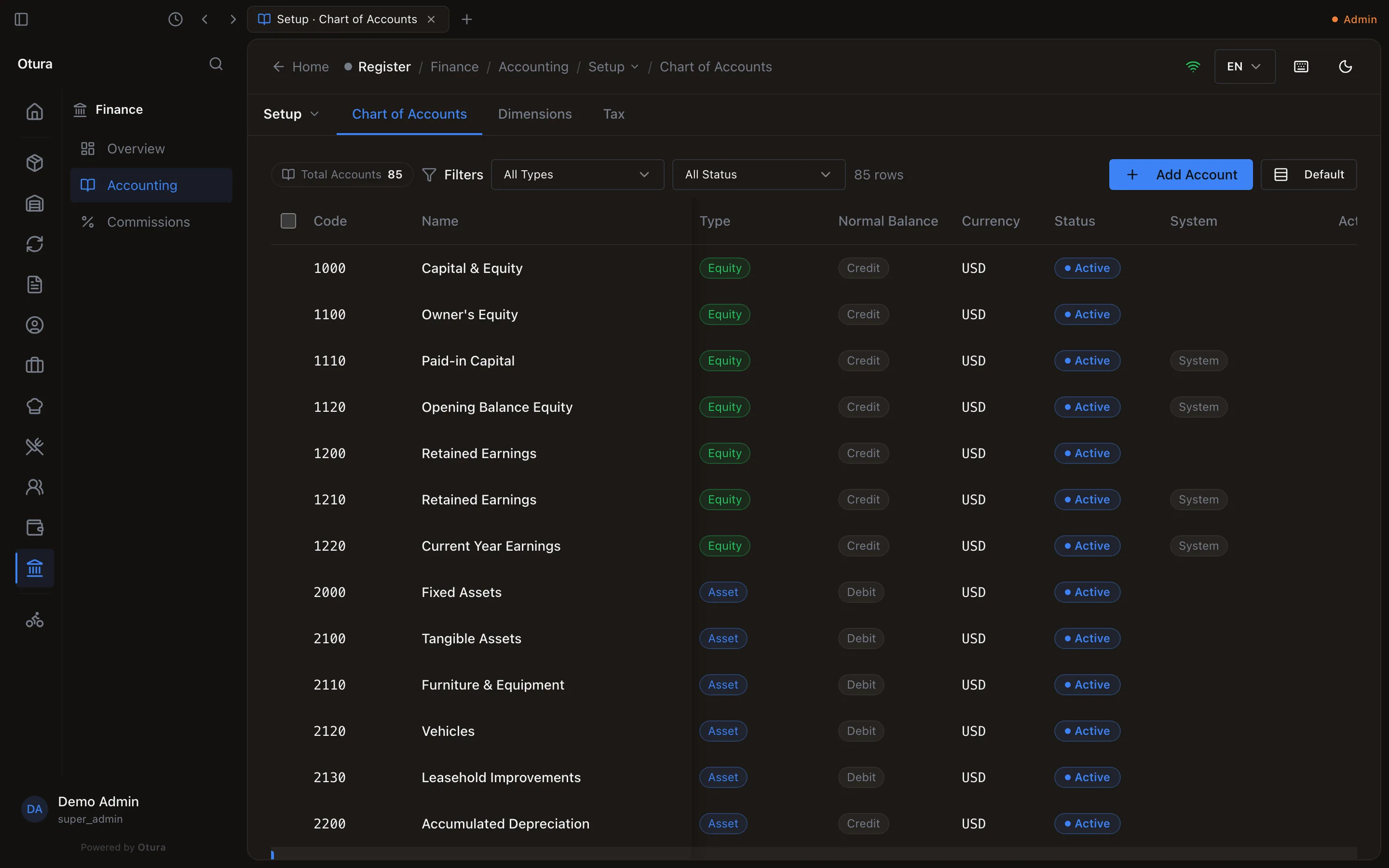
The chart is one list, in code order. Each account shows its Code, Name, Type, Normal Balance (Debit or Credit), Currency and Status. Accounts Otura posts to by itself carry a System tag. Narrow the list with the type filter (All Types, or Asset, Liability, Equity, Revenue, Expense, Contra Revenue, Contra Expense) and the status filter (All Status, Active, Inactive). Total Accounts counts what the filters leave.
3. Add an account
Open the form
Press Add Account.
Fill it in
Code and Name are required; Create stays off until both are filled. Choose the Type and the Normal Balance, and the Parent Account it sits under (No parent puts it at the top). The Arabic Name (up to 120 characters) is what the Arabic screens show. Currency is a three-letter code; left blank, the account is shown as USD.
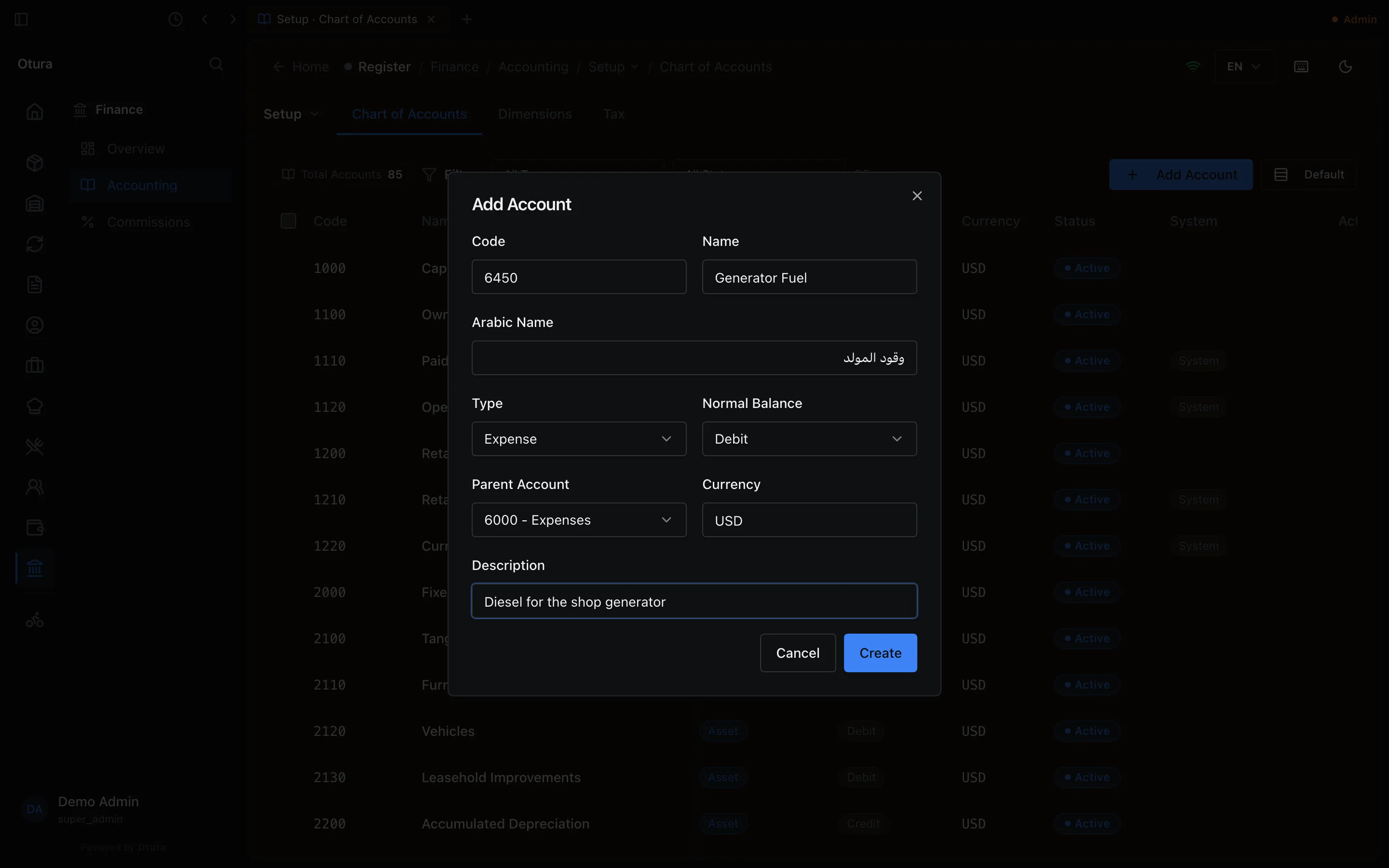
An expense account for the generator's diesel, under 6000 Expenses. Create it
Press Create. A code that is already taken is refused: Account code "6450" already exists.
You can also add an account without leaving a journal entry: Add Account at the bottom of a line's account list opens this same form, with what you typed in the search as its code or name, and puts the new account on the line (see Journal entries).
An account can be edited later by opening it from the list, but its Code, Type and Normal Balance are fixed once it exists. A System account says System account: only its name and description can change. Its parent, currency and code stay as they are, because postings find it by its role. An account that holds a cash box or bank account cannot be moved to another currency: retire the box first and open one on an account in the other currency.
4. Deactivate an account
Accounts are never deleted. An account you no longer use is deactivated: press Deactivate on its row, and confirm. It stays in the list as Inactive and is no longer offered when you pick an account. Reactivate on an inactive account switches it back on.
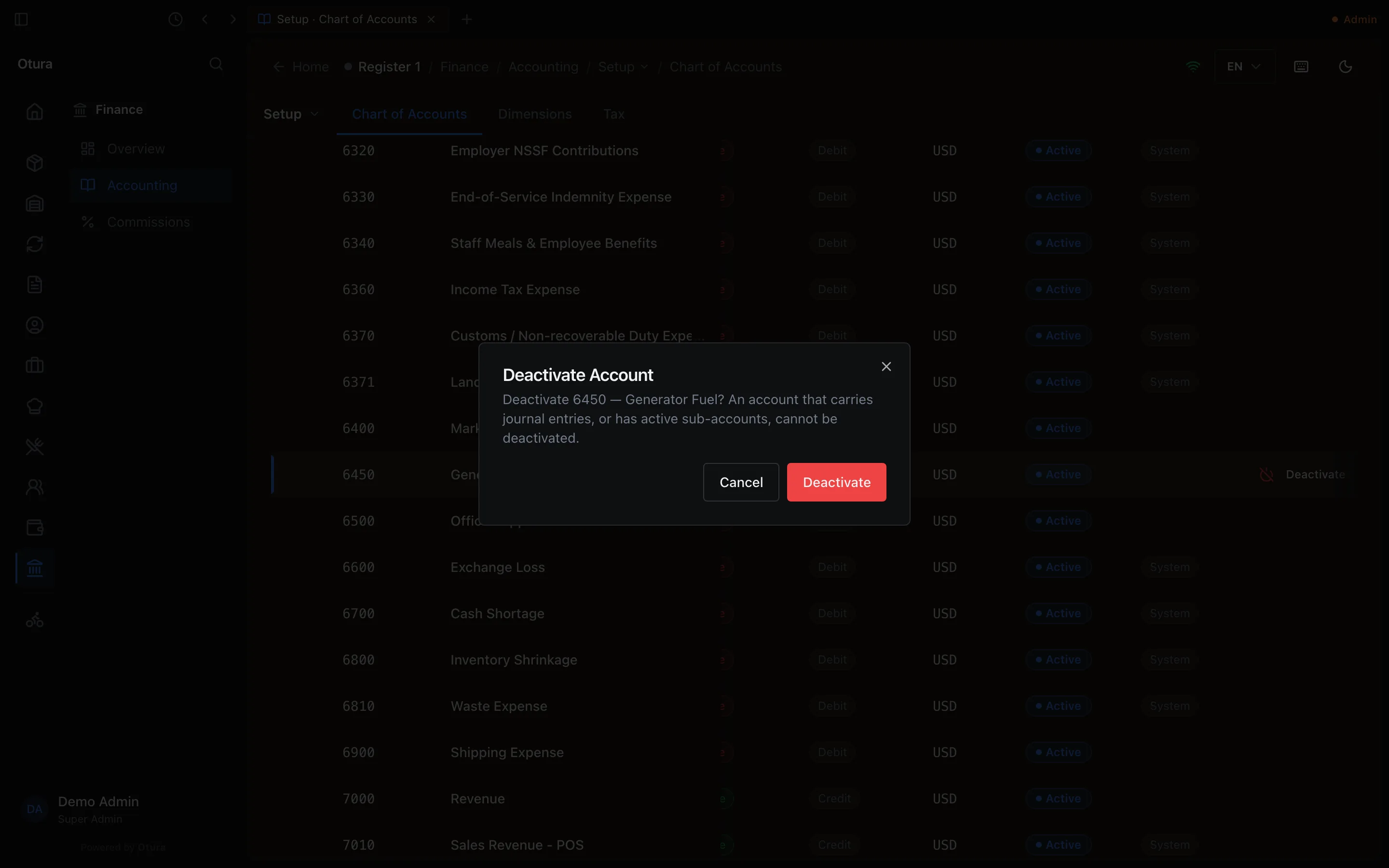
Three kinds of account cannot be deactivated:
- a System account: This is a system account and cannot be deactivated;
- an account that already carries journal entries: the confirmation says so, and Otura refuses it;
- an account with active sub-accounts under it: Otura names them and says to deactivate them first.
5. Add missing standard accounts
A business whose chart was started before some standard accounts existed, or by hand, may be missing some of them. When it is, Add missing standard accounts appears beside Add Account. It appears only when something is missing: a standard account the chart does not have, or an account setting that is not set.
See what will be added
Press Add missing standard accounts. The dialog lists, by code and name, every account it will add, and how many account settings it will set. Nothing is added yet.
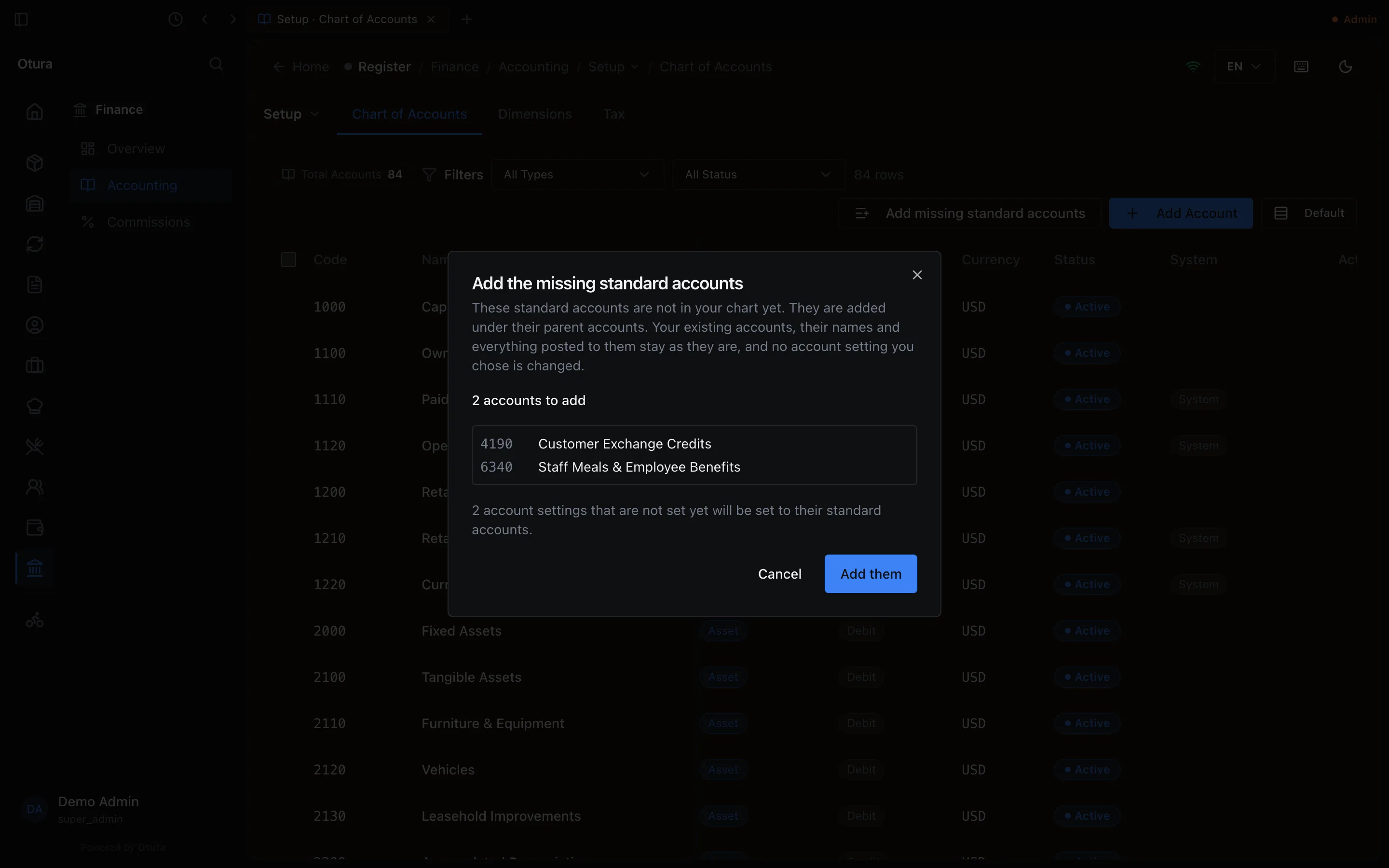
A chart missing two standard accounts: the dialog says exactly what it will add. Add them
Press Add them. The message says how many were added (Added 2 accounts), and the button goes away once nothing is missing. A setting left unset because of the type warning below keeps it there.
What it changes, and what it does not:
- Each missing account is added under its standard parent.
- An account setting you already set is kept, even if it points somewhere other than the standard account. Only settings that are not set at all are set.
- Accounts you already have keep their names, their types and everything posted to them. One thing can move: an account you have under a standard code that sits at the top of the chart, with no parent, is placed under its standard parent, if it is still the type the standard says.
- If you made an account under a standard code as a different type (an expense where the standard has revenue), its setting is not pointed at it. A warning names those settings: Not set, because the account under its standard code is of another type: …