Bundles and combo offers
Sell items together at one price — a combo meal, “3 for $10”, or a deal where the customer chooses (“any 3 Solo pizzas + fries + 2 drinks”) — with each item still leaving stock on its own.
Checked against the product on 13 October 2026
A bundle is a set of items sold together for one kit price: a pizza and a drink for $8.99, three of the same item for $10, or a deal where the customer picks some of the items — “any 3 Solo pizzas, fries and 2 drinks for $18”. When it is sold, each item becomes its own line on the sale, the kit price is shared out between them, and each item leaves stock as normal. A bundle has no stock of its own.
The bundle list
CommerceBundles lists your bundles by name, 50 a page, each with its number of components, its kit price and its barcode. Search bundles by name or barcode… searches all of them; a % or _ you type is matched as that character. With nothing found it says No bundles match this search.
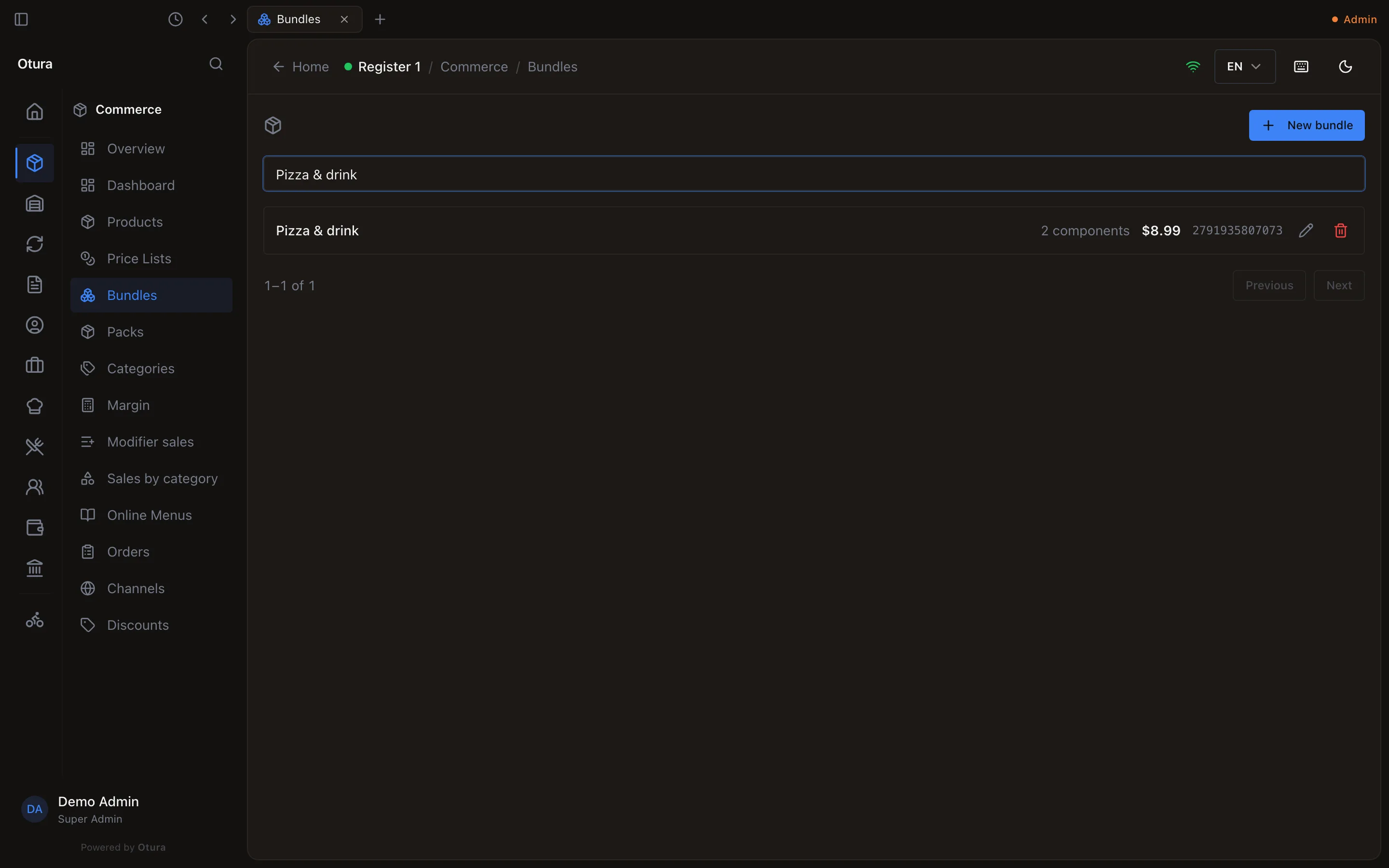
Create a bundle
Open Bundles
CommerceBundles and click New bundle.Name, price and barcode
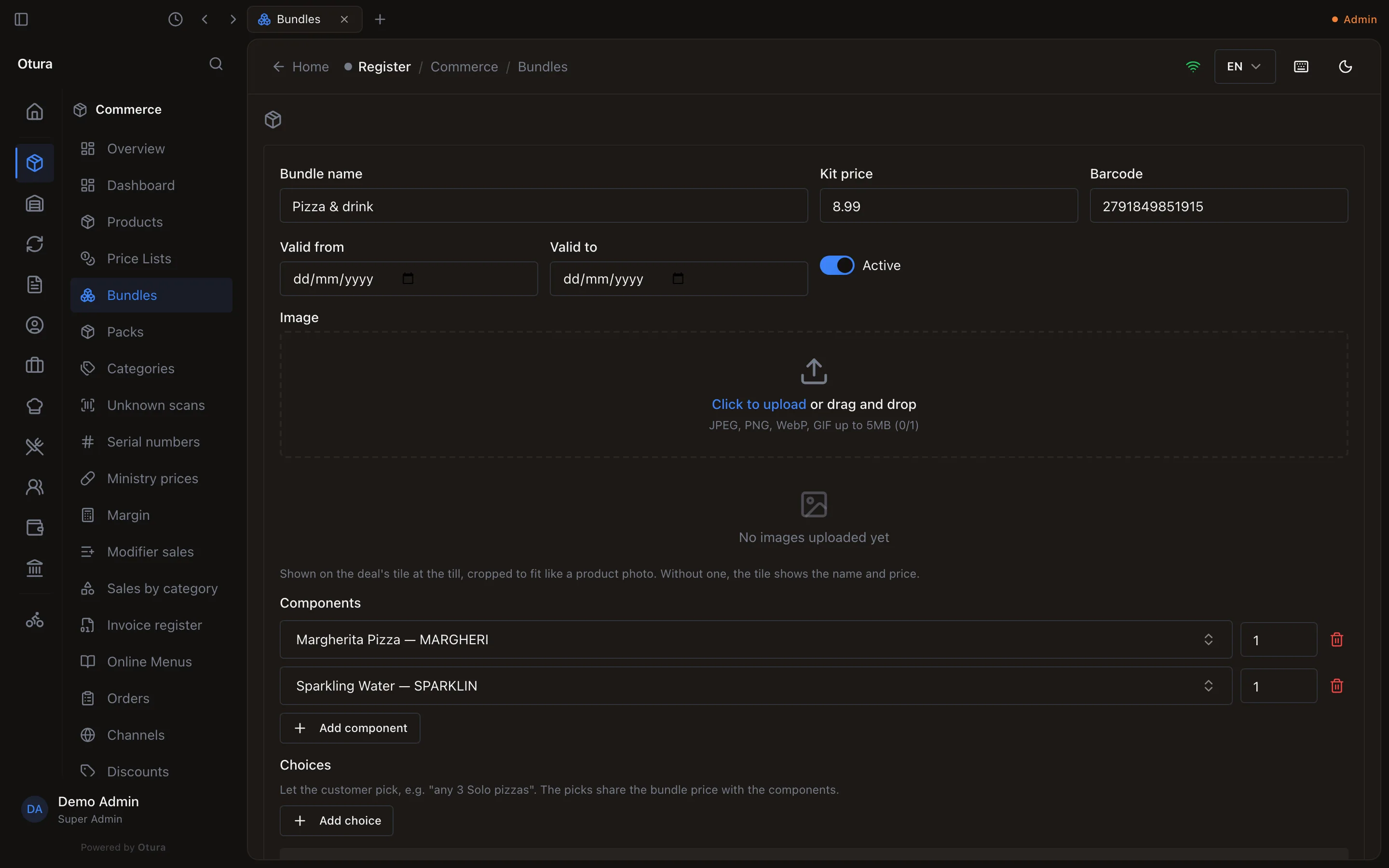
Bundle name, Kit price (USD), and a Barcode — the barcode is how the till finds the bundle (see below), so give it one. A barcode that a product, a pack or another deal already answers to, or that is a product's SKU or PLU, is refused and named, for example The barcode 5281234567896 is already on Cola. An Image is optional: it is shown on the deal's tile at the till and in its picker.Dates (optional)
Valid from and Valid to limit when the bundle can be sold. Leave them empty for no limit. Active switches it on or off.Add the components
Under Components, choose a product in Select a product and enter a whole-number quantity. Use Add component for each further item.Add choices (optional)
For a deal where the customer picks, click Add choice under Choices. Enter What the customer chooses (for example Solo pizzas) and How many (3), then tick the items on offer. To offer one size of many products, type the size in the filter box (Solo) and click Select all shown. A bundle can have choices and no fixed components at all.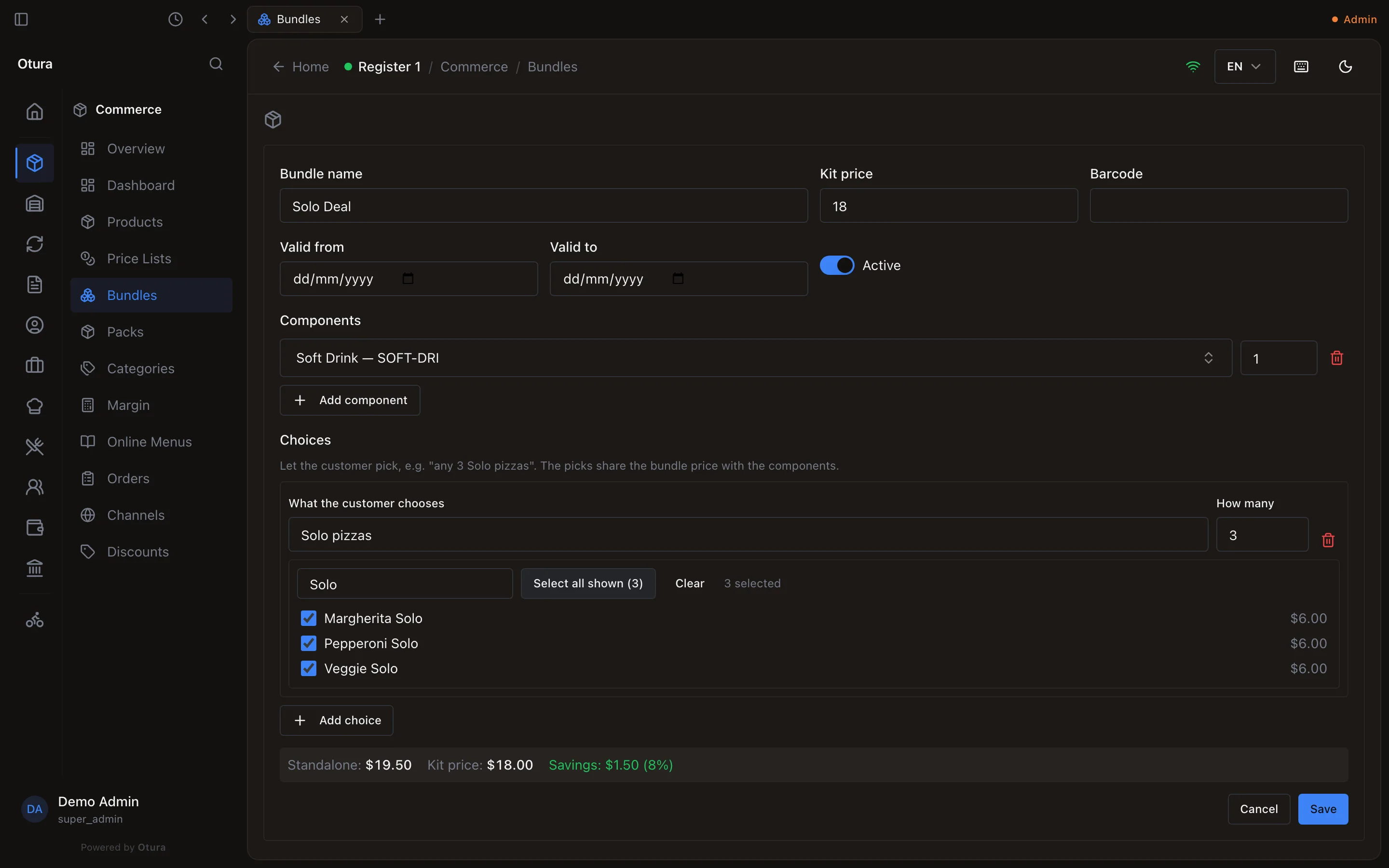
A deal of any three Solo pizzas and a drink, for $18.00. Check the saving, then Save
The readout shows the Standalone price (the items bought separately), the Kit price and the Savings, in red if the kit costs more than buying separately. With choices, Standalone and Savings are ranges — three Solo pizzas cost less if the customer picks the cheapest ones — and the percentage is the smallest saving.
Sell a bundle
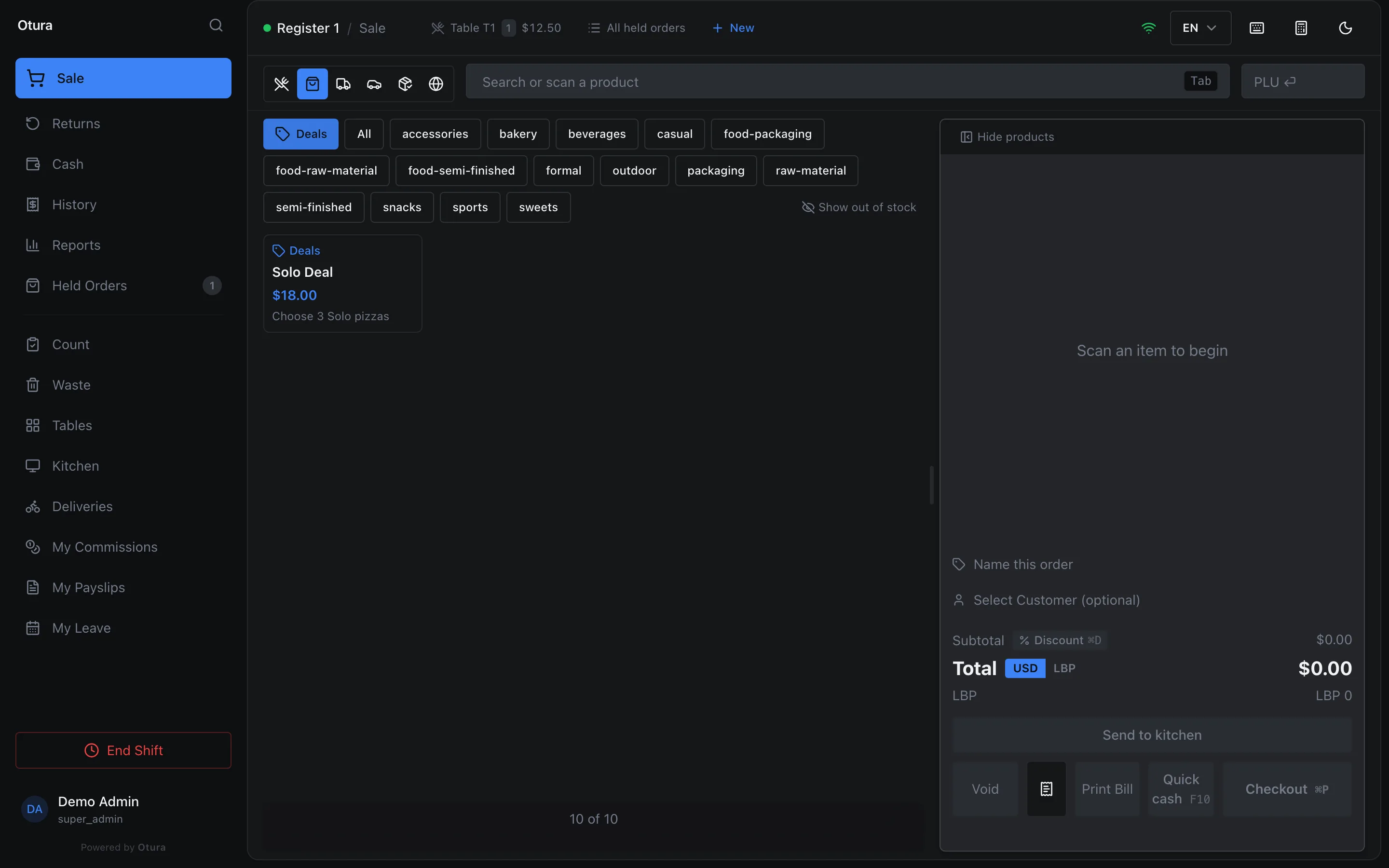
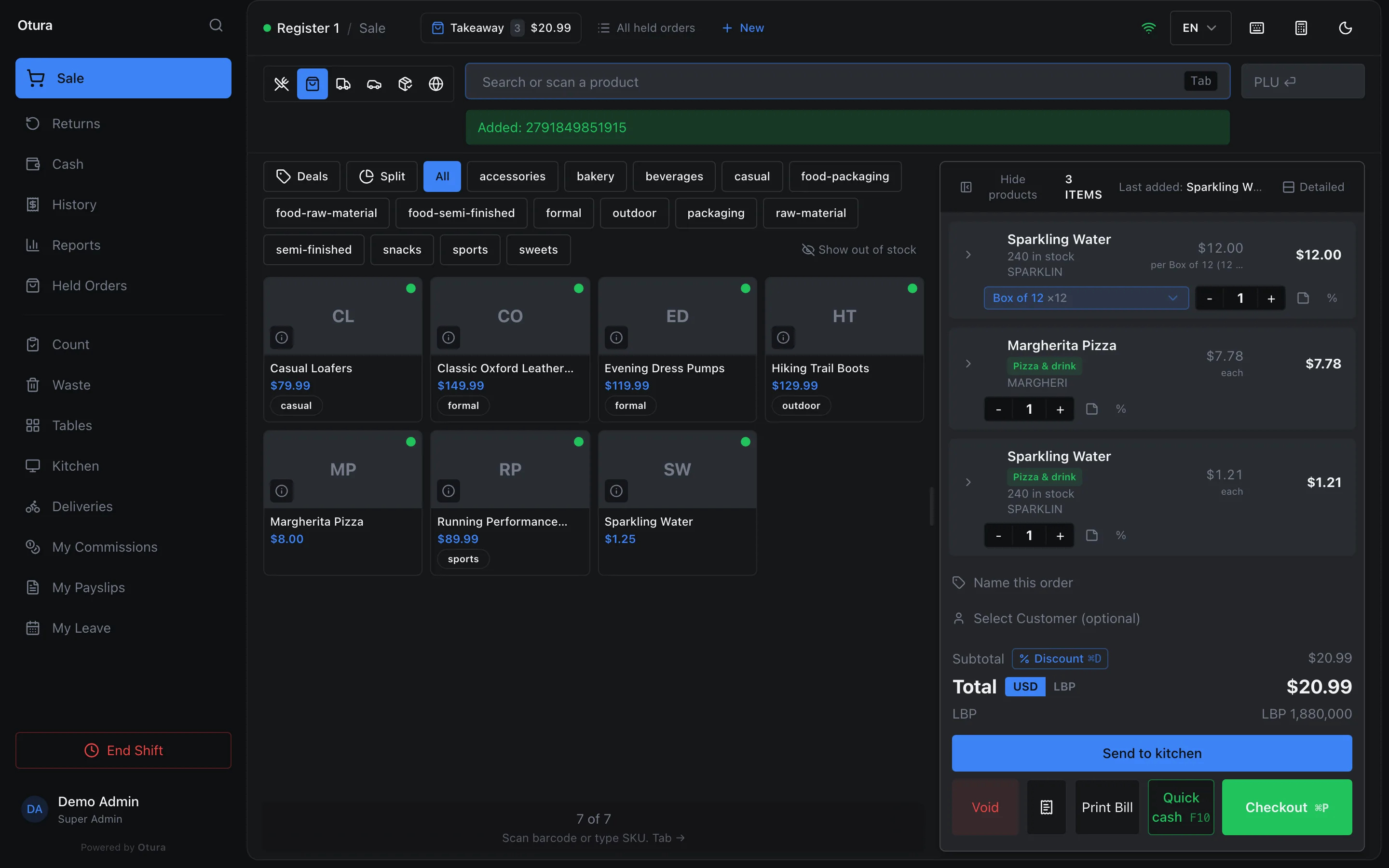
Tap Deals at the start of the category row and tap the bundle — the pill appears when at least one bundle is on sale today. Or scan the bundle's barcode, or type it into Search or scan a product and press Enter (the PLU box works too). A scan works without clicking into the field first. Each component appears as its own line with the bundle's name as a green badge.
A bundle with choices opens a picker first. Its items are tiles like the ones on the sale screen, with the product's photo (or its initials) and its size. Tap a tile to add one (tap it twice for two); once picked, a tile shows −, the count and +. A product offered in several sizes is one tile that opens its sizes; Back returns to the choices. Each choice shows how many are chosen (1 of 3 chosen), and a choice will not take more than it asks for. Add deal becomes available when every choice is complete.
The Search or scan box at the top narrows the tiles by name, size or SKU. Scanning an item, or typing its code and pressing Enter, adds it to the choice you are on, or to the first choice still open that offers it. An item outside the deal is refused (… isn't part of this deal), and so is one whose choices are all full (… is already complete).
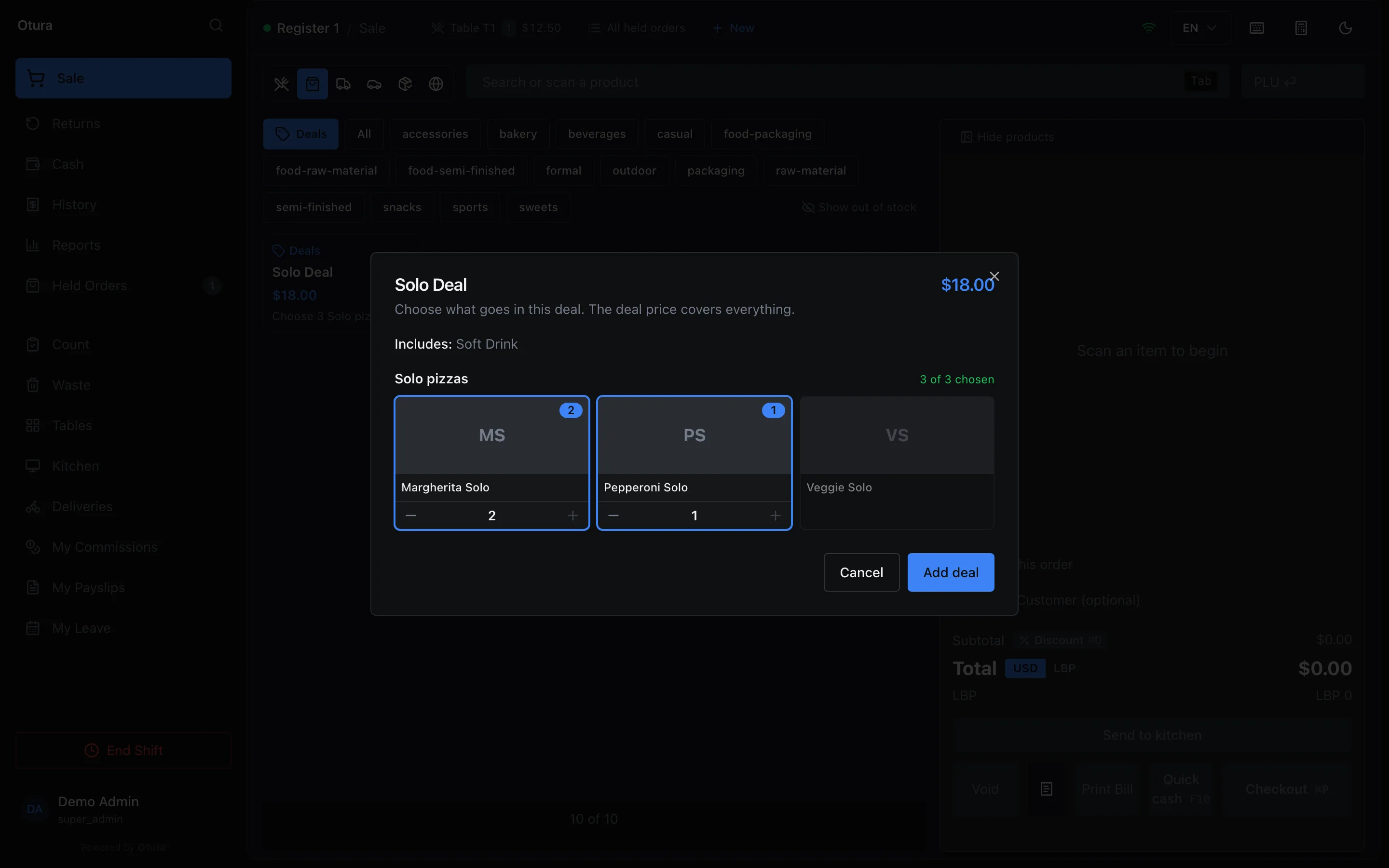
In the kitchen, a bundle arrives as one item with every component and how many of it — for example “Solo Deal” with “2 × Americana · Solo” and “2 × Soft Drinks”. On the printed kitchen ticket, deals come first, each under its own name with its items grouped by category; the rest of the order follows, grouped by category (see The kitchen ticket).
On the bill and on the customer's receipt, on screen and printed, a deal is one line at its price — “Solo Deal $18.00” — with what it contained listed under it. The customer does not see the shares of the price each item carries. A discount given on the deal's items shows under the deal as its discount, and a note on one of its items is kept, named by the item it was written on (“Americana: well done”). The refund slip for a returned deal reads the same way.
How the kit price is shared out
The kit price is divided between the items in proportion to their normal prices, to the cent, so the lines always add up to exactly the kit price. In the example above the pizza ($8.00) and the water ($1.25) share $8.99 as $7.78 and $1.21. For “3 for $10” on a $5 item, the lines come out as $3.34 and 2 × $3.33.
The split uses the items' standard prices, not a customer's price list, and a bundle's lines are not re-priced when a customer is chosen.