Variants
Sell one product in several colours and sizes — each with its own SKU, price and stock — and see how the till lets the cashier pick one.
Checked against the product on 21 October 2026
A variant is one sellable version of a product. It is the variant — not the product — that has a SKU, a price and stock. A Simple or Weighted product has exactly one variant, which Otura creates for you. A Variable (Color/Size) product has one variant per colour and size you sell, and you add them yourself.
Add variants to a product
Create the product as Variable (Color/Size)
CommerceProductsAdd Product, choose Product Type Variable (Color/Size) and click Create Product. A variable product starts with no variants, and until it has one the list flags it “No variants — nothing to sell”.Open the Variants tab
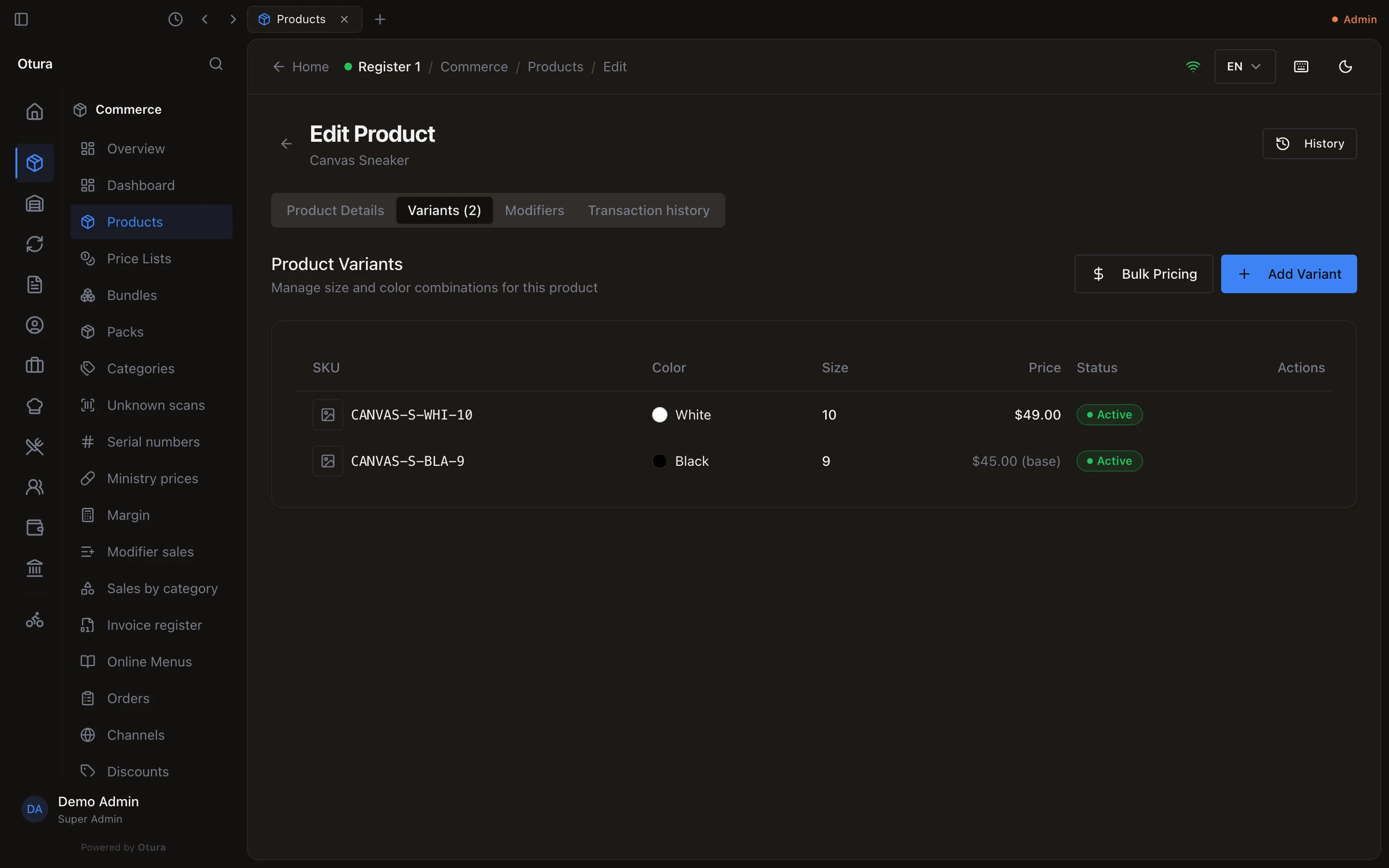
On the product page, click Variants (0), then Add Variant.Pick the colour, the size, or both
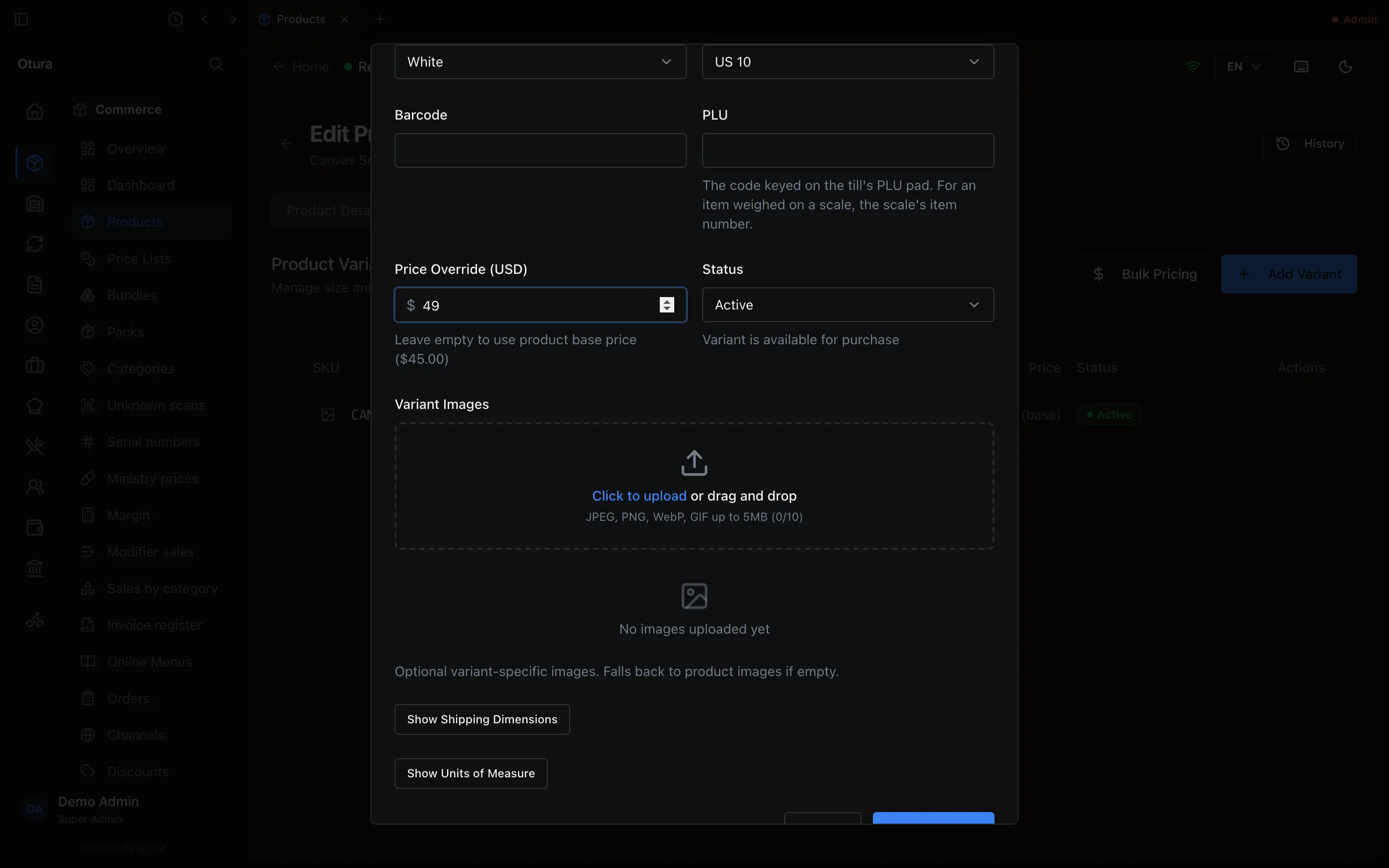
Choose a Color, a Size, or both. Both are marked with a star, but one is enough: a pizza that comes in sizes needs only a Size. With neither, saving says Give this variant a colour or a size. If yours is not in the list, pick Custom color… or Custom size… and type it.Price it, or leave it on the base price
Leave Price Override (USD) empty to sell this variant at the product's base price, or type a price for this variant alone.Create it, and repeat
Click Create Variant. Repeat for every colour and size combination — Otura does not generate the combinations for you.
How SKUs are made
For variants added here, Otura writes the SKU for you. It takes the first two words of the product's web address — its name in Latin letters and digits — up to 8 characters including the hyphen, then the first 3 characters of the colour and up to 4 of the size: “Canvas Sneaker” in White, size 10 becomes CANVAS-S-WHI-10. A variant with only a colour or only a size gets up to 4 characters of it. A simple product gets just the name part. If a SKU is already taken — including by a deleted product — Otura adds -2, -3 and so on. A product named only in Arabic has no Latin part, so its SKUs start with ITEM. SKUs are unique within your business.
The SKU is written when the variant is created. Editing the variant later — its price, its codes, its names in Arabic and French — keeps it, even if the product has been renamed since, and so does a variant whose SKU came from an import.
Pricing variants
- One variant: on the Variants tab click the row's Edit, change Price Override (USD) and click Update Variant. Clear the field to go back to the base price.
- All of a product's variants at once: Bulk Pricing on the Variants tab (or Edit prices, key
P, in the Products list). Type a New Price (USD) per variant; Apply first to all copies the first price down, and Clear all (use base) returns every variant to the base price.
Customer price lists can override a variant's price for particular customers or quantities.
The variant form
| Field | What it does |
|---|---|
| Color, Size | Variable products only. At least one of the two is required; both are fixed once the variant exists. |
| Variant name in Arabic, Variant name in French | Variable products only. What this variant is called on a till or kitchen ticket in that language, such as عائلي for Family. Leave empty to show its colour and size. It stands for the colour and size together: on a kitchen ticket or the kitchen screen in that language it takes their place after the product's name. On the till, see Picking a variant at the till. |
| Barcode | The code the till scans for this variant. It may be left empty. One code names one item: a code already on another product, pack or bundle is refused, naming it. |
| PLU | The code keyed on the till’s PLU pad. For an item weighed on a scale, the scale’s item number. It may be left empty. |
| More barcodes | Once the variant is saved: other codes that scan as this variant, such as new packaging. Saved as soon as you add or remove one. |
| Price Override (USD) | This variant’s own price, $0–$10,000. Empty means it follows the product’s base price. |
| Status | Active, Inactive or Discontinued — see the note below. |
| Variant Images | Up to 10. If empty, the product’s images are used. |
| Show Shipping Dimensions | Weight (kg) and length, width and height (cm), kept for your records — Otura does not use them yet. |
| Show Units of Measure | How the variant is sold, counted and bought — see Units and decimals. |
| Packs | Appears once the variant is saved. Sell or buy it by the box — see Packs. |
The SKU is not on the form: Otura writes it (see above). Error messages on the form show in the till's language. See Barcodes, SKUs and PLUs for the other ways a barcode reaches a variant.
A simple or weighted product has exactly one variant, made with the product. A second one is refused; changing a Variable product with no variants to Simple or Weighted gives it its one variant, so it can be sold.
If someone gives the variant a barcode or PLU while its form is open, for example with Barcodes and labels… (see Your own barcodes and labels), the save is refused rather than wiping it: This variant's barcode or PLU was changed while the form was open (barcode now …). Close the form and open it again.
Variant status and removing a variant
There are two different things here, and they behave very differently:
- Status (Active, Inactive, Discontinued) in the variant form is a label. Today the till does not act on it — an Inactive or Discontinued variant can still be picked and sold. Online menus do hide Discontinued variants.
- Delete on the Variants tab opens Discontinue Variant. Confirming removes the variant from the product for good: it disappears from the Variants tab, it cannot be restored (restoring the product does not bring it back), and its SKU stays reserved. Its stock and sales history are kept.
Picking a variant at the till
When a cashier taps a product with more than one variant, the till opens a picker: a row of buttons for each attribute (for example colour), then a tile per remaining choice (for example size). Each tile shows its own price and, for products that track stock, how many are available; a tile with none left is greyed out. Arrow keys and Enter work too. A product with one variant is added in one tap, without a picker.
Scanning a barcode or typing a SKU skips the picker, because the code already names the variant.
On a till set to Arabic or French, the picker's tiles show a variant's name in that language only when the product's variants have a single attribute, a size for example: the name then stands for that one value. When they have a colour and a size, the buttons and tiles keep showing the colour and the size, because the name covers the two together. Where a variant has no name in the till's language, its tile shows its value as usual. So on a till in Arabic, a pizza whose variants have only a size, and whose Family size was named عائلي, shows عائلي on that tile. A product whose variants have a colour and a size keeps them on the till's tiles; their names in Arabic or French reach the kitchen ticket and the kitchen screen. See names in the till's language.