Selling to employees
Employee prices and limits: give an item free or cheaper to your staff, sell it at the till with Sell to employee, and see it on the reports and in your books.
Checked against the product on 25 October 2026
Many shops give their staff a free meal or a lower price. Otura does this with employee prices: you list the items, the price an employee pays for each ($0 for free), and, if you want, how many each employee gets a day, a week or a month. At the till the cashier chooses the employee, and the order takes those prices. Each sale names the employee on the reports and in Transactions, and what you gave free is booked as a staff benefit.
Your employees
Add each employee in PeopleEmployees with Add Employee. Employee Number, First Name, Last Name and Hire Date are required. For employee sales two more fields matter:
- Phone. The form does not require it, but the till does: the employee's purchases are kept on a customer record of their own, made the first time they buy, and a customer needs a phone. Choosing an employee without one at the till says Karim Haddad has no phone number. Add one under HR › Employees first. The country list starts on your business's default phone country; numbers from other countries are accepted.
- Login account, if the employee also signs in to Otura. This is how the till knows that a cashier is selling to themselves (see below).
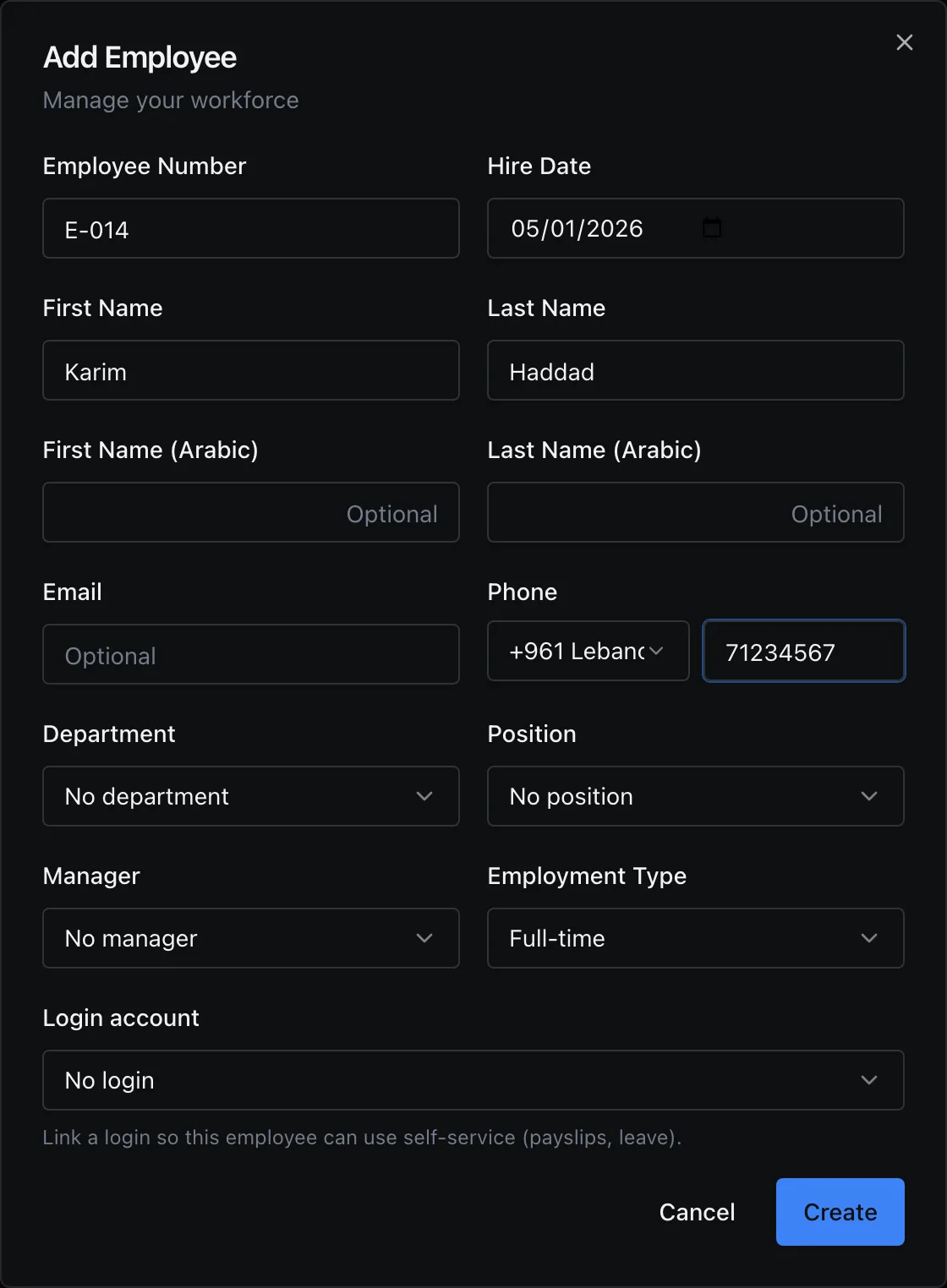
The till lists employees who are Active or On Leave. A suspended or terminated employee is not listed, and cannot buy at employee prices.
Setting up employee prices
Turn it on
In SettingsEmployee sales, turn on Sell to employees at employee prices. It saves at once; there is no Save button. The first time, Otura creates the price list that holds your employee prices.
Choose the limits
Under Limits, choose how often each item's limit starts again: No limit, Per day, Per week (from Monday) or Per month. Days, weeks and months are your business's calendar. With No limit, employees get their price on every unit, and the limit box is not shown.
Add the items
Under Employee prices, choose the Item, type the Employee price ($) — 0 gives it free, and the row then shows Free — and, if limits are on, the Limit per employee: how many each employee gets at that price in each period. Leave it empty for no limit on that item. Click Add.
To change a price or a limit, edit it on its row and click Save; the bin removes the item. Items you do not list sell to employees at their normal price.
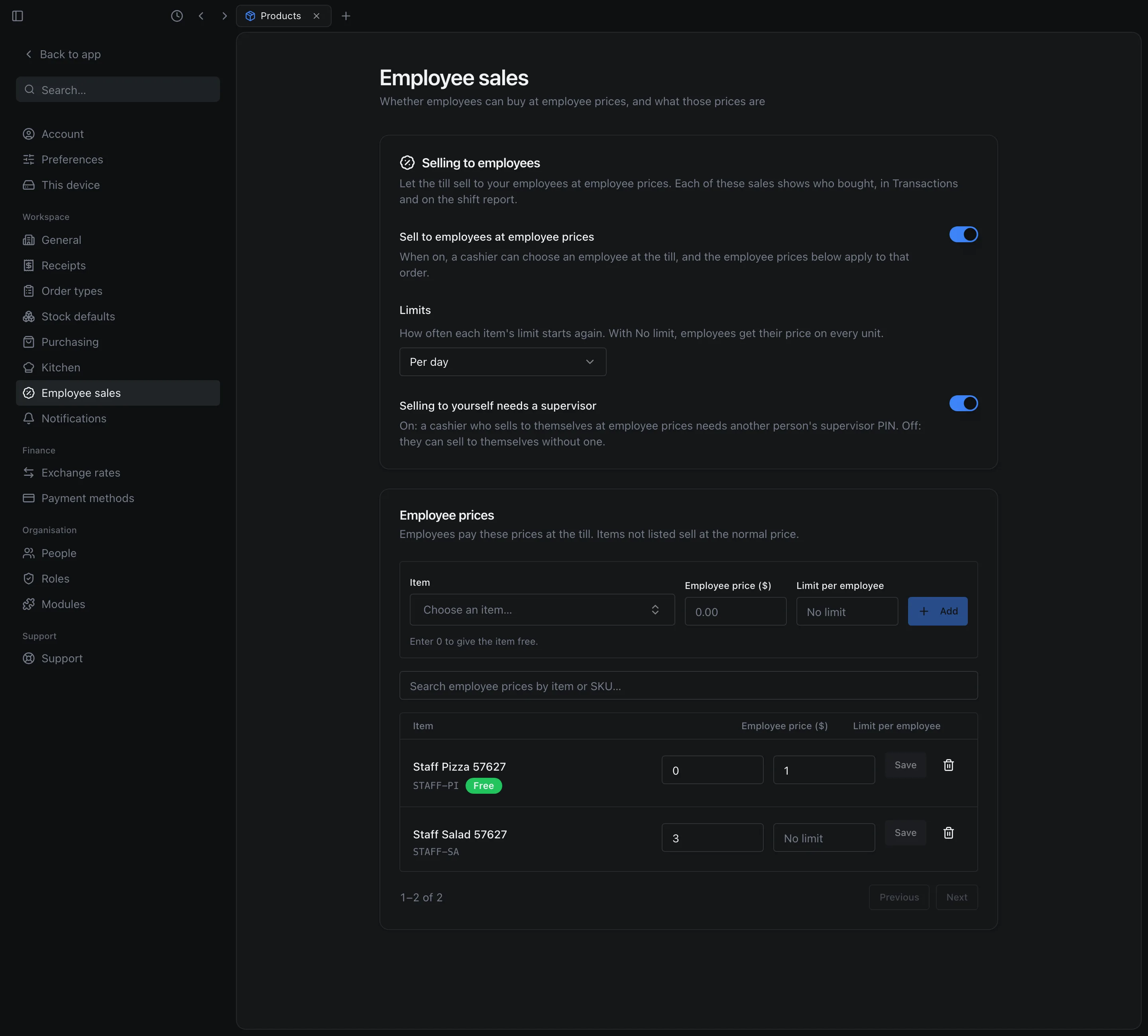
The list of employee prices shows 50 items a page, with a pager under it. Search employee prices by item or SKU… searches all of them. Adding an item that is already listed, on any page, is refused with This item is already listed. Change its price in the list below.
- An employee price is in dollars, 0 or more, with at most two decimals. A limit is more than 0, and may have decimals for items sold by weight.
- The item can be a product or one of its variants. A limit set on a product with variants is shared by all its variants: one pizza a day, whatever its size. A price and limit set on one variant apply to that variant only.
- An employee price only ever lowers the price. One above the item's normal price is saved, but the till ignores it and charges the normal price.
- A pack (see Packs) and the items inside a bundle sell at their normal price, even to an employee.
- Turning employee sales off keeps your prices; they apply again when you turn it back on.
At the till
Ring the items
Add the items as for any sale.
Choose the employee
In the cart, press Sell to employee, then choose the employee in Sell to an employee. Search by name or employee number.
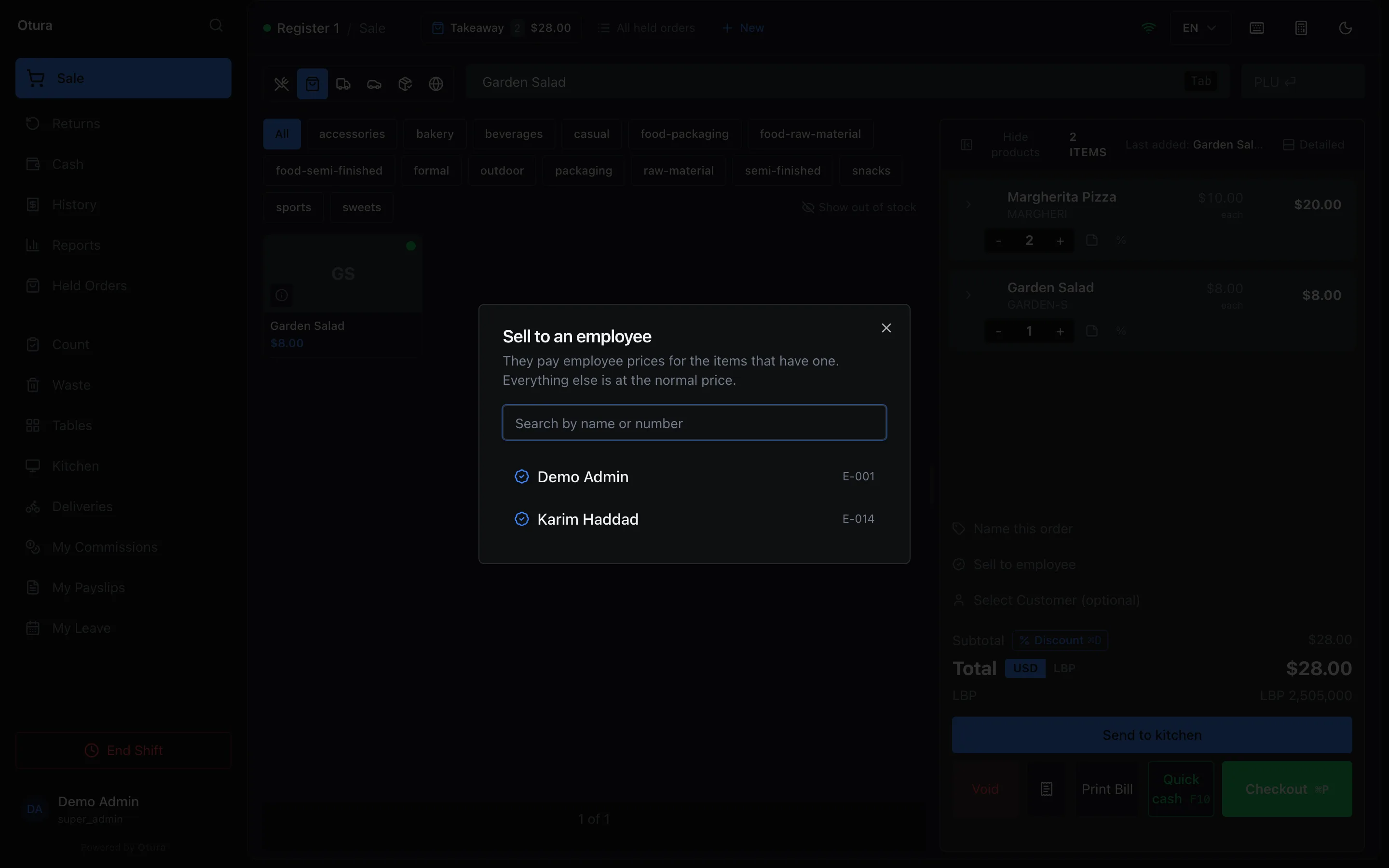
Sell to employee: the employees the till can sell to. Check the lines, and take the payment
The cart shows the employee's name and Employee prices. A line with an employee price says Employee · Free or, for example, Employee · $3.00, with the normal price struck through; the difference shows in the order's Discount Total. Take the payment as usual.
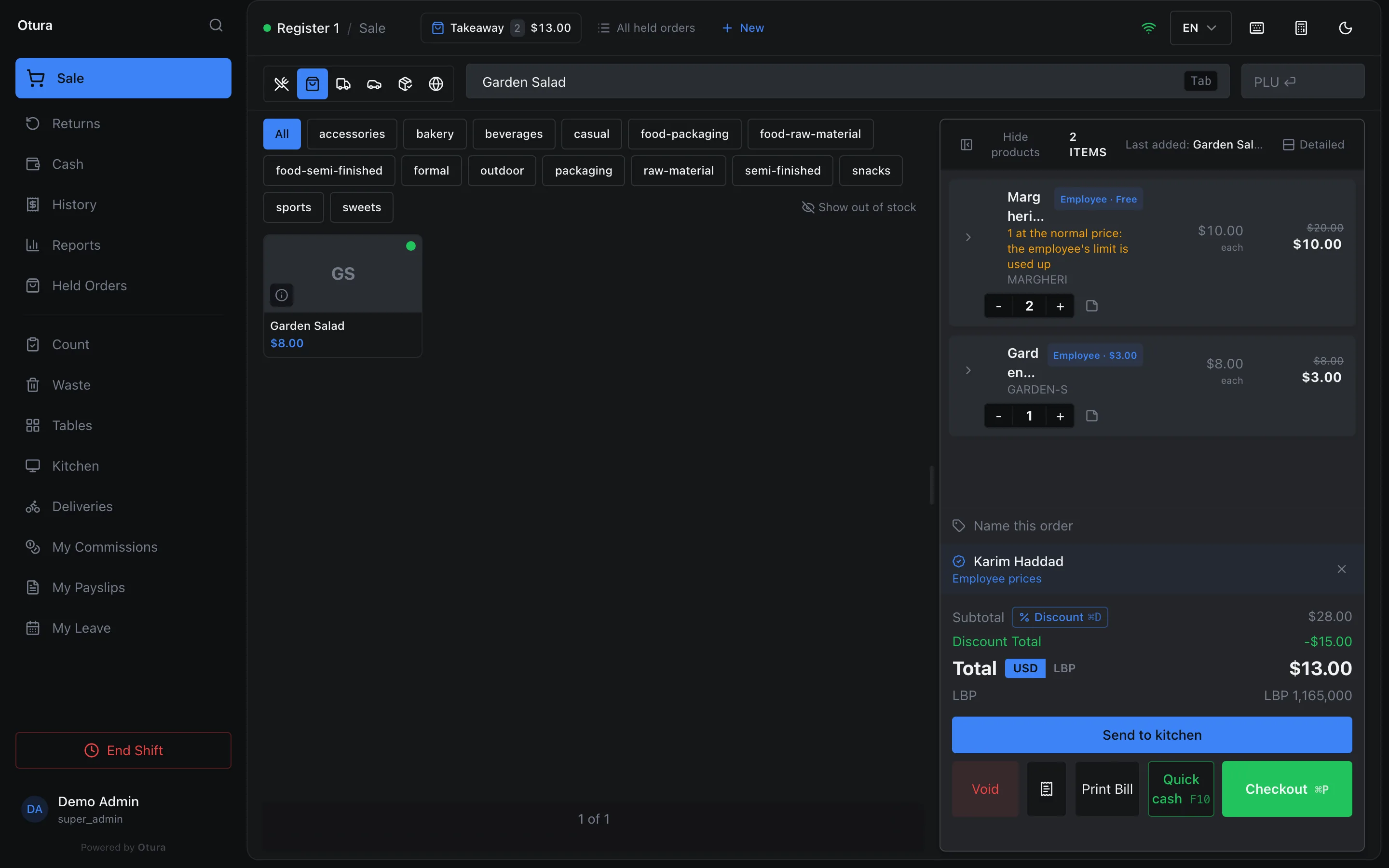
- Limits. When an employee has used up an item's limit for the period, the rest of the line is at the normal price, and the line says so — for example 1 at the normal price: the employee's limit is used up. What they bought earlier in the period counts, on any till.
- No other discount on a line at an employee price: At the employee price, which takes no other discount. Lines without an employee price can be discounted as usual. Paid extras on an item (modifiers) are at their full price.
- Paid at the till. An employee sale cannot go on account or be cash on delivery, and loyalty points cannot be used on it. It earns no loyalty points and no sales commission.
- Ending it. The cross beside the employee's name (Stop the employee sale) puts the order back to normal prices. While an employee is chosen, the cart shows them in place of the customer, and the customer shortcut says This order is an employee sale: the employee is its customer. Stop the employee sale first to sell to a customer.
Selling to yourself
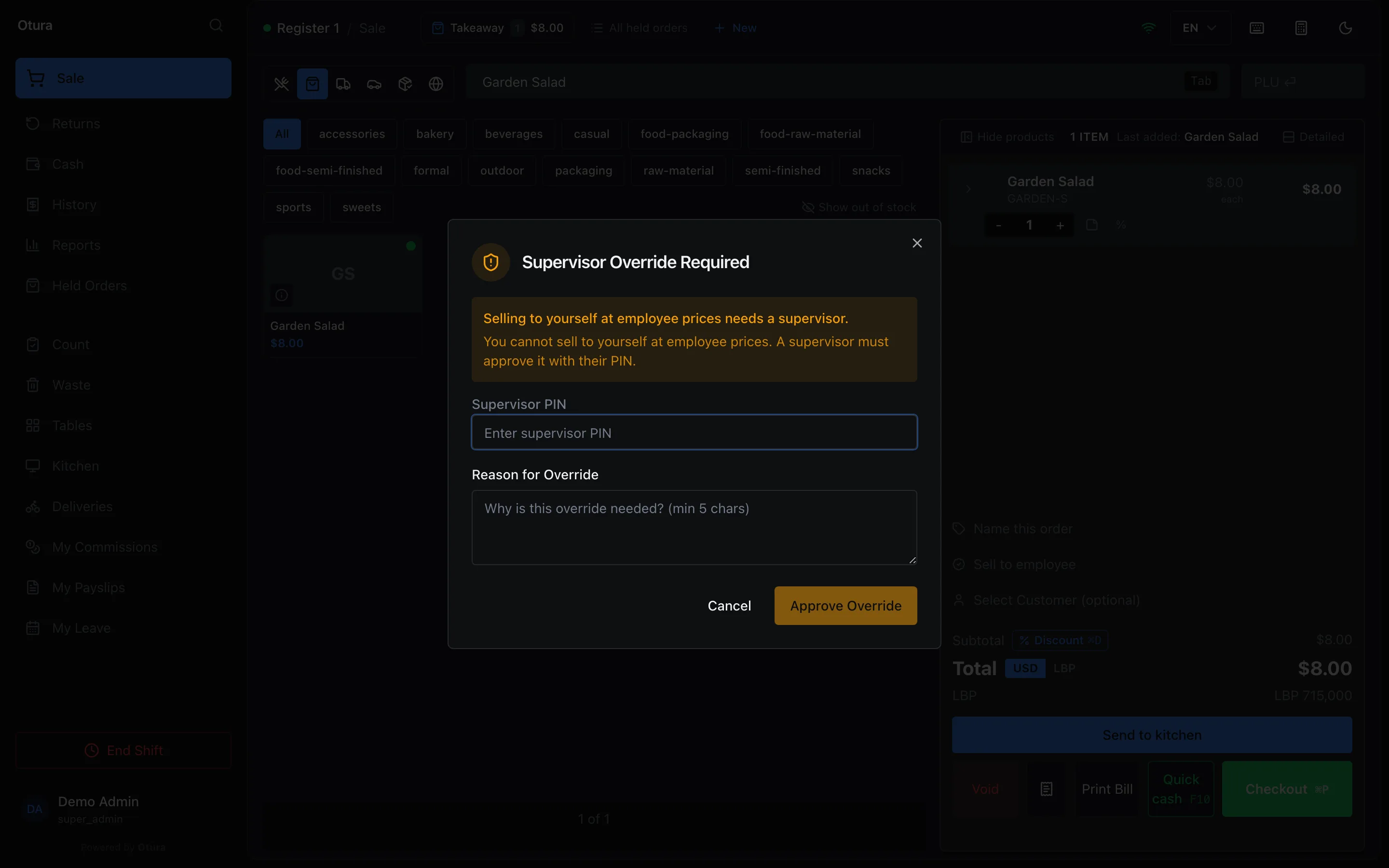
With Selling to yourself needs a supervisor on in SettingsEmployee sales, a cashier who chooses themselves — the employee whose Login account is the person signed in — is asked for a supervisor: Selling to yourself at employee prices needs a supervisor. Someone else who may approve overrides, and may sell to employees, types their Supervisor PIN and a Reason for Override, and presses Approve Override. Your own PIN is refused: Someone other than you has to approve this. Ask a supervisor to enter their PIN. With it off, they can sell to themselves without one.
Returns
Returning an employee sale refunds what the employee paid, and gives the returned units back to their limit in the period of the return: a free pizza from yesterday returned today gives one more free pizza today.
On the reports
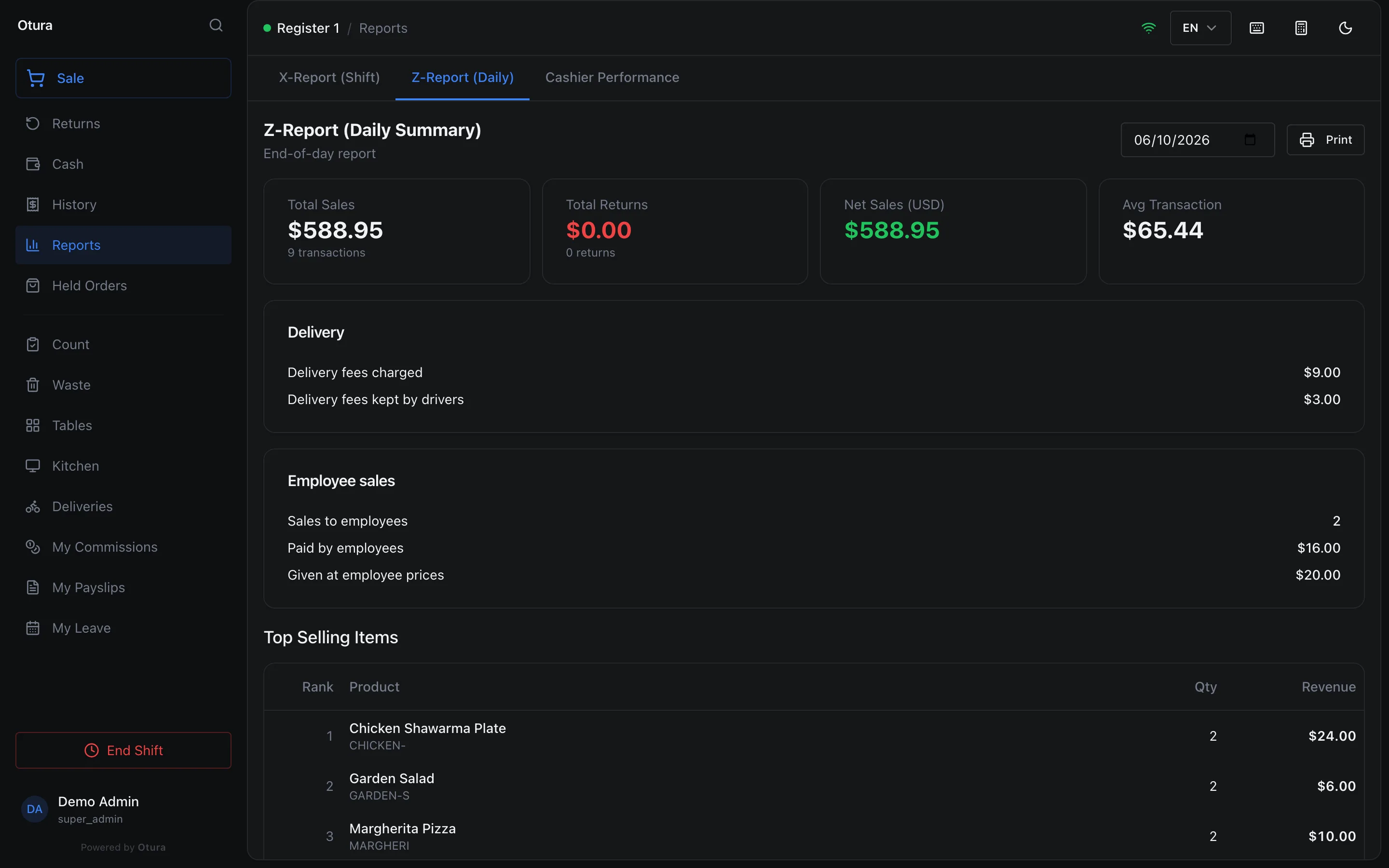
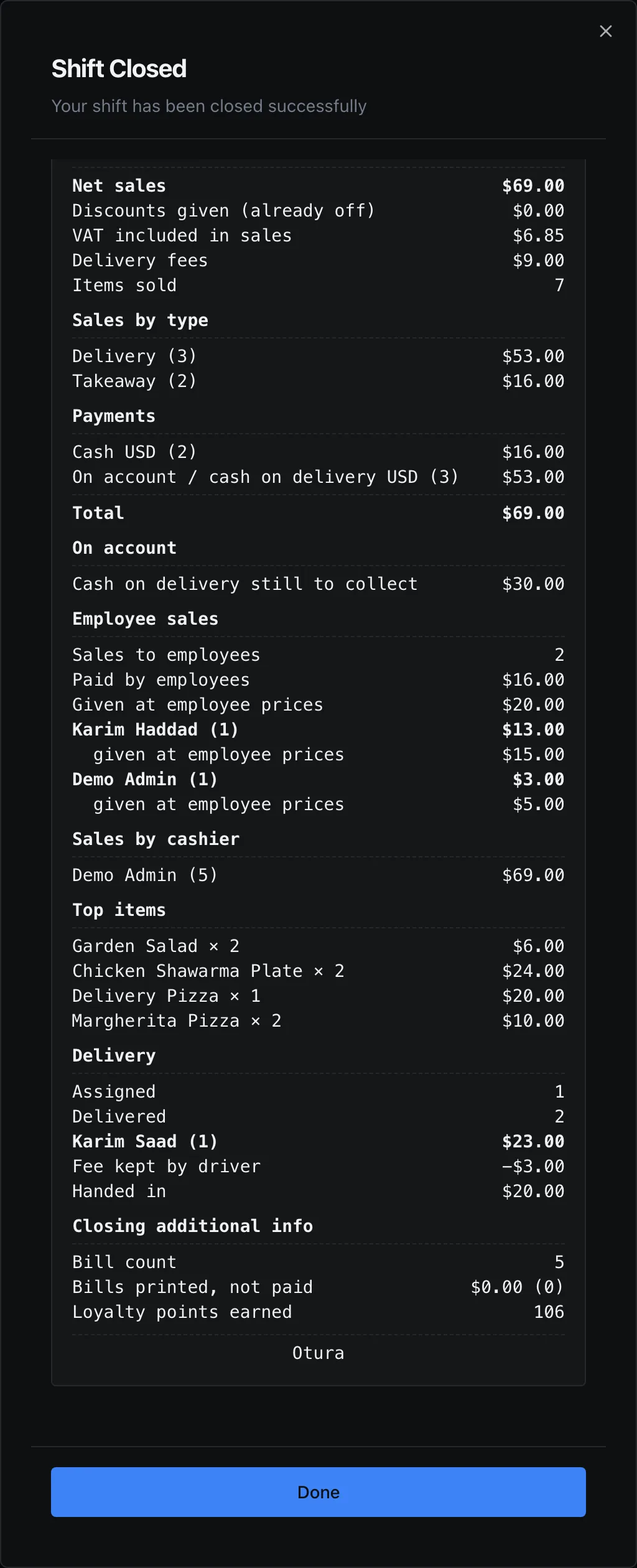
The Z report (ReportsZ-Report (Daily)), the X report of the open shift, and the report printed when a shift closes have an Employee sales section on any day or shift with one:
| Line | What it is |
|---|---|
| Sales to employees | How many employee sales |
| Paid by employees | What employees paid, less what was refunded to them |
| Given at employee prices | What the employee prices took off the normal prices, less returns: the value you gave |
The shift close report then lists each employee, with how many sales, what they paid and what they were given. Employee prices are not counted in the report's Discounts given (already off) nor in Discounts by reason, so nothing is counted twice.
In Transactions, and per employee
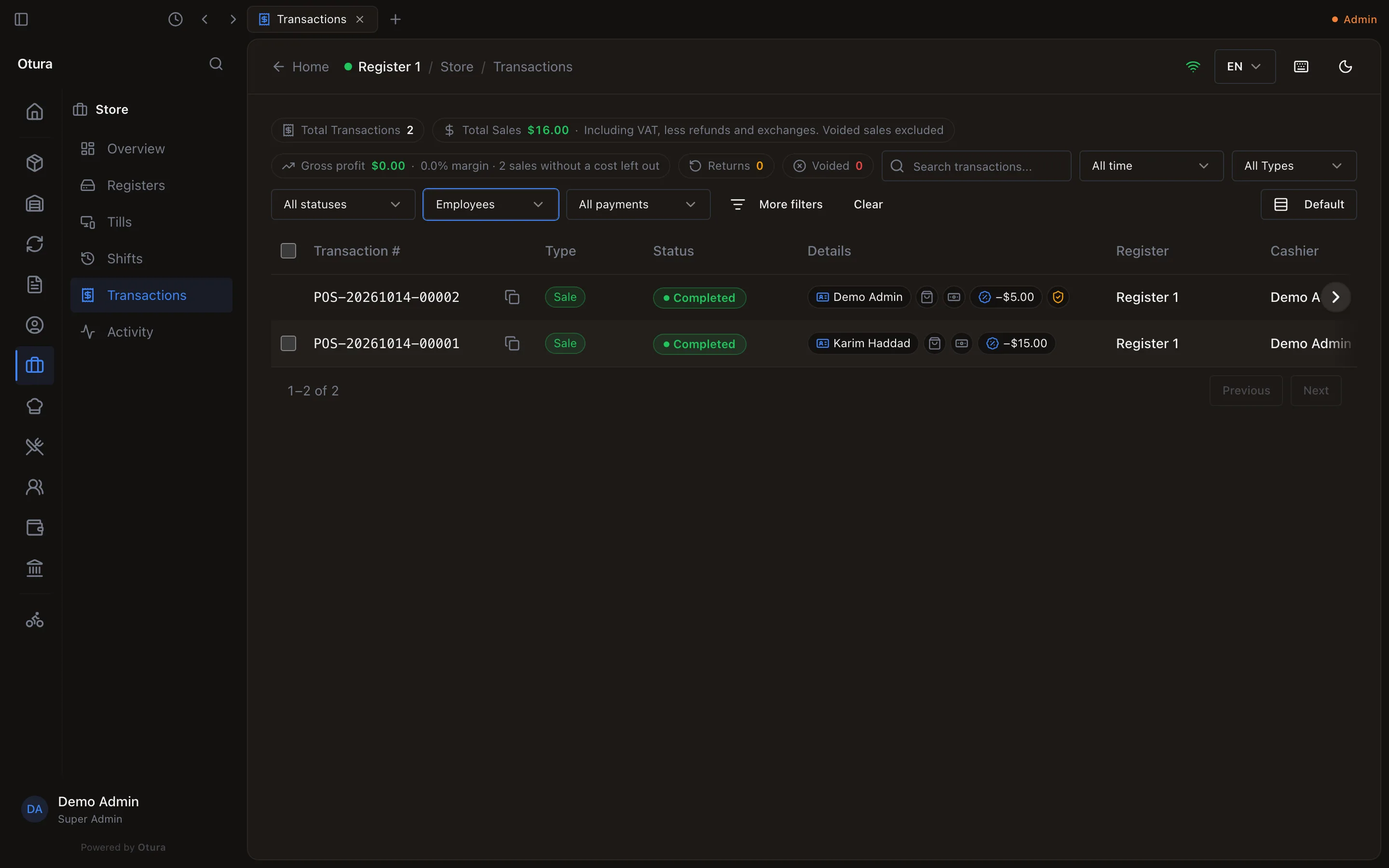
In StoreTransactions, choose Employees in the buyer filter (All buyers) to list only sales to your employees; each names the employee under Details.
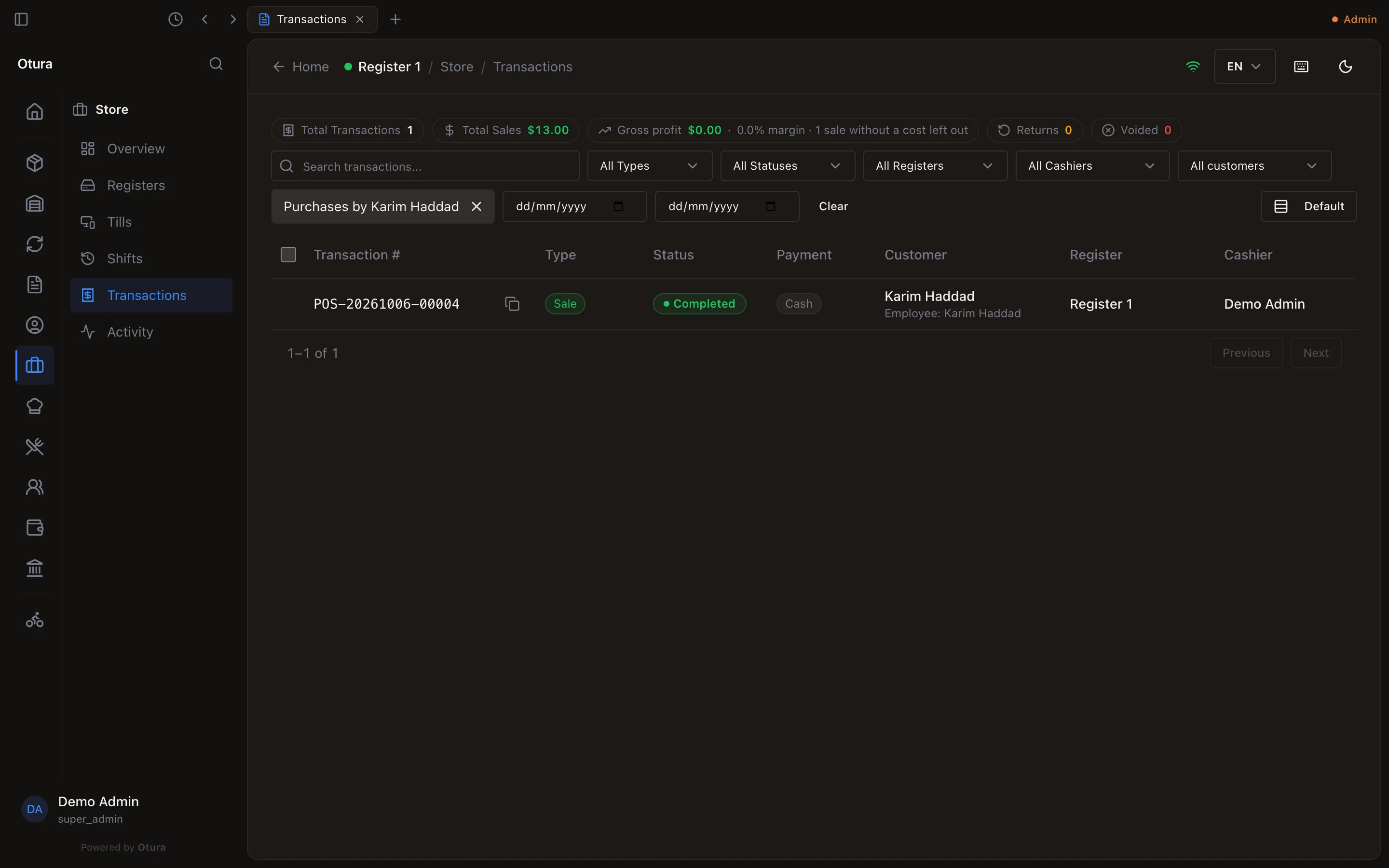
For one employee, right-click them in PeopleEmployees and choose Employee purchases: Transactions opens filtered to them (Purchases by and their name); the cross on that filter clears it. It needs permission to see Transactions.
In your books
| How it is booked | |
|---|---|
| An item at a lower employee price | An ordinary sale at the price paid. Its cost goes to cost of goods sold, as for any sale. |
| An item given free | Its cost goes to 6340 Staff Meals & Employee Benefits, not to cost of goods sold. Returning it reverses that. |
| A free item with no stock cost | Nothing: no money changed hands and nothing left your stock at a cost. |
| The VAT on an item given free, or sold below its cost | Its own entry: Dr 6340 Staff Meals & Employee Benefits, Cr 4420 VAT Output / Payable. Returning or voiding the sale books it back. |
VAT on what you give your staff
The till charges VAT on what the employee pays, as on any sale. Lebanese VAT law also treats goods given to staff as a supply, taxed on what they cost you. So, for a business in Lebanon with Input VAT Capture on (FinanceAccountingSetupTax), Otura declares VAT on the part of an employee item's cost the employee did not pay: the whole cost of a free item, and, for an item sold below its cost, the cost less what was paid. Your business bears that VAT; the employee pays nothing more. It is on your VAT return with your other output VAT. A business with Input VAT Capture off declares none.
See also Closing a shift and How money moves.