Reorder points
Tell Otura the level at which an item needs ordering, and it lists what has fallen to it and how much to order.
Checked against the product on 13 October 2026
A reorder rule says, for one item, “when stock falls to this level, order this much”. Otura then lists every item at or below its point under Suggestions. Rules need the Advanced Inventory module and are managed by Admin, with the shipped roles.
Setting a reorder point
Add a rule
Go to ReplenishmentReorder and choose Add Rule.
Fill it in
Field What it means Item The product or variant, searched by name or SKU. Location Where the level is watched. “Every location” adds the item’s stock at all your locations together and compares that total with the reorder point. Reorder Point The level at or below which the item is suggested. Reorder Quantity How much to order when it is. Max Stock Level Optional: the most you want to hold. Leave it empty for no ceiling. Lead Time (Days) Optional: how long the supplier takes to deliver. Active Untick to keep the rule but stop its suggestions. 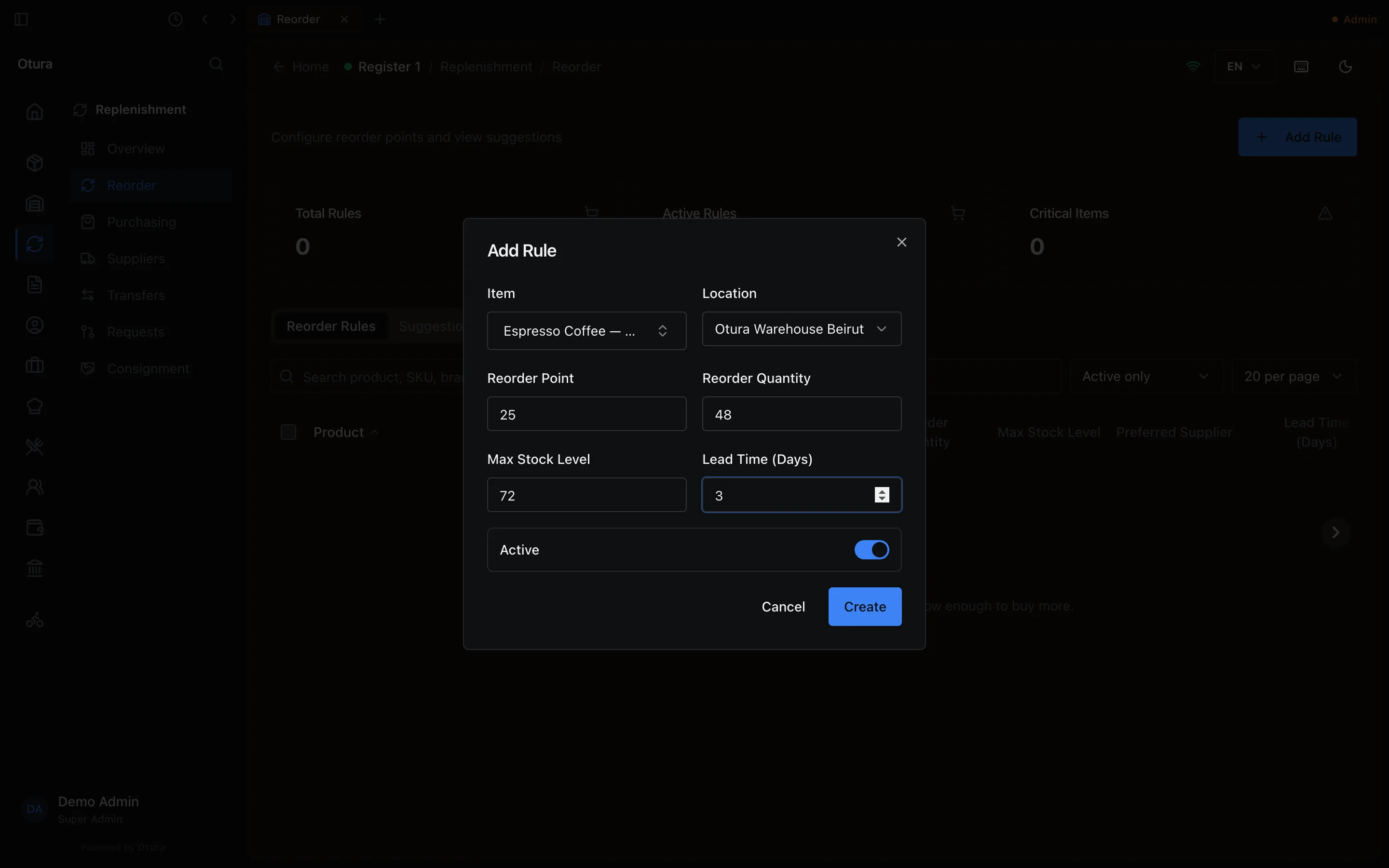
Replenishment › Reorder › Add Rule. Create it
Choose Create. The rule is listed under Reorder Rules. Edit it there; emptying Max Stock Level or Lead Time on an edit clears it.
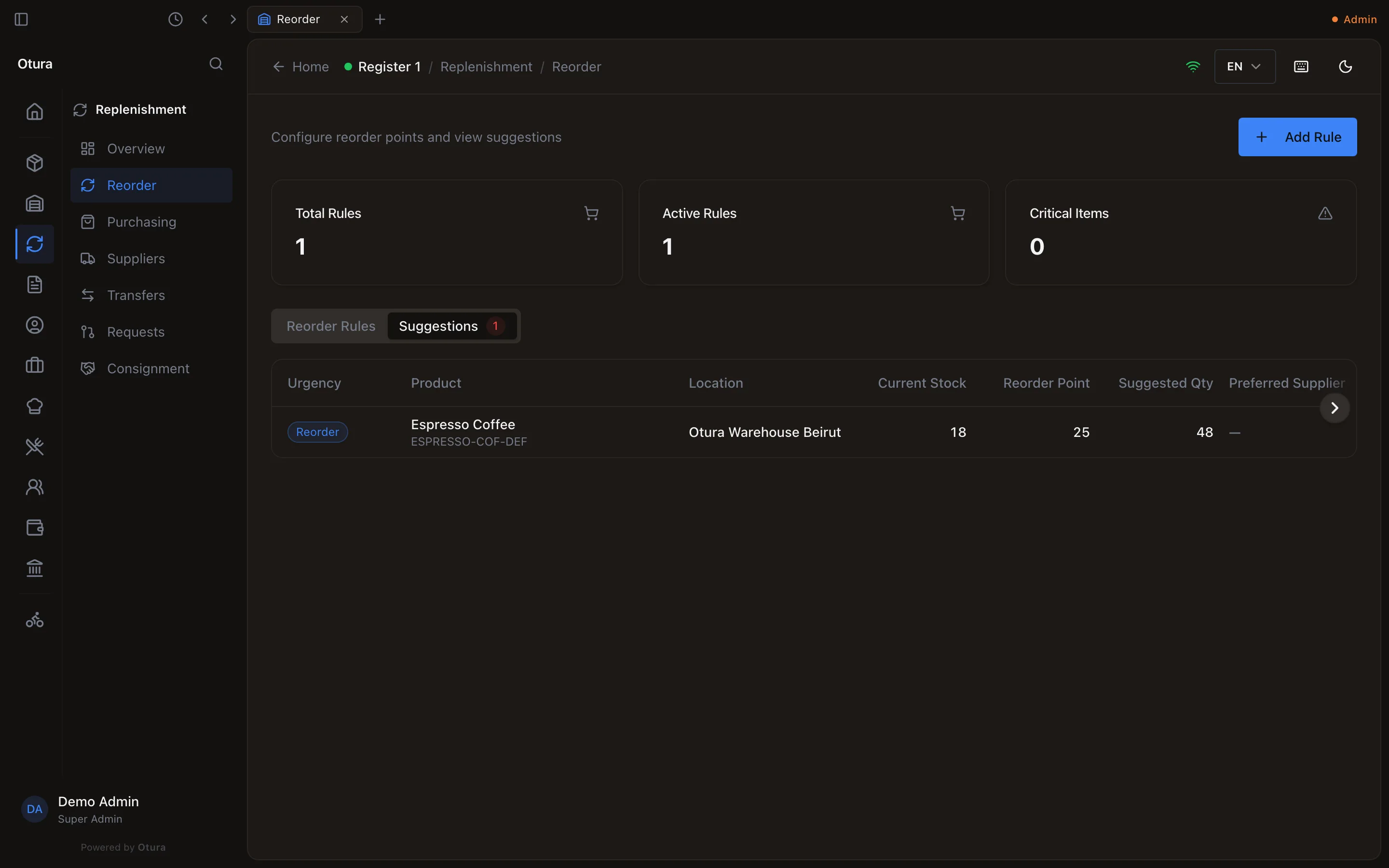
Suggestions
The Suggestions tab lists each item at or below its reorder point, with its Location, Current Stock, Reorder Point, Suggested Qty and Preferred Supplier. The tab shows how many there are.