Your online shop, as your customers see it
What a customer does on your online shop, from finding a product to the tracking page, and what each step puts in your back office and your books.
Checked against the product on 13 October 2026
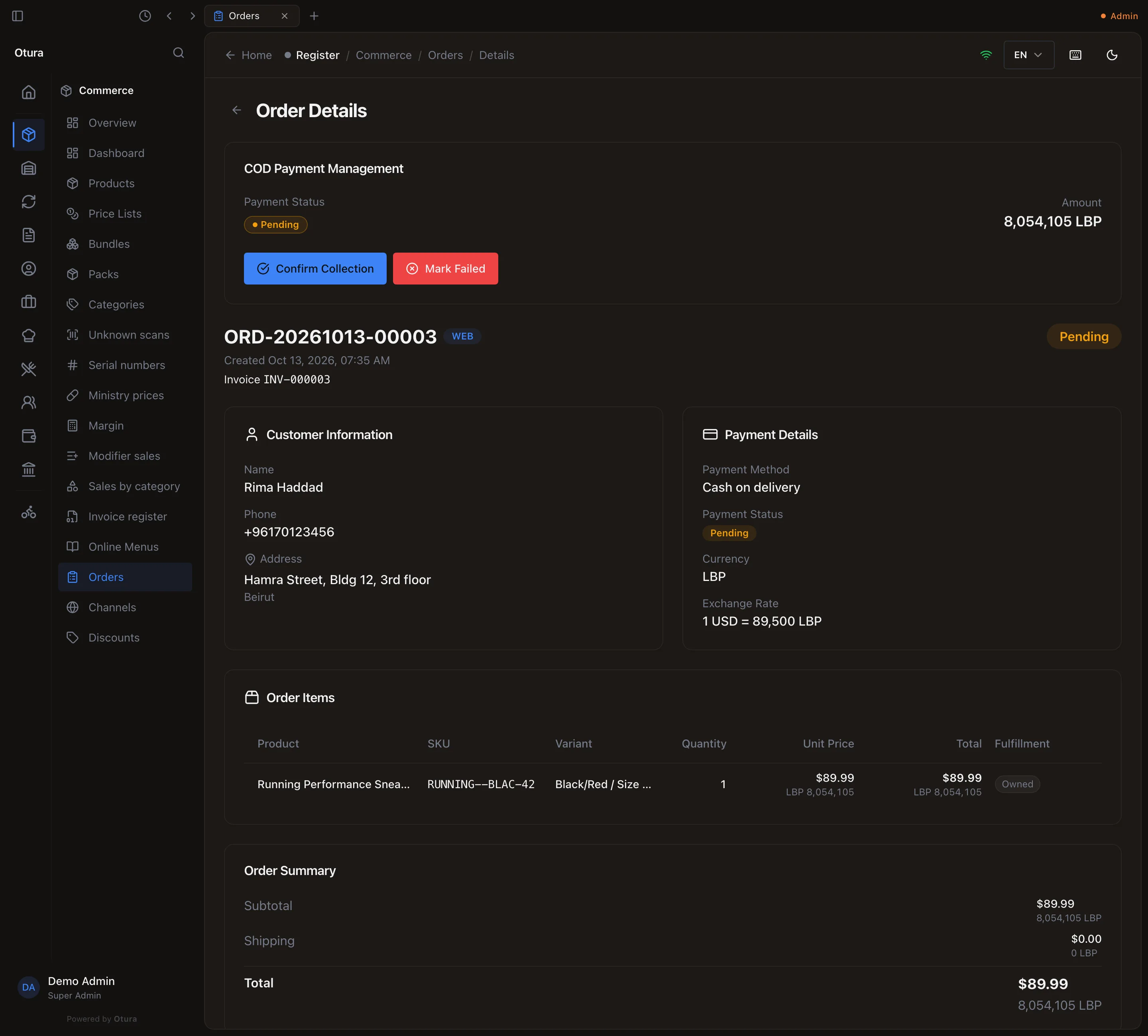
Your online shop sells the products you have in Otura. A customer finds a product, chooses its colour and size, and orders it, paying cash on delivery. They need no account. The order arrives in your back office under CommerceOrders (see Online orders and channels). The shop is in English, Arabic and French, and works on a phone.
What the shop shows
Every active product whose type is something you sell. Raw materials, packaging and work in progress (your flour, leather or boxes) are never shown, even if they are active, and cannot be ordered. A draft or archived product is not shown either. Each product shows its price in dollars with the lira amount at today's rate beneath it, and In Stock, Low Stock or Out of Stock.
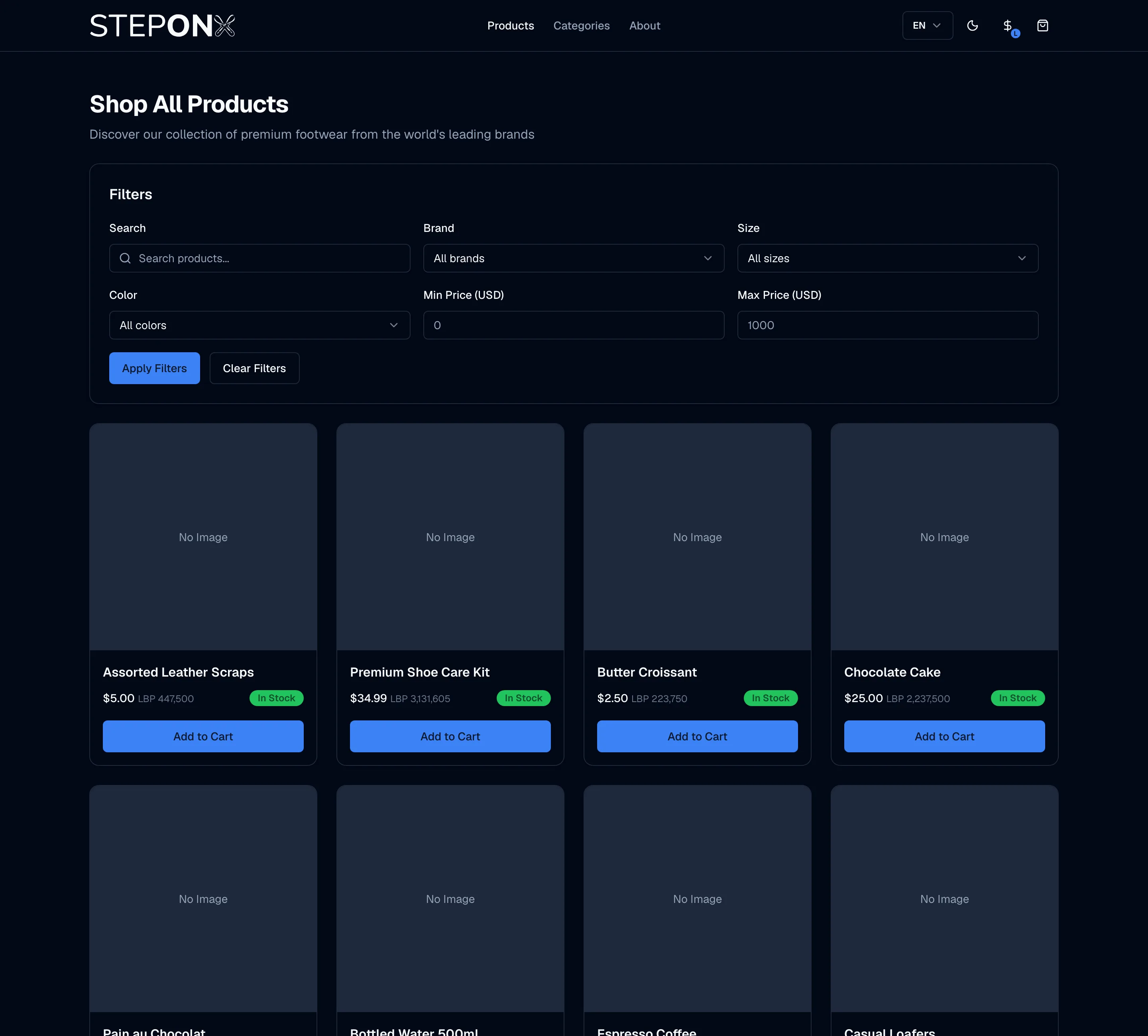
A customer can search, and filter by brand, size, colour and price. On a product with one version (no size or colour to choose), Add to Cart on its card puts it straight in the cart. On one with choices, it opens the product's page.
How a customer orders
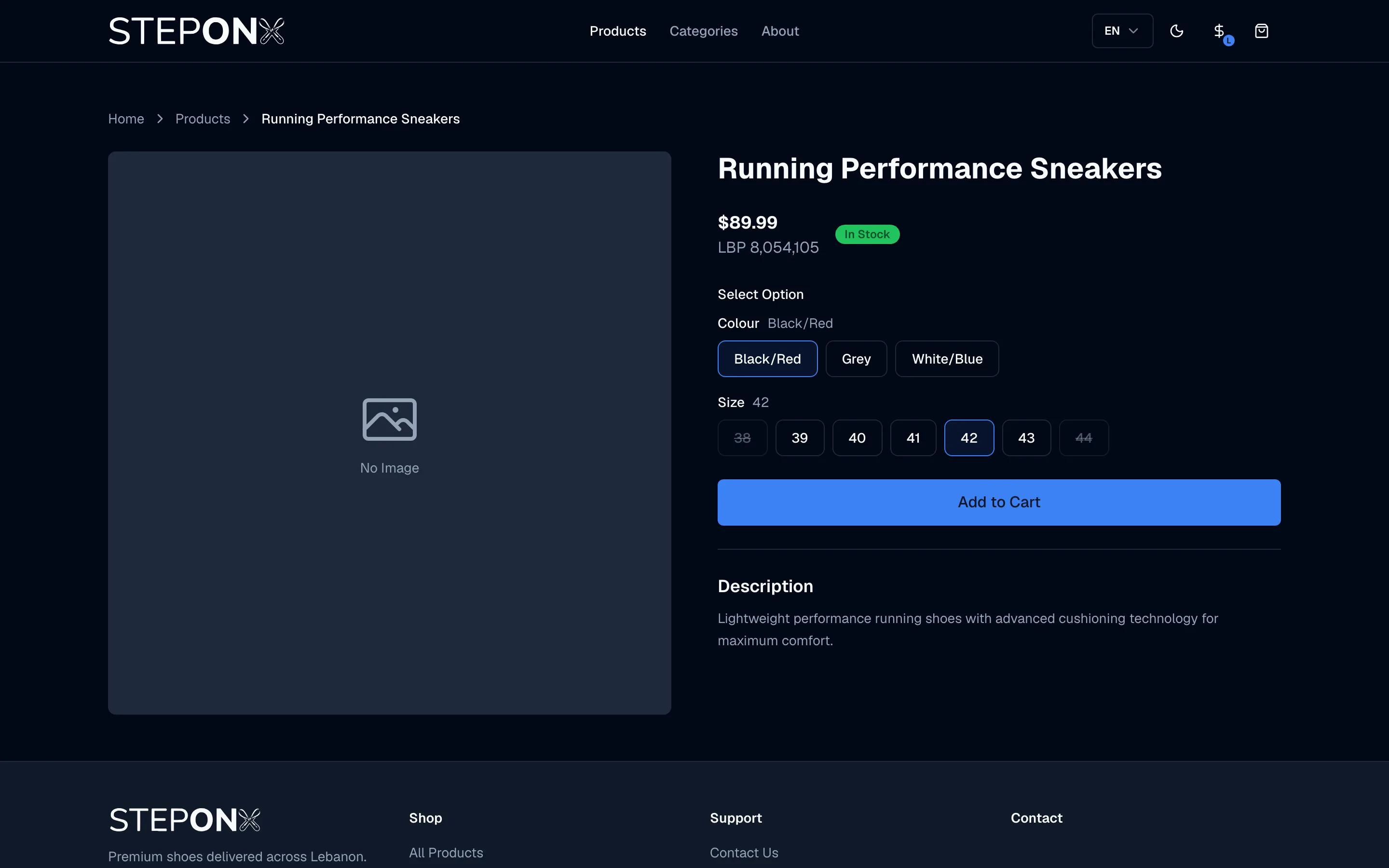
Choose the colour and size
On the product's page, the customer picks a colour and a size. A size not made in that colour is greyed out. Add to Cart.The cart
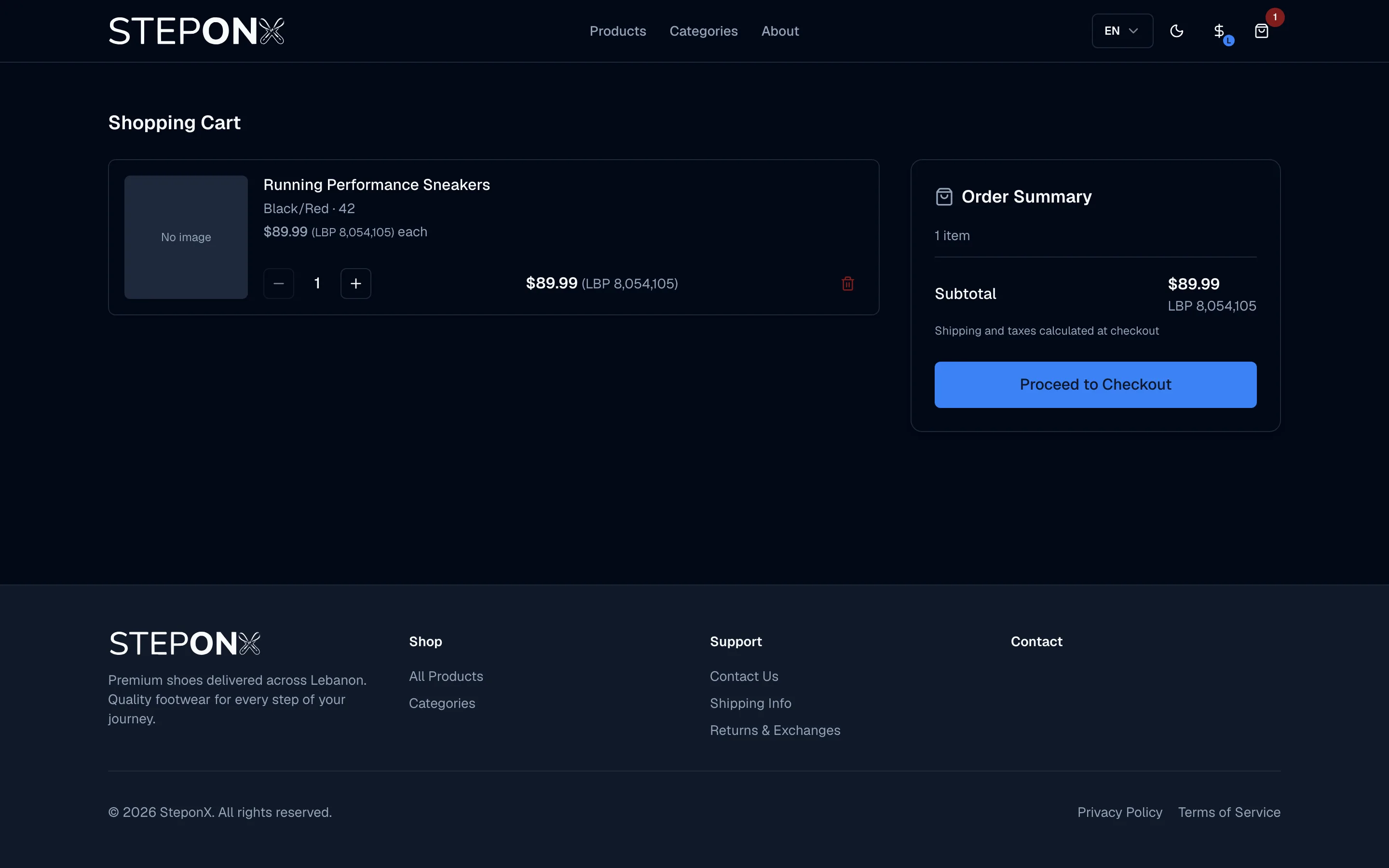
Each line shows the product, its colour and size, and the price. The cart checks itself against your stock and prices each time it opens: a line you have stopped selling reads No longer available, more than you have reads Only … left, and in either case Proceed to Checkout waits until the customer fixes it. A price you have raised since the customer added the line is taken, and the cart says Some prices have changed.Checkout
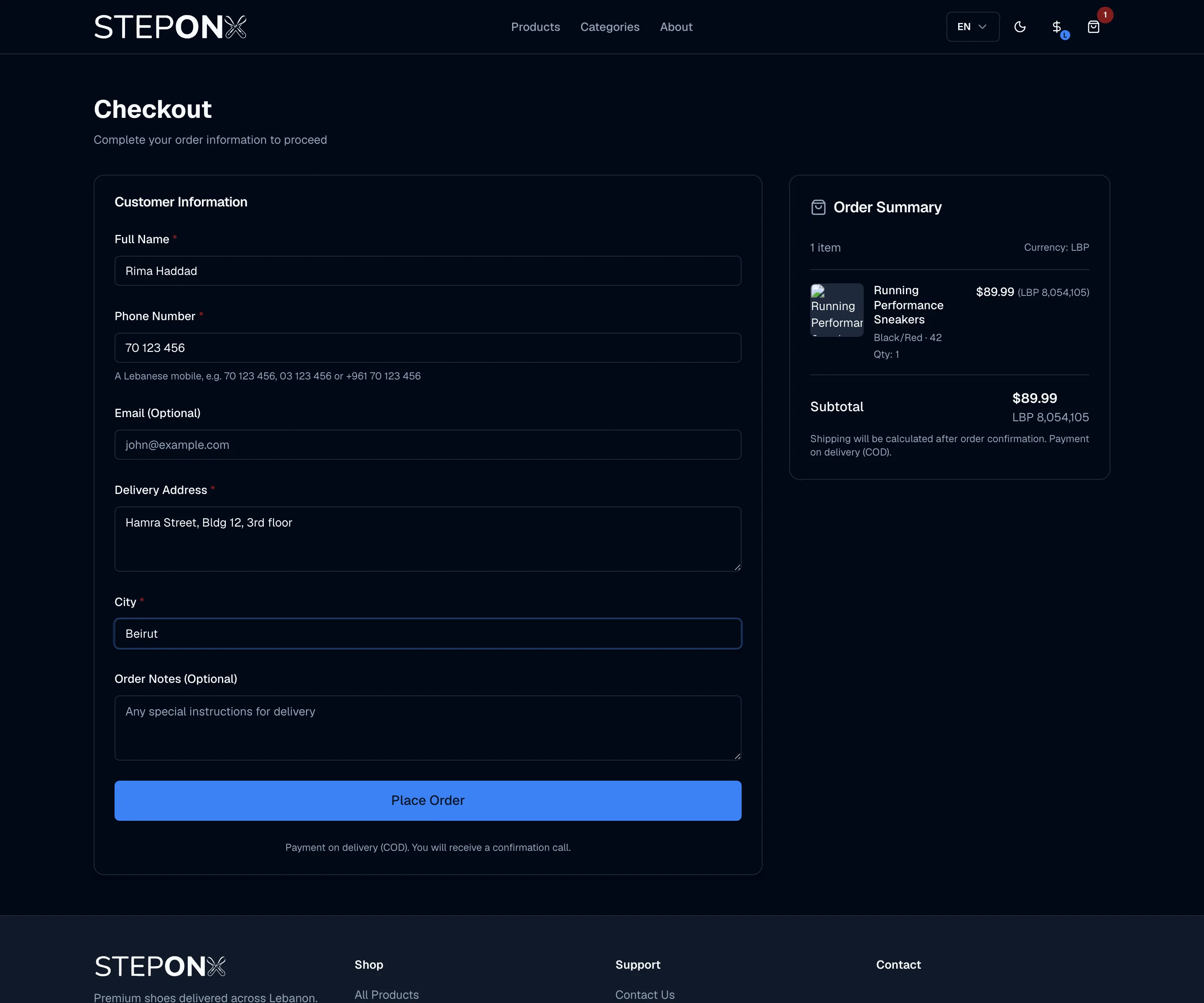
Full name, phone number, delivery address and city (email and notes are optional), then Place Order. The phone number is a Lebanese mobile written any usual way: 70 123 456, 03 123 456 or +961 70 123 456; it is stored as +961….The confirmation
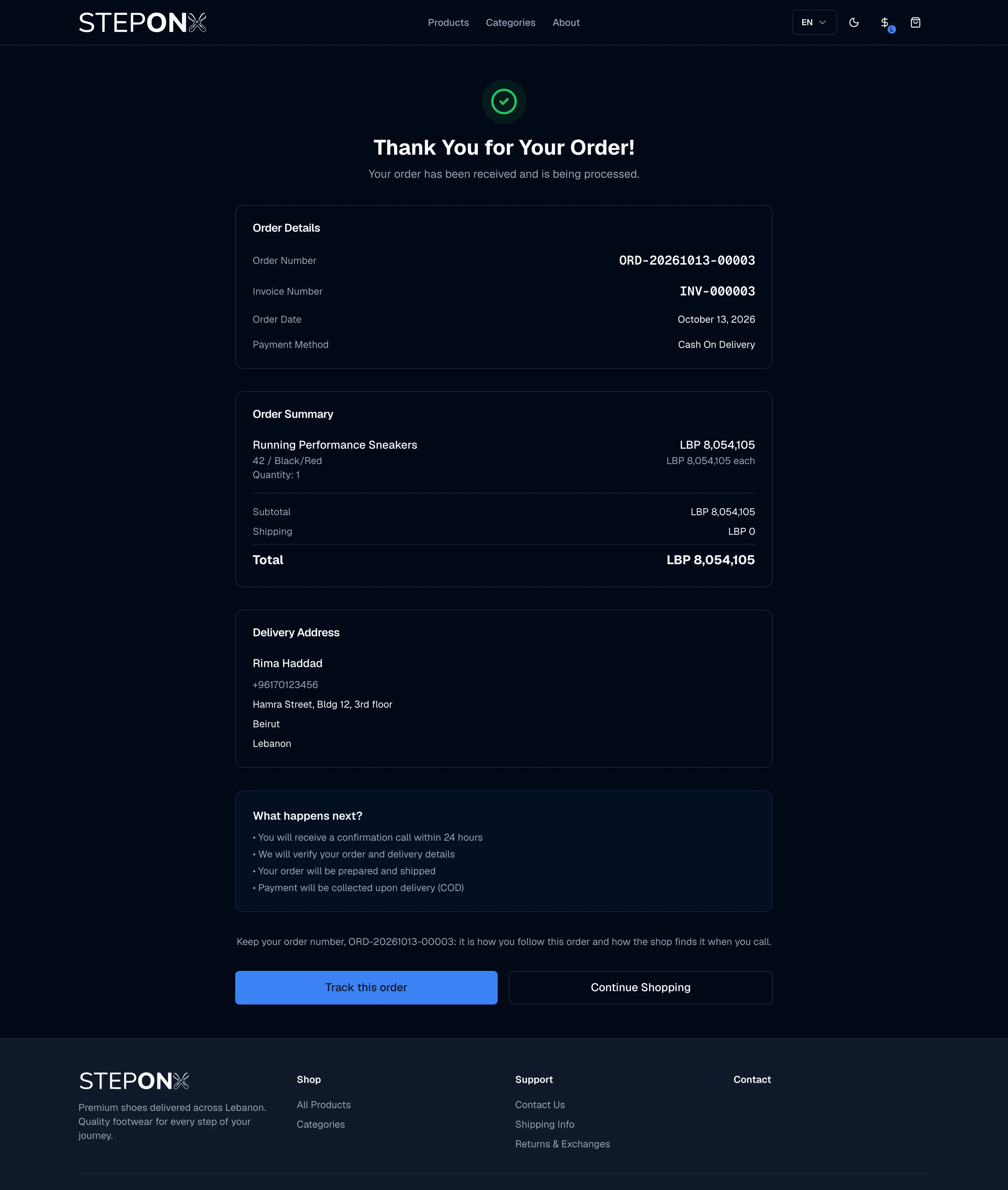
The customer sees their Order Number and Invoice Number, what they ordered, the total, and Track this order.
If something changed while the customer was filling in the form (the last pair sold, a price rose, a product was withdrawn), Place Order is refused with a message in the customer's language and they are taken back to the cart, which shows what changed. The customer is never charged more than the price they were shown; a lower price is applied without asking.
Tracking an order
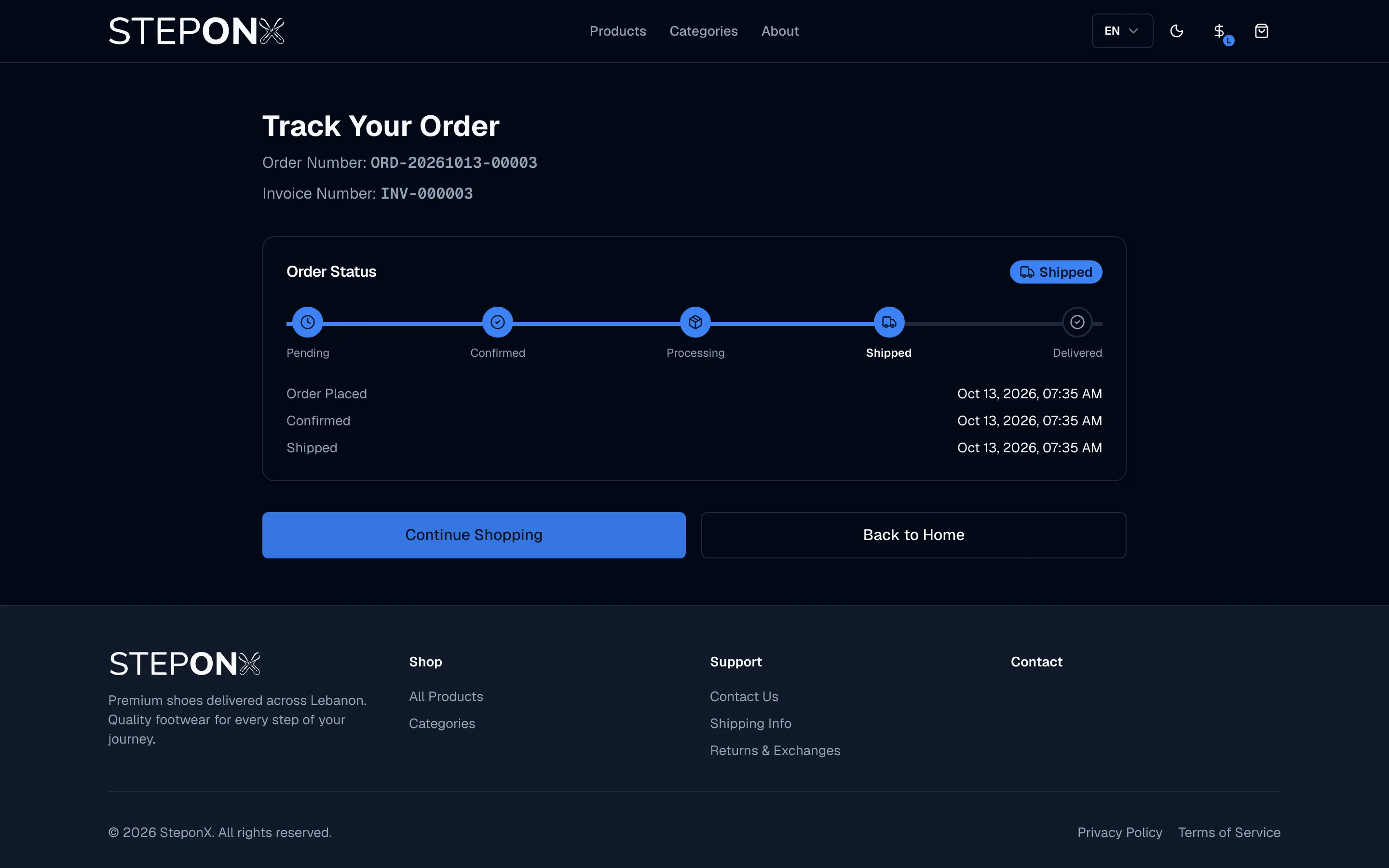
Track this order opens the order's tracking page: its status (Pending, Confirmed, Processing, Shipped, Delivered, or Cancelled) and when each step happened. It moves as you move the order along in the back office. It shows no name, address, items or amounts.
What you see, and what the books hold
| When | What happens |
|---|---|
| The customer places the order | It appears under Commerce › Orders as Pending, with the next number of your invoice series. Its sale and VAT are booked at once: Dr cash-on-delivery receivable, Cr online sales, Cr VAT payable, and its VAT is on the tax ledger the VAT return reads. No stock is held yet. |
| You confirm it | The stock it needs is reserved. |
| You ship it | The stock leaves the shelf and its cost is booked. |
| You cancel it (before it ships) | A credit note from your credit-note series, the reservation released, the cash on delivery closed, and the sale and VAT reversed, so it nets to zero in the books and on the VAT return. The customer’s tracking page reads Cancelled. |