Getting stock in, and keeping it right
A tracked product sells only when it has stock where the till sells from. How to put stock in, correct it, see its history and get low-stock warnings.
Checked against the product on 13 October 2026
Creating a product does not give it any stock — the product form has no quantity field. A product set to Tracks stock can be sold only once it has stock, and until then it is hidden from the till's grid (while Hide out of stock is on) and refused if scanned.
Where the till sells from
Stock is held per variant, per location — a shop, a counter, a warehouse. A new business starts with a location called Main Store, and Register 1 is linked to it.
- With the Advanced Inventory module (included in the Restaurant, Bakery, Pizza, Clothing, Supermarket and Petroleum setups), a register linked to a location sells only that location's stock (the soonest-expiring batch first, then the oldest) and records the cost of each sale.
- Without it, a sale takes stock from any location that has some, and records no cost — so those sales do not appear in the Margin report.
Ways to put stock in
| Way | Best for | Where |
|---|---|---|
| The New Product form | A new simple product’s opening stock, as you create it | Products |
| Add a stock record | Opening stock, one item at a time | StockInventoryAdd Location |
| Supplier invoice with “Receive stock” | Everyday deliveries — enter the invoice and receive in one step | ReplenishmentPurchasingInvoices |
| Goods receipt against a purchase order | When you order formally before goods arrive | ReplenishmentPurchasingReceiving |
| Bulk Upload | A whole catalogue with opening stock, from Excel | CommerceProductsBulk Upload |
| Stock adjustment or count | Corrections | An item’s stock record |
Add a stock record (opening stock)
Open the form
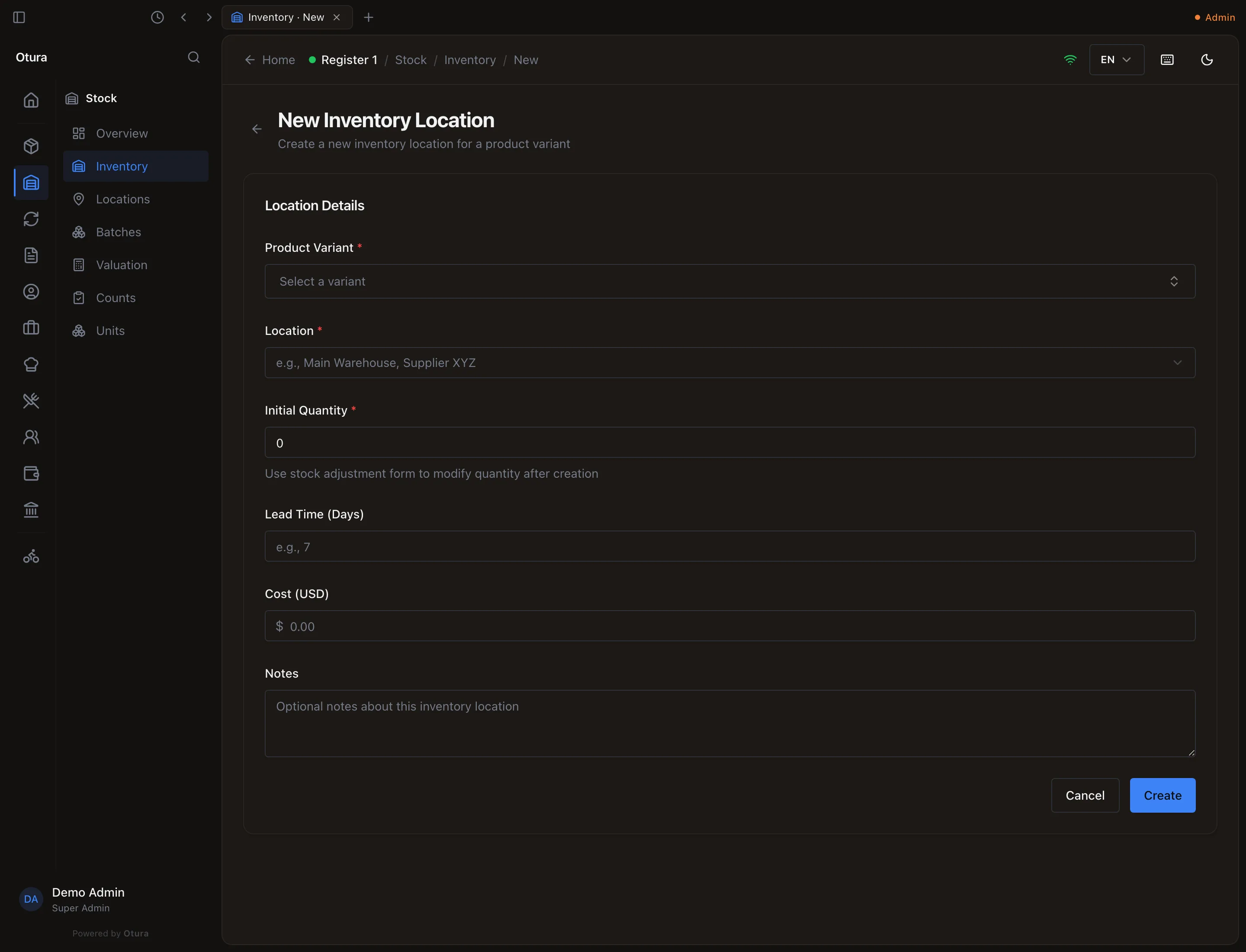
StockInventory and click Add Location. (The name is historical: it adds a stock record — an item at a location — not a new location.)Pick the item and the location
Product Variant — type part of the product's name or its SKU in Search by product name or SKU…; every active product is searched, 50 matches at a time — and the Location your register sells from. An item has one stock record per location: a second is refused with “This item already has a stock record at this location. Open it and adjust its stock instead.” The exception is a record that has never held stock, has no cost and no movement, as every record is after a business goes live from test mode: the form fills it.Enter the quantity and cost
Initial Quantity (up to 4 decimals, if the item's unit allows them) and Cost (USD) per unit — the cost is what the item's cost of goods will be when it is sold. A cost can have up to 6 decimals, for example $0.0125 a gram. The stock is recorded as a batch at that cost, and posted to the accounts as opening stock.Create
Receive with a supplier invoice
In Rapid Invoice Entry, leave Receive stock on (the default) and check Receive into — the till's location. It starts at the location you received into last, otherwise your main location, and offers only your own locations. When you click Post invoice, Otura creates and completes the goods receipt for you, converts any LBP costs to USD, and spreads discounts and freight into the unit cost. An invoice whose goods cost nothing is refused. An invoice can also be entered against the supplier's open purchase order, which it then receives against. The whole screen, from the keyboard, is on Entering supplier invoices.
A supplier invoice entered as a total
Create Invoice on ReplenishmentPurchasingInvoices records a supplier's bill as one figure, for goods already received or for something that is not stock.
- In lira. Set Currency to LBP and type the bill's Total Amount in lira. Under it the form shows the dollars it books, for example Books $100.00 at LBP 89,500 to the dollar. The payable, the cost and the books are in dollars, at today's rate. The bill's page shows, beside the dollar total, the lira on the paper and the rate it was converted at (… at LBP 89,500 to the dollar). Lira is only for a plain total. An invoice that takes a net and VAT, an import receipt with its customs duty, or several receipts is entered in USD, and the form says so. To enter a lira bill line by line, use Rapid Invoice Entry.
- Against a receipt, when you do not recover VAT. With Input VAT Capture off in FinanceAccountingSetupTax, an invoice for a completed receipt asks for the Total Amount on the paper, not a net and VAT, and stays linked to the receipt. The goods are not costed twice.
A lira bill is owed in lira. Paid later in lira, the lira comes off what it owes, and any difference from the rate it was entered at is booked as an exchange gain or loss: see paying a lira bill.
Paying a supplier from a cash box
A supplier payment from a cash box or a vault (in FinanceAccountingReceivables & PayablesPayables, on the Payments tab) cannot take out more than the books say the box holds. The payment is refused with a message naming the box, what it holds and what it would be left at, and a Record anyway button. Press it only if the money really left that box: otherwise, pick the box it came from, or record the cash that came in first. The same applies to a cash transfer out of a box. A bank account can go overdrawn, so a payment from a bank is never refused for this.
If you pay a bill as you post it in Rapid Invoice Entry and the payment is refused, the invoice is still posted, and the message says Record it under Accounting › Payables › Payments.
Receive against a purchase order
Create and send the purchase order
ReplenishmentPurchasingOrders. The supplier and each line's item are searched as you type: the supplier among your active suppliers, by name or contact; the item among your active products, by name or SKU. By default, the person who created a purchase order cannot also send it — a second person clicks Send to Supplier.Create the receipt
ReplenishmentPurchasingReceivingCreate GRN: choose the order and the Receiving Location, check each Received Qty and Unit Cost, and click Complete Receiving.- An order in lira has its unit costs in LBP. The screen says This order is in lira. Unit costs are in LBP; the receipt is valued in dollars at LBP 89,500 to the dollar. The rate is the one in force on the day the receipt is created, and a draft completed later keeps it. The receipt's page then says The order was in lira: these costs are its prices converted at LBP 89,500 to the dollar.
- Received Qty starts at what is still due on the order: what was ordered, less what earlier receipts took in.
- Leave a line at 0 if those goods did not come. It is left off the receipt, and stays due on the order.
- Every line that arrived needs a Unit Cost. Enter 0 for free goods. An empty cost is refused, with “Enter the unit cost: a goods receipt is valued at the supplier’s price.” under the line.
- An item whose unit takes whole numbers refuses a decimal such as 1.5, with “Whole numbers only: this item's unit has no decimals.” under the line.
Complete it — again
That first click only saves a draft; no stock has moved yet. Open the receipt and click Complete Receiving once more. Stock is added now, and the receipt is posted to the accounts.
Add customs, freight or insurance billed separately
A broker's, forwarder's or customs office's bill for goods you have already received is added to the cost of those goods with a landed-cost voucher. Open ReplenishmentPurchasingLanded Cost and click New voucher, or click Add landed cost on a completed receipt's page, which fills the receipt in.
Choose the receipt
Search for a completed receipt by its number or supplier. A receipt that is still a draft cannot take a voucher.Say who billed it
Billed By, the date, the Allocation Basis (by value or by quantity) and any notes.Add one line per cost
Each line has a component (Customs, Excise, Freight, Demurrage, Insurance or Other), a description, the amount in US dollars, and who billed it. Leave Basis and Credited To on Default for this component unless you need otherwise: excise is spread by quantity, everything else by the voucher's basis.Save, then post
Save draft voucher opens the voucher. Nothing has moved yet: click Post voucher there to add the costs to the lots that receipt brought in. Every later sale from those lots then carries the higher cost.
Goods sent back to the supplier
A posted debit note has its own page: click Open on it in ReplenishmentPurchasingReturns, on the supplier's page or on the invoice it was raised against. It shows the lines, the totals and, when the goods went back, their inventory cost. Print / Save PDF prints it as a supplier debit note, the delivery controls record that it was handed over, and Void debit note undoes it, with a reason.
Import a supplier's price list
When a supplier sends their prices as a spreadsheet, open the supplier in ReplenishmentSuppliers, go to the Prices tab and click Import price list. It needs the Purchasing module and the right to add and change supplier prices.
Choose the file
Click Choose a file and pick the CSV or Excel file, one product per row. Otura guesses which column is the Barcode or code, the Cost, the Name and the Sell price from the headings, in English, Arabic or French. Correct any it got wrong; the name and sell price can be Not in the list.Check how amounts are written
Amounts are written as is 1,250.50 (decimal point) or 1.250,50 (decimal comma), guessed from the file. Check it: “1.250” is $1.25 in one list and $1,250 in the other. An amount not written that way, such as 3,50 in a list with a decimal point, is refused rather than guessed. Numbers typed into Excel are read as their full value, whatever the cell shows.Choose what it may change
Set the sell prices the list gives changes what the till charges. Add the products the catalogue doesn't have yet creates a product for each row whose code no product has, when the row has a name and a sell price. A row with no name takes the name other sources give that barcode, marked Name from …, when shared barcodes suggest one.Preview
Click Preview. Nothing is saved yet. Every row says what it would do: a New price, a Changed one (the old cost struck through beside the new), Unchanged, a New product, Not in the catalogue, Skipped or Cannot read, with the reason.Apply
Click Apply. Otura reads the same rows again as it applies them, so it does what the preview showed, even if the catalogue changed in between.
How rows are read:
- A row is matched to a product the way the till matches a scan: the product's barcode, then its More barcodes, then a pack's barcode, then the SKU. A code two products share matches neither.
- A pack's barcode, such as a case of 12, is priced per unit: $20.00 for the case is $1.67 a unit. A cost rounded to the cent is marked ≈. A sell price on such a row is left alone, since it is the case's price, not the unit's.
- Amounts are read in US dollars, with or without
$orUSD. An amount over $1,000,000 is refused: it is usually a list in Lira, or the wrong decimal mark. - Flagged for you to check: a cost that moves by half or more, and a cost above what the product sells for. Both are often a sign the wrong column was chosen.
- Only the first row with a given code, or for a given product, counts; later ones are skipped.
The supplier keeps one price per product, order quantity and currency: importing the same list again changes nothing. An imported cost is the supplier's price from today, in dollars, for an order of one, with no end date, so purchase orders use it; it replaces that dollar price even if it had expired. A price in Lira is kept beside it. On the Prices tab, adding a second price for the same product, order quantity and currency is refused with This supplier already has a price for this product at this order quantity, in this currency. Change that one instead. A new sell price goes on the product itself when the product has one variant and no price of its own, so editing the product's price later still changes what the till charges. Products added by an import track stock and are flagged for review.
Correct a stock level
Find the stock record
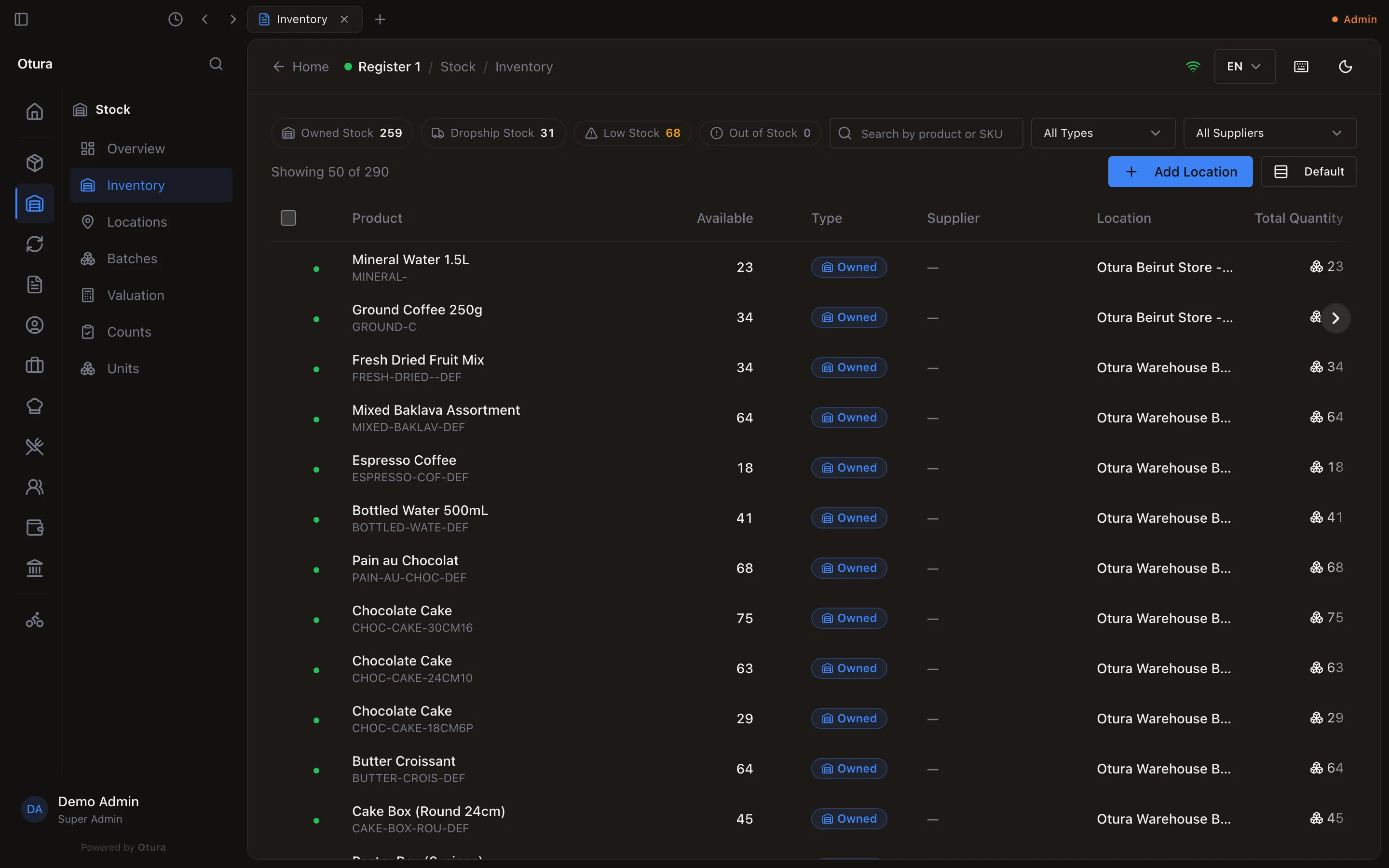
StockInventory, search by product or SKU, and open the row.Adjust
Stock Adjustment tab: choose Add to Stock, Remove from Stock or Set Stock Level, enter the quantity (decimals only if the item's unit allows them) and a Reason, check New Stock Level, and click Adjust Stock.
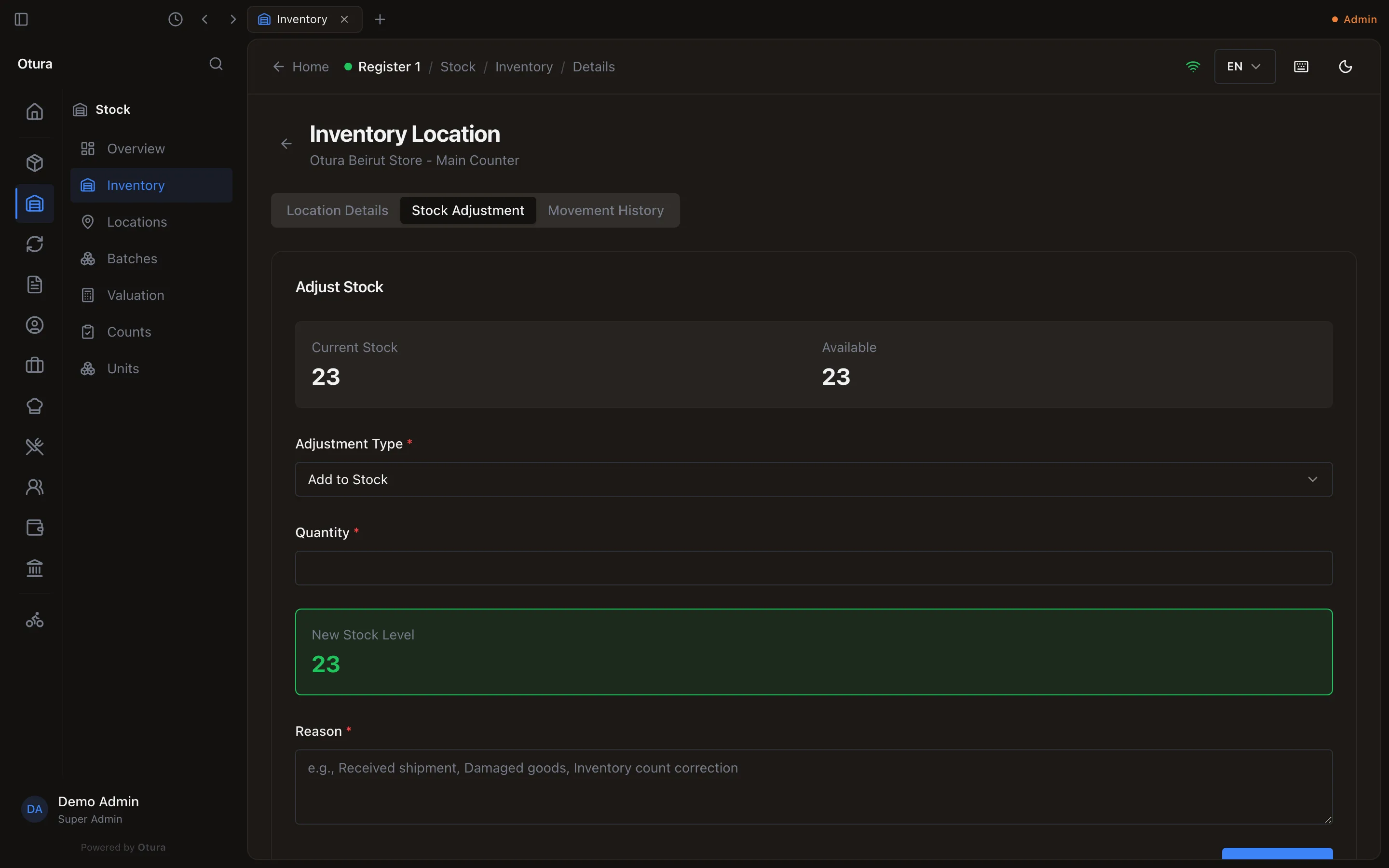
Otura refuses any adjustment that would take stock below zero, or below what is reserved for web orders.
See where stock went
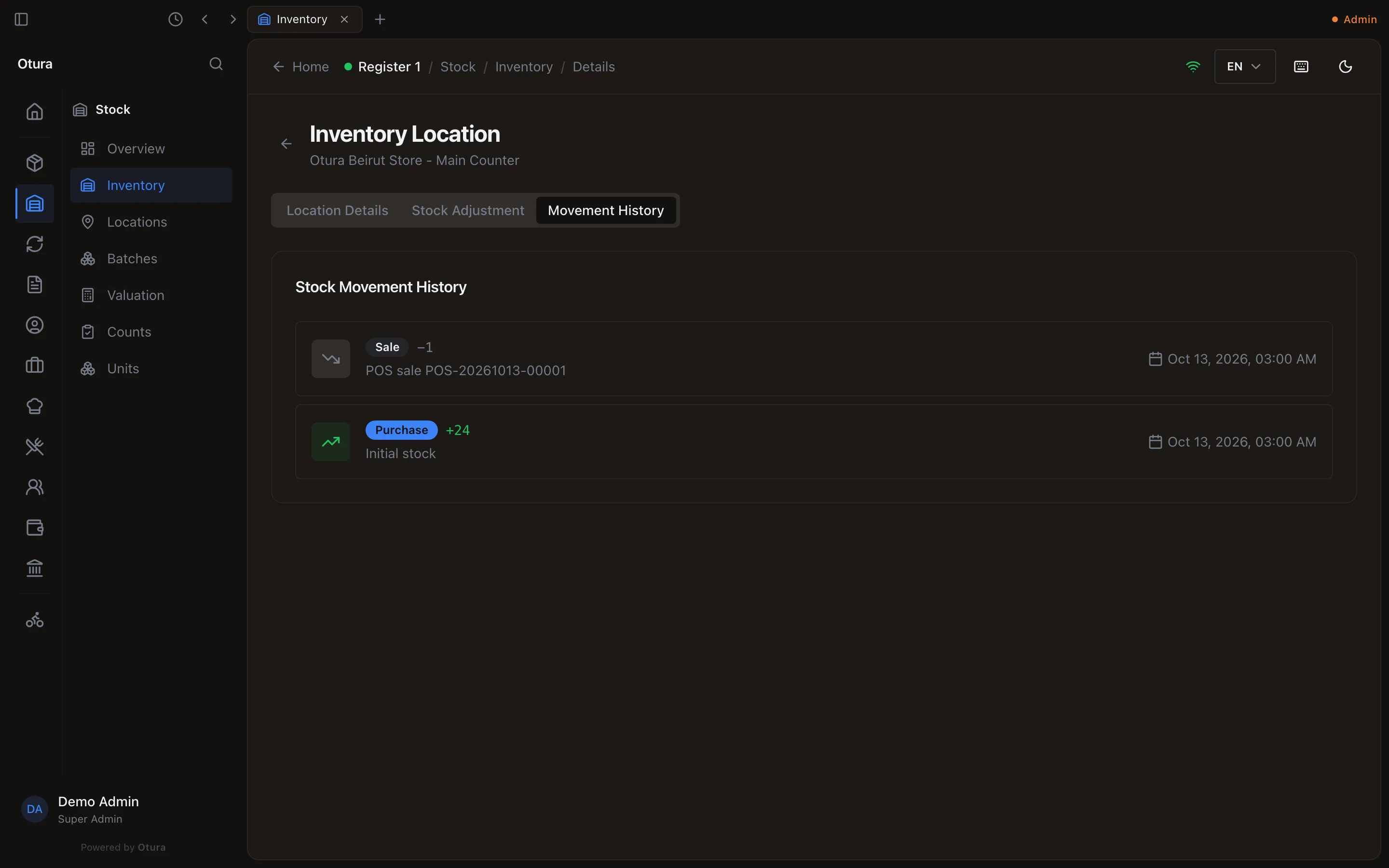
- One stock record: its Movement History tab — the last 20 purchases, sales, returns and adjustments.
- One product across all locations: the product's Transaction history tab, with a running balance, filters by variant, location and movement type, and Print.
Low-stock warnings
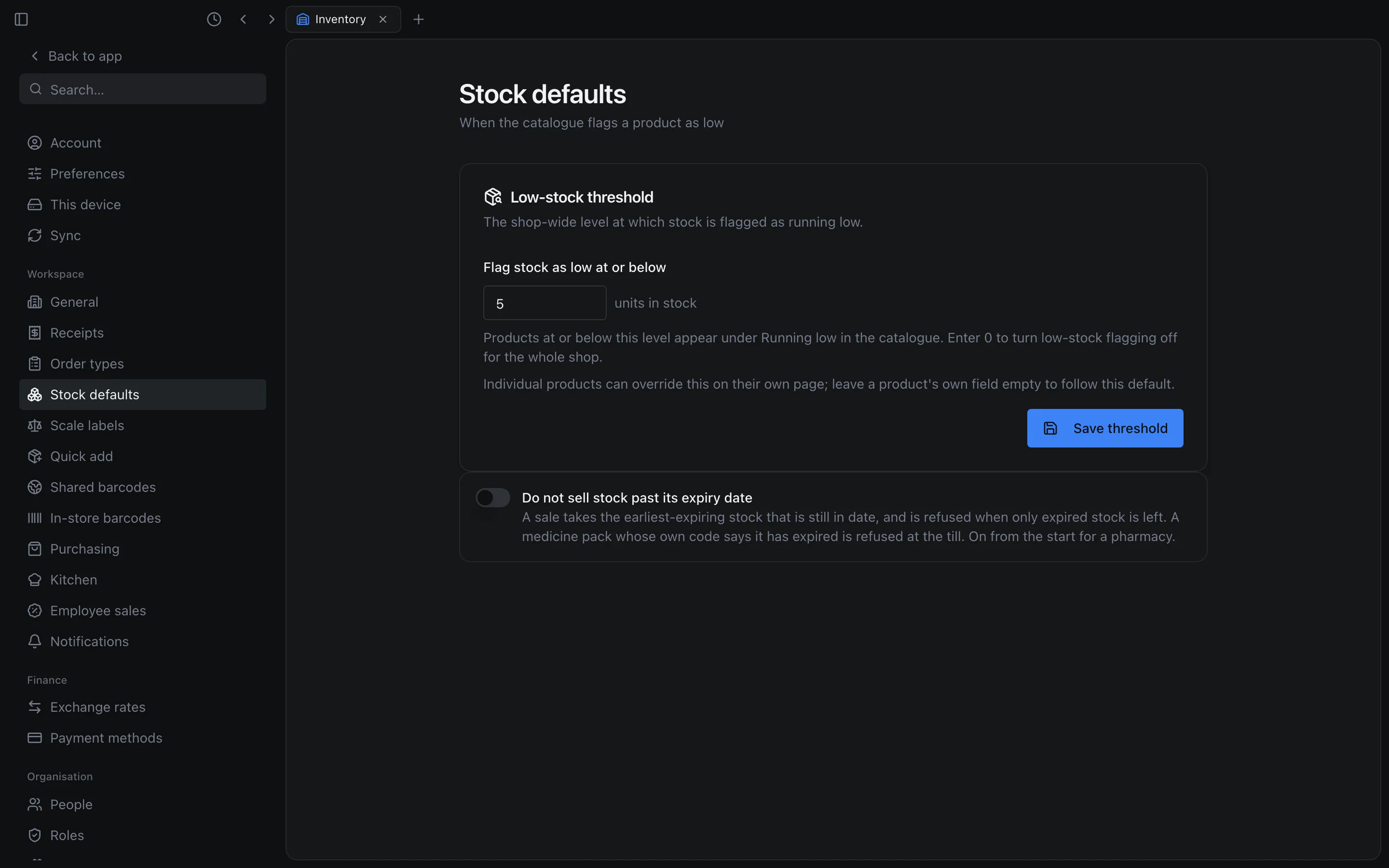
An item is flagged as running low when it has some stock but no more than its threshold. The threshold is, in order of precedence: a reorder point set for the item at that location (Advanced Inventory); otherwise the product's own Low-stock threshold; otherwise your shop default in SettingsWorkspaceStock defaults; otherwise 5. Set a product's threshold to 0 to never flag it. The Products list's Running low filter uses these.
What the cashier sees
- Each product tile has a green dot when it can be sold and a red one when it cannot. By default the grid hides items with no stock; Show out of stock shows them greyed out.
- Adding an item checks there is enough stock, but does not set it aside. If two tills add the last unit, whichever takes payment first sells it; the other is told there is not enough stock.
Counts, batches, transfers and reordering
With the Advanced Inventory module you also get StockCounts for stocktakes, StockBatches (batch, lot and expiry, read-only), and StockValuation. The till's Count screen lets staff scan a quick count for a manager to approve. A quick count can include an item that has never had stock at that location: approving it brings in what was found. An item that does not track stock is refused, by name.
A count under review is approved with Approve & Apply, which adjusts stock by the differences counted. If the figures are wrong, Reject count closes it without changing any stock; count again. The whole process, and waste, is in Stock counts and waste. Moving stock between locations is in Moving stock between locations, and reorder rules in Reorder points.
Each line is compared with the stock at the moment it is saved, not when the count was created, so sales made in between are not deducted twice. Save as you go: a sale between counting a shelf and saving it still shows up as a difference.
ReplenishmentTransfers moves stock between locations: a transfer is created, dispatched from its source and received at its destination.
Reorder rules and suggestions
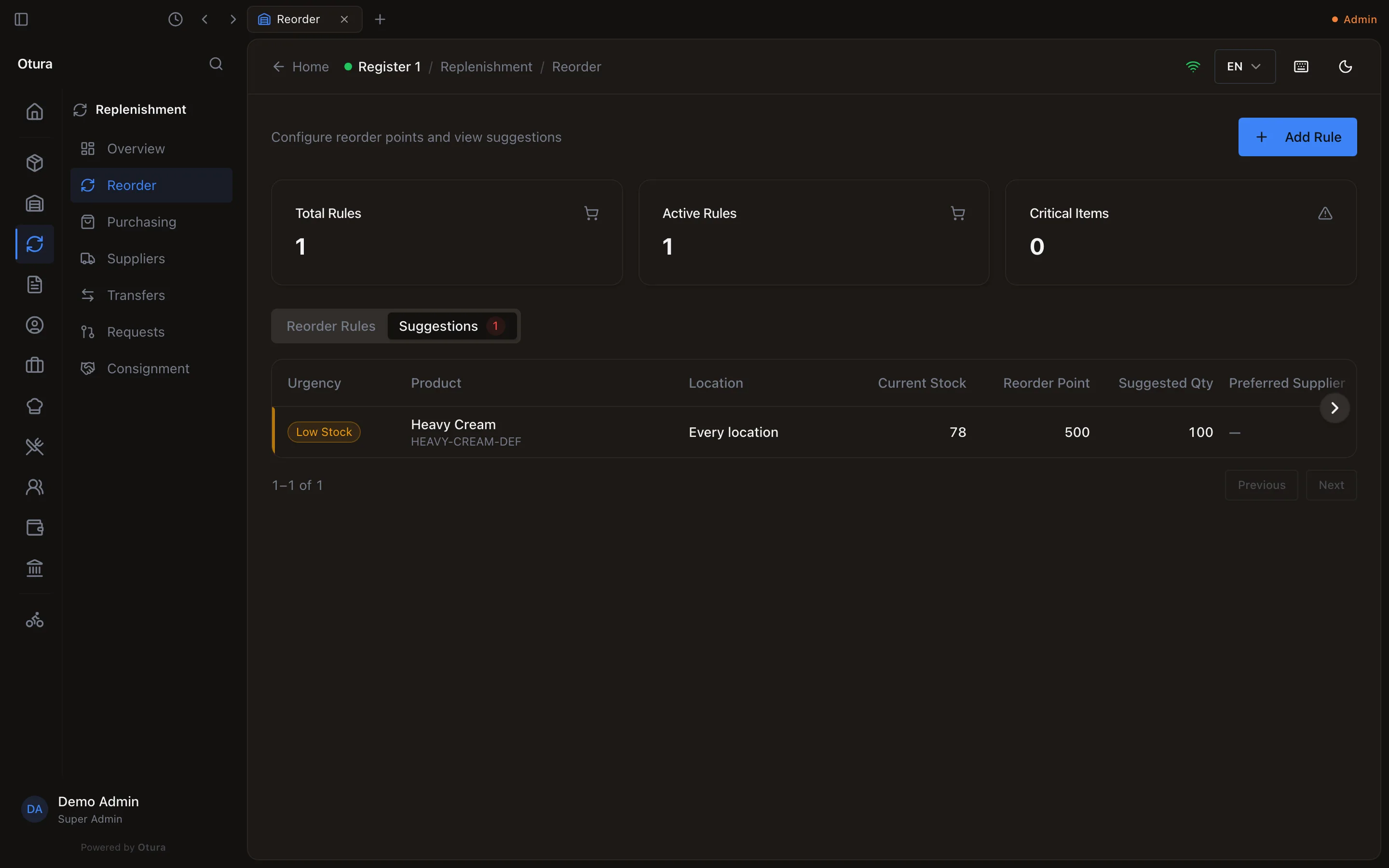
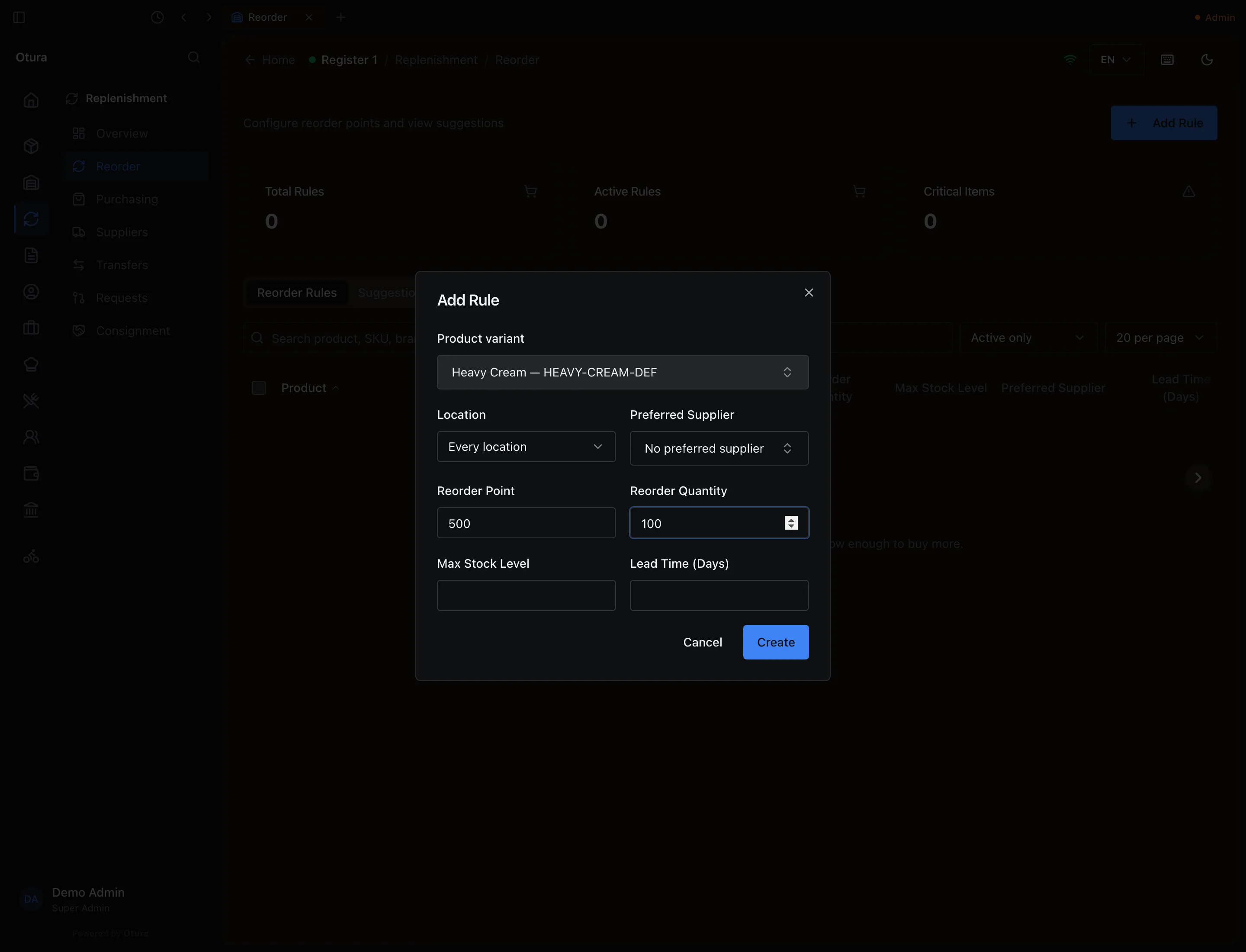
ReplenishmentReorder says what to buy. Add Rule asks for the Product variant (searched by product or SKU), the Location — Every location or one — an optional Preferred Supplier (searched; or No preferred supplier), the Reorder Point, the Reorder Quantity, and optionally a Max Stock Level and Lead Time (Days). Create saves it, active, with Reorder rule added.
The Suggestions tab lists every active rule whose item is at or below its reorder point, 50 to a page: the urgency, the Product and its SKU, the Location, the Current Stock, the Reorder Point, the Suggested Qty and the Preferred Supplier.