Signing in at a till, and PINs
Who a till lists for PIN sign-in and how to choose it per till, email and PIN for everyone else, the lock screen, PINs of 4 to 6 digits, and how many wrong tries Otura allows.
Checked against the product on 13 October 2026
A paired till offers three ways in. PIN: tap your name and type your PIN. Not listed? Sign in with your email and PIN: for someone the till does not list, such as the owner and admins by default. Sign in with email: your email and password, which works for everyone on the staff. Each till lists only some people for PIN sign-in, and you choose who.
The desktop app opens on the PIN list. In a web browser the till opens on email and password; press Sign in with PIN for the list.
Who a till lists
Out of the box, every till lists the staff with a PIN whose role can ring a sale — for example your supervisors and cashiers — except the Super Admin (owner) and Admin roles, who sign in with their email. A driver's role cannot sell, so drivers are not listed either.
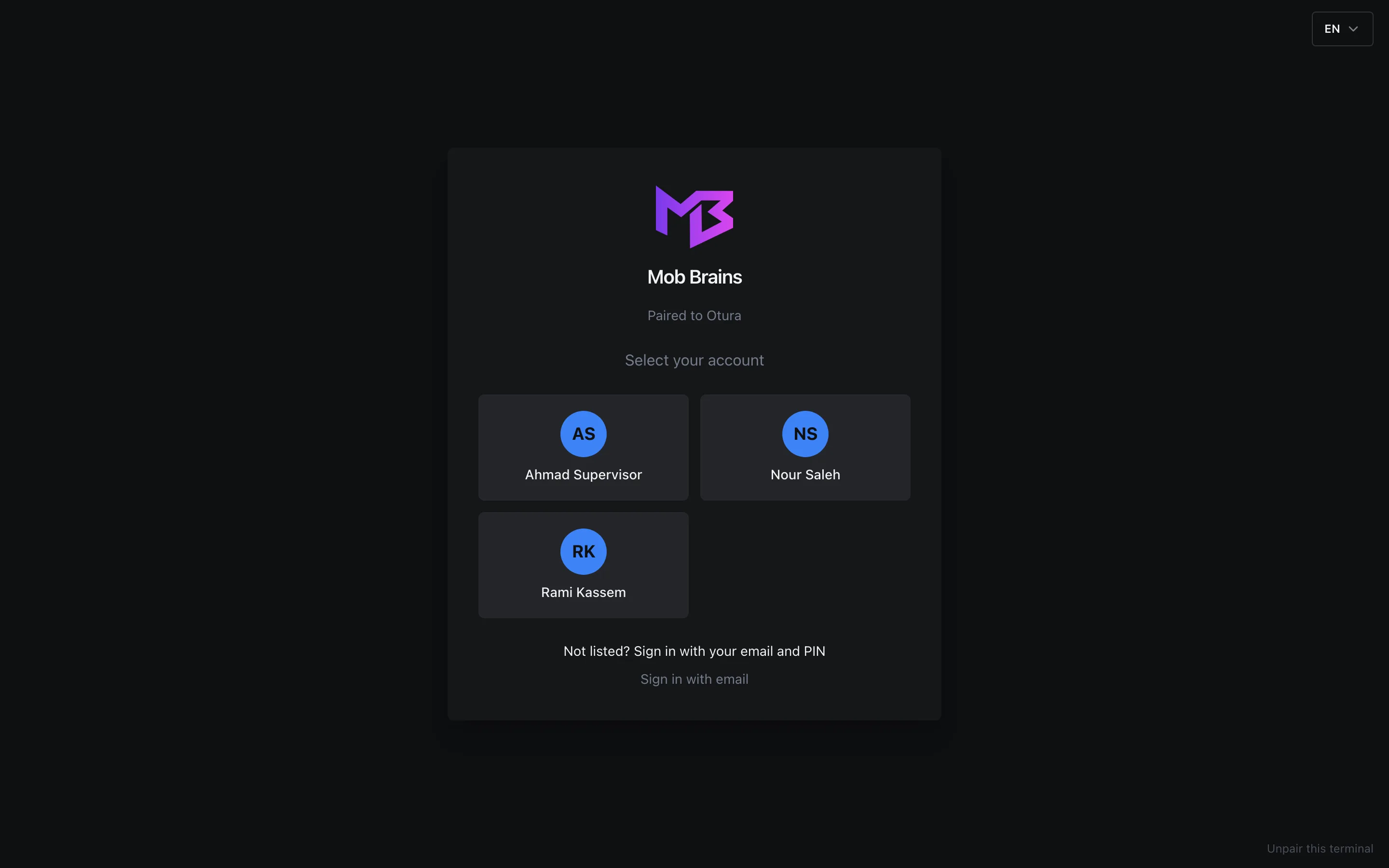
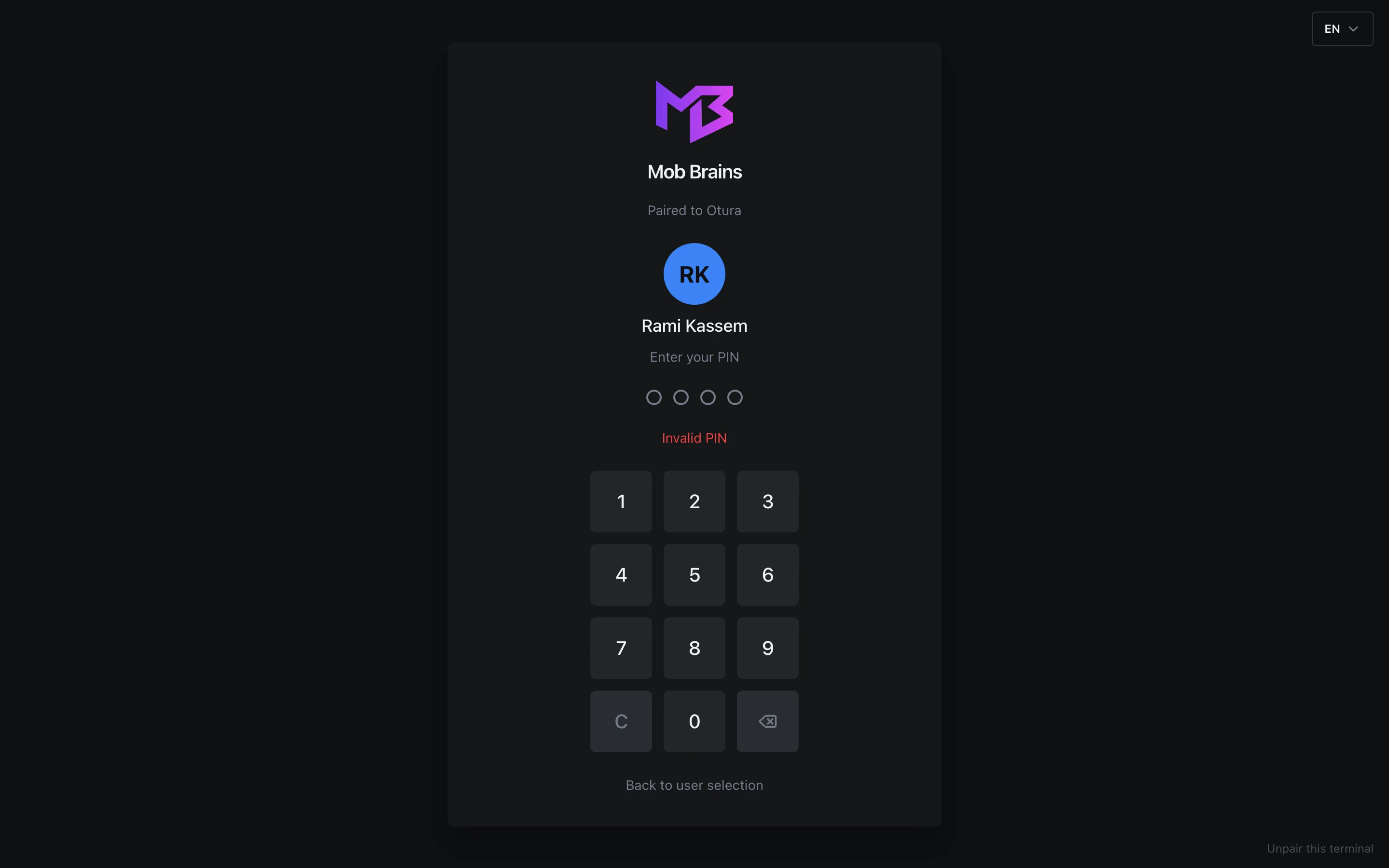
Tap your name and type your PIN. The till signs you in on the last digit. A wrong PIN is refused with Invalid PIN, the dots empty, and you can type it again; each try counts towards the limit in Wrong PINs and passwords. Back to user selection returns to the list.
The list is only for signing in. When a till asks for a supervisor's approval, a supervisor's PIN still works on every till, whichever list that till has. A supervisor's PIN has its own limit on wrong tries (see Wrong PINs and passwords).
Not on the list: your email and PIN
On a till that uses the default list, the Super Admin (owner) and Admin roles are left off the screen but can still sign in with their PIN. Under the list, press Not listed? Sign in with your email and PIN.
Type your email
Under Type your email, then your PIN, type your email in Email and press
Enter. Enter leaves the field, so the digits you type next go to the PIN.Remember me, if you like
Tick Remember me on this till to have your name on this till's sign-in screen from then on: Your name will be on this till's sign-in screen. You still need your PIN. It is off until you tick it, and it takes effect only once you are signed in.
Type your PIN, then OK
Type your PIN on the keypad or the keyboard. This keypad does not know how long your PIN is, so it does not sign you in on the last digit: press OK, or
Enter.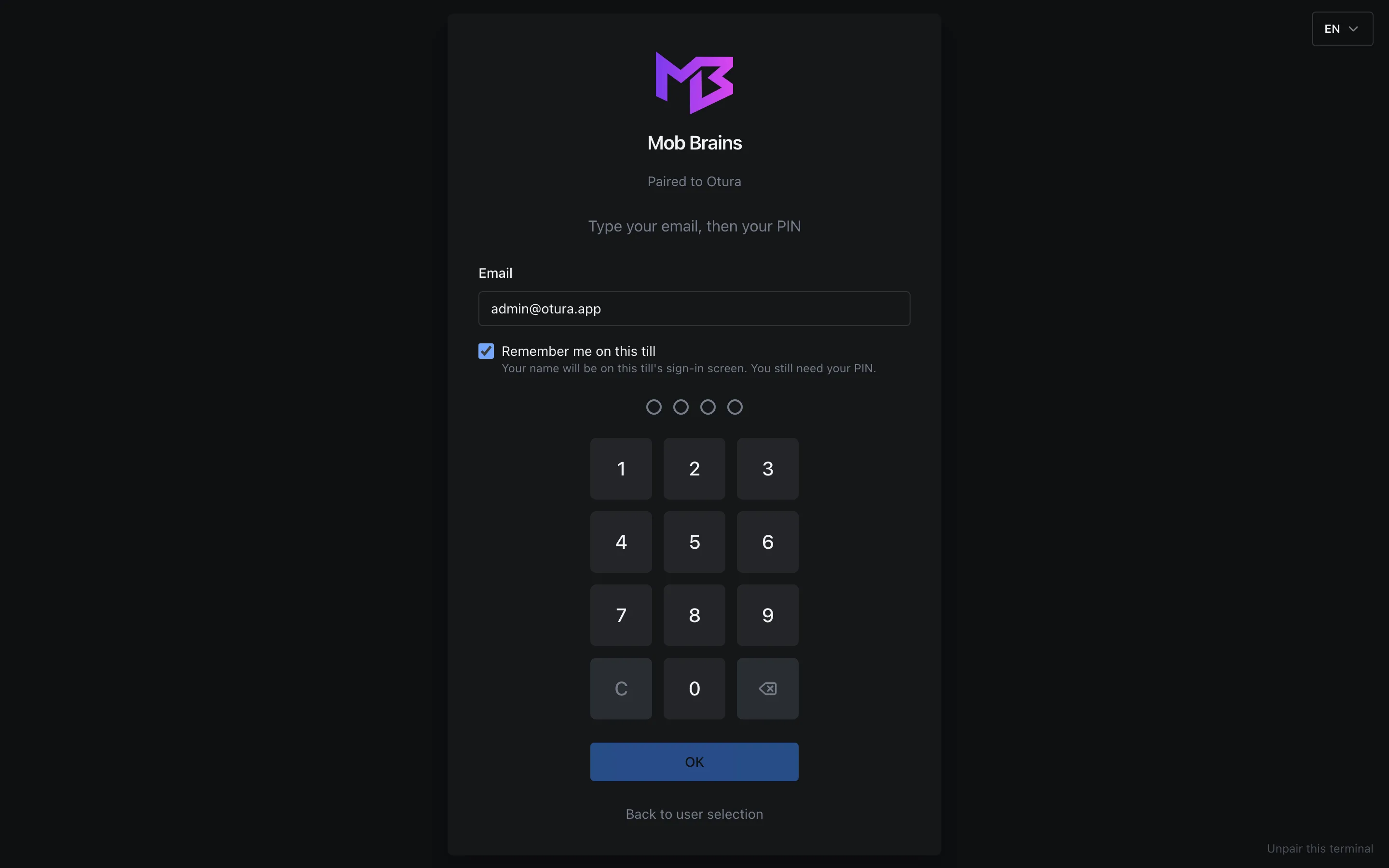
The owner, not on this till's list, about to sign in with their email and PIN, and be remembered on this till.
A remembered name shows on the list with an ✕ in its corner; the ✕ takes it off this till's screen again. Tapping the name asks for the PIN as usual, and those tries count towards the same daily limit as typing your email and PIN. Only someone the till already lets in by email and PIN can be remembered: it saves typing the email, and lets in no one new.
- On a till with the default list, this lets in the people the list shows, and also the Super Admin and Admin roles it leaves off the screen.
- On a till with its own list, it lets in only the people on that list: someone you left off a till on purpose cannot get in by typing their email.
- Only someone with a PIN can sign in this way.
- Anything wrong — an unknown email, someone not allowed on this till, no PIN set, a wrong PIN — gets the same answer: That email and PIN did not sign you in. So the till never reveals whether an email belongs to someone here.
- After 10 tries a day for one email, the till refuses even the right PIN: Too many attempts. Try again later, or sign in with your password. Your email and password still work. See Wrong PINs and passwords.
Locking the screen
Ctrl+L (⌘L on a Mac) locks the till: Screen is locked, with your name. Whatever you were doing stays as it was. Type your PIN, on the keyboard or the keypad, to unlock. If you are on the till's list, it unlocks on the last digit. If you are not, for example the owner on the default list, it unlocks with your email and PIN in one step: type your PIN and press OK. Your email is already known.
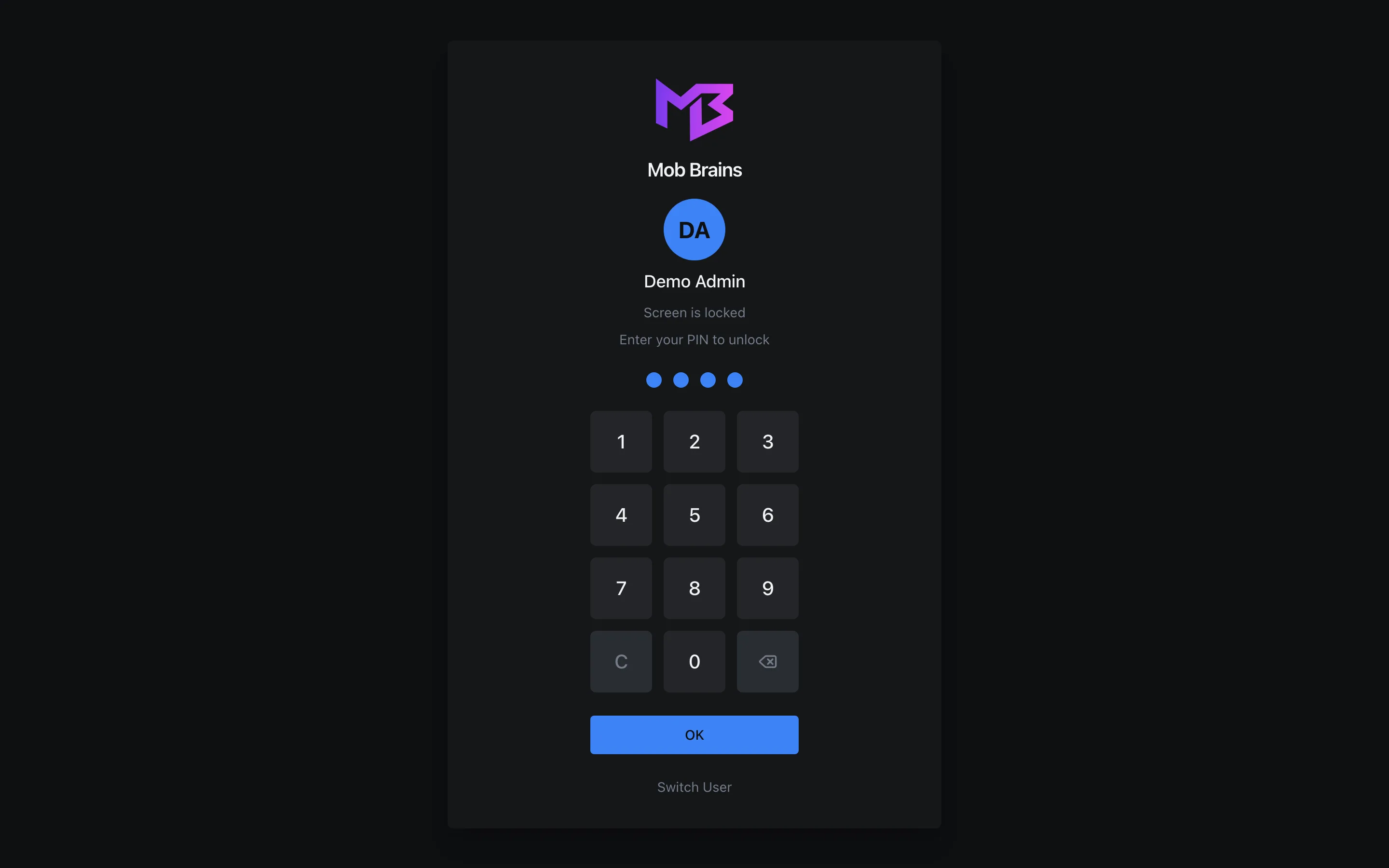
Switch User signs you out so someone else can sign in. If a shift is open on the till, the till warns first: Open shift detected. The shift stays on this till, and the next person carries on with it.
Logging out
Click your name at the bottom of the till's menu, then Logout. With no shift open, the till signs you out straight away. With a shift open, it asks first: Open shift detected, and warns that the next person to sign in takes over the shift, uncounted.
- End Shift First opens the shift close, to count the drawer (see Closing a shift).
- Logout Without Closing signs you out and leaves the shift open on this register. An order still on your screen is handed to the register, so the next person finds it among the held orders.
Signing in on a register whose shift is open
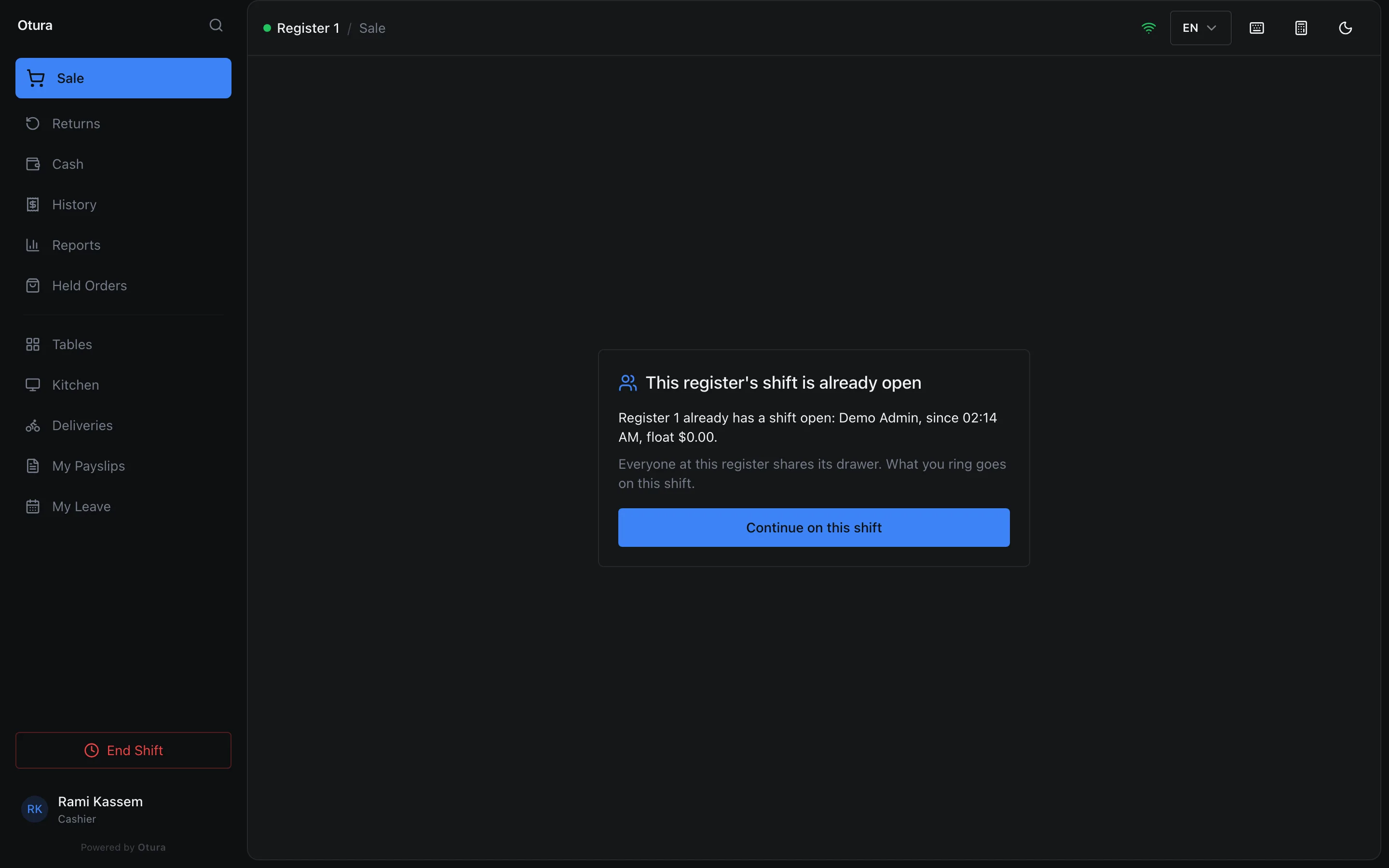
When someone else's shift is open on the register, the next person to sign in is told whose it is before they sell: This register's shift is already open, with who opened it, since when, and the float. What it offers depends on The drawer, under SettingsPayment methods:
- Shared by everyone at the register (the default): Everyone at this register shares its drawer. What you ring goes on this shift. Press Continue on this shift. The till remembers the answer when the page is reloaded, and asks again only when a new shift is opened.
- One per person: the till asks you to have the person who opened the shift close it first, and offers Sign out, so each person's count is their own.
What a cashier cannot do alone
In the standard roles, a Cashier sells, takes cash drops and pay ins, and closes their own shift, but two things need a supervisor (or the owner) signed in on the till:
- Returns. The Returns screen says Returns need a supervisor: A cashier cannot process a return. Ask a supervisor or the owner to sign in on this till; the refund goes on the open shift.
- Payouts. On Cash, Record Payout is greyed out, with Paying out needs a supervisor. Ask one to sign in on this till.
These follow the permissions Process returns and Record cash payouts; in the standard roles Supervisor, Admin and Super Admin have both, and a custom role can be given either.
Wrong PINs and passwords
| Where | Limit | Then |
|---|---|---|
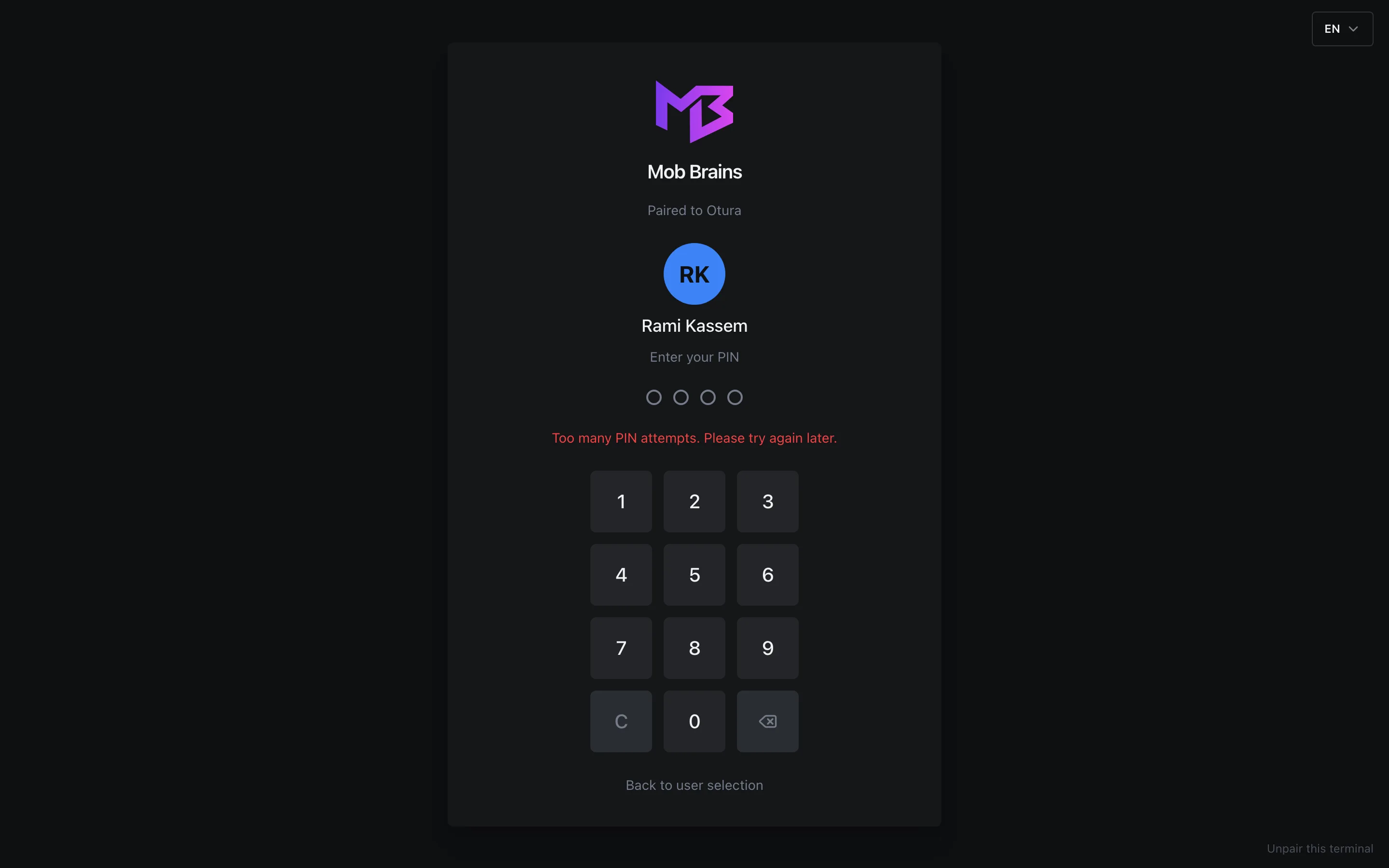
| A person's PIN on one till | 5 tries in 15 minutes | Too many PIN attempts. Please try again later. |
| A person's PIN on all your tills together | 10 tries in 15 minutes | The same message, on every till |
| Email and PIN, per email typed | 10 tries a day | Too many attempts. Try again later, or sign in with your password. |
| Email and PIN, per till | 20 tries in 15 minutes, whoever is typed | The same message |
| A supervisor's PIN, per person asking for the approval | 10 tries in 15 minutes, and 30 a day | Too many wrong supervisor PINs. Wait a few minutes, then try again. |
| Email and password on the web back office or the drivers app, per email | 5 tries in 15 minutes | Too many login attempts. Please try again later. |
- Every try counts, right or wrong, and the period runs from the first try. Once the limit is reached, even the right PIN is refused until the period is over. A successful sign-in starts that person's count again (the per-till count for email and PIN simply runs out after 15 minutes); for a supervisor's PIN, only an approval does.
- The messages do not say how long to wait: at most 15 minutes for the PIN limits, a day for the email and PIN limit.
- A supervisor's PIN is counted against the person asking, on every till, so one cashier guessing does not hold up approvals at the other tills.
Choosing who signs in on a till
Open the till's list
In StoreTills, click Sign-in list on the till's row. Turned off, Choose who signs in on this till shows the default rule and, under Listed now, who that rule lists today.
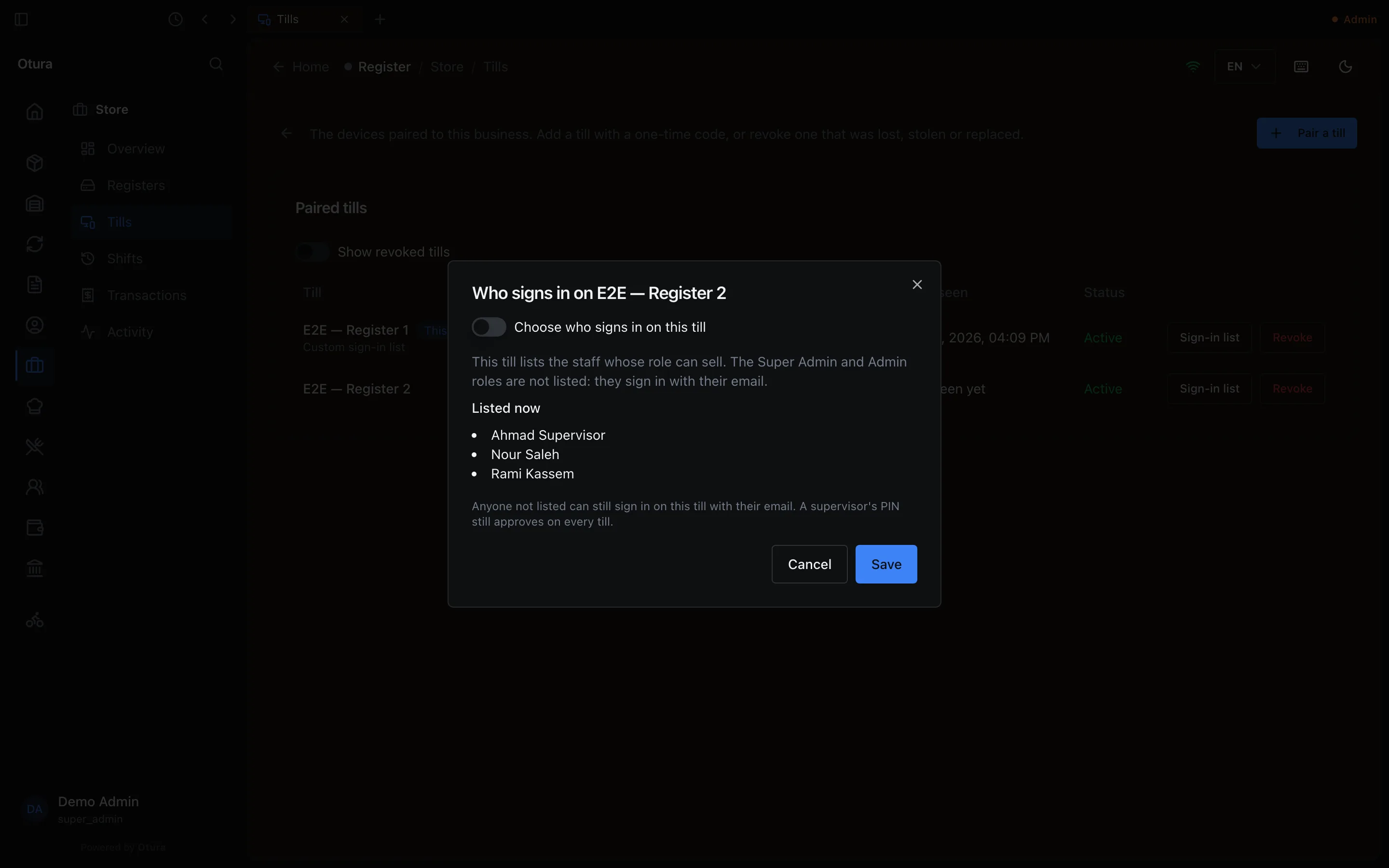
Tills › Sign-in list, on a till using the default. Choose roles and people
Turn on Choose who signs in on this till, then tick Roles — everyone with a PIN who holds one is listed — and, under People, anyone else. Someone already listed through a ticked role is marked through their role. Only people with a PIN can be listed. Choose at least one role or person.
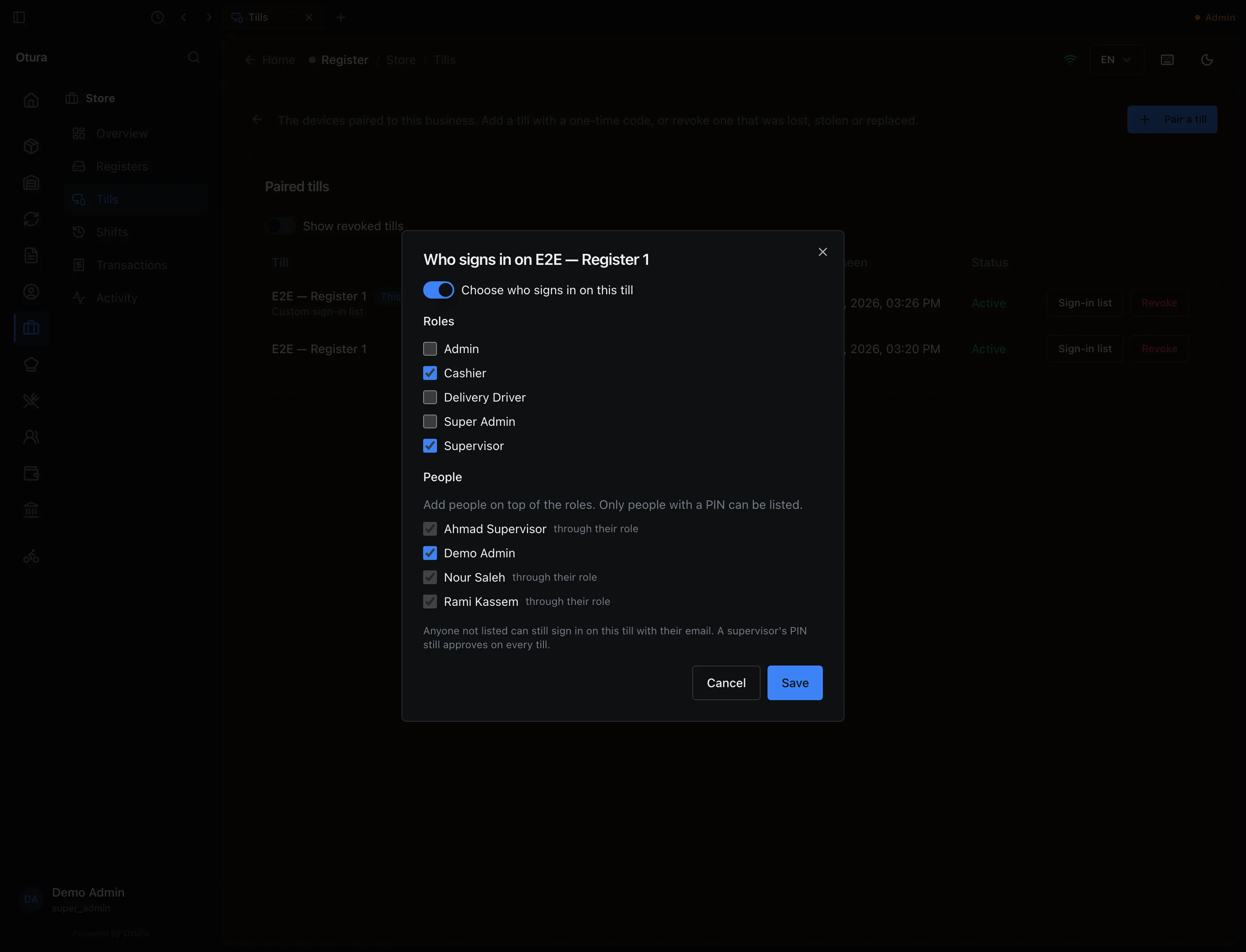
A till's own list: the selling roles, plus the owner. Save
Click Save. The till's row then reads Custom sign-in list. To go back to the default, turn the switch off and save.
PINs: 4 to 6 digits
A PIN is 4, 5 or 6 digits. Anything else is refused with PIN must be 4 to 6 digits. A PIN is set:
- for someone else, in SettingsPeople: choose the person, click PIN, then Set PIN or Change PIN, and type it twice;
- when adding a person (PIN (optional)) or a driver;
- for yourself, in SettingsAccount.
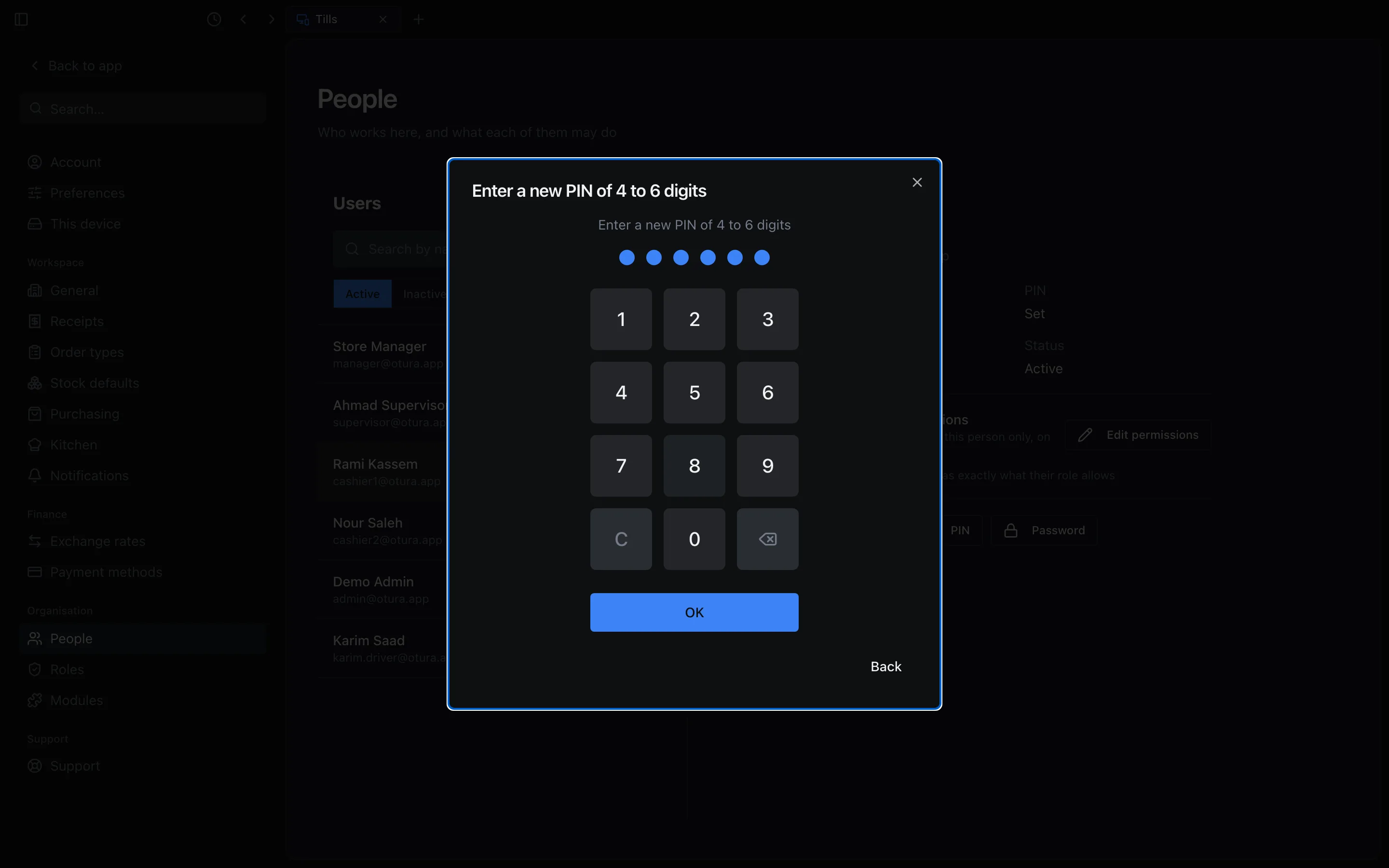
On the keypad, choosing a new PIN shows an OK button — press it (or Enter) once you have typed 4 to 6 digits. Signing in needs no OK: the till knows how long each person's PIN is, and signs them in on its last digit.
Your language follows you
The language you choose is saved on your account, so every till and back office you sign in on shows it, and the next person at the till gets their own. Choose it with the language picker in the till's top bar (it shows EN, ع or FR; its menu reads English, العربية, Français), or under Language in SettingsPreferences. If it cannot be saved, the till says Your language was not saved to your account, and it applies on this machine until you sign out.
The sign-in screen has its own language picker, in the top corner. It sets the language of this machine: what the sign-in screen shows, and what someone who has never chosen a language sees after signing in.
Only the language follows you. Theme, Row height and the other appearance settings in Preferences are kept on the machine they were chosen on.
Tills older than 0.3.8
A till older than version 0.3.8 signs in on the fourth digit, so someone with a 5- or 6-digit PIN cannot sign in on it. (It does show the till's list: the list comes from Otura, not from the till.) Otura requires tills to be on 0.3.8 from Sunday 11 October 2026, 06:00 Beirut time. Until then a 0.3.7 till shows a banner with the deadline; from then on it shows the update screen (see When the till asks to be updated). This is required only once 0.3.8 has been published for that kind of till.