Customers, addresses, credit and tiers
Put a customer on a sale, create one at the till, enter a phone number from any country, keep the addresses a delivery goes to, set a credit limit, read what a customer owes, give customers tiers and merge duplicates.
Checked against the product on 13 October 2026
A sale can name the customer it is for. For a delivery it is required, because the address comes from the customer's saved addresses. This page covers finding or creating the customer at the till, their phone number, and their delivery addresses.
Everything here needs the Customer Management module. Without it the cart has no customer row.
Put a customer on a sale
Open the customer picker
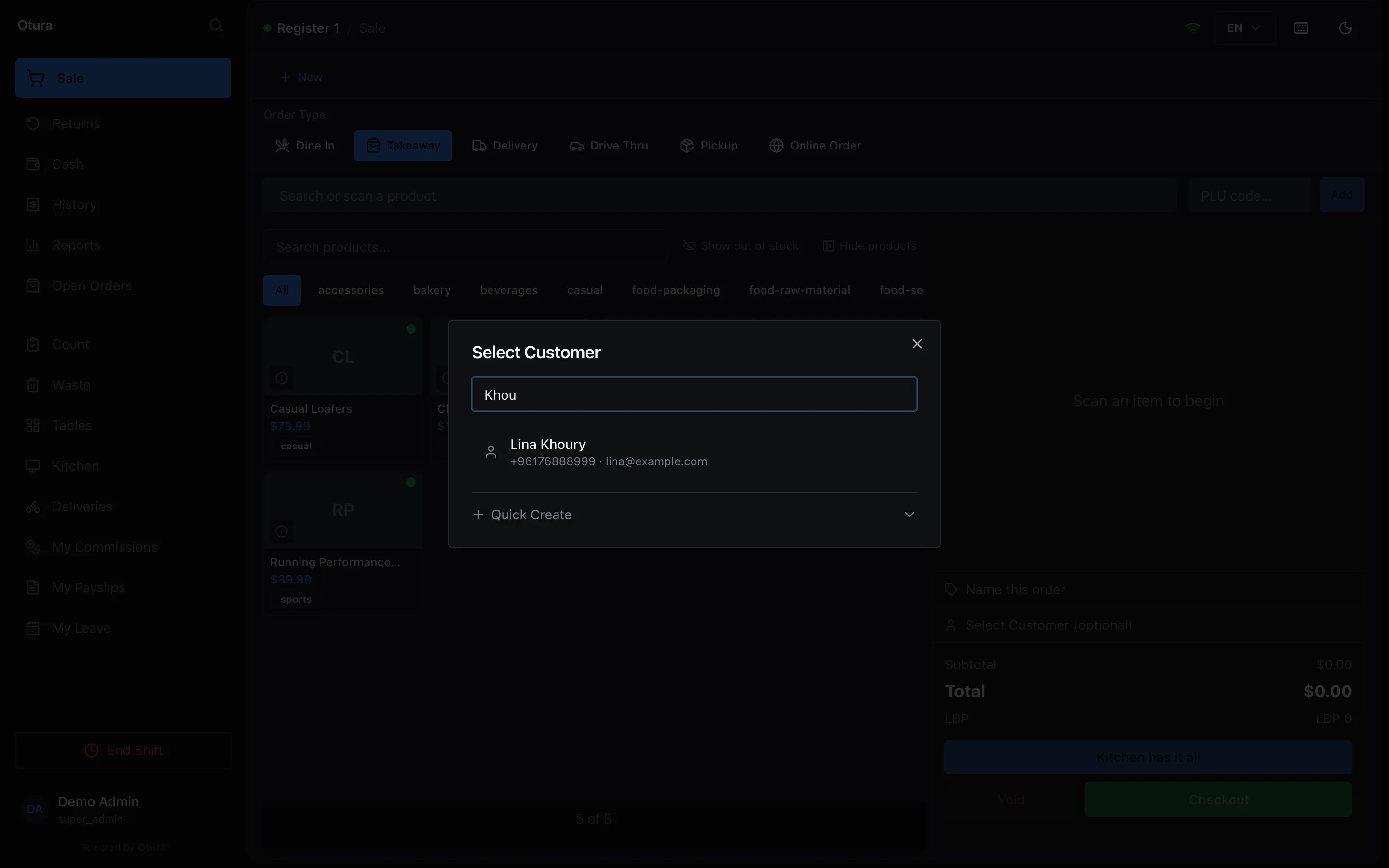
In the cart, tap Select Customer (optional). The Select Customer window opens.Search
Type at least two characters of the customer's name, phone number or email in Name, phone, or email. Up to ten matches are listed, each with its phone number and email. Deactivated customers are not listed. If nobody matches, the window says No customers found.Tap the customer
Their name and phone number appear on the cart. To take them off the sale, tap the × at the end of that row.
Create a customer at the till
When the customer is new, create them from the same window. You see Quick Create only if your role can create customers; the Cashier, Supervisor and Admin roles can.
Open Quick Create
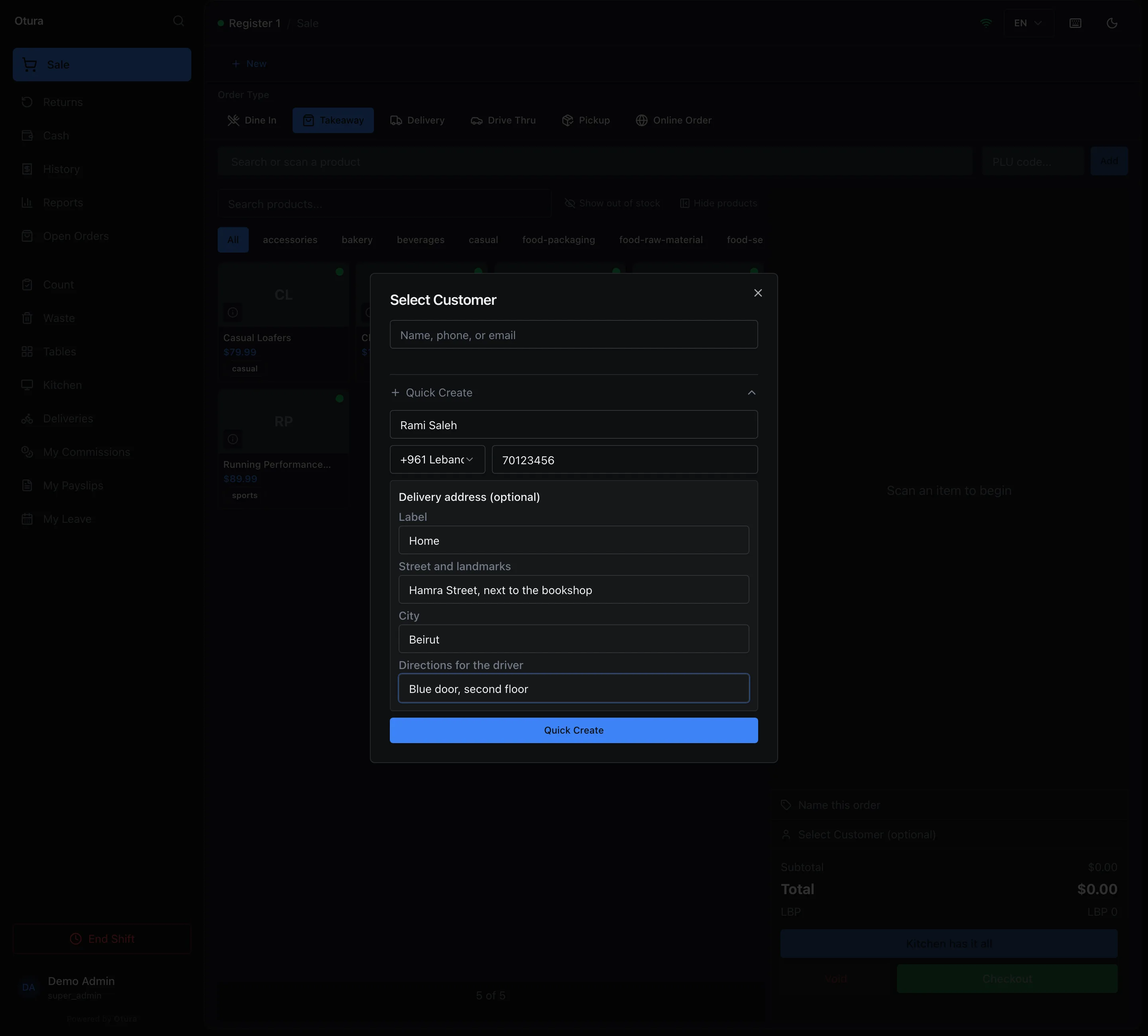
In Select Customer, tap Quick Create below the search results.Name and phone number
Type the Name, then the phone number — see The phone number below. Both are required.Add a delivery address, if there is one
The Delivery address (optional) box, shown if your role can add delivery addresses (see Who can change addresses), has four fields: Label (for example Home or Work), Street and landmarks, City and Directions for the driver. Leave all four empty to create the customer without an address. If you fill any of them, fill both the street and the city.Create
Tap the Quick Create button at the bottom. The customer goes straight onto the sale, and their address, if you typed one, shows under their name on the cart.
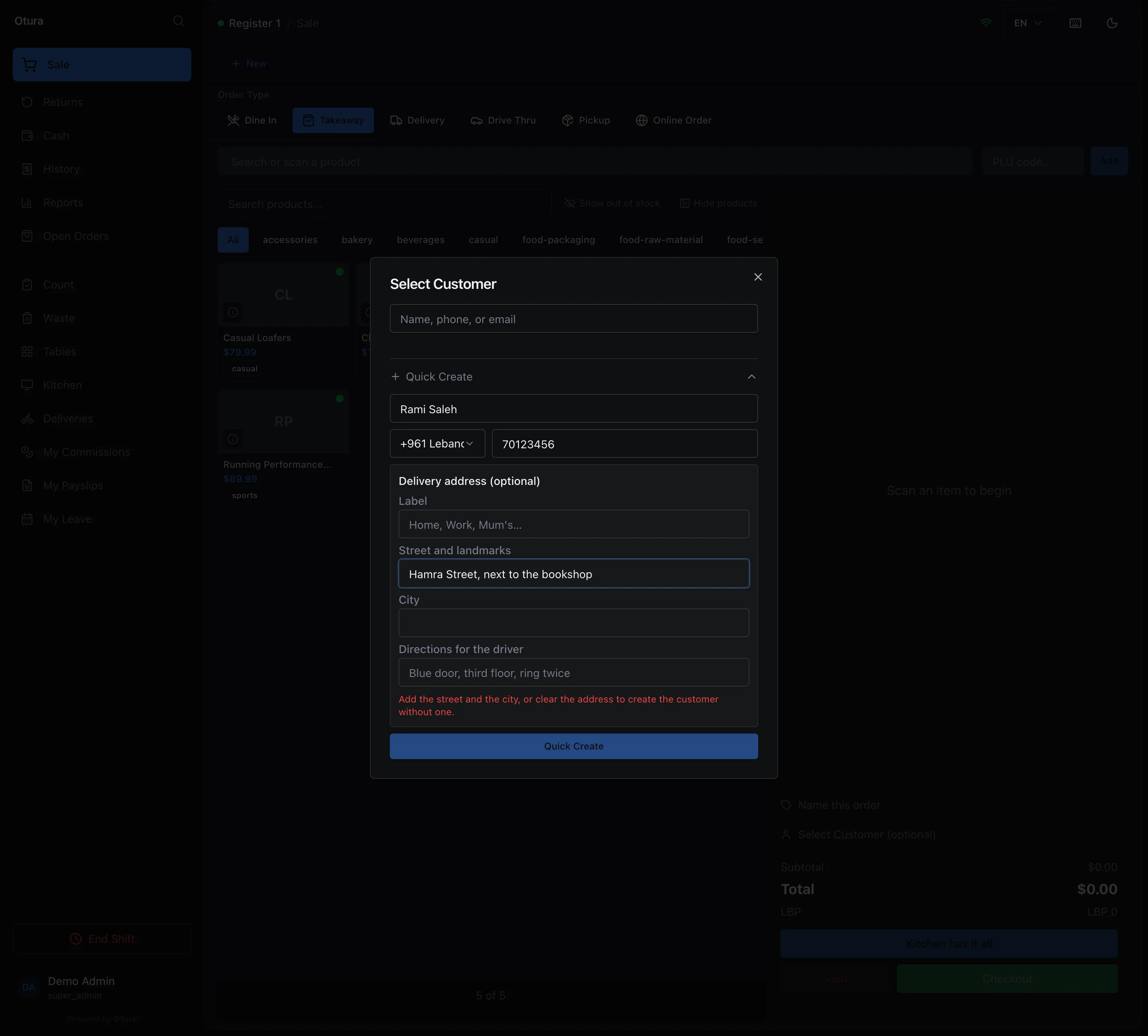
A half-filled address — a street with no city, say — keeps the Quick Create button disabled and says: Add the street and the city, or clear the address to create the customer without one.
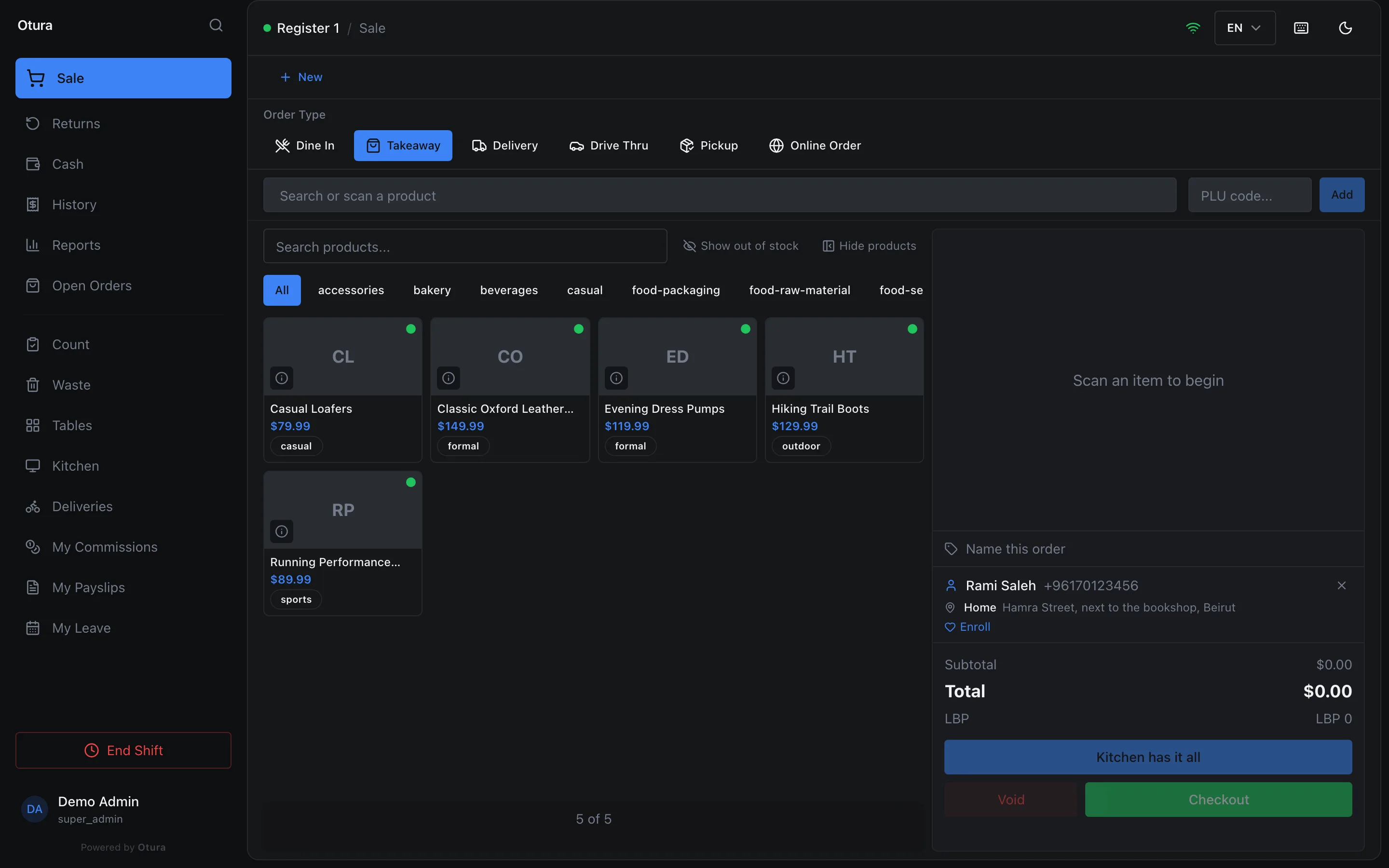
With the Loyalty Program module on, the line under the address is the customer's loyalty card — its number and points — for someone who has the permission View loyalty info. When the customer has no card, Enroll is shown instead, but only to someone who also has Adjust loyalty points. Without View loyalty info the line is not shown at all. Out of the box only the Super Admin role has these two.
Otura keeps one customer per phone number. If the number already belongs to a customer, Quick Create shows A customer with this phone number already exists — search for that number instead.
The phone number
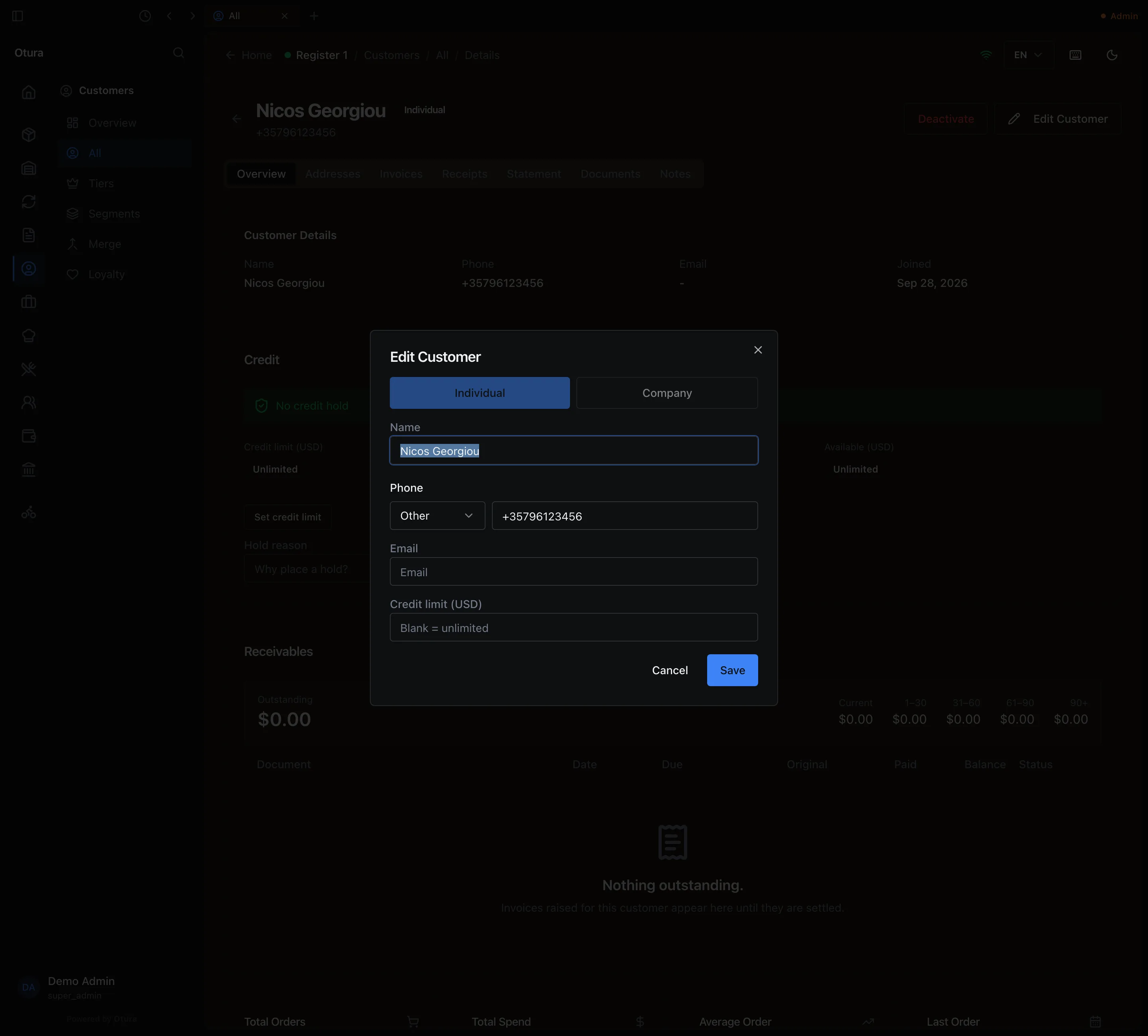
The phone field has two parts: a country list and the number. Pick the country, then type the number the way it is dialled inside that country — Otura adds the country code. Spaces, dashes, brackets and dots are removed, and a leading 0 is dropped, so 03 123 456 under Lebanon is saved as +9613123456.
The same field, with its country list, is used wherever Otura asks for a phone number: a customer, an employee, a delivery driver, a supplier, a customer or supplier added while entering an invoice, and your own profile. On a supplier, a driver or a profile saved before version 0.3.10, an old number that does not fit is not checked unless you change it, so it never stops you saving something else.
The list opens on your business's Default phone country (set under SettingsWorkspaceGeneral; Lebanon if it has never been set). That only decides where the list starts: a number from any other country can still be entered.
The countries in the list, each checked against its own mobile number format:
| Code | Country | Example the field shows |
|---|---|---|
| +961 | Lebanon | 70123456 |
| +971 | United Arab Emirates | 501234567 |
| +966 | Saudi Arabia | 512345678 |
| +974 | Qatar | 33123456 |
| +965 | Kuwait | 51234567 |
| +973 | Bahrain | 36123456 |
| +968 | Oman | 92123456 |
| +962 | Jordan | 791234567 |
| +20 | Egypt | 1012345678 |
| +964 | Iraq | 7912345678 |
| +90 | Türkiye | 5321234567 |
| +33 | France | 612345678 |
| +44 | United Kingdom | 7400123456 |
| +1 | United States | 2015550123 |
When the number does not fit the chosen country's format, the field says, for example, Expected e.g. +961 70123456, and under it: Different format or country? Choose Other in the country list. The customer cannot be created until that is resolved. The hint means what it says: either the number is mistyped, or it is a real number that the country's format does not cover — a country not in the list, or a Lebanese number that does not start with 3, 70, 71, 76, 78, 79 or 81 (the Lebanon format takes mobile numbers only, so a landline needs Other).
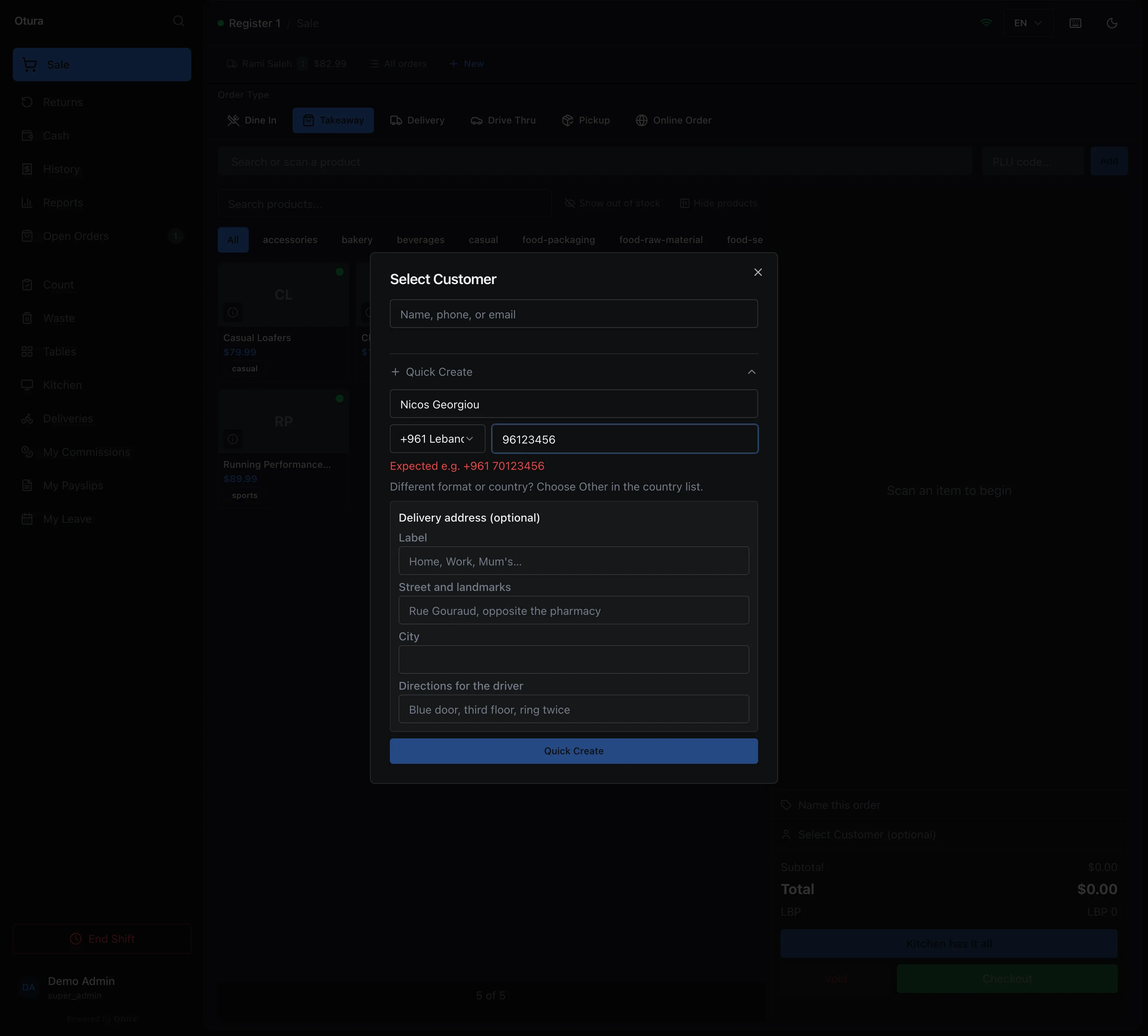
Other: a number whose country is not listed
Other is the last entry in the country list. Choose it, then type the whole number, country code included, in the one box (its placeholder reads + country code and number):
- Start with
+or with00—00is turned into+. A number typed with neither gets a+in front. - Spaces, dashes, brackets and dots are removed. Nothing else is changed.
- It must be
+and 7 to 15 digits, country code included, not starting with 0. Otherwise the field says Enter the whole number with its country code, e.g. +13125551234.
So 00357 96 123456 becomes +35796123456, and that is what is saved. The server accepts any number in that shape, whichever country it is from.
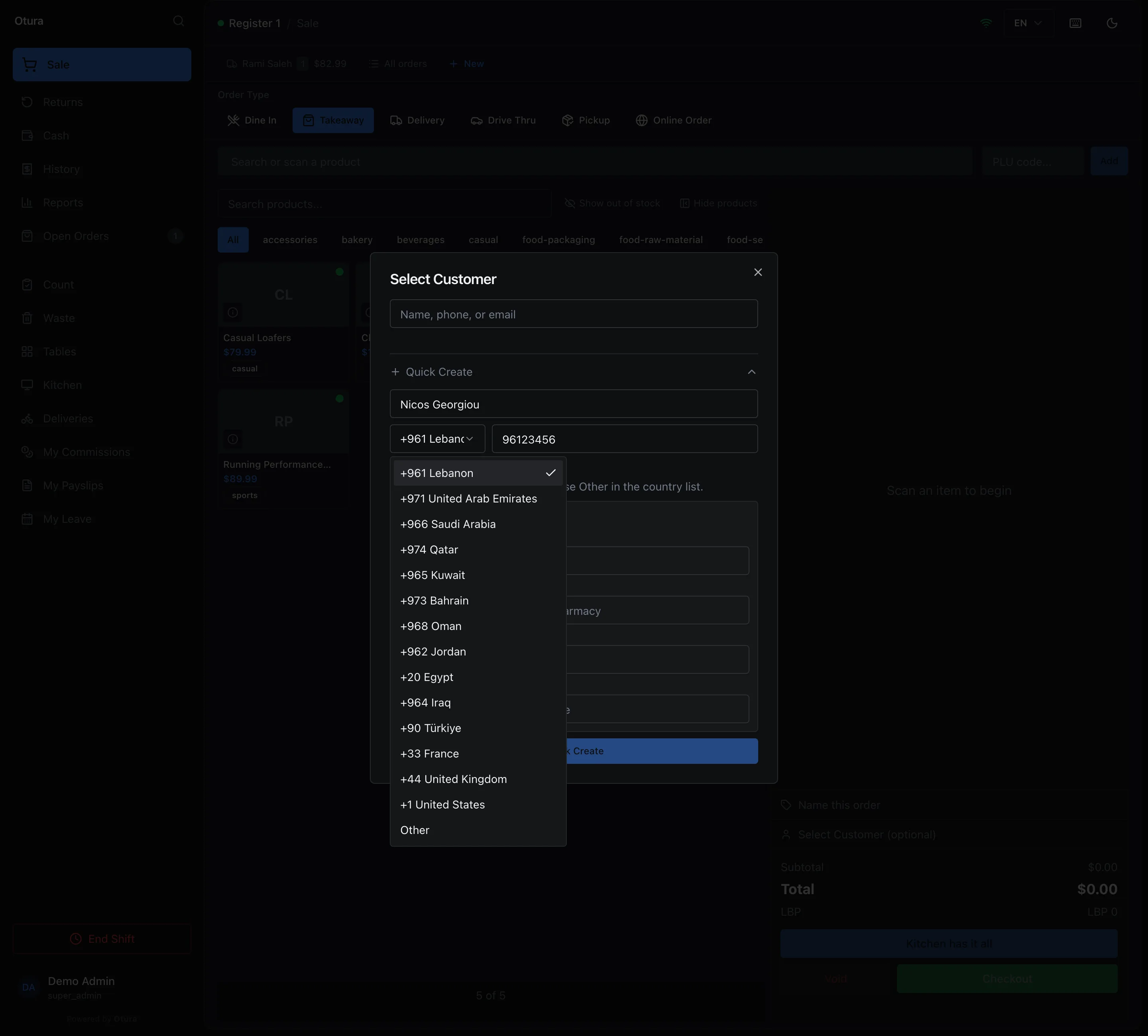
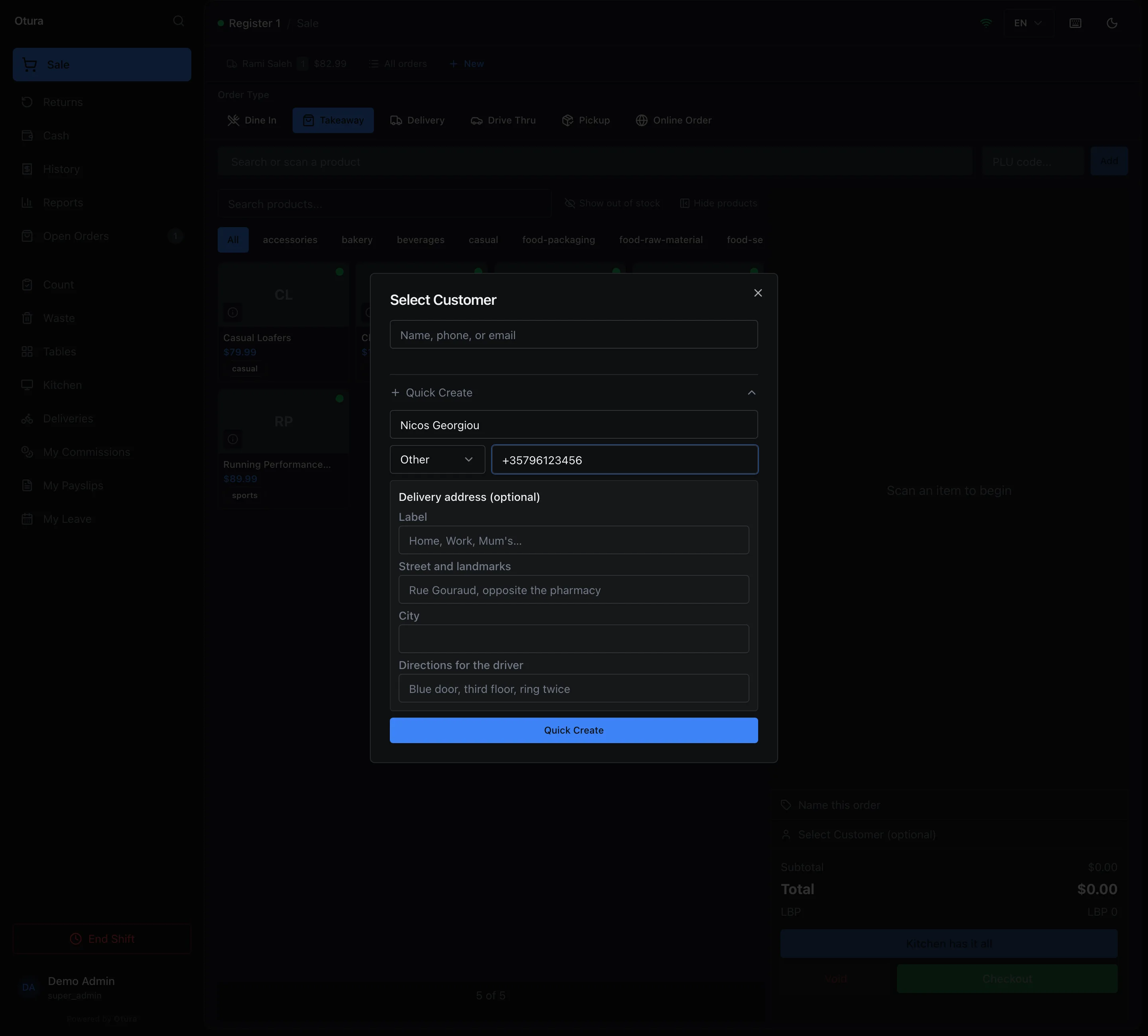
The same phone field, with the same Other entry, is used wherever Otura asks for a phone number: the admin customer form (below), a company's contacts and ship-to locations, staff users, and the business profile.
A customer's delivery addresses
A customer can have several saved addresses, one of them the Default. Their first address becomes the default by itself. The cart row under the customer's name shows the default address; with none saved it reads No saved addresses yet.
Tap that row to open Addresses. Its hint says what you can do there: someone who can edit customers sees Pick a default, edit one, or add another., a cashier sees Pick the address for this order, or add another. Each address shows its label, the street and city, and the driver directions. The controls on each row:
| Control | What it does |
|---|---|
| Make this the default | The star. Makes this address the default — the cart row and the next delivery use it. The default itself has no star. |
| Edit this address | The pencil. Opens the same four fields; Save keeps the change. |
| Delete this address | The bin. Deletes it straight away, with no confirmation. Deleting the default makes the oldest remaining address the default. |
| New address | Below the list. The same four fields; Add saves it. Street and city are required, so Add stays disabled until both are filled. |
Tapping an address in this window only highlights it. Nothing changes until you use one of the controls above.
Who can change addresses
Adding an address and changing one are separate permissions, shown in the roles editor as Add delivery addresses and Edit customers:
| To | You need | Which roles have it |
|---|---|---|
| Add an address — New address, the address in Quick Create, and New address in Deliveries | Add delivery addresses | Cashier, Supervisor, Admin and Super Admin |
| Edit or delete an address, or make it the default (the pencil, the bin and the star) | Edit customers | Admin and Super Admin |
Without a permission, its controls are not shown. So a cashier can add the address a delivery goes to, but cannot correct or remove a saved one, or choose which is the default — an admin does that, from the till or from the customer's Addresses tab. A customer's first address still becomes the default by itself, whoever adds it.
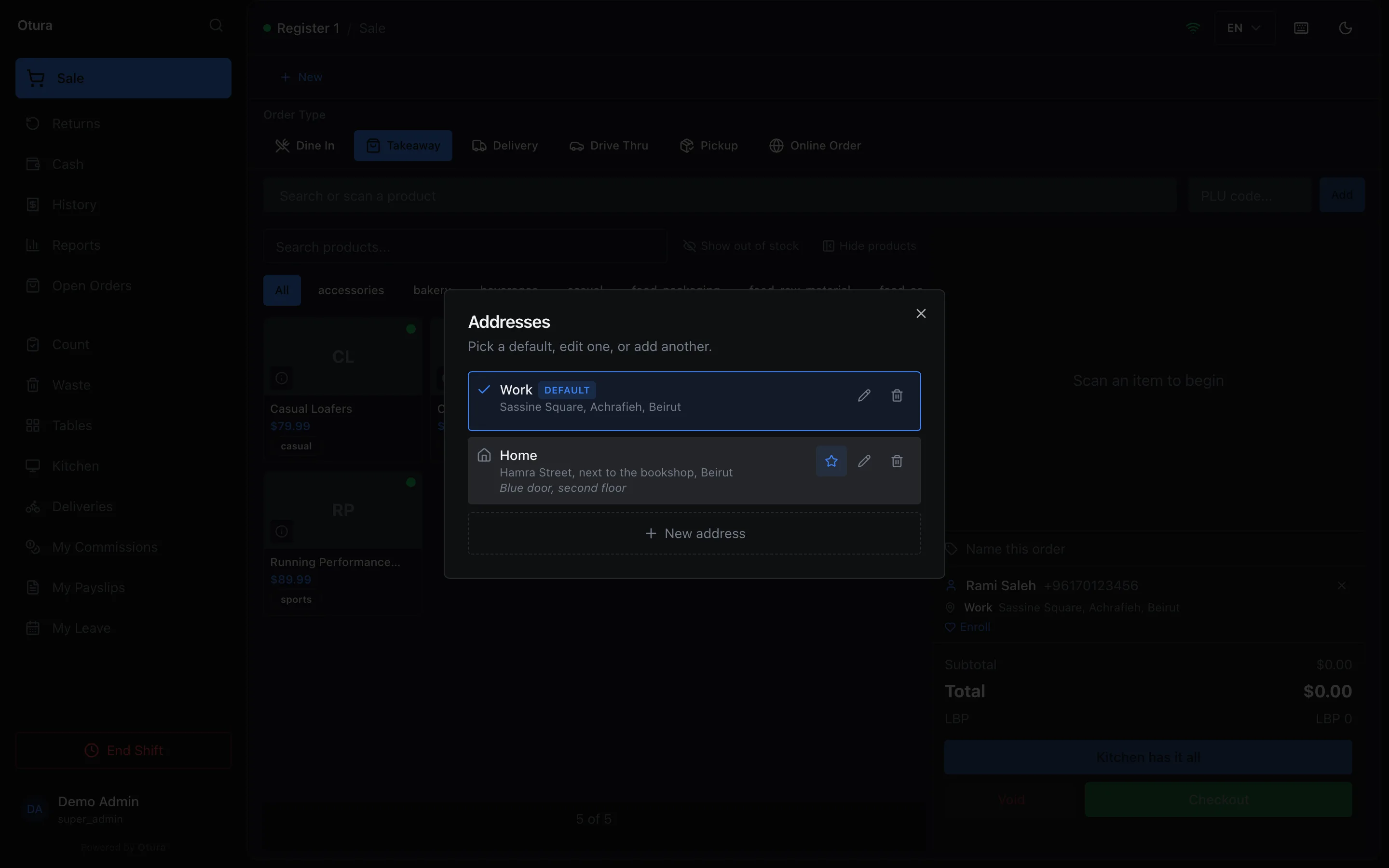
In the back office the same list is on the customer's page, on its Addresses tab.
Where a delivery goes
Make it a delivery
Under Order Type, tap Delivery. It is offered when the Delivery Management module is on and your business does deliveries.Ring the items, then Checkout
When you tap Checkout, the till asks for the customer first if the sale has none (the Select Customer window, with Quick Create), then opens Deliveries.Pick the zone
Under Select Zone, tap the delivery zone. Each shows its fee, and its estimated time where one is set.Check the address
Under Delivery Address, the customer's default address is already selected. Tap another to send this delivery there instead, or add one with New address (if your role can add delivery addresses).Confirm
Tap Confirm Delivery. The zone's fee is added to the order, the cart shows the delivery address, and the payment window opens.
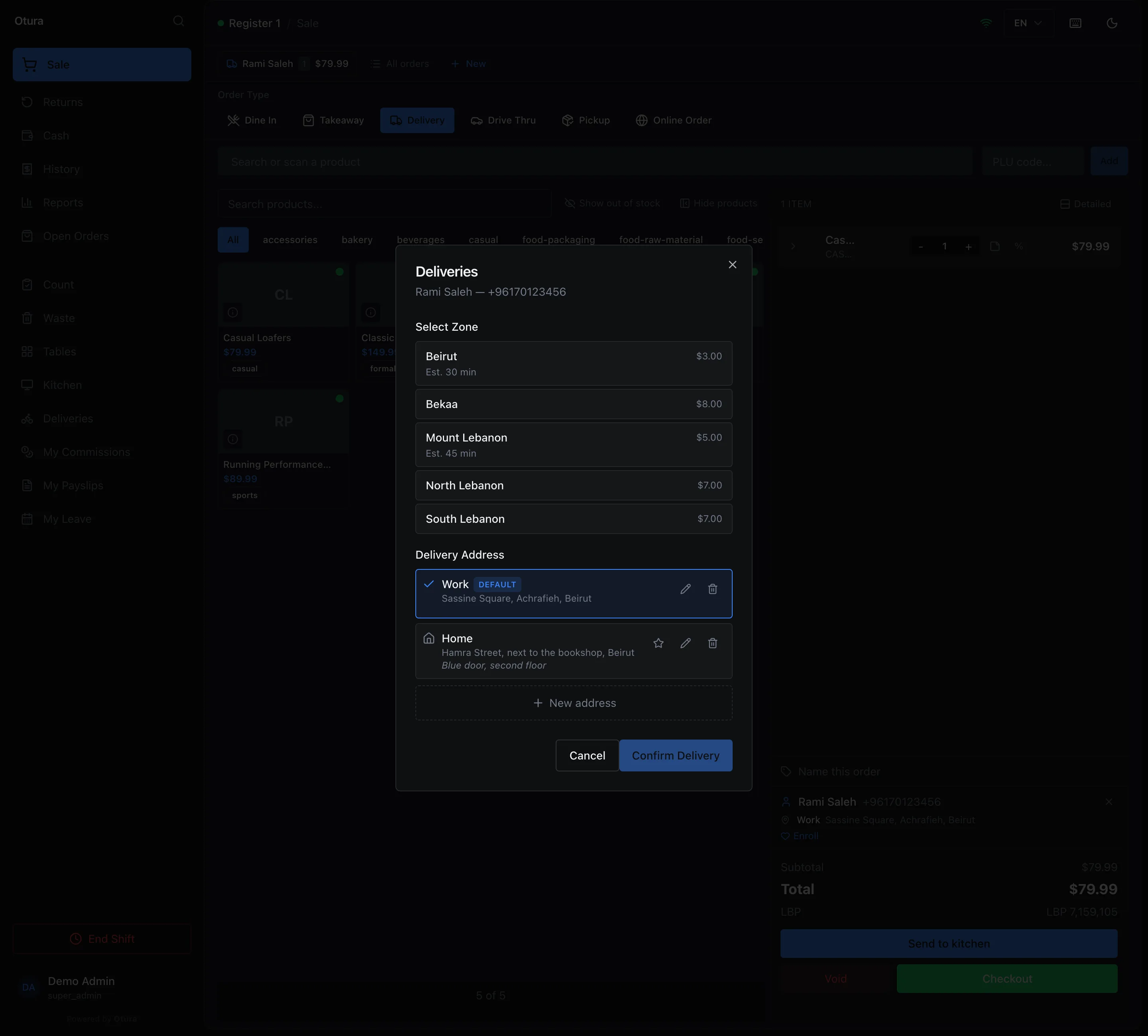
Once a zone is picked, a summary below the address shows its Zone Fee and, where the zone has one, the Estimated time. Confirm Delivery stays disabled until a zone and an address are both chosen, and while the order is below the zone's minimum order — the summary then shows Min. order: and the amount.
The delivery keeps its own copy of the address — the street and city, with the driver directions in brackets after them. Editing or deleting the saved address later does not change a delivery already made. Picking a different address in Deliveries does not change the customer's default; use the star for that.
In the back office
Customers are also created and edited under CustomersAll, with New Customer, and Edit Customer on a customer's page. The Phone field there is the same one as at the till, with Other. A number saved through Other opens on Other when the customer is edited.
An individual must have a phone number (Phone number is required); for a company it is optional. If the number does not fit the chosen country, Save shows Enter a valid phone number, or choose Other in the country list.
Credit and what a customer owes
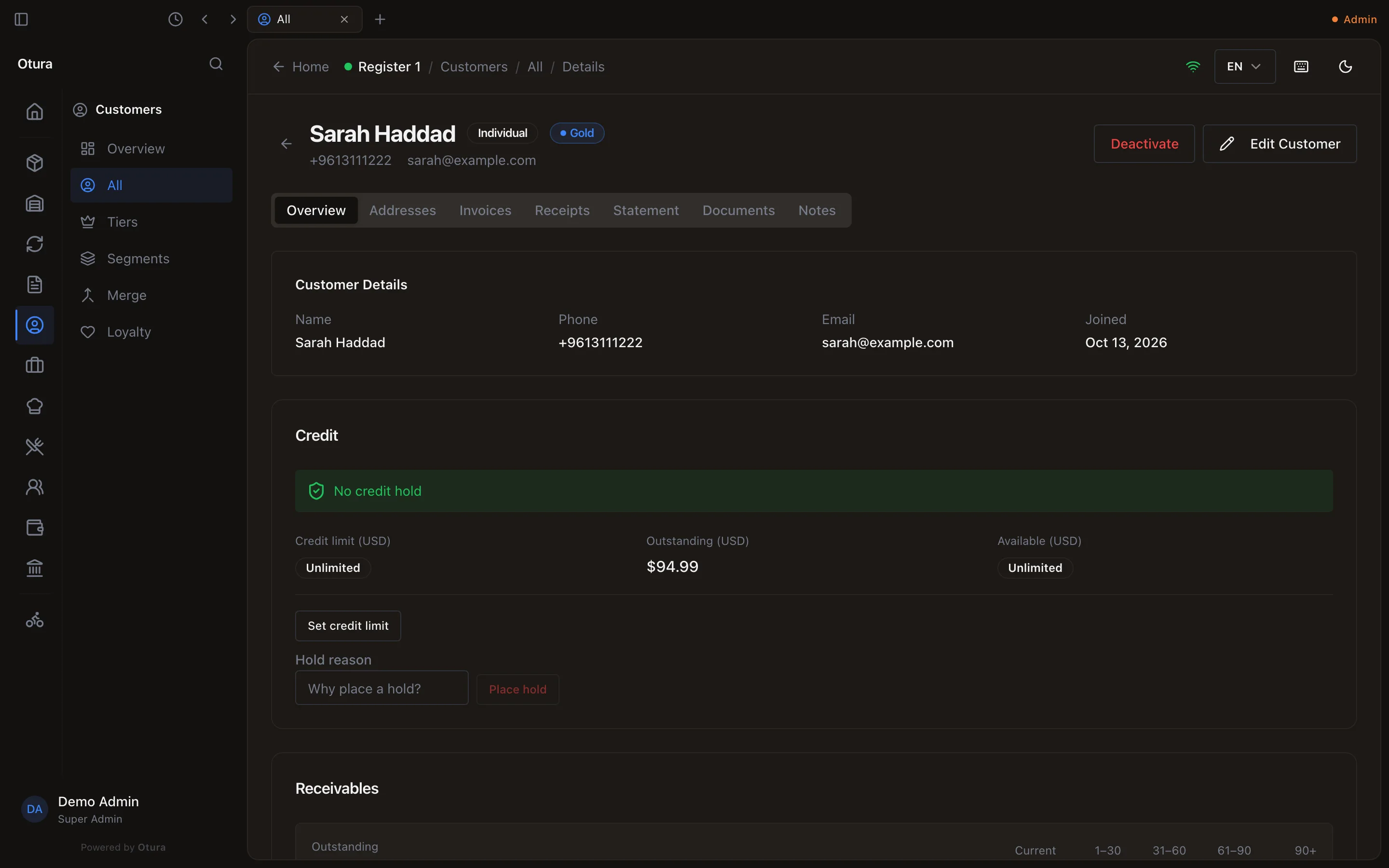
A customer's page (CustomersAll, then the customer) opens on Overview. Its Credit box shows the Credit limit (USD), what they owe now (Outstanding (USD)) and what is left (Available (USD)). No limit reads Unlimited.
Set a limit
Press Set credit limit, type the amount in dollars (leave it blank for unlimited) and press Save.Or stop all credit
Type why under Hold reason and press Place hold. A customer on hold cannot buy on account at all, whatever their limit, until the hold is released.
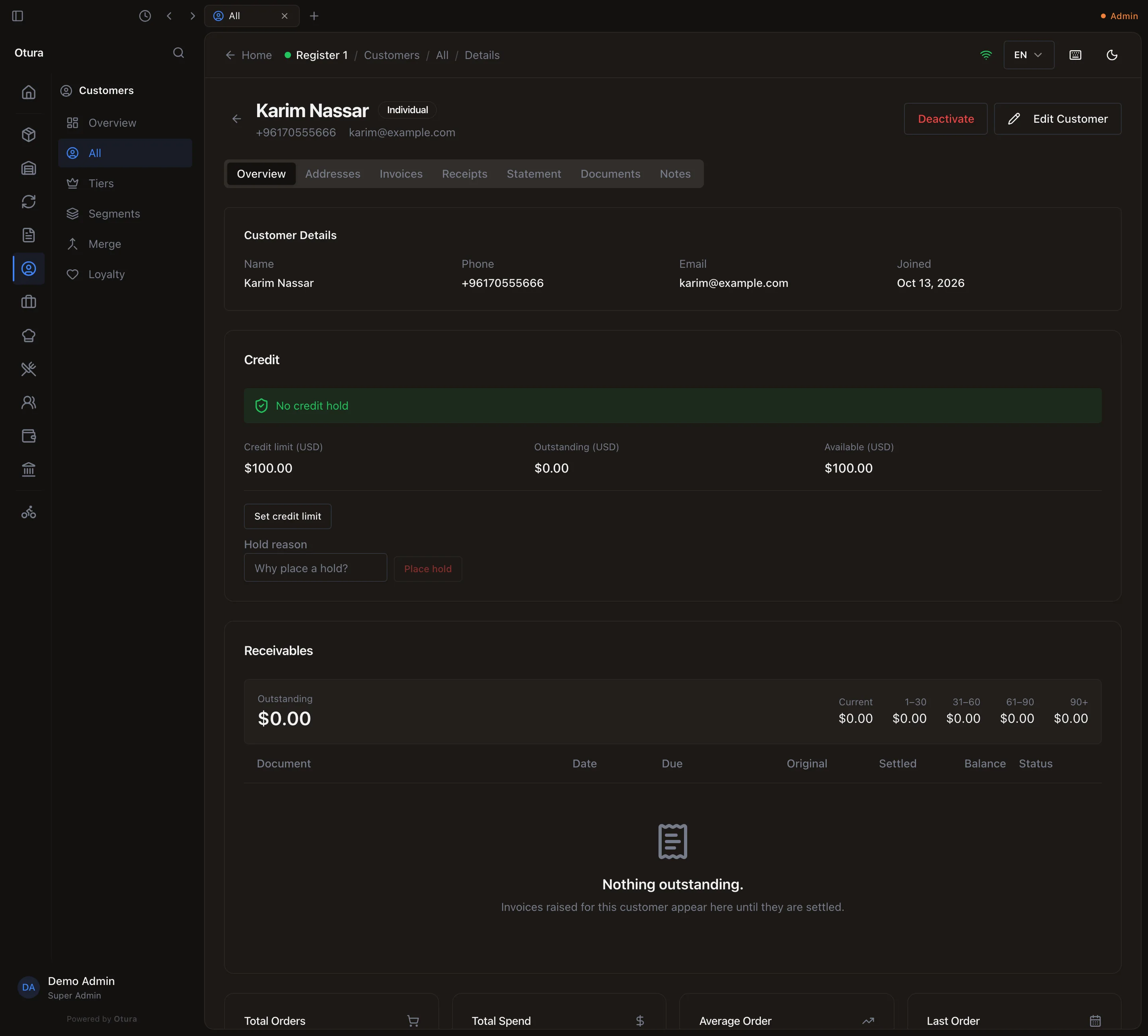
What counts as owed: every invoice on account not yet paid, and every sale at the till left on account. A cash or card sale is never owed. An invoice on account, or a sale on account at the till, that would take the customer past the limit is refused with the figures (see Sales invoices); nothing is posted. At the till, a supervisor other than the person selling can approve it with their PIN. An owner who sells alone can let themselves approve their own over-limit sale: in SettingsOrganisationRoles, tick Approve own over-limit sales (under Supervisor Overrides) on their role. It is off for every role until ticked, it also needs Provide overrides, and it does not cover a customer on credit hold. A cancelled online order paid cash on delivery is not owed, and neither is a cash-on-delivery sale that was voided.
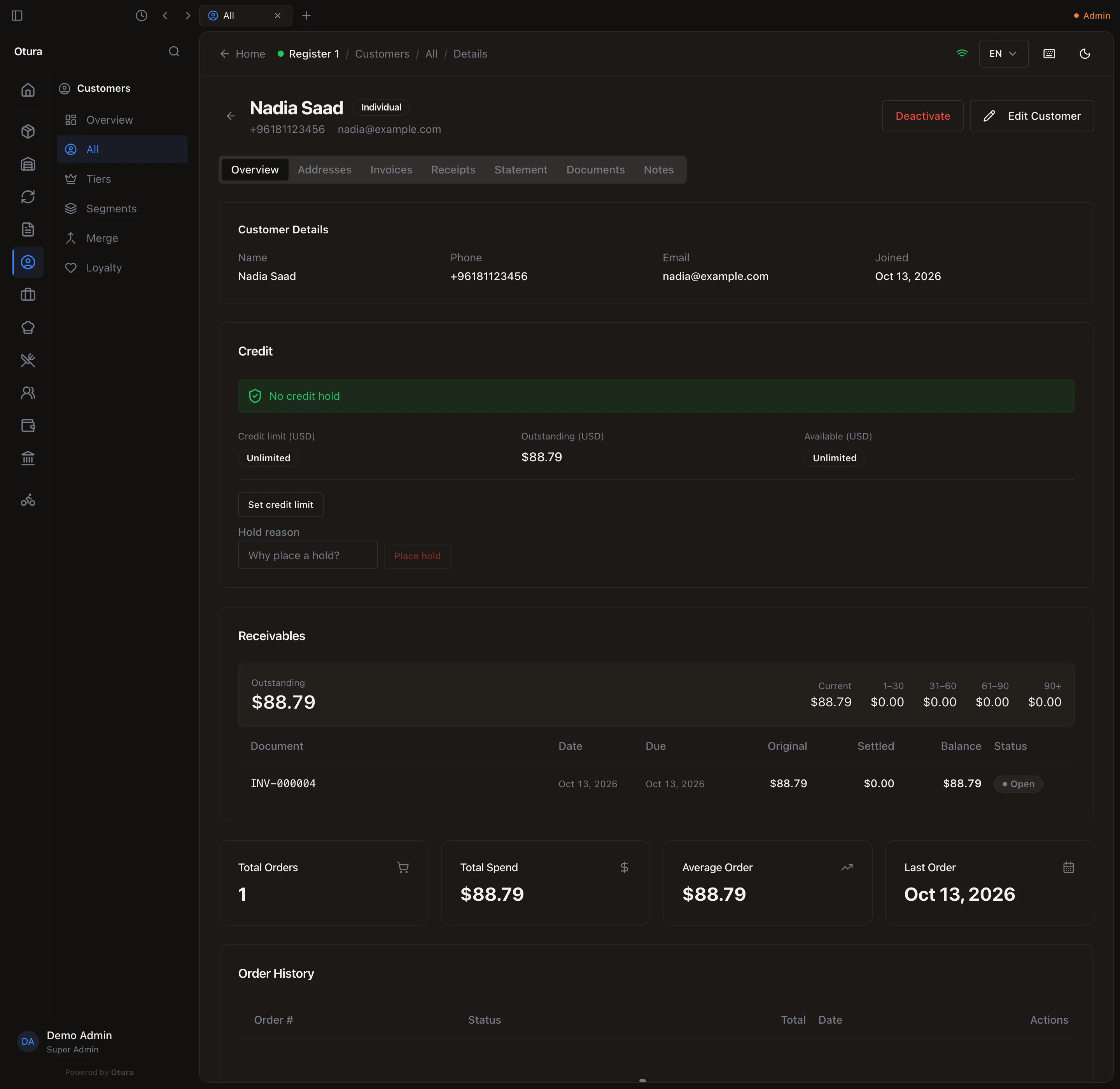
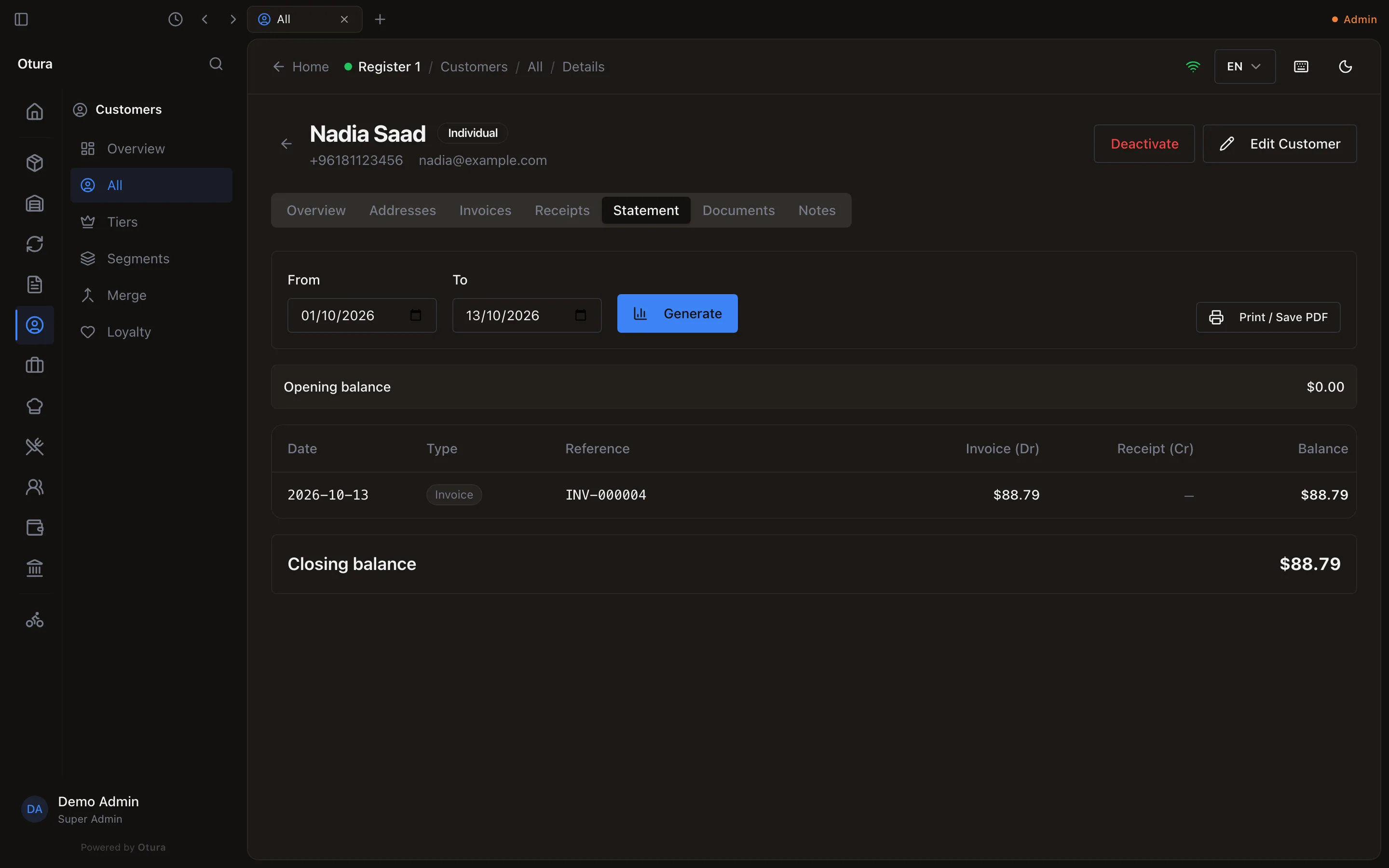
Below, Receivables lists each open invoice with its date, due date, the original amount, what has been settled and the balance, with the total split by age (Current, 1–30, 31–60, 61–90, 90+ days overdue). The Statement tab lists every invoice, credit note and receipt between two dates, each by its legal number (INV-…, CN-…), the number on the customer's own paper, with the Opening balance, a running Balance and the Closing balance; Print / Save PDF prints it for the customer.
Tiers and segments
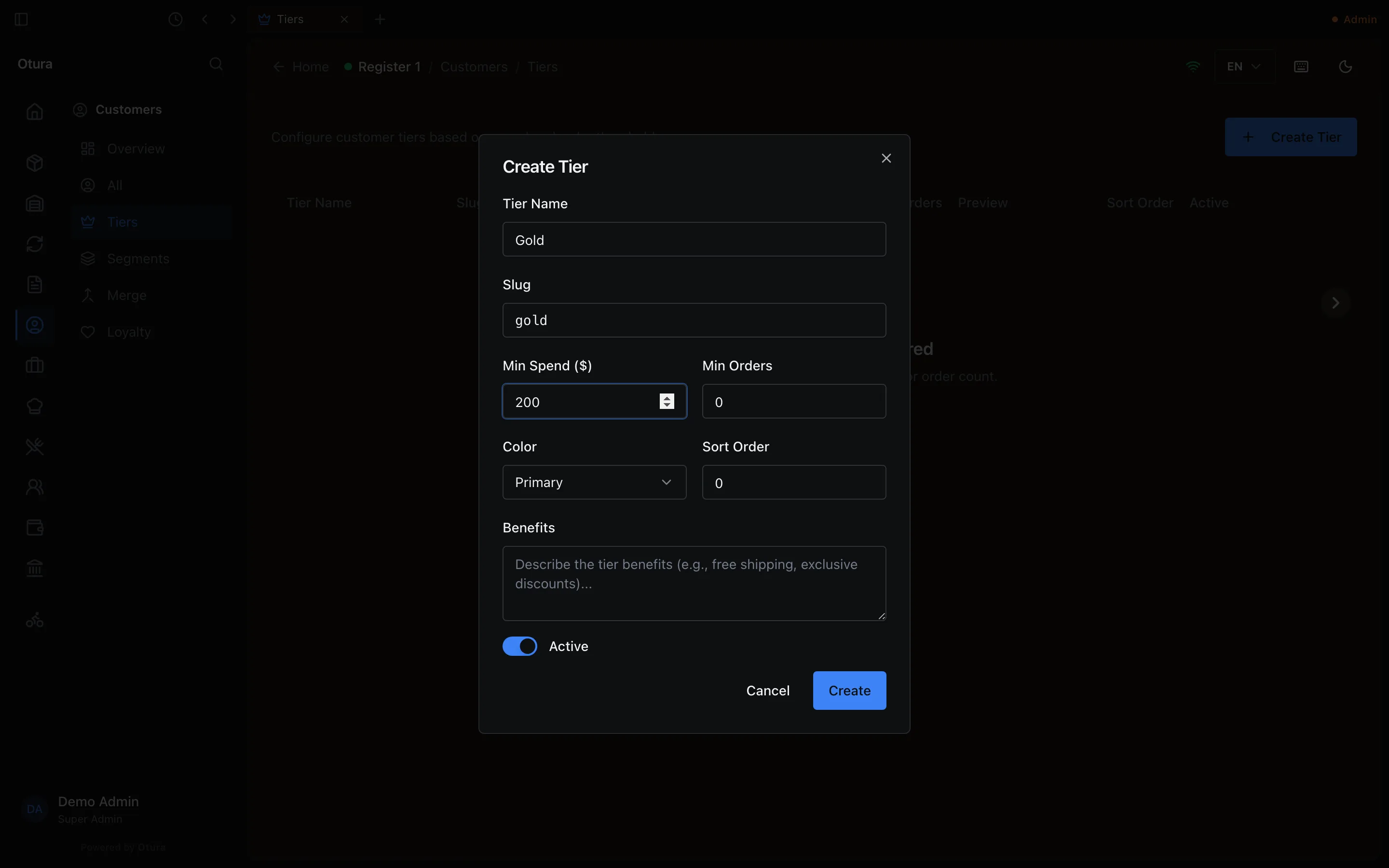
CustomersTiers sets the tiers a customer can reach — Silver, Gold, VIP — by what they have spent and how many times they have bought. Press Create Tier, type the Tier Name and the thresholds (Min Spend ($), Min Orders; a threshold left empty is always met), pick a colour and press Create. Spend counts till sales, online orders and sales invoices net of credit notes; a cancelled or refunded order does not count.
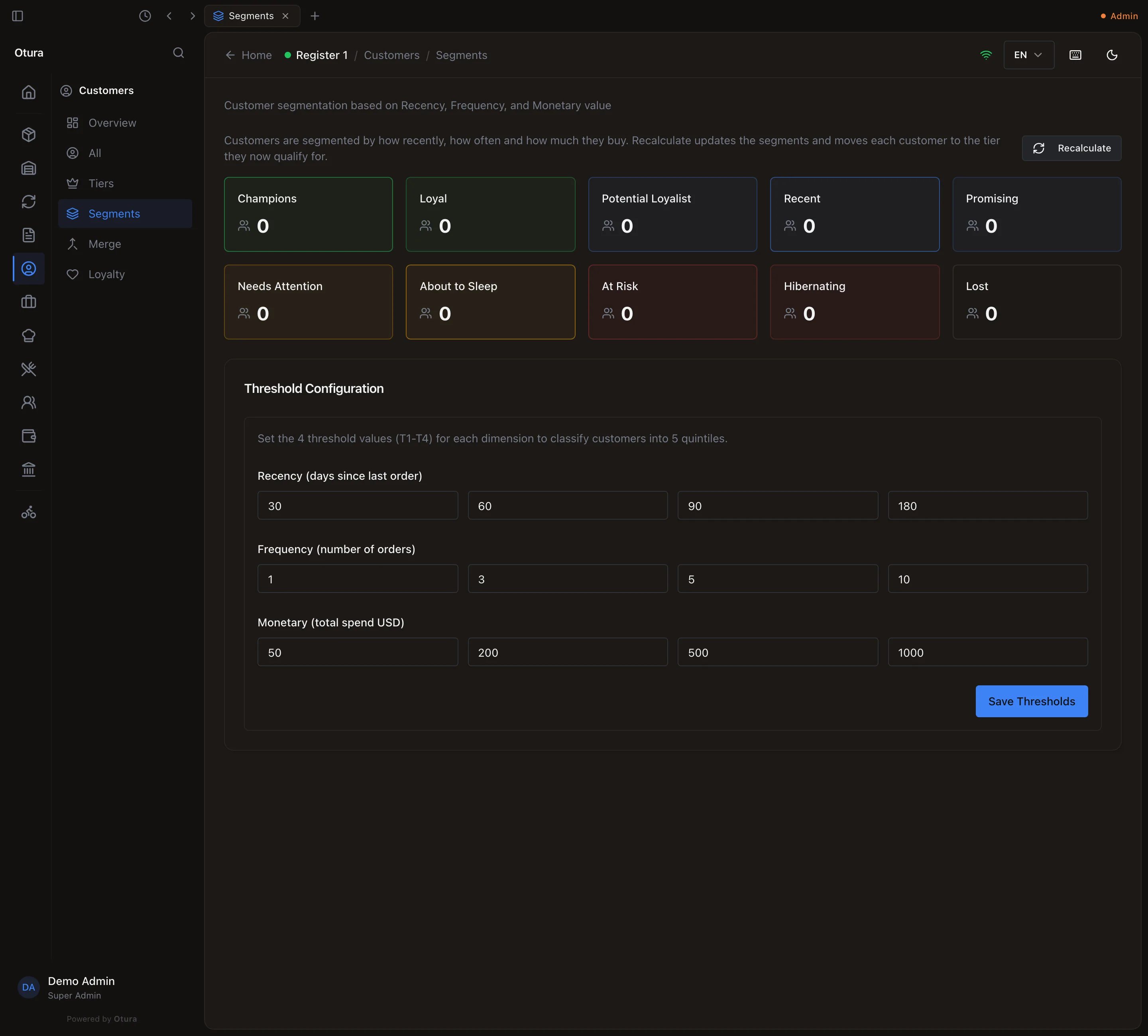
CustomersSegments groups customers by how recently, how often and how much they buy (Champions, Loyal, At Risk, Lost and so on), using the thresholds under Threshold Configuration. The groups are worked out when you press Recalculate, which also moves every customer to the tier they now qualify for. A customer's tier shows as a badge beside their name on their page.
Merging duplicates
When the same person was entered twice, CustomersMerge keeps one record and folds the other into it. Pick the customer to keep (the survivor), then the duplicate, check the preview, press Continue and Confirm Merge.
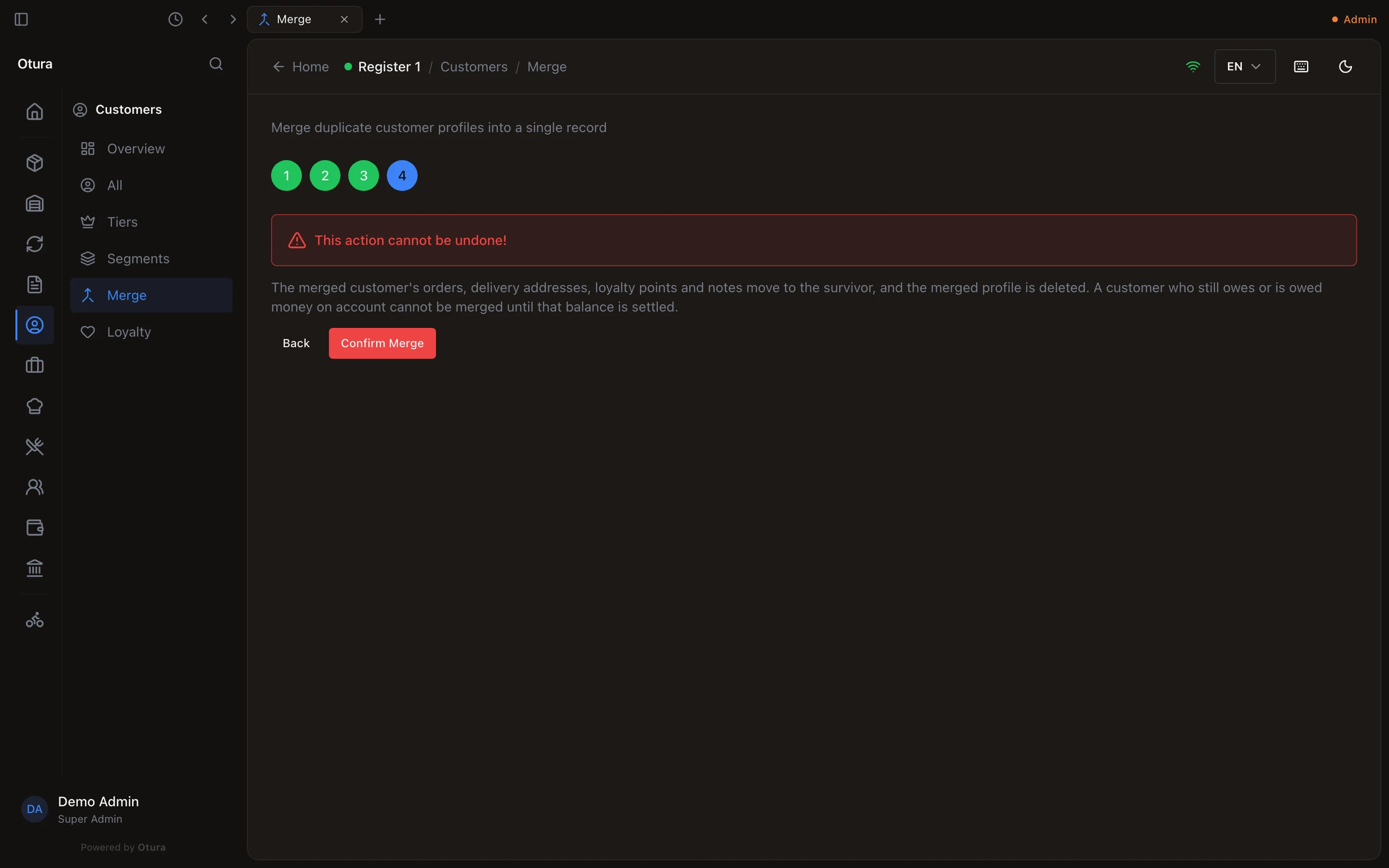
The duplicate's orders, delivery addresses and notes move to the survivor, and the duplicate is deleted. If both had a loyalty card, the duplicate's points are added to the survivor's card and the duplicate's card is closed, each card showing the move in its points history. If the survivor has no default address and the duplicate does, it becomes the survivor's default.
A customer who still owes money on account, or is owed it, cannot be merged away: their invoices and credit notes stay with them, so the merge would hide the balance. It is refused with the amount, for example Nadia Saad has a balance on account of $88.79. Settle it, or credit it, before merging.