Orders from delivery apps (Toters)
Ring up orders that customers placed in a delivery app such as Toters: the app and its order number on the sale, the whole amount on the app’s account, nothing in the drawer, the order number on the kitchen ticket and the receipt. Each app’s terms (what it takes and the day it pays you), its commission in your books, its statements matched by order number, and the App report of who owes whom.
Checked against the product on 27 October 2026
When a customer orders in a delivery app such as Toters, the order reaches you on the app’s own tablet. You still ring it up at the till, so the kitchen cooks it, stock goes down and the sale is in your books. Otura records which app it came from and the app’s order number, and puts the whole amount on the app’s account: the app’s rider collects the money from the customer, so none of it goes in your drawer.
Add the app
Open Delivery apps
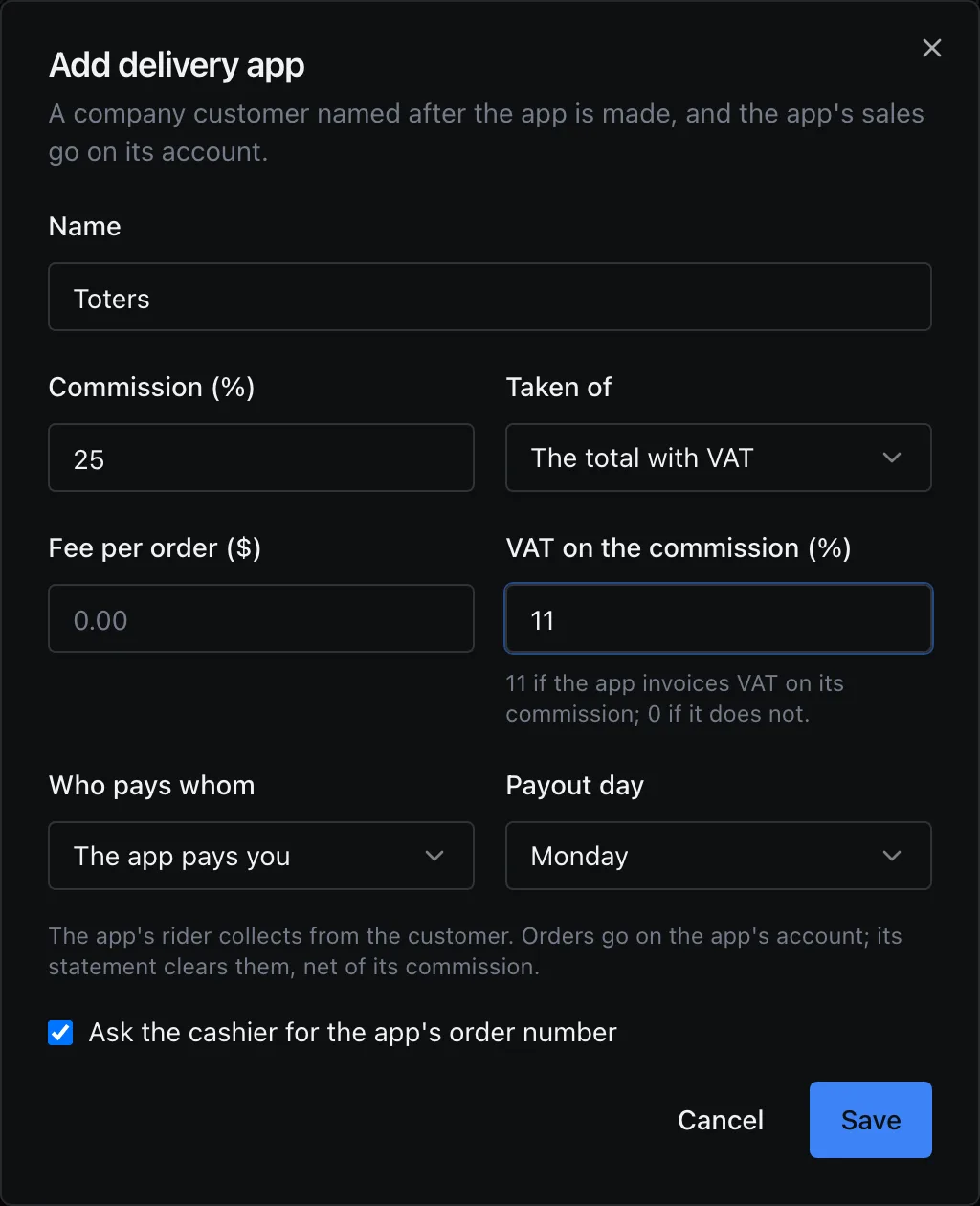
Go to CommerceDelivery apps and choose Add delivery app.Name it and say what it takes
Type its name, then its Commission (%), what it is Taken of (the total with VAT or without it), any Fee per order ($), and the VAT on the commission (%): 11 if the app invoices VAT on its commission, 0 if it does not.Say who pays whom
Under Who pays whom, The app pays you is for an app whose rider collects from the customer and which pays you later, less its commission, as Toters does. Pick its Payout day, the weekday its payout reaches you. Leave Ask the cashier for the app’s order number on: the number is how an order is matched to the app’s statement.Save
Otura makes a company customer named after the app. Every order from the app goes on that customer’s account, so its balance is what the app owes you.
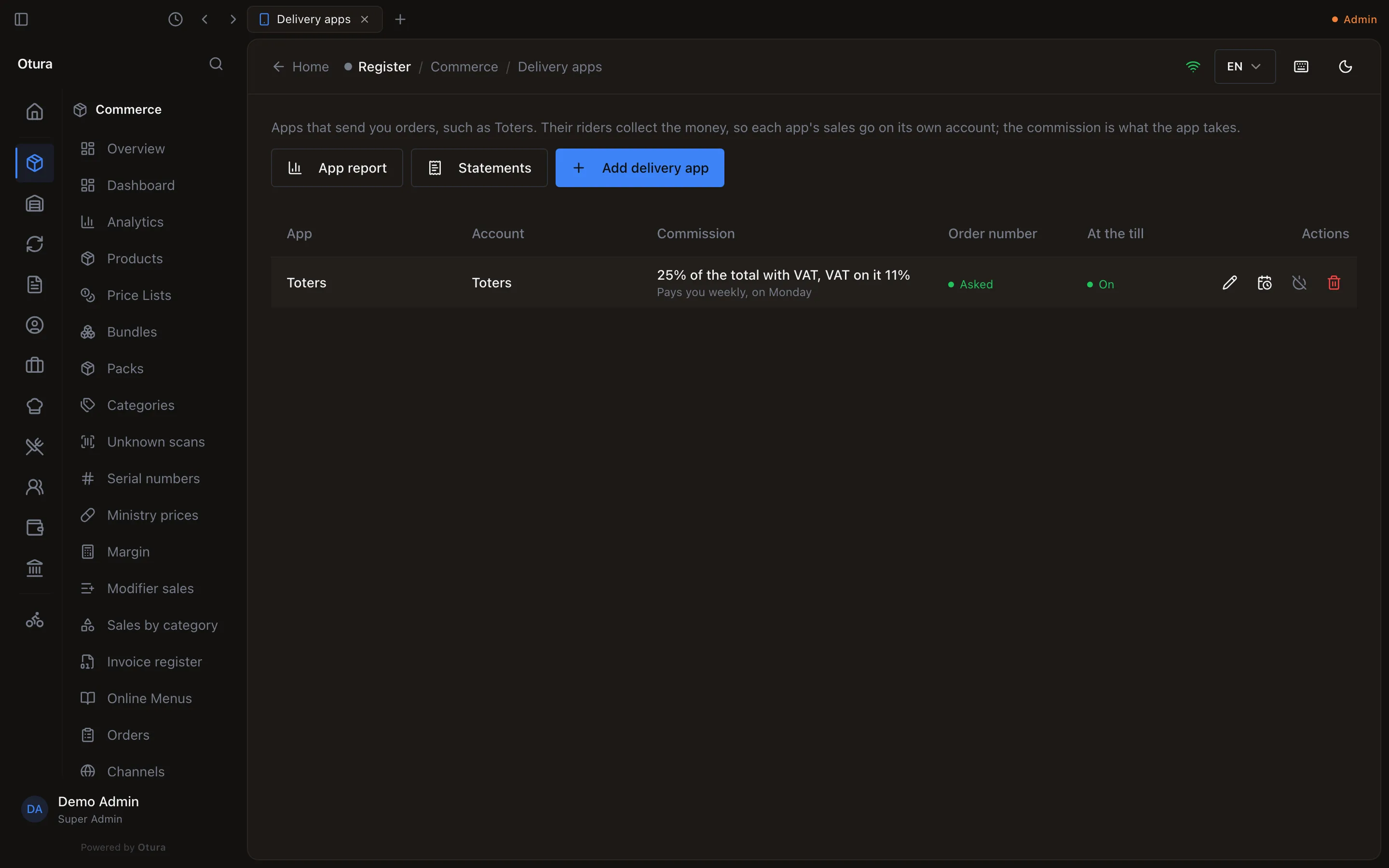
The rate and the terms never change on their own. When your contract changes, choose New rate and pick the day it starts, today or later. It starts from the terms in force, so it changes who pays whom only if you change it there. The orders already rung keep the rate and the terms they were rung under; a change still to come shows under the app’s rate, with its day. Your app’s prices come from its customer’s price list, if you give that customer one in price lists.
Ring up an app’s order
Add the items
Add the items the app’s tablet shows, as for any sale.Choose the app
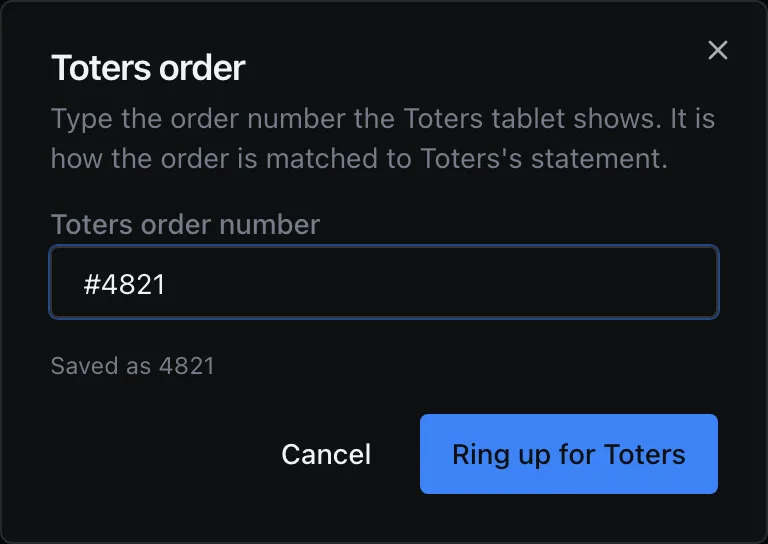
Tap the app beside the order types (Takeaway, Delivery and the rest). The till asks for the order number: type it as the tablet shows it. A leading # and spaces do not matter; the till shows the number it will keep.Take the payment
Choose Checkout. The payment screen offers one way of paying: On Toters’s account. There is no cash, card or split, and nothing goes in the drawer. Choose Complete Payment. Quick cash (F10) opens the same screen: an app’s order is never taken as cash.
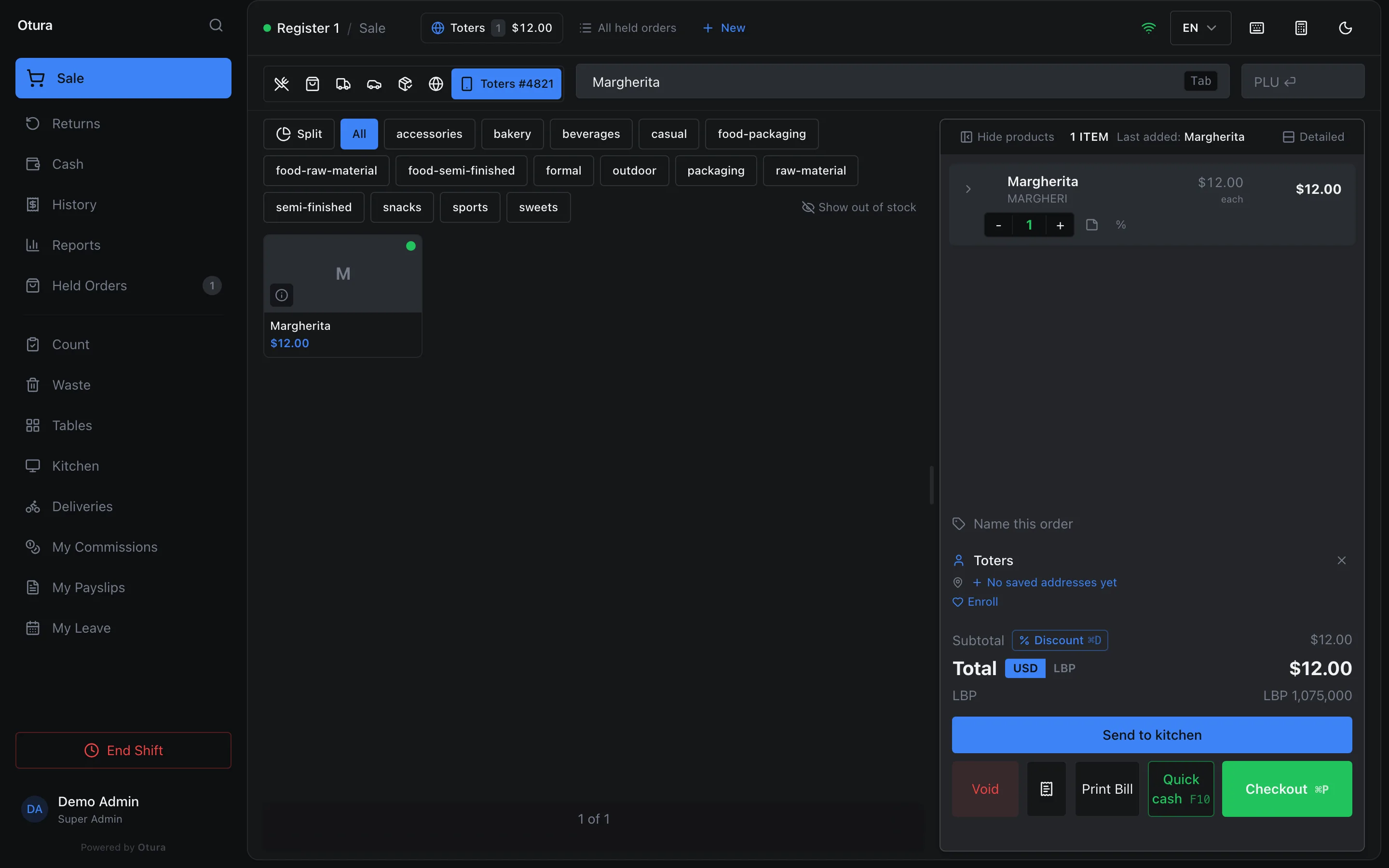
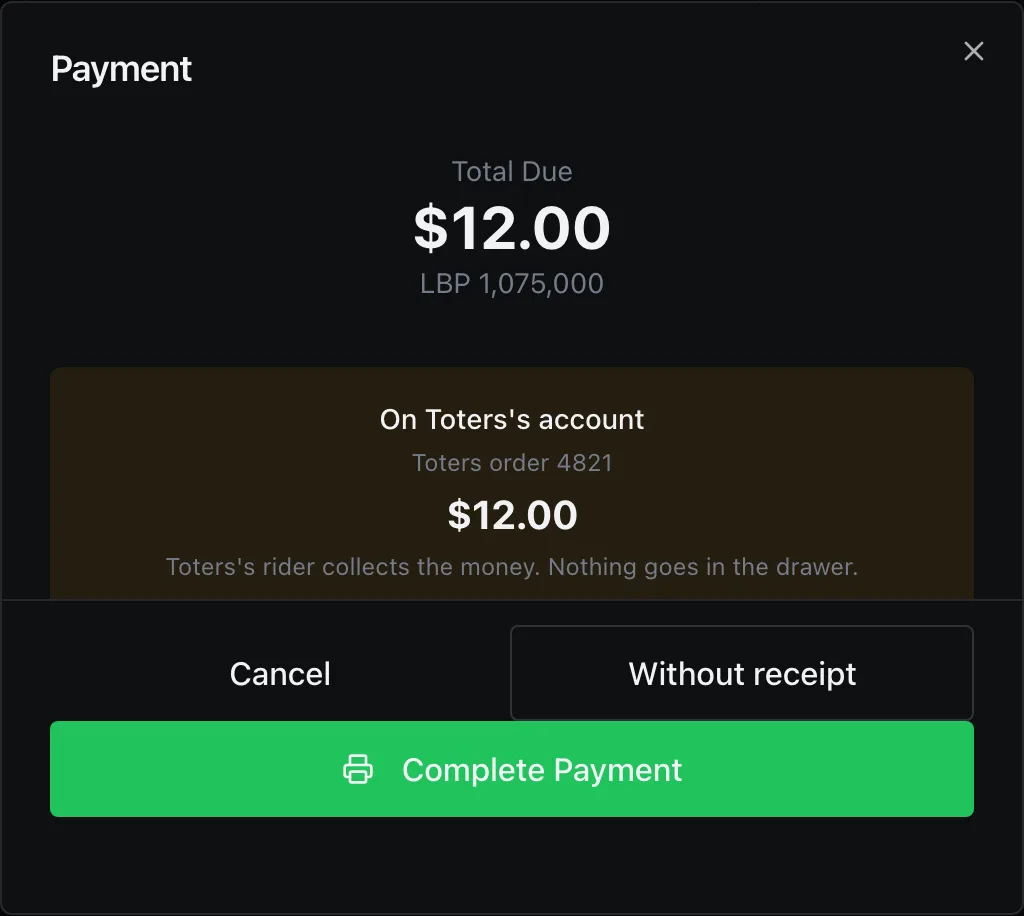
The kitchen ticket and the receipt print Toters #4821 where the order type usually is, so whoever packs the bag can match it to the app’s rider. The receipt’s payment line reads On Toters’s account, never cash on delivery, so a customer who paid in the app is not told to pay the rider. On the receipt both lines are in the receipt language set under Workspace › Receipts; on the kitchen ticket, in the kitchen’s language. The sale has a legal invoice number and VAT like any sale. An app’s orders earn no loyalty points and are not stopped by a credit limit: the app’s account is not credit you give.
In History, on the till and under StoreTransactions, the sale reads Toters #4821 where an online order reads Online Order, in its row and in its details. Search transactions... finds it by the app’s number, typed as the tablet shows it: #4821, 4821 or part of it.
When the connection is down
On a till that sells offline, an app’s order is taken the same way and sent when the connection is back. If two tills rang the same order number while offline, both sales are kept, and the second one appears on CommerceDelivery apps under Order numbers to check. Choose Correct number and type the number the app shows; no amount changes.
At the end of the shift
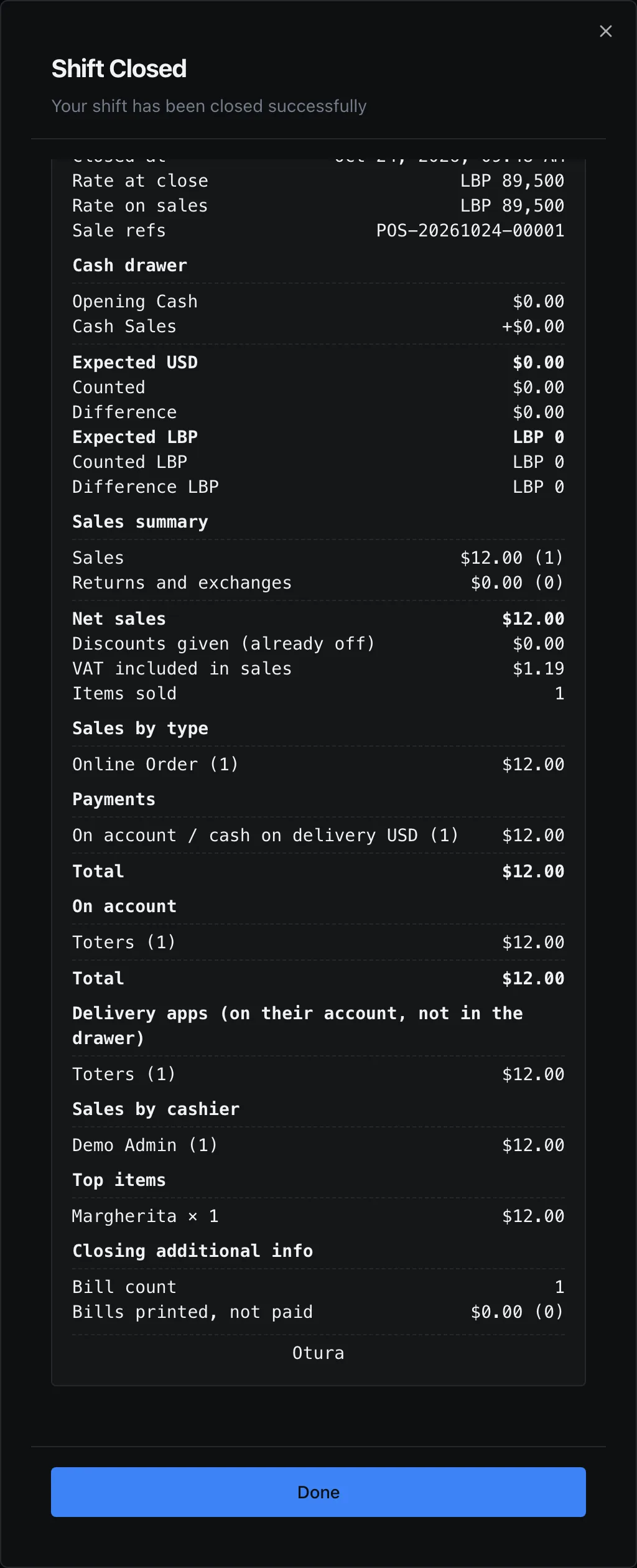
The closing report lists each app with its number of orders and their total, under Delivery apps (on their account, not in the drawer). Those sales are on the app’s account, so the drawer’s expected cash does not include them. The app also appears under On account, beside your other customers who owe you: the same orders, listed by customer there and by app here, not counted twice.
The App report
CommerceDelivery apps, then App report, shows what you sold through each app, what the app is expected to take, and what is left: the figures to hold the app’s statement against. Anyone with View delivery apps can open it (the owner and admin roles).
Choose the days
Pick a Date range and how to cut it in Show by: day, week, month or year. The days are your business’s own, as in Analytics. With more than one app, an App box narrows the report to one; a removed app is still there, marked removed, with its past orders.Read the figures
By app gives each app’s figures over the whole range, and All apps together when there is more than one. By period gives the same figures for each day, week, month or year. Who owes whom ends each row: what the app still owes you, and when it is expected.Open the orders behind a figure
The list button at the end of a row opens the orders behind it: each sale, refund and void, with the app’s order number, your sale and invoice numbers, and the order’s own commission and net. Export orders saves all of them, not only the page on screen; Export CSV saves the report itself.
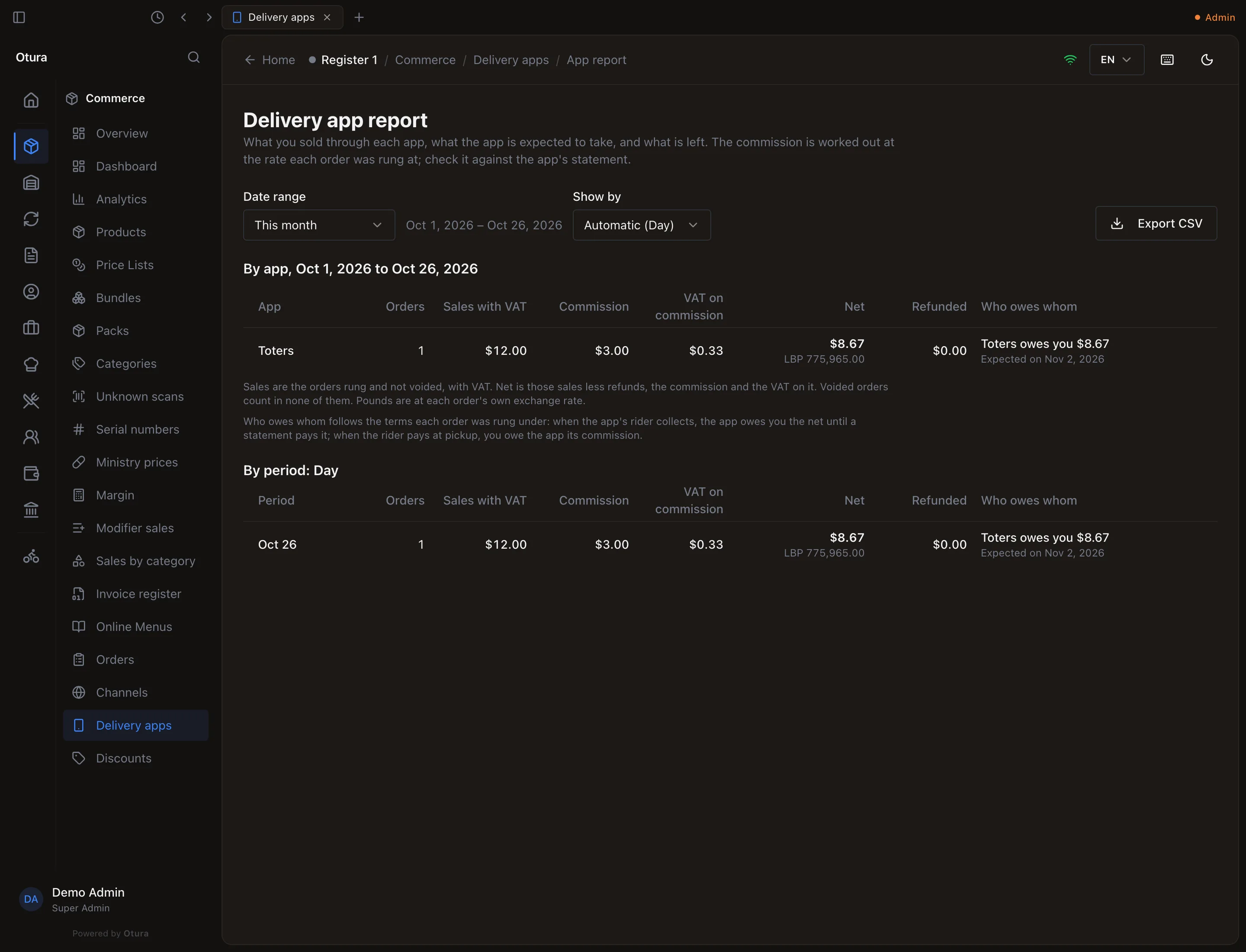
| Figure | What it counts |
|---|---|
| Orders | The app’s orders rung in the period and not voided. |
| Sales with VAT | Those orders’ totals. Without VAT, in the CSV. |
| Commission | What the app is expected to take from those orders, at the rate each order was rung at, less what refunds in the period took back. |
| VAT on commission | The VAT the app charges on that commission, when its rate has any. |
| Net | Sales with VAT, less refunds, the commission and the VAT on it: what you keep. |
| Refunded | What went back to customers in the period, whichever day the order was. |
| Who owes whom | For the orders on the app’s account that no statement has paid yet: “Toters owes you” their net, expected on the first payout day after the period’s last day. Nothing open once a statement has paid them. |
| Voided (in the CSV) | Orders rung in the period and then voided. They count in none of the other figures. |
Who owes whom follows the terms each order was rung under, so a change of terms does not move what the app already owes, nor its payout day. All apps sets what the apps owe you against what you owe them. The CSV adds what statements have already paid.
Each order keeps the commission rate it was rung at, so a New rate changes no figure you have already read. A refund of part of an order takes back the same share of its commission; a void takes back all of it. Pounds (LBP) are worked out at each order’s own exchange rate, never today’s.

An app’s company customer carries every one of its orders, but it is not a shopper. Customers › Segments leaves it out, and Recalculate gives it no score and no tier, removed apps’ customers included. It still appears where money is owed, such as its balance and statement.
When the app pays you: its statement
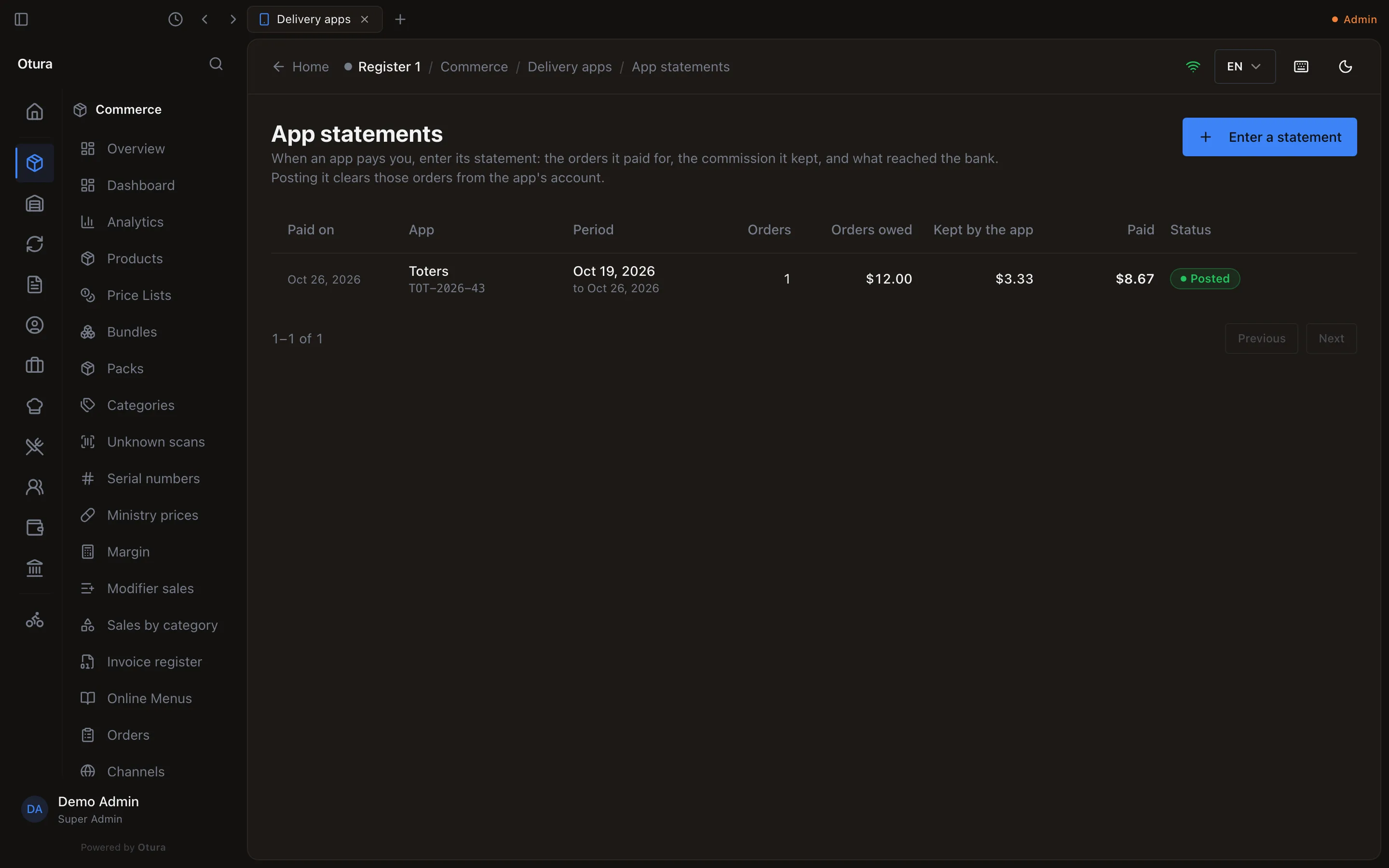
An app that pays you sends a statement with its payout: the orders it paid for, the commission it kept, and what it sent to your bank. Enter it in Otura and its orders come off the app’s account. Go to CommerceDelivery apps and choose Statements.
Find the orders it pays for
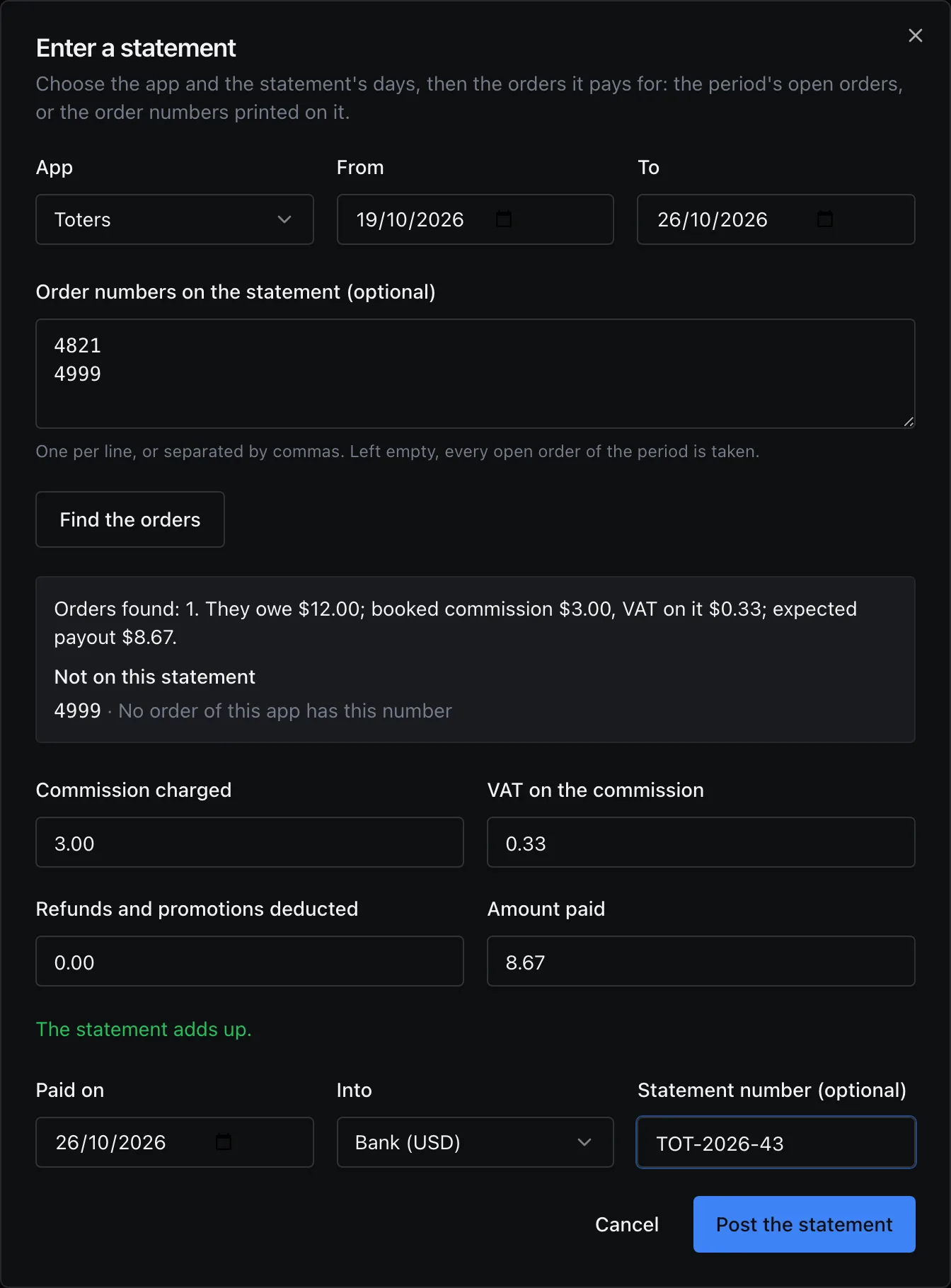
Choose Enter a statement, then the App and the statement’s days in From and To. Paste the order numbers printed on the statement into Order numbers on the statement, one per line or separated by commas, or leave it empty to take every open order of those days. Choose Find the orders.Check what Otura found
Otura says how many orders it found, what they owe, the commission and VAT your books expected on them, and the payout that leaves. A number it cannot take is listed under Not on this statement, with why: no order of this app has the number, it was rung while the rider paid at pickup, it is already on a statement, nothing is left owing on it, or it is not recorded yet (try again in a few minutes). An order found by its number but rung outside the statement’s days is listed with the day it was rung, under These orders were rung outside the statement’s days: check the days printed on the statement. Otura does not widen the days for you; correct them, or post the statement as it is.Type what the statement says
The figures start from what your books expected. Change them to the statement’s own: Commission charged, VAT on the commission, Refunds and promotions deducted and Amount paid. They must add up to what the orders owe, to the cent: Otura says The statement adds up., or how much it is short or over. When the commission and VAT you typed are not what your books expected, it says so in words, against the rate the orders were rung at: for example Toters charged $0.56 more than the agreed 25%., followed by the commission and the VAT against what was booked.Post it
Set Paid on, the account the money went Into, and the statement’s number if it has one. Choose Post the statement.
The statement is listed with the day it was paid, the app and its number, its days, its orders, what they owed, what the app kept (its commission, the VAT on it, and the refunds and promotions it took off) and what was paid. Orders on its row opens the orders it paid for. In the App report, those orders now owe nothing.
A statement that charged more commission than agreed keeps saying so after it is posted: a warning sign beside the app on its row, and the sentence above its orders, so you can take it up with the app. One that charged less shows the same sentence, without the warning colour.
A statement entered wrongly is not edited: choose Reverse on its row and say why. Its receipt is reversed, its orders go back on the app’s account, and you can enter the corrected statement. The reversed one stays in the list, marked reversed.
In your books
The sale is booked as any sale on account: the whole amount, with its VAT, is owed by the app’s customer. The app’s commission is booked as an expense as soon as the order is rung, at the order’s own rate, under the journal source Delivery App Commission. A void books it back on the void’s own day, and a refund books back its share on the refund’s day. Each entry names the order as you would look it up: for example Toters commission · INV-000002 · Toters #5001, the sale’s invoice number and the app’s.
| When | Debit | Credit |
|---|---|---|
| An order is rung | 6410 Delivery App Commission (the commission) and 6415 VAT on Delivery App Commission (its VAT) | 4220 Delivery Apps Payable (both) |
| A statement is posted | The bank, for the amount paid; 4220 for the commission and VAT booked on its orders; 6410 and 6415 for what the statement charged beyond what was booked; 7910 Sales Discounts for the refunds and promotions the app took off | The app’s customer, for everything its orders owed; 6410 and 6415 when the statement charged less than was booked |
The statement is a customer receipt on the app’s customer, so the app’s balance and its customer statement show it too. Should a commission entry fail to post, it is listed under FinanceAccountingLedgerJournal Reconciliation with the other postings that never reached the books, and Retry posts it. The VAT on the commission is a cost for now (6415), even if your business recovers input VAT on its supplier bills: reclaiming it needs the app’s own VAT invoice for the commission, which Otura does not take yet.