Roles and permissions
The built-in roles, making a role of your own with only the permissions it needs, amount limits, templates, and what someone without a permission sees.
Checked against the product on 20 October 2026
A role is a named set of permissions: everyone who holds it may do the same things. Everything in Otura is allowed by a permission, never by the role's name, so a role you make yourself is as good as a built-in one. Roles are in SettingsRoles; who holds which role is in People.
| Built-in role | Who it is for |
|---|---|
| Super Admin | The owner: every permission. |
| Admin | A manager running the back office, staff and payroll; not purchasing approval. |
| Supervisor | The floor: approves voids, returns and discounts at the till. |
| Cashier | Selling at the till. |
| Purchasing | Raises purchase orders and receives goods; does not approve them. |
| Delivery Driver | The drivers app. |
Making a role
New Role
In SettingsRoles, click New Role, type its Name (Shift lead) and, if you like, a Description. The Amount Limits cap what someone in this role may approve: Max Return Amount, Max Void Amount, Max Payout Amount and Max Discount %; leave Unlimited ticked for no cap. Click Create Role.
Its permissions
A new role has no permissions, and its permissions open straight away. Search for each one, tick it, and click Save Permissions. The role shows how many it has.
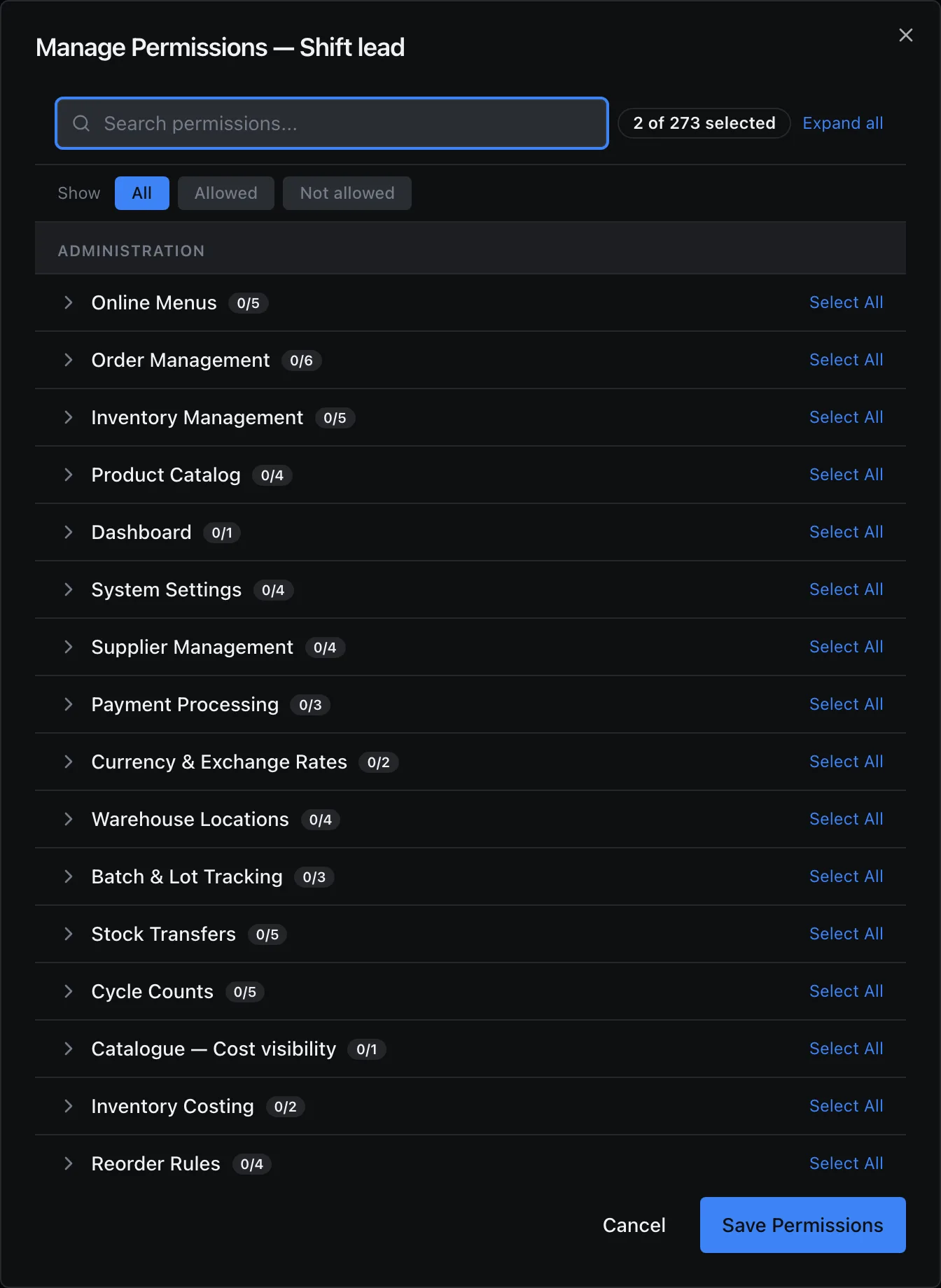
Choosing a new role's permissions. Give it to someone
In SettingsPeople, choose the person, click Edit, pick the role and click Save Changes.
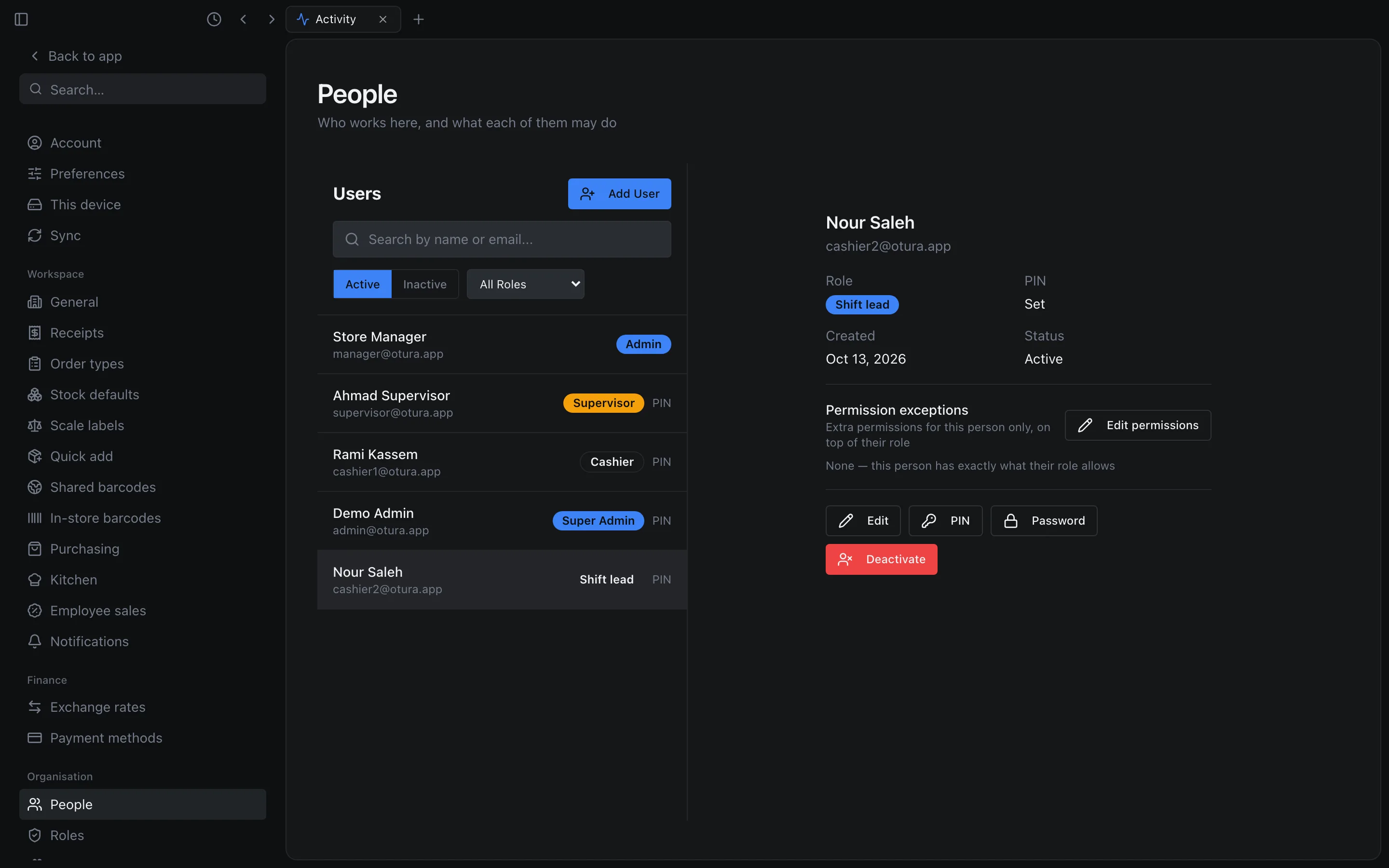
A cashier moved to the new role.
Save as Template on a role keeps its permissions and limits as a template; Templates and Apply Template copy one onto another role. Deleting a role that someone holds is refused, naming who; a deleted role is under Deleted with Restore Role.
You cannot give a role, or a permission, you do not have yourself: Cannot assign a role higher than your own, Cannot grant permissions you do not have.
The till's menu
Every item of the till's menu has its own permission, in the Till menu section of a role: Menu: Sale, Menu: Returns, Menu: Cash, Menu: History, Menu: Reports, Menu: Held Orders, Menu: Count, Menu: Waste, Menu: Tables, Menu: Kitchen, Menu: Deliveries, Menu: My Commissions, Menu: My Payslips and Menu: My Leave. Untick one and the item leaves that role's menu and its search, and the screen is closed: a shortcut or a link to it opens the first screen the role may use instead, saying That screen is not available for your role.
For History and Reports the server refuses the screen's data too, so a till that has not updated yet still cannot show them. A cashier without Menu: History can still reprint their last sale from the sale screen. Whoever may close a shift still sees that shift's figures while closing it. What each screen can do is still its own permissions: showing Returns does not let a role refund.
What someone without a permission sees
A page they may not open says which permission it needs, by name, and who can give it: You don't have access to this. It needs “View payroll”. Ask an administrator to add it to your role. Buttons for things they may not do are not shown at all: someone who may see employees but not manage them has no Add Employee. A settings page they may not see is not in their settings menu, and its address takes them to the first settings page they may see.
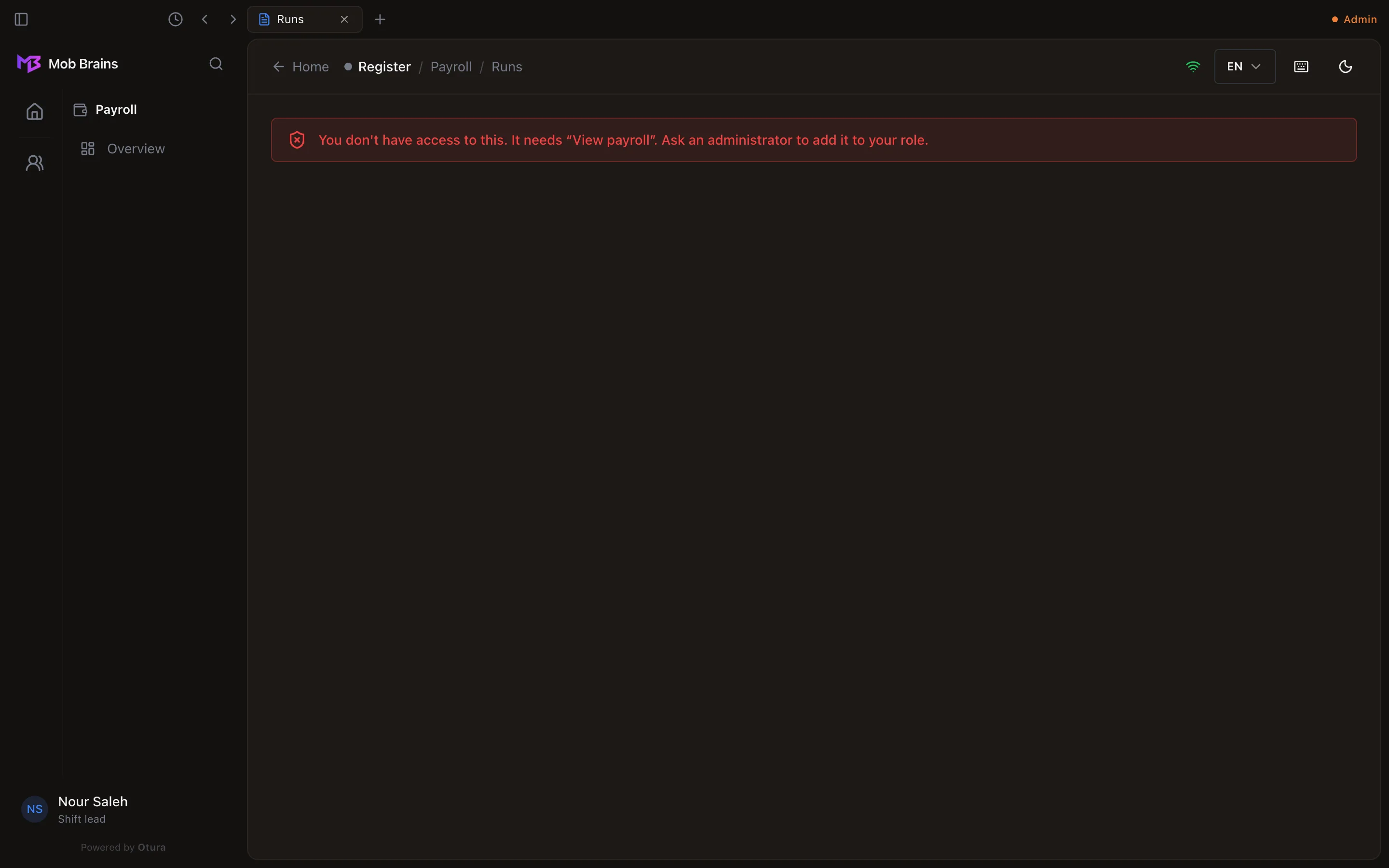
A page refused because the business does not have its module on says that instead, and offers the owner the way to turn it on: see Modules and plans. One person who needs one more permission than their role gives does not need a new role: give it as a permission exception.