Getting help, Otura status and feedback
Contact support, check whether Otura is working right now, send an idea or report a problem from the till, update the desktop app, see which version a till runs, and unpair a till nobody can sign in on.
Checked against the product on 19 October 2026
Everything below is on SettingsSupport, which every signed-in person can open. The same actions are in the command palette (Ctrl+K) as Contact Support, Otura Status, Send Feedback and Report Performance Problem.
| Row | What it does |
|---|---|
| Contact support | Opens an email to the Otura team. |
| Otura status | Opens status.otura.app: whether Otura’s services are working right now. |
| Send feedback | Opens a form to send an idea, or something that could be better. |
| Report slowness or a problem | Opens the same form, marked as a problem, and sent with this till’s version and device. |
| App version | The version support asks for on the phone. |
Otura status
status.otura.app shows, for each part of Otura, whether it is working now and how it has done over the last 90 days. Each one reads Operational, Degraded, Partial outage, Outage or Maintenance, and has one line saying what it covers for your shop. When a service reads anything other than Operational — the checks find it slow or down, or the Otura team has posted an incident for it — its row also has a What to do line:
| Service | What it covers | What to do (only while it is not working) |
|---|---|---|
| Point of Sale | Taking sales at the till — in the desktop app and in the browser. | If a sale won't go through, write it down with the time and amount, and enter it once the till is back. |
| Sign-in | Signing in to the till, the back office and the admin portal. | If you're already signed in, stay signed in until this is fixed. |
| Online stores | Your online store and its checkout. | Customers may not be able to order online. Sales at the till are not affected. |
| Online menus | Your published online menu. | Customers may not be able to open your online menu. Sales at the till are not affected. |
| Email notifications | Emails from Otura, such as sign-in codes and notifications. | Emails may arrive late. If you're waiting for a sign-in code, give it a few minutes before asking for another. |
| Desktop app updates | New versions of the desktop app. | Your desktop app keeps working on the version it has, and offers the update again once this is fixed. |
| Admin portal | The tools the Mob Brains team uses to help you. | Our team may take longer to look into your account. Your tills and back office are not affected. |
The lights come from automatic checks that run every minute, from outside Otura’s own servers, so the page keeps working when Otura does not. If those checks stop for more than five minutes, every service reads Unknown and the page says the last check is late — it never goes on showing an old green. A service that reads Unknown has no What to do line: a late check does not mean anything is broken.
Incidents and maintenance
Current incidents and scheduled maintenance are listed at the top, with the Otura team’s updates. Below the services, Past incidents (14 days) lists the recent ones, and Incident history opens every incident from the last 90 days. Each incident has a Link to this incident, which opens that one incident on its own — the link to send, or to be sent by support, when you are talking about one problem. Incidents are kept on the page for 90 days.
Times are in Beirut time and say how long ago they were (for example 3 min ago). The page is in English, Arabic and French: choose English, العربية or Français at the top, and the links on the page keep the language you chose.
Send feedback or report a problem
Both open a short form in your browser. It shows which business the report is from; write what happened, or your idea, and press Send. A report can be up to 2,000 characters.
A problem report (Report slowness or a problem) first asks Can you still sell?, and will not send until you answer it (Choose whether you can still sell.). An idea does not ask.
| Answer | Means |
|---|---|
| No — I can’t sell | The till cannot take a sale. |
| Yes, with a workaround | Something is broken, but sales are going through. |
| Yes — it is just slow or annoying | Nothing is stopped. |
Choosing No — I can’t sell shows Sending this alerts our team straight away., and once it is sent, Our team has been alerted. Both also give support@otura.app to write to as well, if you can. Under a problem report the form also asks Is Otura down for everyone? with a link to status.otura.app.
Otura records who sent it, from which business and which till, along with the till’s app version, whether it is the desktop app or a browser, the browser’s own description of itself, the screen you were on and, for a problem report, your answer to Can you still sell? Phone numbers and email addresses in the text are removed before it is stored.
Updating the desktop app
The desktop app looks for a new version when it starts and every four hours after. It downloads it and backs up this version and its data in the background, while you sell. While there is nothing to do, nothing shows. When there is, a small ring appears in the top bar, before the other icons at its end, with what it is doing in its middle: the percentage while it downloads or backs up, an arrow when the update is ready, a tick when it is done.
| The ring says | What it means |
|---|---|
| A percentage, with no words | Downloading Otura [version], or backing up before the update. You can keep selling. |
| Update ready, with Install now and Later | The new version is ready. Installing restarts Otura. Later puts the words away: the ring stays, quiet, and asks again when the shift is closed and when Otura is closed. |
| Update ready · Finish or park the open sale | Install now was refused, because the update would interrupt something. The ring names the first thing to finish and counts the rest; press it for all of them. |
| Updating Otura… back in a moment | The update is installed and Otura is restarting into it. Do not close Otura or turn off the computer. |
| A green tick | The first start of the new version: Updated to Otura [version]. It draws itself, then fades after a few seconds. |
| Update didn't install. Otura [version] is unchanged | The update did not install, and the till goes on as it was. It fades after a few seconds; press the ring before then, or open Settings, for the reason. |
| Back on Otura [version] | The new version couldn't start on this till, so Otura put the previous version back, with its data. From 0.4 on, that version is not offered again; Otura waits for the next one. A till put back to 0.3 offers it again: press Skip this version there. |
Install now is refused while a sale is open or the payment window is open, while a receipt or kitchen ticket is printing, and while sales taken offline have not reached the server. Nothing is installed; the details list every reason, and Install now works once they are done.
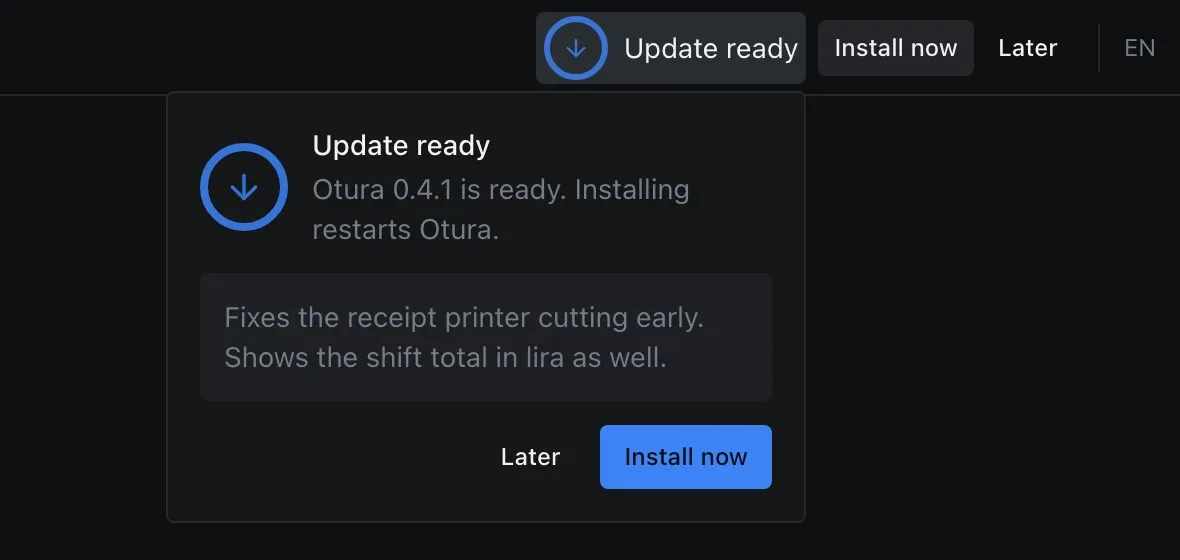
Press the ring for the details: what the update is doing, the release notes, and Install now or Later. While it downloads, backs up or installs, Run in background closes the details and the ring carries on. Nothing opens by itself during a sale. Closing Otura with an update ready asks once, Install the update before closing? Installing takes about a minute: leave the computer on until Otura opens again. Choose Install and close or Close without updating; with no answer, Otura closes without updating after ten seconds.
The same is under SettingsThis deviceUpdates: the version this till runs and its build, the update’s state with the same buttons, Check for updates, when it last looked, and the Previous version kept on this till with the date it was saved. In the till in a browser it says Updates apply to the desktop app only.
When the till cannot reach Otura to look for a new version — offline, or the connection dropped — Settings and About say Couldn’t check for updates. Otura will try again, with Try again. Nothing was downloaded or changed, and the top bar shows nothing for it.
Going back to the previous version
One previous version is kept, with its data. Someone who may manage tills sees Revert to previous version under it, in Settings and in About. It asks to confirm, Go back to Otura [version]?, and restarts Otura on that version, with this till’s data as it was then; sales already on the server are kept. It is refused, with the reason, while sales parked on this till or sales taken offline have not been sent, and when the previous version is older than the oldest version Otura allows for your tills.
After going back, Otura opens on Select your account: sign in again with your PIN. When you go back from Otura Recovery yourself, its Otura [version] is back window stays open until you close it, with Otura already running behind it; after an automatic restore it closes by itself.
If an update leaves the till unable to sign in, or Otura will not open far enough to reach Settings, About Otura has Problems after an update? Open Otura Recovery, signed in or not, with You’ll need your PIN. under it. It opens Otura Recovery, a separate program on the till, which asks for the PIN of the person last signed in on this till and can put the previous version back. If the till does not have it yet, About says Otura Recovery isn’t installed on this till yet.
After a till’s first update from 0.3: the PIN, once
Otura Recovery asks for the PIN of the person last signed in on the till, and it can only check a PIN that was typed on this till while it was online, on version 0.4 or later. A till updated from 0.3 kept its signed-in session through the update, so nobody has typed a PIN on it yet. Once, the till locks by itself: Screen is locked, Enter your PIN to unlock. Unlock as usual. That PIN entry is what lets Otura Recovery put the previous version back later.
- It locks only while the till is online and no sale or payment window is open; otherwise it waits.
- If the network cannot check the PIN, the unlock gives the session back instead of locking anyone out, and it asks again once the till is back online.
- Each person is asked once. After that it does not lock again, on this start or the next.
Otura Recovery accepts a PIN entered in the last 30 days. After five wrong PINs it forgets it, and someone has to sign in to Otura online once before Recovery can be used again; until then it says Restoring needs a PIN.
What Otura Recovery can say
| Otura Recovery says | What it means |
|---|---|
| Otura [version] is the version on this till | The till already runs the version that was saved before the last update, so there is nothing earlier to go back to. Close it. |
| There is no earlier version to go back to | No copy has been saved yet: one is saved before every update. |
| [count] sales have not reached the server | Restoring now would lose them. Connect the till and open Otura so they send, or export them, then try again. |
| The previous version cannot be put back here | Its installer is missing or damaged on this till. Call Otura support. |
| Restore did not finish | Otura does not open on a half-finished restore; it tries again the next time it starts. If this happens again, call Otura support. |
| Otura is already being restored | Another Otura Recovery window is doing it. Wait: Otura starts by itself when it is done. |
A restore keeps what the till held before it, set aside on the till, until the next update has been backed up. If the power goes off during a restore, it finishes the next time the computer starts or Otura is opened.
When sales taken offline had not reached the server, an automatic restore first saves them in Documents, in a folder named Otura unsent sales with the date and time. If there are two such folders from the same restore, both are complete; the later one holds everything.
About Otura
About Otura shows the version and build of the app, where the update stands, and Check for updates, and the previous version. It opens on every screen, including pairing, sign-in and the lock screen:
- on a Mac, from the Otura menu, About Otura;
- on Windows, from the About Otura button (an i), the first of the window’s buttons in the top corner, before full screen;
- once signed in, also from SettingsSupport and the command palette (
Ctrl+K).
When the till asks to be updated
Usually every version of the till keeps working, and updating is up to you. Otura requires a newer version only when a change on its servers needs one, and it only asks for a version that has already been published for your kind of till — the desktop app or the till in a browser.
First, a banner across the top of every screen gives the deadline, in this device’s own time: Update this till to version [version] before [date and time], or it will stop working until you do. It cannot be closed. Its Update now button opens the update screen, which you can close again until the deadline.
From the deadline, the update screen, This till needs an update, covers everything — sign-in and pairing included — and cannot be closed until the till is updated. It says which version is required and which one this till is on, and that Your open shift and the sale in progress are kept. You continue where you left off after the update. Both are held on Otura’s servers, not in the till’s window.
| Till | How to update |
|---|---|
| Desktop app | Press Update now. It shows Downloading… and Installing…, then Restart now. Unlike the everyday update, this one has no Later. |
| Till in a browser | Press Reload to update. |
If the desktop app cannot install the update, the screen says If the update will not install, download the latest version and install it, or contact support., with Download the installer (it opens mobbrains.com/otura, where the desktop app is downloaded) and Contact support (an email to the Otura team). In case a button opens nothing, the same panel always shows both addresses — mobbrains.com/otura and support@otura.app — to type on another device.
On Windows, an installer downloaded and opened by hand can show Windows protected your PC: choose More info, then Run anyway. Updates the app installs itself are checked against Otura’s own signature first and do not show it.
On a Windows PC where Microsoft Edge WebView2 is missing, the installer installs it first: Otura draws its screens with it. Microsoft’s own window shows that download’s progress; on a slow line it takes several minutes. Windows 11, and most up-to-date Windows 10 PCs, already have it.
When Otura says the business is suspended
If your provider suspends your account, every till and the back office refuse to go on, with: This business is suspended. Otura is unavailable until it is restored; contact Otura support. Nothing is deleted, and your tills stay paired: do not unpair them. Once the account is restored they work again on their next action.
Unpairing a till nobody can sign in on
A till is linked to your business with a pairing code. If nobody can sign in on it any more, for example because it was paired to the wrong shop, unpair it from its sign-in screen: click Unpair this terminal, the small link in the bottom corner of the screen, outside the sign-in box. It asks first, Unpair this terminal?: You’ll need a new pairing code from an admin to sign in on this device again. Press Unpair to go ahead, or Cancel.
The till then forgets its pairing and the product list it had saved, and opens Pair this device. When it can reach Otura, it is also marked as unpaired there, so it no longer counts as one of your paired tills. To use it again, pair it with a new code from StoreTills (see below).
Adding a till, and revoking a lost one
StoreTills lists every till paired to your business: its name, its register, what it runs on, when and by whom it was paired, and when it was last seen. The till you are using is marked This device. Turn on Show revoked tills to see revoked ones with their reason.
- Pair a till: give it a name and, if you like, the register it rings on, and click Get a pairing code. Enter the code on the new till's pairing screen. It works once, and the dialog says until when.
- Pending codes lists codes not yet entered on a till. A code is shown only once, so New code replaces it with a fresh one; Cancel code withdraws it.
- Sign-in list chooses who can sign in on that till with a PIN; a till with its own list reads Custom sign-in list. See Signing in at a till, and PINs.
- Revoke a till that was lost, stolen or replaced, with a reason. It is signed out on its next request and cannot be used again until it is paired with a new code.