Returns, exchanges and past sales
Taking goods back at the till, all or part of a line, as a refund or an exchange; what is paid back and where the stock goes; the History of a shift, finding a sale in it, a delivery in it, and voiding a sale.
Checked against the product on 14 October 2026
A customer brings something back. On the till, Returns (F5) finds the sale by the number on the receipt, lets you choose what comes back and how many, and either pays the customer back (Refund) or turns the value into a credit for something else (Exchange). The stock goes back on the shelf. History lists what this shift rang up, and is where a sale is found, printed again or voided.
Taking goods back
Find the sale
Open Returns in the side menu, or press
F5. Under Find Original Transaction, type the invoice number (INV-…) or the POS number (POS-…) and press Search (orEnter). Capitals do not matter and spaces before or after are ignored, soinv-000005findsINV-000005. The number must otherwise be complete. If the receipt has a barcode (see Receipt settings), scanning it types the number for you.Transaction Found shows the sale: its invoice number, date, how it was paid, its items and its total. A line that has already come back in full is marked Already Returned; a line partly returned says how many are left, for example 2 of 3 available. Press Start Return.
A credit note number (
CN-…, printed on a refund or void slip) is a return or a void, not a sale: the till answers Only sale transactions can be returned.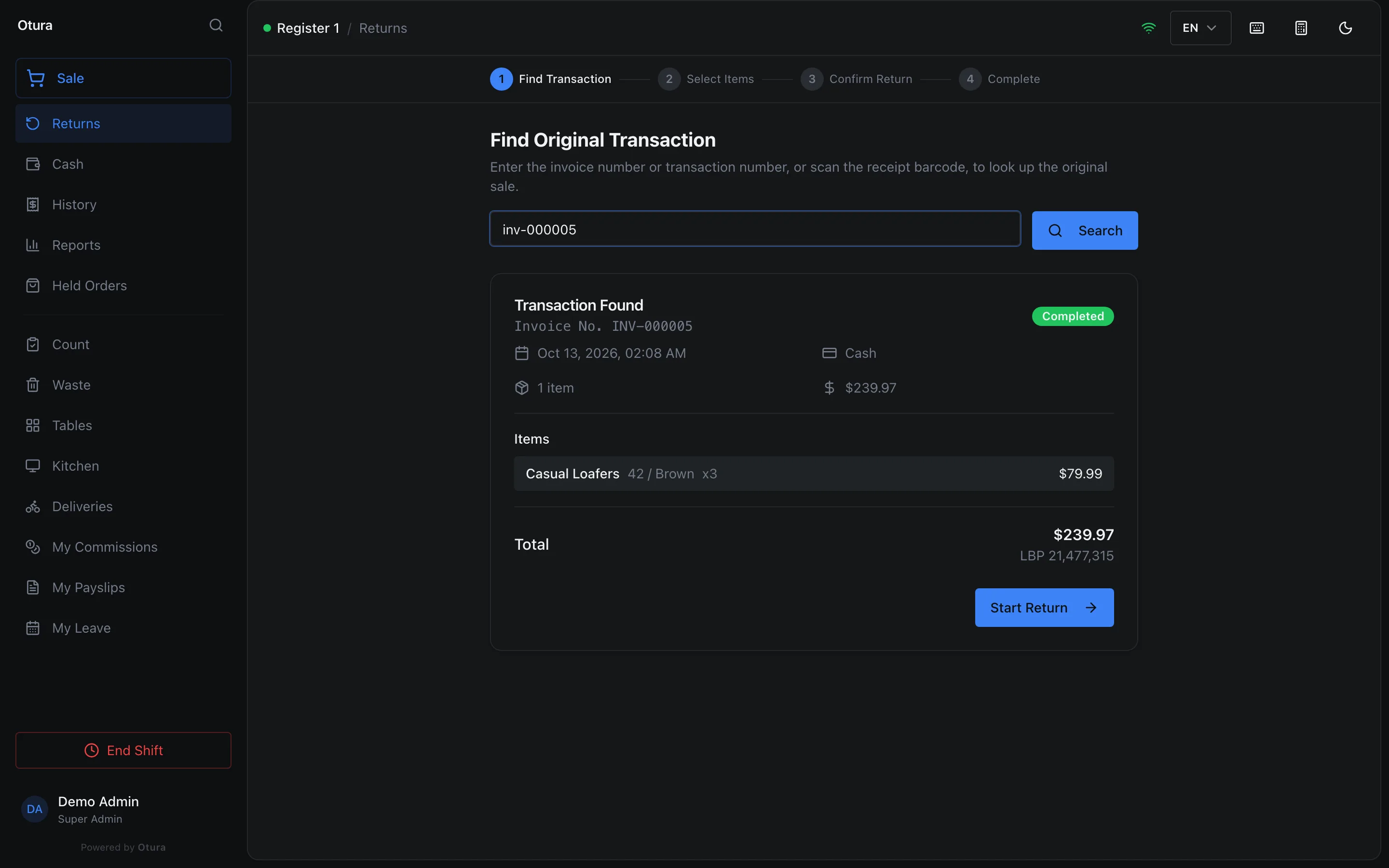
The sale found by its invoice number, typed in lower case: three pairs of loafers, $239.97. Choose what comes back
Under Select Items to Return, tap a line to select it. A selected line comes back whole. For a line of several, − and + choose how many, for example 1 of 3. Select All selects every line that can still come back. Refund Total shows what will be paid back, in dollars and in lira.
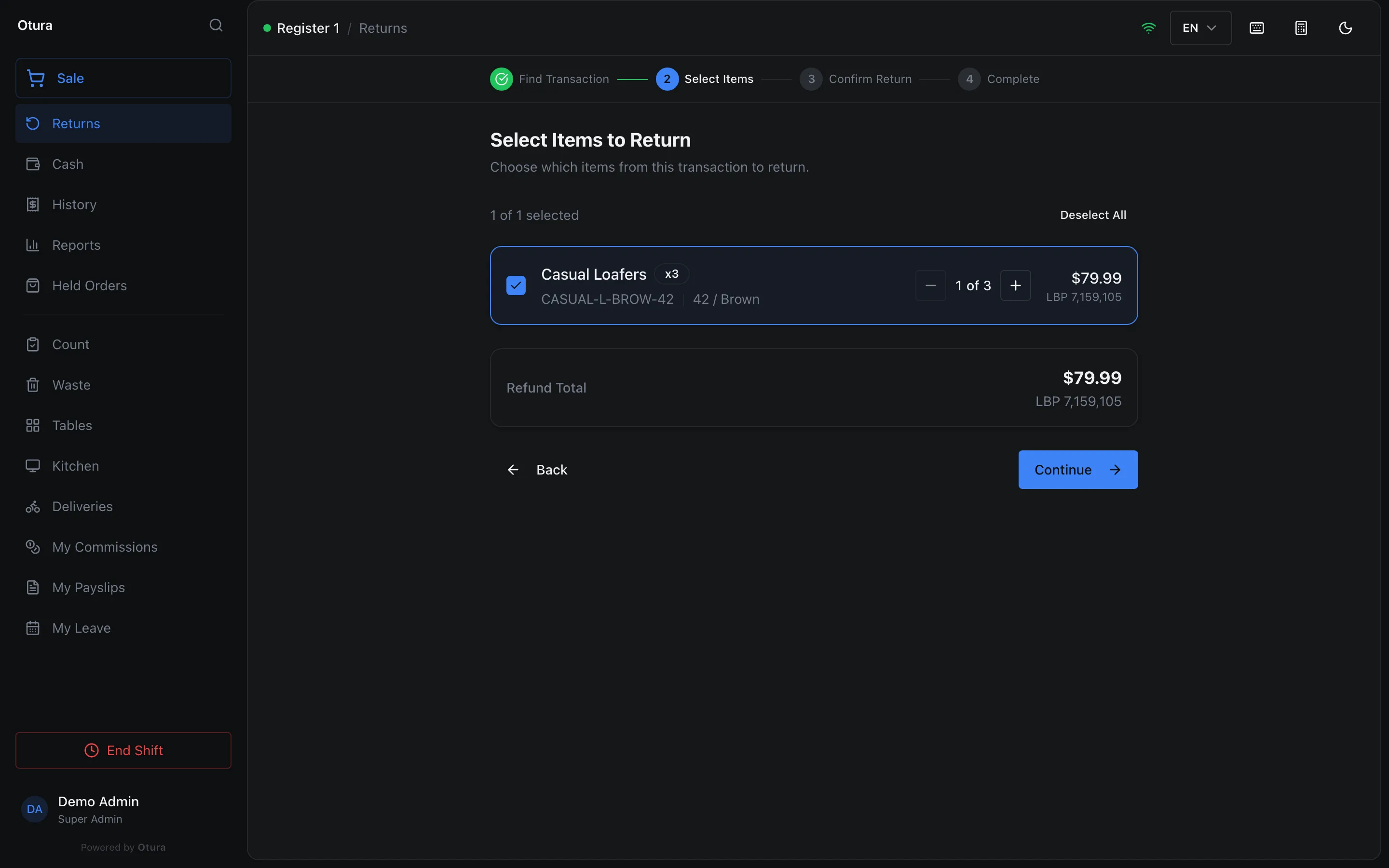
One pair of the three: a Refund Total of $79.99. A pack line comes back in whole packs. A line sold by weight comes back as what is left of it, whole. Press Continue.
Refund or exchange, and why
Under Return Type, choose Refund (the money back) or Exchange (a credit for something else, below). Write the Reason for Return (optional) if you like. Return Summary repeats what comes back, the type, the reason and the Refund Amount.
When only some units of a product sold by serial number come back, this step asks which, for example Which Drill came back? Tick its serial number., and Process Return waits for the ticks. When every unit comes back, nothing is asked. See Serial numbers and warranties.
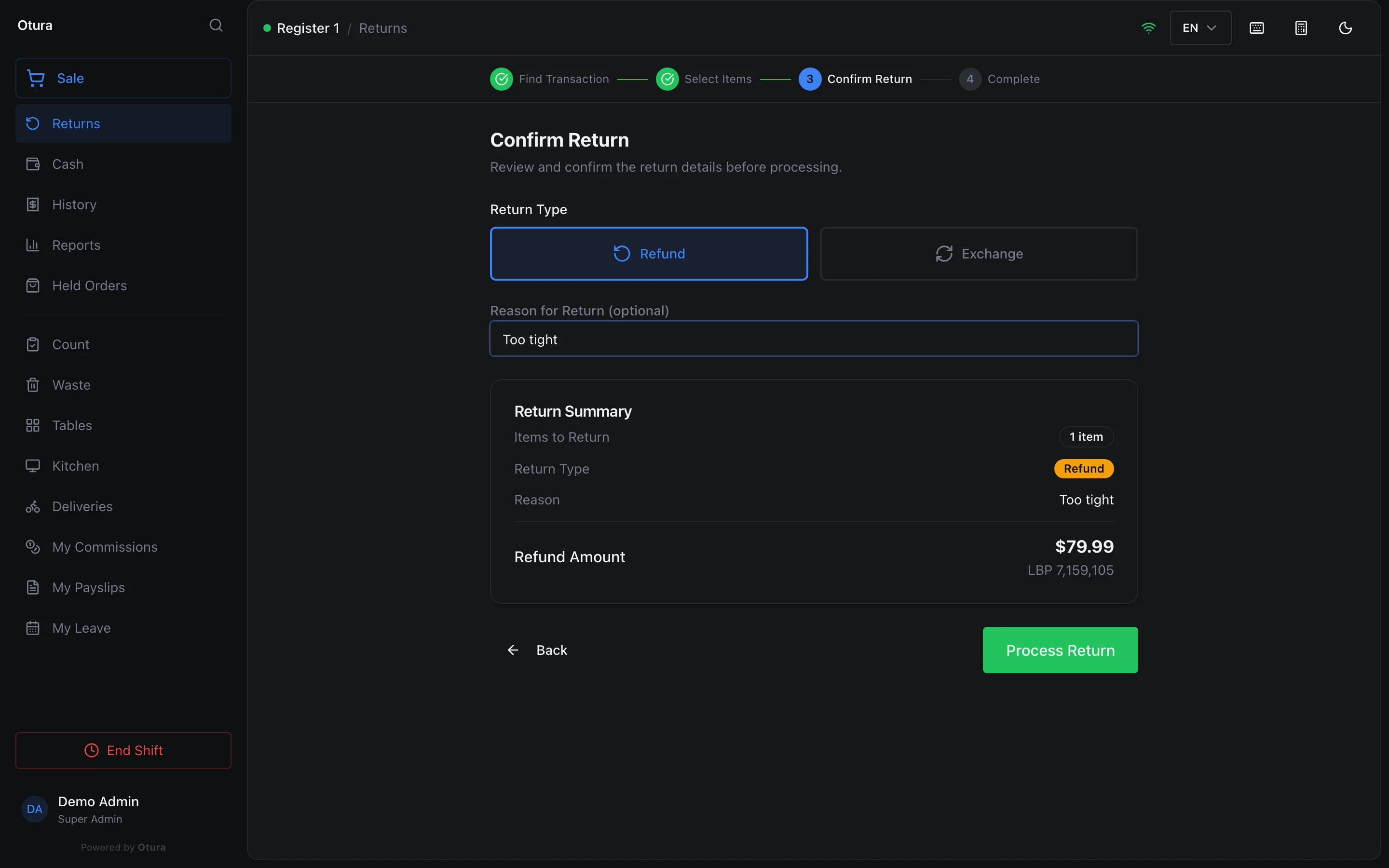
A refund of one pair, with its reason. Process it, and hand the money back
Press Process Return. Return Processed shows the Return Number (for example
RET-20261013-00001), the return's Credit note No. (for exampleCN-000001), the Refund Amount and, under Hand back, what to give the customer: Cash in USD, Cash in LBP, Back to the card or Off the customer's account, each with its amount. Pay the customer back, then press New Return for the next one.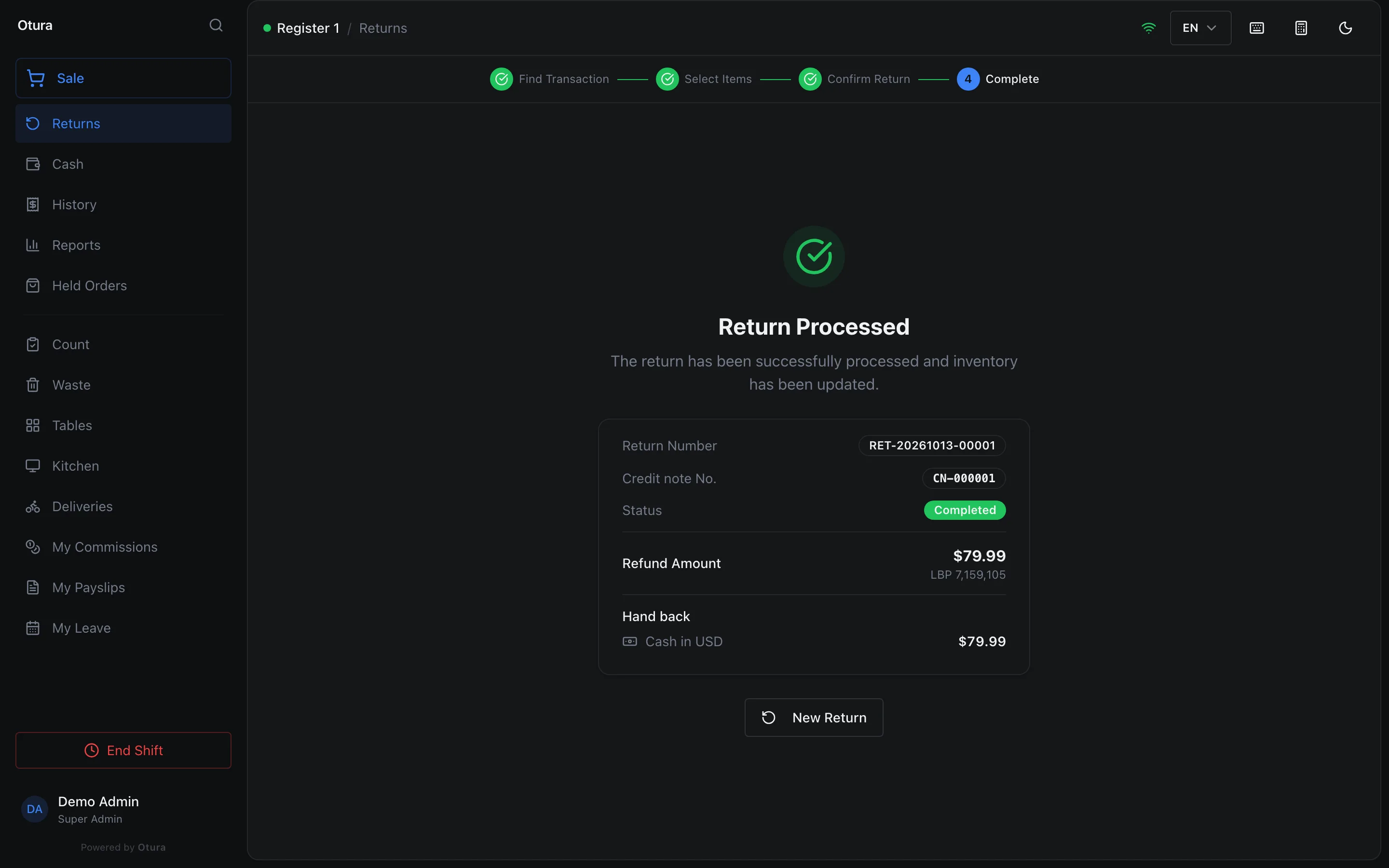
The refund done: its credit note number, and $79.99 cash to hand back.
How much is paid back
Each unit is paid back at its share of what the line was actually paid: the line's price times its quantity, less the line's discount (a discount on the whole order is spread over its lines). So a line of three at $20.00 with $10.00 off was paid $50.00, and one of them comes back at $16.67. The cents are shared so that returning the whole line, in one go or one at a time, pays back exactly $50.00 and never a cent more.
- If the sale was paid in lira and rounded to the cash step, the rounding is shared out too. A $20.00 sale taken as $19.99 pays back $19.99 in all, not $20.00.
- Prices include VAT, so the refund does too.
- A delivery fee is not paid back: only the items are.
- The lira amount is the sale's own lira, at its own exchange rate, not today's. A sale paid in lira gives back its share of the lira actually taken: returning the whole of an LBP 5,010,000 sale, in one go or in pieces, credits exactly LBP 5,010,000. The return screen previews the same figure.
- The VAT given back is the VAT the sale charged on those items, even if a product's tax class has changed since.
Where the money and the goods go
| What happens | |
|---|---|
| Money | It goes back the way the sale was paid, in the same shares. A cash part is paid from the drawer of the till you are on, in the currency it was paid in: lira paid back as lira, from the lira drawer. The shift expects that much less cash. A card part is credited back to the card in your books; Otura does not refund the card itself. An on-account part comes off what the customer owes. Hand back on the Return Processed screen says which. A delivery paid cash on delivery is refunded in cash from the drawer once its cash has come in (the driver handed it in, or it was counted in on delivery); before then the refund comes off what the customer owes and no cash leaves the drawer. |
| Shift | A refund with a cash part needs an open shift on this till. Without one, Otura refuses: “Open a shift on this register before refunding cash — otherwise the drawer cannot be reconciled.” |
| Stock | Back in stock at the branch of the till where the return is processed, at the cost it left at. An item made from a recipe is not put back, and neither are its ingredients. |
| Record | The return is a transaction of its own (RET-…-TX) on this shift, with a credit note number (CN-…) of its own, and the shift report counts it under Returns and exchanges. |
The return screens print nothing. To give the customer a paper slip, open the return in History and press Print Receipt: a refund prints with *** RETURN *** at the top and its Credit note No.
When a return is refused
| What the till says | Why |
|---|---|
| No transaction found for “…”. | No sale has that number. Check it against the receipt: it must be complete. |
| Only sale transactions can be returned. | The number is a return or a void: its RET-… or VOID-… number, or a credit note number (CN-…) from a refund or void slip. |
| Only completed transactions can be returned. | The sale was voided. |
| All items in this transaction have already been returned. | Everything has come back already; Start Return is greyed out. |
| Only … of “…” can still be returned; … was asked for | Another return took some of the line back meanwhile. Look the sale up again. |
| “…” was sold in packs: return whole packs | A pack line was asked to come back in part of a pack. |
| Another return of this sale was just made. Look the sale up again and retry. | Two returns of the same sale were processed at the same moment. |
There is no time limit: any completed sale of the business can be taken back, from any day and any branch.
Returns above a limit
A role can be given a Max Return Amount under Amount Limits in SettingsRoles. The standard roles have none, so out of the box no return asks for approval. The limit counts the sale's returns together: everything already returned from that sale plus this return. With a $25.00 limit, a sale of three $20.00 items can have one item back; the second asks for approval, because $40.00 would then have come back from that sale.
Above someone's limit, the till opens Supervisor Override Required: a supervisor types their Supervisor PIN and a Reason for Override of at least 5 characters, then presses Approve Override. The supervisor's own limit must cover the sale's returns together too.
Exchanges
An exchange takes the goods back and gives the customer their value as a credit towards something else, rung up straight after on the sale screen.
Process the return as an exchange
Choose the items as for a refund, choose Exchange under Return Type, and press Process Return & Exchange. The goods are back in stock and no money moves. Return Processed shows the return's number, its credit note number and the Exchange Credit.
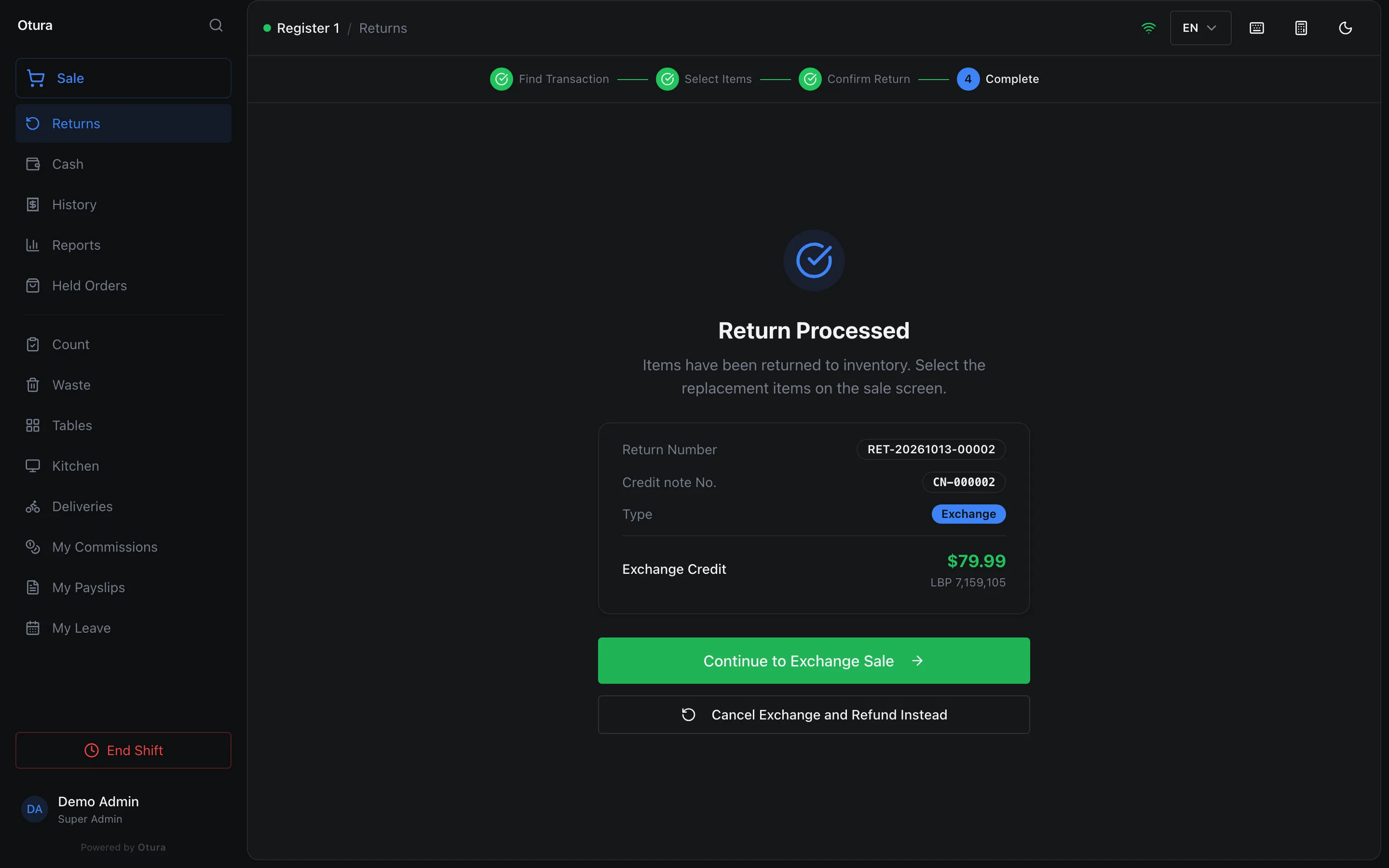
An exchange: the value of one pair, as a credit. Ring up what they take instead
Press Continue to Exchange Sale. The sale screen shows a banner, Exchange in progress, with the credit and the return's number. Add the new items as usual. Under the subtotal the cart shows the Exchange Credit taken off, then Amount Due if the new items cost more, or Refund Due if they cost less.
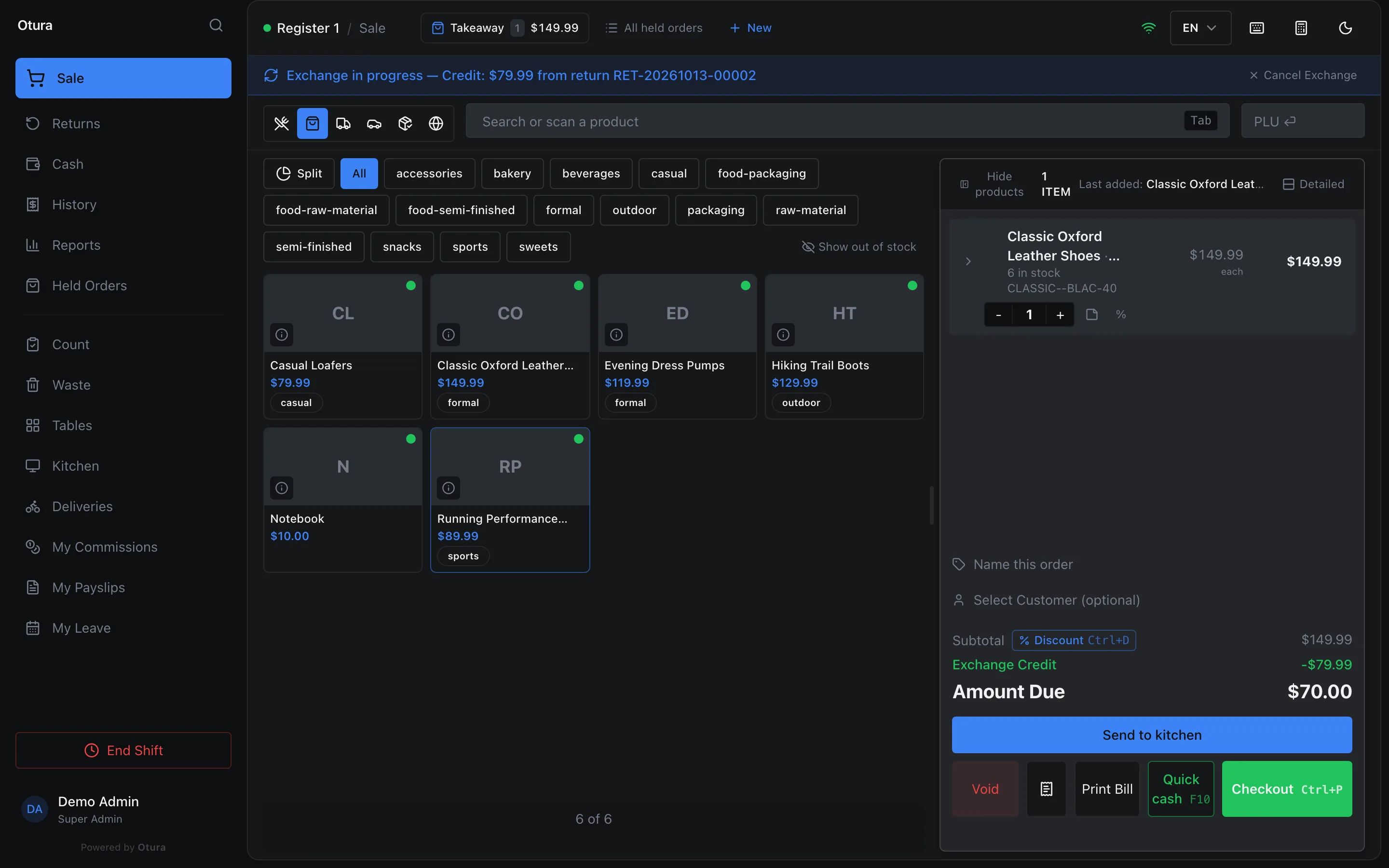
A $149.99 pair of Classic Oxfords against the $79.99 credit: $70.00 due. Take the payment
Checkout opens Exchange Payment: the subtotal, the credit with its return number, and what is due. Take the difference the usual way; the payment button names it, for example Pay $70.00.
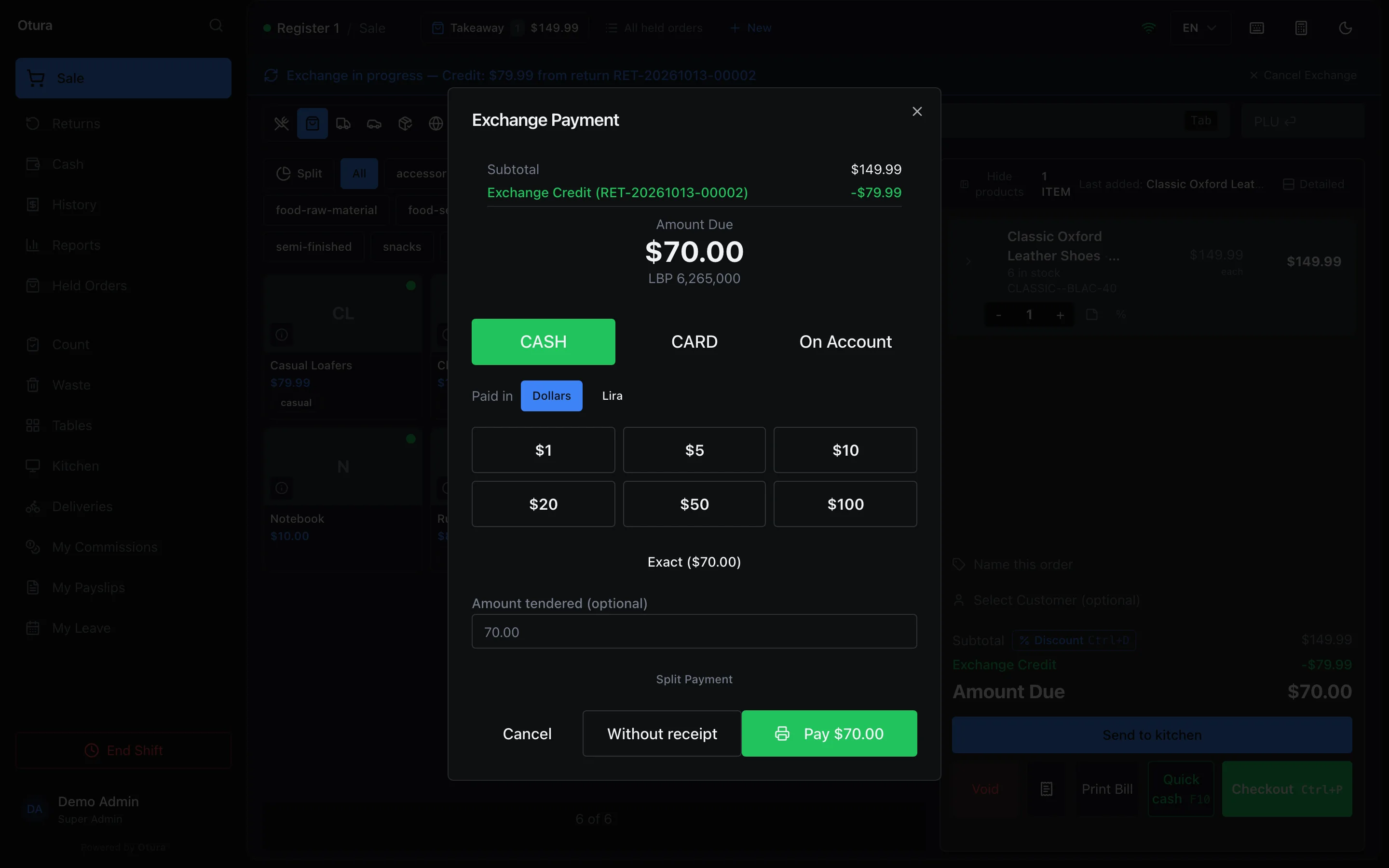
The credit off, $70.00 to pay.
- The credit is used once, in full, by the next sale. It does not carry over to another sale.
- If the new items cost less than the credit, the difference is paid back in cash, in dollars, from this till's drawer, however the original sale was paid.
- The credit waits on the till where the exchange was made, whoever is signed in on it: the banner shows there, and the exchange sale is rung up there.
- Cancel Exchange and Refund Instead, on the exchange's Return Processed screen, or Cancel Exchange in the banner on the sale screen, turns the exchange into a refund: the credit is paid back the way the original sale was paid, a cash part from this till's drawer (which needs an open shift).
- An exchange still open when the shift closes is turned into a refund the same way. Closing the shift warns first: Pending Exchange Found.
History: the shift's sales
History, in the side menu, lists every transaction of the shift that is open on this till, newest first. Each row has its status, its time, its POS number, its invoice number (INV-…) for a sale or credit note number (CN-…) for a return, exchange or void, what it is when it is not a sale, small icons for the buyer, order type and payment, the sale it reverses, and its total.
To find one, type in Invoice, credit note or POS number at the top. Any part of the number will do, in capitals or not: cn-000001 lists only that refund. All, Sales, Returns, Exchanges and Voids filter the list by type; Filters adds Status (Completed, Partly refunded, Refunded, Voided, Suspended), Buyer, Order type, Payment, Discount, Delivery and Supervisor approval. Right-click a row for Copy Transaction Number. With no shift open, History says No shift open and points you to Reports, which does not need one.
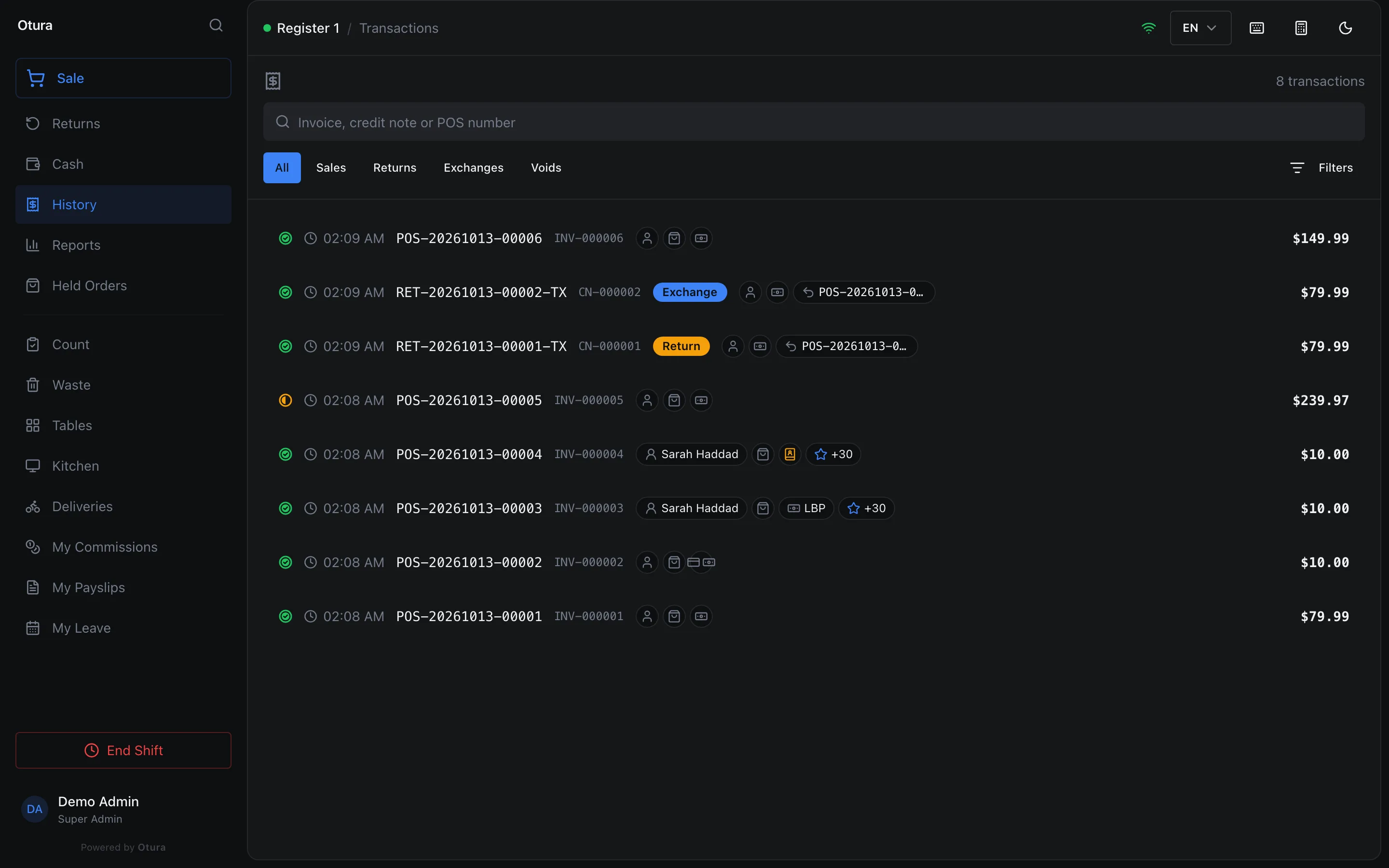
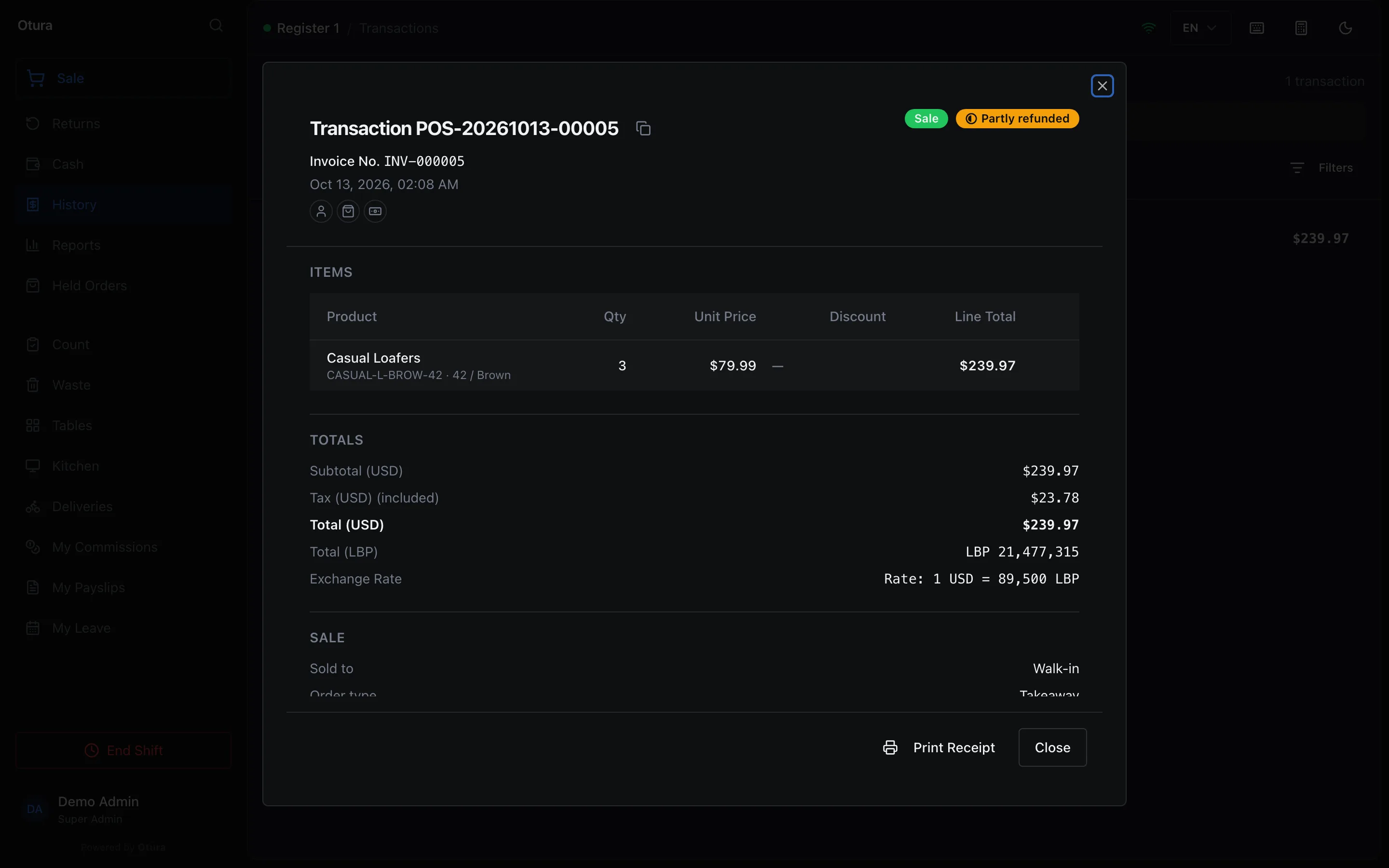
Click a transaction for its details: the Invoice No. (or Credit note No. for a return or void, with the invoice it credits), its status (Partly refunded once part of it has come back, Refunded once all of it has), the items, the totals in dollars and lira with the exchange rate, Sale (who it was sold to, the order type, who rang it up on which till, and the shift), the delivery (below), how it was paid, and Returns, voids and approvals with a link to each. The copy button next to the number copies it. Print Receipt prints it again, with the receipt settings of the day it was rung up (see Receipt settings). Someone allowed to see costs can open a line to see its cost and margin.
A delivery in History
A sale that was delivered has a Delivery section:
| Line | What it says |
|---|---|
| Delivered by | The driver, or “No driver assigned”. |
| Status | Waiting for a driver, Assigned, Picked up, On the way, Delivered or Cancelled. |
| Delivered at | When it was marked delivered. |
| Delivery fee | The fee, and who it went to: “Kept by” the driver, when your drivers keep the fee, or “To the business (shipping revenue)”. Before the delivery is marked delivered, who will get it: “Goes to … when delivered” or “Goes to the business when delivered (shipping revenue)”. |
| Cash handed in | When the driver kept the fee: when, at which till and to whom the driver handed in the cash, or “Not yet: the driver still holds it”. |
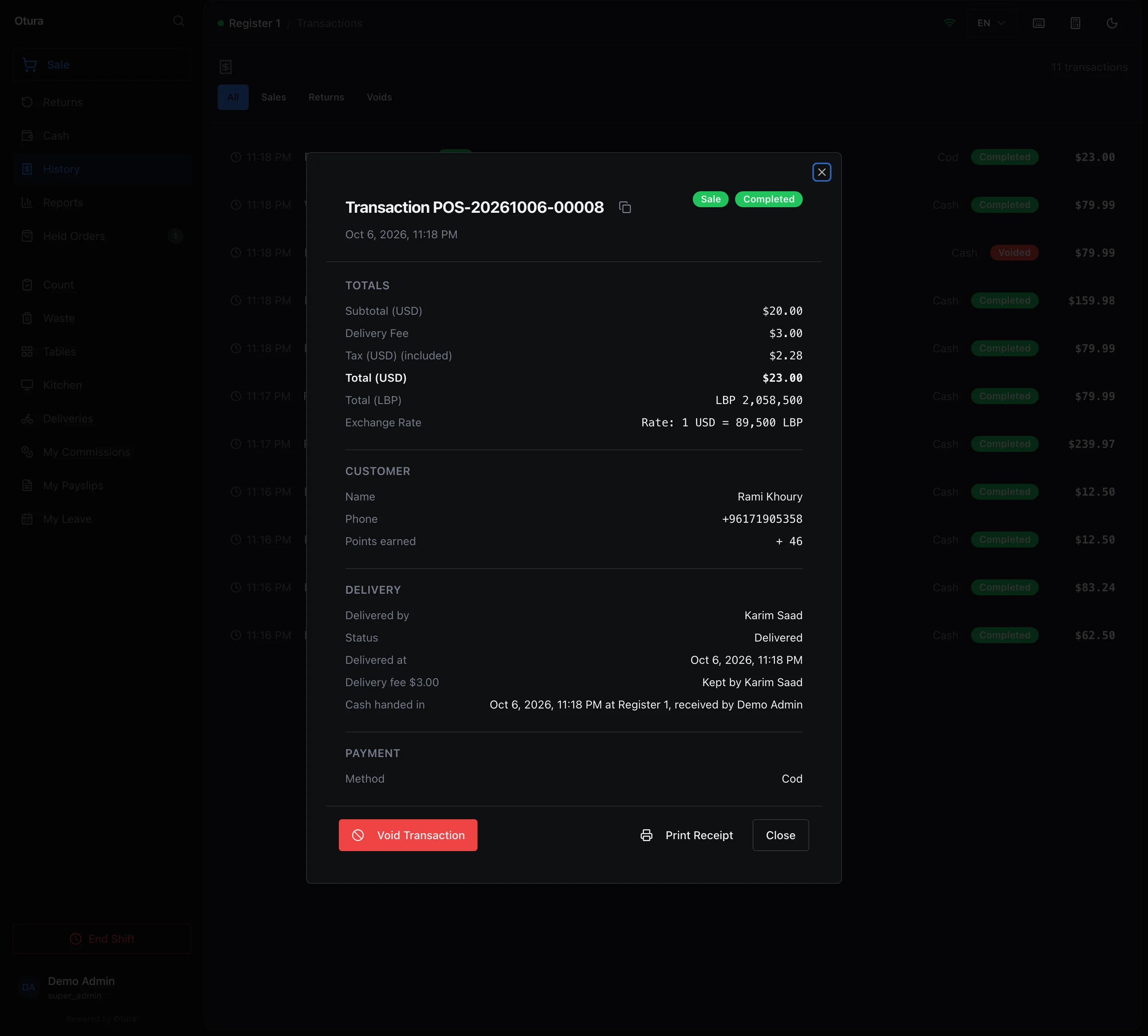
The fee and the hand-in are explained in Delivery fees and drivers.
Voiding a sale
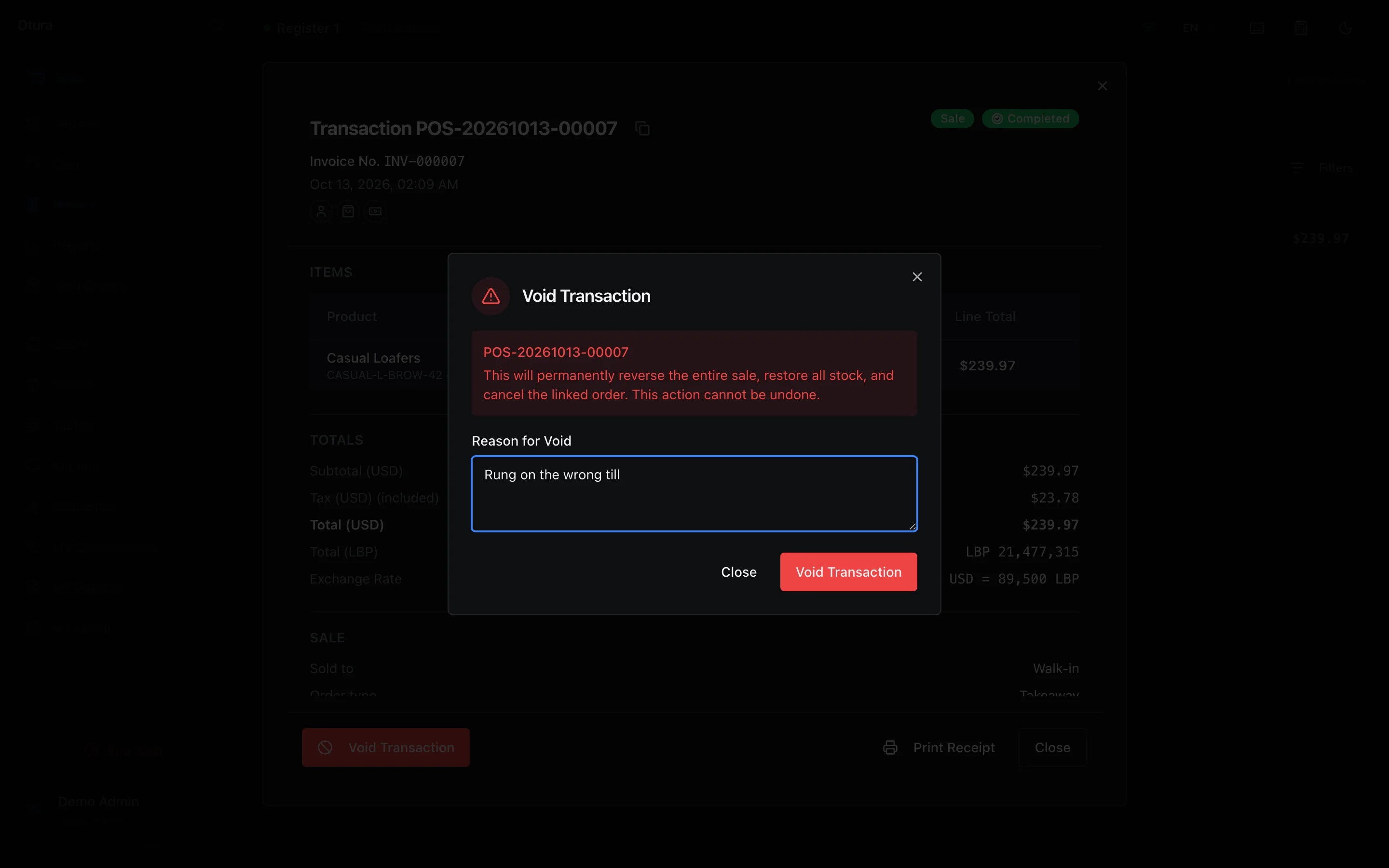
Voiding cancels a whole sale as if it had not happened, for example one rung up twice or on the wrong till. To take back only some items, use a return instead. A sale rung offline whose missing units were later booked as Stock received late (see Stock shortfalls) cannot be voided; take its items back as a return. In History, find the sale, open it and press Void Transaction. Type the Reason for Void (at least 3 characters) and press Void Transaction, or Enter in the reason box (Shift+Enter starts a new line). The till says Transaction has been voided successfully.
A void:
- puts all the stock back where the sale took it from, recipe ingredients included;
- marks the sale Voided and cancels its order;
- pays back the cash part of the payment, in the currency it was paid in, from the drawer of the till where the void is done, and is filed on that till's open shift. Void a Register 1 sale at Register 2 and the cash leaves Register 2's drawer. A card part moves no cash;
- for a delivery whose driver has already handed the cash in, pays that cash back from the drawer: what the hand-in brought in, the cash on delivery less the fee the driver kept, and the driver gives his fee back (see Deliveries);
- gets a credit note number of its own (
CN-…); the sale keeps its invoice number; - reverses the VAT, dated the day of the void;
- frees the serial numbers sold on it, so those units can be sold again (see Serial numbers and warranties).
The standard Supervisor, Admin and Super Admin roles may void a sale (Void sales in SettingsRoles). Anyone else who rings sales, a cashier for example, still sees Void Transaction; after the reason the till asks for a supervisor: Voiding a sale needs a supervisor's approval. The supervisor types their PIN and a reason, and must have Void sales themselves. A role's Max Void Amount works like the return limit above; no standard role has one.
Void Transaction is offered only on a completed sale nothing has come back from: not on one that is Partly refunded or Refunded. A void is refused:
- when part of the sale has already been returned or exchanged: Cannot void a transaction that has existing returns, exchanges, or voids;
- when the customer has paid part of an on-account sale: The customer has already paid part of this sale on account, so it cannot be voided. Take the items back as a return instead.;
- when cash is to be paid back and the till you are voiding on has no open shift.
To empty the order you are ringing up, before it is paid, use Void on the sale screen (see Clearing the order).
What a cashier sees
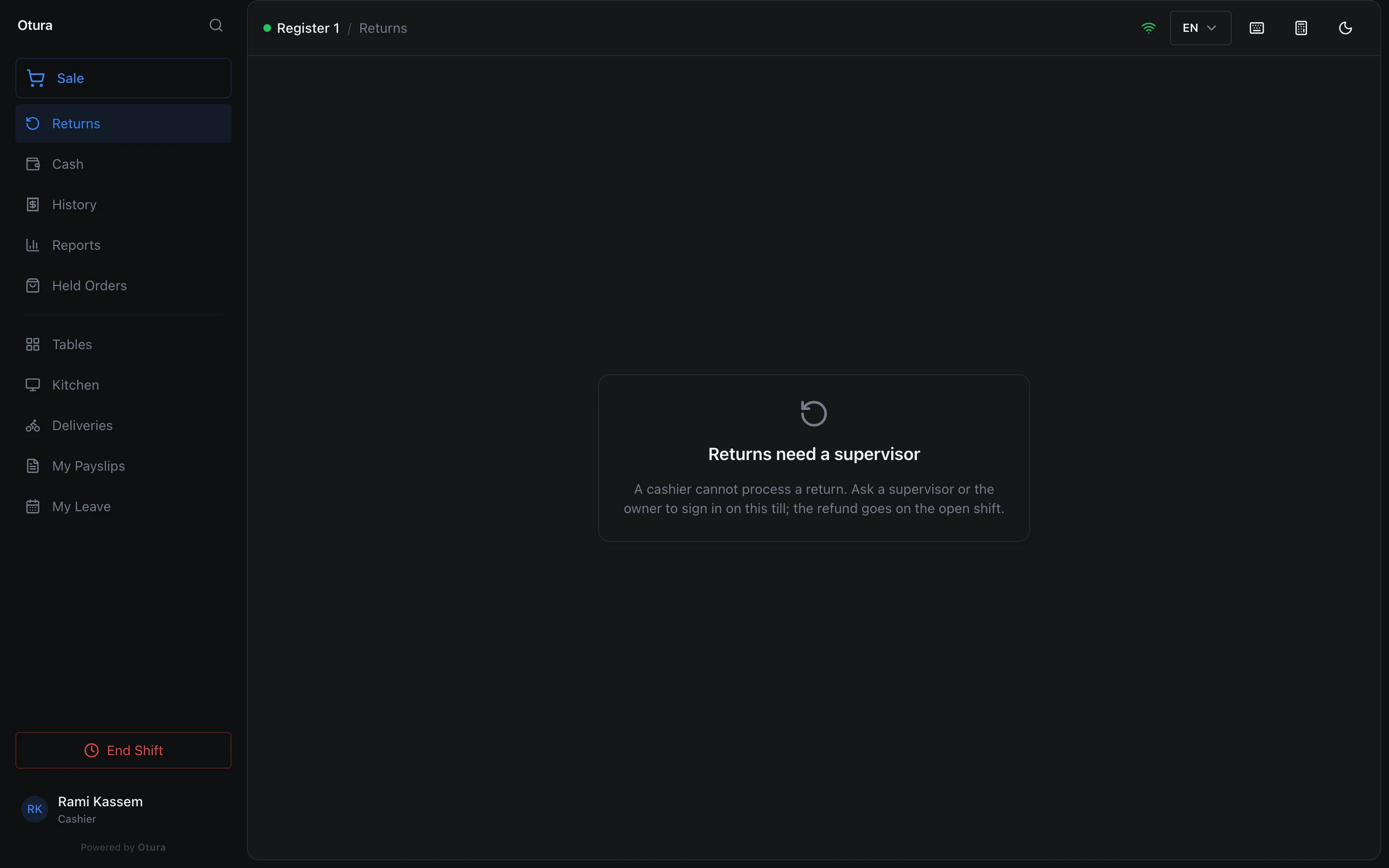
A cashier does not process returns. Signed in as a cashier, Returns shows Returns need a supervisor: A cashier cannot process a return. Ask a supervisor or the owner to sign in on this till; the refund goes on the open shift. A supervisor who signs in on the cashier's till processes it there, on the open shift.