Sending orders to the kitchen
How an order reaches the kitchen — on the Kitchen Display, on the kitchen printer, or both — and how to turn the kitchen screen off if your kitchen works from printed tickets.
Checked against the product on 23 October 2026
The kitchen hears about an order in one of two ways, or both: a ticket on the Kitchen Display, the screen cooks work from, and a ticket from the kitchen printer. Both are triggered the same way, from the till.
Send an order
With the Restaurant module on, the cart has a Send to kitchen button above Void and Checkout, for every order type — dine-in, takeaway and delivery all get cooked.
- Only the lines the kitchen does not have yet are sent. Add a dessert to a table that has already sent its mains and the button reads Send the rest to kitchen; the kitchen gets the dessert, not the mains again. Once the kitchen has every line, it reads Kitchen has it all. On an empty order it reads Send to kitchen, greyed out.
- Checkout sends anything not yet sent, so a counter that rings up and takes the money without pressing Send to kitchen still tells the kitchen. The payment opens either way: if the send fails, the till says why, and you can still take the money. Checkout sends only when the order can reach the kitchen: this till has a kitchen printer, or the kitchen screen is on and has a station. Otherwise it sends nothing, says nothing, and the lines stay unsent; press Send to kitchen to send them and be told the kitchen did not get them.
- Once a line is sent, reducing or removing it needs a supervisor's approval — the food may already be cooking. Supervisors, admins and the owner (anyone with Cancel orders already sent to the kitchen) just do it. A cashier gets Supervisor Override Required — The kitchen already has this order. — and a supervisor enters their Supervisor PIN and a Reason for Override (at least 3 characters).
- A sent line's options cannot be changed: The kitchen already has this item. Add a new line with the options you want, and take this one back if it should not be made.
Take food back from the kitchen
Reducing or removing a line that was already sent, voiding the order, or discarding a held order all tell the kitchen. What it is told depends on how the food reached it:
- On the Kitchen Display: only the tickets holding that line are cancelled on the board — a ticket at another station keeps cooking. When you reduce or remove a line, the rest of what those tickets carried is sent again straight away as a replacement ticket, so the other dishes on them are not lost.
- On paper only (sent while the kitchen screen was off or had no station, or anything while it is off now): only what you took back is cancelled. The reduced order is not sent again — the kitchen keeps making what is left.
- Already served (bumped from Ready, with the kitchen screen on): nothing is stopped, printed or shown on the board. The line is simply reduced, with the same approval as any sent line.
A till with a Kitchen Printer prints a slip for everything cancelled, headed with the same table, name or number as the original ticket, under *** CANCELLED *** and DO NOT MAKE, with every quantity negative (for example -2 x Pizza). When a ticket on the board was cancelled, the slip lists everything that ticket carried, and the replacement ticket then prints again what is still wanted — so a cook may see -1 x Salad followed by 1 x Salad. A till with no kitchen printer, cancelling food the kitchen only has on paper, shows Tell the kitchen these were cancelled with the items — for example 2 × Pizza. Food on the Kitchen Display is shown as cancelled on the board itself.
Taking food back needs the connection, because the server checks the supervisor. On the desktop till, an order that was changed while the connection was down is handed back to the server first once the connection returns, and the take-back then goes as above: see After a connection drop.
The Kitchen Display
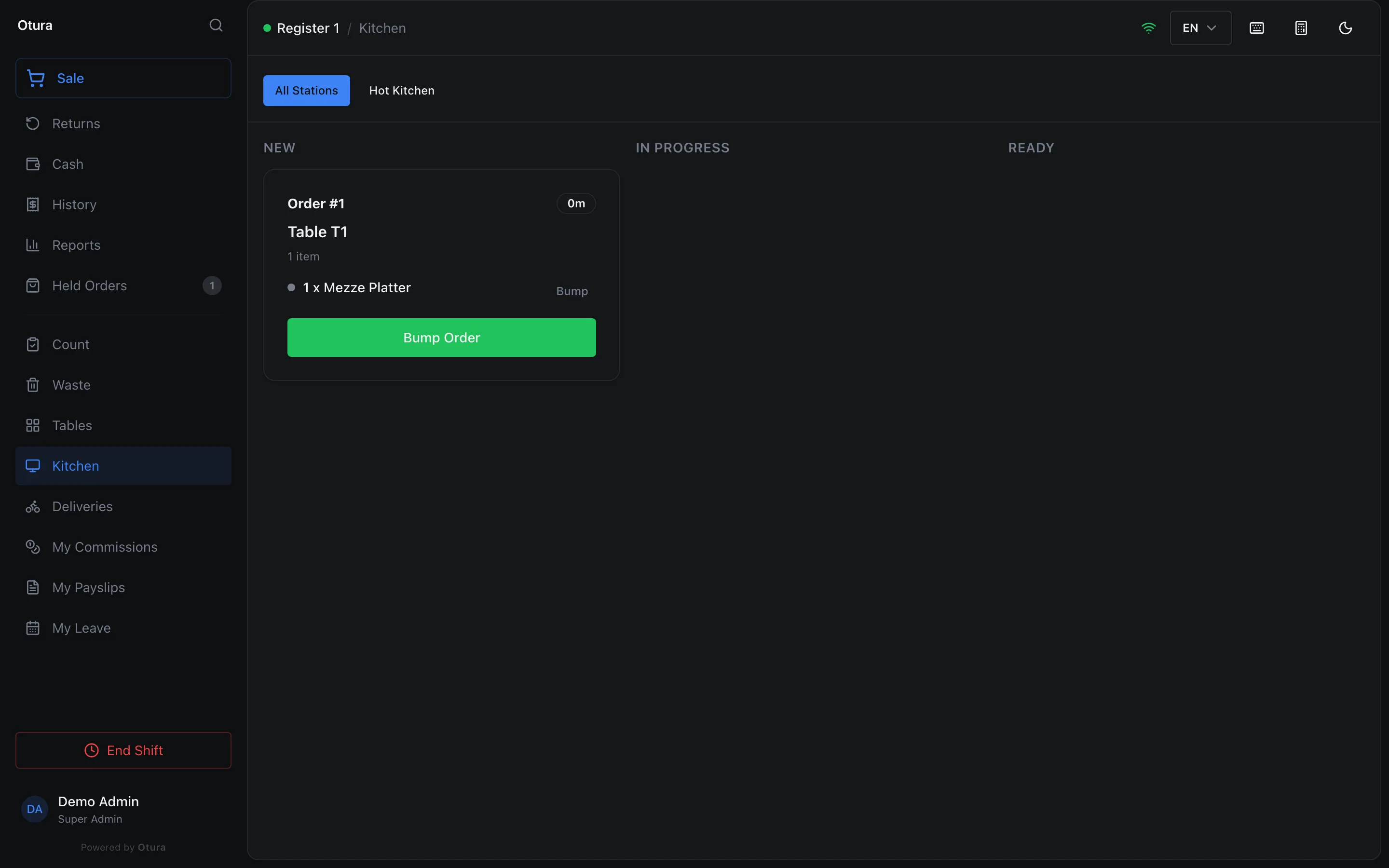
Open it from Kitchen in the POS sidebar. Tickets sit in three columns: New, In Progress and Ready. Each ticket names the order's table (Table T1) or its name and type, and counts its lines (1 item). A bump the board cannot make — the till cancelled the order meanwhile, say — says so and the board refreshes.
| Button | What it does |
|---|---|
| Bump Order | Moves the ticket to the next column. Bumped from Ready, the order is served and leaves the columns for the Just served row. |
| Recall #… | In the Just served row, which keeps the last 15 minutes’ served tickets: puts a ticket bumped by mistake back in Ready. |
| Bump | On one item: moves that item on. When every item is ready, the ticket moves to Ready by itself. |
A ticket stays on the board until someone bumps it. Paying for the order does not close it. If nobody in your kitchen is going to bump tickets, turn the screen off (below).
The waiting-room order display reads the same tickets: an order shows as Preparing, then Ready for collection once all of it is ready, and disappears when it is served.
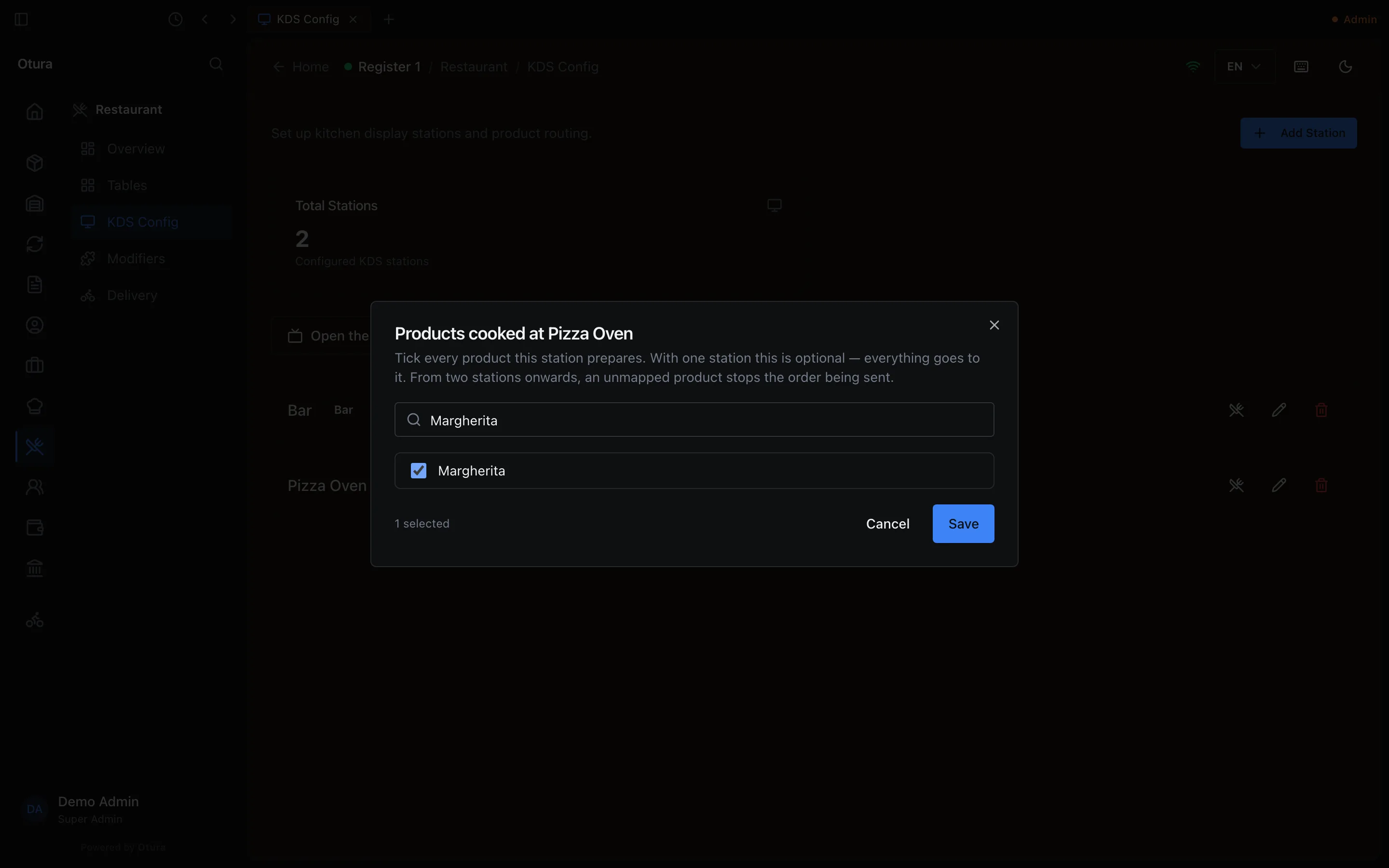
Tickets go to the kitchen stations set up under RestaurantKDS Config (Add Station, a Station Name, its type and, if it reads another language than the rest of the kitchen, its Language: see below). With one station, everything goes there. With two or more, each product has to say which station cooks it: on the station, the utensils button (its tooltip reads Products cooked at …) lists the catalogue with a search; tick what that station prepares and save. Search products searches the whole catalogue; the list shows 100 products at a time with the ones already on the station first, and says Showing 100 of 340. Type to find the rest. when there are more. An order with a product no station claims is refused, naming the product — for example No kitchen station is set up to cook: Margherita. This business has 2 stations, so each product must say which one cooks it. Nothing is marked as sent, so once the product is ticked, Send to kitchen sends it.
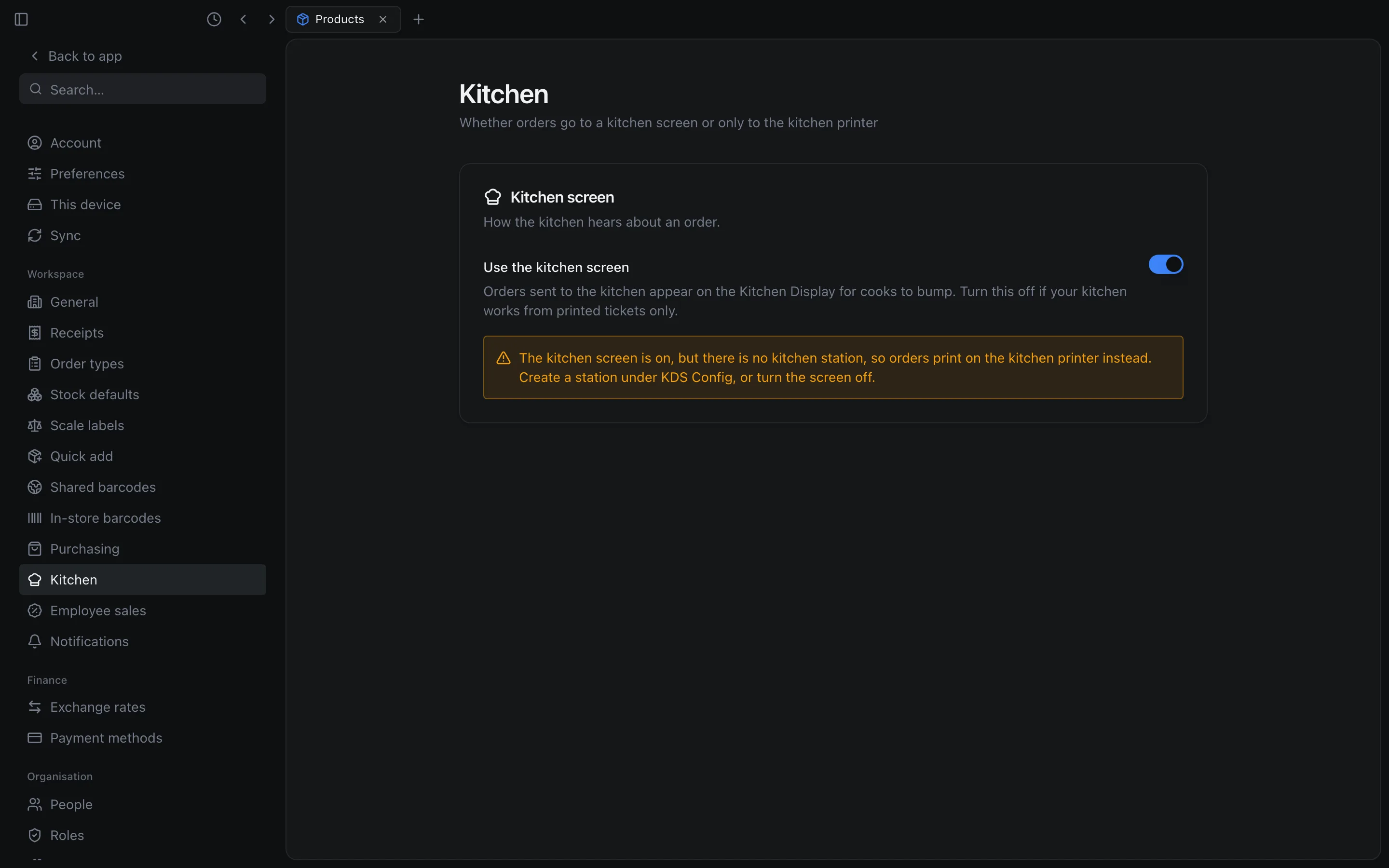
With no station at all, sending is not refused. The lines are marked as sent and the order gets its number, exactly as with the screen turned off (below), but nothing goes on the board: the order reaches the kitchen only as the kitchen ticket, from a till that has a kitchen printer. On a till without one it reaches nobody, and the cashier is told (see the warning below). The Kitchen Display says No kitchen station is set up — Orders sent to the kitchen print on the kitchen printer and do not appear on this screen. The waiting-room order display shows no orders, and SettingsKitchen warns: The kitchen screen is on, but there is no kitchen station, so orders print on the kitchen printer instead. Create a station under KDS Config, or turn the screen off. A station deleted later stops receiving tickets at once.
The kitchen ticket
When an order is sent from a till running the desktop app with a Kitchen Printer, that till prints a kitchen ticket. Like the screen, it carries only the lines just sent. Each line names the size or other variant as well as the product (for example Americana · Family), on the ticket, on the kitchen screen and on a cancelled slip. A line sold in part (on an item whose unit takes decimals, see Units and decimals) keeps its exact quantity there too: half a pizza rung up as 0.5 prints 0.5 x Vegetable, the same figure as the receipt, never rounded up to a whole one. It is headed with the table name, or else the order's name, or else its number (for example #12). If the printer fails, the till shows The kitchen ticket did not print.
The items are grouped by category, with the category name printed once above its items (for example — Pizza Classic —), in the order set for the categories under CommerceCategories (the Order column). Items with no category come last, under Other; if no item has a category, there are no headings. A deal is printed first, as its own section: its name, then its items grouped by category under it (see Bundles). A cancellation slip is not grouped.
A line's options (see Modifiers) print under it, one per line and never with a price, led by what to do in capitals: NO onion, LESS tomato, EXTRA garlic, ADD cheese. An option with none of these prints as + Brown bread. The line's note prints last, in bold, after **; the Kitchen Display shows it as Note: ….
Under the heading, the ticket prints the order type as the till names it — Dine In, Takeaway, Drive Thru — in the till's language, or in the kitchen's when one is set (below). It used to print the stored code, such as dine_in.
The kitchen's language
A kitchen that reads another language than the tills can have its tickets and its screen in that language. The setting is on SettingsKitchen, under Kitchen language: The language kitchen tickets and the kitchen screen use for dishes, sizes and options, and for their own words. A dish with no name in that language keeps its main name. Customer receipts do not change.
Give the dishes their names
A product's Name in Arabic and Name in French (see Products), a variant's Variant name in Arabic and Variant name in French (see Variants), a category's Arabic name and French name (see Categories), and a modifier group's and option's In Arabic and In French (see Modifiers). Anything left empty goes to the kitchen under its main name.Choose the kitchen's language
On SettingsKitchen, choose a Language: Not set (main names), English, العربية or Français. It is saved as soon as you choose, with Kitchen language saved.If one station or printer reads another language, give it its own
A kitchen station or a kitchen printer can have its own language, which wins over this one. A station's form, under RestaurantKDS Config, has Language; the kitchen printer's settings on each till have Kitchen ticket language (see Printers). Both start at Same as the business.
| What the kitchen sees | In which language |
|---|---|
| The printed kitchen ticket | The Kitchen ticket language of the till’s kitchen printer, else the business’s. |
| A ticket on the Kitchen Display | The Language of the station it was sent to, else the business’s. A ticket keeps the language it was sent in. |
| No language set anywhere | The main names, with the ticket’s own words in the language of the till that prints it, and a card’s in the kitchen screen’s, as before. |
- Each dish, its size, each option and its group, and on the paper ticket each category heading, is given under its name in that language. Each part falls back to its main name on its own: a product named in Arabic whose size is not reads أمريكانا · Family.
- The ticket's own words follow too: the order type, Other, the NO, LESS, EXTRA and ADD before an option, and the heading a ticket gets when its order has no table, name or number yet.
- English gives the main names, with the ticket's and the card's own words in English whatever language the till or the screen is in.
- On the Kitchen Display, a card says its own words — the order number, the table, the order type, the item count, Bump, Bump Order, Note: … — in the language of its ticket, and a card in Arabic reads right to left even on a screen set to English. The rest of the screen stays in the screen's own language.
- A ticket printed while the till is offline is named the same way: the till keeps the names, the categories and the business's kitchen language in its offline copy of the catalogue.
- The cart, the customer receipt and reports always use the main names.
Turn the kitchen screen off
If your kitchen works from printed tickets only, turn the screen off so orders stop piling up on a board nobody watches.
Open the Kitchen settings
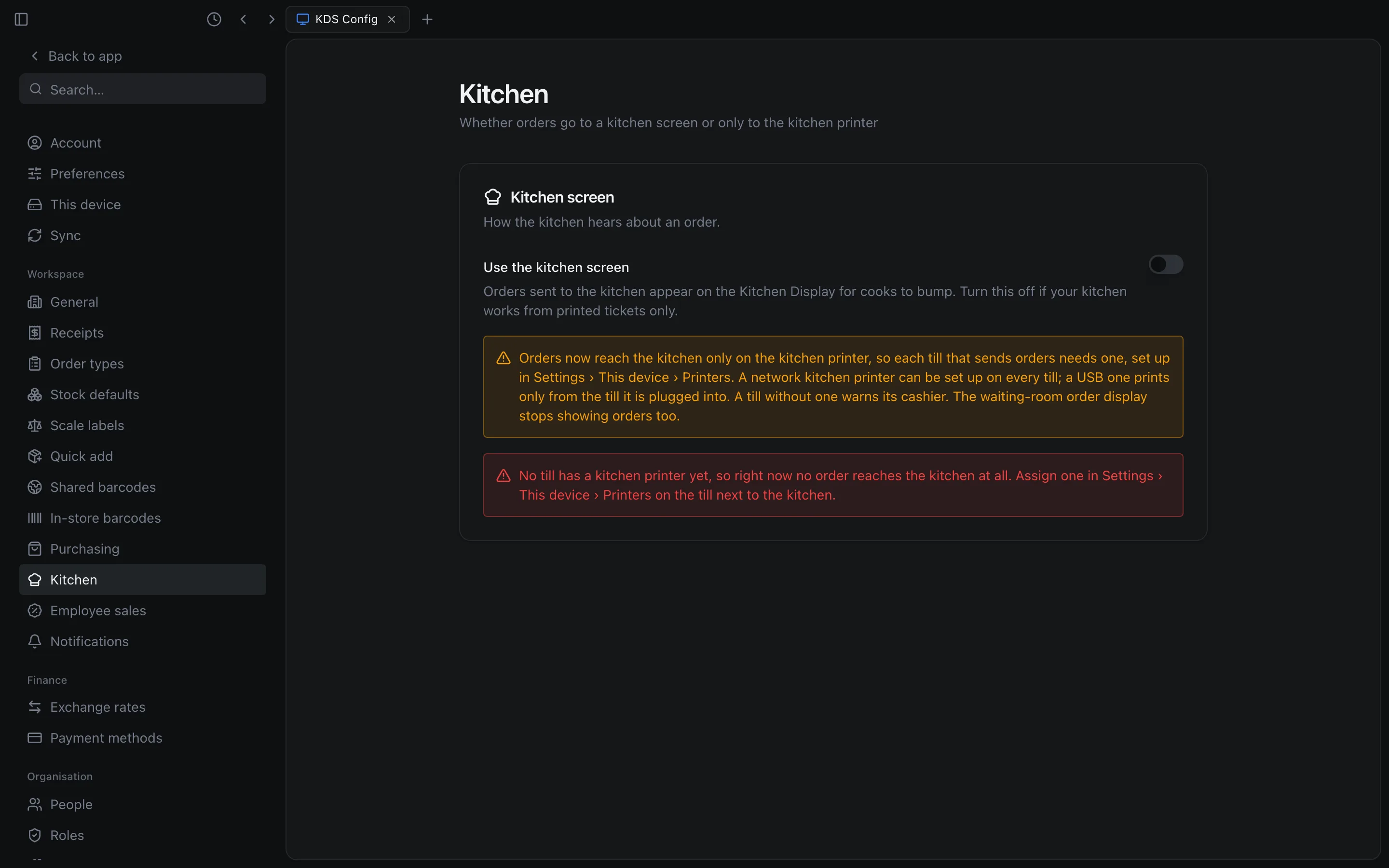
SettingsKitchen.Turn off Use the kitchen screen
It is on for every business until someone turns it off. Kitchen appears in Settings for someone with the business settings permission — the Admin role has it — in a business with the Restaurant module.Confirm
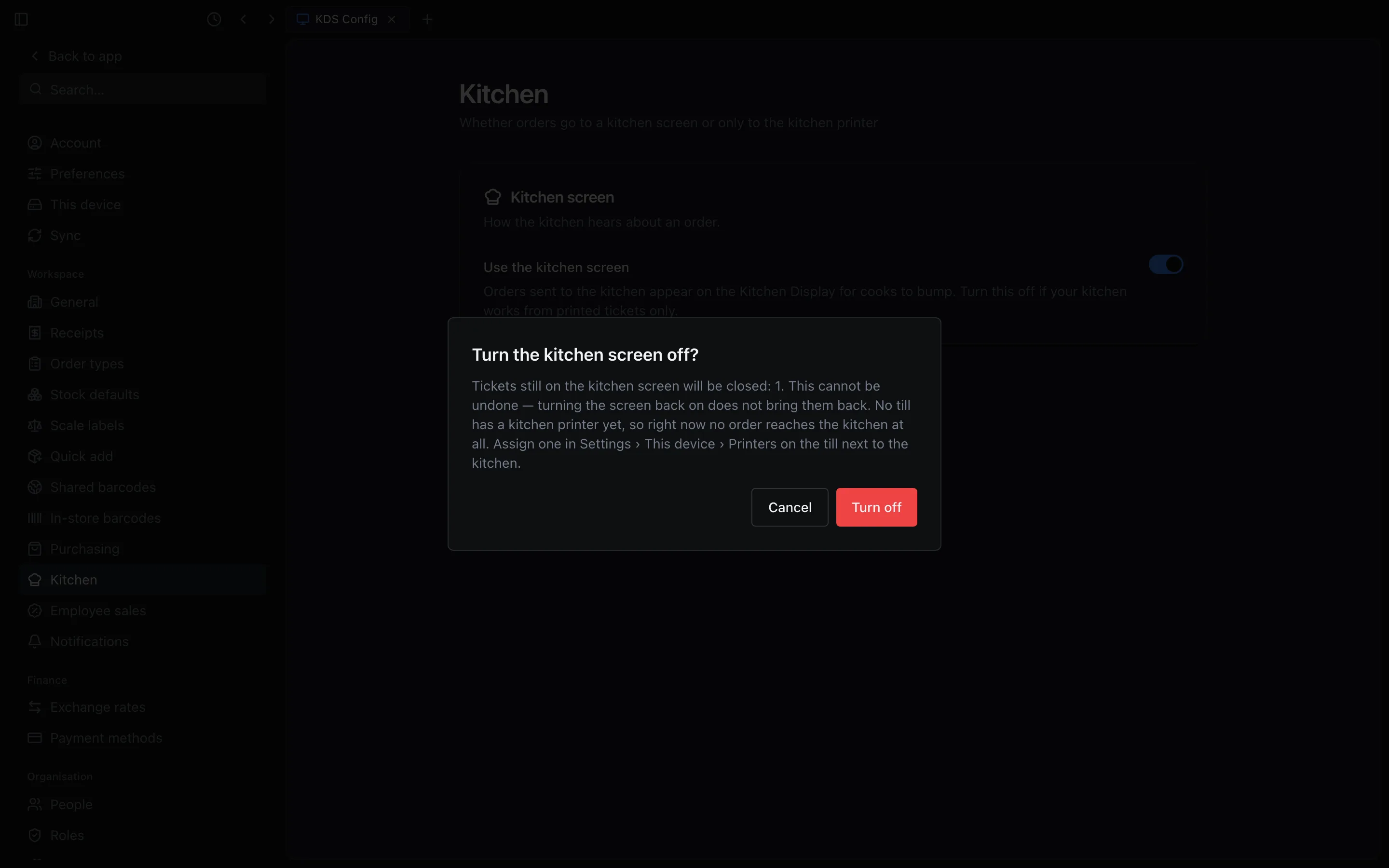
Turning it off asks first: Turn the kitchen screen off? says how many tickets still on the kitchen screen will be closed, and that this cannot be undone. Nothing changes until you press Turn off. Turning it back on needs no confirmation.
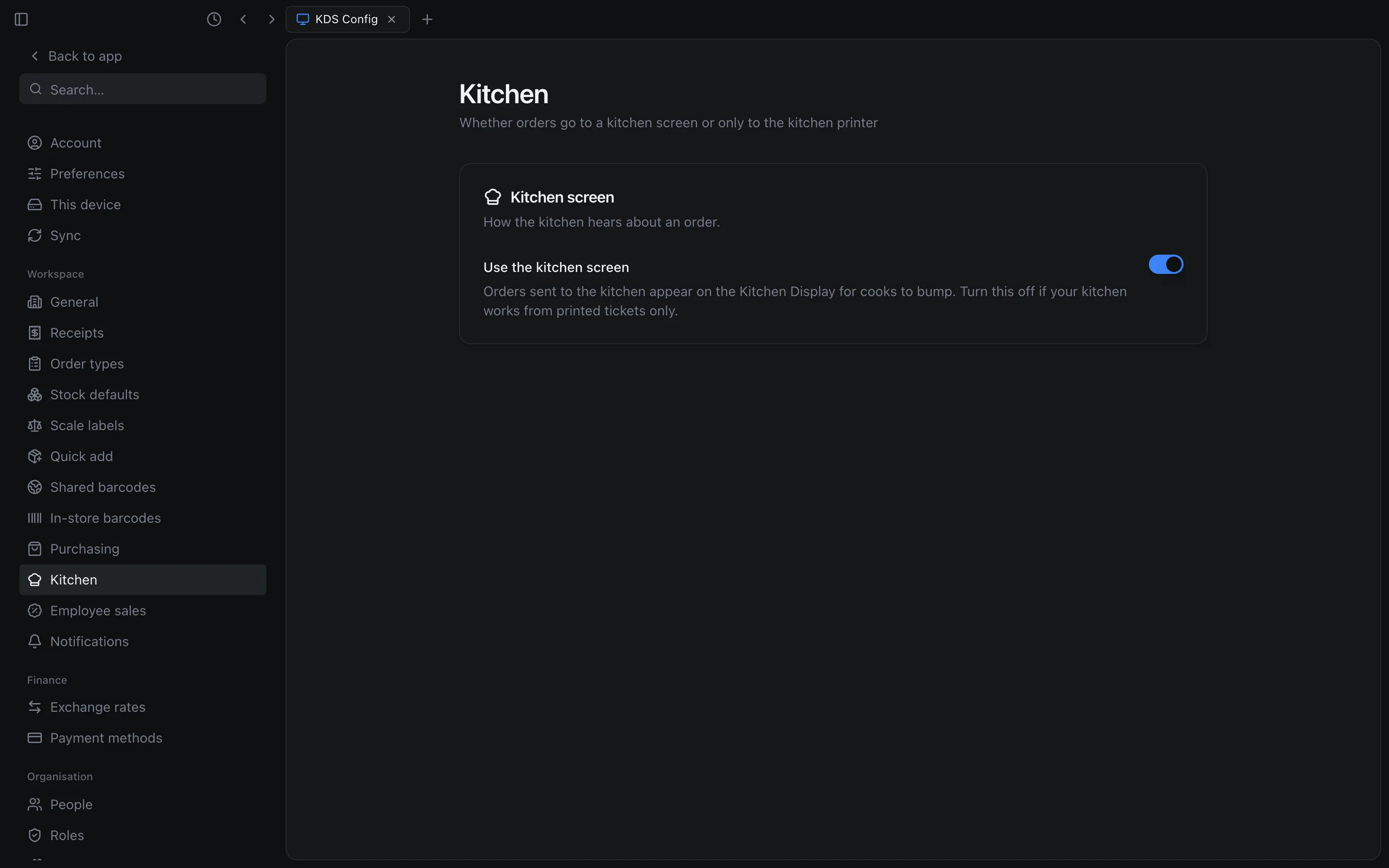
With the screen off:
- Sending an order writes nothing to the Kitchen Display, and no kitchen station is needed. The kitchen ticket still prints, the lines are still marked as sent, and the order still gets its number.
- Tickets still waiting on the screen when you turn it off are closed as served. The dialog says how many before you confirm, and the message after saving repeats the number if there were any.
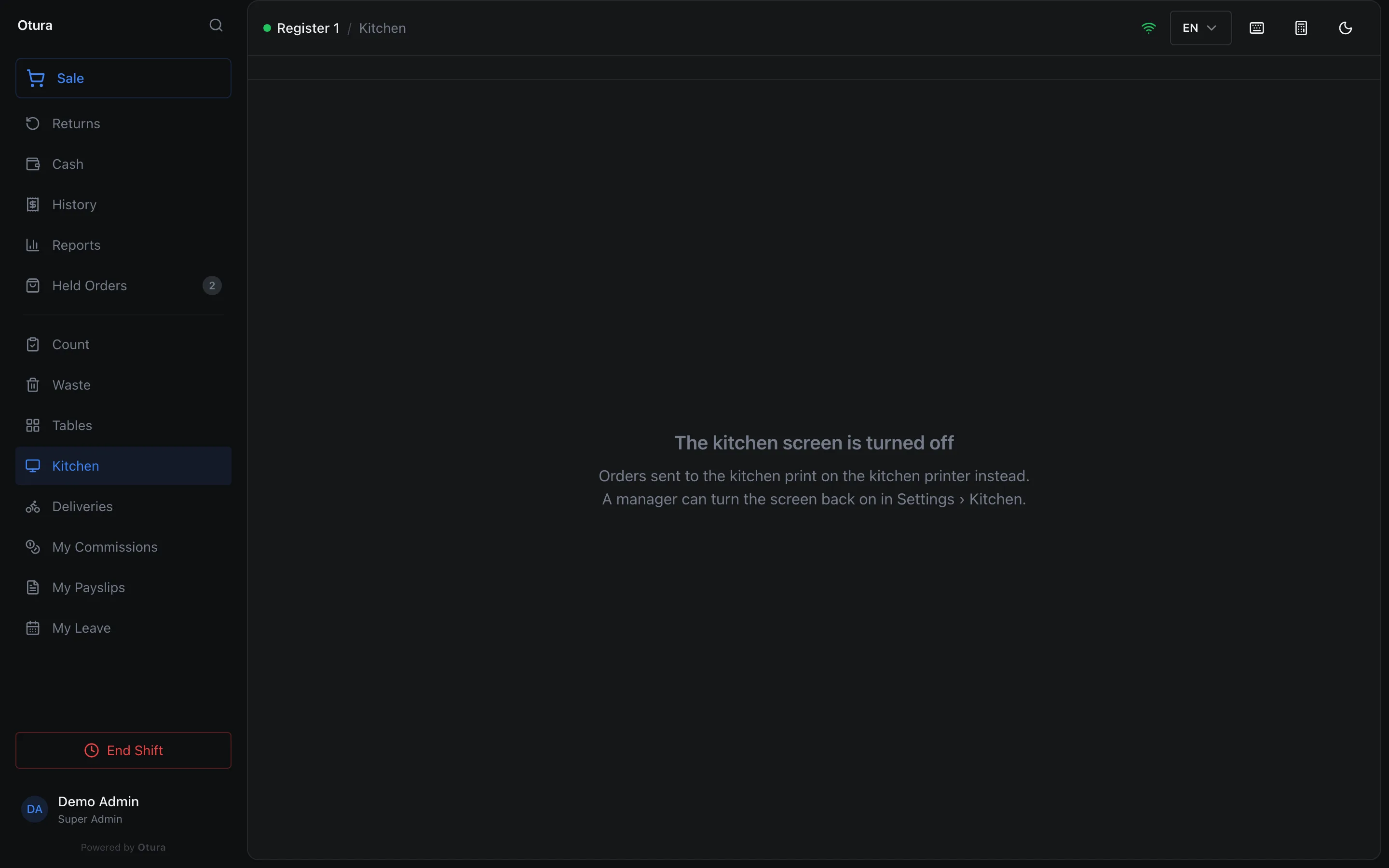
- The Kitchen Display shows The kitchen screen is turned off instead of a queue. A Kitchen Display that is already open notices within about 15 seconds, in either direction.
- The waiting-room order display shows Order updates are not shown on this screen, because it reads the screen's tickets.
- If no till in the business has a kitchen printer yet, the settings page adds a red warning — No till has a kitchen printer yet, so right now no order reaches the kitchen at all. Assign one in Settings › This device › Printers on the till next to the kitchen. — and the confirmation repeats it. Assign one before turning the screen off.
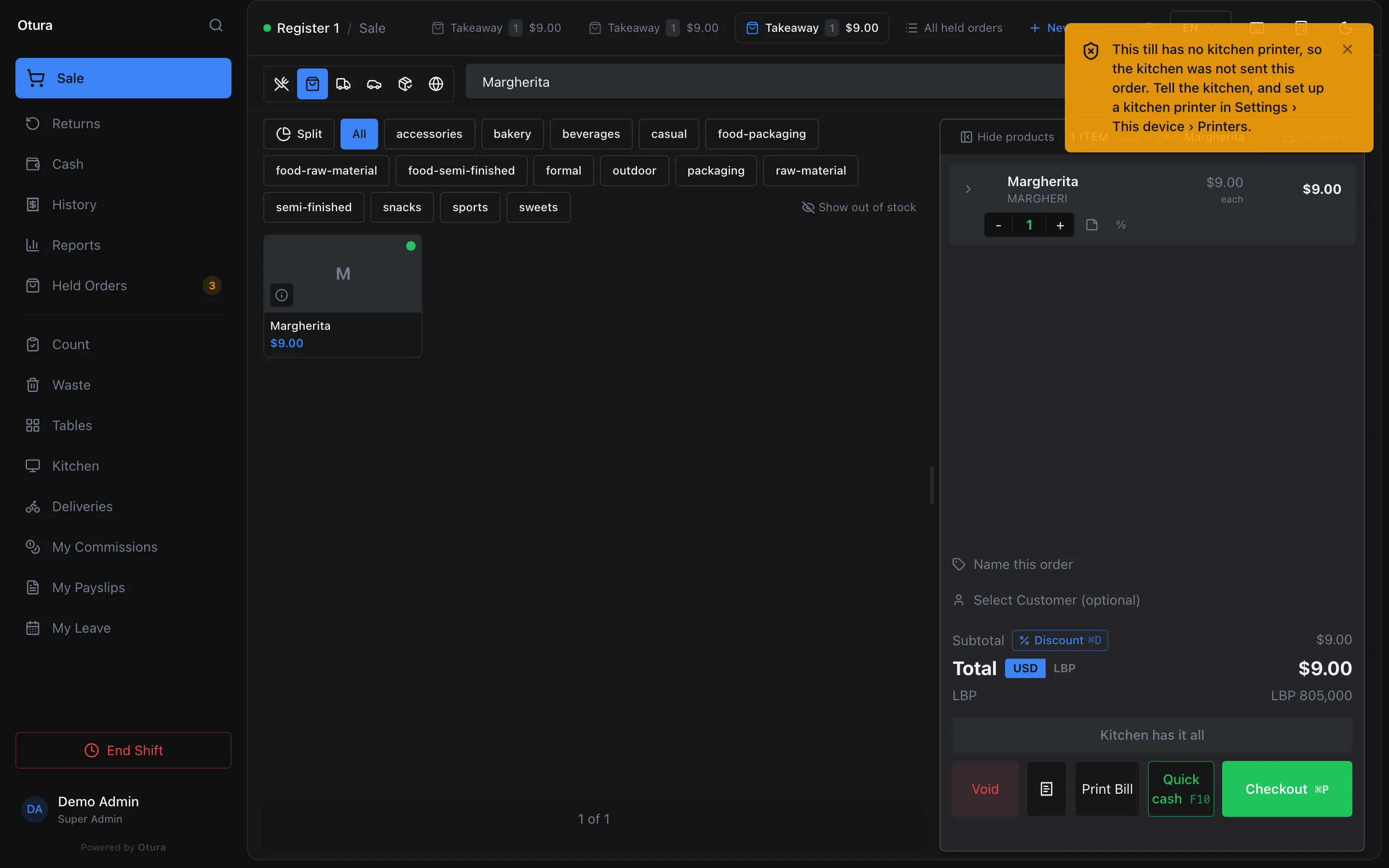
- On a till with no kitchen printer, Send to kitchen shows This till has no kitchen printer, so the kitchen was not sent this order. Tell the kitchen, and set up a kitchen printer in Settings › This device › Printers. The order is still marked as sent, so tell the kitchen yourself. The same happens with the screen on and no kitchen station. Checkout on such a till sends nothing (see Send an order).
Turning the switch back on sends new orders to the screen again. Closed tickets do not come back by themselves; turned back on within 15 minutes, the board lists them under Just served, where Recall #… puts one back in Ready.