Delivery fees and drivers
Where a delivery fee goes in your books, what a driver can see and do, marking a cash-on-delivery order delivered, and — if your drivers keep the fee — how a driver hands in the rest of the cash at a till.
Checked against the product on 20 October 2026
Where a delivery fee goes
A delivery fee is part of the order's total and is taxed with it. In your books it is a delivery you sold, not food: its share of the sale, net of VAT, is credited to 7060 Shipping Revenue, and the rest of the sale to 7010 Sales Revenue - POS. So your sales figures are what you sold over the counter, and the fees sit on their own line.
The fee on a delivery order
At checkout, a delivery order asks for the customer, then for the delivery: choose the zone under Select Zone, check the Delivery Address, and press Confirm Delivery. The order takes the zone's fee, shown as Zone Fee.
- Free delivery. If the zone has a free-delivery threshold, the dialog says so, for example Free delivery over $30.00. Once the order's subtotal after discounts reaches it, the order has no delivery fee. VAT and the fee itself do not count towards it. It is checked again on every change, so a line removed or a discount that takes the order back under the threshold brings the fee back. The cart, the bill and the receipt show the Delivery Fee as Free (over $30.00).
- Changing the fee. Someone with the permission Change a delivery fee sees Change fee under the zone's fee. Type the new Delivery fee and a Reason: a fee changed without a reason is refused with Say why the delivery fee is changed. Otura records who changed it, from what to what, and why. Use the zone's fee goes back to the zone's. A fee typed by hand stays as typed: the zone's free-delivery threshold does not waive it. Without the permission there is no Change fee, and the order takes the zone's fee.
Drivers and their deliveries
Drivers work from their phones in the drivers app, drivers.otura.app: they go available, take a waiting delivery if you allow it, see what to collect, and mark it delivered. Setting a driver up, and the permission that lets drivers take deliveries themselves, are in The drivers app.
| A driver | The shop | |
|---|---|---|
| Sees | Their own deliveries, and the ones waiting for a driver if they may take them | Every delivery |
| Moves a delivery on | Only their own: Picked Up, In Transit, Delivered | Any delivery |
| Cancels | No | Yes, from the till’s Deliveries screen |
| Puts it back to waiting | No | Yes, until it is picked up |
| Cash with drivers (at a till) | Only their own cash waiting for hand-in | Everyone who can ring a sale sees and receives every driver’s cash |
A driver who also holds View delivery orders is treated as the shop.
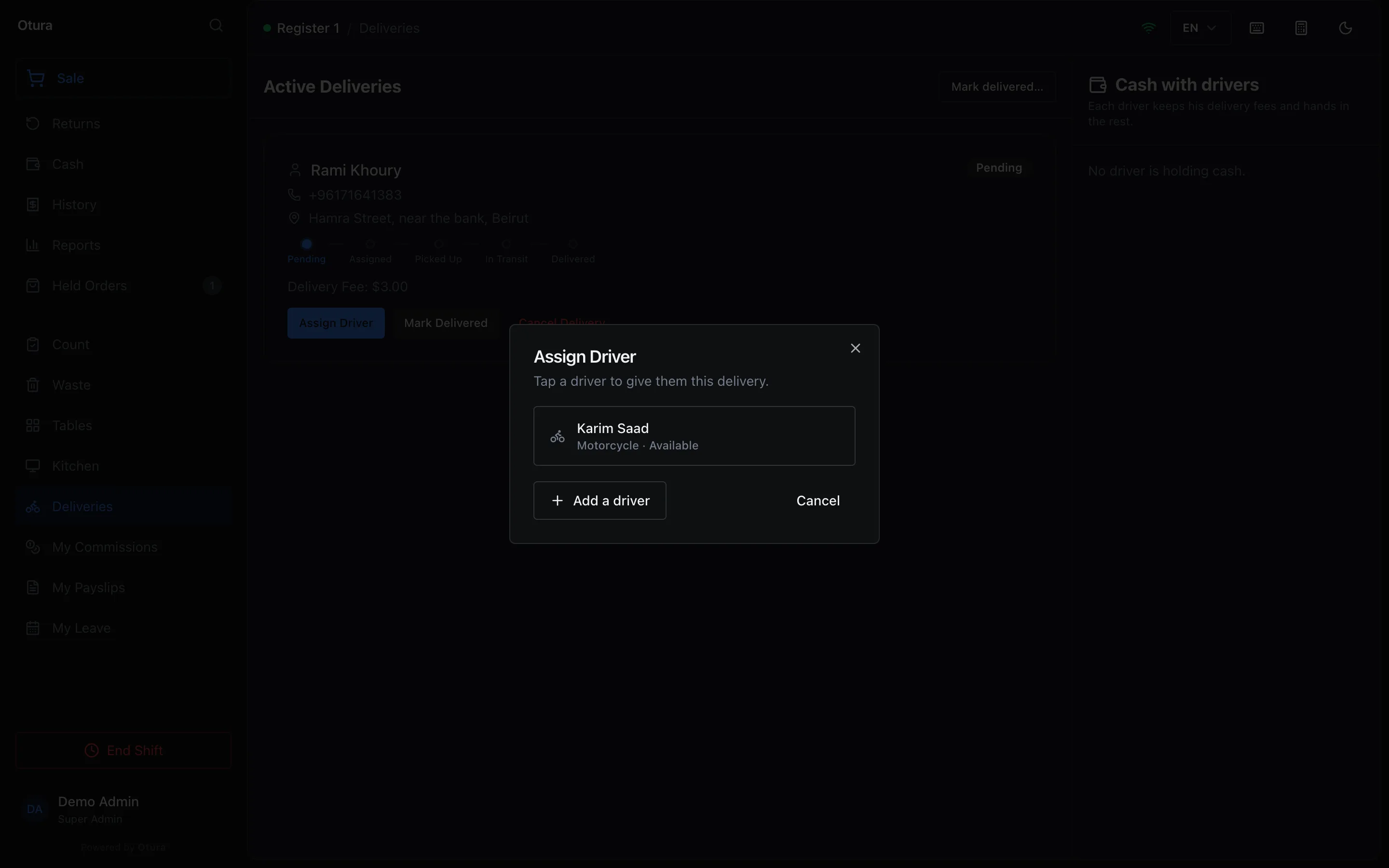
On the till's Deliveries screen, Assign Driver lists the drivers who are available or already out on a delivery — one already out reads, for example, On delivery (1) — so a driver can carry several deliveries on one run. Offline drivers are not listed. Tap the driver: the delivery is theirs at once, two presses from the board. When no driver can take it, someone allowed to add drivers is offered Add a driver there and then; anyone else is told to ask a driver to go available, or a manager to add one. Once a driver has it, the delivery's card names them, for example Driver: Karim Saad, and Give to another driver opens the same list. If the assignment is refused — another driver took it a moment before — the till says so.
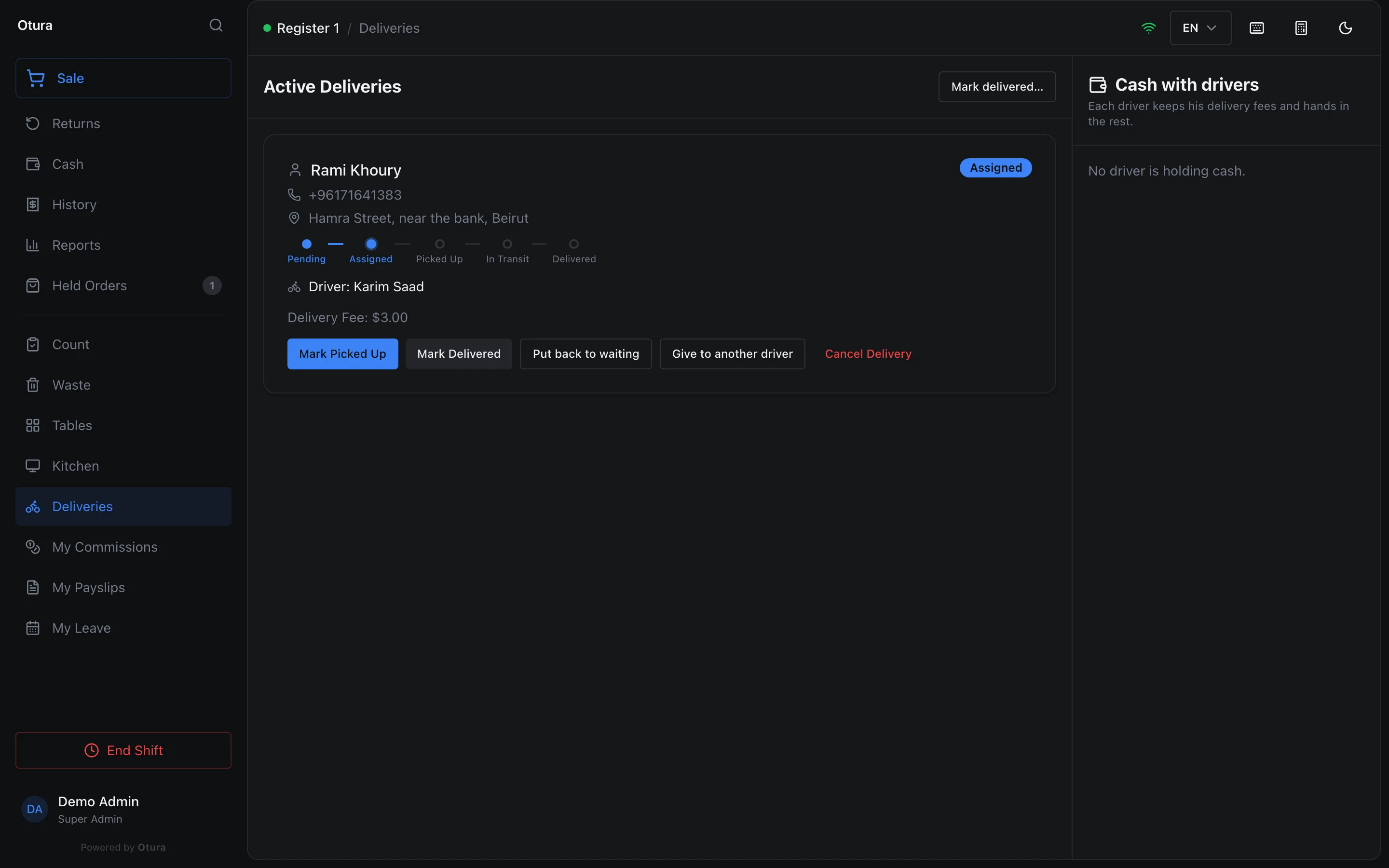
If a driver who has a delivery cannot go, press Put back to waiting on its card on the till's Deliveries screen. This works only while it is Assigned — before the driver has picked it up. The delivery goes back to waiting with no driver, the driver is available again unless they still have another delivery, and the drivers who may take deliveries are alerted again; then you assign it, or a driver takes it. A driver who tries to cancel is told Ask the shop to cancel this delivery, or to put it back to waiting if you have not picked it up.
Assigning a driver and putting a delivery back to waiting need Assign drivers, and marking it on needs Update delivery status.
| Standard role | Delivery permissions |
|---|---|
| Cashier | View deliveries, Create deliveries |
| Supervisor and Admin | View deliveries, Create deliveries, Assign drivers, Update delivery status, Change a delivery fee |
| Super Admin | Every permission |
| Delivery Driver | View deliveries, Update delivery status — limited to what a driver reaches, as above |
So a cashier rings a delivery and sees the deliveries; a supervisor dispatches it. Businesses that existed before this change get the same grants when Otura is updated. The update adds only these permissions, only to the Cashier, Supervisor, Admin and Super Admin roles, and changes nothing else: a permission you took away from a role earlier stays away, and roles you made yourself are not touched. Take waiting deliveries is never given by default — see The drivers app.
A delivery only moves forward: Pending, Assigned, Picked Up, In Transit, Delivered. A delivered or cancelled delivery stays as it is — goods sent back after delivery are a return of the sale at the till. A driver who still has a delivery in hand cannot be removed: This driver still has 1 delivery in hand. Give them to another driver, or put them back to waiting, before removing the driver.
In the back office, the Delivery icon in the side rail opens an overview that counts the open deliveries — waiting for a driver, and with a driver — and the cash with drivers: what the drivers still owe the drawers, net of the fees they keep, and on how many deliveries.
Drivers take turns
Where drivers keep the fee, they race for deliveries. A drivers queue gives them a fair turn order instead: a driver who comes back joins the end, and the next delivery goes to the driver at the front. It is off until you turn it on in DeliveryDelivery, under Drivers take turns, below the driver's-fee switch:
| Setting | What happens |
|---|---|
| Off | As before: any driver can be given any delivery, and drivers take waiting deliveries themselves. |
| Suggest the next driver | Drivers queue as they come back. Assign Driver lists the queue first, in order, the front driver marked Next. Giving the delivery to anyone else asks why. |
| Give it automatically | The same, and each waiting delivery goes to the driver at the front by itself: when the sale is rung, when a delivery is put back to waiting, or when a driver comes back while one is waiting. |
A driver comes back
The driver taps I'm back in the drivers app, or someone at the till taps the driver's name under Back from a delivery? Put them at the end: in the Drivers queue on the Deliveries screen. Either way they go to the end; tapping again does not move them. An offline driver who comes back is made available.The next delivery goes to the front
The queue shows who is next, then the order behind them, each with the time they came back (Back at 20:15). With Give it automatically, only the front driver is sent the notification Your turn: a delivery for you; with Suggest the next driver, the front driver is told Delivery waiting: you are next.A driver given a delivery leaves the queue
They rejoin when they are back. A driver who goes offline, is taken out with the cross beside their name, or is removed leaves it too.
Passing a driver over. Sometimes the order must go to someone else. Tap that driver in Assign Driver: the till asks, for example, Karim is next in the queue. Why does this delivery go to Rami?, and Give it to Rami stays off until you type a reason. The reason is recorded in the activity log against the driver passed over (Driver passed over in the queue), with who gave the delivery and to whom, and Karim stays at the front. The same goes for Give to another driver. If the delivery is moved to someone else before its driver left with it, that driver goes back to the front: they never had their run.
With the queue on, a driver takes a waiting delivery themselves only in turn. Anyone else is told It is Karim's turn. You get the next delivery when you reach the front of the queue., and a driver who is not in the queue Tap I'm back to join the drivers queue, then take the delivery when it is your turn.
Putting a driver in the queue and taking one out need Assign drivers; a driver's own I'm back needs Update delivery status, which every driver has. Joining, leaving and passing over are all in the activity log.
Without a connection, the till keeps showing the last queue it read and says No connection: this is the queue as of 20:15. It cannot change until the till reconnects. Its buttons are off until then.
Marking a cash-on-delivery order delivered at the till
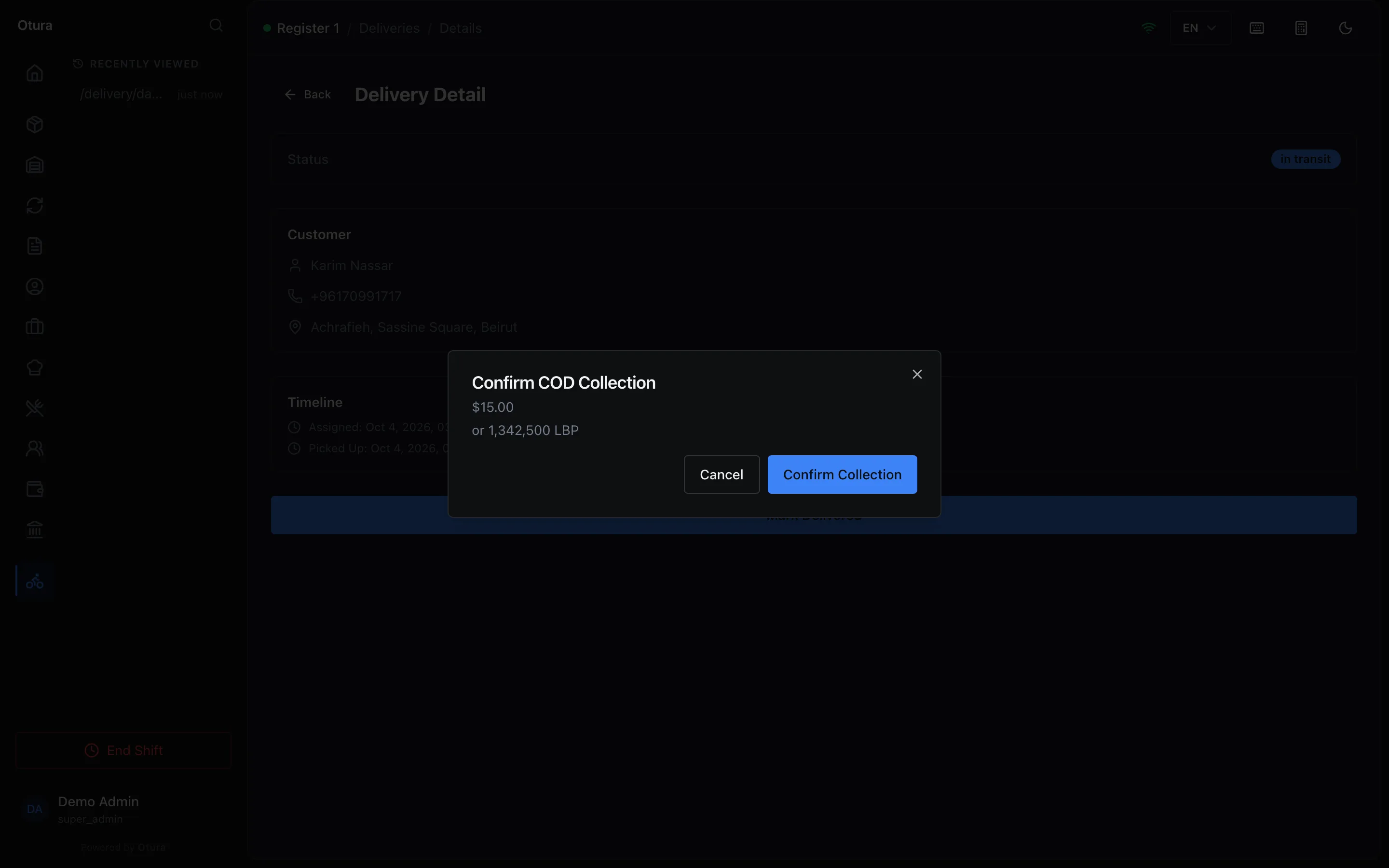
On the till, a delivery's page (Deliveries, then the delivery) steps it through Mark Picked Up, Mark In Transit and Mark Delivered. Mark Delivered asks Confirm COD Collection with the amount the customer owes: the dollar amount, and under it the same amount in lira, for example $15.00 or 1,342,500 LBP. It is one debt the customer settles in either currency — not dollars plus lira. Confirm Collection records the cash as collected.
If your drivers keep the fee
Many restaurants let the driver keep the delivery fee as their pay for the delivery. Otura can work that way: the driver keeps the fee from the cash they collect and hands the rest in at a till.
Turn it on
In DeliveryDelivery, turn on The delivery fee is paid to the driver. It changes only deliveries marked delivered after you turn it on.
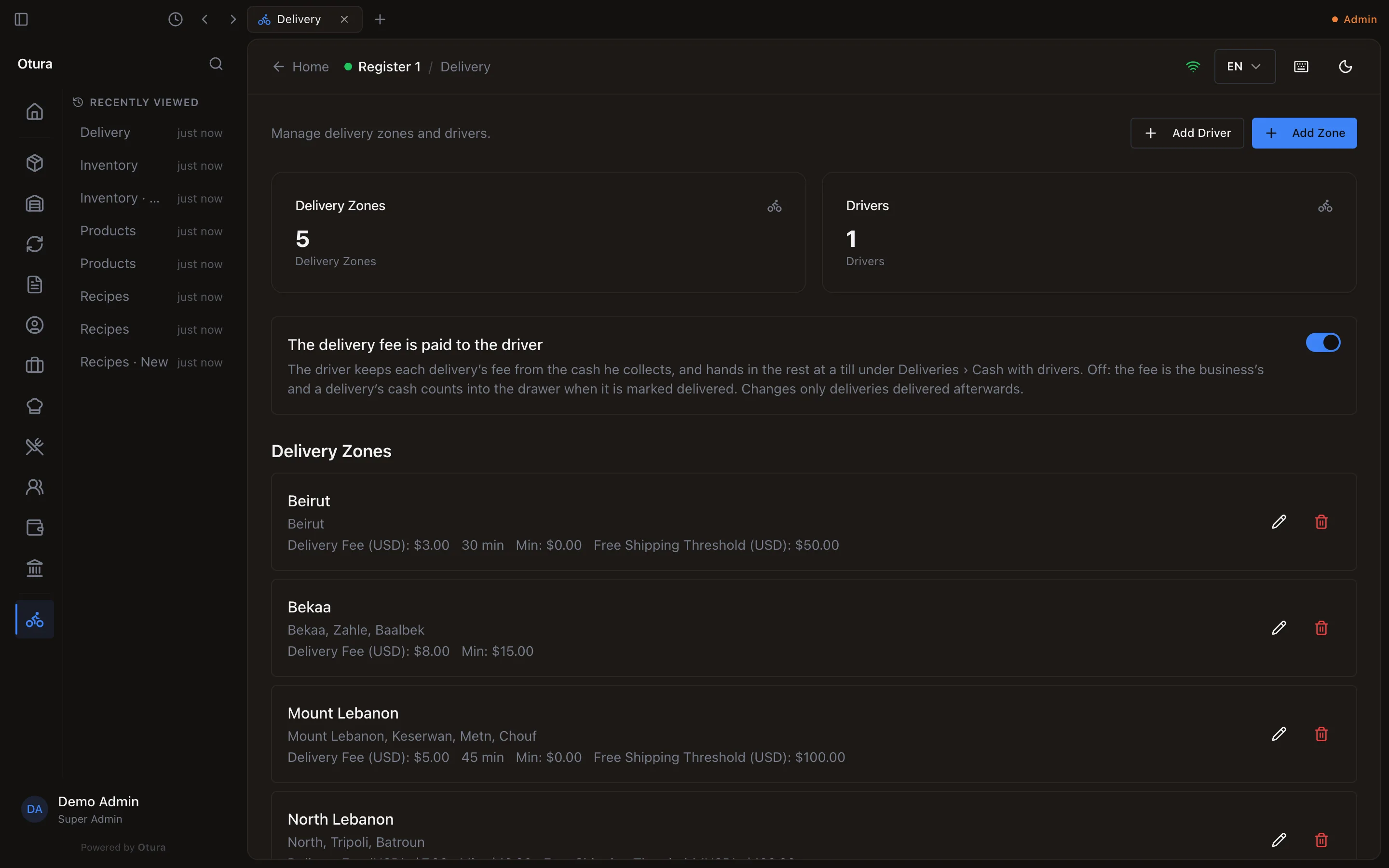
Delivery: the switch, on. The driver delivers
When the order is marked Delivered, the cash is still with the driver, so the till does not count it into the drawer yet. The order waits for its hand-in.
They hand in the cash
On the till, open Deliveries. The Cash with drivers panel lists the deliveries waiting, under each driver's name: what each customer paid them, the fee kept, and what they owe the drawer. Take the cash and press Receive — for example Receive $20.00 for a $23.00 order with a $3.00 fee. All of that driver's waiting deliveries are received at once, into this till's open shift.
Once the till has recorded the hand-in, the drawer opens and the till says Handed in 1 delivery: $20.00 into the drawer. Put the cash away; there is no need for No Sale. The hand-in is the record of that drawer opening, so it is not counted under Drawer opened without a sale.
A delivery the customer already paid for at the till (by card, or cash at the counter) has no cash to hand in, so the driver is owed their fee: the button reads Pay $3.00 to the driver, and the fee comes out of the drawer. The drawer opens, and the till says Handed in 1 delivery: $3.00 from the drawer to the driver.
When the fees a driver keeps come to exactly the cash they collected, no cash changes hands: the drawer stays shut, and the till says Handed in 1 delivery: no cash to receive or pay. The amount in the message is what this press handed in. If another till received one of the deliveries a moment earlier, it is left out.
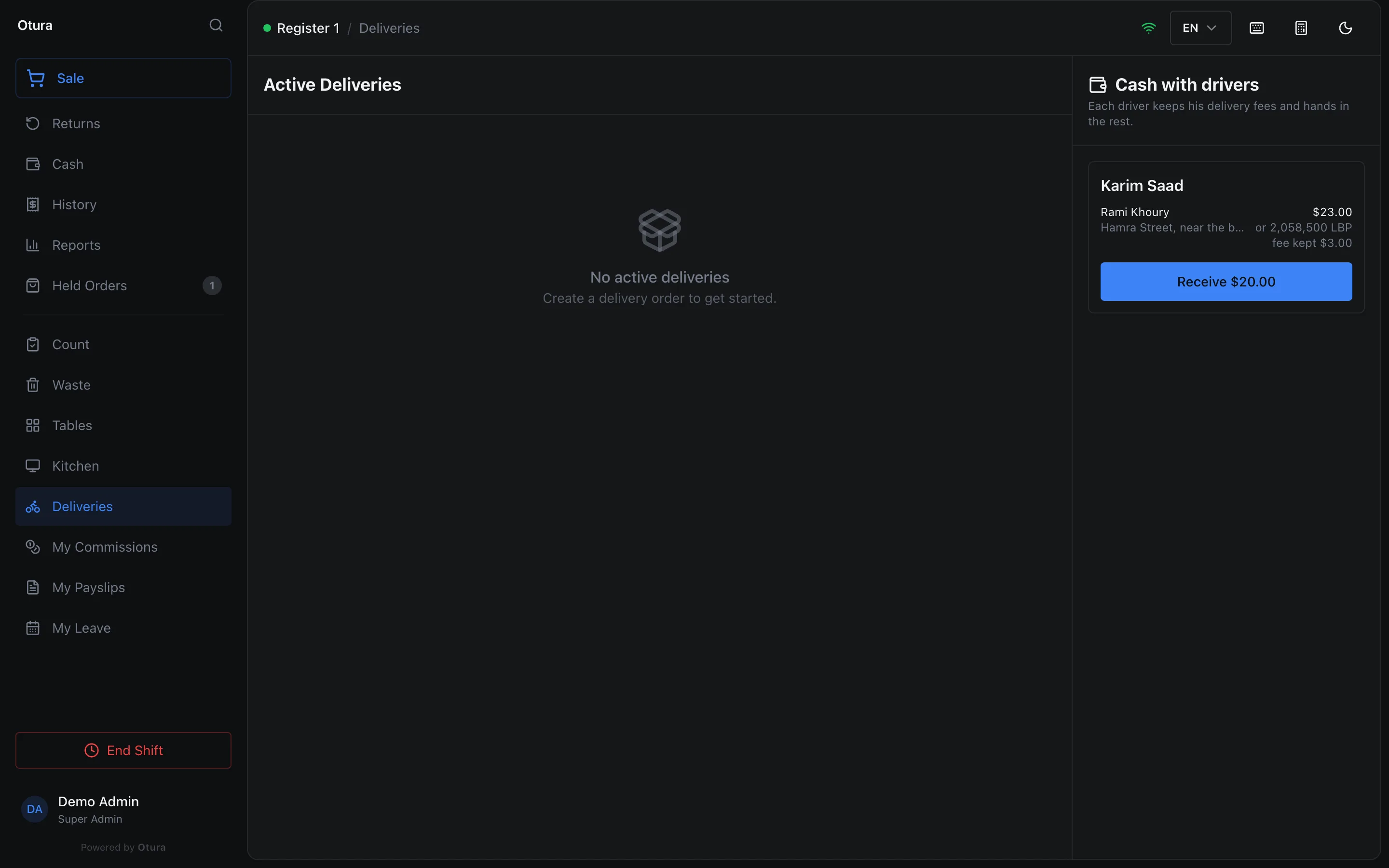
Under each delivery's dollar figure the panel shows what it comes to in lira at the order's own exchange rate — or 2,058,500 LBP — for a driver who was paid in lira. The figure is exact: the payment screen may have quoted the customer a rounded lira amount (LBP 2,060,000 for $23.00), so a driver paid that can hand in a little more than the panel shows.
What the hand-in does to your books and your drawer
| Effect | |
|---|---|
| Drawer | The shift expects the cash handed in, less the driver’s fee. The drawer’s lines (on the Shift Summary at the close, the X report and the Closing Session report) show it as two: Driver hand-ins, the cash on delivery the driver brought, and Delivery fees kept by drivers, the fee they kept of it. |
| Cash account | The cash goes to this till’s own cash box, if it has one. |
| Driver’s fee | Booked as 6900 Shipping Expense: what the delivery cost you. |
| Customer’s debt | The cash on delivery owed by the customer is settled in full. |
The journal entries name the driver: the hand-in is Delivery hand-in by Karim Saad, its expense line Delivery fee kept by Karim Saad, and cash a driver collects for a delivery that goes straight to the drawer is COD collected by Karim Saad.
If the sale is voided or refunded
| What happens | |
|---|---|
| Voided after the hand-in | The drawer pays back what the hand-in brought in: the cash on delivery less the driver’s fee, as a cash refund on the open shift of the sale’s till. The driver gives his fee back, so it leaves Delivery fees kept by drivers and his Fees earned, and the books undo the hand-in. With no shift open on that till, the void is refused. |
| Voided before the hand-in | The delivery is cancelled and leaves Cash with drivers: there is nothing to hand in for a sale that no longer stands. A voided sale’s delivery can only be cancelled: marking it delivered is refused (“Sale … was voided, so this delivery can only be cancelled.”), and so is receiving cash for it (“Sale … was voided: there is no cash to hand in for it. Give the cash back to the customer.”). |
| Items refunded after the cash came in | The customer is paid back in cash from the drawer of the till that refunds, as for a cash sale. The driver keeps his fee: it stays what the delivery cost you. |
| Items refunded before the cash came in | The refund comes off what the customer owes. No cash leaves the drawer. |
On the sale
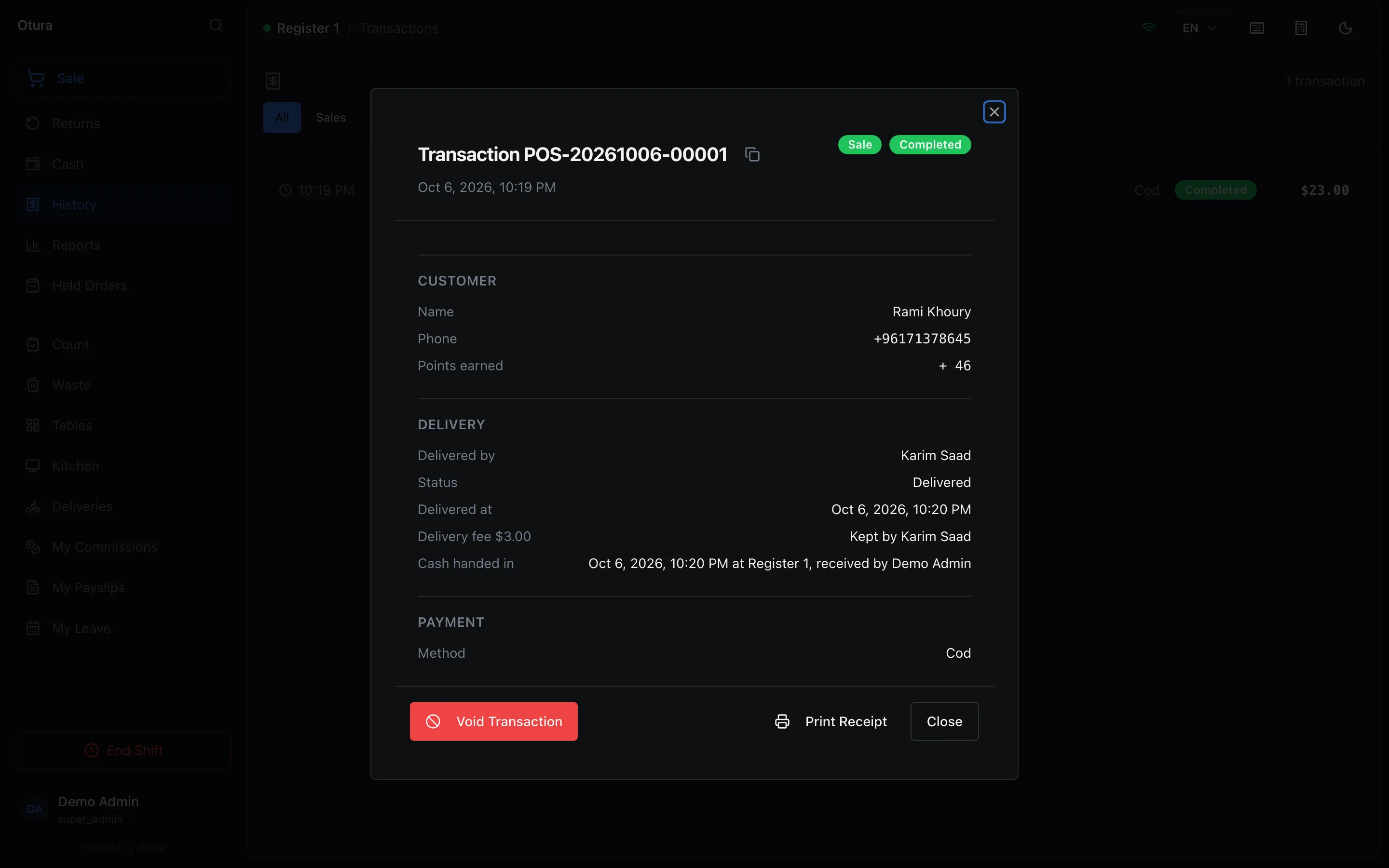
Opening a delivery's sale (the till's History, or StoreTransactions) shows a Delivery section: Delivered by, the Status and when it was delivered, the Delivery fee and whose it was — Kept by the driver, or To the business (shipping revenue) — and, if the driver keeps the fee, when the cash was handed in, at which till and to whom (Not yet: the driver still holds it until then). See A delivery in History.
Reports
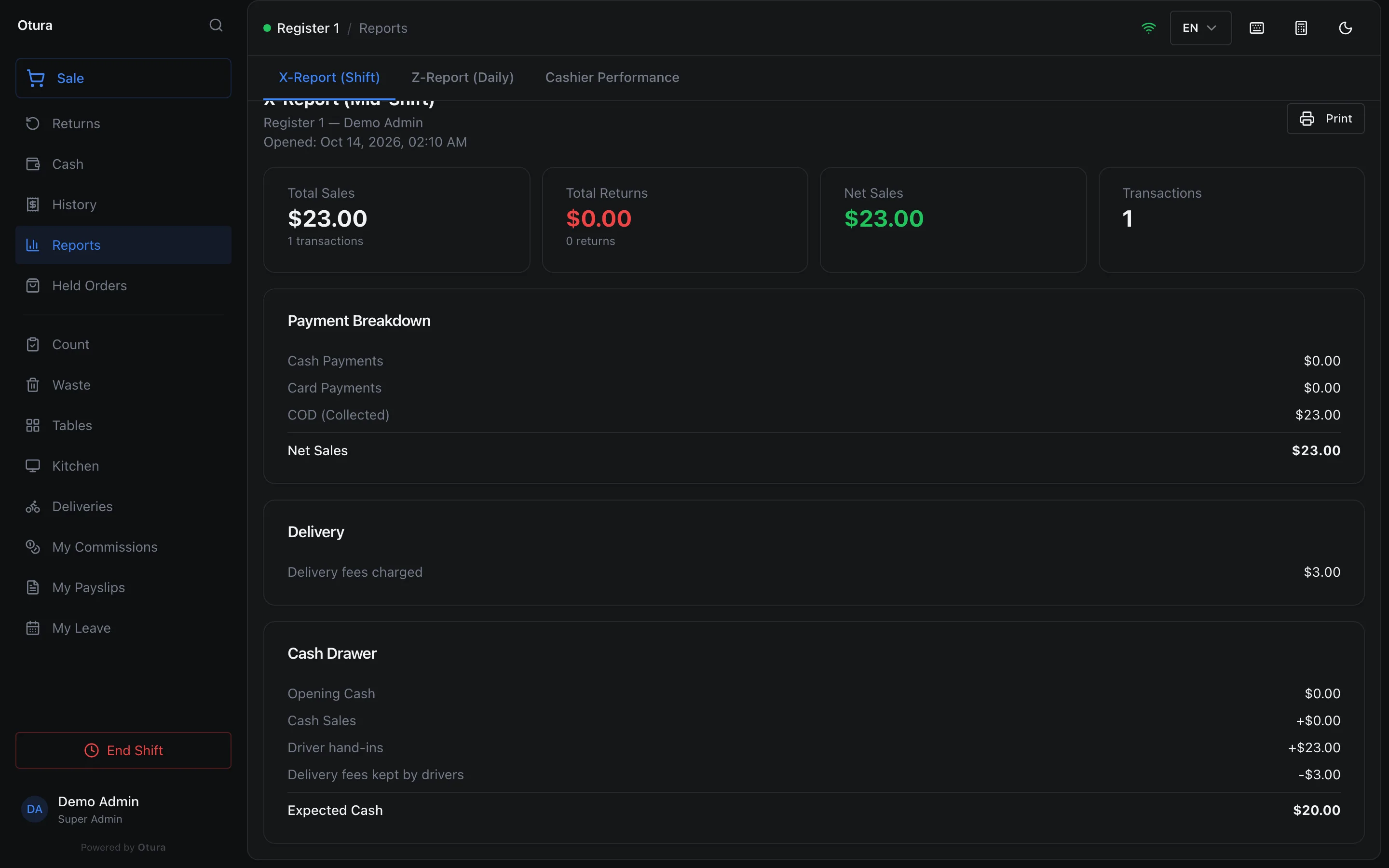
The X report (a shift) and the Z report (the day), on screen and on paper, have a Delivery section whenever there was a delivery fee: the Delivery fees charged on the sales. The Z report also shows the Delivery fees kept by drivers at the day's hand-ins; on the X report they are a line of its Cash Drawer instead.
On the X report a delivery's cash shows in two places, and they answer different questions:
| Where | What it is |
|---|---|
| Payment Breakdown: COD (Collected) and COD (Pending Collection) | Cash on delivery on this shift’s own sales: what has come in (at the door, or at the driver’s hand-in) and what is still to come. With Cash Payments, Card Payments and the rest, they add up to the Net Sales the section ends on. |
| Cash Drawer: Driver hand-ins and Delivery fees kept by drivers | The cash drivers handed in at this till during this shift, for this shift’s deliveries or another shift’s, and the fees they kept of it. With the float and the cash sales, they add up to Expected Cash. |
| Cash Drawer: Hand-ins of voided sales | Cash handed in at this shift for a sale that was voided afterwards: what came into the drawer for it, the cash on delivery less the driver’s fee. The void paid it out again, so it shows under Cash Refunds on the shift that was open at the void, and is not in Driver hand-ins or the fees kept. |
So Expected Cash is not Net Sales, by design. It leaves out card sales and cash still with a driver, takes the drivers' fees off, and counts the float and any cash handed in for another shift's deliveries. The Shift Summary at the close shows the same Payment Breakdown.
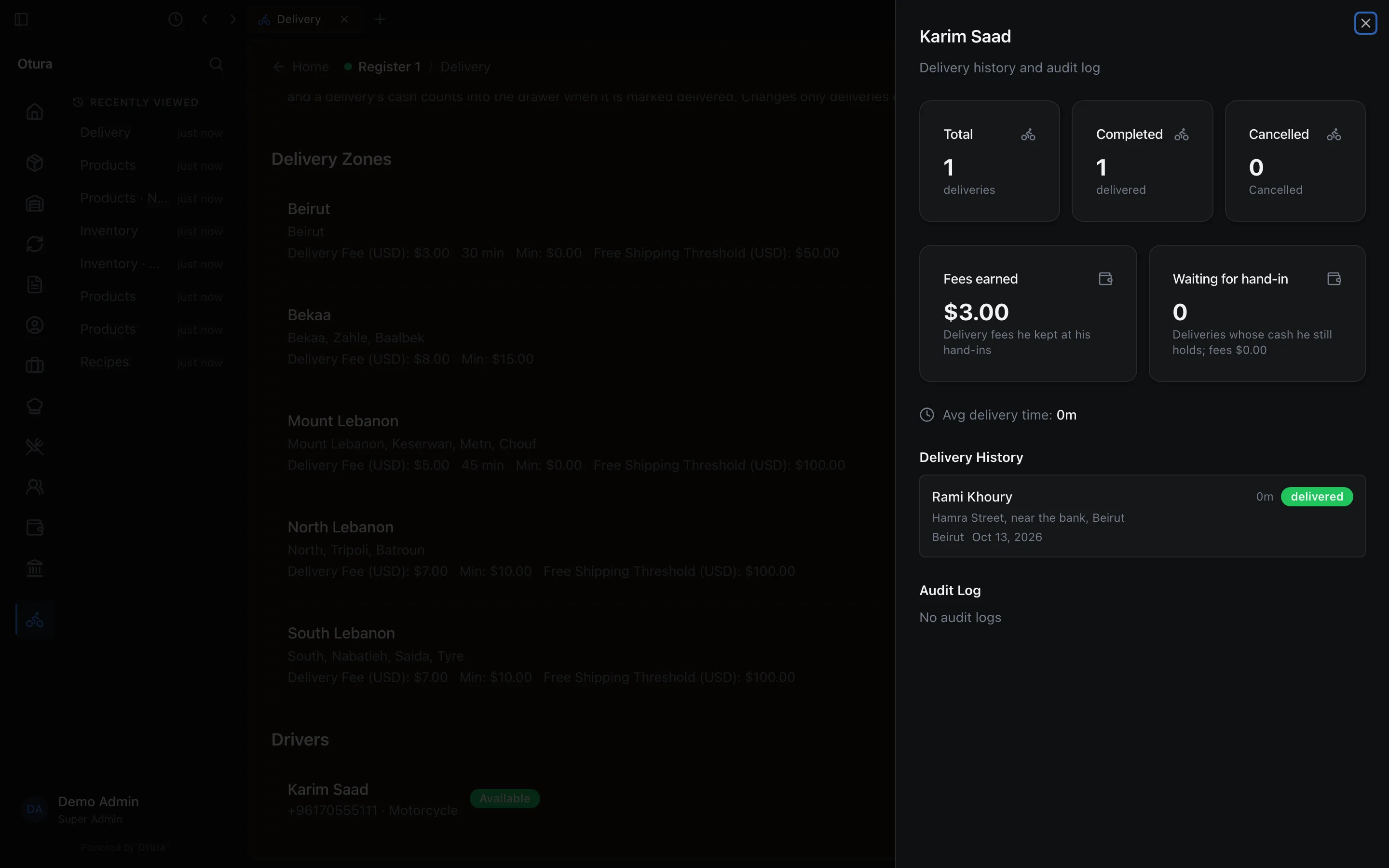
On the DeliveryDelivery page, a driver's Delivery History button (the clock) shows their Fees earned — the fees they kept at their hand-ins — and how many deliveries are Waiting for hand-in, with their fees.