Receipt settings
What prints on a customer receipt and in what order: the sections you switch on and off, header and footer lines, paper width, the second currency on each line and on the total, and why a receipt keeps the settings of its day.
Checked against the product on 20 October 2026
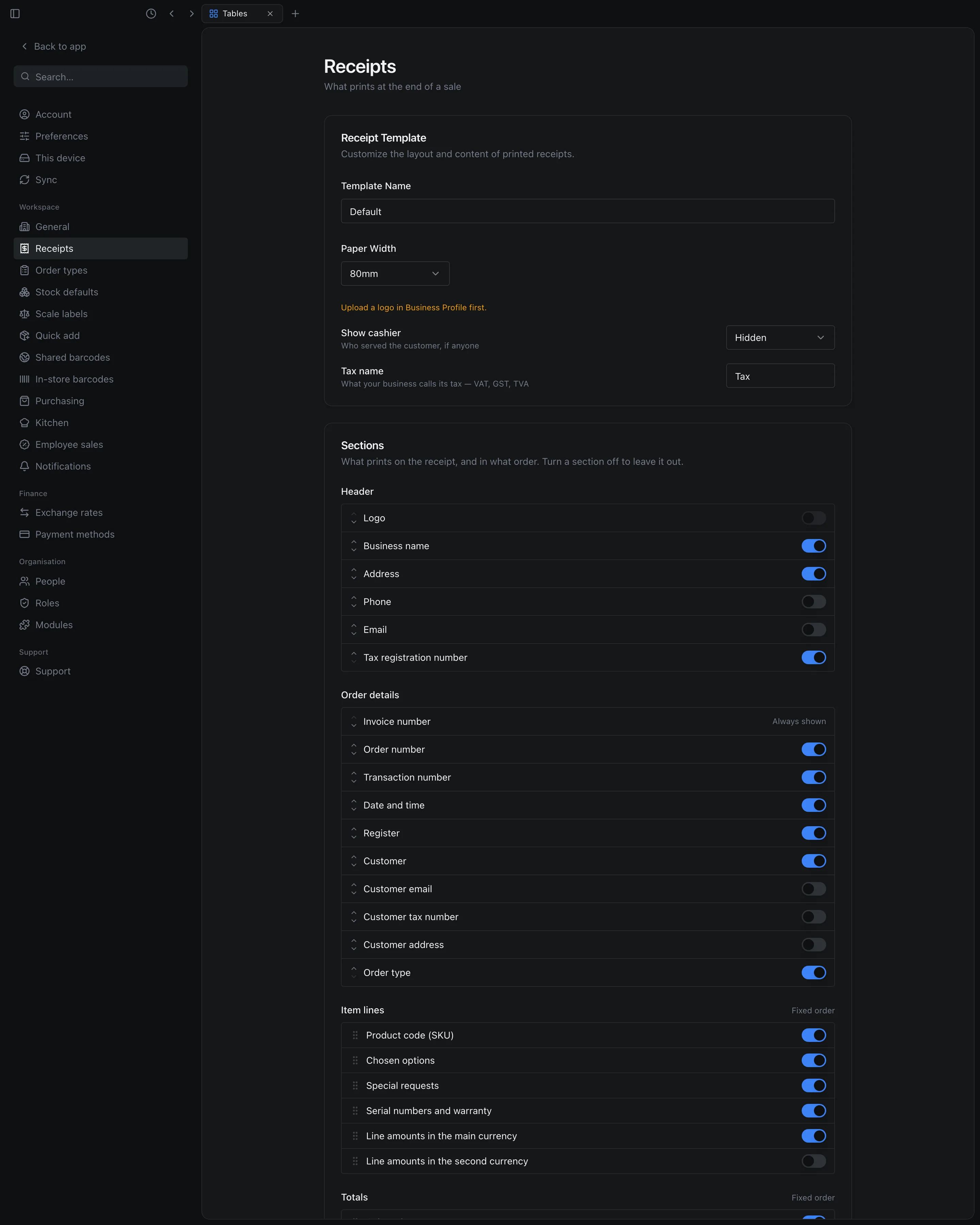
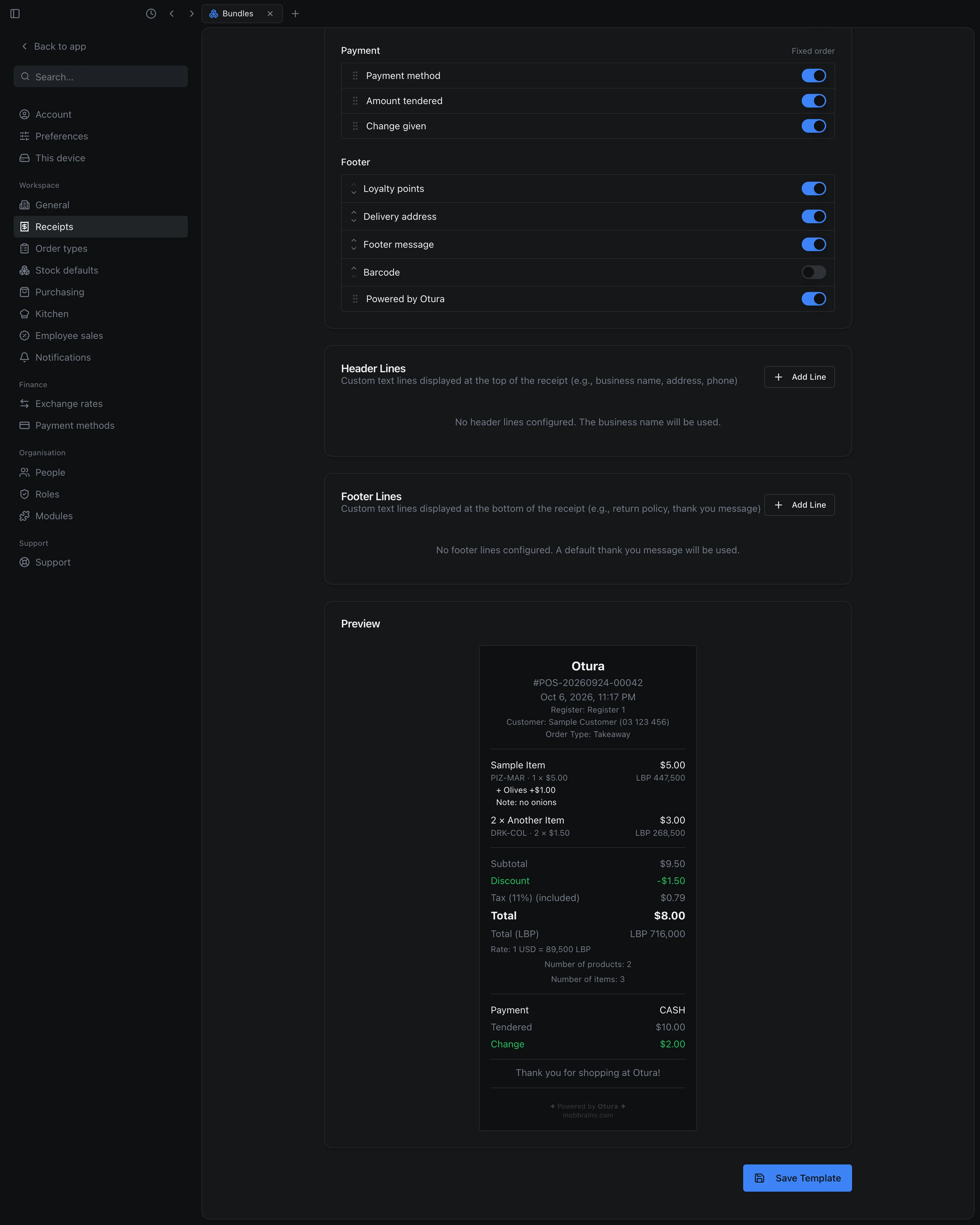
The receipt a customer gets is laid out in SettingsWorkspaceReceipts. Each part of it is a section you can switch on or off, and some can be moved up or down. The preview at the bottom of the page is the receipt itself, with sample items, and it changes as you edit.
Receipt Template
| Setting | What it does |
|---|---|
| Template Name | A name for your own reference: 1 to 100 characters. It does not print. |
| Paper Width | 58mm or 80mm, the width of your receipt printer’s roll. On a thermal printer, 32 or 48 characters to a line. Starts at 80mm. |
| Logo size | Small, Medium or Large: how big the logo prints. Shown when the Logo section is on and a logo has been uploaded in the Business Profile; without a logo the page says “Upload a logo in Business Profile first.” |
| Show cashier | Hidden (the default) prints no cashier; Name prints the register and who served the customer. |
| Tax name | What your business calls its tax, for example VAT, GST or TVA: up to 24 characters. It names the tax line, for example “VAT (11%) (included)”. |
Sections
Sections lists every part of the receipt in six groups, in the order they print. Turn a switch off to leave that part out. In Header, Order details and Footer, the arrows move a section up or down within its group. Item lines, Totals and Payment say Fixed order. The Invoice number and the Total cannot be switched off (Always shown; see Invoice numbers), and Powered by Otura always prints last.
Invoice number: always shown
Invoice number, the first section of Order details, has no switch: it says Always shown. Every sale's receipt prints Invoice No. and its number, for example Invoice No. INV-000123, and the paper of a return or a void prints Credit note No. and its number, for example Credit note No. CN-000045. Its arrows move it within Order details, like the other sections there. The preview shows it with the sample number INV-000123.
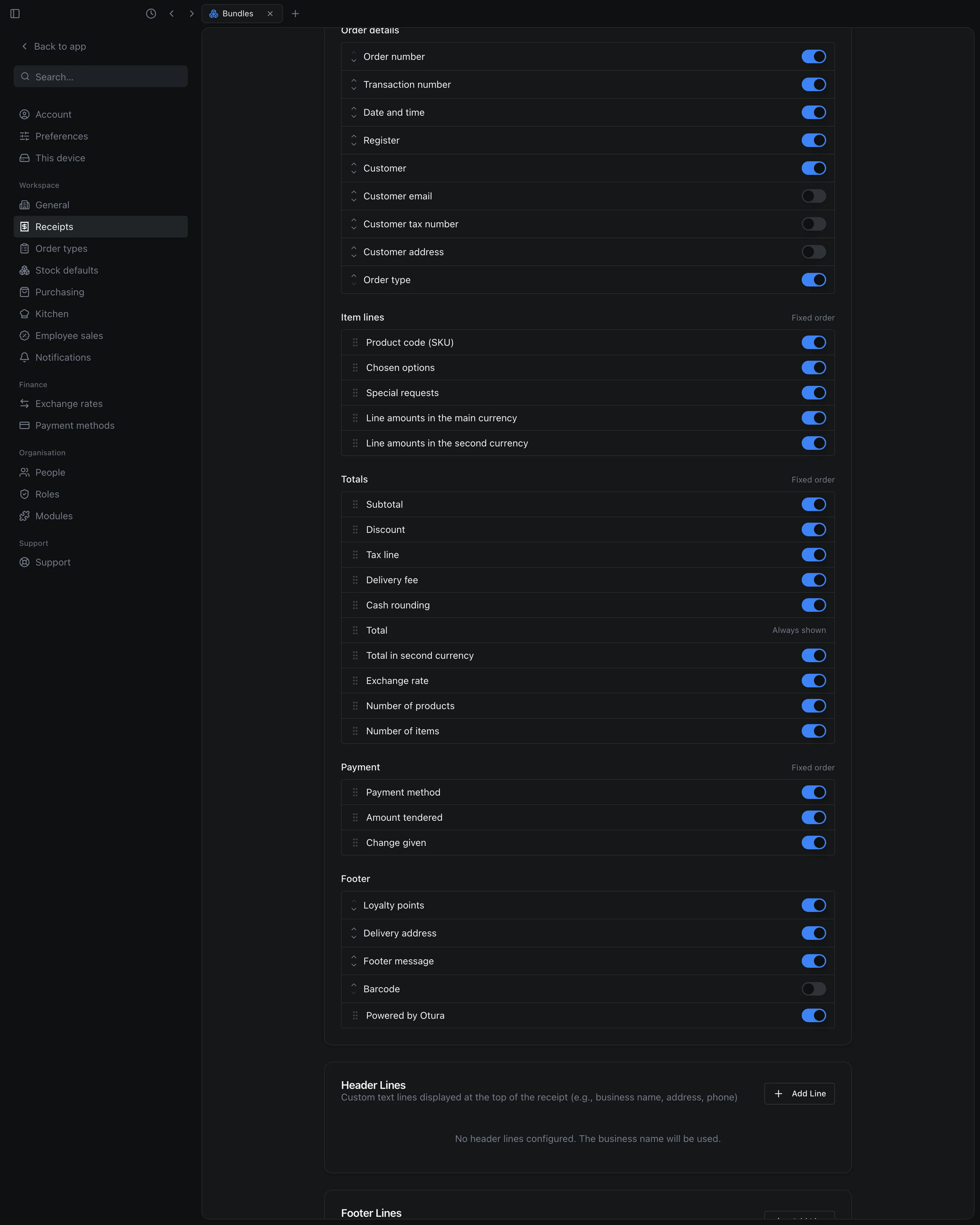
| Group | Sections, and how they start |
|---|---|
| Header | Logo, Business name, Address, Tax registration number: on. Phone, Email: off. |
| Order details | Invoice number (always shown, first), Order number, Transaction number, Date and time, Register, Customer, Order type: on. Customer email, Customer tax number, Customer address: off. |
| Item lines | Product code (SKU), Chosen options, Special requests, Serial numbers and warranty, Line amounts in the main currency: on. Line amounts in the second currency: off. |
| Totals | Subtotal, Discount, Tax line, Delivery fee, Cash rounding, Total, Total in second currency, Exchange rate, Number of products, Number of items: all on. |
| Payment | Payment method, Amount tendered, Change given: on. |
| Footer | Loyalty points, Delivery address, Footer message, Powered by Otura: on. Barcode: off. |
- Discount, Delivery fee and Cash rounding print only on a sale that has one.
- On a delivery, the customer's phone prints right under the Delivery address, in large bold figures, so the driver and the kitchen find it at a glance; the Customer line at the top then shows the name alone. It prints only while both Customer and Delivery address are on, and in Arabic too it reads left to right, as it is dialled (for example 70 888 777).
- Number of products counts the rows printed: a deal is one row, however many items it holds. Number of items adds up the quantities, so 2 of one and 1 of another make 3.
- Barcode prints the sale's number as a barcode. Scanning it on the Returns screen finds the sale.
Dollars, lira, or both
Line amounts in the main currency and Line amounts in the second currency decide how each item's amount is written: in dollars, in lira, or both side by side. If both are off, the line still shows its dollar amount. They change only the lines, never the totals.
Total in second currency (the Total (LBP) line) and Exchange rate (Rate: 1 USD = 89,500 LBP) are separate switches. The lira total is the sale's, rounded to your cash step, as the cart quoted it (see The lira total).
Header Lines and Footer Lines
Add Line adds a line of your own text; the arrows move it and the bin removes it. Up to 10 lines each, of up to 200 characters. Empty lines are dropped when you save.
- Header lines print instead of the business name, the first one as the heading. They are printed by the Business name section, so switching that off hides them too. With no header lines, the page says No header lines configured. The business name will be used.
- Footer lines print instead of Thank you for shopping at …!, through the Footer message section.
Saving
Check the preview
The preview shows your changes before they are saved.
Save Template
Press Save Template at the bottom of the page. The till says Receipt template saved. Receipts rung up from then on use it.
A receipt keeps the settings of its day
When a sale is rung up, Otura keeps a copy of what its receipt needs: these receipt settings, the business name, logo, address and tax number, the tax name and rate, the register's and cashier's names, and the customer's details. Printing the sale again later, with F6 or Print Receipt in History, uses that copy. So changing a setting, renaming the business or a register never rewrites a receipt already handed over.
Some things are read again when a receipt is printed again:
- the cash rounding rule, so the lira total follows today's cash step;
- the customer's loyalty points;
- the till's USD | LBP switch, as it is set when you reprint.
Where it prints
In the Otura desktop app with a receipt printer set up, receipts print on it, at the paper width chosen here. In a web browser, printing opens the browser's print window. See Printers.